Vorofx - Procedural Fracturing
 AlbertoFX
VoroFX
Procedural Fracturing for Blender
Everything you need to create procedural fractures, convert them into managed shards, configure rigid body physics, and build breakable destruction setups with VoroFX.
Contents
Installation
Install VoroFX like a standard Blender add-on.
2. Open Edit → Preferences → Add-ons.
3. Choose the option to install an add-on from disk.
4. Select the VoroFX add-on file.
5. Enable VoroFX if necessary.
6. Return to the 3D Viewport.
The VoroFX interface is available from the 3D Viewport Sidebar(N).
Your First Destruction Setup
Creating a Procedural Fracture
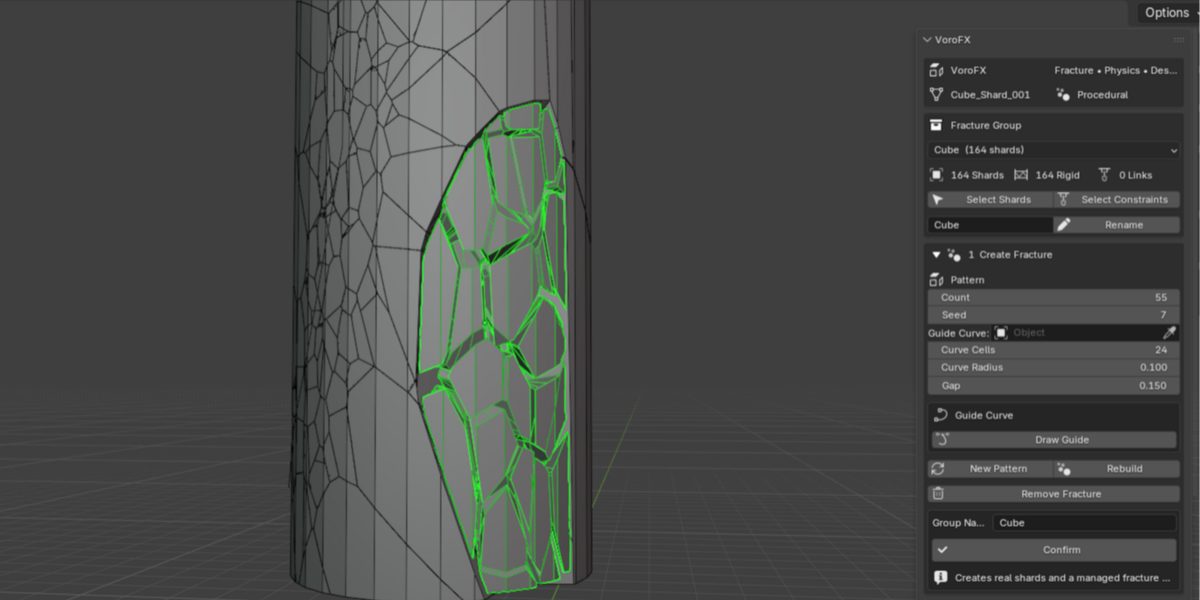
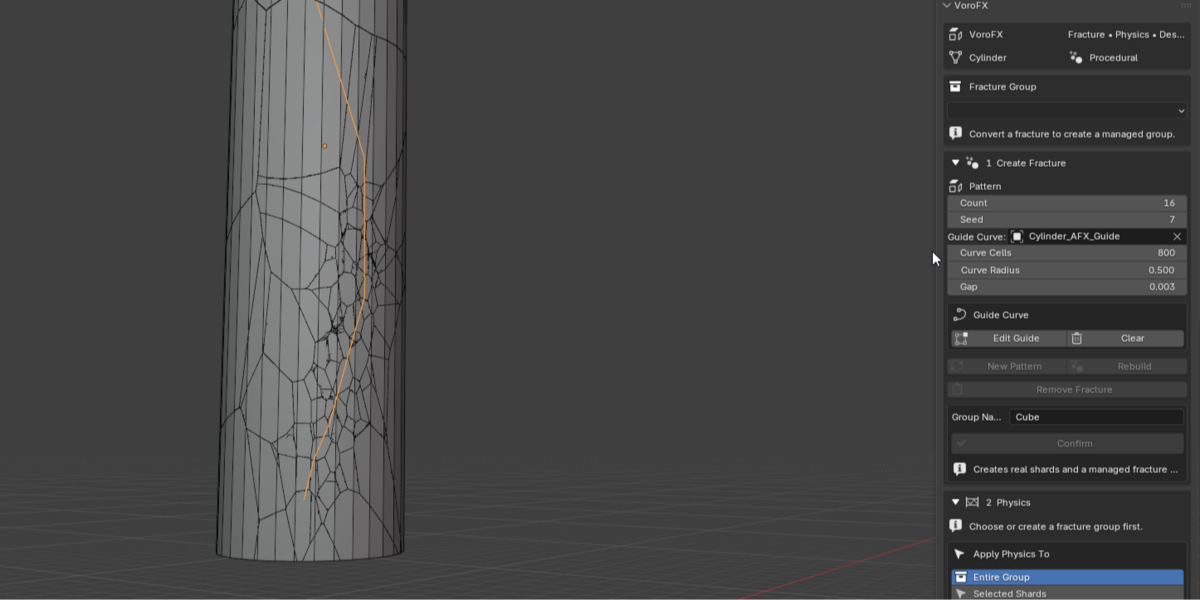
Select the mesh you want to fracture and press Create Procedural Fracture.
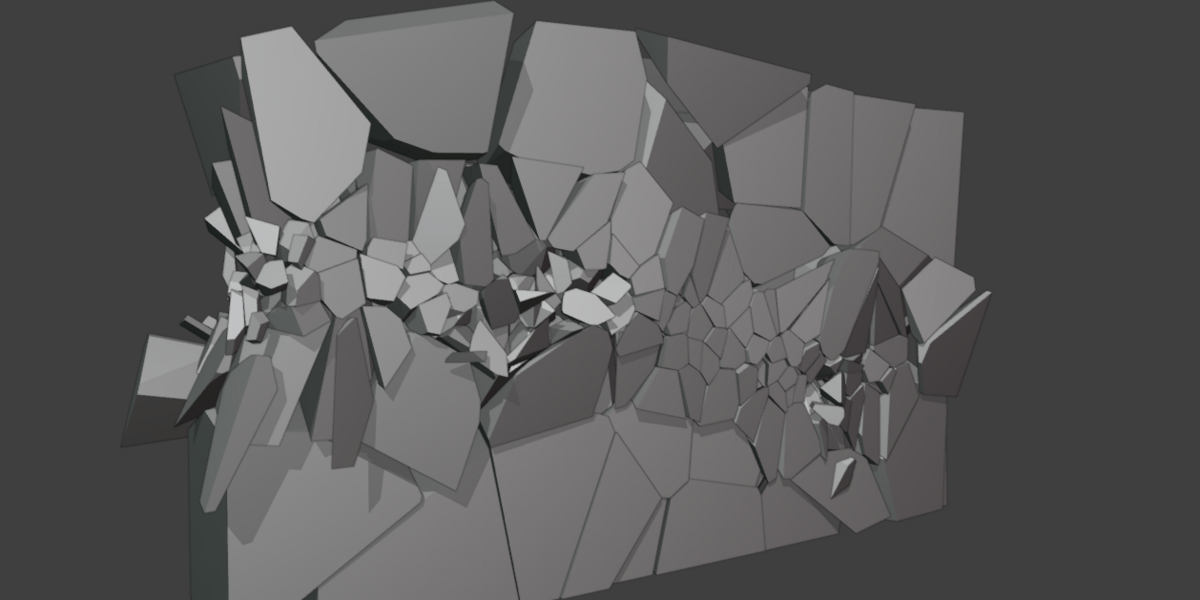
VoroFX creates the fracture procedurally using Geometry Nodes. At this stage the result has not yet been converted into separate objects.
Fracture Controls
Use the fracture controls to shape the procedural result before confirmation.
Generate another fracture pattern without leaving the VoroFX workflow.
Rebuild the procedural fracture setup when needed.
Remove the procedural fracture setup before it has been confirmed.
Guide Curves
Guide Curves let you influence where additional fracture detail is concentrated.
Instead of increasing detail across the entire mesh, use a curve to direct the fracture toward the area that matters.
Edit Guide — Modify the existing curve.
Finish Guide — Finish editing and return to the fracture workflow.
Clear Guide — Remove the current guide.
✓ Confirm
Once the procedural fracture looks the way you want, enter a Group Name and press Confirm.
Confirm changes the fracture from a procedural setup into real individual shard objects that can participate in Blender physics.
✓ Separates loose pieces
✓ Creates individual shard objects
✓ Sets shard origins
✓ Creates a managed VoroFX group
Fracture Groups
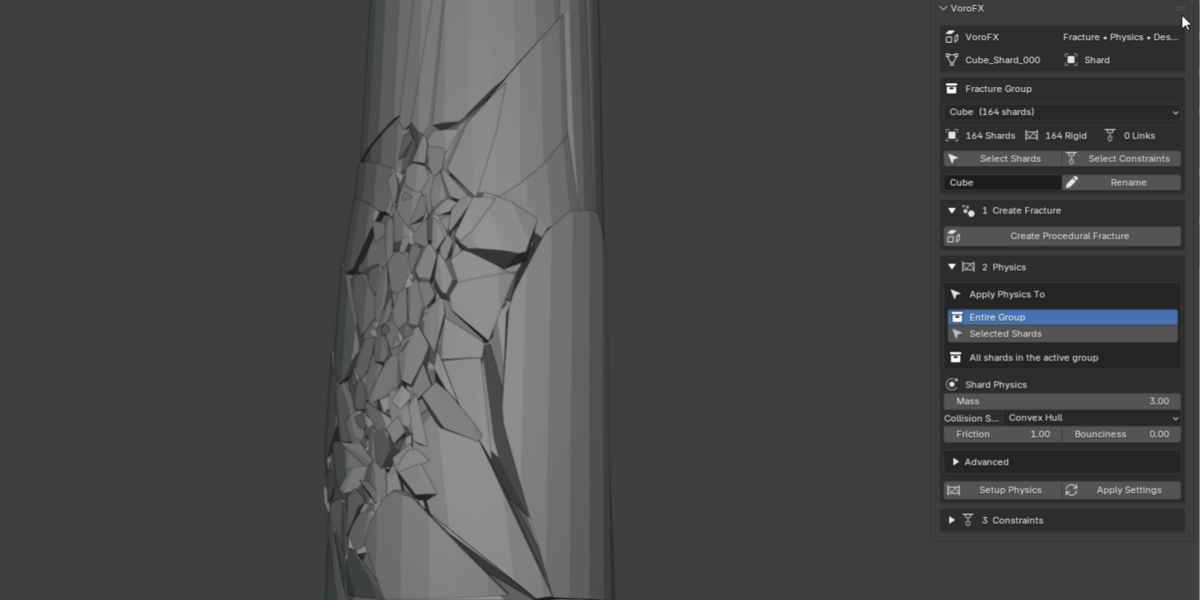
Confirmed shards are registered as a managed VoroFX fracture group. Groups make it easier to work with multiple destruction setups in one scene.
• View shard count
• View rigid body count
• View constraint count
• Select all group shards
• Select group constraints
• Rename the group
Rigid Body Physics
VoroFX uses Blender's rigid body system for confirmed shards.
Apply Physics To
Setup or update physics on every shard belonging to the active fracture group.
Setup or update physics only on the VoroFX shards currently selected.
Basic Physics
Collision Shape — Shape used for rigid body collision.
Friction — Resistance when shards slide against surfaces.
Bounciness — Controls restitution during impacts.
Advanced Physics
Angular Damping
Enable Deactivation
Start Deactivated
Collision Margin
Rigid Body Constraints
Constraints connect rigid-body shards together, allowing an object to remain assembled until enough force causes its connections to break.
Generate Constraints For
Build constraints between rigid-body shards in the active VoroFX group.
Build connections only between selected rigid-body shards.
Constraint Settings
Select the Blender rigid body constraint type.
Connection Distance
Controls how far apart shards may be before VoroFX considers them for a connection.
Max Neighbors / Shard
Limits how many generated connections each shard can receive.
Breakable
Allows generated connections to break during the simulation.
Breaking Threshold
Controls the breaking threshold used by the generated constraints.
Disable Linked Collisions
Controls collisions between shards directly connected by a constraint.
Constraint Helper Display
Constraint helpers can be customized independently from their underlying Bullet constraint behavior.
Axes, Arrows, Single Arrow, Circle, Cube, Sphere or Cone.
Display Size
Adjust the viewport size of the helper.
In Front
Draw helpers in front of scene geometry.
Show Names
Display object names in the viewport.
Hide Helpers
Hide helper objects while retaining their rigid body constraints.
Building a Destruction Setup
Getting Better Results
Common Questions
The procedural fracture must first be confirmed so VoroFX has real shard objects to use for rigid body physics.
Constraints require rigid-body shards. Make sure Physics has been set up for the target shards first.
Connection Distance changes the generated network itself. Use Generate/Rebuild after changing it.
Yes. Enable Hide Helpers. The viewport helpers can be hidden while the underlying rigid body constraints remain active.
Yes. Set Physics Target to Selected Shards and select the shards you want to modify.
Fracture → Confirm → Physics → Constraints → Simulate
Keep the fracture procedural while designing the pattern. Confirm when you're ready to create real shards, then use the Physics and Constraints sections to build the final destruction setup.
Have questions about this product?
Login to message
| Published | about 18 hours ago |
| Blender Version | 5.2 |
| License | GPL |
Discover more products like this
destruction voronoi geometrynodes FX procedural effects fracture addons