 Satabol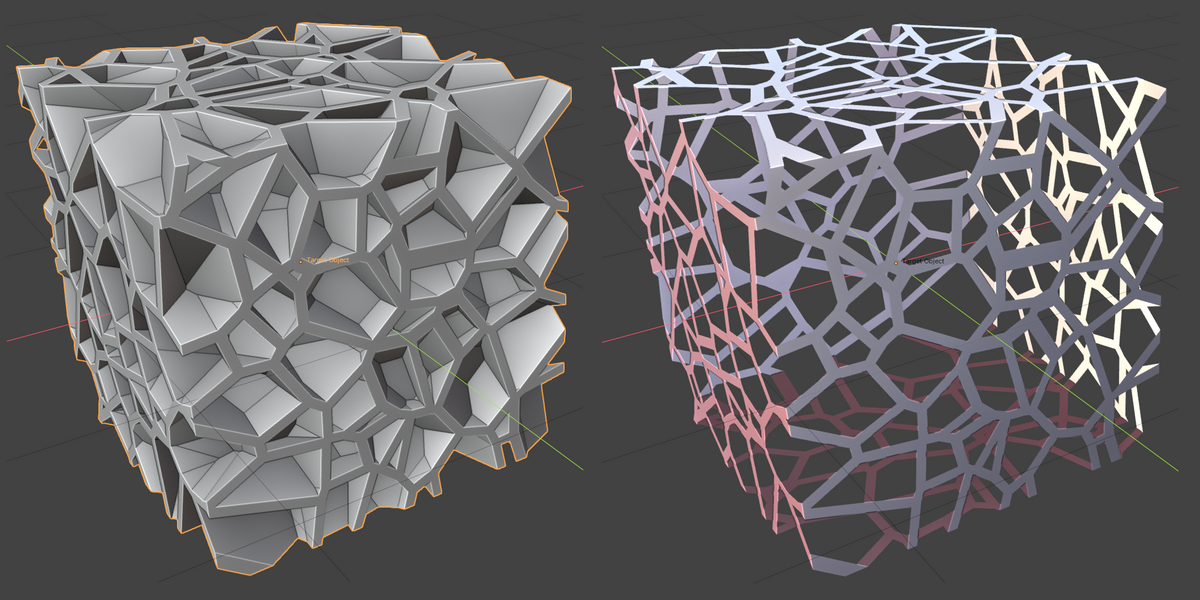
Introduction
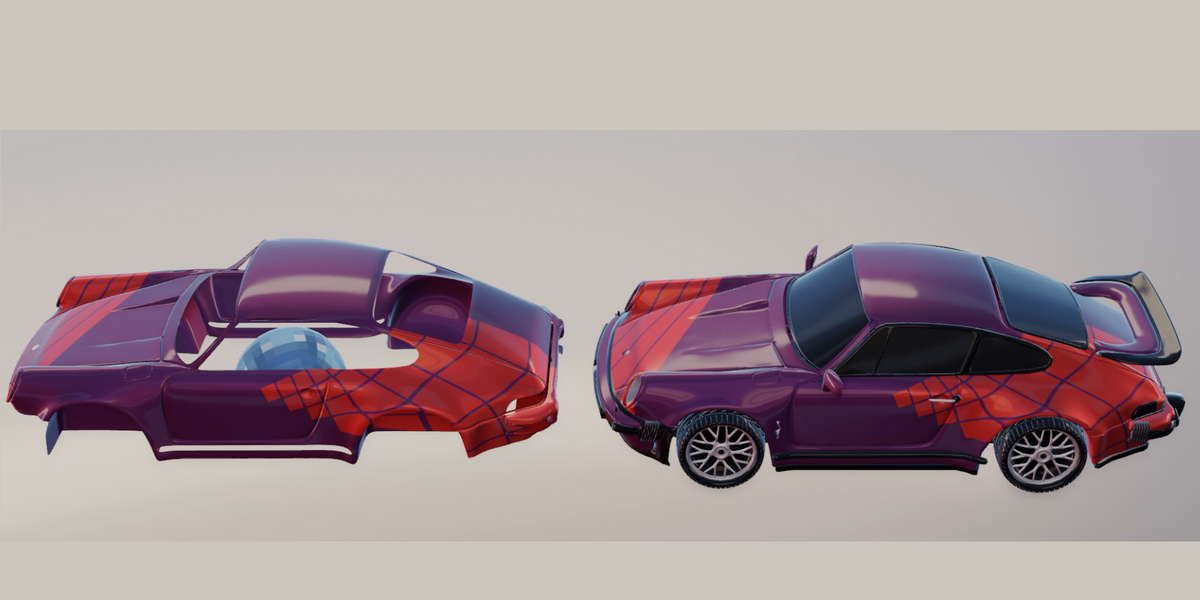
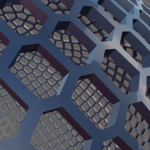
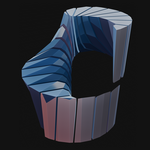
In computer graphics, Voronoi diagrams are used for procedural modeling, creating mosaic and cellular structures, object fracturing, decorative surfaces, and a wide variety of geometric patterns. By changing the placement of sites — points that determine the shape of Voronoi cells — you can create entirely different structures on the same object.
However, creating and editing such geometry manually can be time-consuming, especially when it's important to preserve the original materials, UV mapping, and the ability to continue modeling.
Voronoi Meshwork (VM) is a procedural Blender add-on for generating different types of Voronoi geometry on objects of arbitrary shapes. It takes site positions as input, lets you choose how cells are constructed, and works with the results of Blender modifiers, including Geometry Nodes.
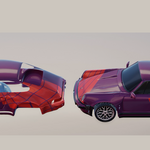
The workflow is non-destructive to the source geometry: Voronoi Meshwork generates the result in a separate object without modifying the original data. It supports transferring the original UV mapping to the generated geometry, while the resulting mesh can be used for further modeling with standard Blender modifiers such as Geometry Nodes and Boolean.
Voronoi Modes
- Original. Do not process the source geometry into Voronoi
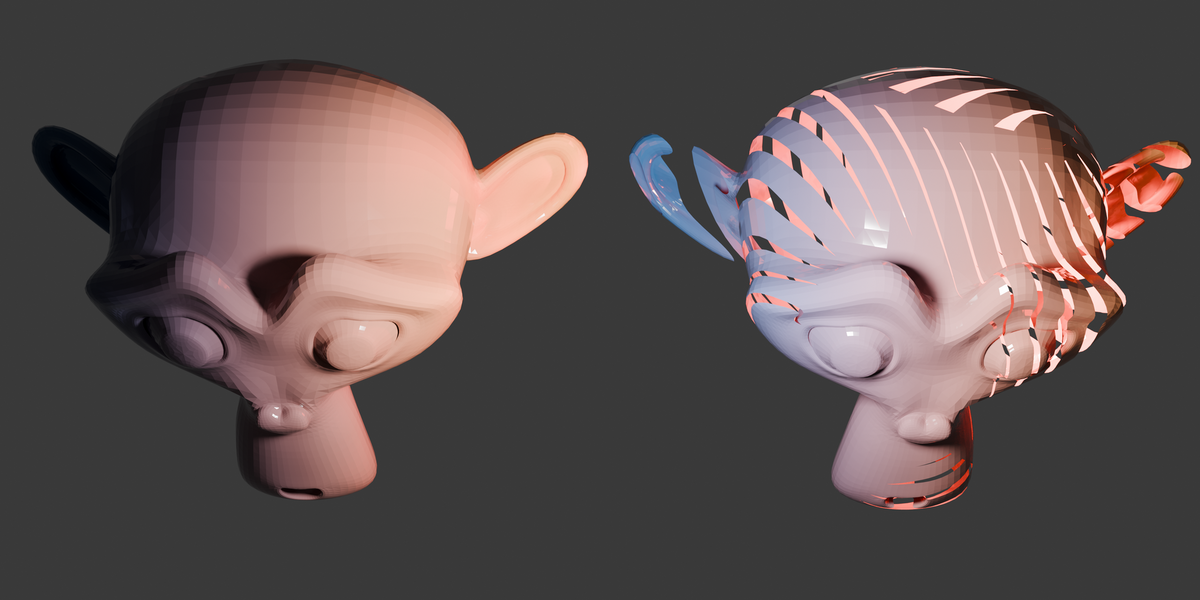
- Voronoi Volume Fracture. Splits the source geometry into separate Voronoi fragments
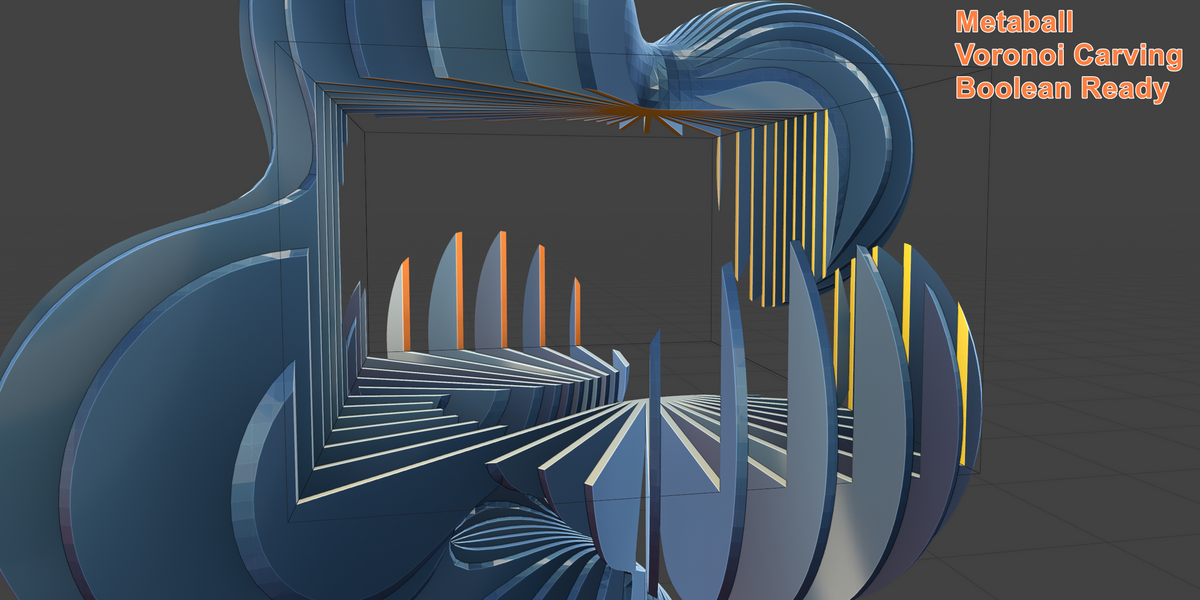
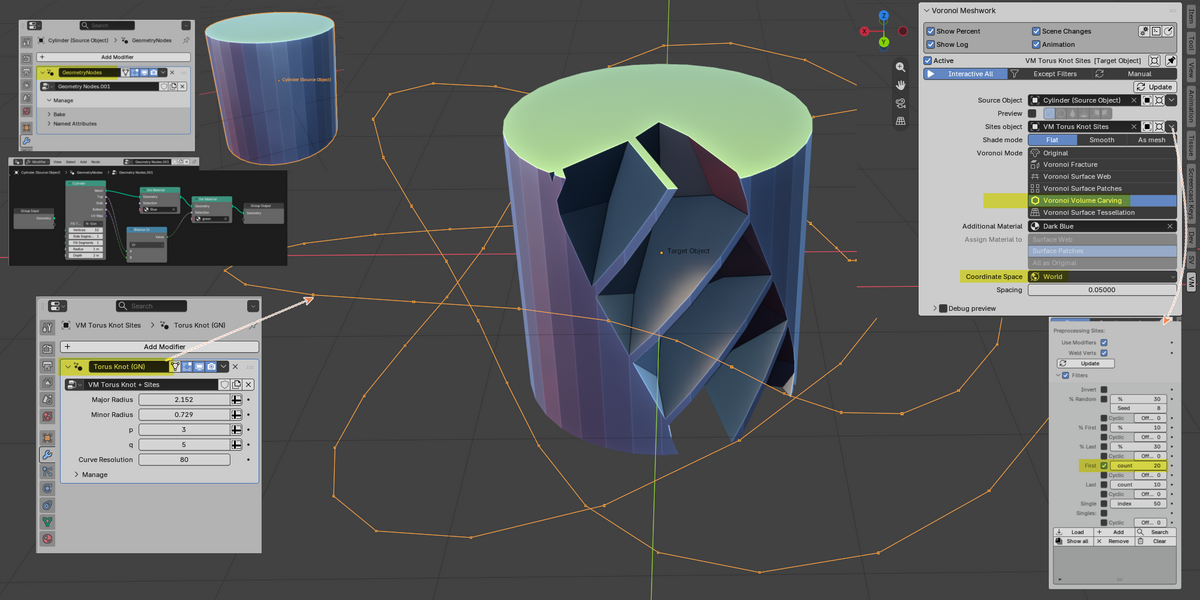
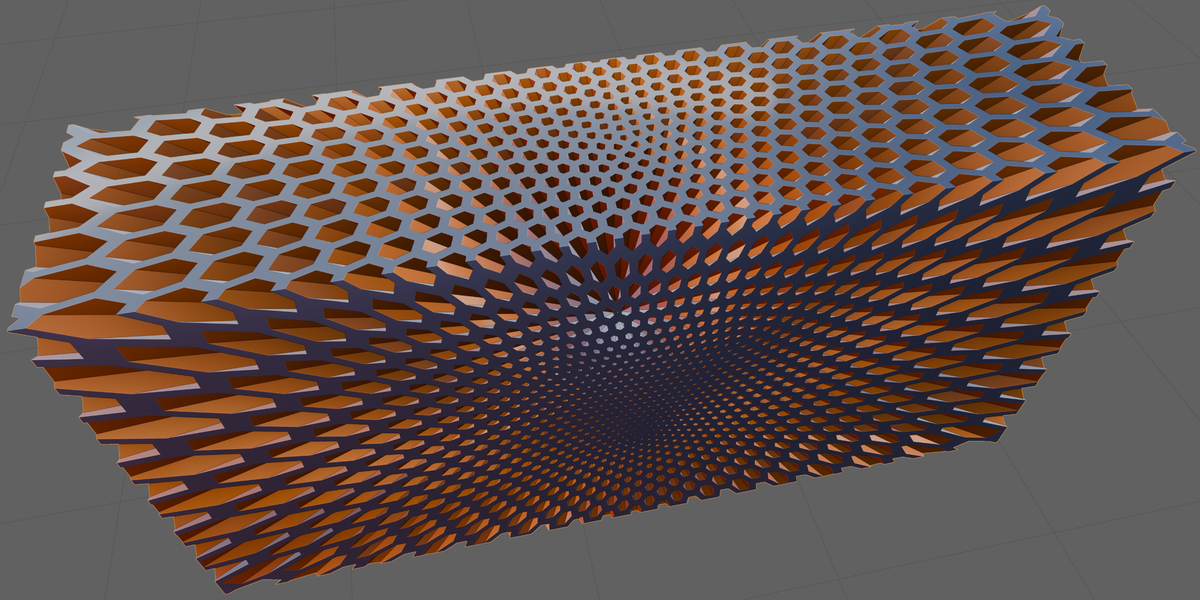
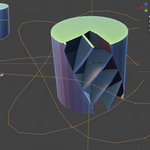
- Voronoi Volume Carving. Creates a continuous porous shell shaped by the Voronoi cell structure
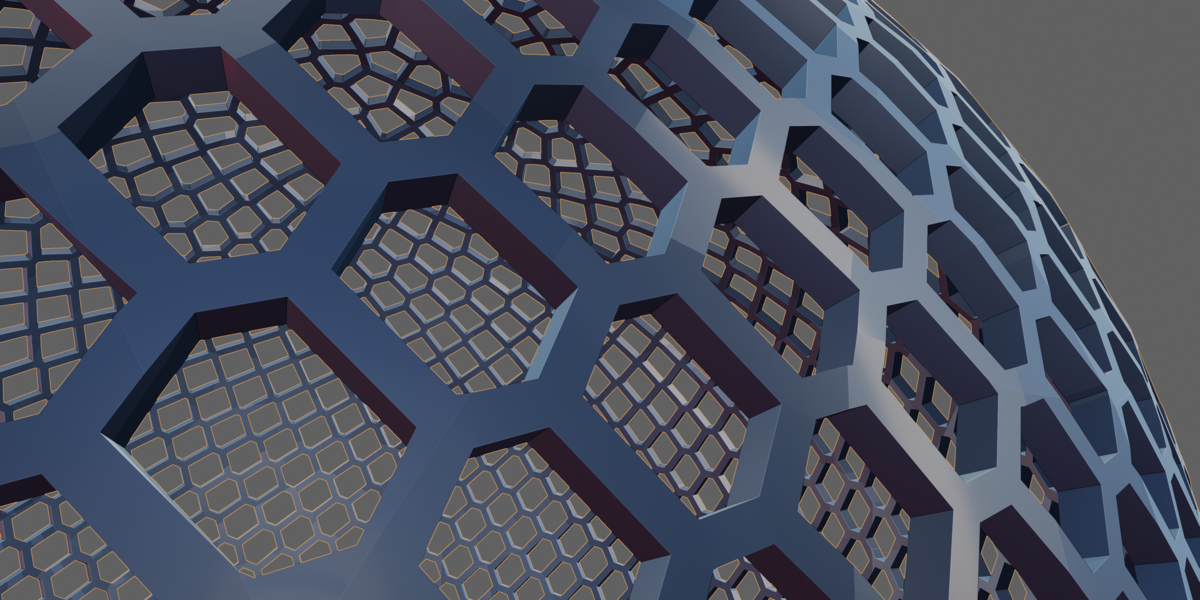
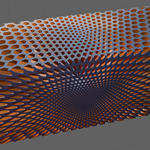
- Voronoi Surface Web. Creates a continuous surface with openings defined by the Voronoi cell structure
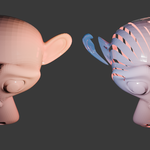
- Voronoi Surface Patches. Creates separate, non-connected surface shells for individual Voronoi cells
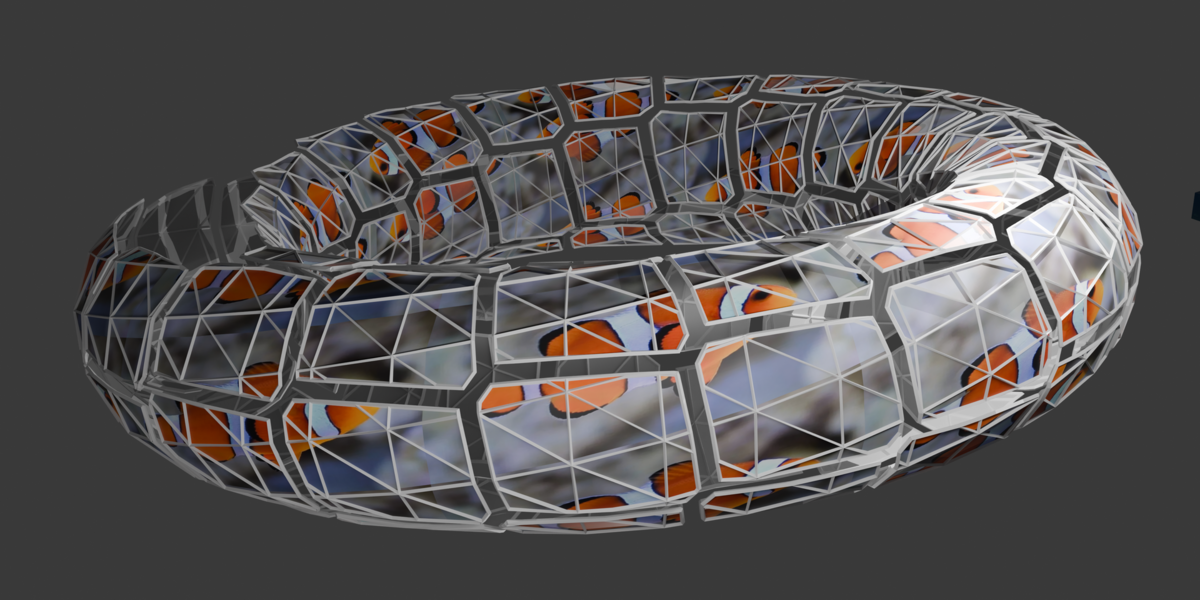
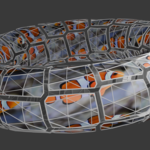
- Voronoi Surface Tessellation. Embeds Voronoi cells boundaries into the source mesh without removing surface regions
Site Placement, Symmetry & Filtering
One of the most interesting aspects of Voronoi diagrams is how strongly the resulting geometry depends on site placement.
Instead of using randomly distributed points, you can arrange sites in symmetrical patterns or along smooth curves. Even a small change in their position or orientation can dramatically transform the result.
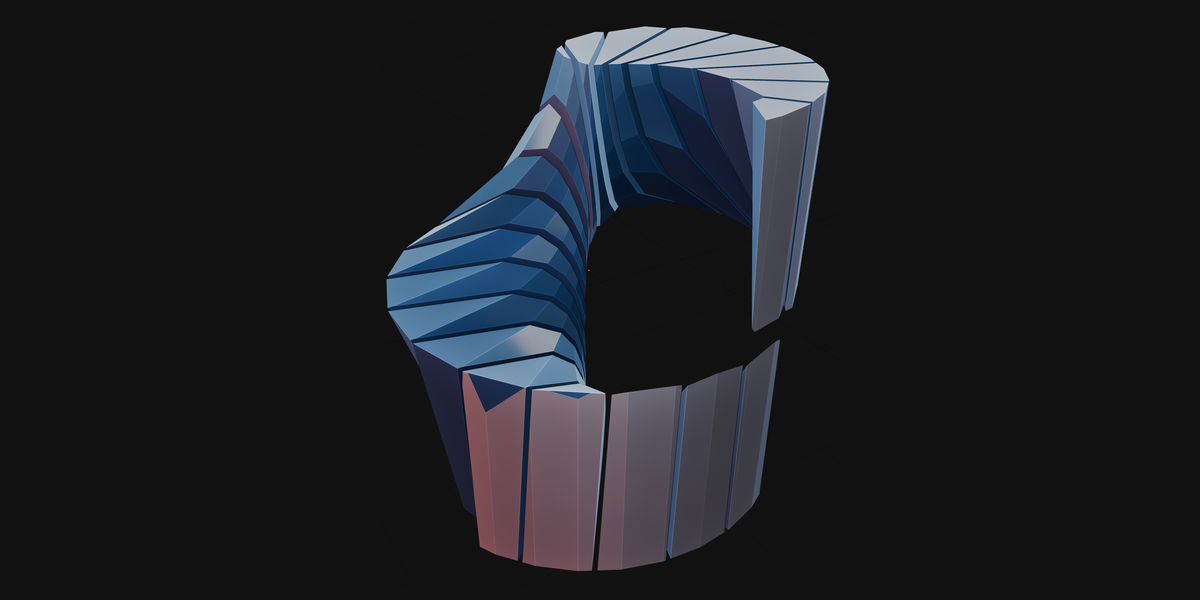
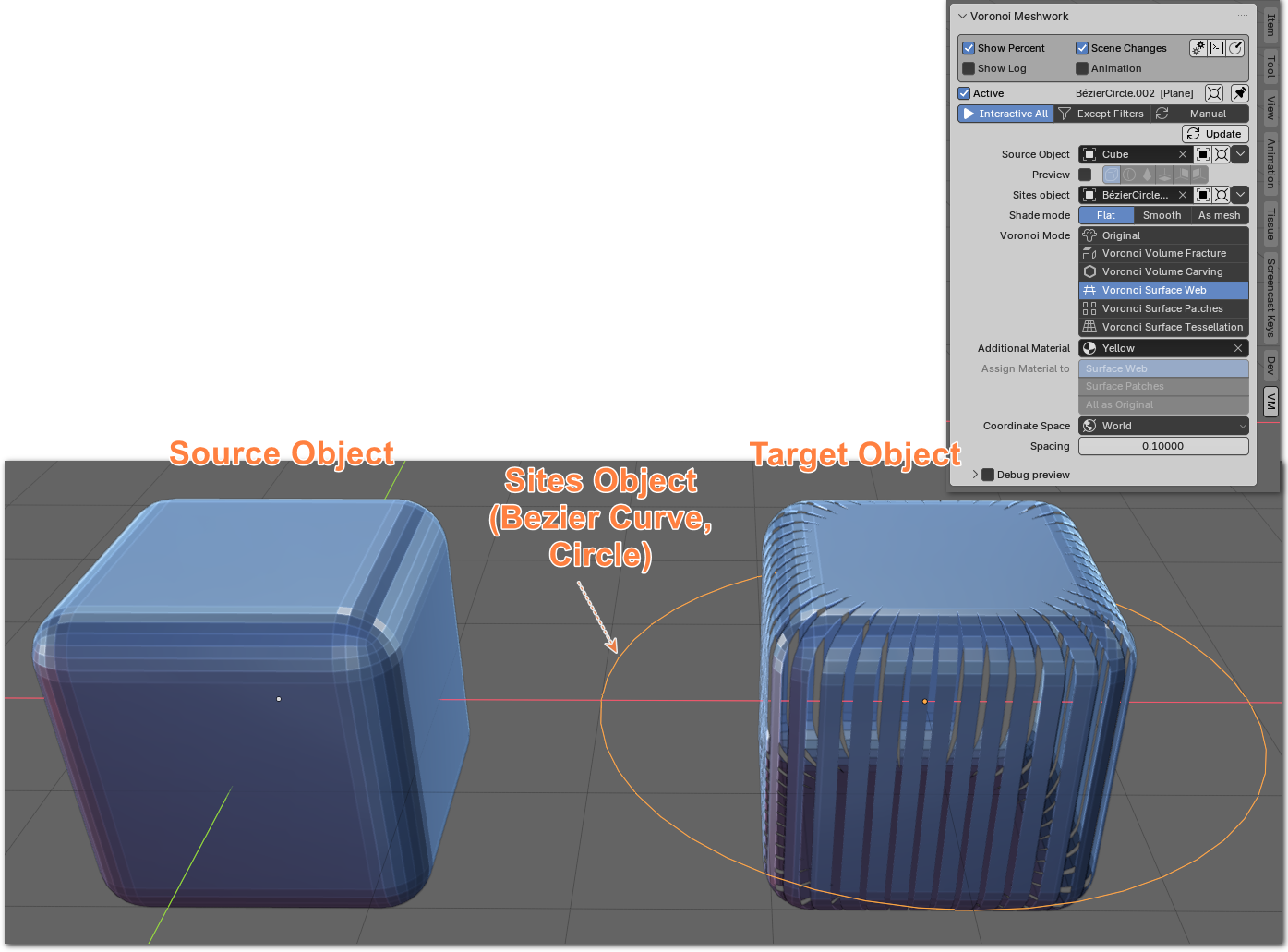
For example, placing sites along a circle around a cube in Voronoi Surface Web mode produces a relatively simple geometric pattern:
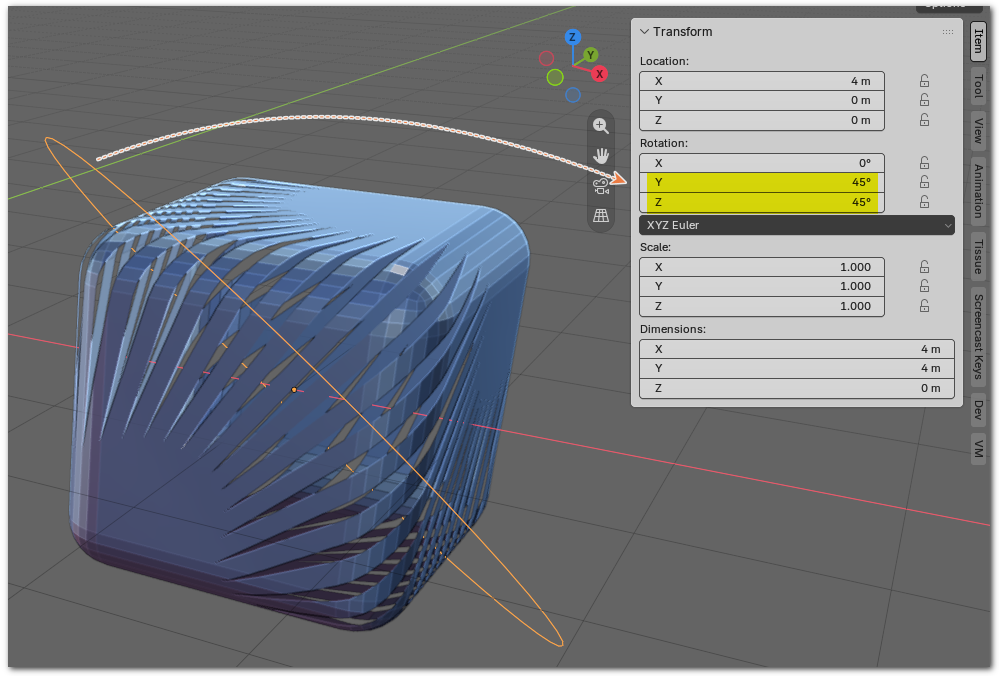
Simply tilting the plane of the circle makes the resulting surface much more interesting:
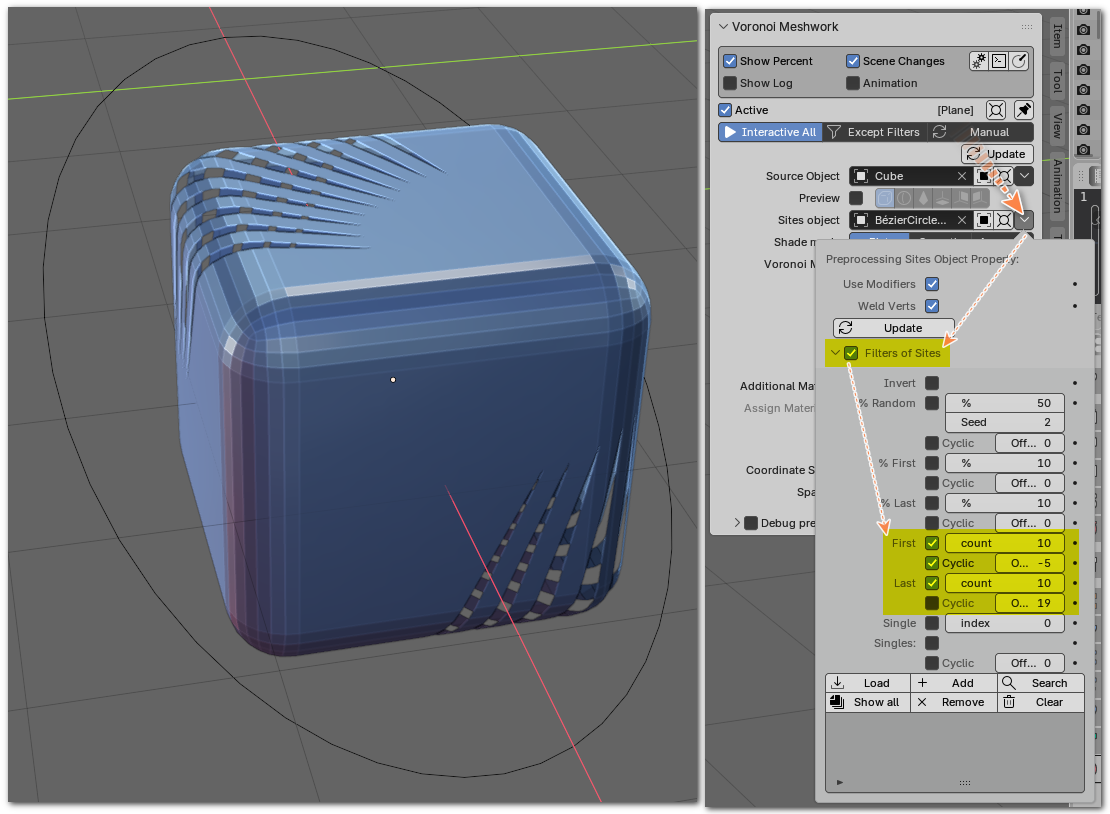
Filters give you additional control over which Voronoi cells appear in the resulting geometry. For example, you can keep only the cells corresponding to the first 10 and last 10 sites, excluding all others from the final result. The excluded cells are not displayed, but their sites still influence the Voronoi cell boundaries:
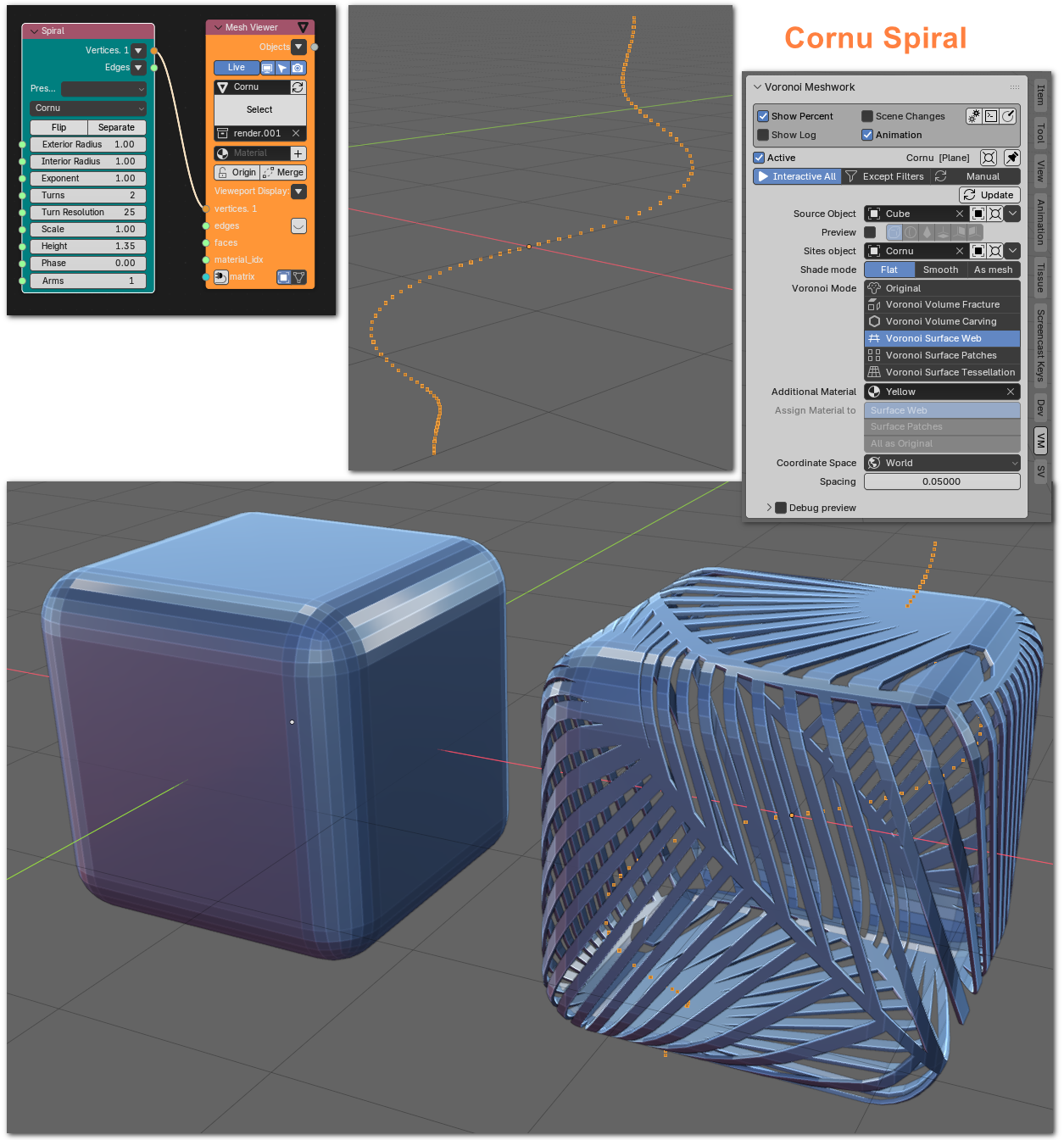
To create patterns with different levels of rhythm, regularity, directionality, density, and asymmetry, you can use not only standard Blender objects, such as Mesh objects and Bézier/NURBS curves, but also geometry procedurally generated using Geometry Nodes or third-party add-ons such as Sverchok. This provides flexible control over site distribution and the characteristics of the resulting structures.
Example: Fibonacci Sphere on Geonodes:
Example: Cornu Spiral, Sverchok:
Installation
Follow these steps to install the add-on:
1. Install the add-on
2. Install SciPy
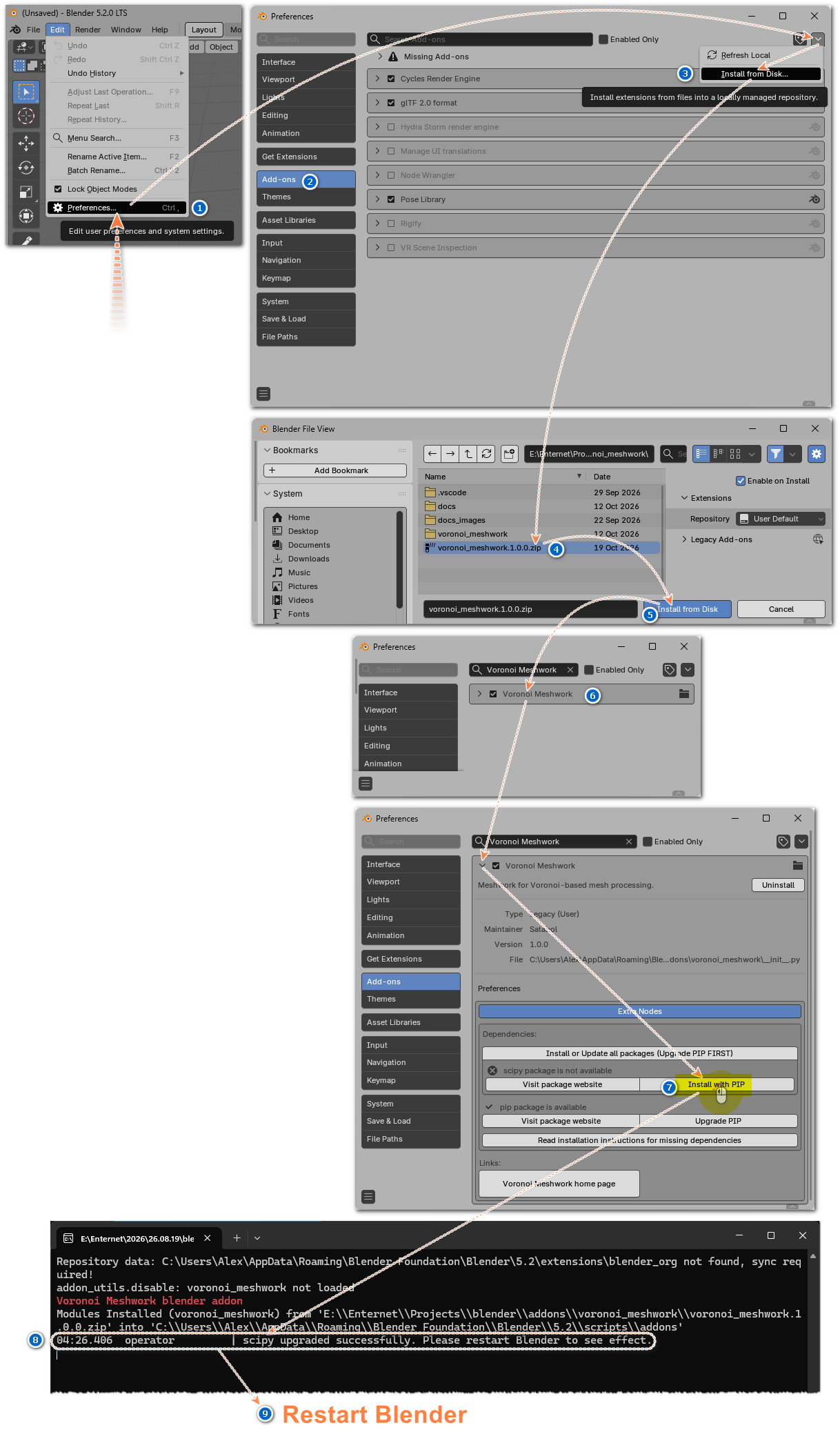
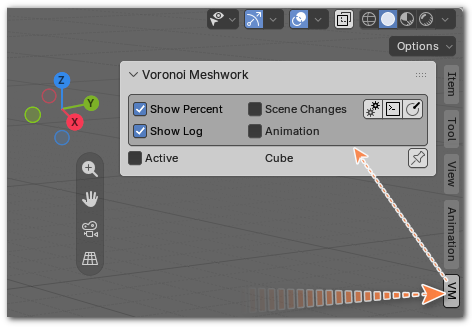
After installation, open the VM tab in the 3D Viewport sidebar (N key).
If you encounter issues installing SciPy, try running the installation command in the console (replace the path with the actual path to your Blender installation):
E:\Enternet\2026\26.08.19\blender-5.2.0-windows-x64.003\5.2\python\bin\python.exe -m pip install scipy

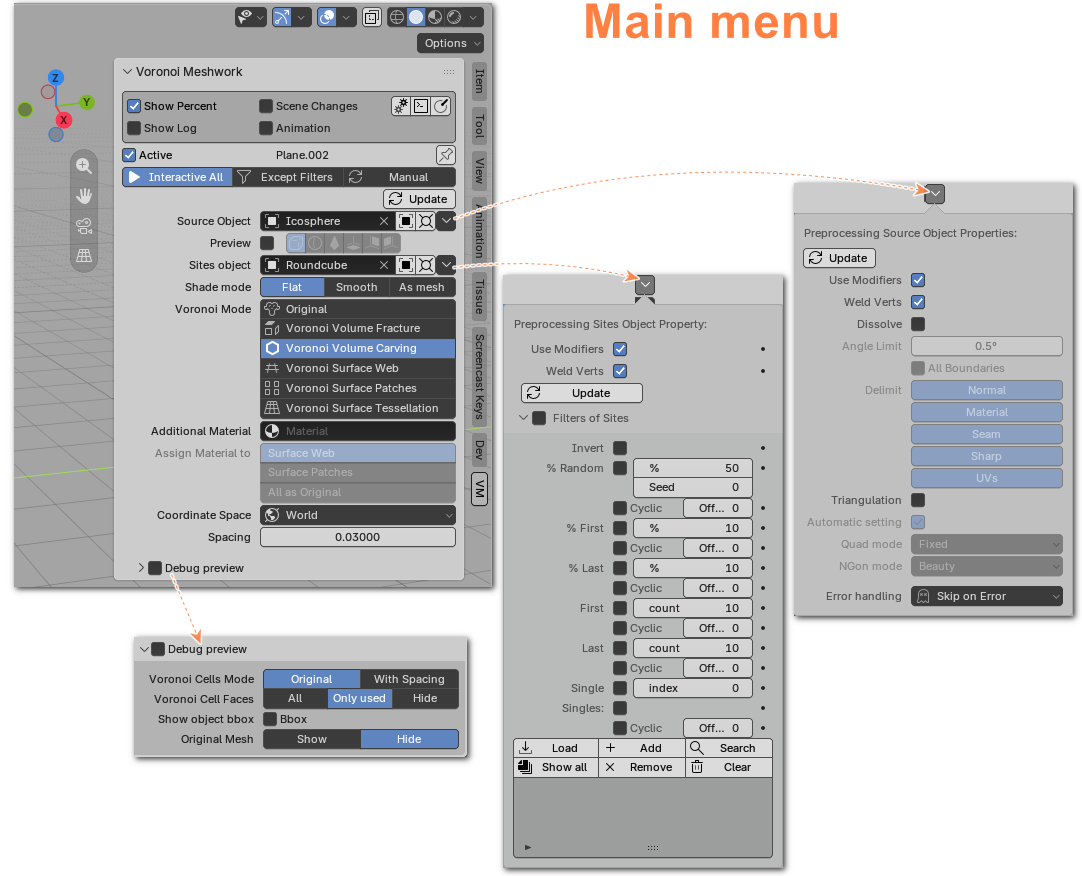
Main Panel
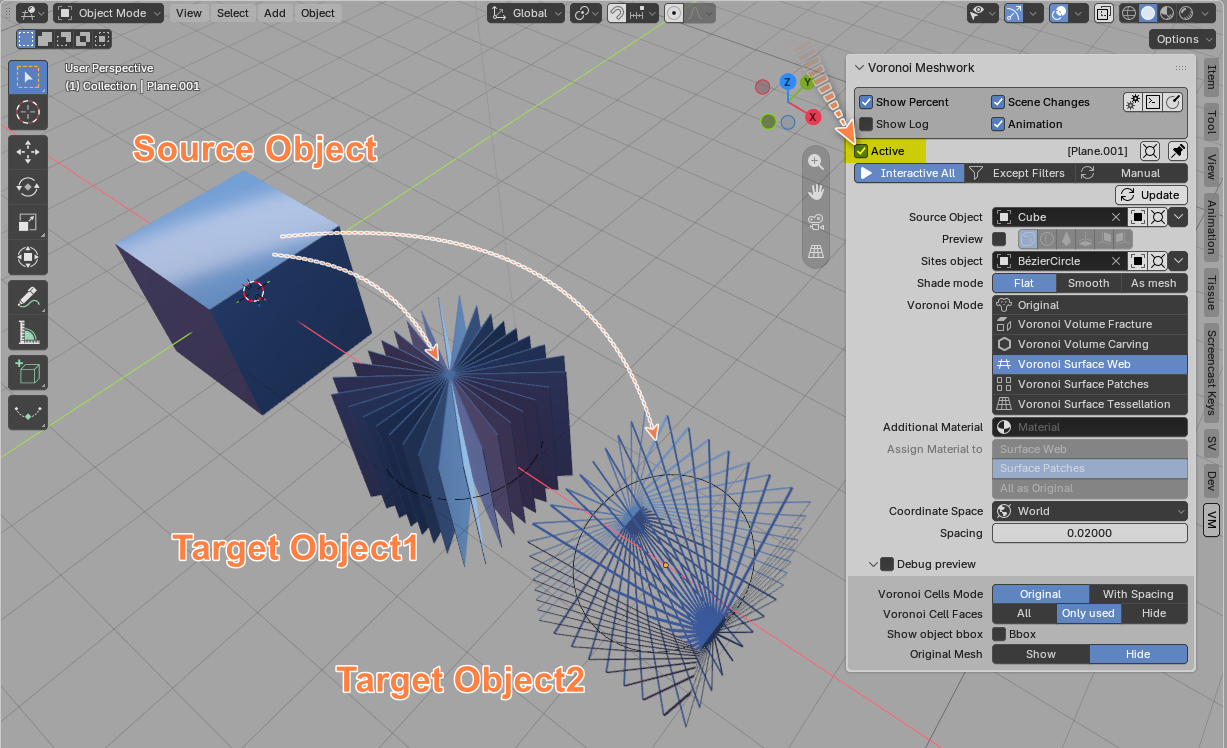
The VM panel becomes available when you enable Active on the selected Target Mesh object. After activation, all settings are available for you to manage:
Parameters
Source Object provides the geometry used to generate the Voronoi result. Supported types include Mesh, Bezier (with Extrude or Bevel), NURBS (with surface), Text, and Metaball. VM can use evaluated geometry, including the results of Blender modifiers and Geometry Nodes, without modifying the original Source Object.
Sites Object provides the points used as sites. Supported types include Mesh, Bezier (with Extrude or Bevel), NURBS (with surface), Text, Metaball, and Point Cloud. Only vertices or points from the geometry are used.
Target Object is a mesh-type object where the results of the Voronoi Meshwork calculation are displayed.
Preview mode
Preview Mode has several display modes:
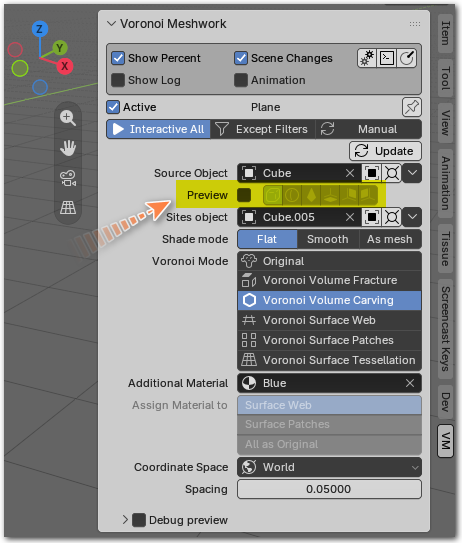
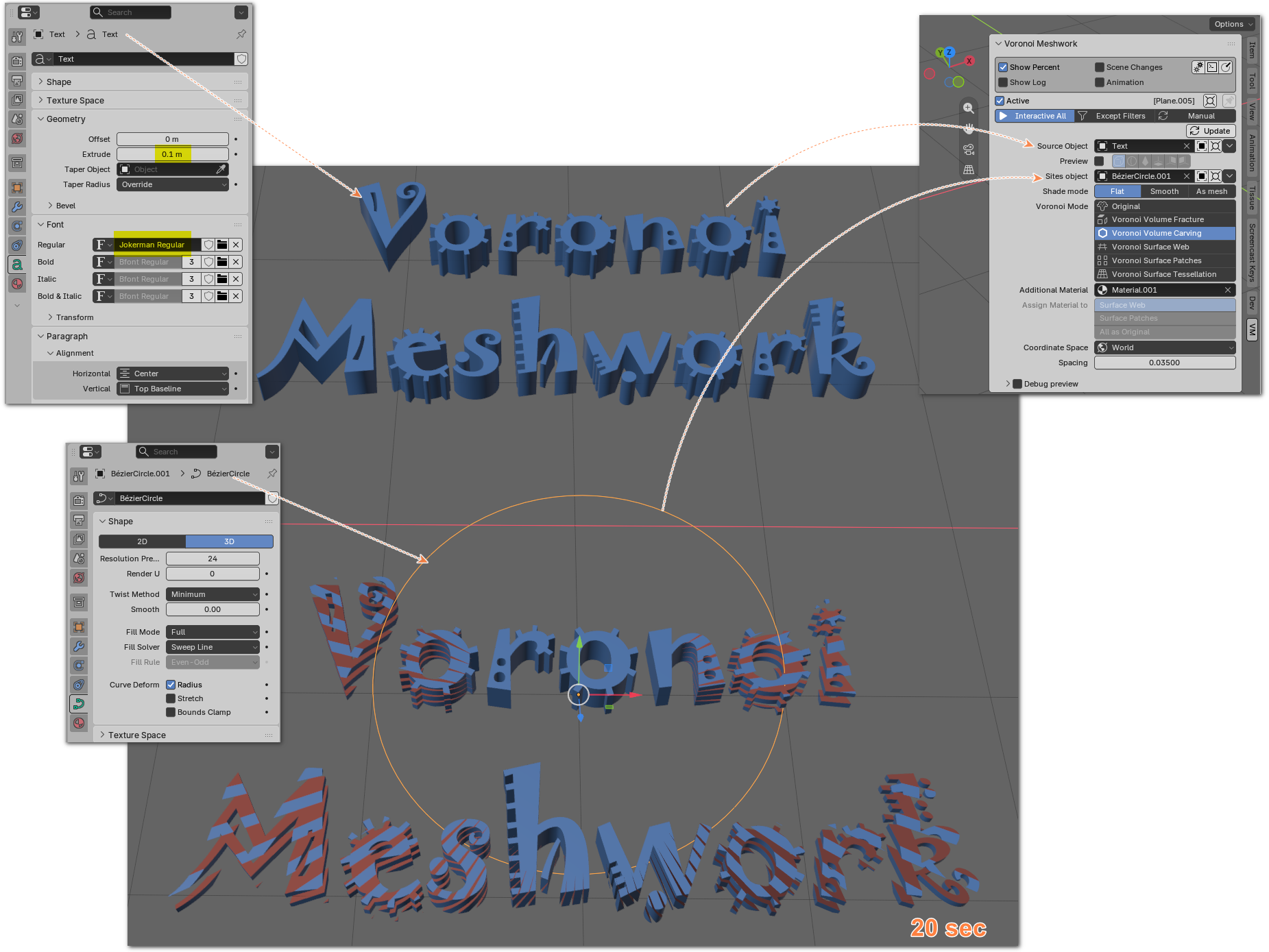
Preview Mode uses a simpler proxy shape for Voronoi calculations instead of the full Source Object, making it faster to experiment with patterns and site placement. Once you have chosen a suitable pattern, you can switch back to calculating on the Source Object.
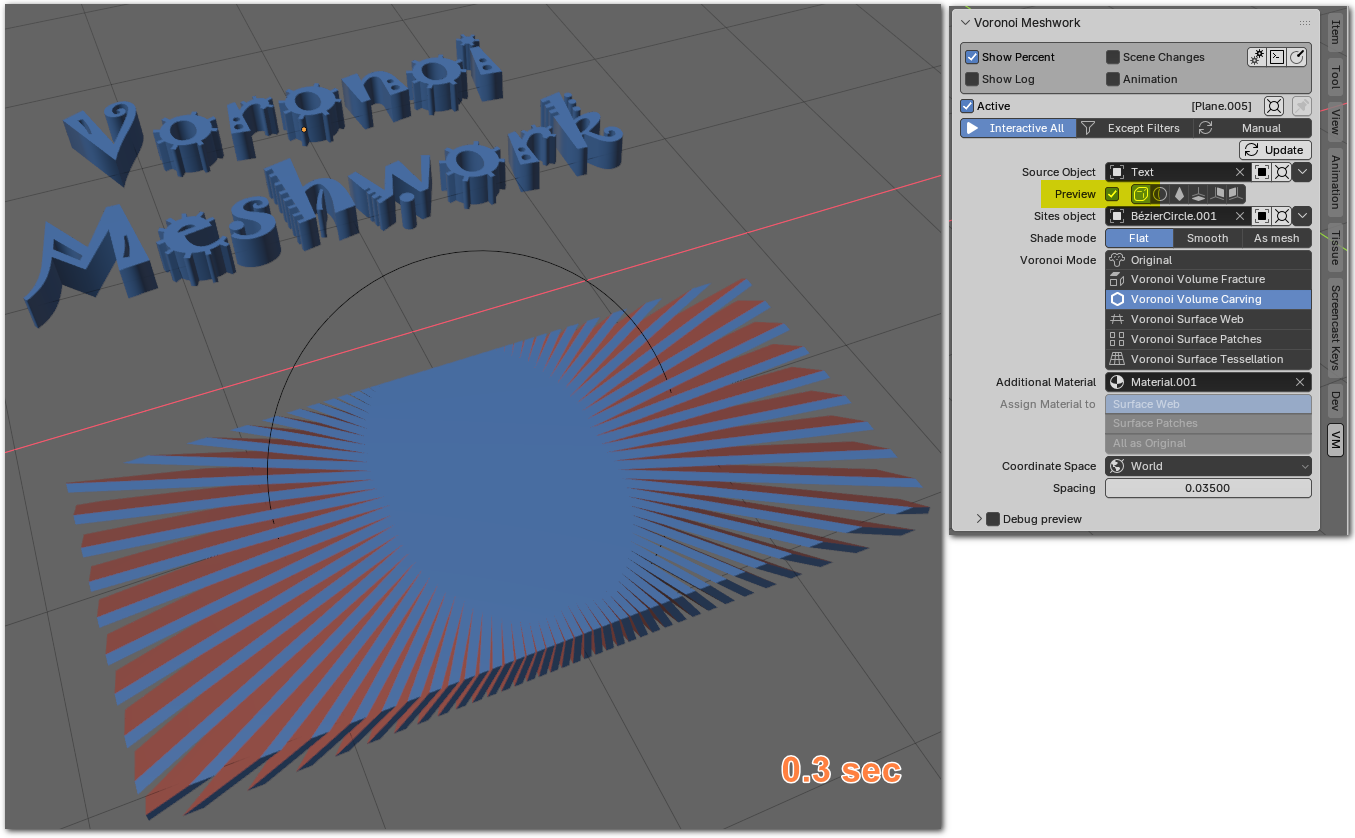
For example, in the demonstration below, calculating a Voronoi diagram on a text object takes approximately 20 seconds, while the preview takes about 0.3 seconds. This makes it much easier to adjust the Sites Object position before running the full calculation:
Preview mode Bounding Box:
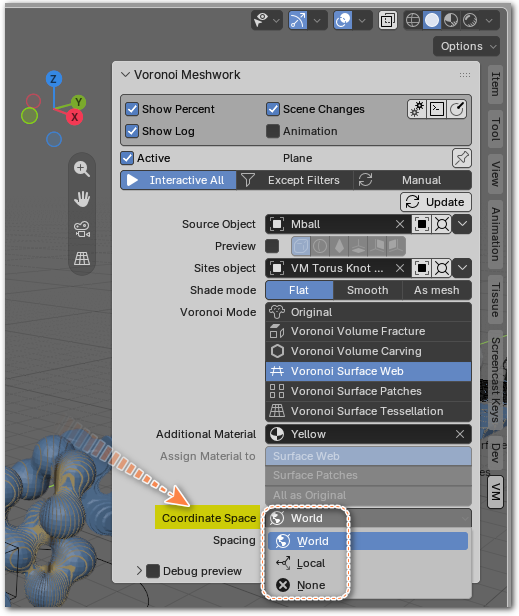
Coordinate Space
Coordinate Space determines how the relative transformations of the Target and Sites Objects are used during calculation:
- World. Uses the full relative transformation between the Target and Sites Objects
- Local. Aligns their origins while taking their relative rotation into account
- None. Aligns their origins and ignores differences in position and rotation.
This setting affects the interpretation of site positions relative to the Target Object; it does not physically move either object. The Source Object position is not used for this relationship.
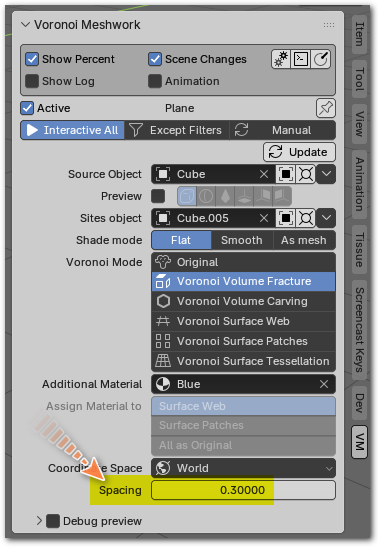
Spacing.
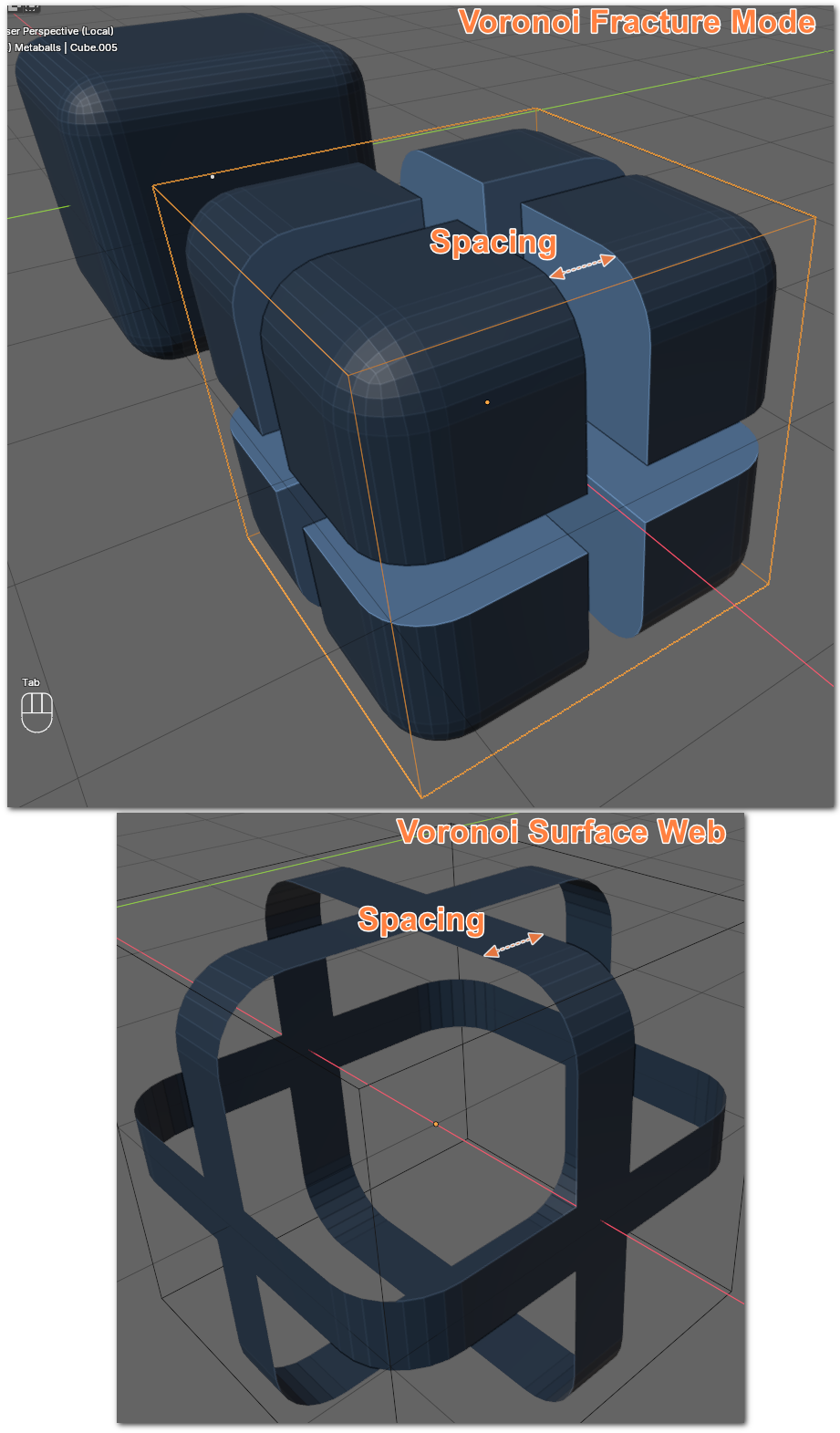
Spacing controls the separation between adjacent Voronoi regions.
Debug Preview
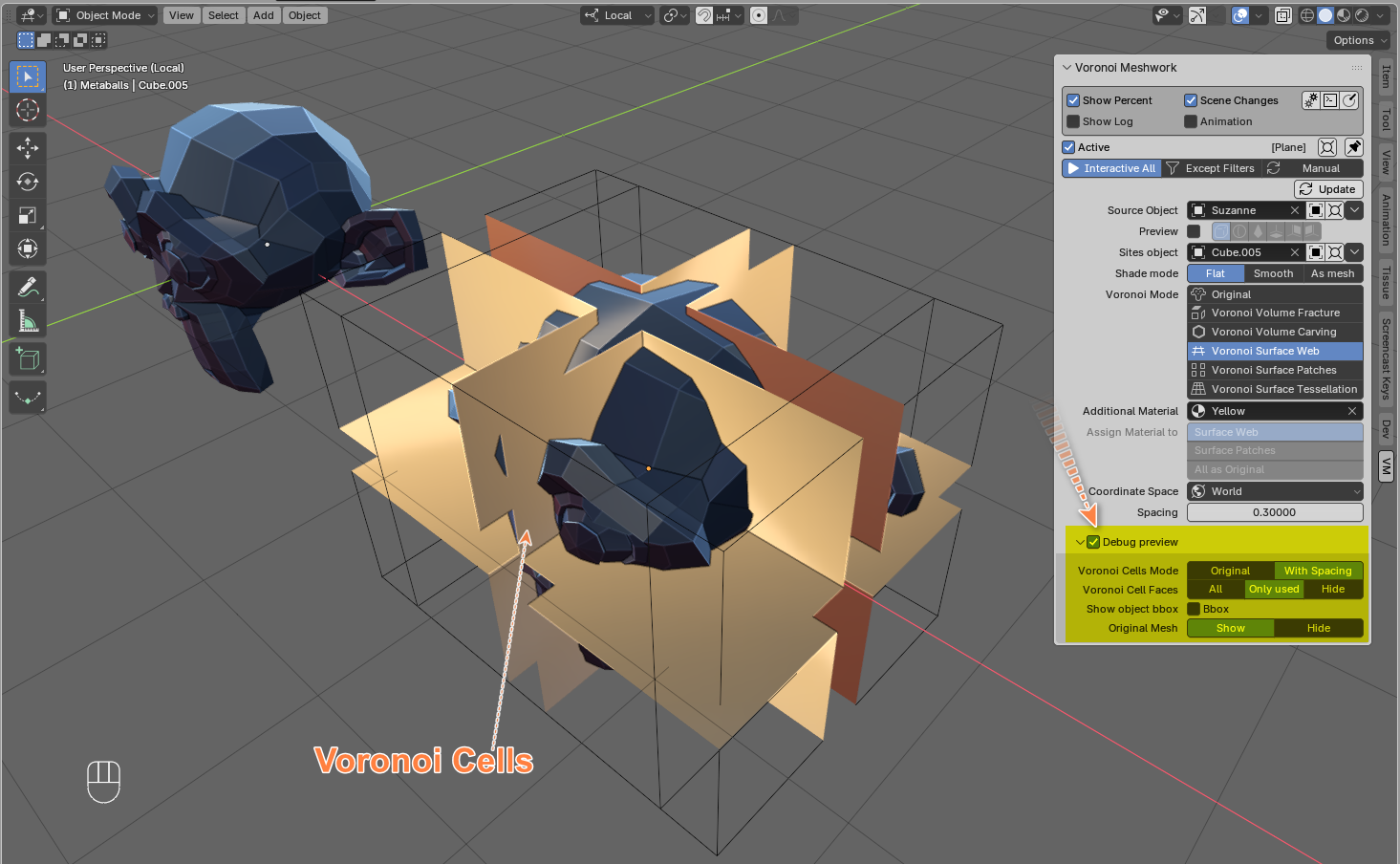
Debug preview is a service function for displaying Voronoi Cells, calculated based on the Sites Object, which are used to calculate the Voronoi Diagram in the Source Object. In this mode, the calculation is not performed.
Console
During a calculation, the Console displays progress, calculation parameters, and diagnostic messages, including errors. Press Esc in the console to interrupt a long-running calculation while retaining the partial result. This can be useful if a calculation takes too long or the result is already visibly unsuitable.
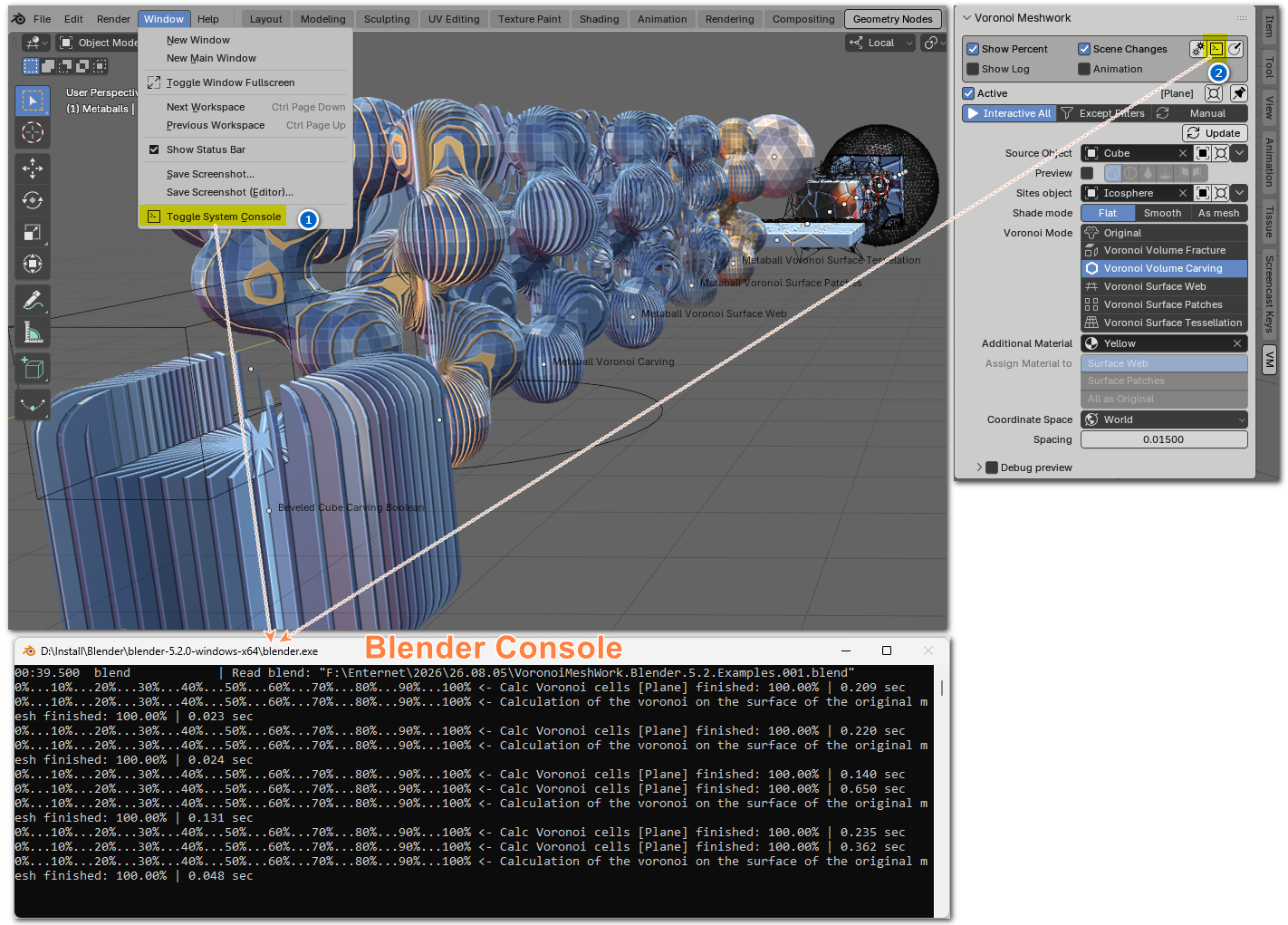
Interrupt the calculation in the console:
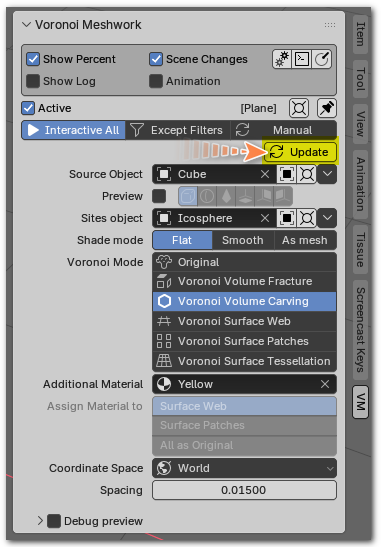
You can restart the calculation by clicking the Update button:
Interactivity
Options that affect interactivity:
1. Scene Changes (disabled by default)
2. Voronoi Meshwork interactive mode
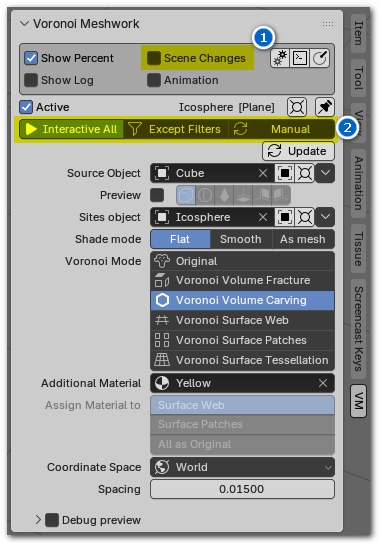
Scene Changes (disabled by default) allows relevant changes to scene objects and geometry to trigger automatic VM recalculation for Target Objects in an interactive mode. When this option is disabled, VM still detects relevant changes and marks the affected Target Objects as needing an update, but does not automatically recalculate them. Changes to VM parameters can still trigger recalculation, depending on the selected Interactive Mode:
Interactive Mode controls how VM responds to changes in its parameters. All automatically recalculates the result when parameters change. Not Filters recalculates for non-filter parameter changes but does not automatically update the result when filter settings change. Manual marks the result as needing an update without starting a calculation. You can then click the Update button to recalculate:
Animation
This option is used to calculate the VM during scene animation:
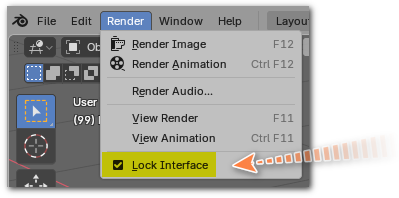
For improved stability when rendering animations, it is recommended to enable Blender's Lock Interface option:
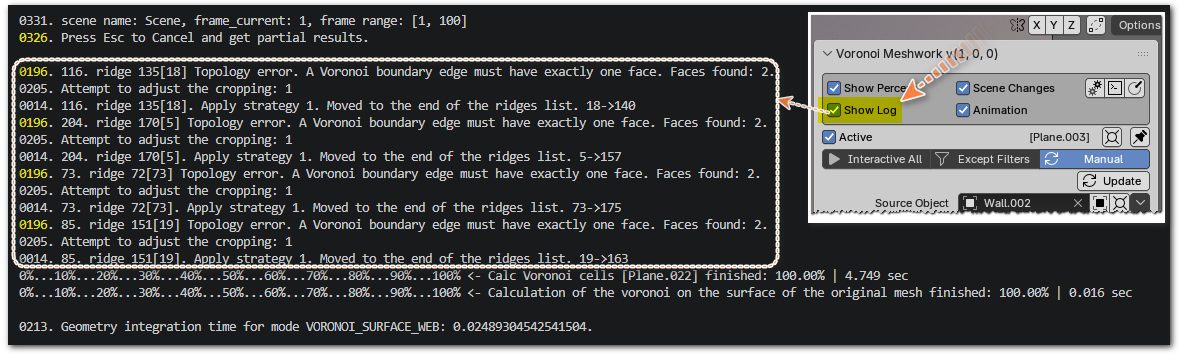
In most cases, these messages indicate that VM found a workaround and completed the calculation successfully.
However, some situations cannot be resolved automatically. In such cases, VM reports an error. To better understand what happened, you can enable the diagnostic stop option. When this option is enabled, the calculation stops at the moment the error occurs and shows the problematic geometry involved in the failure. For example, this may happen when processing a complex primitive such as a “Wall Factory” object generated by a standard Blender add-on:
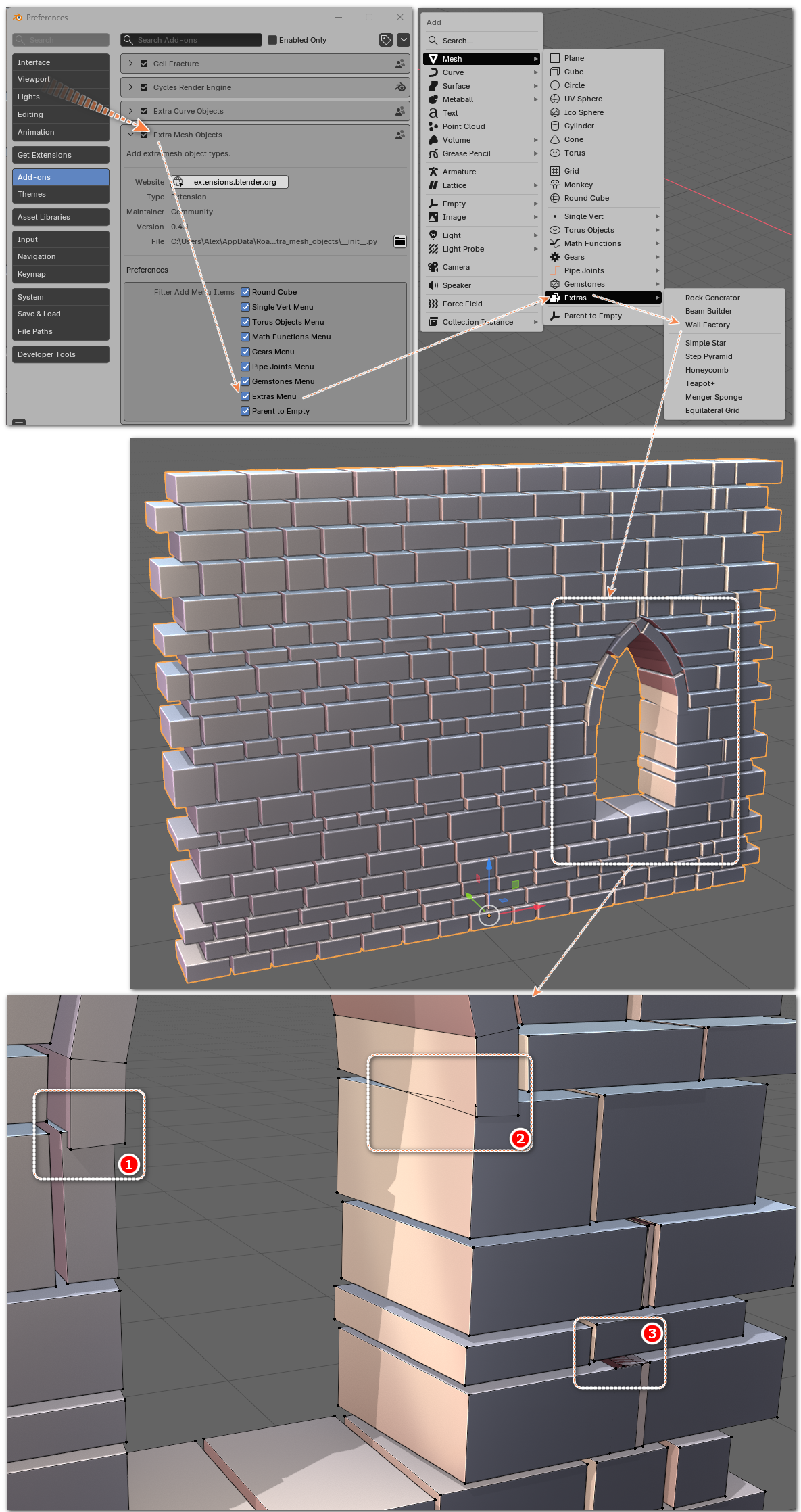
In this case, the program will stop at the moment an error occurs — for example, when attempting to process a "Wall Factory" primitive using a standard Blender add-on:
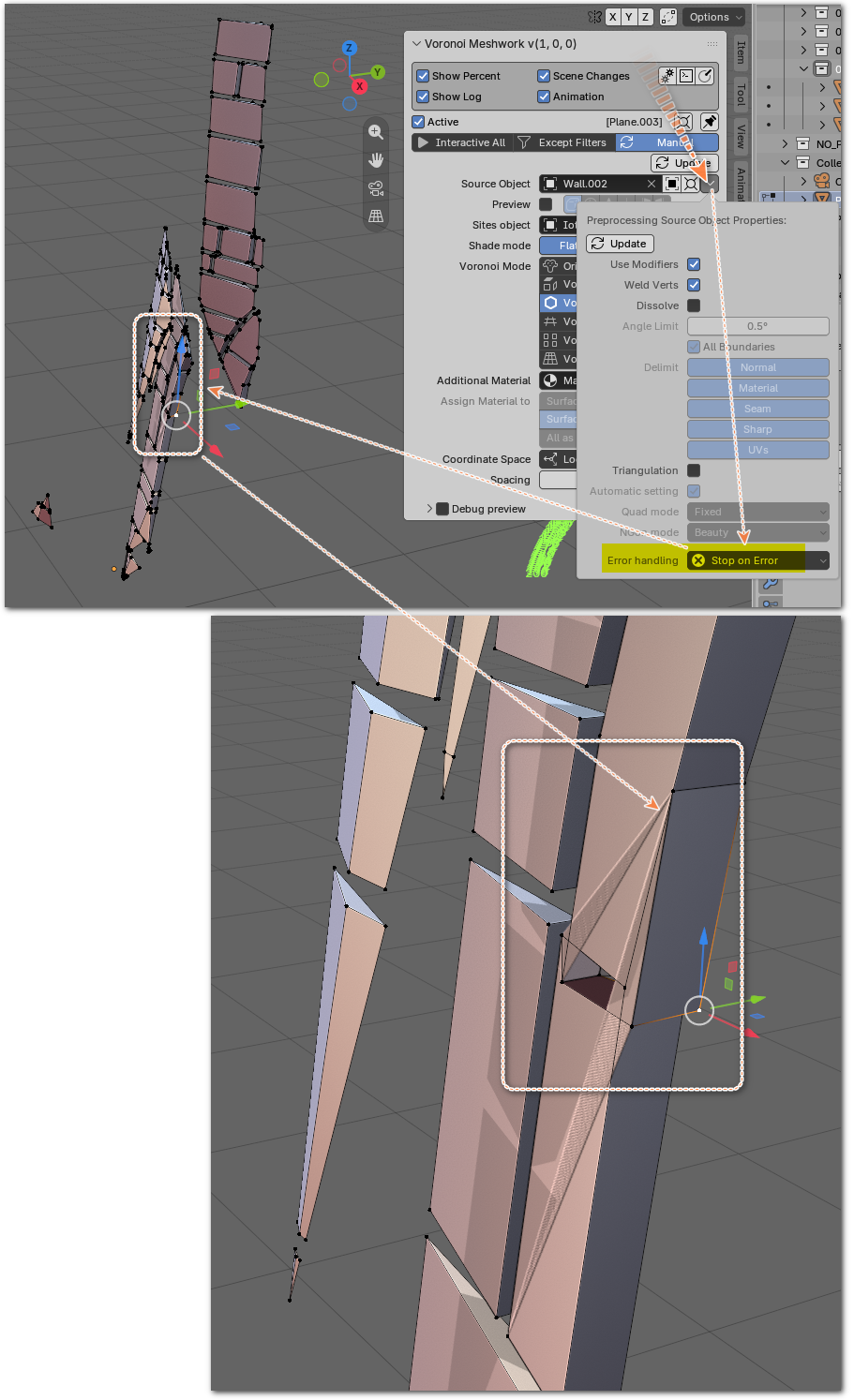
After inspecting the problematic area, you can try fixing the geometry manually or use preprocessing options such as Weld, Dissolve, or Triangulation, and then run the calculation again.
Limitations and Disclaimers
Voronoi Meshwork is designed to process a wide variety of geometric shapes and topologies. However, due to the complexity of geometric computations and limits of numerical precision, some input geometries or combinations of parameters may produce incomplete or invalid results, or cause a calculation to fail. Successful processing cannot be guaranteed for every possible configuration.
The developer aims to continually improve the robustness and reliability of the add-on.
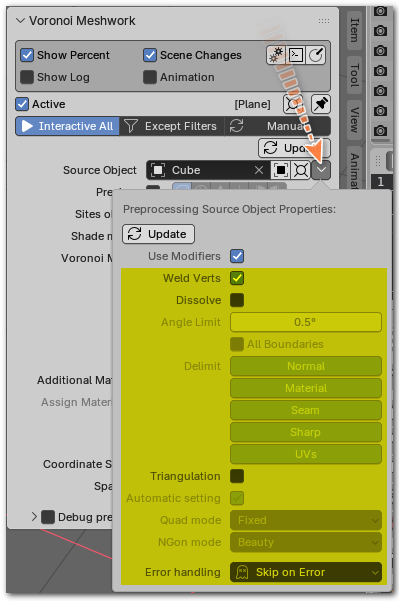
Manifold input geometry is recommended where applicable. If the source geometry needs cleanup, VM offers optional preprocessing operations that may help resolve certain geometric issues:
- Weld
- Dissolve
- Triangulation
Support & Future Development
Voronoi Meshwork is an actively developed project. The developer welcomes bug reports, feedback, and suggestions for new features.
You can report issues and submit feature requests through the GitHub Issues page. Questions related to purchases or private project files can be sent directly through Superhive's messaging system.
The developer intends to continue improving the add-on based on practical experience and user feedback. However, specific features and release dates are not guaranteed.
Tested Platforms and Blender Versions
Voronoi Meshwork has been tested on the following configurations:
Windows: Blender 3.0–5.2
Linux: Blender 3.0–5.2
macOS Golden Gate: Blender 5.2 (Apple Silicon, M2 Pro)
Have questions about this product?
Login to message
| Published | about 3 hours ago |
| Blender Version | 3.0 - 5.2 |
| Extension Type | N/A |
| License | GPL |
Discover more products like this
voronoi shell voronoi tessellation surface voronoi voronoi surface voronoi animated voronoi