Voxel Forge
 Ferasyahya



1. Installation
-
Open Blender - Edit - Preferences - Add-ons
-
Click Install…
-
Select the VoxelForge.zip file
-
Enable the add-on
-
A new tab named VoxelForge will appear in the 3D Viewport, Sidebar (N-panel)
2. Core Concepts
VoxelForge is built around three main systems:
A. Naming Presets
Defines how low/high mesh pairs should be named.
Examples:
-
_low / _high
-
_lp / _hp
-
Custom pairs
B. Collection Mappings
Assigns a preset to one or more collections.
This allows:
-
Auto-application of high-poly stacks
-
Consistent naming validation
-
Export rules per mapping
C. Export Mappings
Defines how one or more collections are exported:
-
Format (OBJ / FBX / STL)
-
Whether to apply modifiers
-
Whether to clear transforms
-
Per-mapping scale
-
Include/exclude materials
-
Background export
3. Tabs Overview
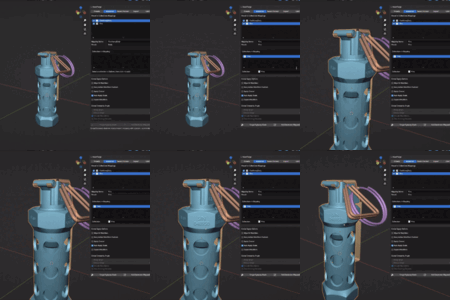
3.1 Presets Tab
Preset Manager
Create, rename, duplicate, or remove presets.
Stack Settings (Per Preset)
Controls how high-poly stacks are generated:
-
Triangulate. min verts
-
SubD level
-
Voxel Size
-
Remesh Smooth Shade
-
Corrective Smooth options
-
Decimate Ratio
Voxel size is stored internally in meters and displayed in scene units to avoid conversion errors.
3.2 Mappings Tab
Mappings allow you to associate a preset with one or more collections.
Mapping Controls
-
Add/remove mappings
-
Rename mapping
-
Assign preset to mapping
Collections in Mapping
Add any number of collections to the given mapping.
Global Apply Options
-
Wipe modifiers before applying stack
-
Keep modifiers enabled
-
Apply crease
-
Auto-apply scale
-
Expand modifiers in UI
Global Crease by Angle
-
Sharp angle threshold
-
Crease amount
-
Include boundaries
-
Remove existing creases
High-poly Stack Buttons
-
Forge Highpoly Stack: applies the preset stack to all mapped collections
-
Add Decimate: adds decimate modifiers using the preset ratio
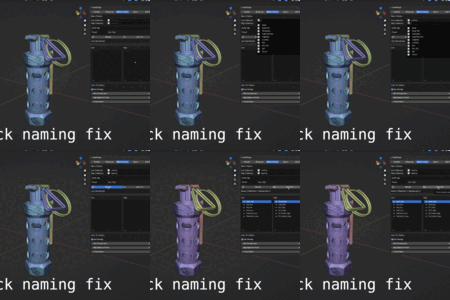
3.3 Name Checker Tab
Used to compare low and high collections and ensure naming validity.
Features
-
Select low and high collections
-
Choose naming preset or custom suffixes
-
Press Refresh to view matches
-
Displays:
-
Matched pairs
-
Missing pairs
-
Mismatched names
-
-
One-Click Fix:
-
Rename based on suffix rules
-
Remove .001 and other Blender auto-suffixes
-
Attempt match using overlap/proximity (optional)
-
Auto-Fix Options
-
Use overlap detection
-
Minimum overlap ratio
-
Maximum distance factor
-
Number of candidates to consider
3.4 Export Tab
Export one or more collections using an export mapping.
Export Fields
-
Export Directory
-
File Suffix
-
Keep Temp Files
Export Collections
Each item has:
-
Base name
-
Format options per mapping
Format Sections
FBX
-
Scale
-
Export as individual items
-
Clear transforms
-
Apply modifiers
-
Only apply enabled
-
Ignore materials
OBJ / STL
-
Format-specific toggle options
-
Per-mapping behavior
Background Export
Press Export:
-
UI stays responsive
-
Progress bar updates
-
You can cancel mid-export
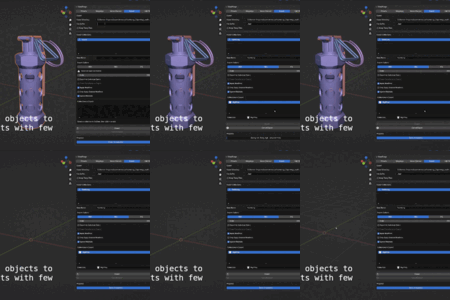
3.5 Edit FBX Tab
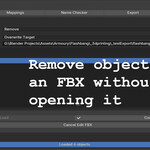
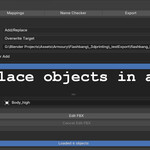
Allows modifying an existing FBX without importing it.
Modes
-
Add/Replace
-
Remove
Write Mode
-
Overwrite target
-
Create new file
Operations
-
Choose objects to replace by name
-
Add new objects
-
Remove objects
-
Name-based search
Progress bar shows internal status.
4. Unit Handling
VoxelForge stores voxel size in meters internally.
-
The displayed value matches scene units (mm/cm/m/etc.)
-
When applied to Remesh modifiers, size is converted to Blender units correctly using:
-
Scene unit scale
-
Display units
-
This ensures:
-
No decimal-place mismatch
-
Correct scaling after unit changes
-
Stable presets across projects
5. Tips & Best Practices
For Naming
-
Keep suffix rules consistent
-
Use naming presets across multi-asset scenes
-
Use one-click fixes before exporting
For High-Poly Stacks
-
Keep heavy modifiers disabled in viewport
-
Use Apply Modifiers on Export instead of enabling them manually
For Exports
-
Use multiple export mappings if you deliver to various pipelines
-
Keep your blend file lightweight—VoxelForge handles the temporary baking
For Edit FBX
-
Great for patching small changes without re-exporting everything
-
Useful in late-production changes where only 1–2 meshes change
6. Limitations
-
FBX editing supports add/remove/replace only
-
Only mesh objects are currently supported for replacement
-
Multi-material FBX modifications depend on the target FBX structure
-
Unit conversions depend on Blender's scene settings. Changing units mid-session recalculates display values
7. Roadmap (Planned Features)
-
More export formats
-
More advanced “Edit Format” tools (GLTF, OBJ, USD)
-
Preset sharing/import system
-
Per-object override settings inside mappings
-
Batch validation tools for very large scenes
Have questions about this product?
Login to message
| Published | 9 months ago |
| Blender Version | 4.5 |
| Extension Type | N/A |
| Render Engine Used | Cycles |
| License | GPL |

Discover more products like this
1 Click Naming for Baking gameready remesh decimate baking automation subdivision highpoly baking