VR Studio
 Digital DiLeo
Installing
- Download vr_studio-2.26.0.zip (or the newest version listed). Don't unzip it.
- In Blender 5.0 or newer, drag the zip into the Blender window, or go to Edit > Preferences > Get Extensions, open the menu at the top right and choose Install from Disk.
- If you used an earlier version (VR Scene Mover, VR Control), disable or remove it first so only one copy is enabled.
Before the first session
- Set Edit > Preferences > System > Viewport > Graphics Backend to OpenGL and restart Blender. Blender's Vulkan backend can crash when a VR session starts.
- Start your headset's OpenXR runtime (SteamVR, Meta/Oculus Link, Windows Mixed Reality, ...) and make it the active OpenXR runtime.
- In the 3D Viewport sidebar (
N), open the VR Studio tab and click Start VR. VR Studio enables Blender's bundled VR Scene Inspection add-on for you.
Controls
- Left stick: walk where you look. Right stick: turn (snap or smooth), up/down to rise and sink.
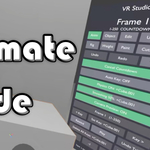
- Right B or right stick click: show or hide the floating panel. Point the right controller at it and pull the right trigger to press buttons; drag sliders and the timeline with the trigger held. Point at a window's background and hold the trigger to carry the window.
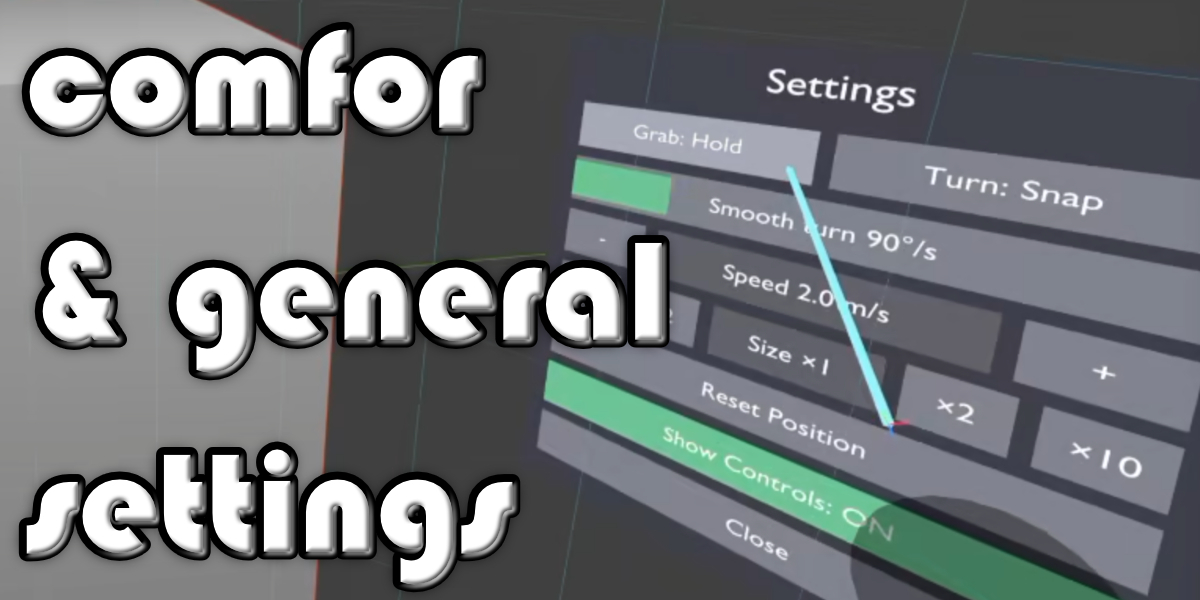
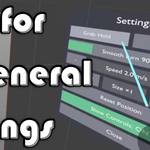
- Left stick click: the mode ring by your left hand, to switch modes and open Create, Keys & Groups and Settings (grab hold/toggle, turning, walking speed, your size, Reset Position, Undo, Redo and Save).
- Grips: grab. Both grips on one object scale it.
- Left X / left Y: play/pause and rewind in Animate mode; Undo and Redo in the other modes (in Camera Cuts, X shows the camera panel and Y plays).
- Right A: start a take (3-2-1 countdown), press again to stop.
Modes
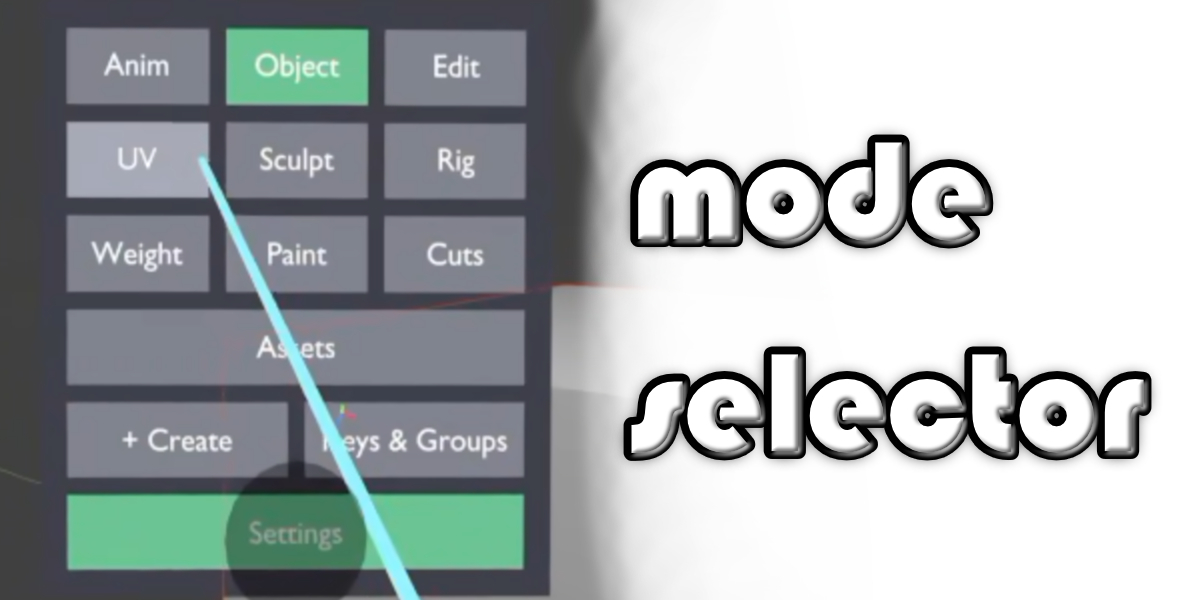
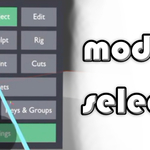
Switch with the tabs on the panel or the mode ring. Every mode has Undo and Redo on the panel.
-
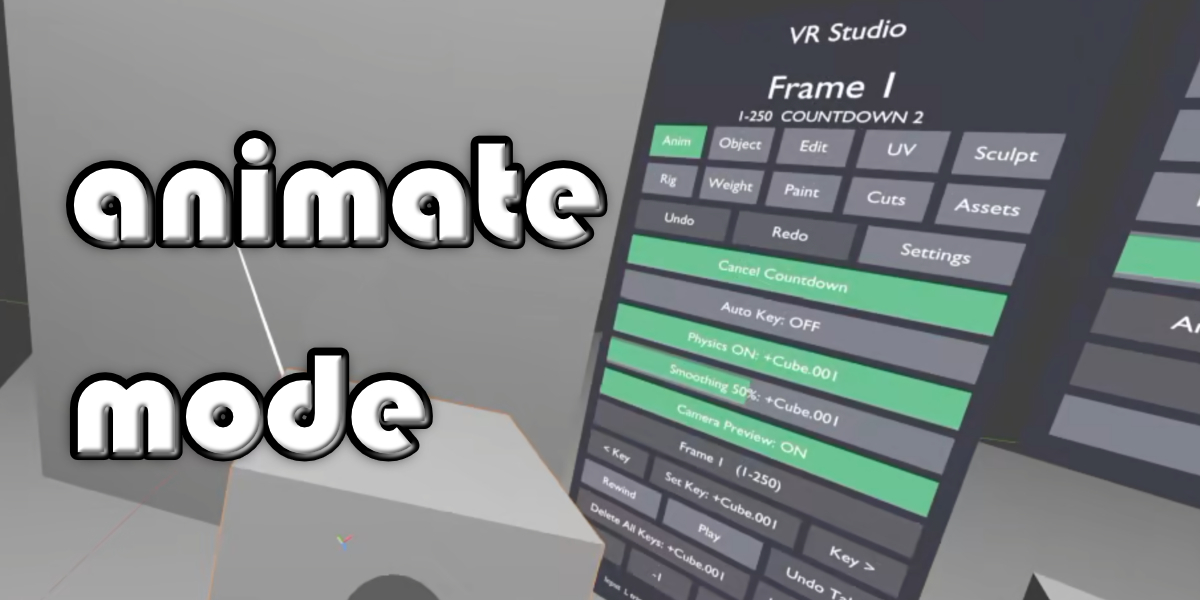
Animate: only objects whose name starts with
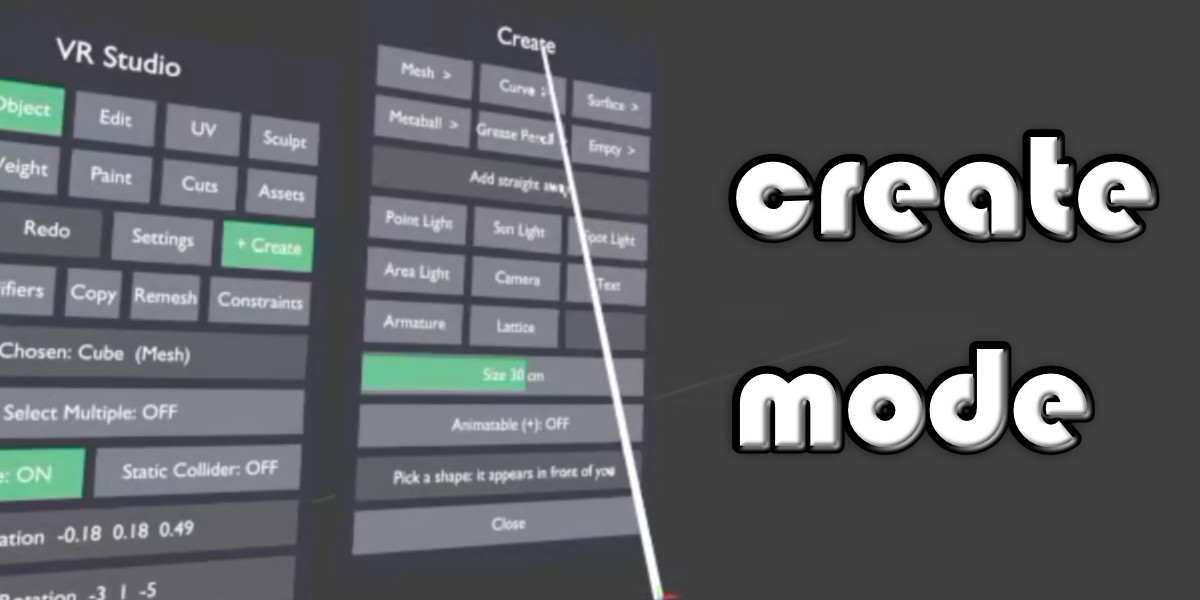
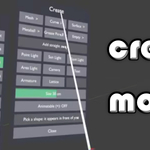
+can be grabbed (select them and click Toggle Grabbable in the sidebar; pose bones starting with+too). Grab them and press right A to record a take as keyframes. Play, rewind, scrub, step and jump between keys, Set Key, Auto Key, Undo Take, Delete Keys, smoothing, physics on release, and a live preview screen when you hold a camera. - Object: any object can be grabbed. Pages for the main tools (parent, duplicate, delete, join, convert to mesh), modifiers, copying between objects, remesh (voxel and quad) and constraints; the + Create window adds new objects in front of you.
- Edit and UV: select vertices, edges or faces with the laser (or paint-select), move, rotate and scale with the right grip, soft selection, extrude; mark seams and unwrap.
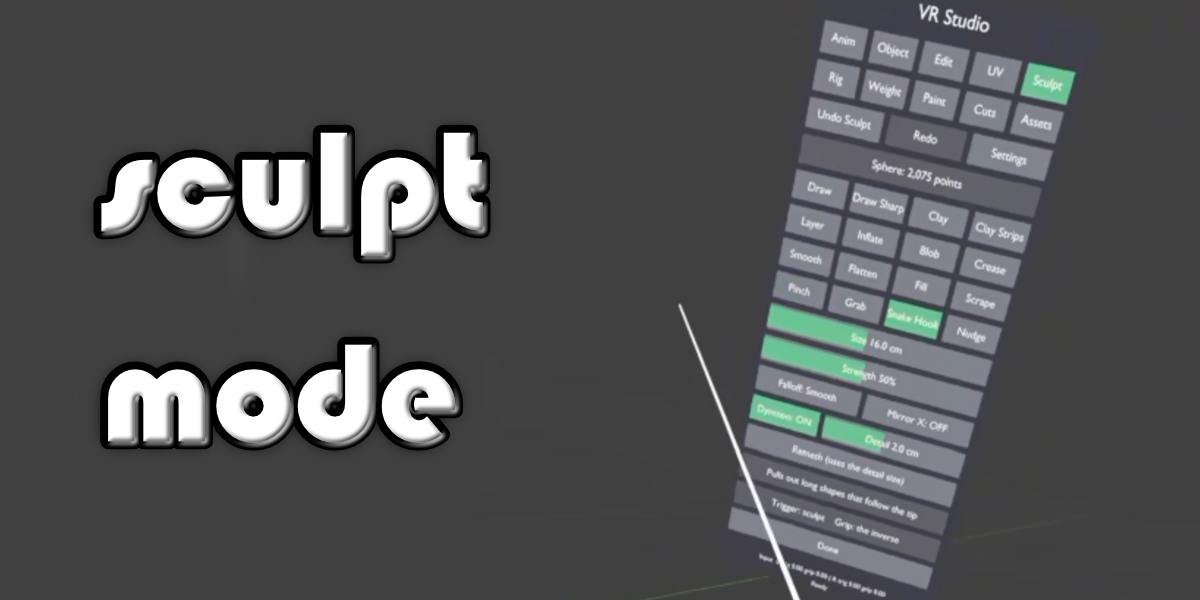
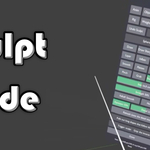
- Sculpt: the trigger sculpts, the grip inverts the brush; brushes, size, strength, mirror, Dyntopo detail and remesh on the panel.
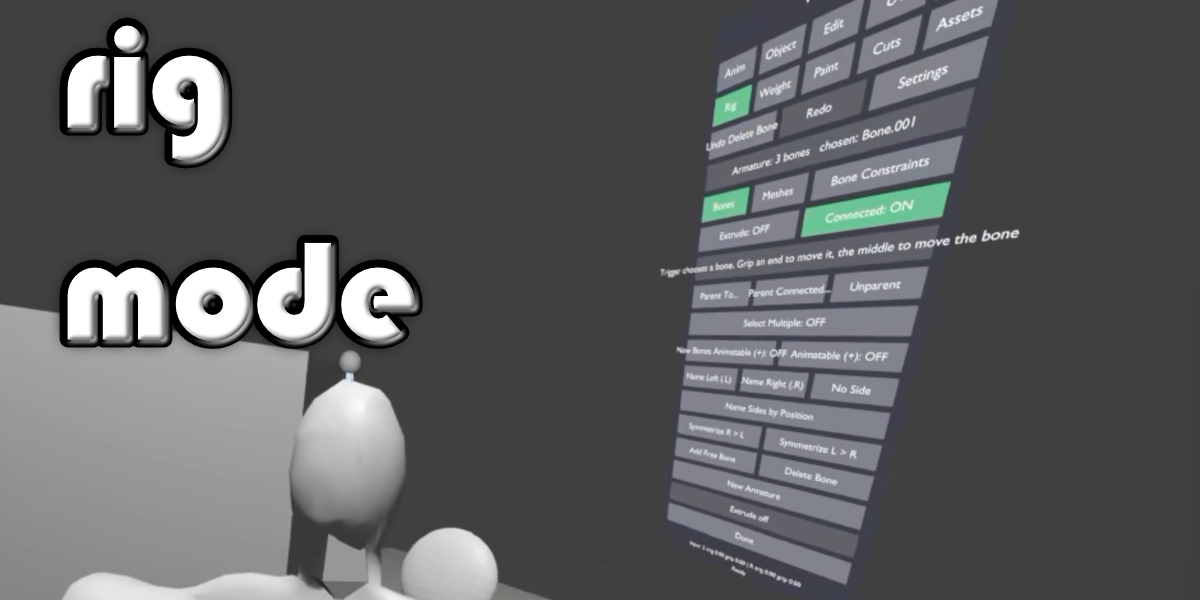
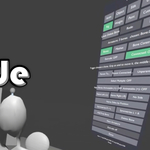
- Rig: choose bones with the laser, extrude chains, grip a bone end or its middle to move it, parent and unparent, delete bones, left/right names and Symmetrize (one button: mirrors every .L/.R bone across X or Y, keeps chains connected and copies constraints aimed at the mirrored IK and pole bones), animatable (+) bones, parent meshes with automatic weights, and the Bone Constraints page with Quick IK: name the limb's bones with .L or .R, choose its last bone (shin or forearm) and press Quick IK. The IK target appears at the end of the bone, pointing up; then let go of the trigger and pull it where the pole should go (the grip skips the pole). Both bones start with + so Animate mode can grab them.
- Weight: paint the weights of a rigged mesh.
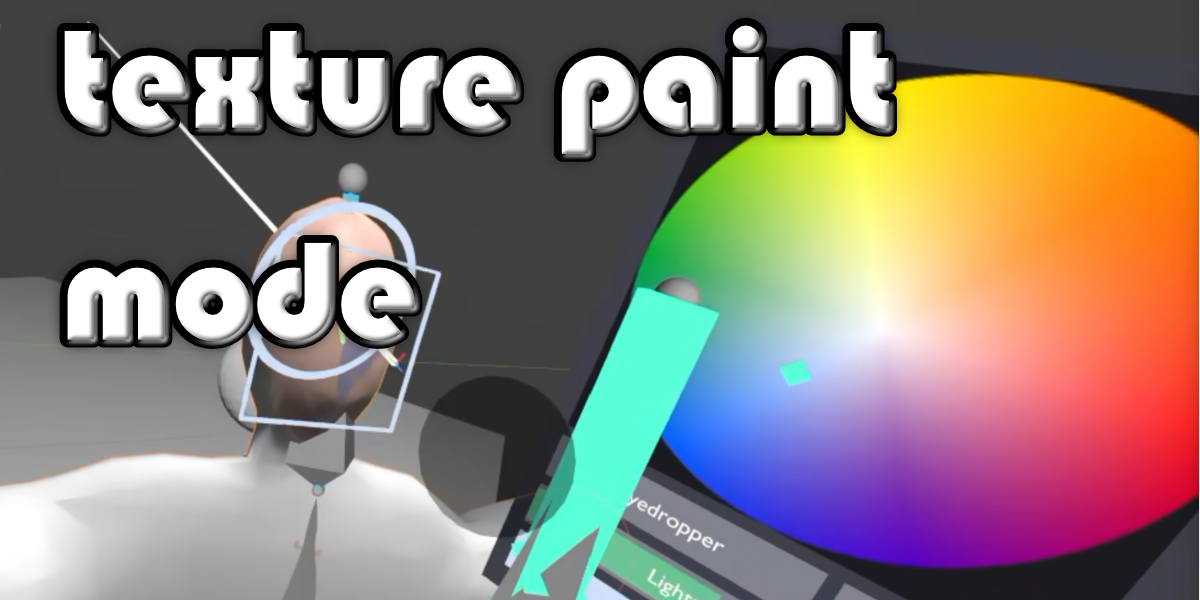
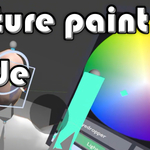
- Paint: texture painting with the right controller as the brush: oil brushes and an Airbrush (paint builds up while you hold it; Flow sets how fast), a Softness slider for each brush, a colour wheel (left grip or right A), clone and smudge, Paints from N cm for how close you must be, and Resize speed for grip-and-pull brush sizing.
- Camera Cuts: a black cinema with the active camera on a giant screen. Press camera tiles (green is active) to cut; Key Camera Change sets a camera marker at the frame. Previous/next change, move a change by 1 or 10 frames, delete, scrub the timeline, Material Preview or Solid. Done takes you back.
- Asset Browser: pick a library (from Preferences > File Paths, or the current file), browse it by folder or by catalog, pick a kind (objects, collections, materials, worlds, Geometry Nodes) and press an asset to add it in front of you; materials and Geometry Nodes go on the chosen object.
Tips
- For scenes built very large or very small, change Your Size in Settings (x10, x2, /2, /10).
- The helper objects VR Studio shows in the headset live in a collection that is excluded from renders and removed when the session ends.
- Everything you make is ordinary Blender data, so you can keep working on it on the desktop.
Have questions about this product?
Login to message
| Blender Extension Compatible | Yes |
| Published | about 22 hours ago |
| Blender Version | 5.0 - 5.2 |
| Extension Type | Add-on |
| License | GPL |

Discover more products like this
modeling Texture Painting vr camera cuts rigging animation motion controllers camera sculpting virtual reality asset-browser openxr