 MST-9 Tools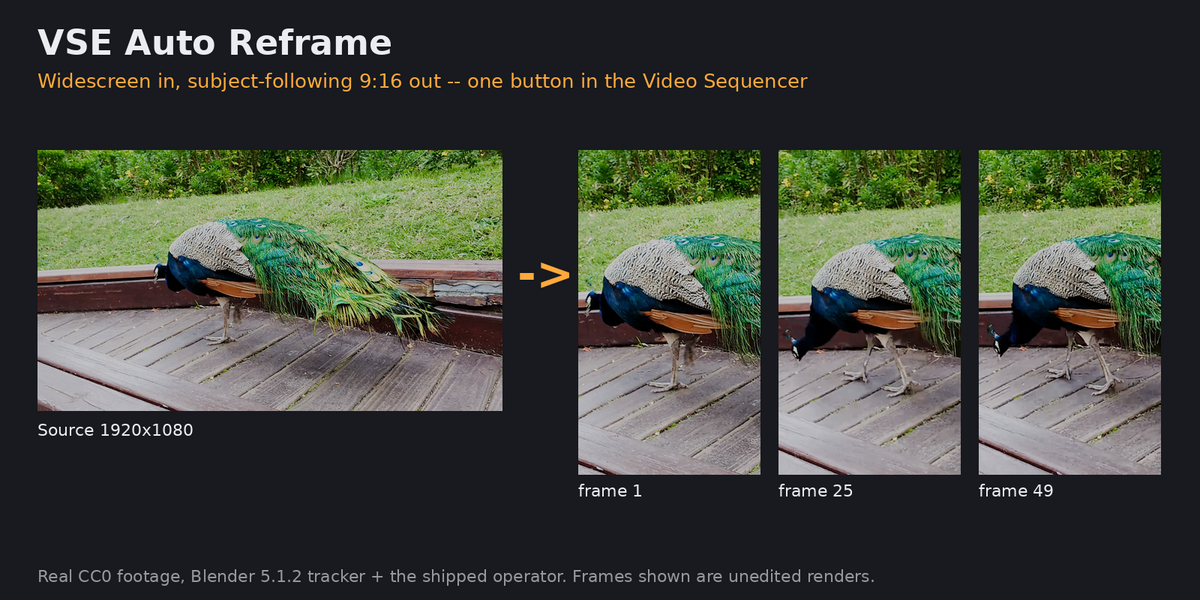
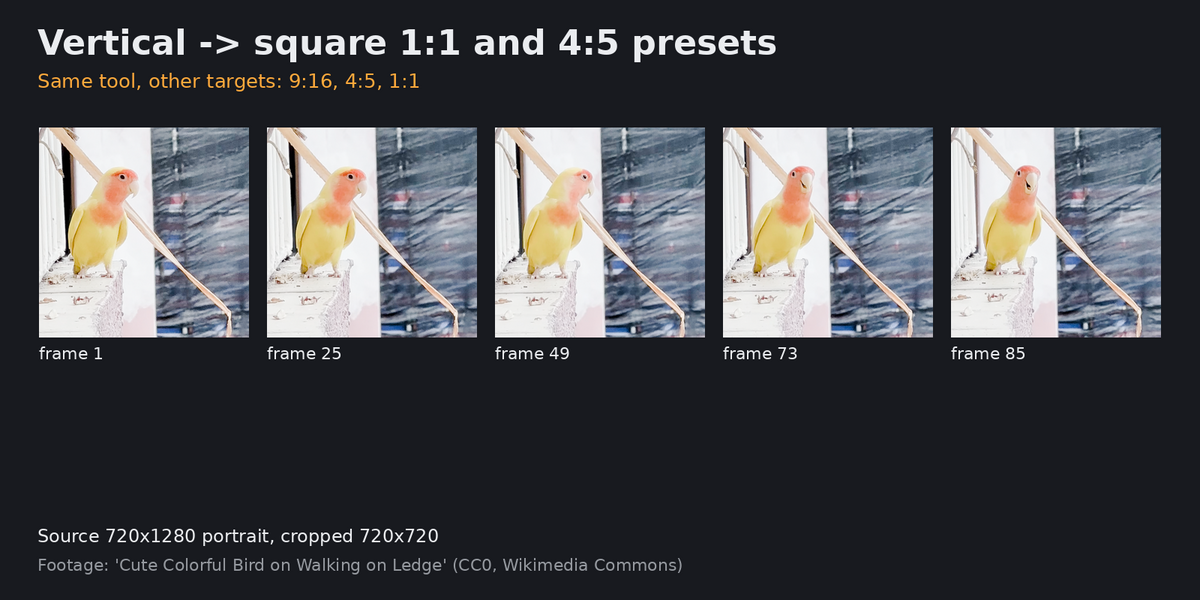
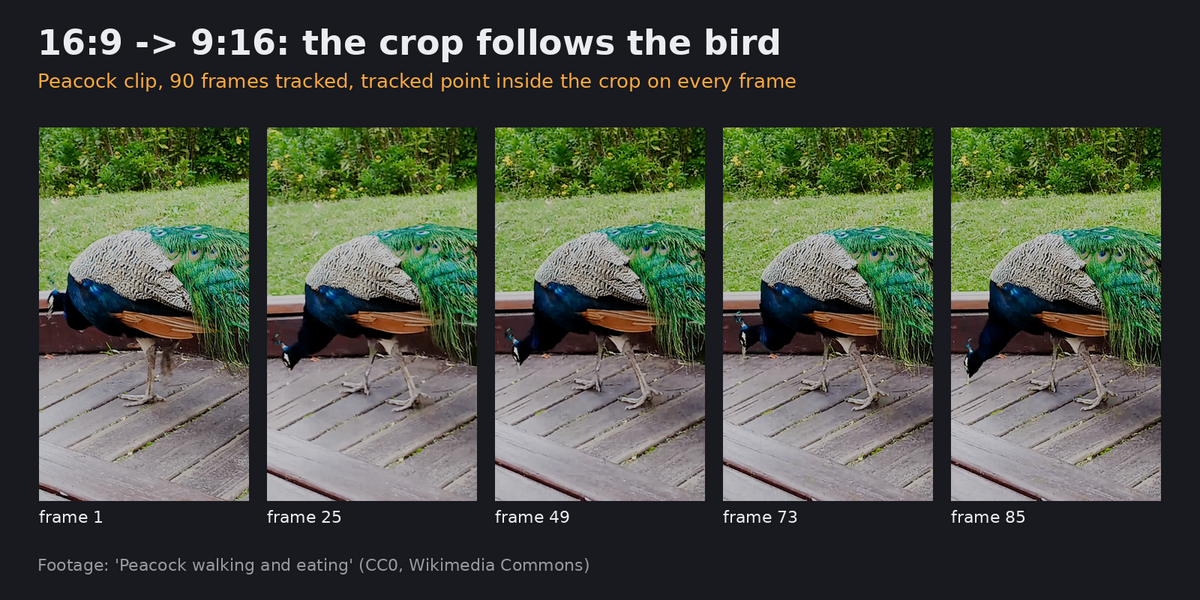
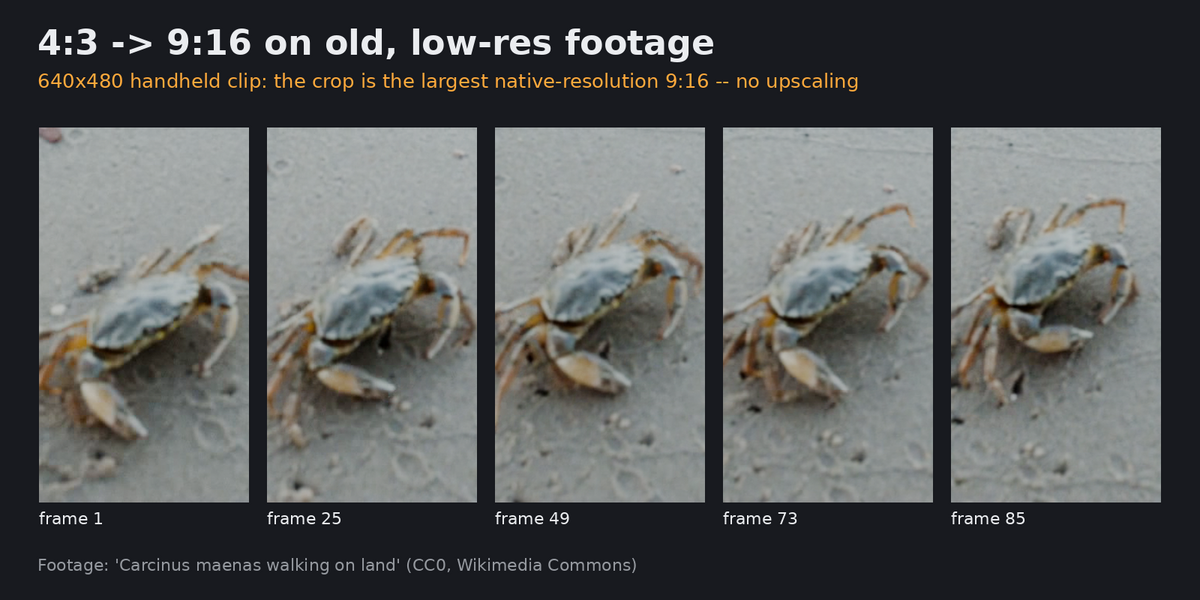
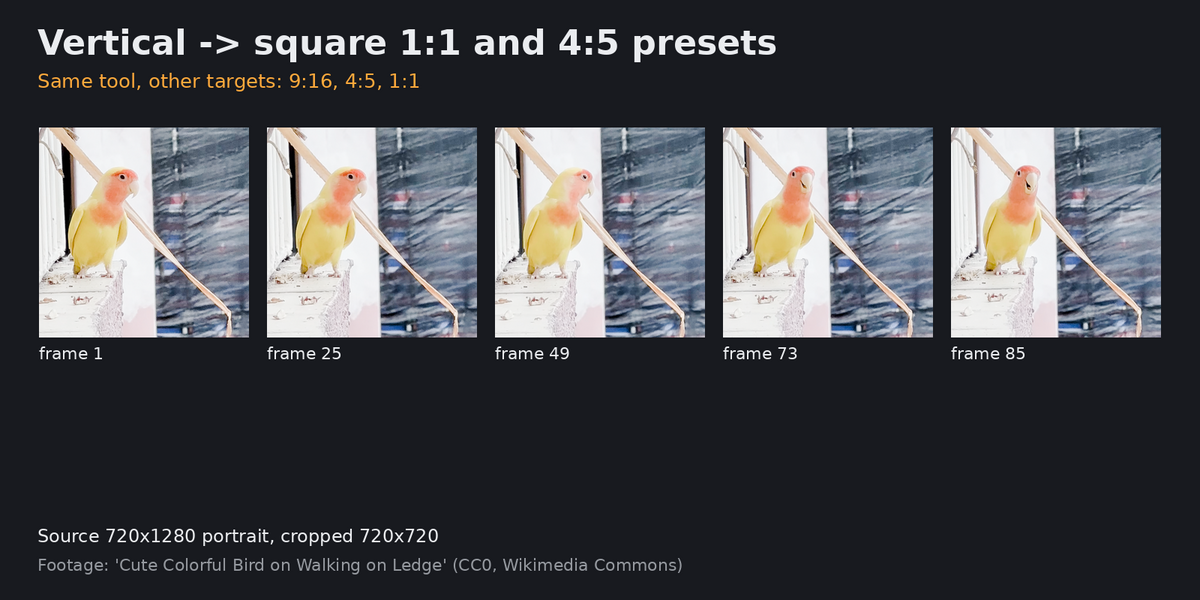
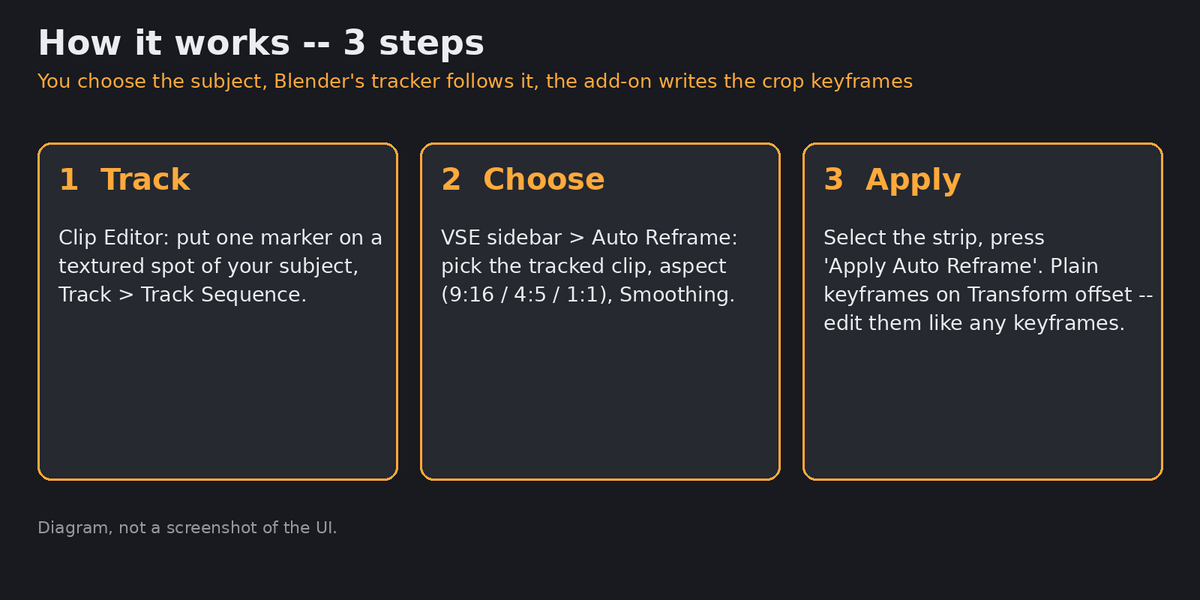
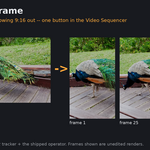
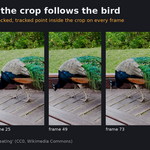
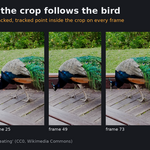
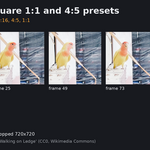
Short description: Turn widescreen footage into Shorts/Reels/TikTok crops that follow your subject.
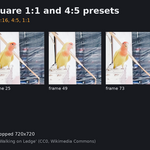
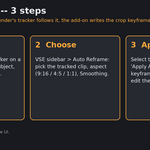
Press "Find and Track Subject" (or place your own marker), press Apply, get a keyframed, smoothed crop on the strip.
What it does
- VSE sidebar tab "Auto Reframe": pick the tracked clip, pick 9:16 / 4:5 / 1:1, set Smoothing, press Apply.
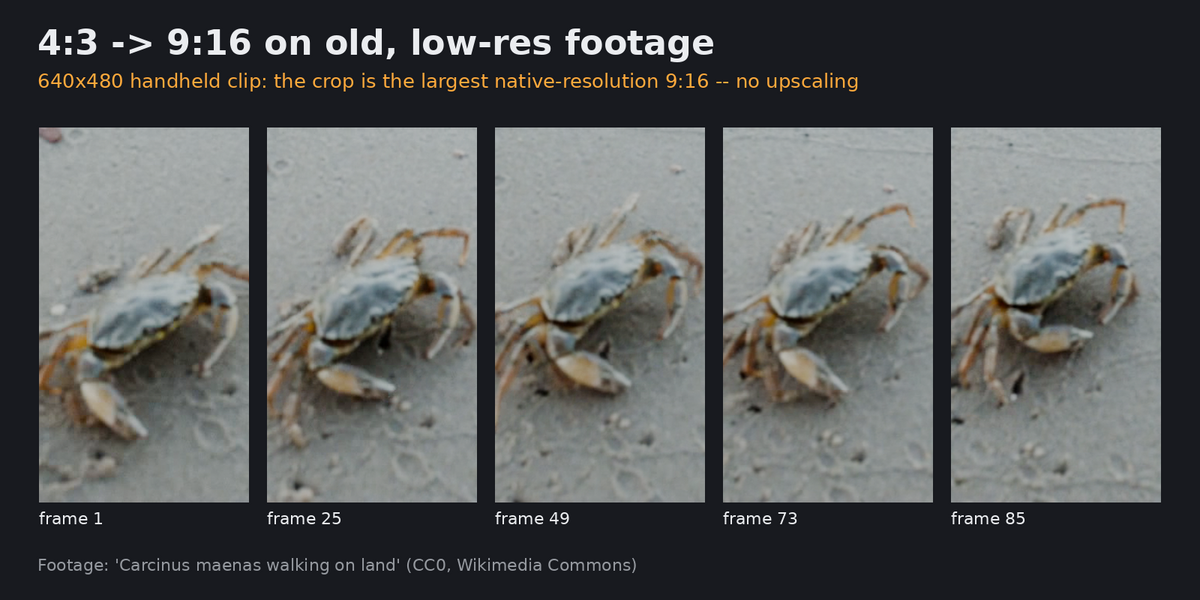
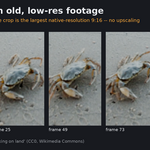
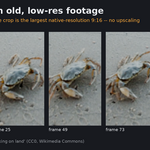
- Sets the render size to the largest native-resolution crop of that aspect (no upscaling), can be switched off.
- Writes ordinary keyframes on the strip's Transform offset -- edit or delete them like any keyframes; your own manual corrections stay.
- Clear messages: no active track, <2 tracked frames, or "tracker lost the subject at frame N, crop holds its last position".
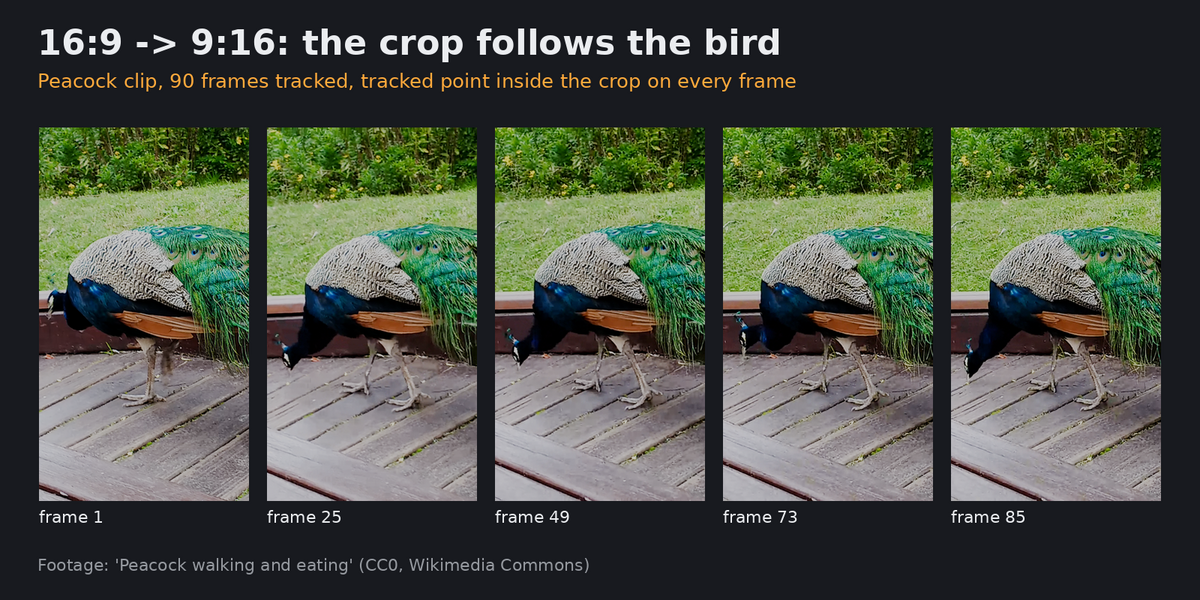
Tested (automated, reproducible; see README): Blender's real tracker + the shipped operator on three genuine handheld CC0 clips
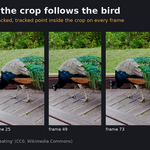
(1920x1080, 640x480, 720x1280): 90/90 frames tracked each, tracked point inside the crop on every frame (min margin 126-299 px),
independent colour-mask check on the bird clip 15/15 sampled frames; plus 36/36 frames on 3 synthetic motion patterns.
Honest comparison
- Manual keyframing the offset: free, exact, but tedious for >10 s of footage. This automates it.
- Blender's tracker without this: you'd still have to convert the track to strip keyframes by hand/script. This is that step, plus smoothing and aspect sizing.
- Pro editors' auto-reframe (Premiere/Resolve) use ML subject detection; this one follows ONE point you place -- you choose the subject, but it does not find one for you.
Limits (stated on the page): the automatic start point is a heuristic (a trackable feature near the centre, not an object detector) -- on one of our three test clips (a crab at the frame edge) it picked a point that left the crop after ~60 frames, so check the result and place a marker yourself when the subject is off-centre; one tracked point, no zoom/rotation follow; assumes strip scale 1.0; if the tracker loses the point (bad texture, occlusion) the crop holds -- pick a well-textured spot (a first marker on a smooth patch of the peacock was lost after 19 frames in our test; a textured spot tracked all 90).
Installation
1. Download vse_auto_reframe-1.2.1.zip (do not unzip).
2. Blender 4.2+: Edit > Preferences > Get Extensions > top-right menu (v) > Install from Disk... > pick the zip. (Blender 4.2/4.3: same menu is under Add-ons > Install from Disk.)
3. Enable "VSE Auto Reframe". The panel appears in Video Sequencer > Sidebar (N) > "Auto Reframe" tab.
Usage
1. Add your video as a Movie strip in the VSE and open the same file once in a Movie Clip Editor. Press Find and Track Subject in the Auto Reframe panel: the add-on detects features near the frame centre, tracks the best candidates and keeps the one that survives longest. Or, for full control, place ONE tracking marker on a well-textured spot of your subject (eye, logo, patterned clothing -- not a smooth patch) and run Track > Track Sequence. If the track ends early, re-track from there.
2. In the VSE select the strip, open Sidebar > Auto Reframe. Pick the tracked clip, the aspect (9:16 / 4:5 / 1:1) and Smoothing (default 0.65; higher = calmer, slower to react).
3. Press "Apply Auto Reframe". The strip gets keyframes on Transform > Offset X/Y and the render size is set to the aspect. Scrub or render. Edit/delete the keyframes like any others.
FAQ
- Does it find the subject for me? No. You place one point; it follows it. (No ML.)
- Does it upscale? No. The crop is the largest native-resolution crop of the chosen aspect; untick "Set Render Size" to use your own resolution.
- The crop stopped moving. The tracker lost the point (occlusion/blur/smooth area). The add-on warns with the frame number; re-track from there with a better marker or add keyframes by hand.
- Does it follow zoom or rotation? No -- position only. Strip scale is assumed 1.0.
- Can I fix a frame by hand? Yes, they are ordinary keyframes.
- Which Blender versions? 4.2+; tested on 5.1.2.
- Licence? GPL-3.0-or-later.
- Support? Message me here; answers within 72 hours.
Disclosure: this add-on was written with AI assistance (Claude) and tested by automated scripts; I stand behind it and answer support myself.
