Vse Auto Reframe: 9:16 / 4:5 / 1:1 Subject-Following Crop
 MST-9 Tools
in VSE
MST-9 Tools
in VSE
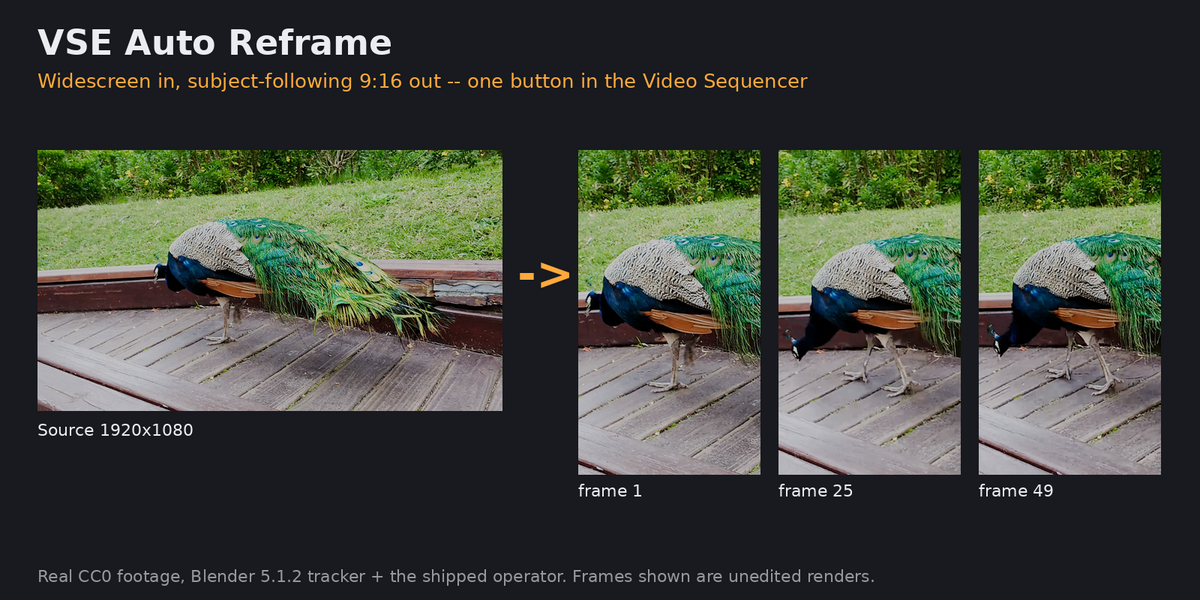
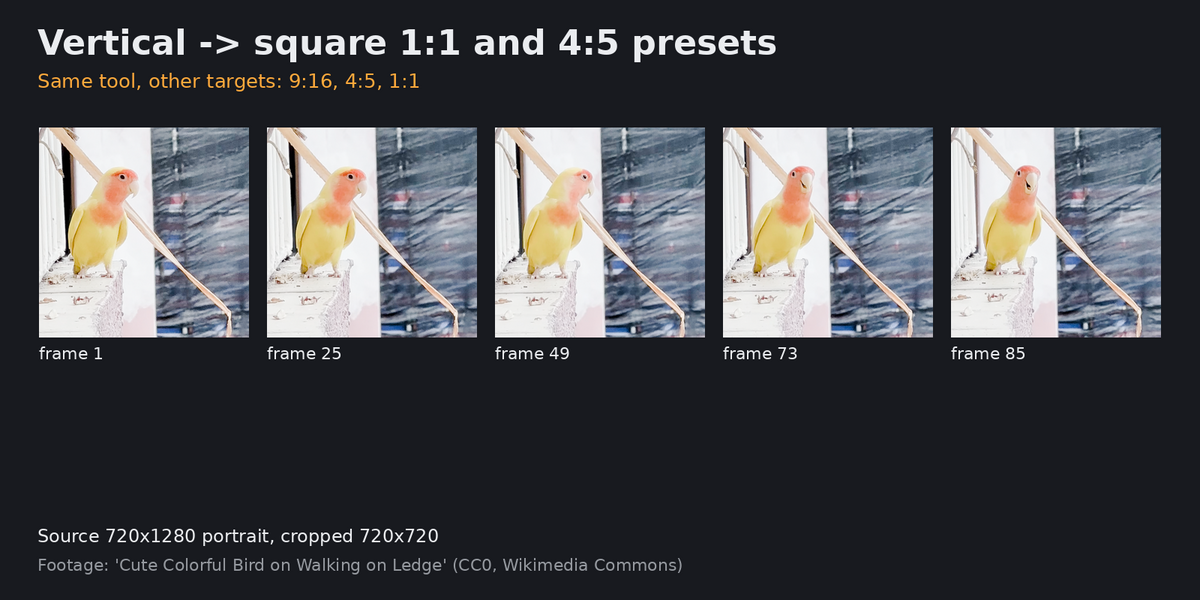
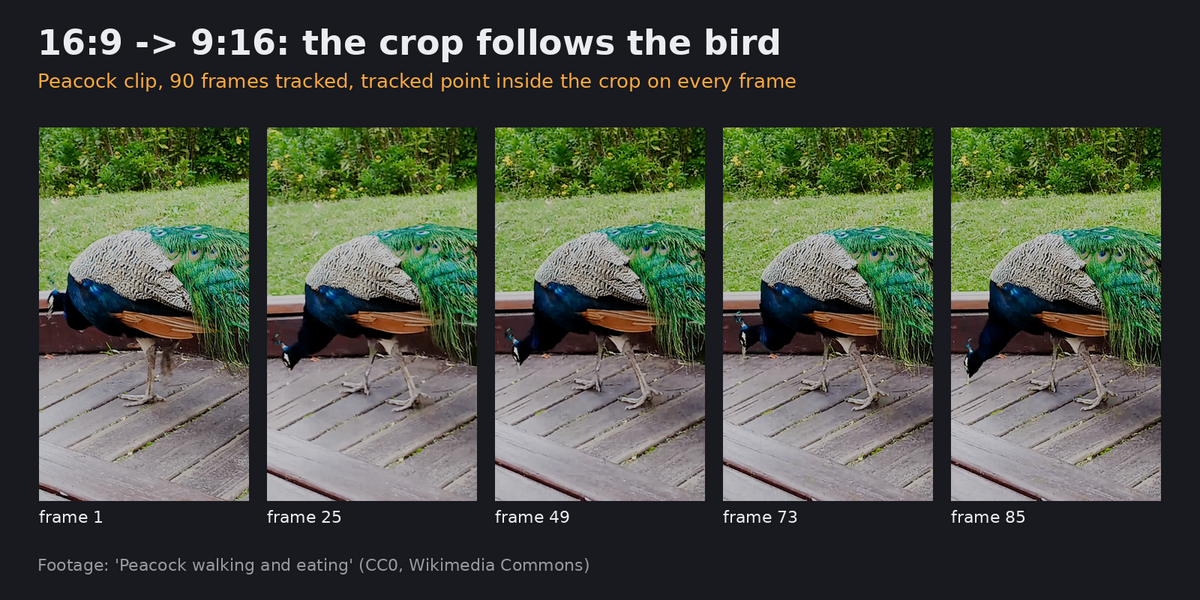
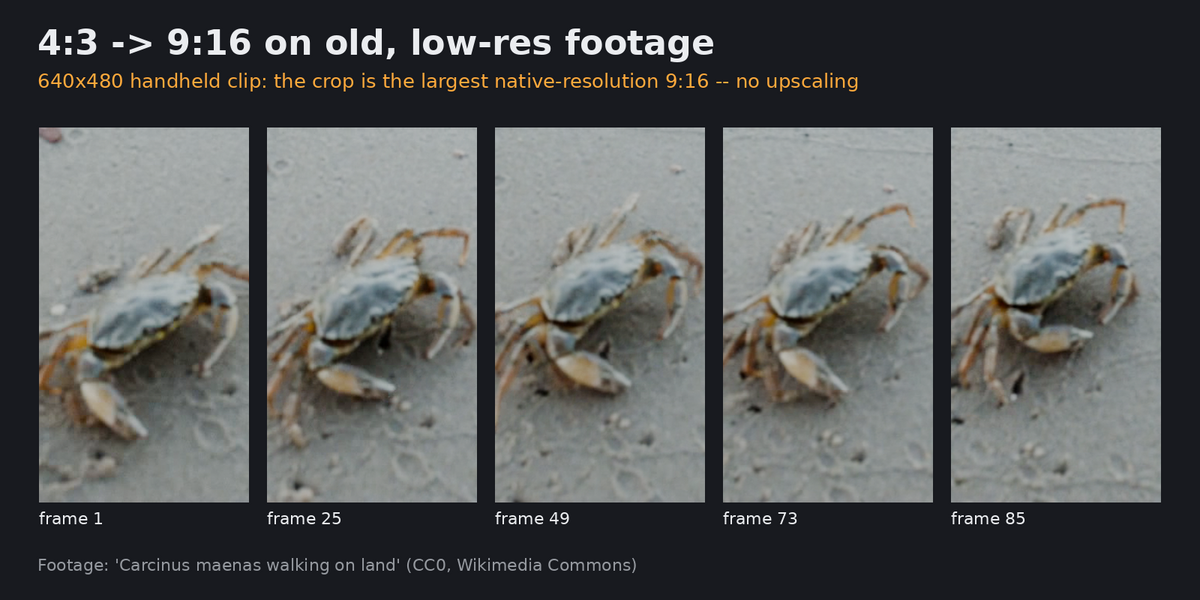
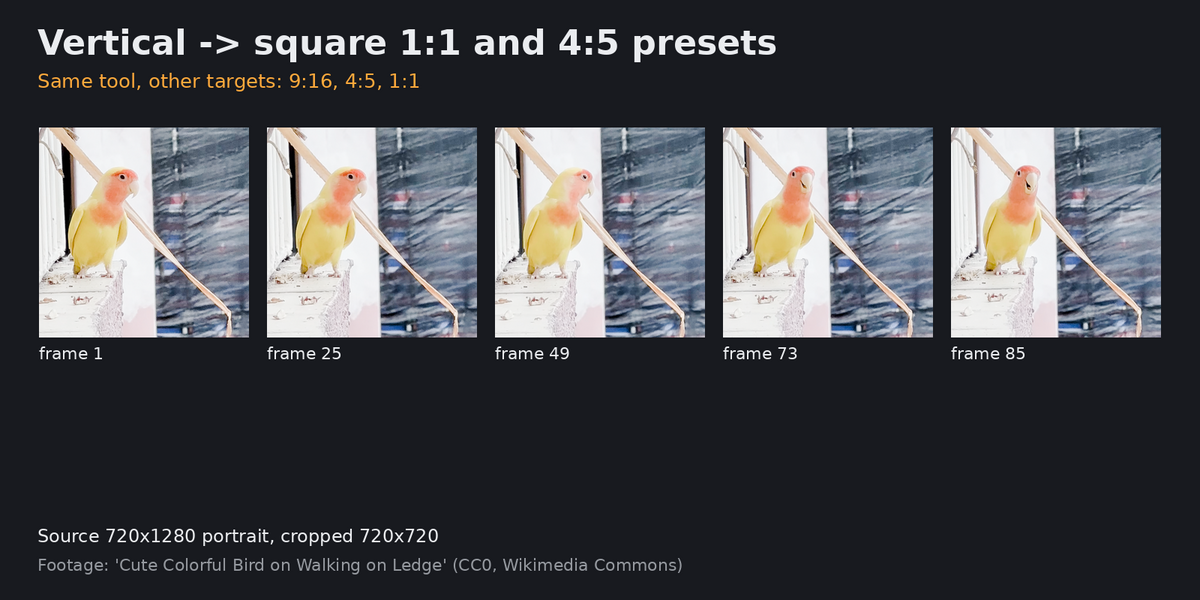
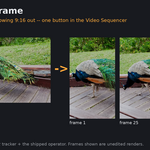
VSE Auto Reframe
One-click 9:16 / 4:5 / 1:1 reframing for Blender's Video Sequence Editor (VSE), driven by
Blender's own built-in motion tracker. Keeps a moving subject in frame when converting
widescreen footage to Shorts/Reels/TikTok formats, instead of a fixed crop that loses them.
Install
1. Download `vse_auto_reframe-1.2.0.zip` (do not unzip it).
2. Blender 4.2+: Edit > Preferences > Get Extensions > the dropdown arrow (top right) >
"Install from Disk" > select the zip.
3. Enable "VSE Auto Reframe" in the add-on list if it isn't already.
Usage
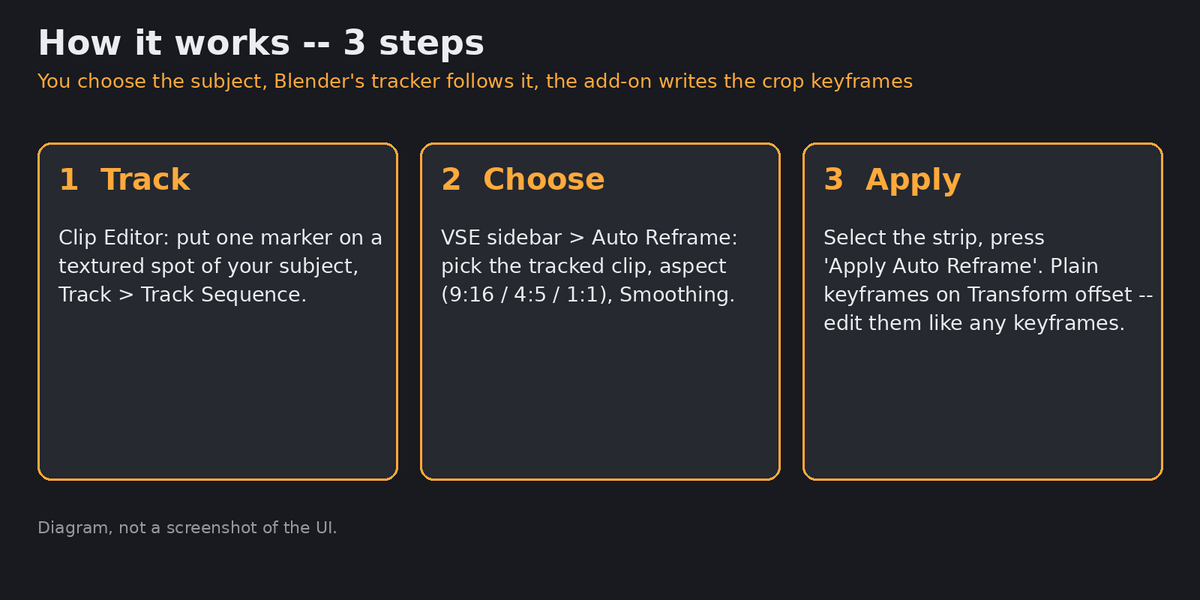
1. Set your project's render resolution to your TARGET format (e.g. 1080x1920 for 9:16).
2. Add your source footage as a Movie Clip and open it in the **Clip Editor**.
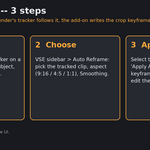
3. Either press **Find and Track Subject** (v1.1: automatic start point near the frame centre, heuristic), or place one tracking marker on the subject yourself and use Blender's own
**Track > Track Sequence** (this is standard Blender functionality -- the same tracker
used by Blender's camera/object tracking workflows).
4. Add the same footage as a strip in the **Sequencer** (VSE) and select it.
5. Open the Sequencer's sidebar (press `N`) > **Auto Reframe** tab.
6. Pick the tracked clip from step 2-3, choose your target aspect, adjust **Smoothing**
(higher = less jitter, slower to react to fast motion), and press **Apply Auto Reframe**.
7. The strip's transform offset is now keyframed for every tracked frame. Scrub the timeline
to check, and keyframes can be hand-adjusted afterwards like any other Blender keyframes.
**Requirement:** this version assumes the strip's `Transform > Scale` is left at 1.0
(Blender's default) -- it works out the crop from the tracked clip's native resolution versus
your project's render resolution, centered the way Blender centers an oversized strip by default.
What's tested (not just claimed)
All tests are automated (pixel-level checks on rendered output, no manual eyeballing) and
reproducible headlessly:
- **Real tracker, not a simulation**: `../real_tracker_test.py` runs Blender's actual
`bpy.ops.clip.track_markers` operator (via Xvfb, a virtual display, since the tracking
operator needs a Clip Editor UI context) on a synthetic clip with a known ground-truth
position per frame. Result: mean tracking error 0.46px, max 0.96px across 24 frames.
- **Full pipeline, real tracker included**: `../full_pipeline_test.py` feeds that real
tracker's output through the same smoothing + keyframing code this add-on uses, renders
all 24 frames at 270x480 (9:16), and checks the subject is visible in the output.
Result: **24/24 frames visible**; a static center-crop baseline of the same footage only
keeps the subject visible in 12/24 frames (50%). Sample renders in `../sample_renders/`.
- **The shipped add-on operator itself** (not a reimplementation): `test_addon.py` installs
the real `sequencer.vse_auto_reframe_apply` operator and runs it against 3 distinct
synthetic motion patterns (horizontal pan, diagonal move, jittery near-static), each with
its own injected tracking data, verifying every one of 12 rendered frames per clip shows
the subject. Result: **36/36 frames visible (3 clips x 12 frames, 100%)**.
Run: `blender --factory-startup --background --python test_addon.py`
- **Packaging**: the zip passes Blender's own `--command extension validate`, and was
installed and verified registered (`bl_ext.user_default.vse_auto_reframe`, operator and
panel property both present) in a clean Blender preferences profile.
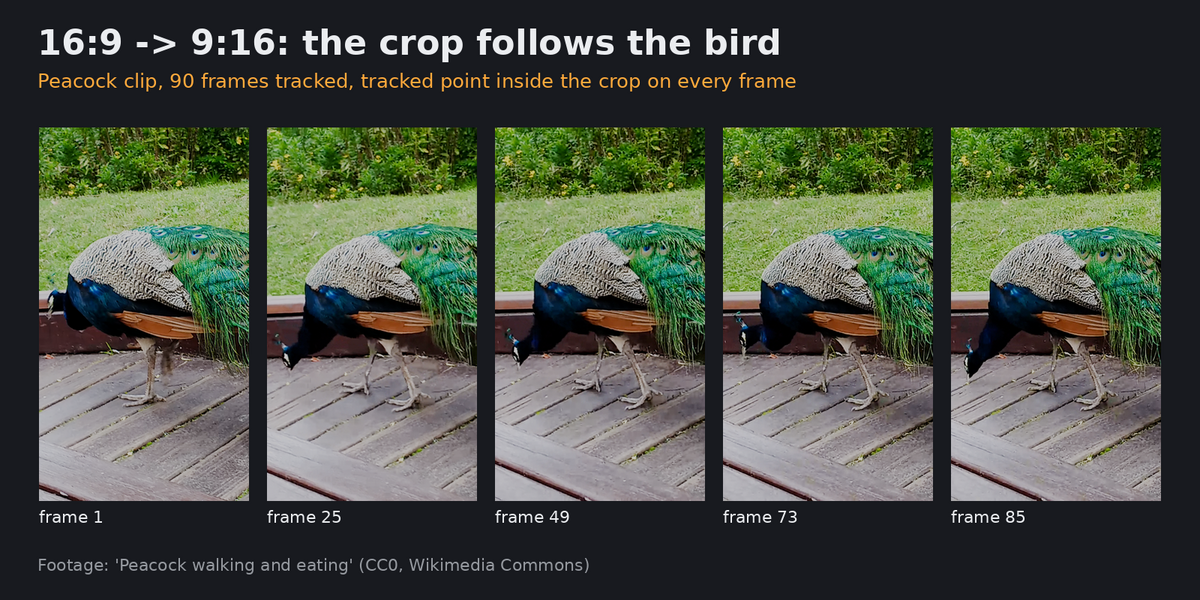
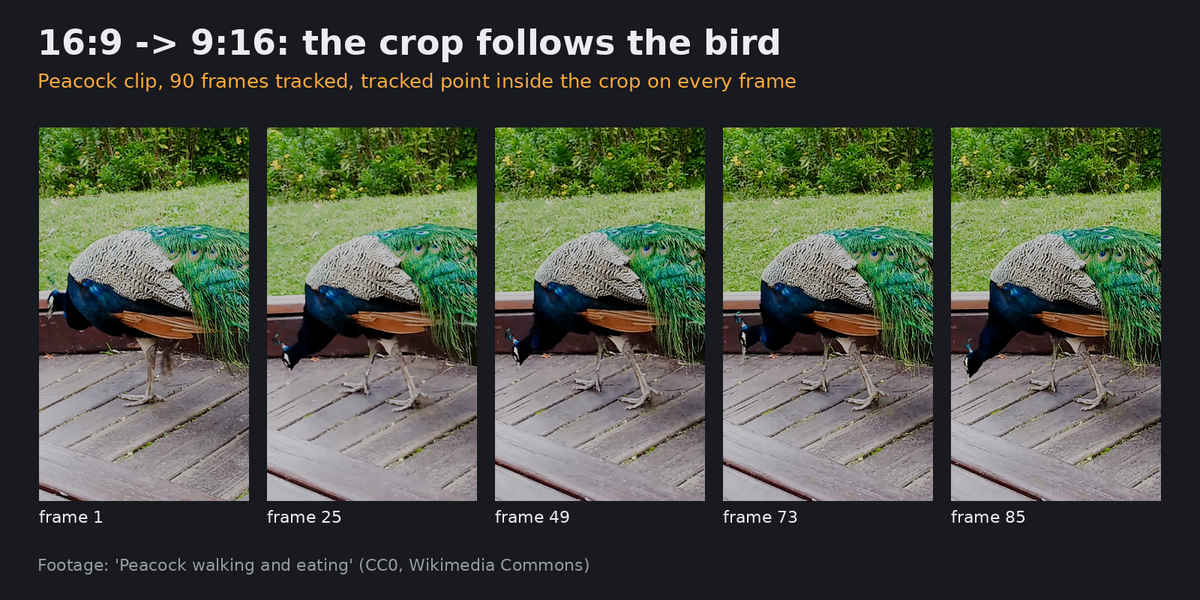
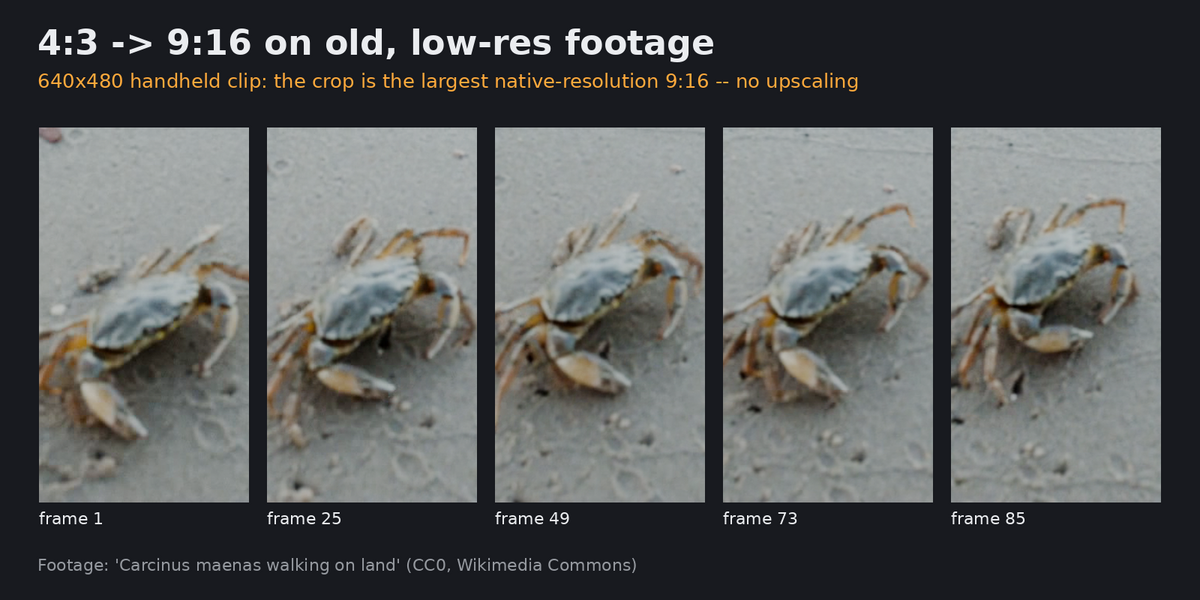
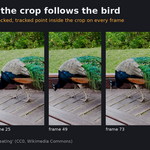
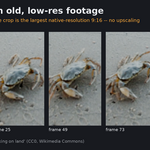
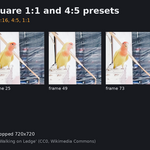
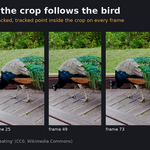
- **Genuine footage**: `../real_footage_test.py` runs the real tracker + the shipped operator on three real handheld CC0 clips
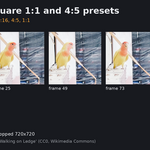
(peacock 1920x1080 -> 9:16, crab 640x480 -> 9:16, lovebird 720x1280 -> 1:1; licences in `../listing/FOOTAGE.md`). Result: 90/90 frames tracked
on each, tracked point inside the crop on all 270 frames, min margin 126-299 px; independent colour-mask check on the bird 15/15; crops inspected
by eye (`../listing/*_sheet.jpg`). A first marker on a smooth patch of the peacock was lost after 19 frames -- the add-on now warns when a track
ends early and the crop holds its last position.
Known limitation (named, not hidden)
Scope: one tracked point (translation only -- no zoom/rotation follow), assumes strip scale 1.0, and it
follows the point YOU place rather than detecting a subject. Real-footage testing covers three clips
(animals, handheld, one portrait source), not people/vehicles/heavy occlusion. If the tracker loses the
point, the crop holds -- choose a well-textured spot. Clips are tested at 90 frames, not long takes.
License
GPL-3.0-or-later (required for Blender add-ons/extensions). Does not reuse any code, assets,
or text from any other add-on.
Safe-zone check (v1.2)
Sidebar > Auto Reframe > step 4: choose Shorts / TikTok / Reels, press **Check Safe Zones**. Text and image
strips reaching into the platform's UI zones are reported with the intrusion in pixels; the option
"Move text strips inside" shifts text strips that fit. Zone margins are approximate (1080x1920 reference,
scaled to your render size) and platforms change their UI. Text boxes are estimates (see `text_estimate_check.py`).
Tests: `test_safe_zone.py` (headless).
Have questions about this product?
Login to message
| Blender Extension Compatible | Yes |
| Published | 3 days ago |
| Blender Version | |
| Extension Type | Add-on |
| License | GPL |

Discover more products like this
reframe crop vertical video blender shorts tracking video editing vse