Wallpaper Groups
 Mneme
Mneme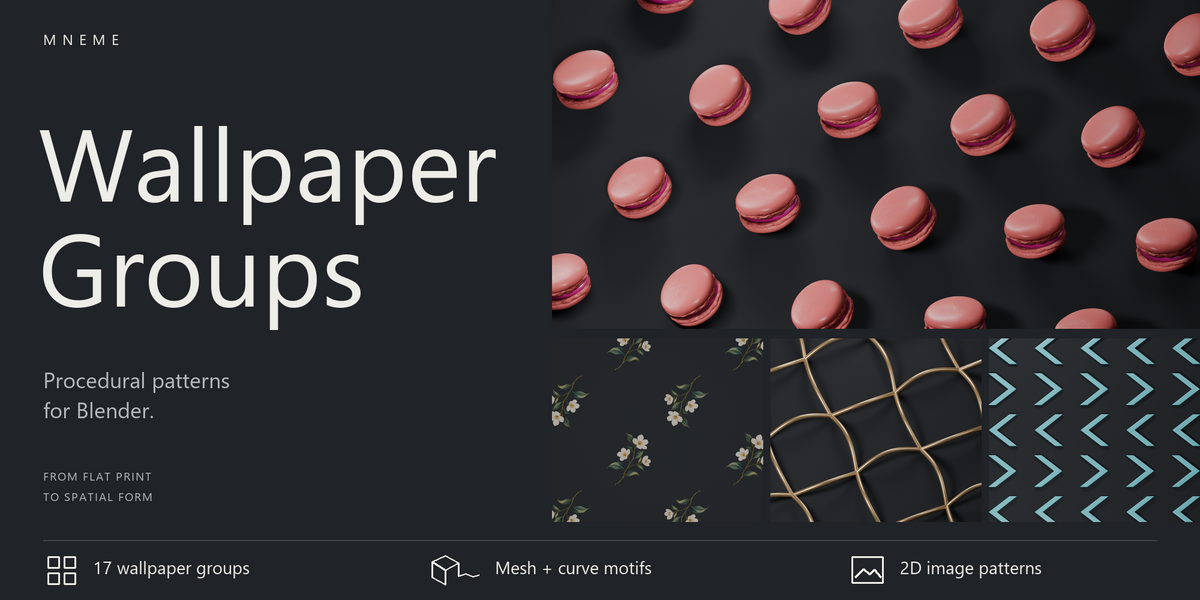
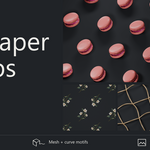
Wallpaper Groups User Guide
Choose a starting point
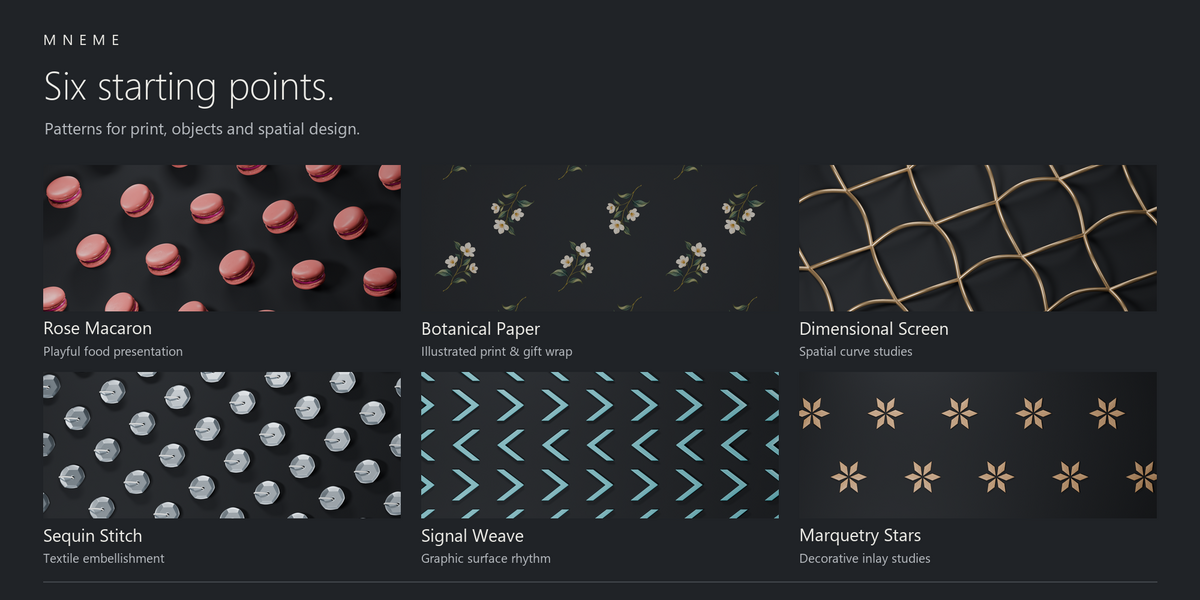
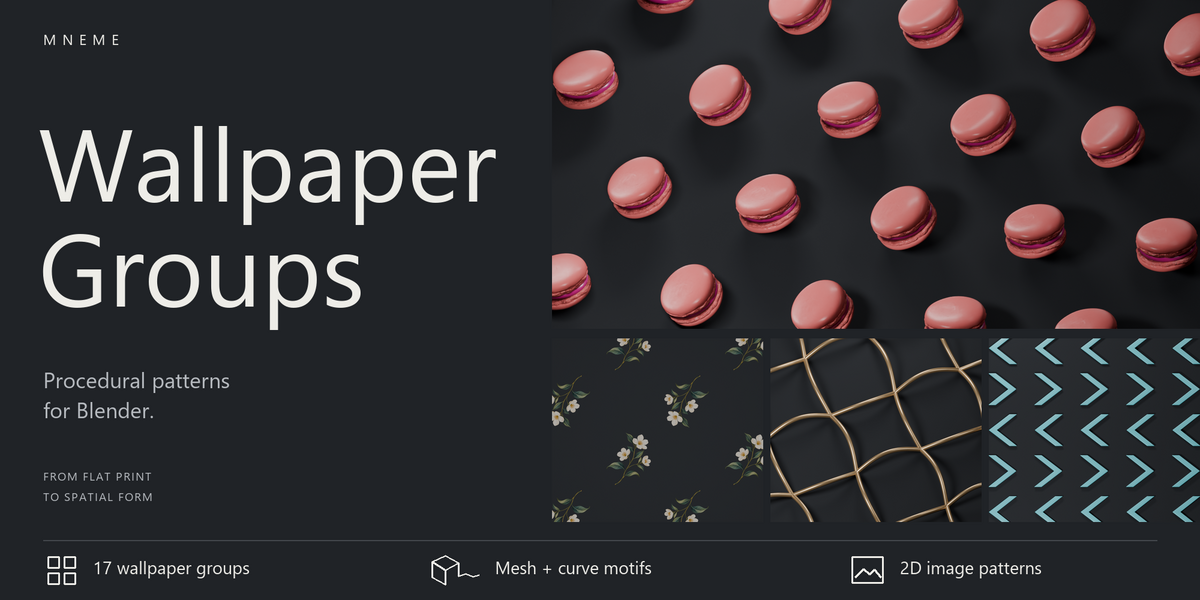
Start with the Wallpaper Groups asset for a simple triangle pattern, or choose one of the six presets. Keep the modifier live so you can change the pattern later. For library setup, read Start Here.
You can also import an asset with File > Append. Open Wallpaper_Groups.blend, enter Object, and choose Wallpaper Groups or a preset. Blender brings in the motif and materials it needs.
The generator's plane holds the modifier; its shape does not become the pattern. Choose the shape you want to repeat in Motif Object.
Choose and position a motif
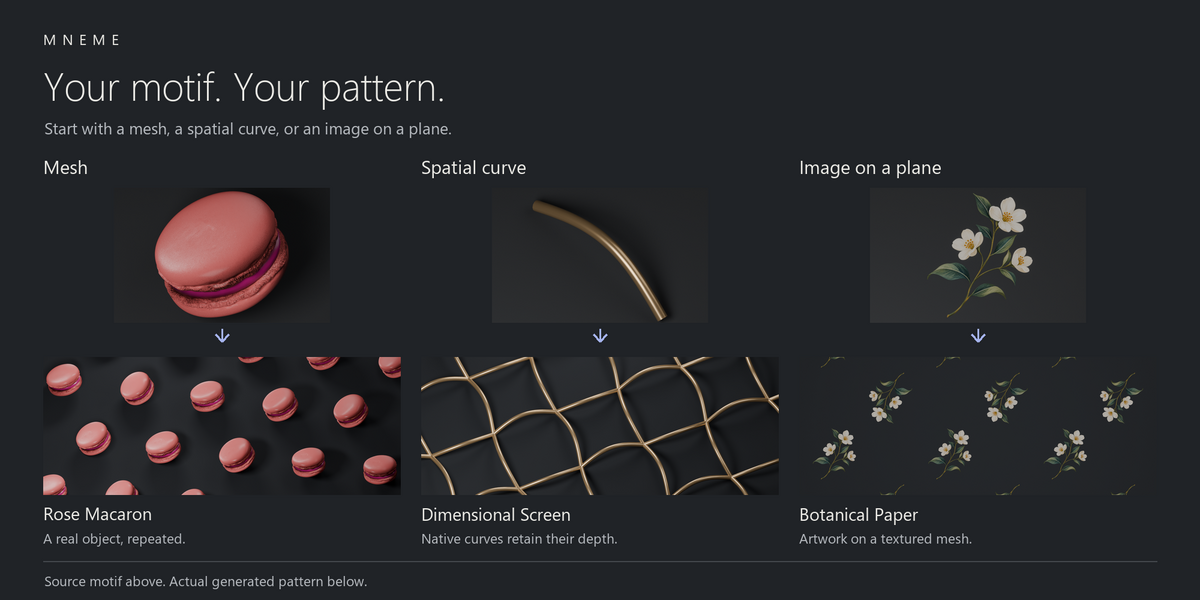
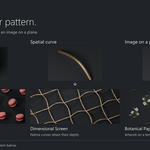
A motif is the shape or object you repeat. Use a mesh for solid forms, a curve for lines and shapes with bevel or depth, or a textured mesh for image artwork. Source materials stay with the geometry.
Choose a separate object in Motif Object. Avoid a source that depends on the pattern object: that would make the two objects depend on each other.
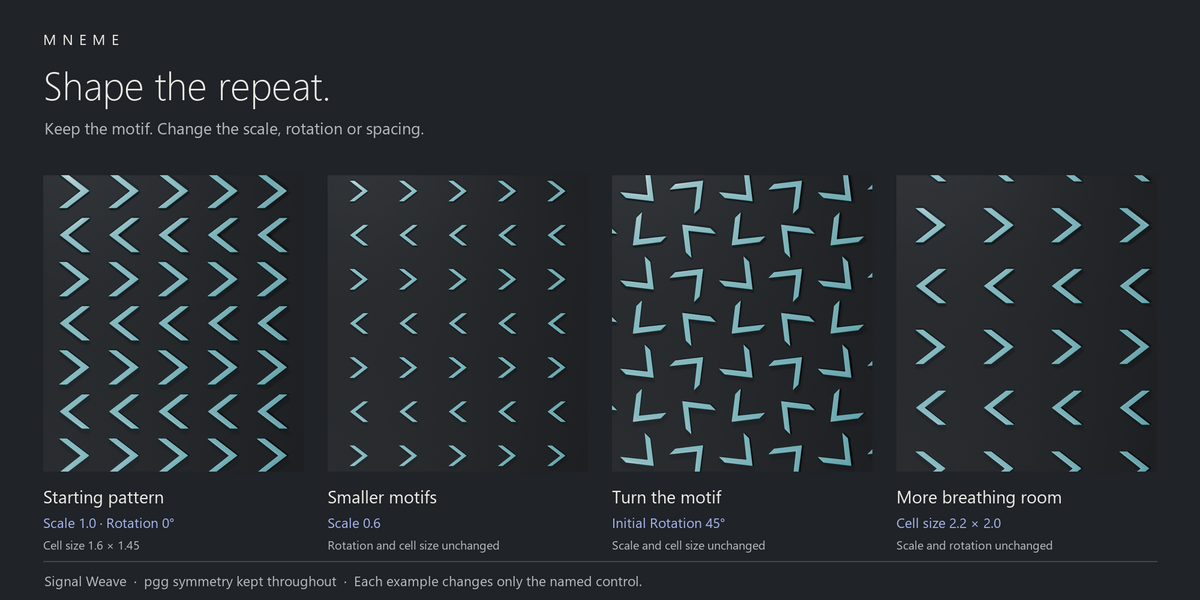
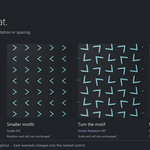
Scale changes the motif's size. Initial Rotation turns it around its own Z axis. Position X and Position Y place it inside the repeating cell, along the cell's U and V directions. A value of 0.5 moves it half a cell along that direction; values below 0 or above 1 are allowed.
U and V follow the lattice, so they do not always line up with the scene's X and Y axes. Turn on Lattice Vectors under the guide settings to see them.
Moving or rotating my source object does not change the pattern
Wallpaper Groups reads the source object's geometry without using its scene location, rotation or scale.
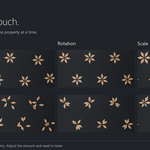
To change the motif inside the pattern, use Scale, Initial Rotation and Position X/Y in the modifier. Initial Rotation turns the motif around its Z axis.
To tilt the motif around X or Y, select the source object, enter Edit Mode and rotate its geometry. For example, this lets you tilt a macaron so more of its filling is visible in the pattern.
Use Pattern Rotation when you want to turn the whole pattern instead of the motif.
Choose a symmetry group
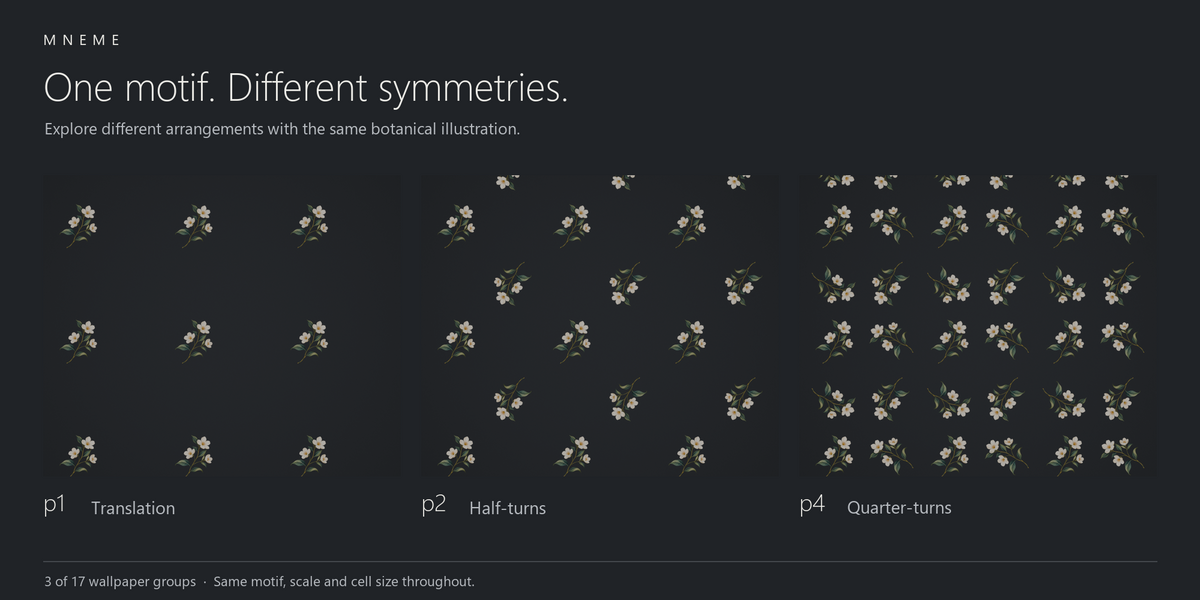
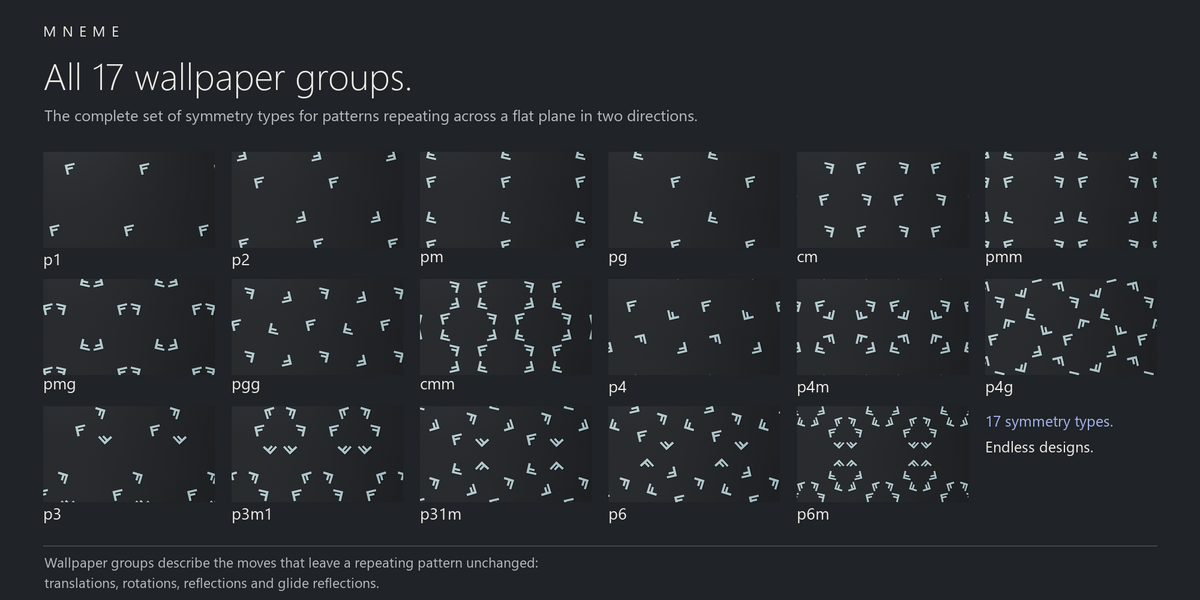
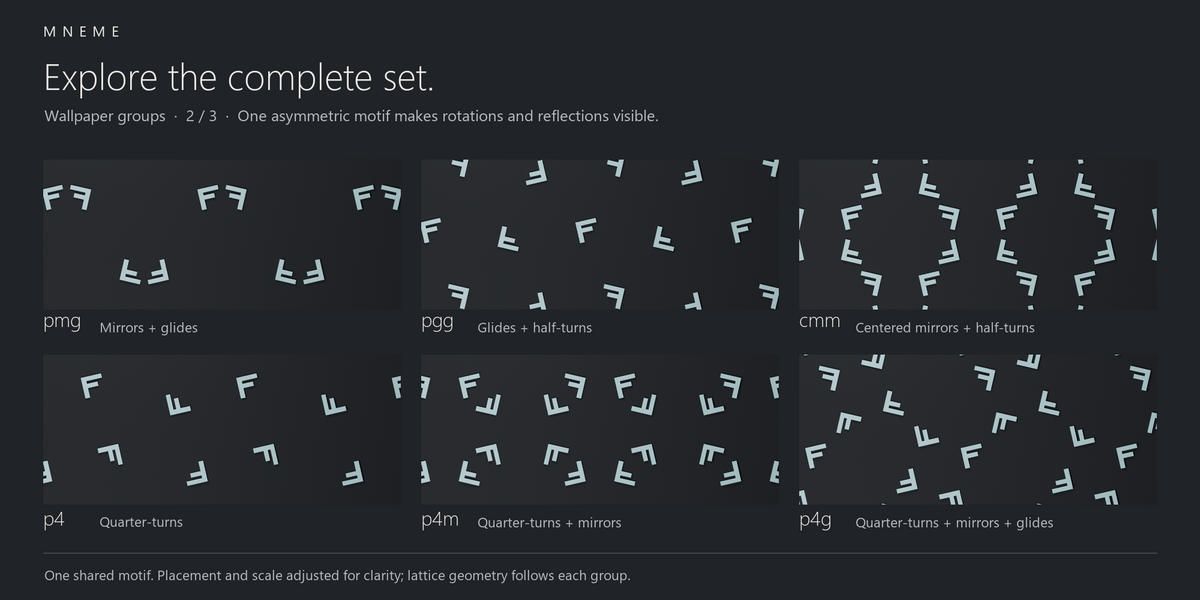
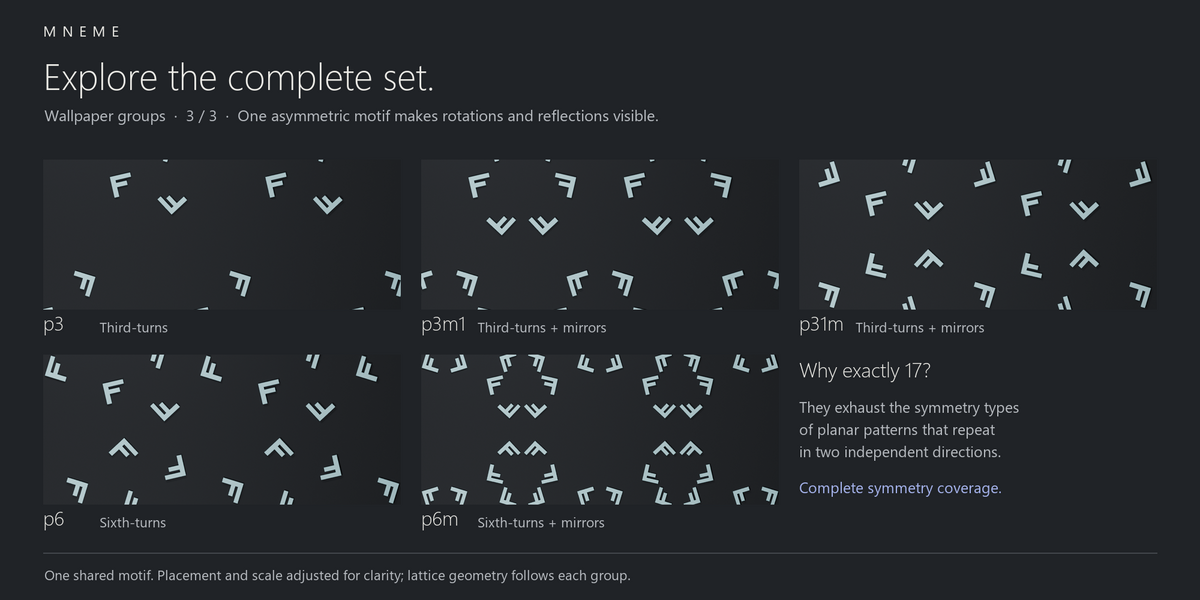
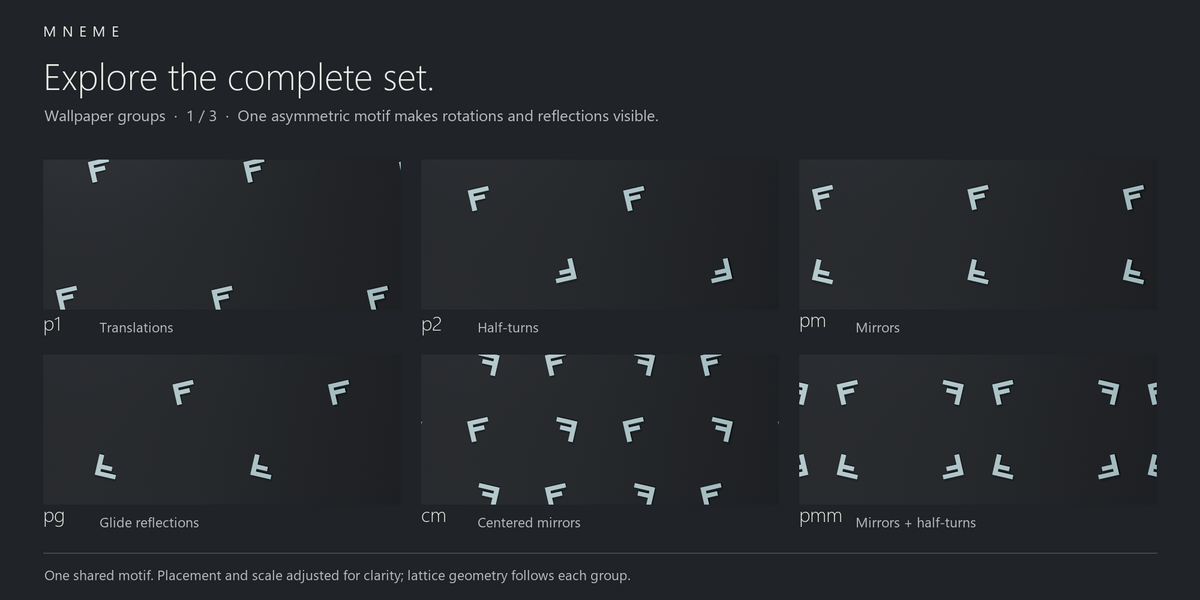
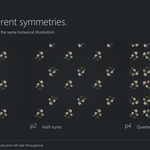
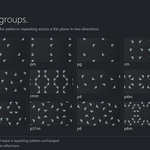
Wallpaper groups describe the symmetries of patterns that repeat across a flat plane in two independent directions. There are exactly 17 types, each allowing many designs. Borders that repeat in one direction, radial arrangements and nonperiodic patterns fall outside this classification.
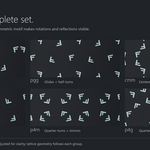
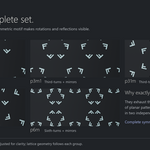
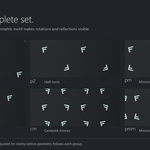
Choose a group in Wallpaper Group, then compare the result with another group. The 17 Groups Reference shows the full set. For a clear comparison, disable Humanization and use a motif with an obvious direction.
Each group needs a compatible cell shape, called a lattice. The modifier keeps that shape valid as you adjust the spacing.
| Lattice | Groups | How to change the spacing |
|---|---|---|
| Oblique option | p1, p2 | Choose Family Preference, then adjust Cell Size X/Y and, for an oblique cell, Oblique Angle. |
| Rectangular | pm, pg, pmm, pmg, pgg | Adjust Cell Size X and Y independently. |
| Centered rectangular | cm, cmm | Adjust the rectangle's width and height. Its primitive U/V cell runs diagonally. |
| Square | p4, p4m, p4g | Use Cell Size X for both directions. |
| Hexagonal | p3, p3m1, p31m, p6, p6m | Use Cell Size X for the shared cell size. |
For square and hexagonal groups, Cell Size Y has no effect. For p1 and p2, Family Preference lets you choose a lattice; other groups use the lattice they require. Your preference is kept when you return to p1 or p2.
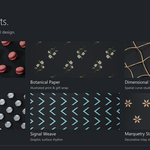
The pattern repeats in the generator object's XY plane. A motif can have depth, as the Dimensional Screen preset shows. To put a pattern onto a curved model, use a separate mapping or deformation workflow.
Change spacing and coverage
Use Scale to resize the motif without changing the cell spacing. Use Cell Size X/Y to move repeated cells closer together or farther apart. Repeat U and Repeat V set how many cells are repeated in each direction.
Use Pattern Rotation to turn the complete pattern around the generator object's origin. Pattern Offset X/Y move the result after that rotation. These offsets use Blender units; Position X/Y use fractions of a cell.
The modifier keeps repeat counts at one or more and cell sizes above zero. It does not cut motifs at cell edges or repair intersections. For fewer overlaps, reduce the motif scale or increase the spacing.
Add variation with Humanization
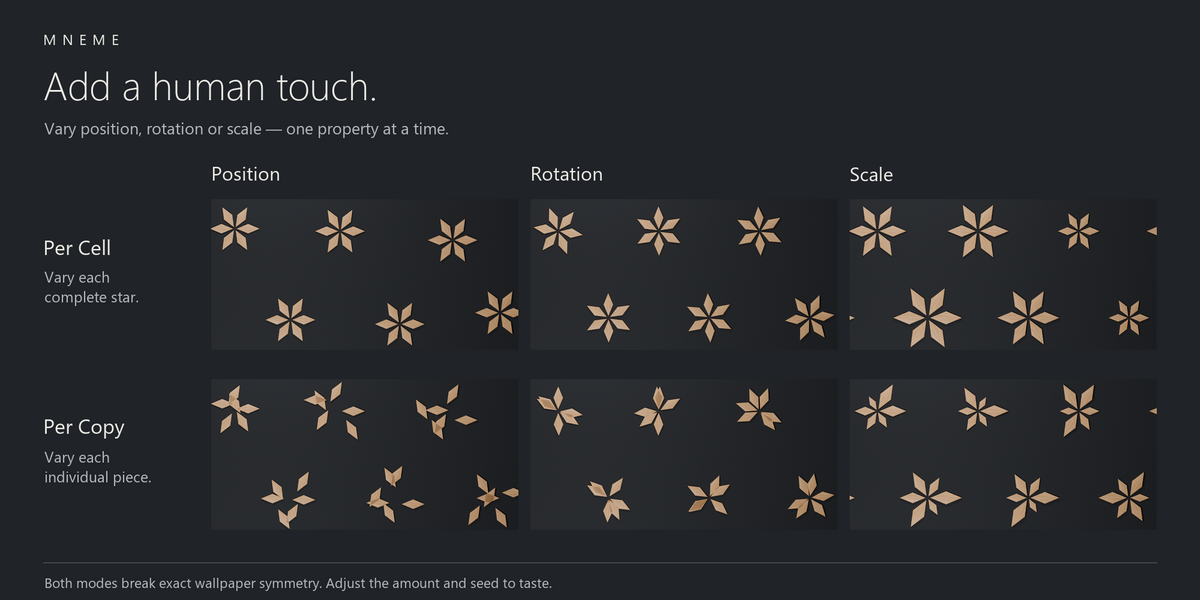
Humanization changes position, rotation or scale to make a pattern less uniform. Enable it, choose a Mode, then adjust the jitter controls. Master Amount controls the overall strength; set it to zero to remove the effect. Change Seed to try another arrangement with the same settings.
Choose what varies
Symmetry Safe makes one adjustment to the motif, then builds the entire pattern from that adjusted motif. For example, it can turn the motif before making its mirrored and rotated copies. All copies follow the same symmetry rules, so this mode keeps the pattern exactly symmetric. It does not give every copy a different random adjustment.
Per Cell varies each repeated cell as a whole. The motifs within that cell move, turn or scale together. Use it when you want variation between repeated groups of motifs.
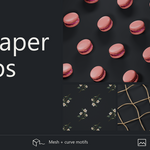
Per Copy varies the individual copies of the motif. Use it for a more irregular arrangement, such as the Rose Macaron preset.
Per Cell and Per Copy break exact wallpaper symmetry. Disable Humanization when you want to compare the underlying symmetry groups.
Adjust the amount
- Position Jitter shifts motifs sideways in the pattern's plane.
- Rotation Jitter turns them around the Z axis.
- Uniform Scale Jitter changes their size without changing their proportions.
Start with one jitter control so you can see its effect. Use Distribution to choose between Uniform and Gaussian variation: Gaussian keeps more adjustments close to zero.
Inspect the symmetry
Set Debug View to Pattern + Guides to see the guides over the pattern, or Guides Only to hide the motifs while inspecting the layout. Enable the layers you need: cells, lattice vectors, mirror lines, glide lines or rotation centres.
The guides show the ideal symmetry, even when Humanization changes the pattern. They are real output geometry, so set Debug View to Off before a clean render or export.
To inspect one symmetry operation, enable Isolate Operation and choose an Operation. If that operation is unavailable for the current group, the isolated output is empty. Turn isolation off to restore the complete pattern. Some symmetries involve translations between cells and do not appear as separate choices in this menu.
Guide Limit reduces the number of guide cells without changing the pattern itself. Use Inspect U/V with Cell Index to select a cell; numbering starts at zero. Raise Guide Height if a deep motif hides the guides.
Keep the pattern editable
Leave Realize Geometry off while designing. Instances share the source geometry, which helps keep repeated patterns manageable. Enable realization when a later modifier, edit or export needs separate geometry components.
Realization does not convert curves into meshes. If your next step requires a mesh, convert it separately and keep an editable copy of the pattern.
The output also carries information about cells, symmetry operations, group, rotation, pattern coordinates, humanization and guides. You can use those attributes in downstream node setups. Check how your export format handles materials and attributes before relying on them outside Blender.
Create a texture for packaging
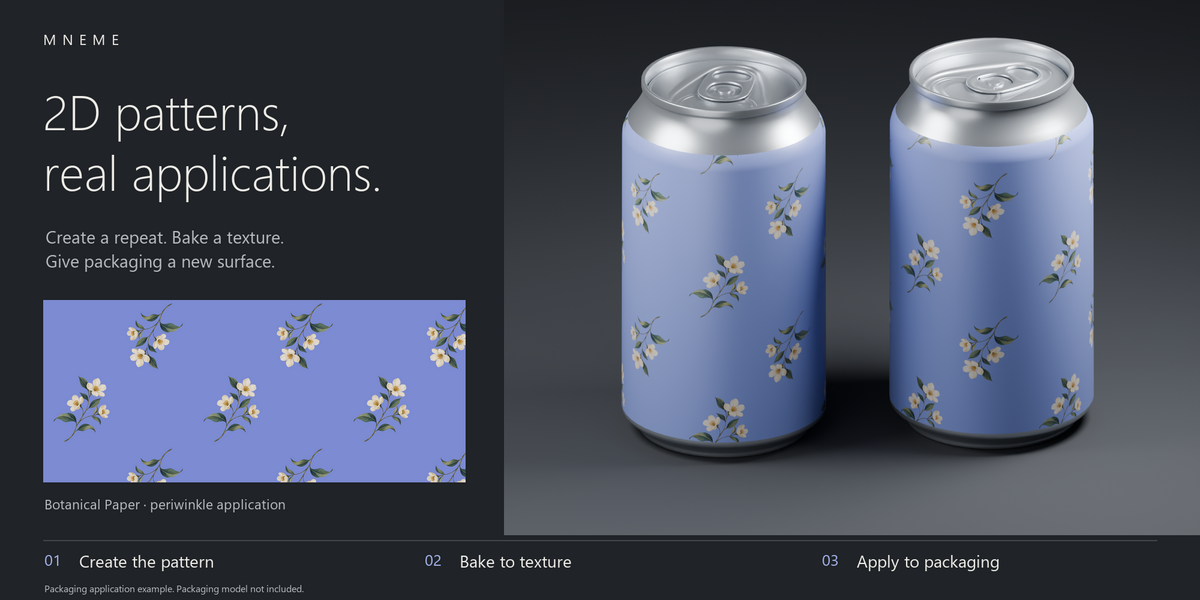
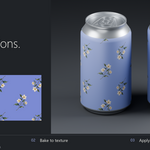
Place your image on a textured plane and use that plane as the motif. To apply the pattern to packaging, bake it to a texture, then map the texture onto your model.
- Start with Botanical Paper, or put your own artwork on a mesh. Check its material, transparency and image edges.
- Choose a symmetry group, motif size and spacing. Pick a background colour for the texture, or prepare a transparent background if the next step needs one.
- Bake a region that repeats correctly for the chosen lattice. Check its edges by tiling the texture; an arbitrary camera crop will not necessarily repeat without a seam.
- Apply the texture to a UV-mapped model, then adjust its scale and position. Inspect the seam and the size of the motifs on the finished object.
The modifier creates the pattern. Baking and UV mapping are separate Blender steps. Packaging models in the illustrations are not included.
Animate and export
You can keyframe controls where Blender allows it. Start with a small change, preview the motion and check the saved result. Switching a group menu changes between distinct arrangements; it does not create a smooth morph between them.
For a final export, turn off guides and operation isolation. Check whether your exporter needs realized geometry or meshes, then confirm that materials and textures arrive correctly. Keep a copy with the live modifier so you can revise the design.
Troubleshooting
The Asset Browser is empty
Check that the selected library points to the folder containing Wallpaper_Groups.blend. Keep blender_assets.cats.txt beside it for the catalog organisation, then refresh the library or reopen the Asset Browser. Look for the generator and six preset object assets.
The pattern is missing
Choose a separate mesh or curve in Motif Object and check that Scale is not zero. Turn off Isolate Operation and set Debug View to Off. If output is still missing, check that the source object does not depend on this generator.
The pattern is uneven or not exactly symmetric
Disable Humanization to compare the underlying group. Per Cell and Per Copy intentionally add variation. Rose Macaron uses Per Copy; the other five supplied presets have Humanization disabled.
Copies overlap
Reduce Scale, change Position X/Y or increase Cell Size X/Y where the group allows it. Motifs can cross cell edges, so check the full arrangement after changing them.
My curve looks different
Check the source curve's bevel, fill and material settings. Then check any modifiers or conversions that follow Wallpaper Groups. The generator can retain curve geometry, including its depth; a later conversion may change it.
The scene is slow
Reduce Repeat U/V while composing, or use a simpler motif. Keep Realize Geometry off unless you need it, and lower Guide Limit when inspecting a large pattern.
Materials or images are missing
The supplied textures are packed. If you replace them with your own, keep those files available or pack them into your Blender file. Check the source object's material assignments and image paths. For exports, check the receiving application's material support too.
A control seems to do nothing
Cell Size Y is inactive for square and hexagonal groups. Family Preference applies to p1 and p2. Guide Limit only affects guides, and Master Amount at zero removes Humanization. For source-object transforms, see Moving or rotating my source object does not change the pattern above.
Getting help
Send a message through the marketplace where you bought Wallpaper Groups. Include your Blender version, the asset or preset name, the steps that caused the problem and, if possible, a small example file. Share only files you have permission to provide.
Control reference
Use this reference when you need the exact behaviour of a setting. The same descriptions appear in the Blender tooltips. Angle fields follow Blender's angle display. Preset values are examples, not defaults for every pattern.
Motif
Motif Object - Choose a separate mesh or curve to repeat. The modifier reads its geometry and materials, ignoring its scene location, rotation and scale. An empty field gives no pattern. Avoid a source that depends on this generator.
Scale - Resize the motif uniformly before rotation and symmetry. A value of 1 keeps its original size; 0 collapses it. Cell spacing and Position X/Y stay unchanged.
Initial Rotation - Turn the scaled motif around its own Z axis before positioning it and making symmetry copies. Use Pattern Rotation to turn the complete pattern instead.
Position - Cell Fractions
Position X - Place the motif along the cell's U direction before symmetry. A value of 0.5 moves it half a cell; 1 moves it a whole cell. Values outside 0 to 1 are allowed. U runs diagonally in centered rectangular cells.
Position Y - Place the motif along the cell's V direction before symmetry. A value of 0.5 moves it half a cell; 1 moves it a whole cell. Values outside 0 to 1 are allowed. V follows the lattice and may not align with the scene's Y axis.
Symmetry
Wallpaper Group - Choose one of the 17 symmetry groups. The group sets the required lattice shape. cm and cmm use centered primitive cells; square and hexagonal groups keep their required proportions.
Lattice
Family Preference - Choose the lattice family for p1 or p2. Other groups use the family their symmetry requires. Your choice is kept when you return to p1 or p2.
Cell Size X - Set cell spacing in Blender units, relative to the generator. This is the U length for oblique/rectangular cells, the shared side length for square/hexagonal cells, or the conventional rectangle width for centered rectangular cells. Motif Scale is separate.
Cell Size Y - Set the V length for oblique/rectangular cells, or the conventional rectangle height for centered rectangular cells. Uses Blender units relative to the generator. Square and hexagonal groups use Cell Size X for both sides, so this control has no effect there.
Repeat U - Set the number of cells along positive U. For centered rectangular groups, U follows a diagonal primitive-cell direction rather than the edge of the conventional rectangle.
Repeat V - Set the number of cells along positive V. For centered rectangular groups, V follows a diagonal primitive-cell direction rather than the edge of the conventional rectangle.
Oblique Options
Oblique Angle - Set the angle between U and V for an oblique lattice. The modifier limits it to 5-175 degrees so the cell cannot collapse.
Humanization
Enable - Turn Humanization on or off. Off restores the pattern without any humanization adjustments.
Mode - Symmetry Safe adjusts the shared motif before making its symmetry copies. Per Cell varies whole cells; Per Copy varies individual motif copies. Per Cell and Per Copy break exact wallpaper symmetry.
Seed - Choose a repeatable variation. Changing repeat counts or operation isolation keeps the variation of surviving cells and copies stable. Seed does not change automatically over time.
Master Amount - Control the overall strength of all three jitter settings. Zero removes their effect and keeps the original instance structure.
Distribution - Uniform spreads adjustments over the full positive and negative range. Gaussian keeps more near zero: its standard deviation is one third of the jitter amount, with values limited to that full range.
Position Jitter - Set the maximum positive or negative shift along each X/Y axis, in Blender units relative to the generator, before Pattern Rotation. Symmetry Safe shifts the shared motif first, so the symmetry operations also transform that shift.
Rotation Jitter - Set the maximum positive or negative turn around Z. Symmetry Safe and Per Copy turn around the prepared motif's origin; Per Cell turns around the cell's origin.
Uniform Scale Jitter - Vary size without changing proportions. At full Master Amount, 0.1 gives scale factors from 0.9 to 1.1. The modifier keeps the factor at 0.01 or above to avoid flipping the motif.
Pattern Placement
Pattern Rotation - Turn the completed pattern around the generator's origin and Z axis, including the cell positions. This happens before Pattern Offset X/Y.
Pattern Offset X - Move the completed pattern along the generator's X axis after Pattern Rotation. Uses Blender units, not fractions of a cell.
Pattern Offset Y - Move the completed pattern along the generator's Y axis after Pattern Rotation. Uses Blender units, not fractions of a cell.
Output
Realize Geometry - Turn instances into separate geometry components when a later step needs them. Reflected faces keep their orientation. Curves remain curves; convert them separately if you need meshes.
Debug - Operations
Isolate Operation - Show only the symmetry operation selected in Operation. Turn this off to restore the complete group.
Operation - Choose an operation to inspect. If it is unavailable for the current group, isolated output is empty. Symmetries involving translations between cells may not have separate entries here.
Debug - Guides
Debug View - Off shows the clean pattern. Pattern + Guides shows both. Guides Only hides the motif. Visible guides are real output geometry; turn them off before a clean render or export.
Guide Layers
Unit Cells - Show the primitive U/V cell boundaries. For cm and cmm these cells run diagonally, rather than following the conventional rectangle.
Lattice Vectors - Show the U direction in green and V in blue, once at the origin.
Fundamental Region - Outline one fundamental region in cyan: a portion of the cell used to explain the symmetry. Its area is the primitive cell area divided by the operation count. The outline does not clip the motif.
Mirror Axes - Show mirror lines in solid magenta, including translated lines within each cell.
Glide Axes - Show glide lines in dashed orange. If a glide line coincides with a pure mirror line, the mirror line is shown instead.
Rotation Centres - Show brown symbols at rotation centres: ellipse for twofold, triangle for threefold, square for fourfold and hexagon for sixfold. Where centres coincide, show the highest order.
Operation Indices - Label the symmetry operations at the ideal motif origins in the reference cell. These operation numbers stay the same when you isolate an operation.
Cell Index - Highlight one cell and show its U/V coordinates, starting at zero. Inspect U/V select the cell within the pattern, independently of Guide Limit.
Guide Settings
Inspect U - Choose the U coordinate of the highlighted cell when Cell Index is on. Counting starts at zero; values are limited to cells that exist.
Inspect V - Choose the V coordinate of the highlighted cell when Cell Index is on. Counting starts at zero; values are limited to cells that exist.
Guide Limit - Limit guide cells along each axis, starting at the origin. The allowed range is 1-30. This does not change the motif's repeat counts.
Guide Scale - Resize guide lines, symbols and labels without moving them. Their size also adjusts to the smaller lattice basis length.
Guide Height - Raise the guides above the generator's XY plane, in Blender units. Increase this when a deep motif hides them.
Have questions about this product?
Login to message
| Published | 2 days ago |
| Blender Version | 5.2 |
| Render Engine Used | Cycles, Eevee |
| License | Royalty Free |
Discover more products like this
3D Pattern advanced geometry nodes 3D Pattern Design advanced-procedural