Industrial Metals and Patinas - 7 Seamless Blender Materials
 HV Textures
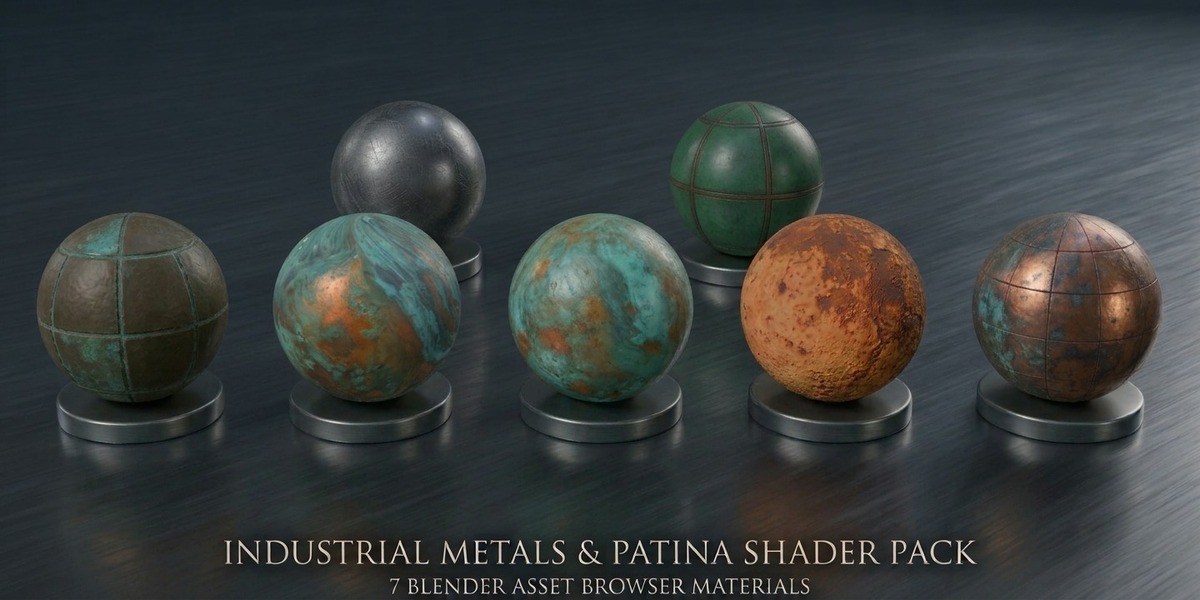
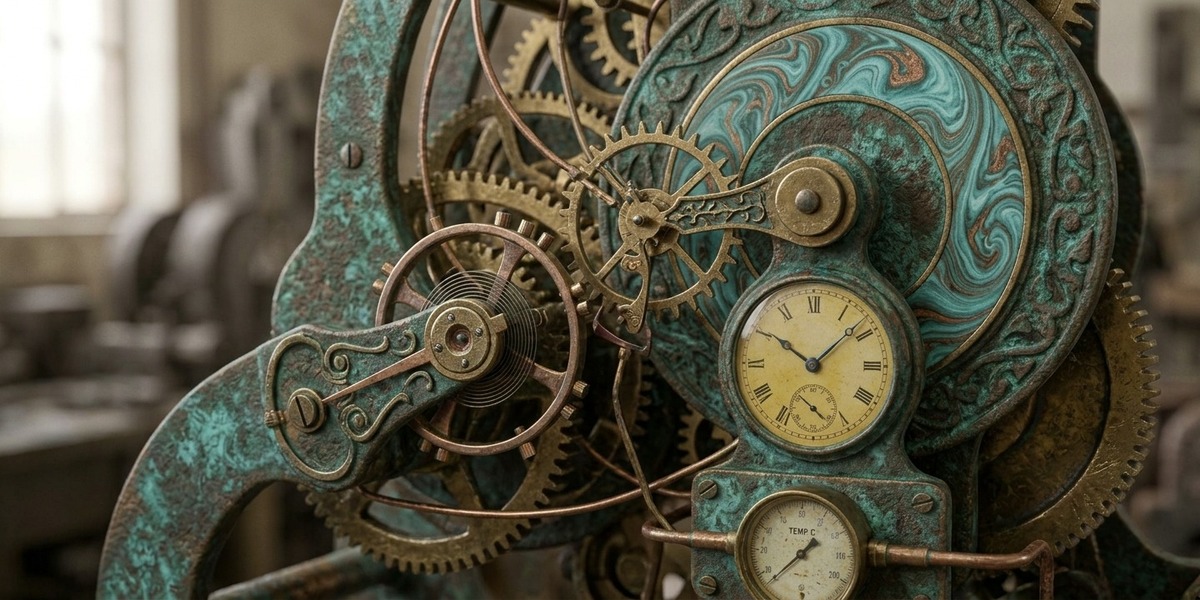
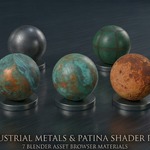
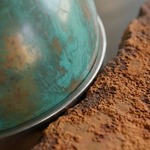

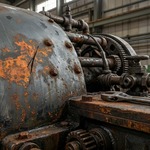

Industrial Metals & Patinas — 7 Seamless Procedural Blender Materials
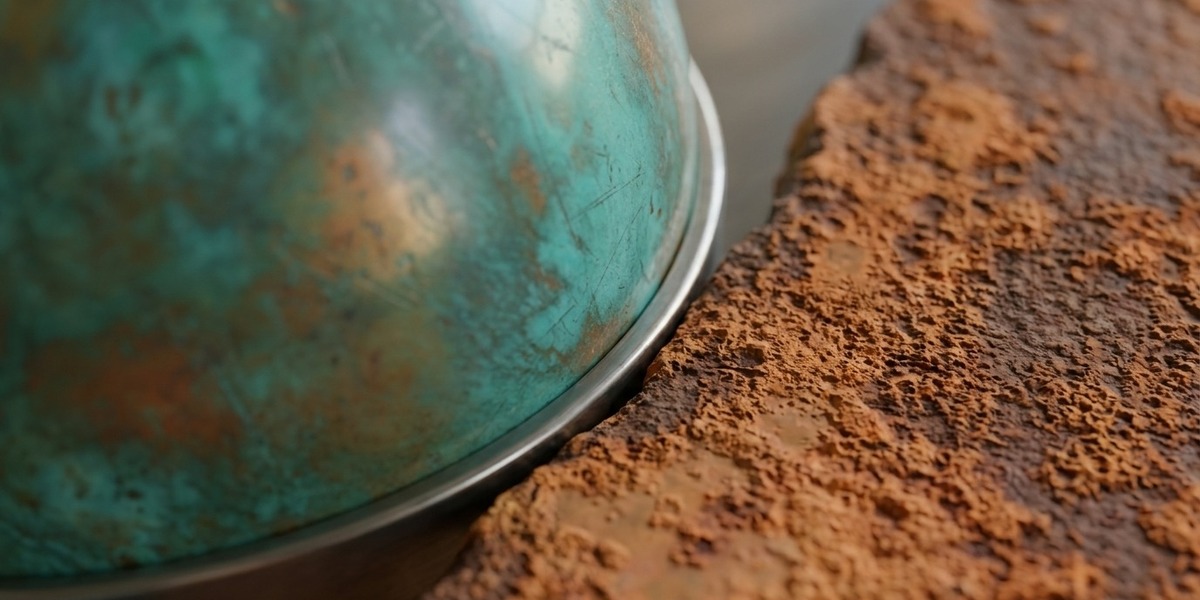
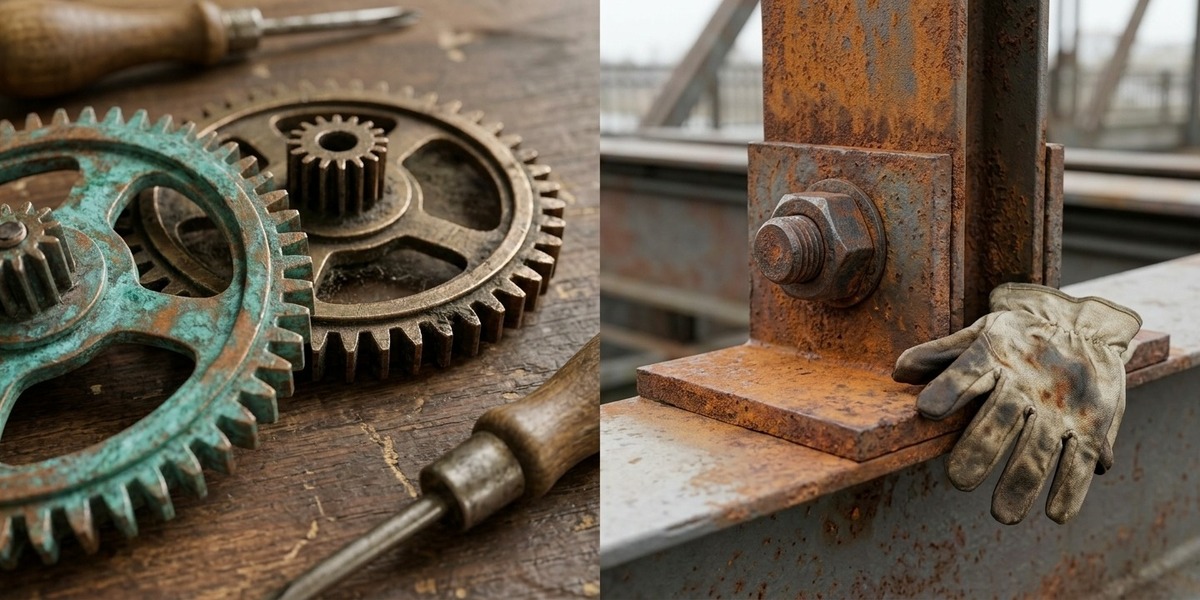
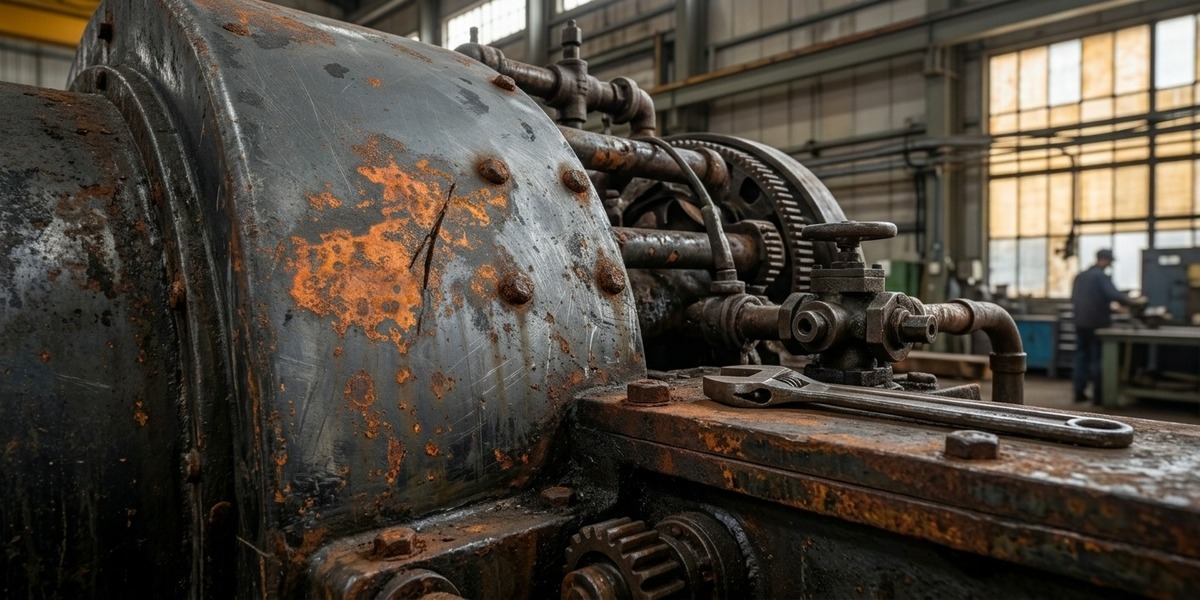
A collection of 7 fully procedural, seamless metal and patina shaders built natively for Blender. Designed for architectural visualization, industrial environments, and hard-surface asset texturing, each material uses procedural noise and mathematical node networks to eliminate resolution limits and visible UV tiling seams.
1. Included Materials (7)
All materials are pre-configured as Blender Assets for instant drag-and-drop workflow:
MTL_AgedBronze_OxidizedCopper_Tile — Weathered bronze tile surface with natural verdigris oxidation.
MTL_CopperTurquoise_Sheet — Aged copper sheet featuring rich turquoise patina buildup.
MTL_DistressedGunmetal_Sheet — Scratched, worn dark gunmetal for heavy industrial machinery and props.
MTL_HeavyWeatheredRust_Sheet — Deeply corroded iron sheet with layered surface rust and pitting.
MTL_OxidizedCopper_Panel — Architectural copper cladding panel with natural weathering transitions.
MTL_PatinaEmerald_Tile — Decorative emerald-patinated metal tile with subtle surface variation.
MTL_PatinatedIron_RustedPlate — Heavy structural iron plate combining dark oxidation and rust streaks.
2. Compatibility & Technical Specs
Blender Version: Built and tested in Blender 5.2+ (Principled BSDF v2 architecture).
Render Engines: Compatible with both Cycles and Eevee (Note: Any true mesh displacement is supported in Cycles only; Eevee uses procedural bump/normal mapping).
Seamless Coordinates: Uses Object/Generated/UV coordinate mapping so materials wrap seamlessly around complex geometry without visible seams.
No External Image Dependencies: 100% procedural node trees—infinite resolution at any camera distance with zero blurry pixels.
3. Installation & Usage
Option A: Blender Asset Browser (Recommended)
Download and extract the
.ziparchive to a permanent folder on your computer.Open Blender and navigate to Edit > Preferences > File Paths.
Under Asset Libraries, click the + icon, select the extracted folder, and click Add Asset Library.
Open the Asset Browser editor in any workspace, select your library from the dropdown menu, and drag-and-drop any material directly onto your 3D objects.
Option B: Direct Append
In your Blender scene, go to File > Append.
Open the included
.blendfile, navigate into the Material folder, select the shaders you need, and click Append.
4. Tips for Best Results
Apply Object Scale: Before applying materials to resized meshes, press Ctrl + A > Scale in Object Mode so patina and scratch scaling stays uniform across all axes.
Customize Parameters: Open the Shader Editor to adjust mapping scale, roughness contrast, and patina intensity to fit your scene's lighting and scale.
5. License & Support
License: Royalty-Free (Permitted for both personal and commercial projects; redistribution or resale of the raw
.blendfile or node trees is prohibited).Support: If you have any questions or need assistance, feel free to send a message directly through the product page.
Have questions about this product?
Login to message
| Published | about 2 hours ago |
| Blender Version | 4.0 - 5.2 |
| Render Engine Used | Cycles, Eevee |
| Misc Data | Uvs-Unwrapped, Normal-Mapped, Textured |
| License | Royalty Free |

Discover more products like this
Blender shader industrial asset-browser Bronze patina procedural material Rust node group PBR copper weathered metal metal shader