 MeshMind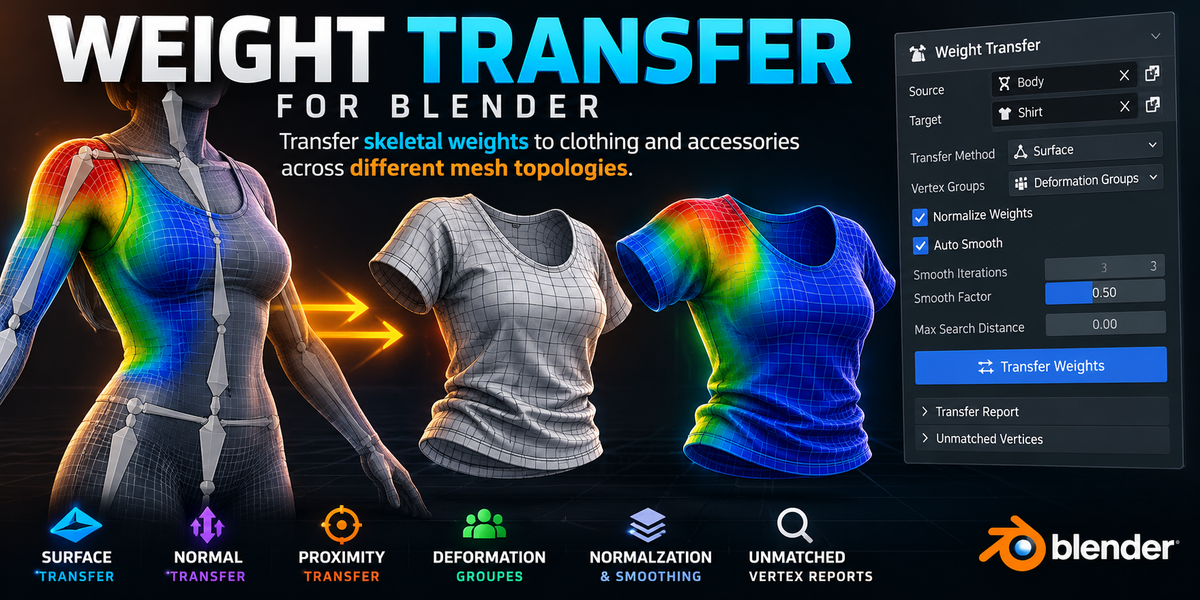
Weight Transfer for Blender – Transfer Rig Weights to Clothing and Accessories
Your character is already rigged. Your clothing shouldn't have to start from zero.
You've finished weight painting your character's body. The armature works, the deformations look right, and you're ready to add clothing.
Then comes the tedious part: getting the shirt, jacket, gloves, armor, or accessories to deform correctly with the same rig.
Weight Transfer is a Blender add-on that transfers skeletal deformation weights from a source mesh to a target mesh—even when the two meshes have different topology and vertex counts.
Instead of manually painting every garment from scratch, use an existing weighted mesh as your starting point and choose the transfer method that best fits your geometry.
Transfer weights. Refine the result. Keep working.
WHY USE WEIGHT TRANSFER?
When a character's body is already correctly weighted, repeating much of that work for every new clothing mesh can be unnecessarily time-consuming.
Weight Transfer is designed to help with that workflow by projecting or blending existing weights onto another mesh.
Use it when working with:
Shirts, trousers, jackets and other character clothing.
Gloves, boots and fitted accessories.
Armor and costume pieces.
Garments with different topology from the underlying body.
Multiple meshes that need compatible skeletal deformation weights.
The source and target meshes do not need matching vertex counts or corresponding vertex indices.
THREE WEIGHT TRANSFER METHODS
Different clothing shapes need different approaches. Weight Transfer includes three methods so you can choose how the source weights are sampled.
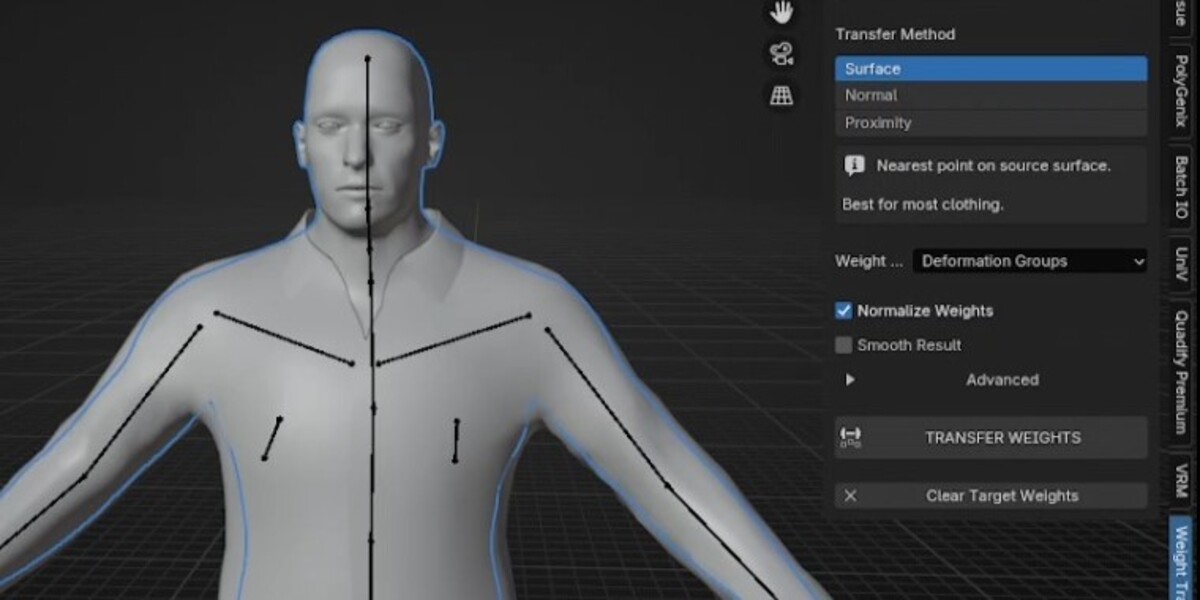
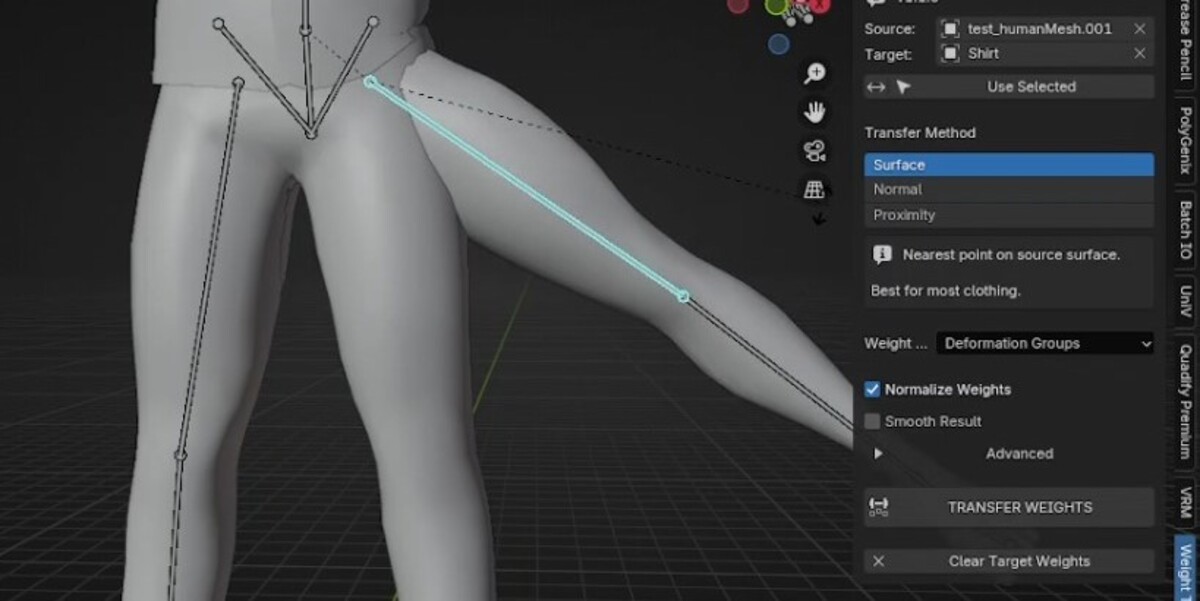
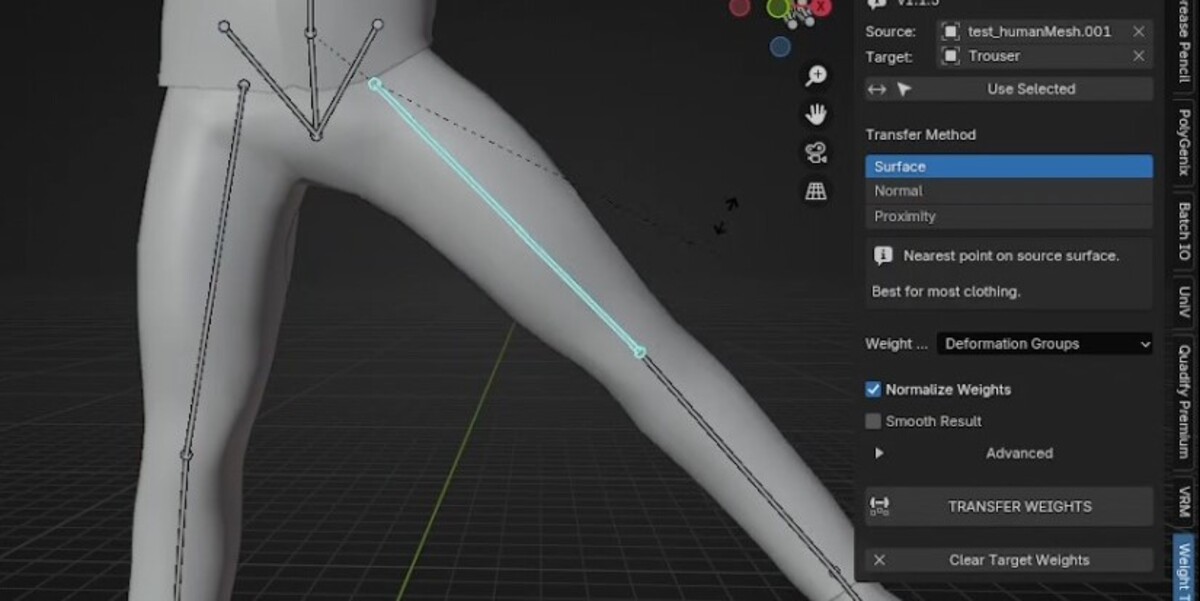
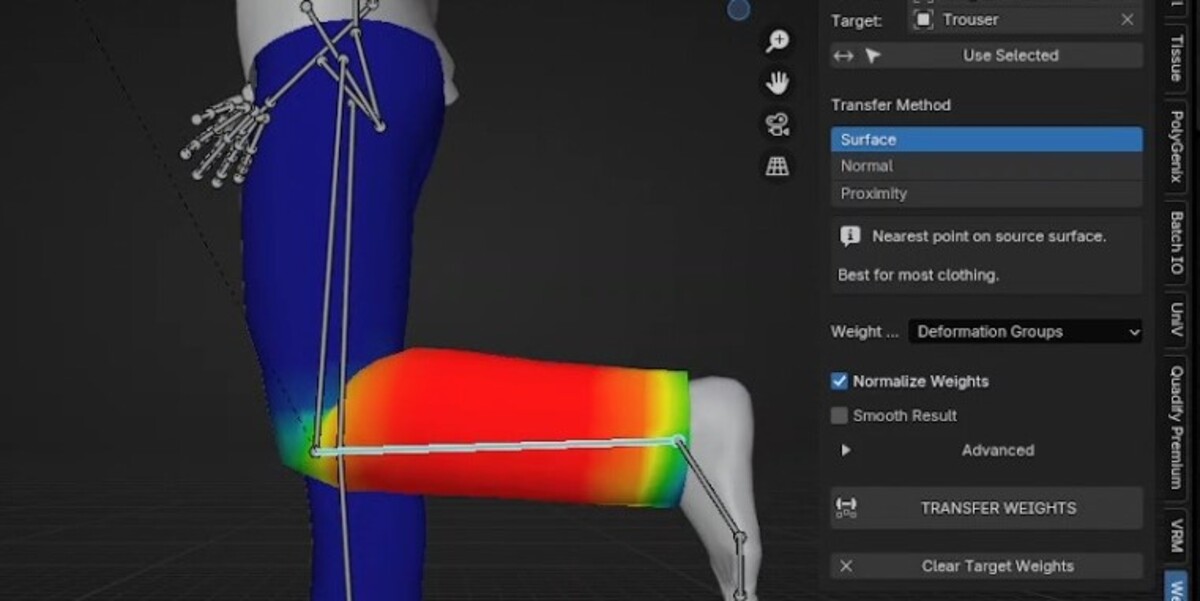
1. Surface Transfer
Find the nearest point on the source mesh surface and interpolate weights from the corresponding source triangle.
Best for: Most clothing and accessories.
Use Surface as your starting point when transferring weights from a correctly weighted character body to another mesh.
2. Normal Transfer
Cast rays along the target mesh's normals, considering both directions, to find suitable source-surface intersections. When a valid ray hit is unavailable, the method falls back to a surface query.
Best for: Fitted clothing that closely follows the body.
This provides an alternative when nearest-surface correspondence alone does not produce the desired result.
3. Proximity Transfer
Blend weights from nearby source vertices using distance-based influence, with closer vertices contributing more strongly.
Best for: Loose garments and clothing with uneven spacing from the body.
Try Proximity when working with coats, skirts, robes or other garments where nearby source vertices may provide a more useful influence distribution.
TRANSFER THE GROUPS YOU ACTUALLY NEED
Not every vertex group belongs in every transfer. Choose the scope that suits your rigging workflow.
Deformation Groups
Automatically identifies vertex groups associated with deform bones from a source Armature modifier when available.
All Groups
Transfers all vertex groups from the source mesh.
Selected Groups
Choose the specific vertex groups you want to transfer, without replacing unrelated groups unnecessarily.
Missing target groups are created automatically, and the selected groups can be updated with the transferred weights.
REFINE THE RESULT
Weight Normalization
Enable normalization to normalize the transferred group weights per vertex when the transferred values have a non-zero total.
This helps produce a consistent weight distribution within the groups included in the operation. Groups outside the transfer selection are left unchanged.
Optional Weight Smoothing
Use light Laplacian smoothing to reduce small discontinuities in the transferred weights.
Adjust the smoothing strength and iteration count to control how much the result changes.
Smoothing is optional, so you can keep the original transfer result when additional smoothing is unnecessary.
Search Distance Control
Set a maximum correspondence distance to reject matches that are too far from the source surface or source vertices.
A value of zero disables the distance limit.
This is useful when clothing lies near multiple body surfaces and you want to reduce the chance of transferring weights from an unrelated nearby region.
SEE WHAT DIDN'T TRANSFER
A transfer should not silently pretend every vertex was handled successfully.
Weight Transfer reports geometric misses separately from geometric matches that contain no usable source weights. It also verifies how many target vertices received weights.
Unmatched target vertices can be selected for inspection so you can investigate the areas that need attention.
This is particularly useful for sparse, open, or irregular source geometry.
A SIMPLE WORKFLOW
Select the correctly weighted body as the Source.
Select the clothing or accessory as the Target.
Choose Surface, Normal, or Proximity.
Select Deformation Groups, All Groups, or Selected Groups.
Enable normalization if appropriate.
Optionally enable smoothing or set a search-distance limit.
Click Transfer Weights.
Review the transfer report and inspect any unmatched vertices.
Test the clothing with the armature and refine the result if necessary.
You can also use the selection helper to assign the source and target from your current selection, swap their roles, and undo the transfer with Ctrl+Z.
WHO IS THIS ADD-ON FOR?
Weight Transfer is designed for:
Blender character artists working with rigged characters.
3D animators preparing clothing for deformation.
Character riggers working with multiple garment meshes.
Game-asset artists preparing outfits and accessories.
Blender users who want to reduce repetitive weight-painting work.
If your workflow involves transferring skeletal deformation weights from an already weighted mesh to another mesh, Weight Transfer gives you a dedicated interface and multiple transfer strategies for that task.
WHAT'S INCLUDED?
Weight Transfer 1.1.5 Blender add-on.
Surface, Normal, and Proximity transfer methods.
Deformation, All, and Selected Groups modes.
Weight normalization and optional smoothing.
Search-distance controls.
Source/target selection and swapping helpers.
Unmatched-vertex selection and transfer diagnostics.
Installation instructions and documentation.
COMPATIBILITY
Designed for Blender 4.2 and later, with Blender 4.2 as the minimum declared version.
The add-on works with editable mesh geometry and vertex groups. Geometry correspondence is calculated using the original source and target mesh data rather than modifier-evaluated geometry.
For best results, check the source and target geometry before transferring, especially if Mirror, Subdivision or other geometry-changing modifiers alter the visible surfaces.
IMPORTANT LIMITATIONS
Weight Transfer focuses on skeletal deformation weights. It does not transfer shape keys, UV maps, vertex colors or arbitrary mesh attributes.
The transfer result depends on source geometry, surface proximity and the chosen method. Complex intersections, sparse geometry and non-manifold surfaces may require additional inspection or manual correction.
Weight transfer is not a substitute for testing the finished garment with the intended armature.
GET STARTED
Choose your weighted source mesh, select your target garment, choose a transfer method and run the operation.
Start with Surface for most clothing, try Normal for closely fitted garments, and use Proximity when nearby source vertices provide a better starting point.
Spend less time repeating weight-painting work. Give your next garment a better starting point with Weight Transfer for Blender.
