 EnnJinn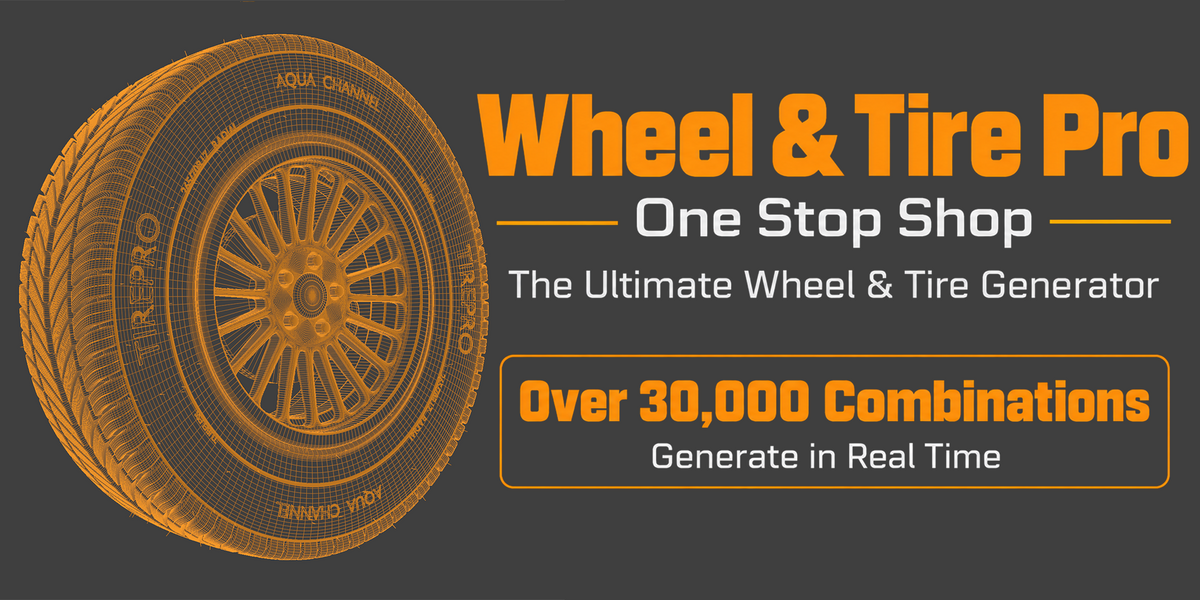
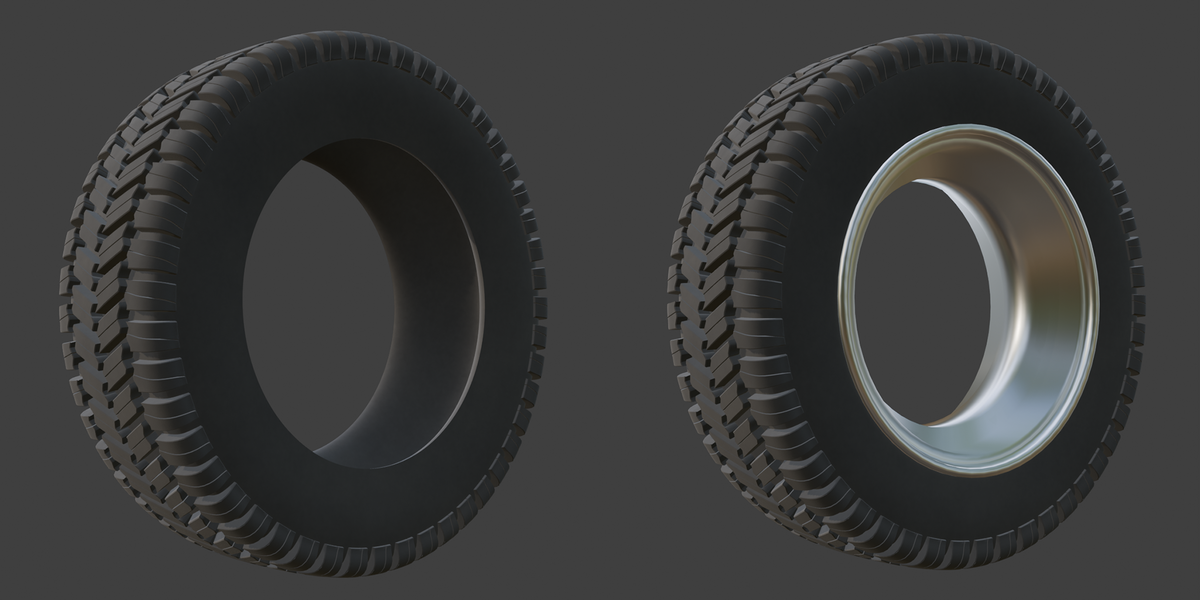

# Wheel and Tire Pro
**Version 1.0.0 · Blender 5.0+ · Made by Ennjinn**
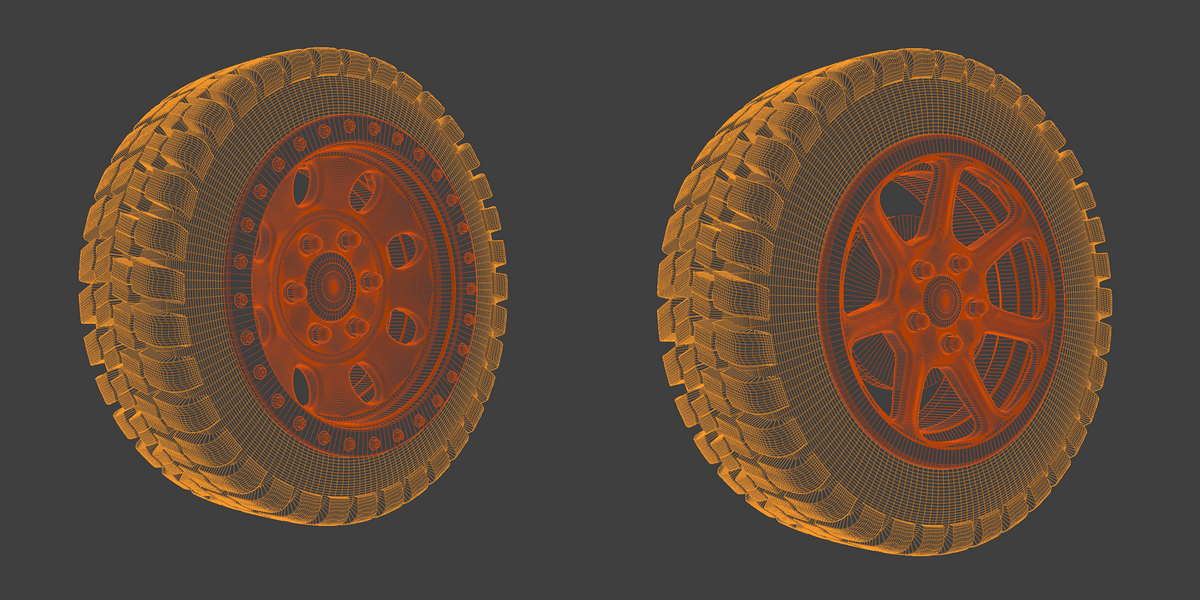
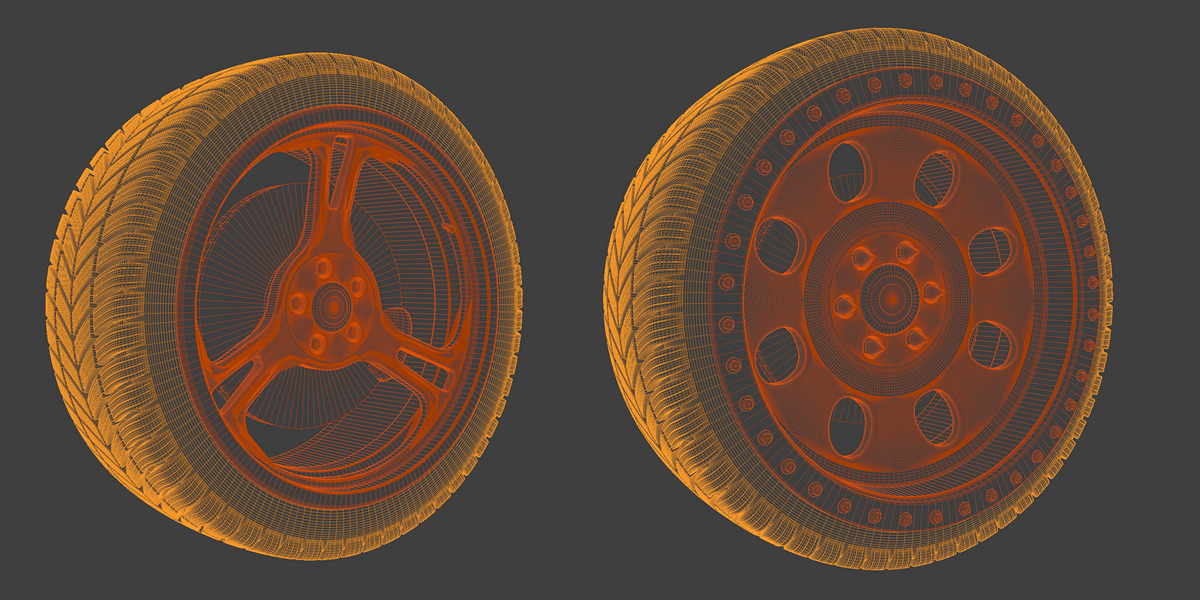
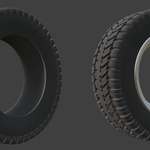
Realistic wheels and tires from presets. Pick a size, tread, rim and material,
click Build, and get a complete wheel and tire with real tread geometry, a
watertight wheel, lug nuts, centre cap, valve stem, brakes, sidewall
lettering and vent spews, all sized to real-world specs.
---
## 1. Installation
1. Download `wheel_and_tire_pro-1.0.0.zip`. **Do not unzip it.**
2. In Blender, open **Edit > Preferences > Get Extensions**.
3. Click the **v** menu in the top-right corner and choose **Install from Disk...**
4. Select the zip file. Wheel and Tire Pro installs and enables itself.
5. In the 3D Viewport, press **N** to open the sidebar and click the
**Wheel & Tire** tab.
### Updating
Install the new zip the same way. Blender replaces the old version
automatically.
### Uninstalling
Open **Edit > Preferences > Get Extensions**, find Wheel and Tire Pro, and
choose **Uninstall** from its menu.
> **Note:** The add-on switches the scene's length display to centimetres so
> tire dimensions are easy to read. Geometry is still built in true metres,
> so nothing changes size.
---
## 2. Quick Start (30 seconds)
1. Open the **Wheel & Tire** tab.
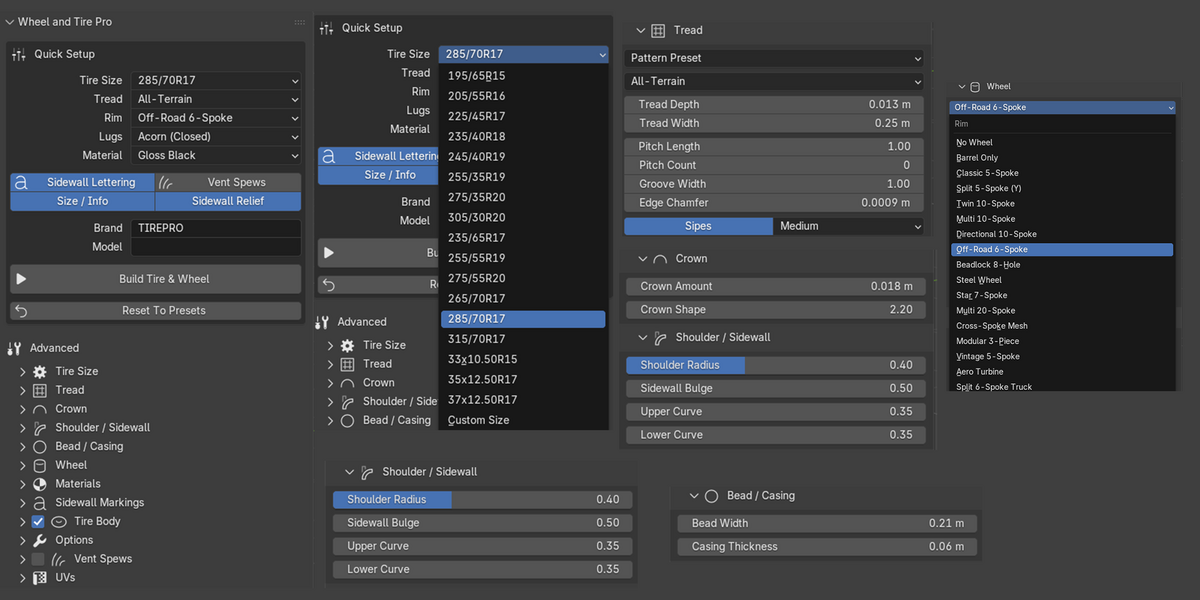
2. In **Quick Setup**, choose a **Tire Size**, **Tread**, **Rim** and
**Material**.
3. Click **Build Tire & Wheel**.
4. Adjust anything you like. The preview rebuilds live as you change
settings.
5. Type a **Name** and click **Finalize**.
You now have one finished object with its origin at the axle centre, ready
to duplicate onto every corner of your vehicle. The builder resets so you
can make the next tire.
---
## 3. Quick Setup Reference
| Control | What it does |
|---|---|
| **Tire Size** | 17 real-world sizes. Choose **Custom Size** to type your own (e.g. `285/70R17`, `P225/45ZR17`, `LT315/70R17`, `35x12.50R17`), then click the check mark. |
| **Tread** | 12 parametric tread patterns. They fit any tire size automatically. |
| **Rim** | 15 wheel designs, plus **Barrel Only** (a plain rim barrel to build your own wheel on) and **No Wheel**. |
| **Lugs** | 6 lug-nut styles: Acorn, Open-End, Spline Tuner, Lug Bolt, Mag Shank, Spiked. Each rim picks a fitting default. |
| **Material** | 10 complete looks for rubber, wheel, lugs and calipers. |
| **Lettering** | Raised brand / model lettering on both sidewalls. |
| **Size / Info** | Adds the tire size, RADIAL, TUBELESS and M+S markings. |
| **Vent Spews** | The small rubber hairs left by the tire mould. They're placed the way real moulds are vented. |
| **Sidewall Relief** | Rim-protector rib and fine mould rings on the sidewall. |
| **Brand / Model** | Your own sidewall text. Leave Model blank to name it after the tread. |
| **Build / Rebuild** | Creates or refreshes the live preview. |
| **Finalize** | Joins the tire, wheel, hardware and (optionally) brakes into one object. |
| **Keep Parts** | Keeps the tire, wheel and brakes as separate objects, parented to the tire. |
| **Include Brakes** | When off, Finalize leaves the brakes as a separate child object. |
| **UVs** | Unwraps the tire on Finalize / Keep Parts. |
| **Reset To Presets** | Restores every value (hardware, tread tuning, materials) to the selected presets. Your sidewall text and tick boxes are kept. |
**Tip:** changing any Quick Setup dropdown applies that preset immediately,
and the tread, wheel and hardware re-fit to the new size.
---
## 4. Advanced Panels
Everything below **Advanced** fine-tunes the build. All panels update the
live preview.
### Tire Size
Section width, overall diameter, rim (bead) diameter and rim width. Type a
size string and press the import button to apply it.
### Tread
- **Tread Source**
- **Pattern Preset**: the built-in parametric treads.
- **3D Mesh**: tile your own modelled block around the tire (see section 5).
- **Normal Map**: a smooth tread band with a tiled normal map, for games.
- **Mesh + Normal**: your own mesh with a normal map on top.
- **Pattern controls**: Tread Depth, Tread Width, Pitch Length, Pitch Count
(0 = automatic), Groove Width, Edge Chamfer, Sipes, and Detail
(Low / Medium / High).
### Crown
Crown Amount (how much the tread curves from centre to shoulder) and Crown
Shape.
### Shoulder / Sidewall
Shoulder Radius, Sidewall Bulge, and Upper / Lower Curve.
### Bead / Casing
Bead width and casing thickness.
### Wheel
- **Rim design**: choose the design here too.
- **Fitment**: Offset (ET, in mm; low or negative values create a deep lip),
Bolt Pattern (16 options), Centre Bore.
- **Shape**: Concavity, Spoke Width, Spoke Count (0 = the design's own),
Resolution.
- **Hardware**: toggles for Lug Nuts (with style), Centre Cap, Valve Stem,
Brakes and Beadlock.
### Materials
Rubber look, Wheel Finish, Lug Nuts finish, Caliper colour and Brake Dust.
### Wheel Barrel
Only shown with the **Barrel Only** rim. Fit-to-tire or manual size, flange
height / bevel / shape, drop centre, front and rear lip, wall thickness and
segments.
### Sidewall Markings
Add any number of your own markings:
- **Text**: any text in any font.
- **Stamp**: any mesh object (logos, badges, patterns).
- **Image**: a greyscale height map (raised or engraved) or a normal-map
decal.
For each marking, set the side (outer, inner or both), position, radial
position, size, rotation, relief height and repeat count. Image markings can
also wrap all the way around the tire.
### Tire Body
Resolution around the tire and across the cross-section.
### Options
Weld Seams, Shade Smooth and Auto Smooth Angle.
### Vent Spews
- **Layout**: **Realistic (Mould Vents)** with a **Density** slider, or
**Random Scatter** with a fixed **Amount**.
- **Areas**: tread, shoulder and sidewall.
- **Hair shape**: length, length variation, thickness, tip taper, lean,
sides and seed.
### UVs
Seamed unwrap (bead openings plus one cut) or Smart UV Project. Use
**Unwrap UVs Now** to unwrap immediately.
---
## 5. Making Your Own Tread
1. Model one tread block as a separate mesh object, oriented as follows:
- **X** = around the tire
- **Y** = across the width
- **Z** = tread depth (up)
2. In **Advanced > Tread**, set **Tread Source** to **3D Mesh**.
3. Pick your object in the profile field, or select it and click the
eyedropper button.
4. Use **Iterations** (copies around the tire), **Treads Wide** (bands across
the width), **Tread Rotation**, **Tread Z Scale** and the spacing sliders
to lay it out.
The object's scale is respected, so a taller block gives a deeper tread.
---
## 6. Working With Materials
- All materials are fully procedural, so there are no image files to keep
track of.
- While building, the preview uses shared materials named `TirePro_...`.
Changing a material preset updates them.
- **Finalize** and **Keep Parts** give the finished tire its own copies,
named `<YourName>_...`. Edit those freely in the Shader Editor; later
builds won't affect them.
- Materials are built and tested in **Cycles**.
---
## 7. Tips
- **Close-up renders**: set Tread **Detail** to **High** and turn on **Vent
Spews**.
- **Lightweight / game use**: set Detail to **Low**, lower the Tire Body and
Wheel **Resolution**, turn off the hardware you don't need, or use the
**Normal Map** tread source.
- **Animating a wheel**: untick **Include Brakes** before Finalize. The
brakes stay as a separate child object, so you can keep the caliper still
while the wheel spins.
- **Matching a real vehicle**: set the real **Bolt Pattern**, **Offset (ET)**
and **Centre Bore** in the Wheel panel.
- **Variety in a scene**: change the vent spew **Seed** and the lettering
text between tires.
---
## 8. Troubleshooting
| Problem | Fix |
|---|---|
| I can't see the tab. | Press **N** in the 3D Viewport and look for **Wheel & Tire**. Check that the extension is enabled in **Preferences > Get Extensions**. |
| Sliders don't change anything. | The live preview only exists after you click **Build Tire & Wheel**. |
| My custom size isn't applied. | Choose **Custom Size** in Tire Size, type the size, then click the check mark. |
| My own tread mesh doesn't appear. | Set **Tread Source** to **3D Mesh** and make sure a mesh object is picked. |
| The viewport feels slow. | Lower Tread **Detail**, the Tire Body / Wheel **Resolution**, or the vent spew **Density**. |
| I want the original look back. | Click **Reset To Presets**. |
---
## 9. Support
Wheel and Tire Pro is made by **Ennjinn**. For help, bug reports or feature
requests, contact us through the product page. Including a screenshot and
your Blender version helps us help you faster.
Have questions about this product?
Login to message
| Blender Extension Compatible | Yes |
| Dev Fund Contributor | |
| Published | about 4 hours ago |
| Blender Version | 5.0 - 5.2 |
| Extension Type | Add-on |
| Render Engine Used | Arnold, Blender-Internal, Blender-Game-Engine, Cycles, Eevee, Freestyle, Luxrender, Mental-Ray, Octane, Vray, Yafaray |
| License | GPL |
