 alastorv














Install
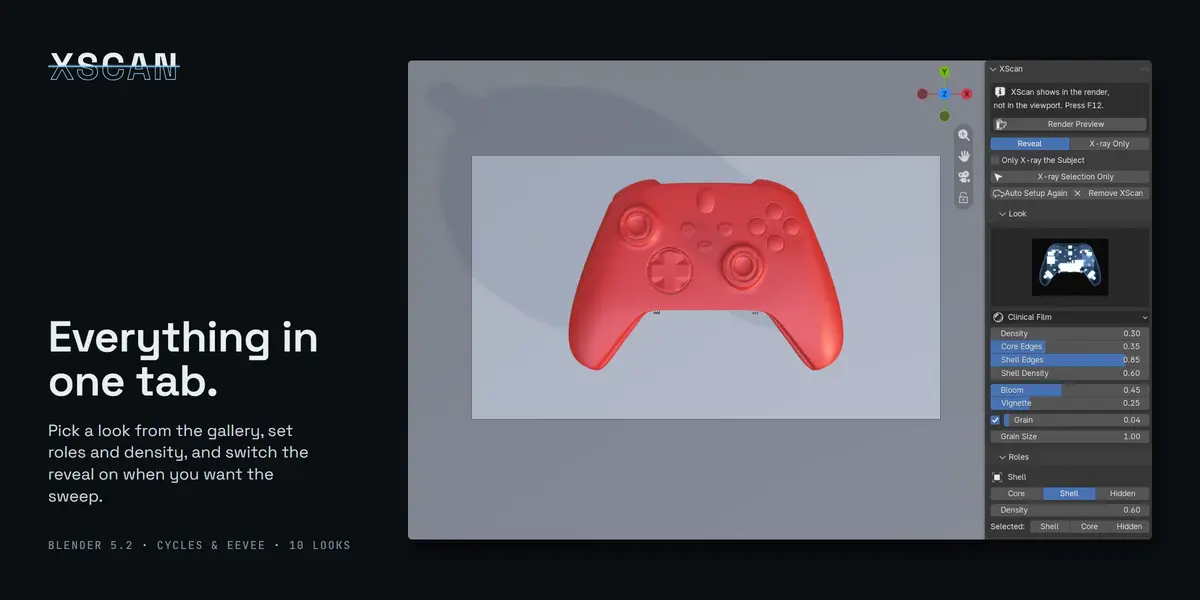
Edit > Preferences > Get Extensions > Install from Disk, then pick xscan-1.0.0.zip. The panel lives in the 3D View sidebar (N), tab XScan. Requires Blender 5.2 or newer.
Auto Setup (one click)
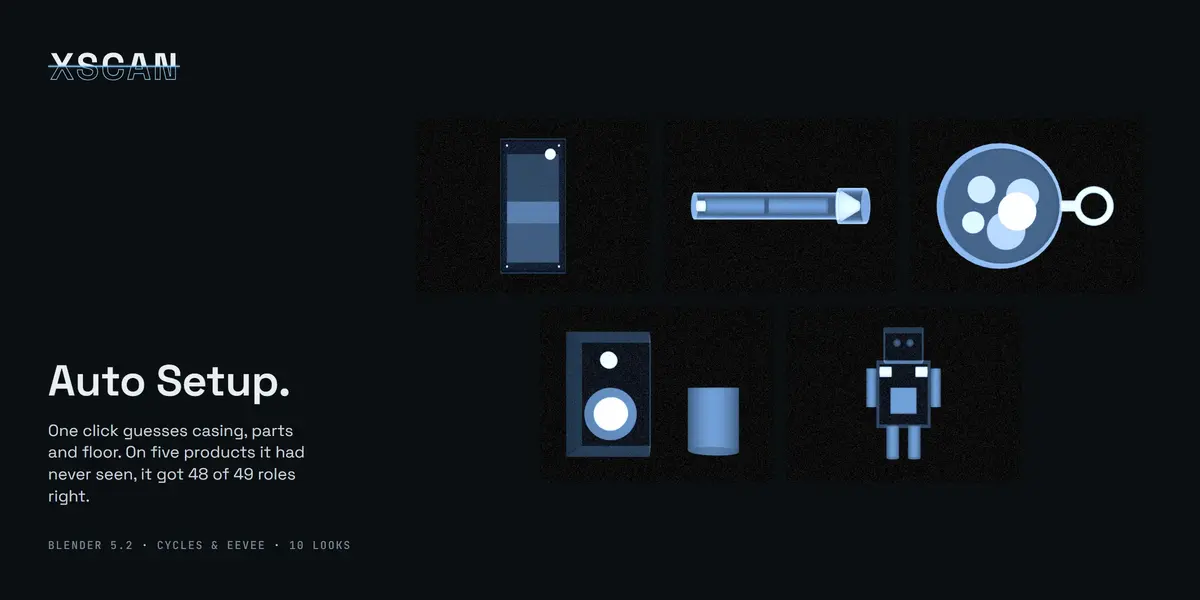
Auto Setup enables XScan and makes every choice for you:
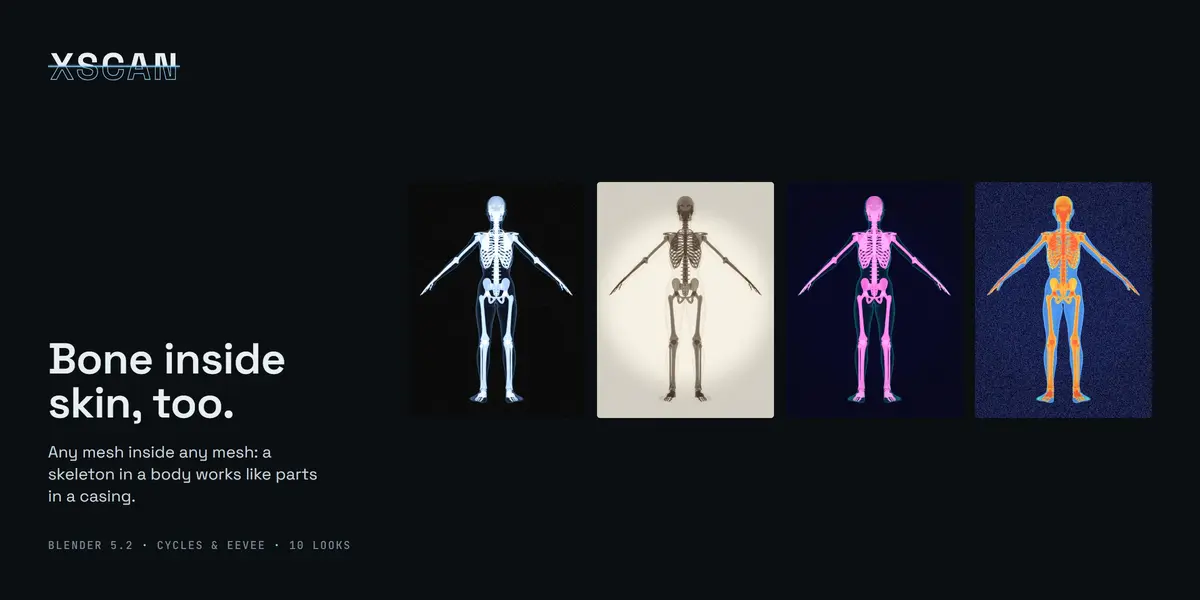
- An object that encloses others becomes a Shell, objects inside it Core.
- Thin, wide planes outside everything (floors, backdrops) and a table top far wider than what stands on it become Hidden.
- Metallic materials, and names like screw, bolt, battery, bone or gear, get high density; glass, plastic and rubber get low density.
- The scanner is fitted to the visible objects. Switch to Reveal to see the sweep.
These are guesses: fix any of them in the Roles and Reveal panels, or press Ctrl+Z.
Quick start (manual)
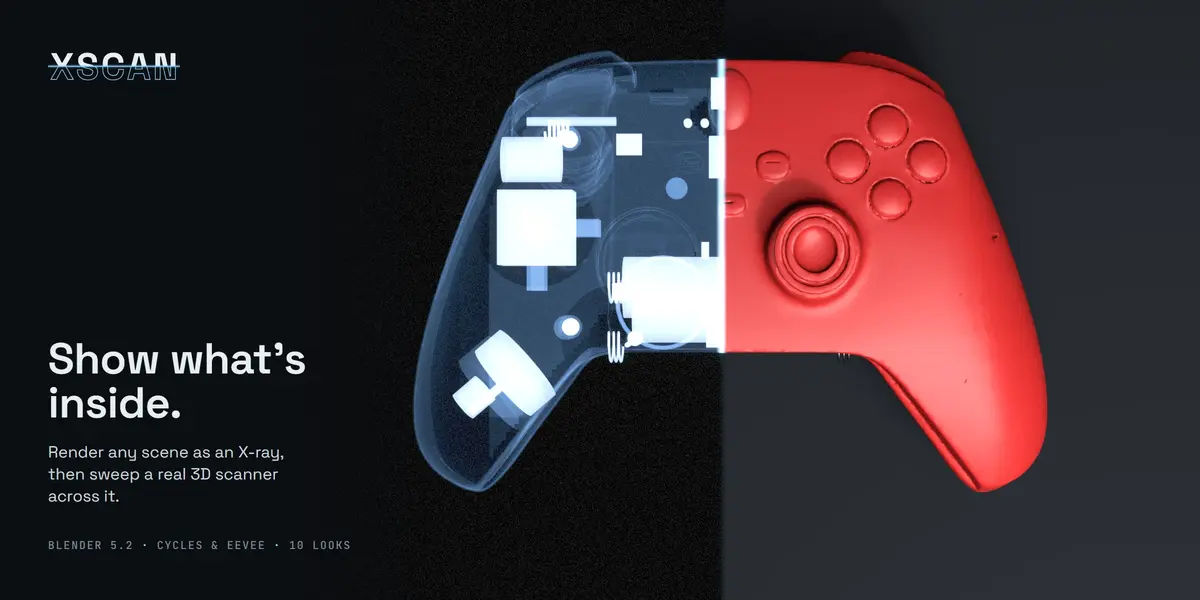
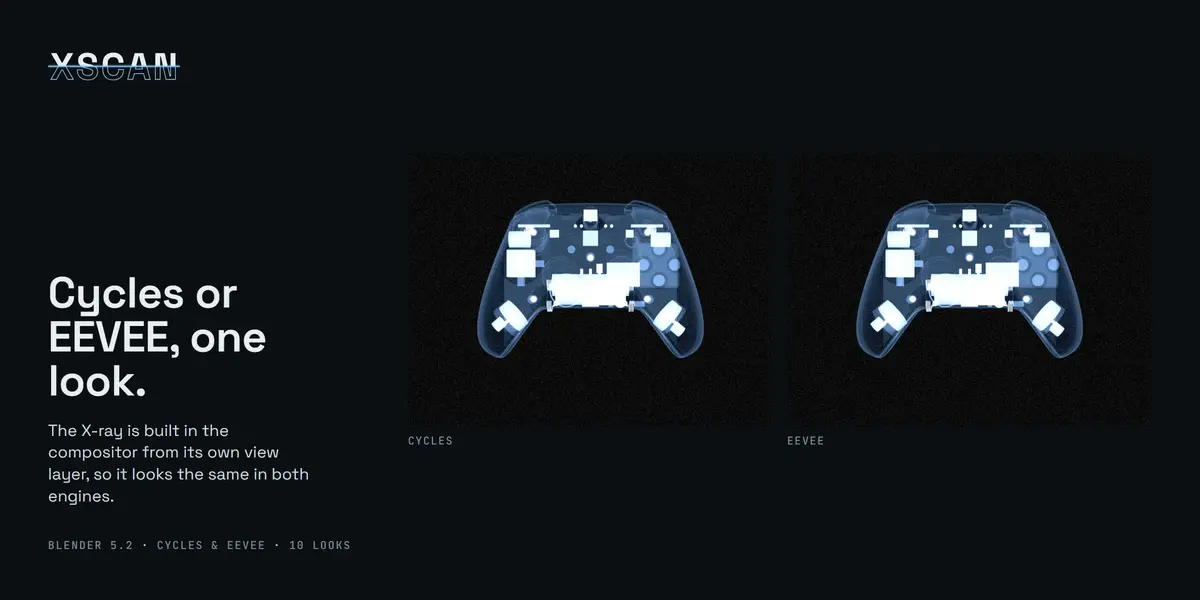
- Click Enable XScan and press F12 (or Render Preview). The frame renders as an X-ray; the viewport keeps your normal scene.
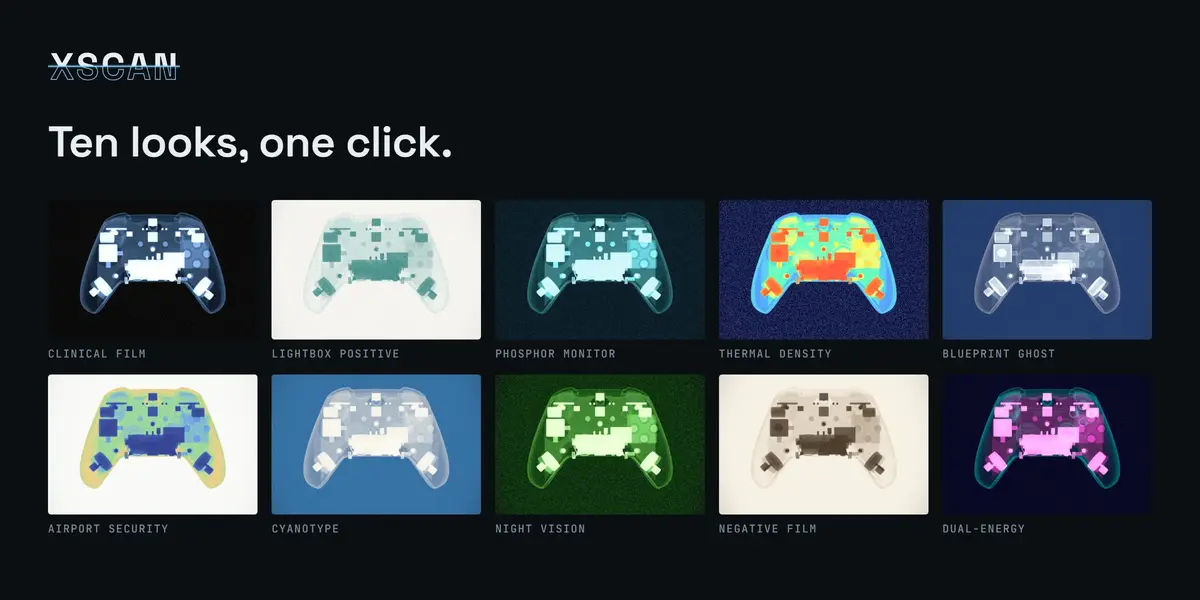
- Pick a look from the preview gallery in the Look panel.
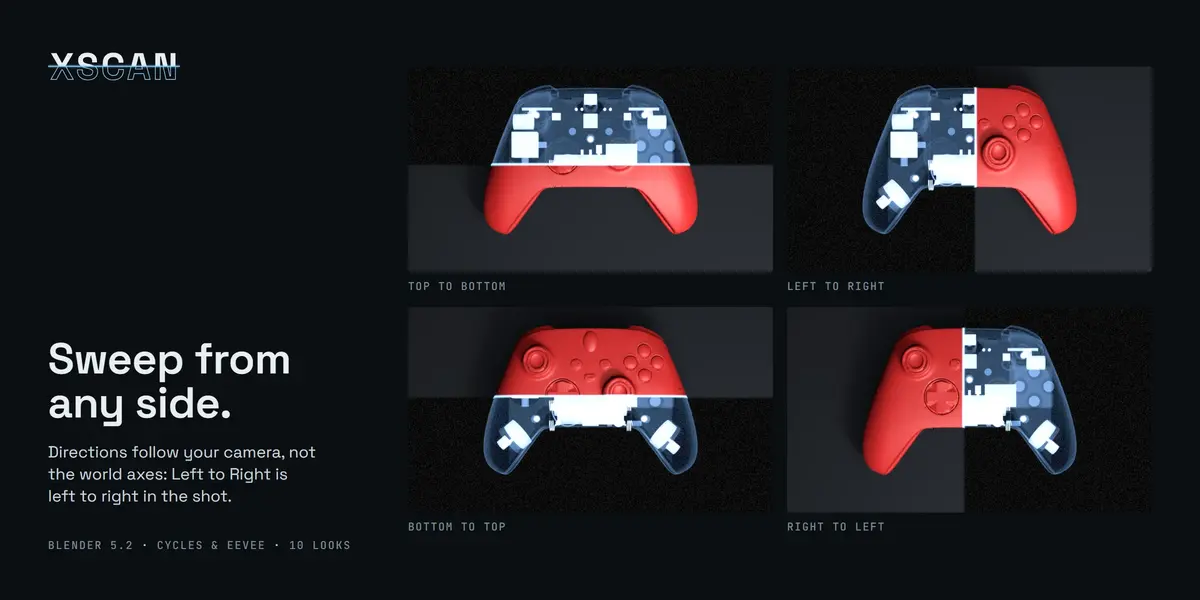
- For the reveal, switch X-ray Only to Reveal, select the objects to scan and click Add Scanner. Set Start and End to choose the frames; changing the direction re-keys the scanner.
X-ray only the subject
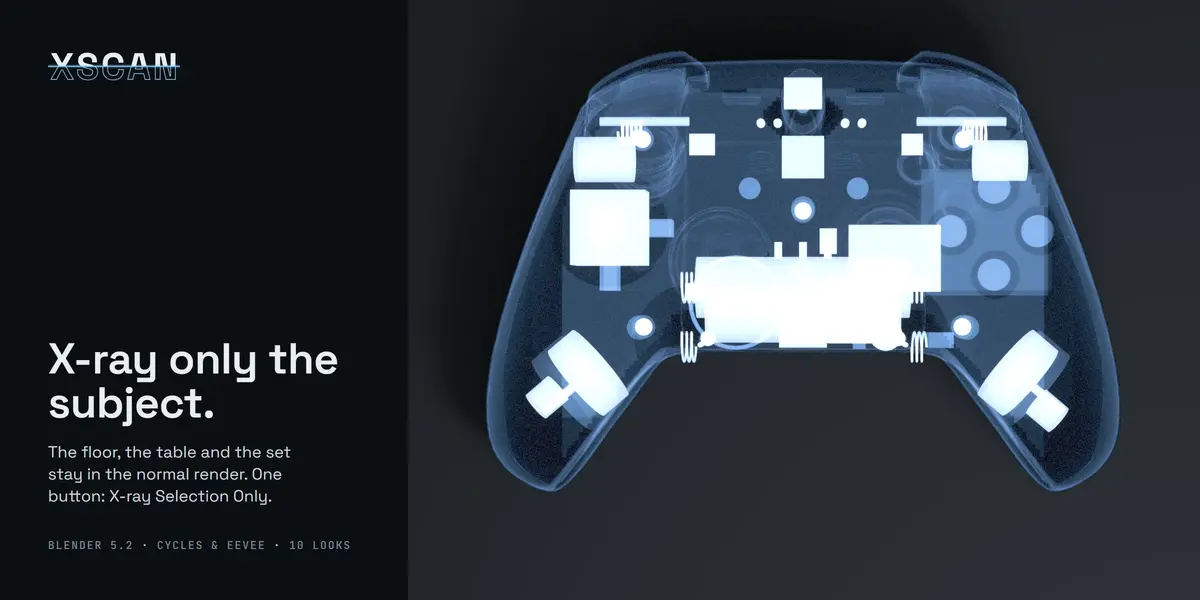
Select the subject and click X-ray Selection Only: everything else becomes Hidden and stays in its normal render on both sides of the scan line.
Roles and density
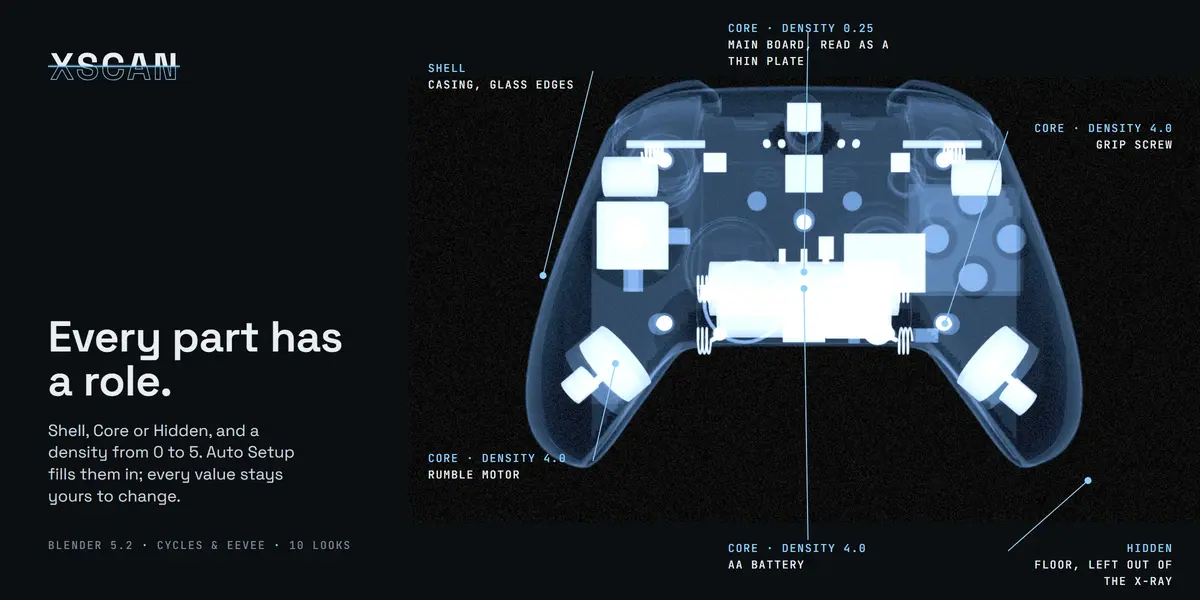
- Core: the inside, full density (default).
- Shell: a casing, drawn glassy with bright edges.
- Hidden: left out of the X-ray (floors, backdrops).
Density (0 to 5) makes parts read heavier: screws, batteries and motors around 3 to 5, plastic around 1. Hold Alt while dragging to edit every selected object.
Good to know
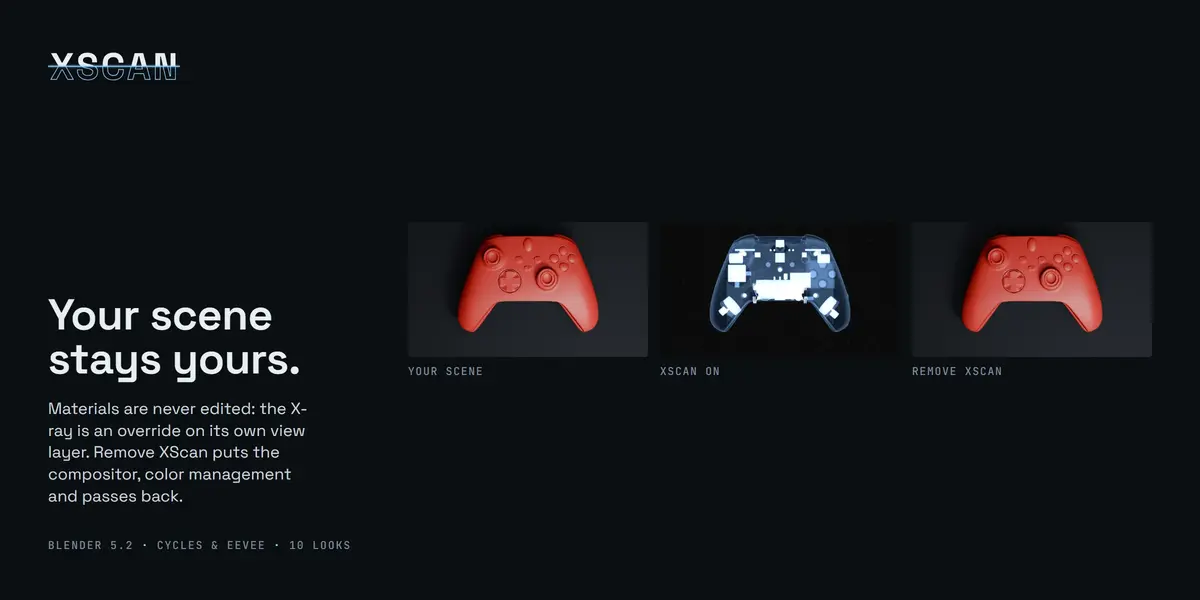
- XScan never edits your materials. It adds a view layer (XScan_XRay) with an override material and a compositor group. Remove XScan takes all of it out and restores the settings it changed.
- Existing compositor setups keep working: XScan inserts itself in front of them.
- Reveal renders both view layers, so it takes about twice as long as a normal render. X-ray Only renders a single layer.
- Enabling XScan switches Color Management to Standard, which the looks are tuned for. Remove restores yours.
- Objects linked from another .blend cannot take roles; make them local first.
Have questions about this product?
Login to message
| Published | about 5 hours ago |
| Blender Version | 5.2 |
| Extension Type | N/A |
| Render Engine Used | Cycles, Eevee |
| License | GPL |
Discover more products like this
render effect xray eevee scan compositor motion graphics reveal Cycles x-ray product-visualization