Zap Viewer — Render History Inside Blender
 Farax Creative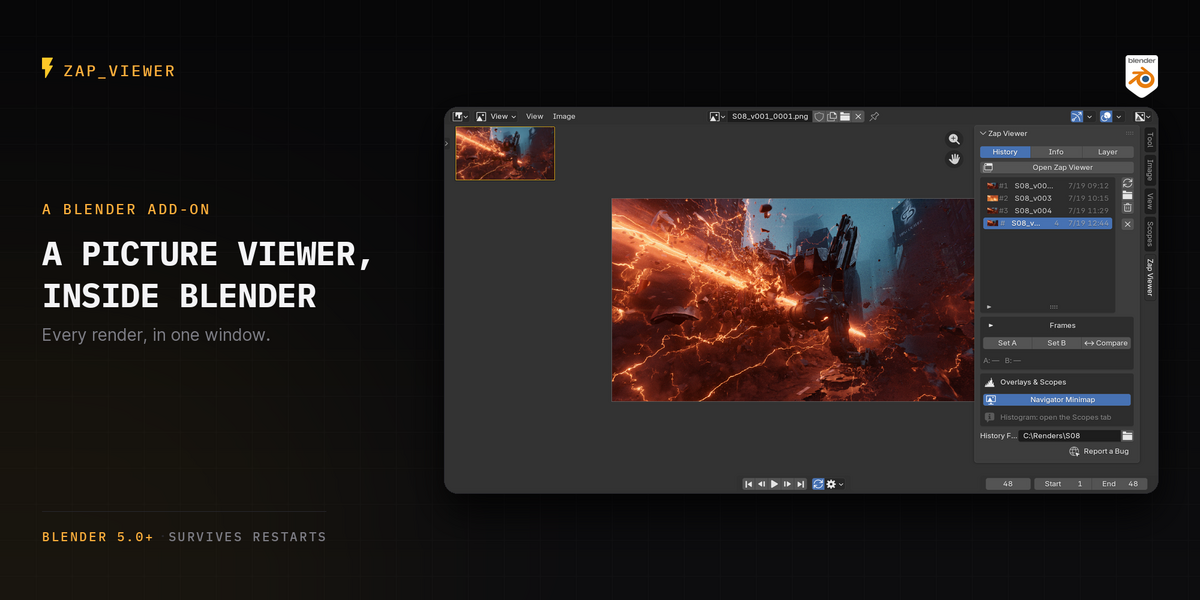
Install
- Download
zap_viewer-2.8.0.zip. Do not unzip it. - In Blender, go to Edit → Preferences → Add-ons.
- Open the drop-down at the top right and choose Install from Disk..., then pick the zip.
- Enable the add-on if it is not enabled already.
Blender 5.0 or newer is required. Verified on 5.0.1, 5.1.2 and 5.2.
Where to find it
Zap Viewer lives in the Image Editor, in the sidebar (press N) under a Zap Viewer tab. It has three tabs of its own: History, Info and Layer.
Your first render
Press F12. Zap Viewer opens its own window and the render appears there as entry #1. Render again and you get #2 — nothing is overwritten and you did not have to press anything to keep it.
Double-click an entry's name to rename it. "v1 key light", "v2 warmer" is far easier to read later than a timestamp.
Compare two renders

Select an entry and press Set A, select another and press Set B, then press Compare. The two are composited into a single image split by a wipe you can drag, so both halves share pan, zoom and colour management by construction.
If A and B are different resolutions, Zap Viewer refuses to compare them rather than stretching one to fit — that would falsify the comparison you are making.
Play a rendered sequence


An animation render arrives as one Sequence entry, not one entry per frame. Use the transport bar under the view to play, scrub and set a play range.
Playback runs on the add-on's own timer and never advances scene.frame_current, so playing a sequence does not animate your 3D viewport or scrub your scene.
Per-frame render times
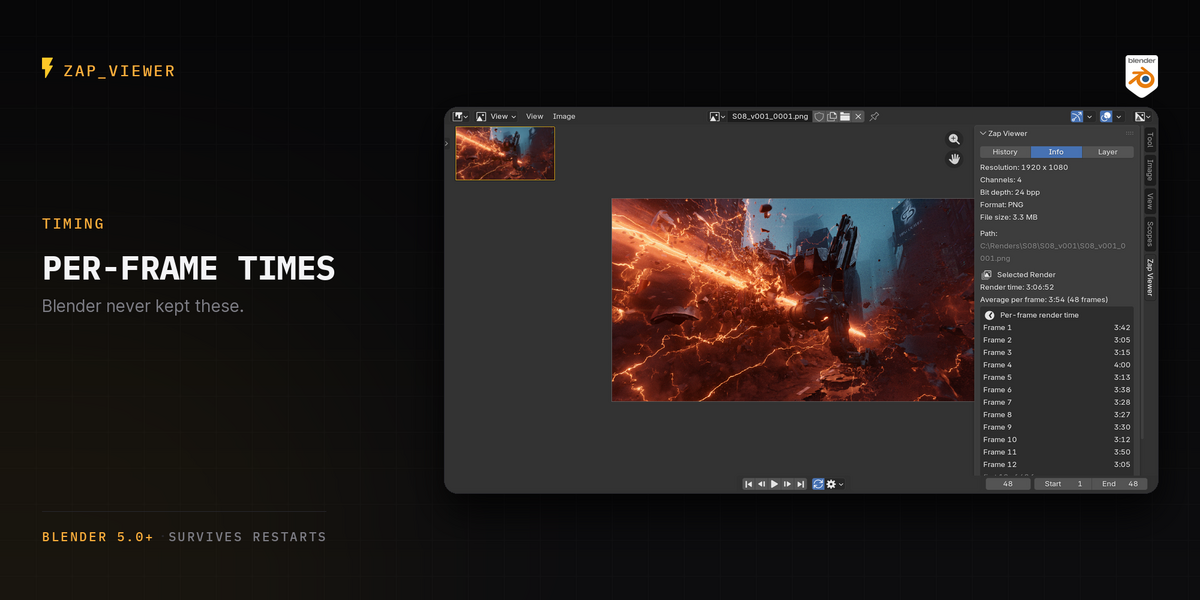
Select a sequence and open the Info tab. Zap Viewer lists how long each frame took, plus the average. Blender does not keep this anywhere; it is how you find the one frame that cost you eight minutes.
Where your renders are stored

In a zap_viewer_history folder next to your .blend by default, or wherever you point History Folder. They are ordinary image files, which is why the history survives quitting Blender — reopening the .blend rebuilds the list, thumbnails included. Nothing is packed into your .blend.
Renders it didn't make

Point Import at any folder — a render farm's output, an older project, a folder a colleague sent. Nothing is copied or moved; the entries point at the files where they already are, and a run of numbered frames comes in as one sequence.
What it never does
It never changes your render settings, never touches Blender's native render slots, and never touches your sequence editor. In headless and farm renders (blender -b) it does not even open a window. Uninstall it and your renders stay exactly where they are — they were never anywhere else.
Known limitation in this release
Multilayer EXR stills are flattened in the history copy. Blender writes no file at all for an interactive F12 still, so the add-on has to produce one from the Render Result, and every route available for that flattens it. If you need the history copy to carry passes, render to single-layer EXR for now. The Layer tab says this in the UI rather than letting you find out later.
Full manual
Available in five languages:
Reporting a bug
Use the bug report form.
Licensed GPL-3.0-or-later.
Have questions about this product?
Login to message
| Blender Extension Compatible | Yes |
| Published | about 2 months ago |
| Blender Version | 5.0 - 5.2 |
| Extension Type | Add-on |
| Render Engine Used | Cycles, Eevee |
| License | GPL |
Discover more products like this
render review playback ab compare render output compare renders render history render time image viewer render viewer picture viewer render slots Image Sequence