 Ispyr Games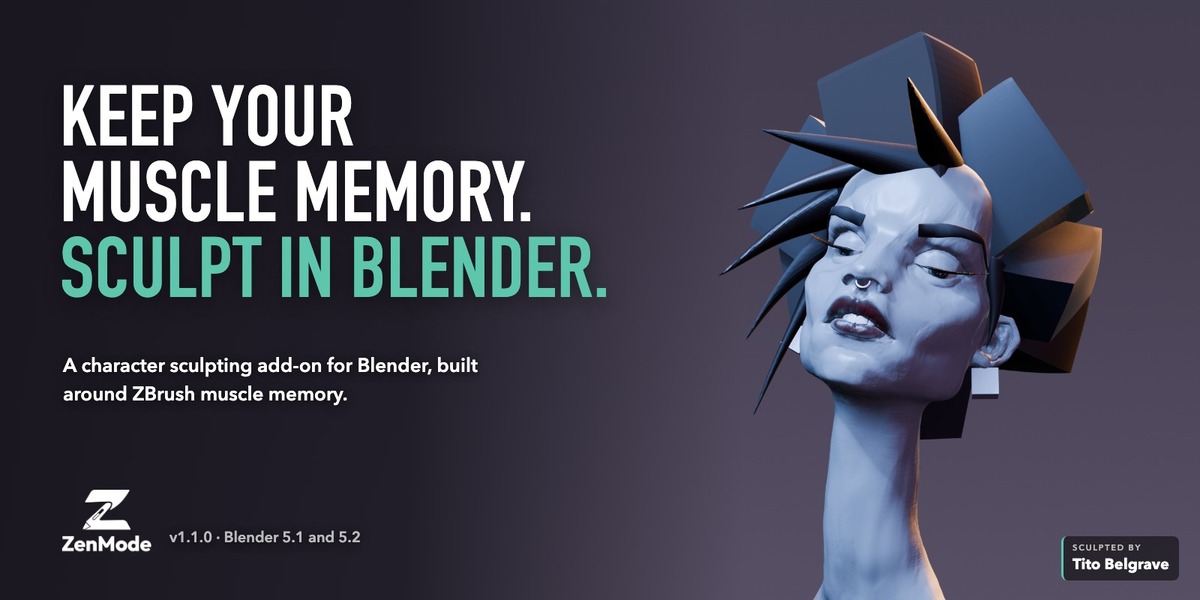
Keep your ZBrush muscle memory.
Sculpt in Blender.
I built ZenMode around the places where my ZBrush experience kept colliding with Blender: sculpting dense meshes, reversible sculpt passes, and the feel of working in the viewport.
Built for character and creature artists. Blender's native sculpt engine, brushes, Undo, files and editable geometry stay intact.
New in 1.1: the tools work in stock Blender, plus posed symmetry, limb posing and inserts that follow the pose.
Two ways to use it
In stock Blender. In Sculpt Mode, open the ZenMode tab in the sidebar (N). Zen Levels, Symmetry, Remesh, Retopo, Morph Targets, Alphas, Inserts and ZBrush import work there with your own navigation, keys, workspace and look. ZenMode adds no shortcuts.
With ZenMode on. Sculpt Mode takes on a ZBrush-style workflow: its own navigation, shortcuts, tool dock and viewport look. Enter ZenMode explains exactly what changes before it turns on. Turn it off and those changes go away. ZenMode never edits your Blender keymap.
Worth knowing: turning ZenMode on starts a fresh Undo history, and Spacebar won't play the timeline while it's on.
01
Sculpt dense meshes
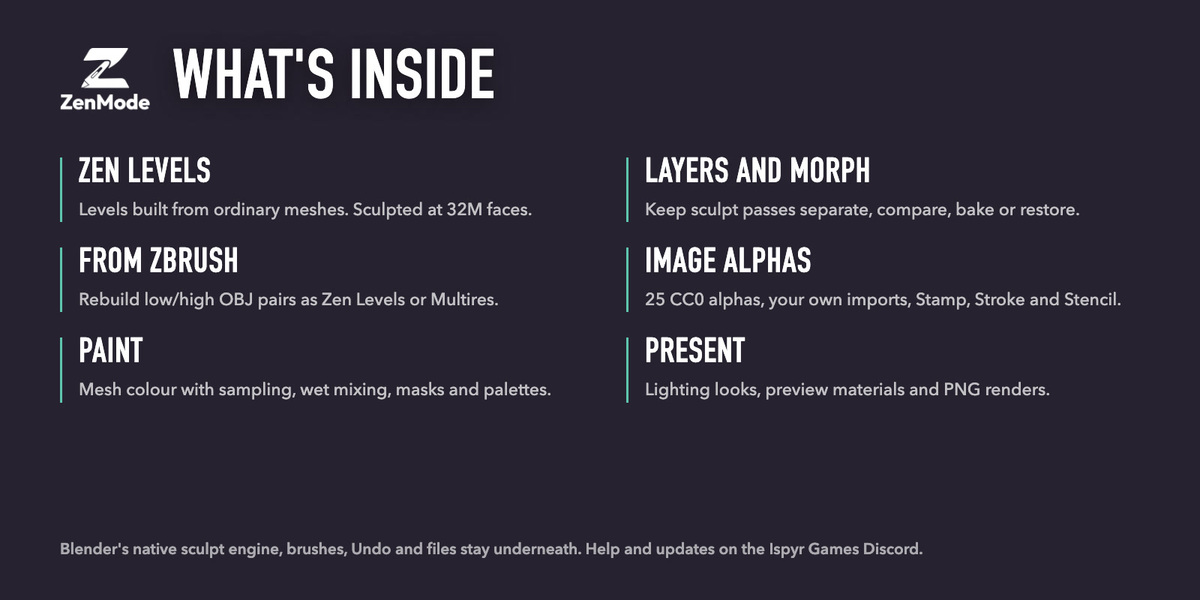
Zen Levels keep brush strokes responsive on dense sculpts. Tested at 30 million faces on Mac and PC.
02
Keep passes editable
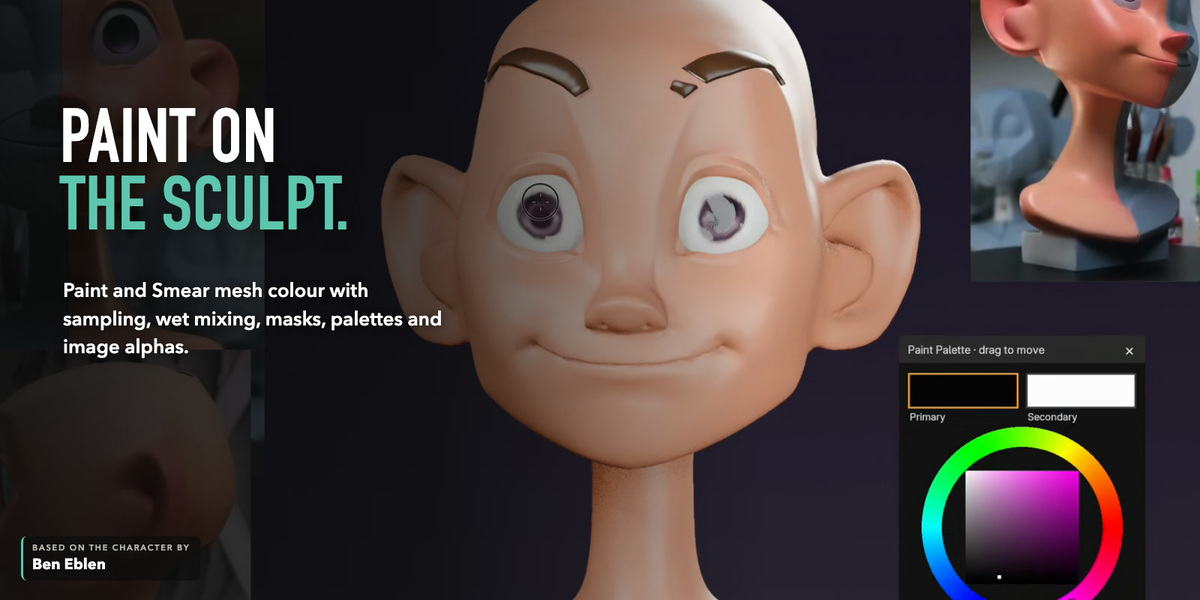
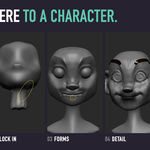
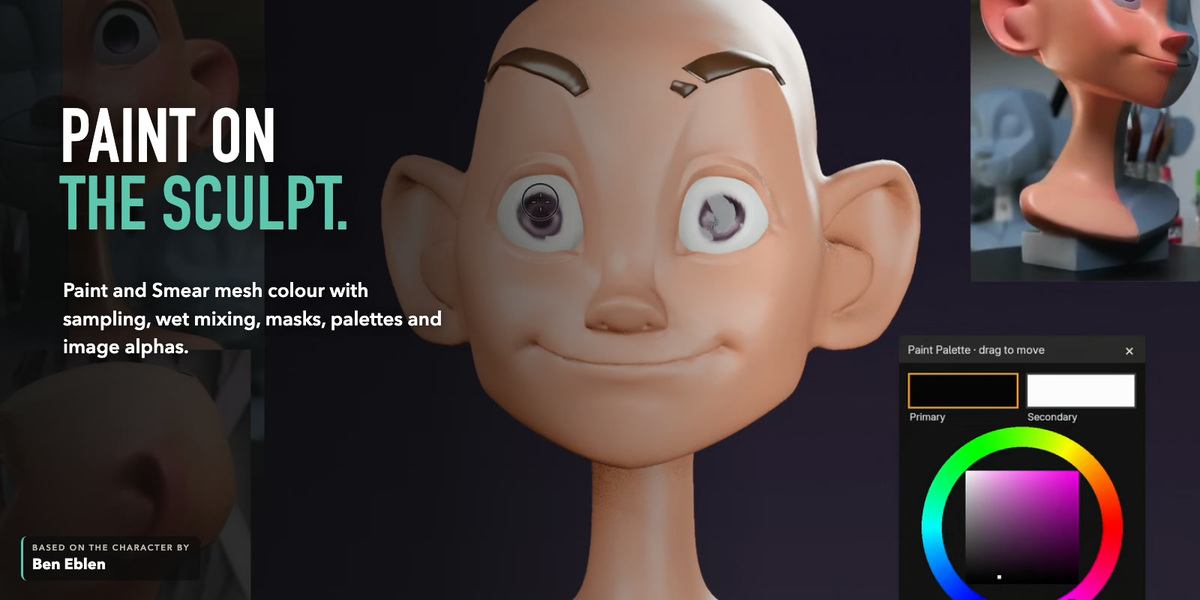
Forms, wrinkles, pores and damage on separate sculpt Layers, plus Morph Targets to pull any area back.
03
Work the way your hands know
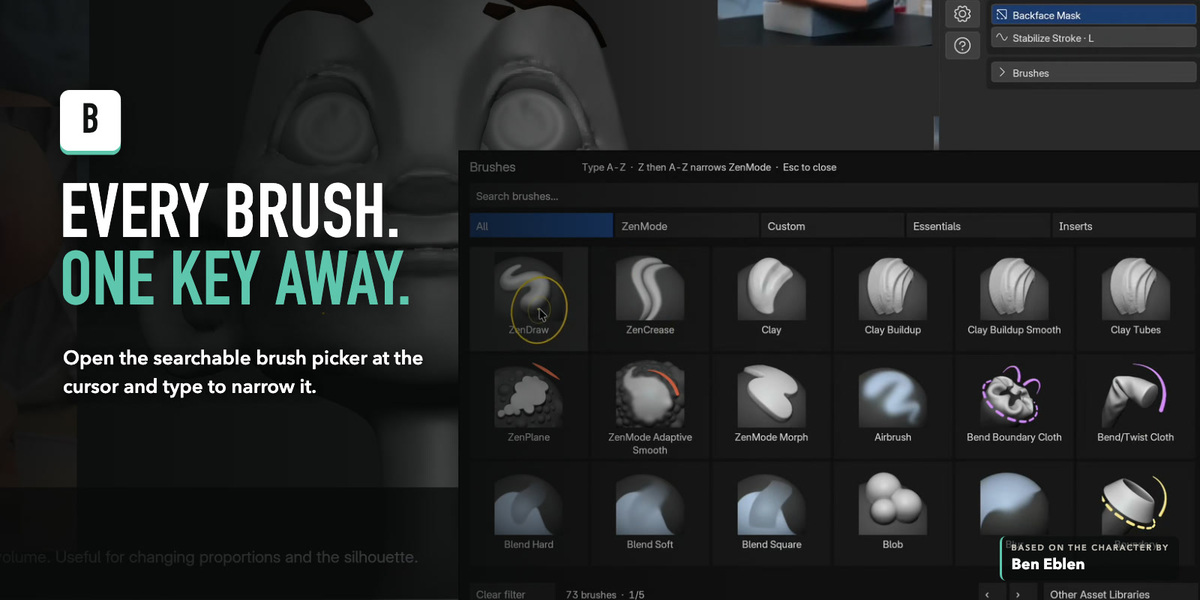
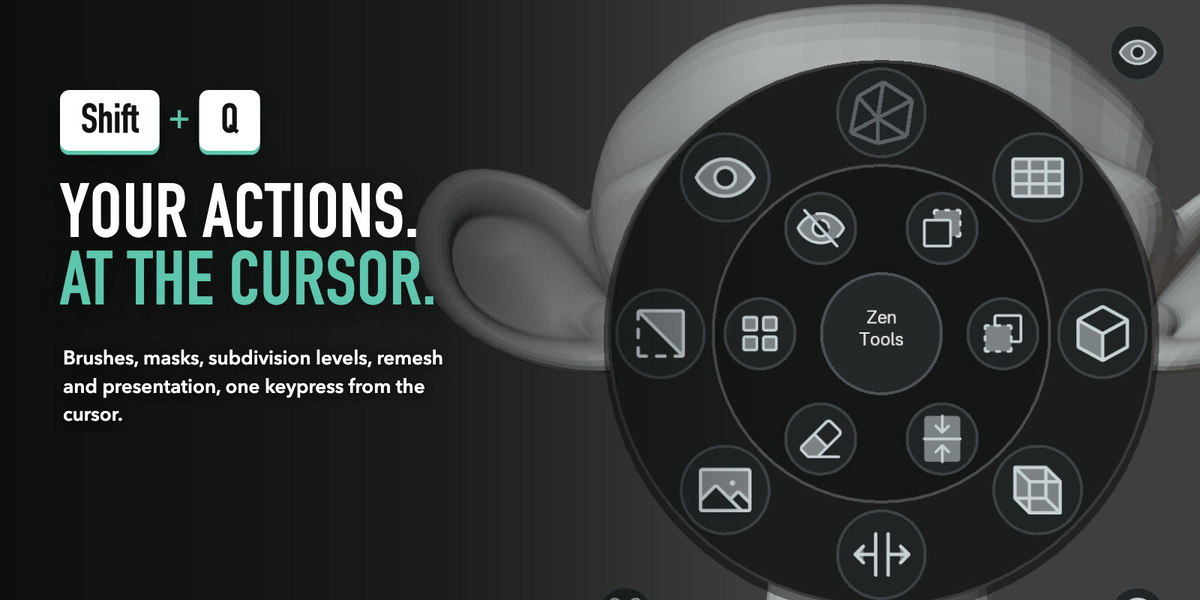
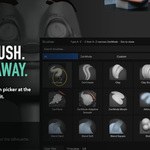
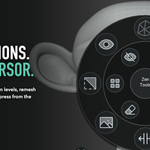
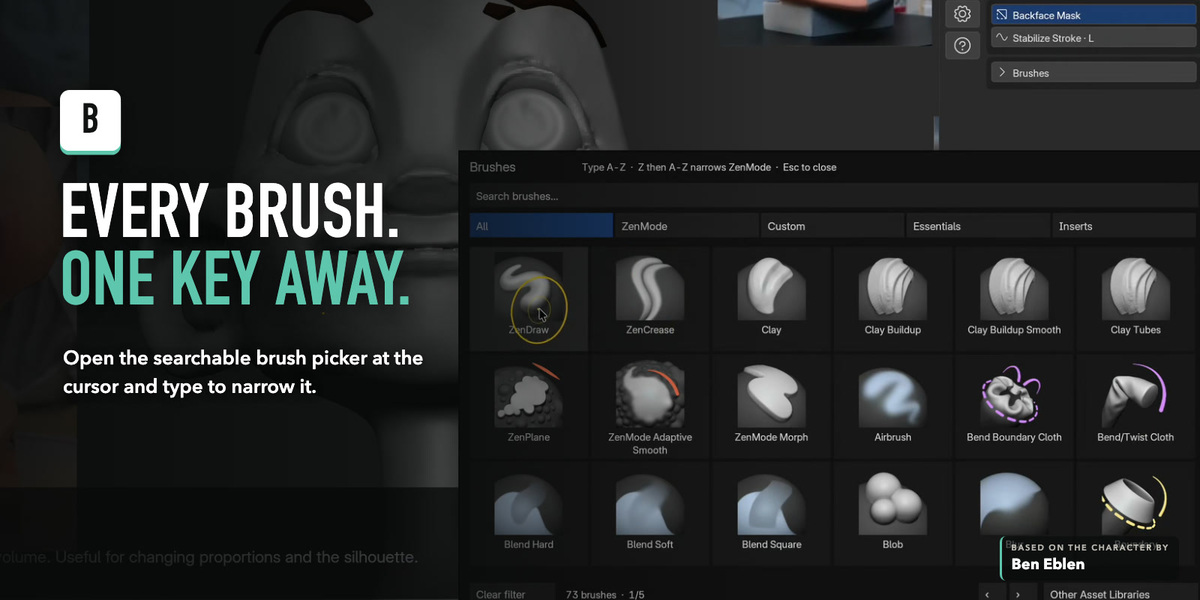
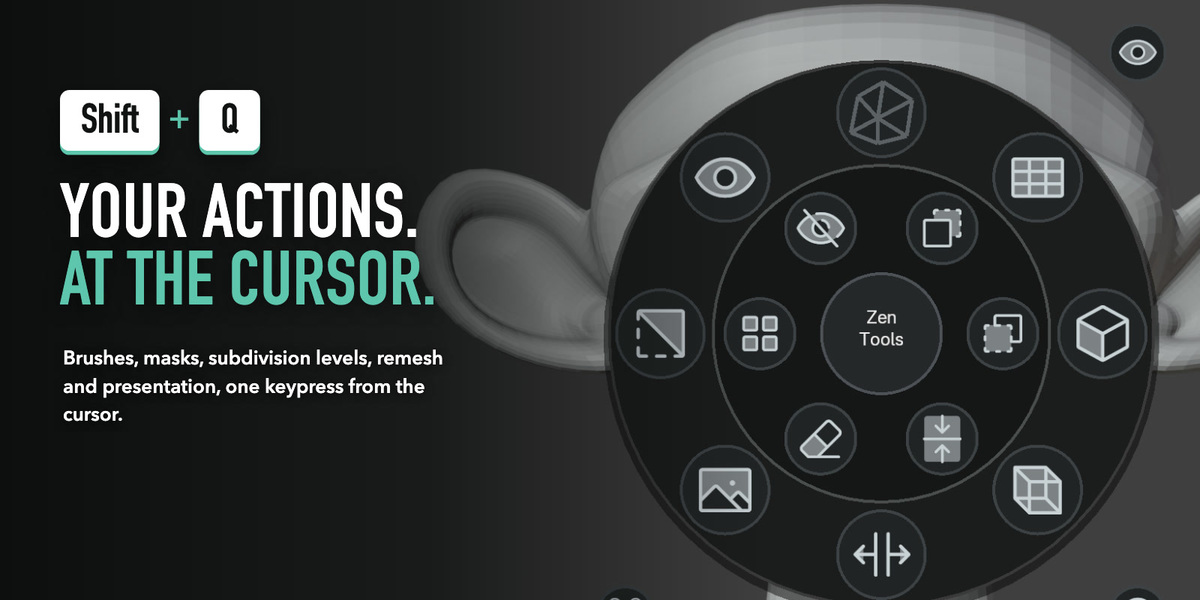
Familiar keys, a brush picker on B, an operations wheel on Shift+Q, and ZBrush low/high import.
New in 1.1
A free update for everyone who owns ZenMode.
Tools in stock Blender
Use Zen Levels, Symmetry, Remesh, Retopo, Morph Targets and ZBrush import from the sidebar without entering ZenMode. Right-click Divide, Higher or Lower to assign your own key.
Posed Symmetry and Auto Sym
Record symmetry once, pose the sculpt, then mirror a masked part or every stroke onto the posed side. One Undo removes a stroke and its mirror.
Pose Skeleton
Draw one stroke along a limb, then pose it with FK or pull the end with IK. Press R to rotate a bone by axis or exact degrees. Masked areas never move.
Posed inserts
Place an eye on a tilted head and its mirror lands in the matching socket. Inserts and Brow Strips follow when you re-pose, and Move mode adjusts them in Sculpt Mode.
What you'll use every day
The full toolkit
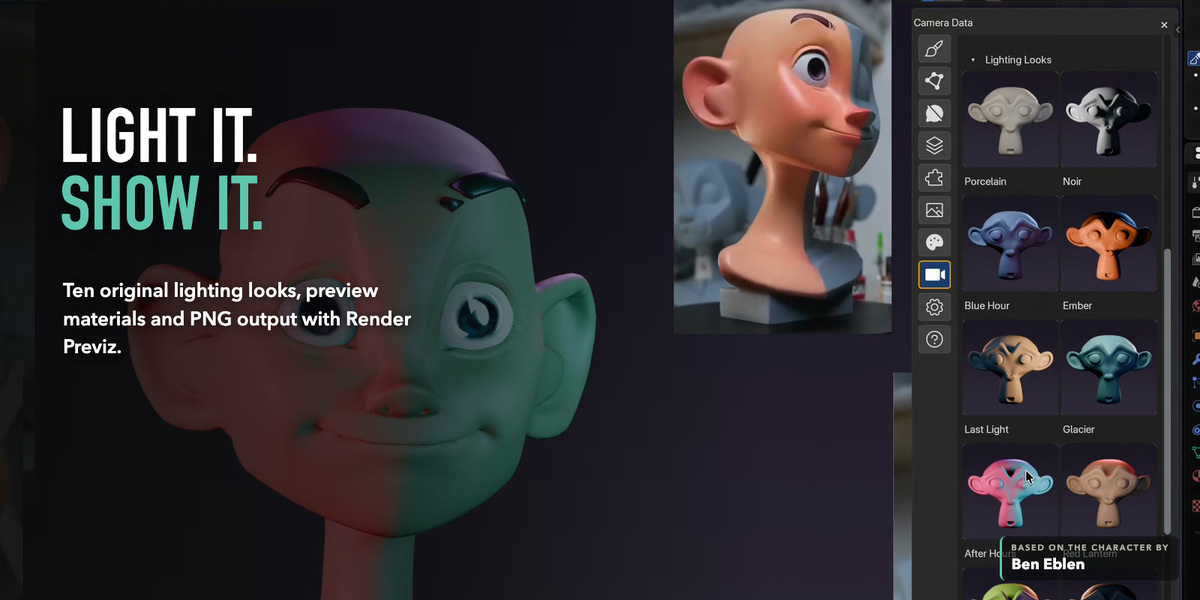
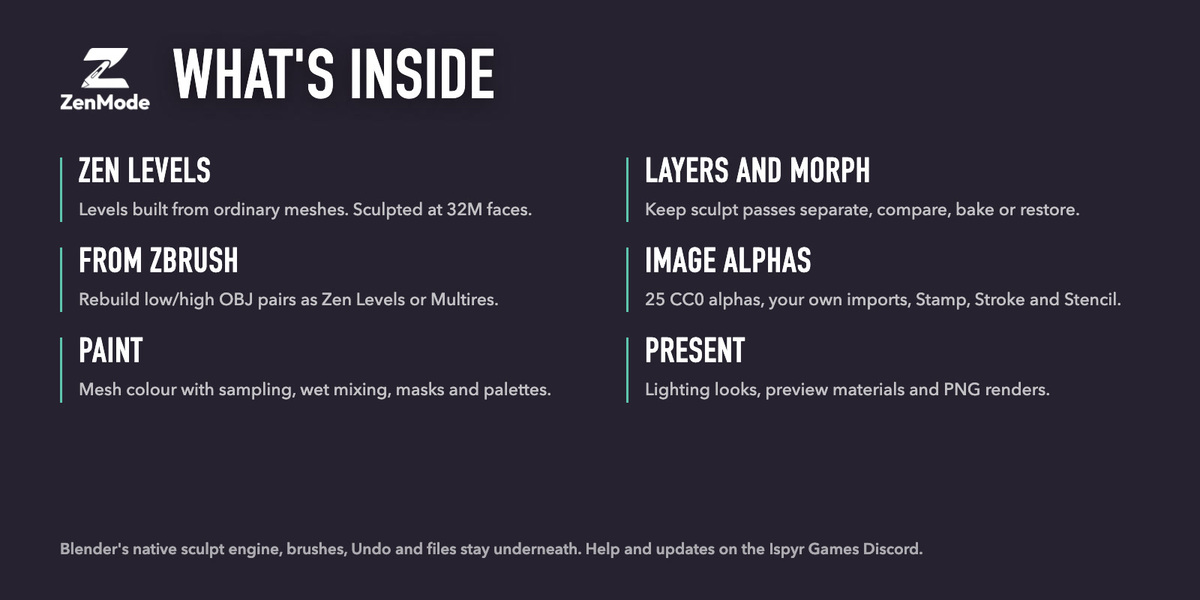
Everything ZenMode adds, grouped by how you work.
Dense sculpting
- Zen Levels are the default. Add a level with Cmd/Ctrl+D.
- Edits on a lower level carry up into the detail.
- All Low / All High switches every visible sculpt together.
- Visible face count, plus Adaptive Sculpt to add density locally.
- Zen Remesh when polygons start to stretch or pinch.
- Prefer Multires? Turn Zen Levels off, or convert Multires with every level kept.
Alphas and viewport
- 50 CC0 alphas in a searchable gallery, or import your own.
- Native Stamp, Stroke and Stencil, with per-brush Stamp Falloff.
- Lasso, Polygon and Circle masks.
- Blender's middle-mouse navigation still works alongside ZenMode's.
Editable passes
- Separate sculpt Layers with strength and visibility.
- Bake the visible result when it's ready.
- Store a Morph Target, restore the full surface, or paint recovery with the Morph Brush.
From ZBrush
- Import matching low/high OBJ pairs and rebuild them as levels.
- Optional ZBrush companion exports visible SubTools as named batches.
- Rebuild SubD Stack recovers lower levels from intact quad topology.
Symmetry and posing
- Posed Symmetry covers every Zen Level, and Auto Sym mirrors each stroke to the posed side.
- Pose Skeleton poses a limb with FK, IK and precise R rotation.
- Posed inserts and Brow Strips mirror across the posed head. New Ring and Cone insert shapes.
- Local Subdivide adds density to one area and its mirror twin.
- Restore Symmetry copies one side, or only the masked area, back across.
- Symmetry Plane moves each mirror plane with a slider. Remesh with symmetry on stays exactly symmetric.
- Symmetry wheel on Shift+Q while the Symmetry section is open.
Stylize (Experimental)
- Chisel and Polish brushes for hard, flat planes.
- Facet Filter chisels everything unmasked into Big Planes, Rock or Chips in one click.
- Plane Size and Edges controls.
Honest boundaries
- Changing levels, Layers, Morph and Undo process the whole surface, so at tens of millions of faces they take a few seconds. Memory matters as much as the processor.
- Masks stay with each level. Bake Layers and delete a stored Morph Target before changing levels, and use Collapse Levels before a Remesh.
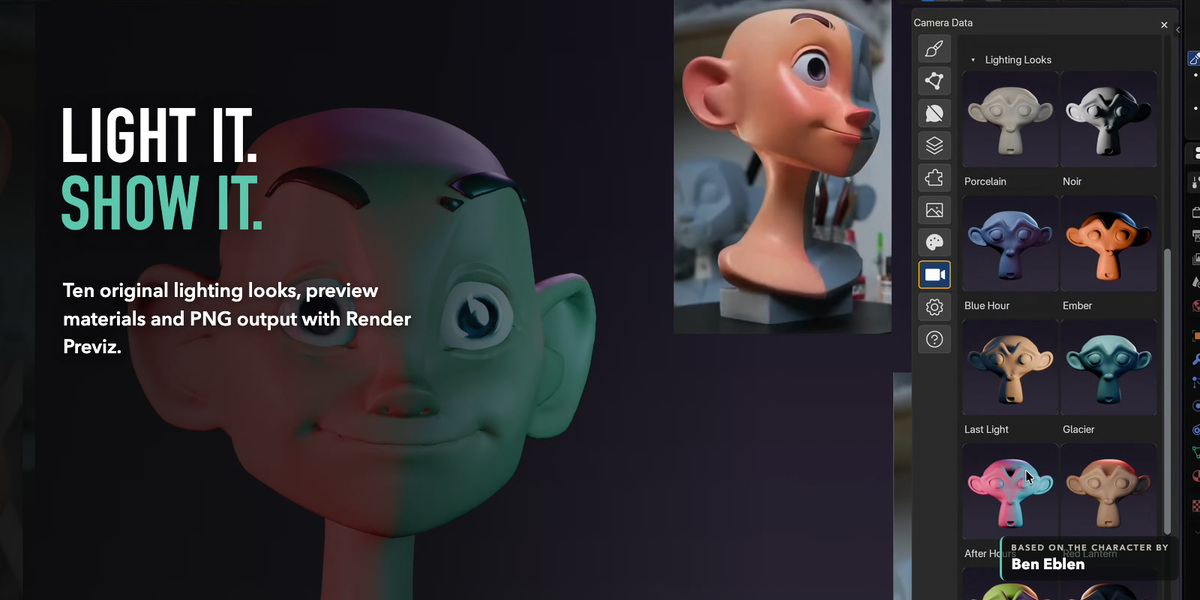
- Layers, Paint, References, Render Previz, Adaptive Sculpt and the Morph Brush need ZenMode on. The sidebar says so where it applies.
- Pose Skeleton poses the sculpt directly. Nothing is rigged, and the skeleton is not saved.
- A posed insert mirrors across one flat plane: exact for a head posed as one piece, approximate when the two sides are posed differently.
- Stylize is experimental. Its results and controls may change as artists use it.
- Blender 5.1 and 5.2. Developed and tested on macOS with Blender 5.1.2 and 5.2.1. Windows and tablet input have had less testing so far.
- No account, networking, telemetry or analytics. Licensed under GPL-3.0-or-later.
Help and community
Built-in guide
Tutorial Mode shows feedback while you sculpt. Help > Open Full Guide opens the offline manual.
Reporting a problem
Include your OS, Blender and ZenMode versions, tablet model, and a screenshot or short recording.
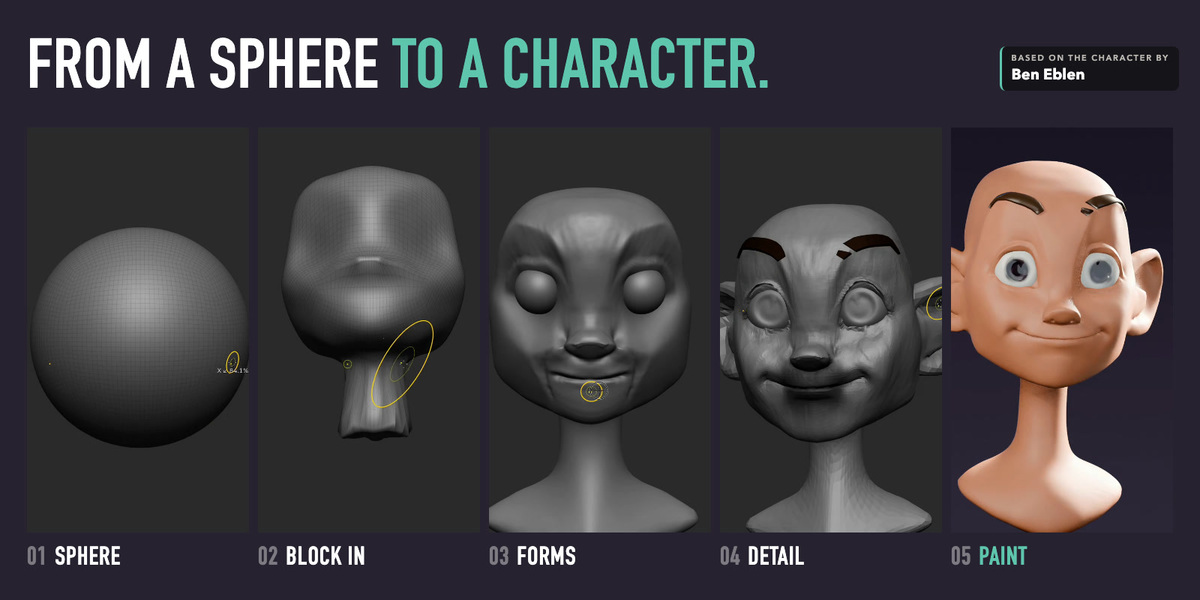
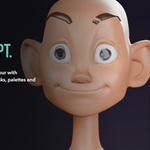
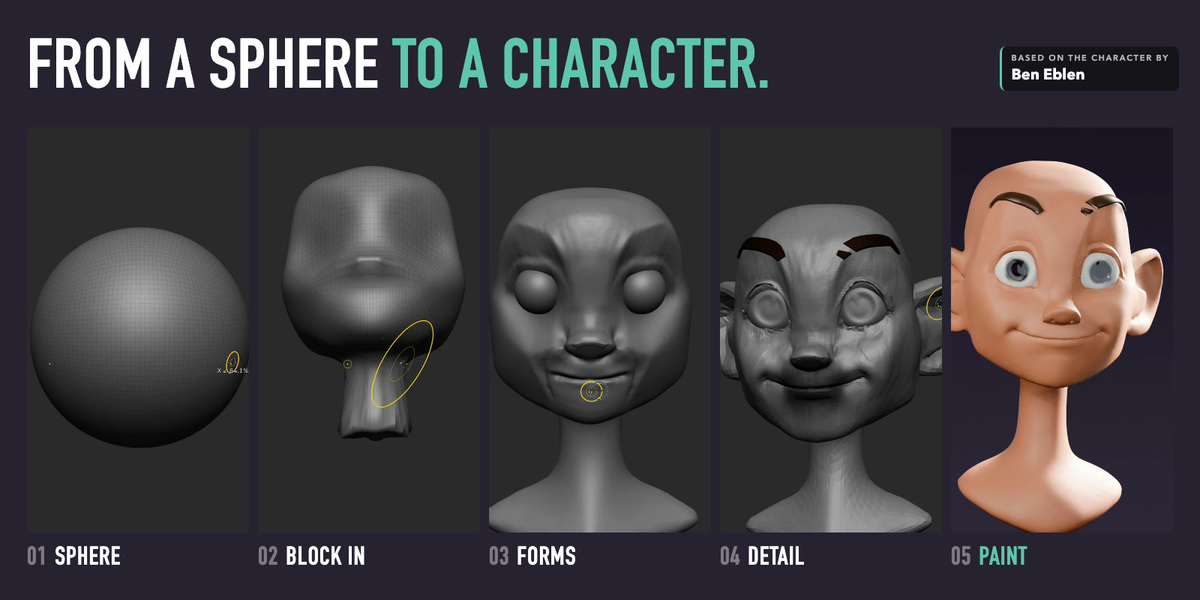
ZenMode is an independent project and is not affiliated with, endorsed by, or sponsored by Maxon or ZBrush. ZBrush is a trademark of its respective owner and is named only to describe workflow compatibility. The sculpt shown is based on the character by Ben Eblen.
