1-Click Mesh Cleaner
 Synrg Studios


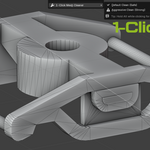
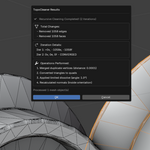
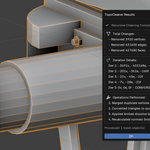
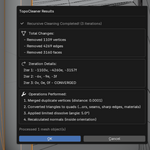
# 1-Click Mesh Cleaner - Documentation
## Overview
**1-Click Mesh Cleaner** is a standalone Blender addon focused on fast topology cleanup for selected mesh objects.
It provides two cleanup operators:
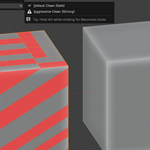
- **Default Clean (Safe)**
- **Aggressive Clean (Strong)**
It also includes:
- a **Smart Menu** entry in the 3D Viewport right-click menu,
- an optional **Quick Access Shortcut**,
- **recursive mode** by holding `Alt` when launching a clean operation.
---
## Installation
1. In Blender, open **Extensions**.
2. Install the addon ZIP package (for example: `one_click_mesh_cleaner_v1.0.1.zip`).
3. Enable **1-Click Mesh Cleaner**.
---
## How to Use
### Right-click Smart Menu
1. Select one or more mesh objects.
2. Right-click in the 3D Viewport.
3. Open **1-Click Mesh Cleaner**.
4. Choose:
- **Default Clean (Safe)**, or
- **Aggressive Clean (Strong)**.
### Recursive Mode (Alt)
- Hold **Alt** while clicking either clean mode.
- The addon will repeat cleanup passes until convergence (no more topology changes) or internal iteration limit.
---
## Cleanup Pipeline
Both clean modes use a topology cleanup pipeline over selected mesh objects:
1. Remove loose geometry (loose vertices/edges)
2. Merge duplicate vertices (remove doubles)
3. Join triangles to quads when possible
4. Apply limited dissolve
5. Recalculate normals
After finishing, a results dialog shows:
- vertex/edge/face changes,
- operations performed,
- object count,
- iteration details (for recursive mode).
---
## Clean Modes
### Default Clean (Safe)
Balanced cleanup for general use.
- Keeps a conservative behavior suitable for most production meshes.
- Good first pass for imported or edited geometry.
### Aggressive Clean (Strong)
Heavier cleanup for problematic topology.
- Uses stricter comparison settings.
- Can significantly alter topology.
- Recommended for difficult meshes after saving your file.
---
## Quick Access Shortcut
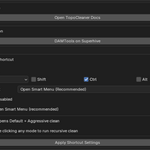
Configure in **Addon Preferences** under **Quick Access Shortcut**.
### Suggested Default
- **Ctrl+E** in Object Mode (recommended suggestion).
### Options
- Enable/disable shortcut
- Set key + modifiers (`Shift`, `Ctrl`, `Alt`)
- Choose **Quick Access Mode**:
- **Open Smart Menu (Recommended)**
- **Run Default Clean**
- **Run Aggressive Clean**
### Guardrail
If no mesh object is selected, quick access will show a warning and cancel safely.
---
## Best Practices
- Save your .blend before running **Aggressive** or **Recursive** cleanup.
- Start with **Default Clean**, evaluate results, then escalate if needed.
- Use recursive mode only when required on problematic geometry.
- Apply cleanup on isolated object groups for better control.
---
## Known Behavior / Notes
- The addon acts only on **selected mesh objects**.
- UI and dialogs are designed for Blender 4.2+ extension workflow.
- Processing time depends on mesh complexity and object count.
---
## Troubleshooting
### Smart Menu does not appear in right-click
- Ensure at least one **mesh** object is selected.
- Confirm addon is enabled.
### Shortcut does nothing
- Check **Enable Shortcut** is active in Preferences.
- Verify key combination conflicts with other addons/tools.
- Re-apply settings with **Apply Shortcut Settings**.
### Cleanup seems too strong
- Use **Default Clean (Safe)**.
- Avoid recursive mode unless necessary.
---
## Links
- TopoCleaner Docs: https://synrgs.tech/damtools/EN/TopoCleaner/
- DAMTools (our other addon): https://superhivemarket.com/products/damtools
---
## Version
- Documentation target: **1.0.1**
-
$7
Single indie user license
-
$19
Unlimited seats for studio license
Have questions about this product?
Login to message
