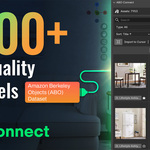
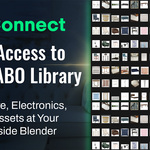
Abo Connect: Access 8,000+ Free, High-Quality 3D Models
 Andrew Luzhetskyi


ABO Connect Documentation
Version 1.1.2
📥 Installation
Requirement: ABO Connect v1.1.0 requires Blender 4.2 or newer.
Note: If you are using Blender 4.1, please use version v1.0.2 of the addon.
- Download the
abo_connect.zipfile. - Open Blender and go to
Edit > Preferences > Add-ons. - Click the dropdown menu (top right) and select "Install from Disk".
- Navigate to and select the
abo_connect.zipfile. - Once installed, the extension will be automatically enabled.
⚙️ First-Time Setup (Important!)
Before you can browse, you need to download the asset library's metadata. This is a one-time process that tells the addon what's available.
- Navigate to the main addon panel in the 3D Viewport's sidebar (press 'N' to open it, then click the "ABO Connect" tab).
- Go to
Edit > Preferences > Add-ons, find ABO Connect and click the "Download Metadata & Thumbs" button. - You will see a live progress bar at the top of the sidebar panel. This process can take several minutes as it downloads all necessary data and thumbnail images. Please be patient and let it complete.
- Once the progress bar disappears, the setup is complete. You're ready to go!
🚀 How to Use
- In the 3D Viewport, press the "N" key to open the sidebar.
- Click on the "ABO Connect" tab.
- The panel will load and display the asset library.
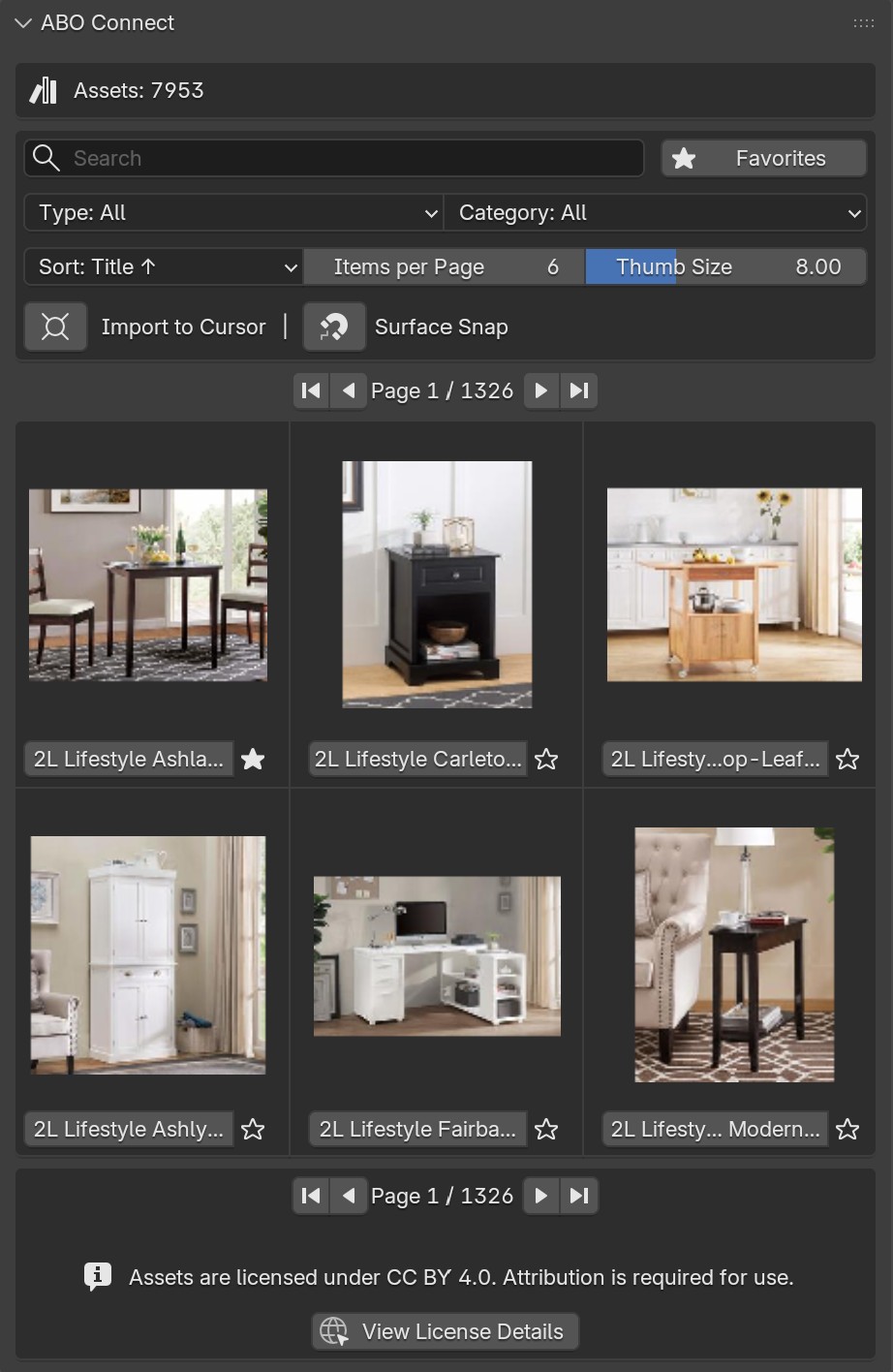
🖥️ Interface Guide
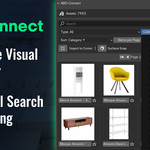
🔍 Filtering & Navigation
| 🛠️ Placement Tools Import to Cursor
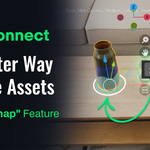
🎯 Surface Snap (New in v1.1.0) Interactive placement mode.
📦 Asset Grid
|
❤️ Favorites Management
Using Favorites
| Export & Import (New!)Found in Addon Preferences > Favorites Management.
|
⚙️ Add-on Preferences
Locate these settings in Edit > Preferences > Add-ons > ABO Connect.
💾 Cache Management
💡 Smart Caching & Offline Use
ABO Connect automatically builds a local library for you as you work.
- Instant Re-Import: When you import a model, it downloads to your drive. Future imports of that model are instant and work offline.
- Managing Space: This takes up disk space over time. If needed, click "Clear 3D Models" in preferences to delete 3D files while keeping thumbnails for browsing.
v1.1.0 introduces advanced cache management with support for custom storage locations.
1. Default Cache
- Stored in your Blender user directory.
- Good for simple setups.
2. Custom Cache Path
Use a separate drive to save space & persist data.
- Enable "Use Custom Cache Path".
- Select a folder (e.g., `D:\Assets`).
- Addon creates an `abo_connect` folder inside.
Auto-Migration: When you switch to a custom path, the addon detects your current cache (models, thumbnails, database, favorites) and moves the files physically to the new folder. This prevents duplication and frees up your system drive.
Using Existing Cache from Previous Versions
Scenario: You installed v1.1.0 but have data from an old version.
- Default Location: If you never changed paths, it works automatically. No action needed.
- Custom Location: Enable "Use Custom Cache Path" and point to the folder containing your `abo_connect` folder.
- Renaming Note: If your old folder is named `abo_cache` (v1.0.2), rename it to `abo_connect` first.
Other Cache Tools
- Reload From Cache: If thumbnails appear red or missing, click "Reload From Cache" to refresh them from disk.
- Clear Models: Deletes 3D files to save space (keeps thumbnails/metadata).
❓ Debug & Troubleshooting
Common Issues & Fixes:
- Red/Missing Thumbnails? Go to Add-on Preferences and click "Reload From Cache".
- "Import Failed" Error? Ensure Blender's official "Import-Export: glTF 2.0 format" addon is enabled.
Reporting Bugs:
Please contact me directly through the platform. Providing a detailed message is the most effective way for me to diagnose the problem and get a fix to you quickly. When you send a message, please try to include:
- Your Blender version.
- A brief description of the problem.
- Any error messages that appeared.
Advanced (Recommended): Enable "Enable Debug Logging" in preferences, reproduce the issue, and attach the `abo_connect_debug.log` file (found in your cache directory) to your message.

Discover more products like this
free assets 3d models asset library 3dmodels-interior design asset-browser furniture ABO ArchViz