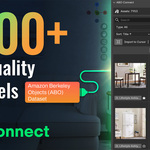
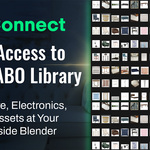
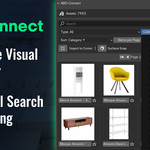
Abo Connect: Access 8,000+ Free, High-Quality 3D Models
 Andrew Luzhetskyi


Is this a subscription or a one-time purchase?
It is a one-time purchase. There are no monthly or yearly subscription fees.
I installed the addon but there is no assets or thumbnails aren't loading (or only some appear).
You likely need to run the initial setup. Go to Edit > Preferences > Add-ons, find ABO Connect, and click the "Download Metadata & Thumbs" button. A progress bar will appear at the top of the sidebar panel. Let this run for a few minutes until it disappears.
Note: As an academic dataset, a small percentage of thumbnails or models may be missing from the source, but the vast majority will load correctly.
Am I buying 3D models with this addon?
No. You are purchasing the ABO Connect addon, which is a tool that provides a bridge to the freely available Amazon Berkeley Objects (ABO) dataset. The 3D models themselves are a free resource provided by Amazon.
What are the license restrictions on the 3D models?
This is very important! All assets in the ABO dataset are licensed under the Creative Commons Attribution 4.0 (CC BY 4.0) license. This means you are free to use them for any purpose (including commercial), but you MUST give appropriate credit to Amazon.com. The addon includes a link to the official license page for your convenience.
How do I give attribution?
A simple credit in your project's description, such as "3D models from the Amazon Berkeley Objects dataset, provided by Amazon.com" is generally sufficient. Please refer to the CC BY 4.0 license for specific details.
Is there a license key I need to activate to use the addon?
No. There is no license key or activation required. You just need to provide attribution for the models you use, as per the CC BY 4.0 license.
Do I need to download a huge dataset to use this addon?
No! That's the main benefit of ABO Connect. The addon only downloads the models you choose to import, saving you a massive amount of disk space.
My thumbnails/assets have disappeared or turned into red icons. How do I fix it?
This can sometimes happen due to Blender's internal caching. The quickest and easiest fix is to go to Edit > Preferences > Add-ons, find ABO Connect, and click the "Reload From Cache" button. This will instantly reload all your downloaded thumbnails from your hard drive without re-downloading anything.
What if a thumbnail is missing or an asset won't download?
The ABO dataset is an academic and research collection, so it's not perfect. There may be a few missing images or broken model links. While the addon is designed to be robust, it can only access what is provided in the dataset.
I get an error: "Failed to import: Calling operator bpy.ops.import_scene.gltf error". What does this mean?
This error occurs because the standard glTF 2.0 importer is not enabled in your Blender installation. ABO Connect relies on Blender's built-in glTF importer. Please go to Edit -> Preferences -> Add-ons, search for "glTF", and ensure the official "Import-Export: glTF 2.0 format" addon is enabled.
My old cache folder is named "abo_cache" and I want to use it with the new version
The newer versions of ABO Connect look for a folder named "abo_connect". Simply locate your old "abo_cache" folder and rename it to "abo_connect". Then, you can use the Custom Cache Path option in preferences to point the addon to that folder's parent directory.
Can I install this in a custom script directory / Why is there no bl_info?
ABO Connect v1.1.0+ uses Blender's modern Extension System (introduced in 4.2), which uses a blender_manifest.toml instead of bl_info. This is the recommended future-proof method.
If you need to use a custom legacy script directory that requires bl_info, you can download version v1.0.2 from the download page, which supports the older installation method.
What should I do if I encounter an issue, have a question, or a feature request?
Please contact me through the platform with as much detail as you can. This is mainly important when reporting an issue.
Include:
- Your Blender version and ABO Connect version.
- Clear steps to reproduce (what you clicked, what model, what happened vs what you expected).
- Any error message shown in Blender (or in the System Console).
Advanced (recommended for bugs):
- Go to Edit -> Preferences -> Add-ons -> ABO Connect and enable "Enable Debug Logging".
- Reproduce the problem once.
- Open your cache directory (shown in the same preferences panel) and attach the file named "abo_connect_debug.log" to your message.

Discover more products like this
ABO asset-browser 3dmodels-interior design furniture asset library ArchViz free assets 3d models