 Phorge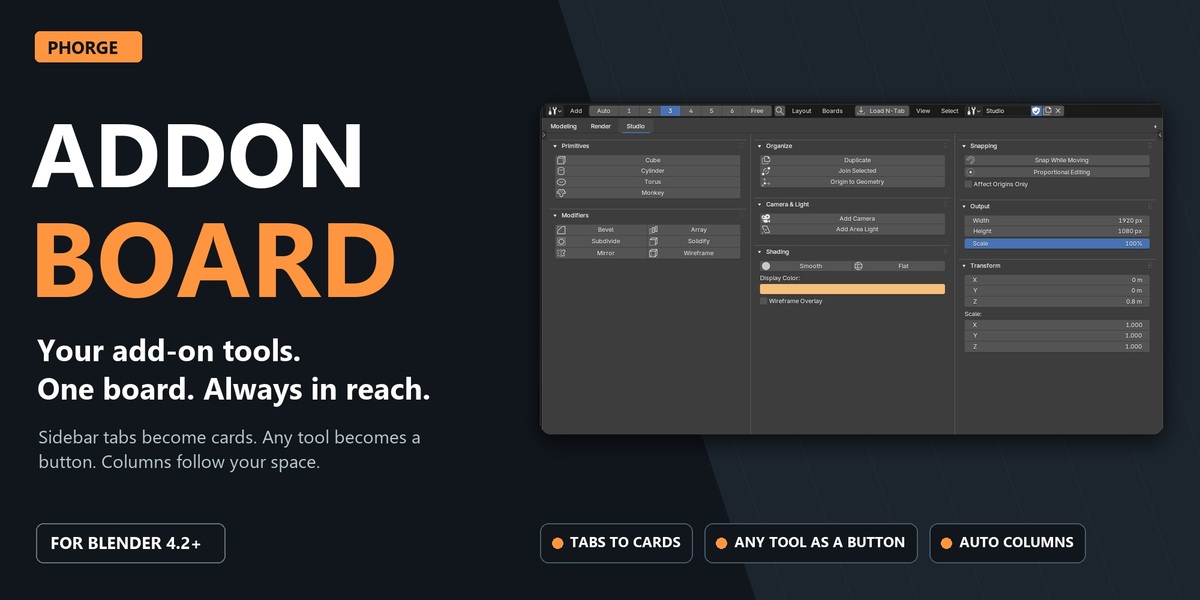
Addon Board 0.7.0 — Documentation
Beta release: Addon Board has been tested, but some issues may still occur, especially with different add-ons and workflows. Bug reports and feedback help improve compatibility and future updates.
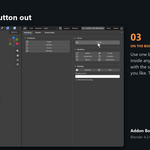
Addon Board is a dedicated Blender editor for keeping the controls you use together. Bring an add-on's 3D View sidebar tab into a board, arrange its panels as cards, and run the original operators without repeatedly opening and closing N-panel tabs. A board can hold complete tabs, individual panels, and standalone buttons.
Compatibility: Blender 4.2 or newer according to the add-on metadata. The media demonstrations were captured in Blender 5.2.2; compatibility with every third-party add-on is not guaranteed. The supplied file is a legacy single-file add-on and is installed manually from its ZIP.
Install and open
- Download
AddonBoard_0.7.0.zip. Keep it zipped. - In Blender, open Edit > Preferences > Add-ons. Use the add-on menu and choose Install from Disk..., then select the ZIP and enable Addon Board.
- In a 3D View, open the sidebar with N and select the Board tab. Choose Open in New Window to keep the 3D View beside the board, or Open Here to replace the current area.
- You can also choose Addon Board from Blender's editor type selector, or use View > Addon Board in the 3D View.
The editor opens the last used board. Keep a 3D View open when using tools that depend on a viewport or Edit Mode context.
Quick start: make a board from an N-panel tab
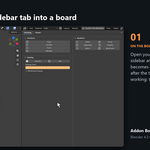
- In the 3D View, open the N-panel tab whose controls you want to collect.
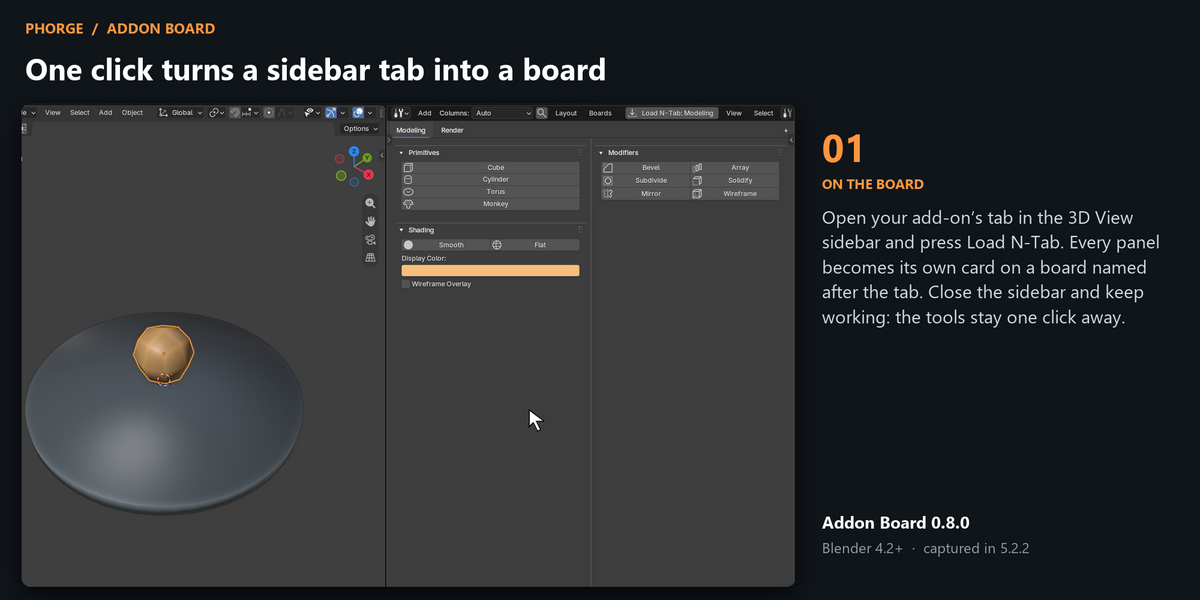
- Switch to Addon Board and click Load N-Tab: [tab name] in its header.
- Addon Board creates or opens a board named after that tab and adds each panel as a separate card. Existing cards stay in place; running the command again adds only panels that are missing.
- Click the controls in the cards as you would in the original sidebar. The operators run using a 3D View context.
When no active tab can be identified, choose one from the search popup. You can also use Add > Load Tab... to choose any available N-panel tab directly.
Build the board you need
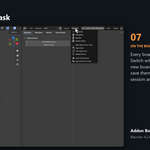
Open Add in the editor header, press Shift+A, or right-click and choose Add. The menu offers:
- Active N-Tab: Load the currently selected 3D View sidebar tab as separate Panel cards.
- Load Tab...: Search for another tab and create or open its board.
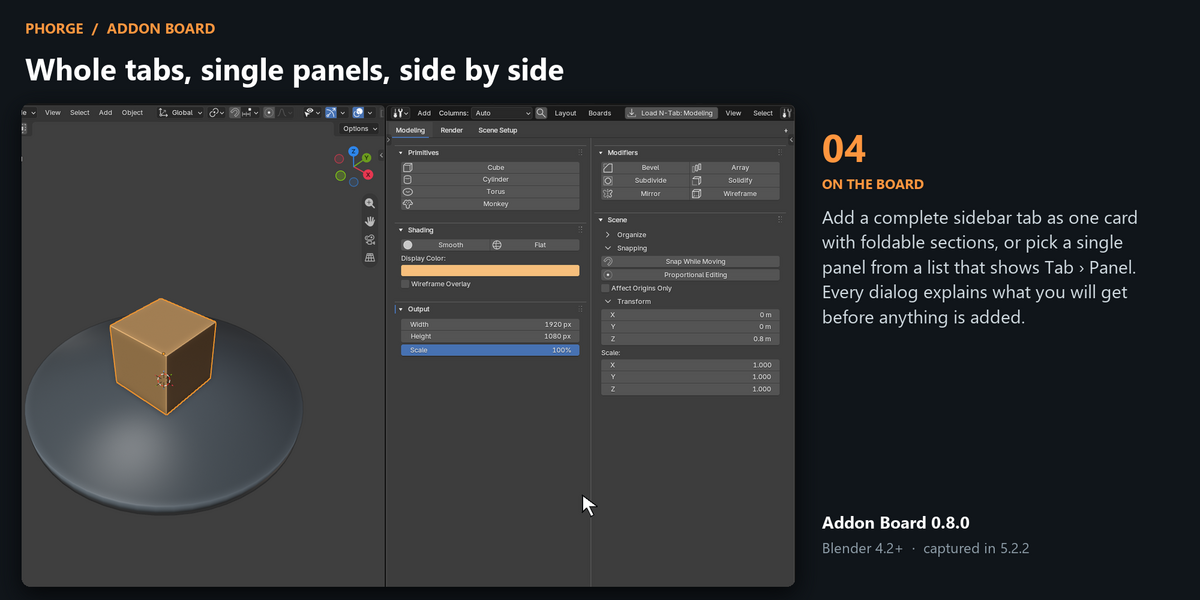
- All Addon Tabs (Tab cards): Add one Tab card for each detected add-on tab to the current board. Tabs already present are skipped. Blender's built-in tabs are excluded by default; the operator also has a Blender Tabs option.
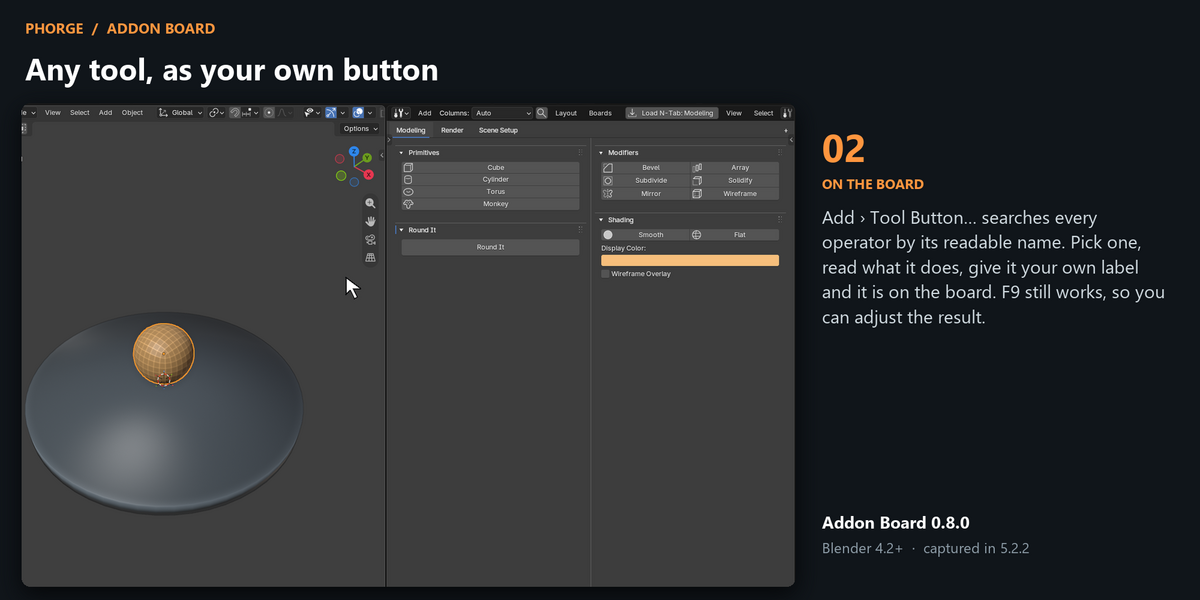
- Tab, Panel, Button: Add a card and select its source. A Tab card contains a complete sidebar tab; a Panel card contains one panel; a Button card runs one Blender operator.
- Frame (Free): Add a visual grouping frame while using Free layout.
Layout and navigation
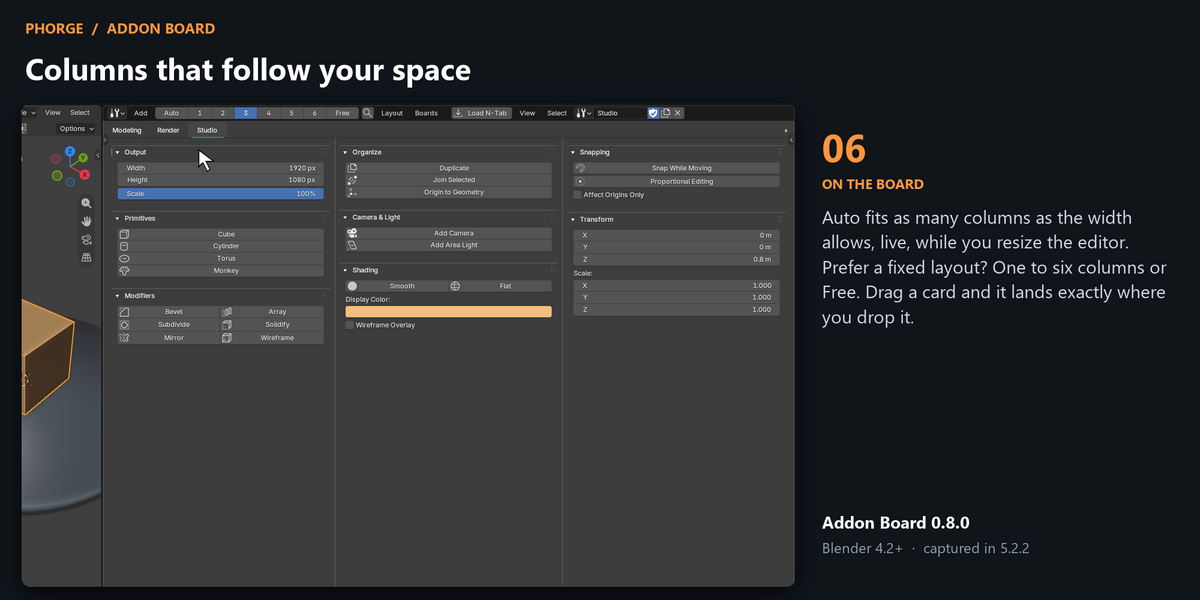
Use the header's Auto / 1 / 2 / 3 / 4 / 5 / 6 / Free control to arrange cards. Numbered modes fill the editor width with that many columns. Auto fits as many columns as the Min W setting allows. In a narrow editor, the column buttons become a dropdown.
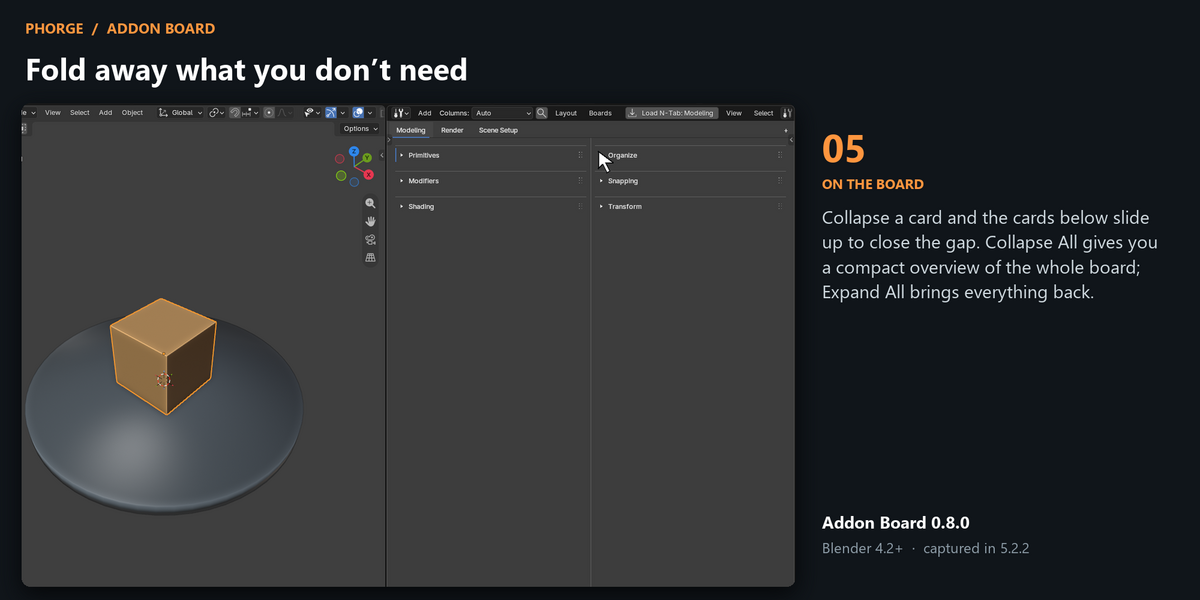
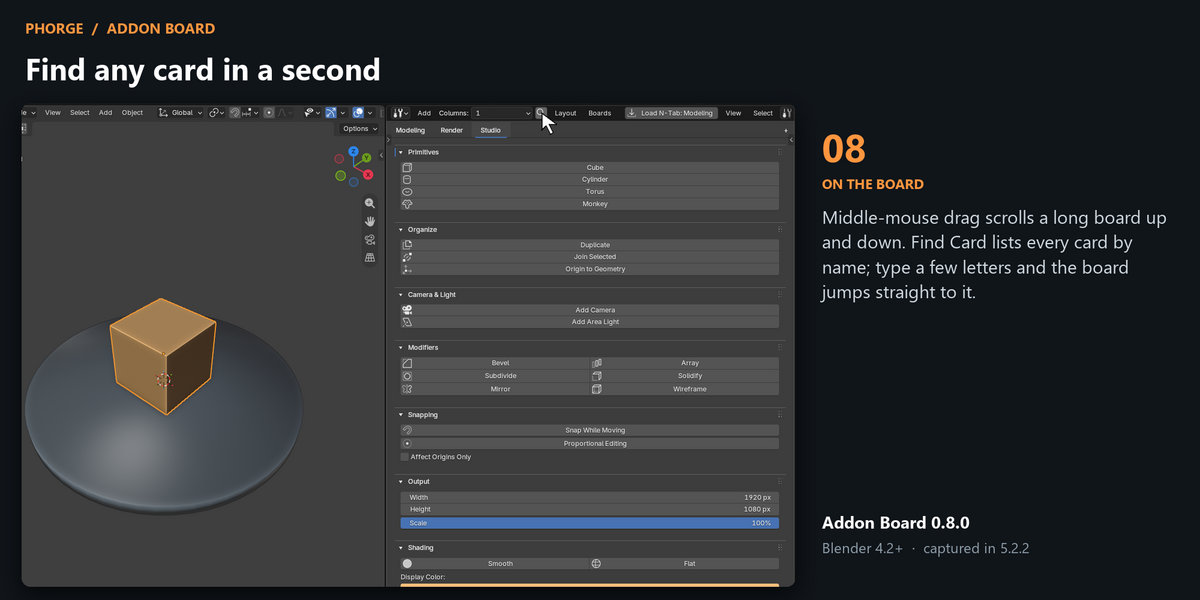
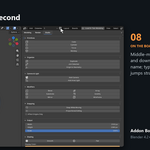
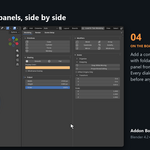
Drag a card to change its column or position. Collapsing a card pulls the cards below it upward. Layout > Rebalance Columns redistributes cards; the same menu offers Collapse All, Expand All, View Top, Gap, and N-Panel Colors. Free mode lets you place cards anywhere and use frames.
Use the mouse wheel to scroll vertically and Shift+mouse wheel to zoom. Card headers collapse with their arrow or H; use X to remove a selected card.
Use a separate window and resize the board
- In the 3D View sidebar, open Board and choose Open in New Window.
- Move or resize that window like any other Blender window. Keep the main 3D View open for viewport-dependent tools.
- Select Auto in the board header. The available width and Min W determine how many columns fit; widening the window allows more columns and narrowing it reduces them.
- Choose 2 or 3 instead if you want a fixed column count. The cards adapt in width without switching the selected count.
Make a dedicated button
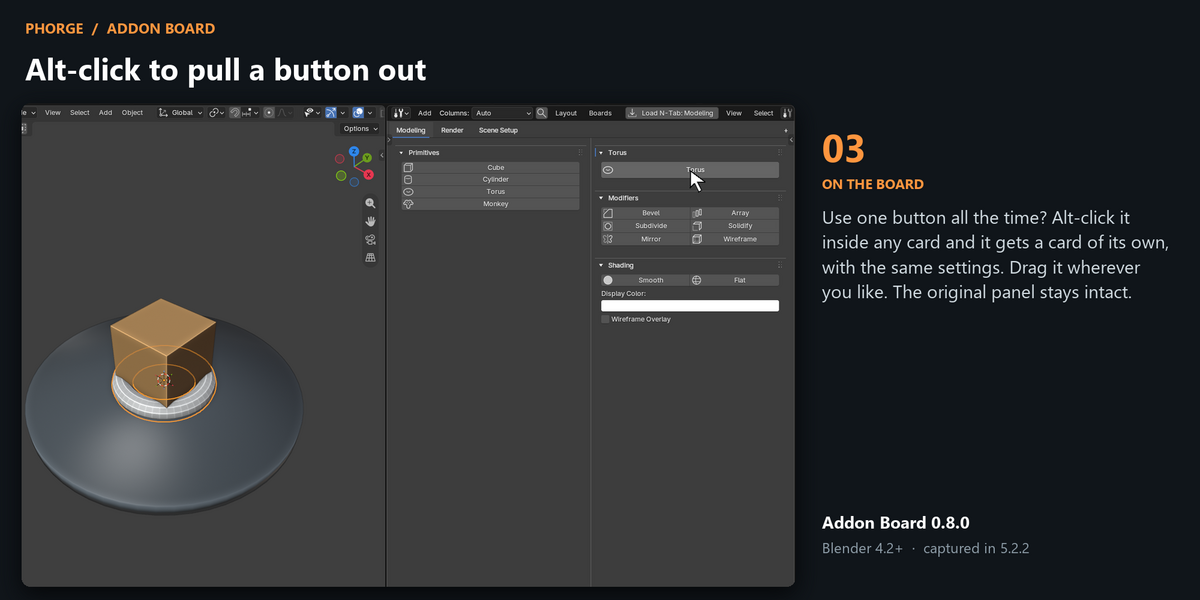
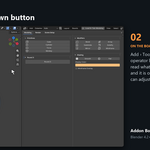
Alt+click an operator button inside a Tab or Panel card to create a separate Button card below its source. This is useful for an action you run often while leaving the rest of the panel available. You can also add a Button card from the Add menu and search for an operator.
Select a Button card and open N > Node in the board editor to edit its operator identifier, displayed text, icon, operator properties, button height, and text visibility. Operator properties are entered as a Python dictionary, for example {'number_cuts': 2} for an operator that accepts that property.
Boards and saving
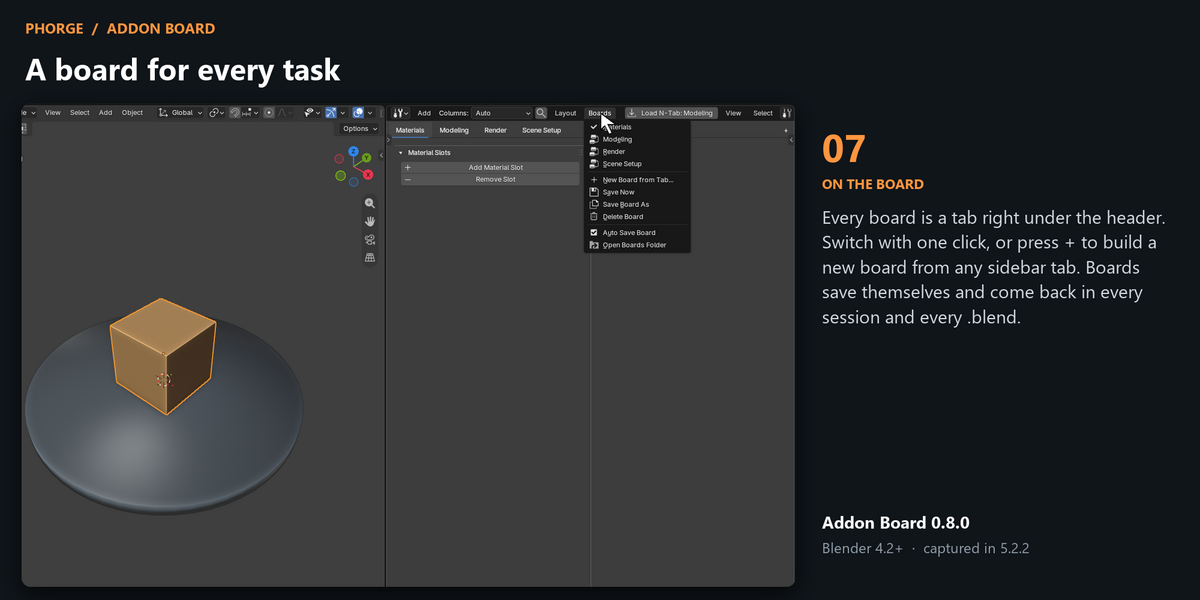
Each board has its own name. Open the board-name menu in the editor header to switch among saved boards, make a new board from a tab, use Save Board As, delete the current board, or open the boards folder. The Auto Save Board setting is in this menu and is enabled by default.
With Auto Save on, changes are written after approximately two seconds of inactivity and when saving a .blend file. Boards are stored as JSON files in Blender's configuration folder under addon_board; state.json remembers the last board. Saved boards are restored across Blender sessions and can be selected in other .blend files. The board datablocks are also kept with a .blend file when boards are in use.
Use Delete Board when you want to remove a board permanently; Blender's native datablock unlink control alone does not remove its saved JSON file. Renaming the board datablock updates the board name and its JSON file.
Compatibility notes
- Addon Board displays Python-defined 3D View sidebar panels. Panels implemented internally in C, such as Blender's Item > Transform panel, cannot be imported.
- Some panels are available only in a particular Blender mode. Addon Board follows their context and mode checks, so a card can show that it is unavailable until you switch modes.
- Keep a 3D View available for operators and panels that require viewport context. Some built-in View panels need a second 3D View to draw correctly when the board occupies the original one.
- Buttons may remain visually enabled when an operator's poll fails. Blender reports the reason in the status bar after you click.
Troubleshooting
- A panel is missing: Make sure the source add-on is installed and enabled, and check that its panel is available in the 3D View sidebar. Blender-internal C panels cannot be imported.
- A card is unavailable or a button does not run: Check the active object, selection and Blender mode. Keep a 3D View open and try the same action in the original sidebar. Read any error message in Blender's status bar.
- The layout has too many or too few columns: Choose a fixed column count, or use Auto and adjust Min W. Window width and board zoom affect how much space is available.
- Cards are outside the visible area: Try Layout > View Top. In a column layout, Rebalance Columns can redistribute the cards.
- A deleted board returns: Use Delete Board in the board menu. Unlinking the Blender datablock alone does not delete the saved board file.
Report a bug or suggest an improvement
Please contact the creator through Superhive with a clear description of the problem. Include:
- Your Blender version, Addon Board version and operating system.
- The name and version of the affected third-party add-on, if applicable.
- The steps needed to reproduce the issue, including the active Blender mode and selection.
- What you expected to happen and what happened instead.
- A screenshot, short recording or the exact error message, where available.
If a tool works in its original sidebar but not in Addon Board, please mention this in your report. Sample panels shown in the product media are for demonstration only and are not included with the add-on.
Have questions about this product?
Login to message
| Blender Extension Compatible | Yes |
| Published | 1 day ago |
| Blender Version | 4.2 - 5.2 |
| Extension Type | Add-on |
| Render Engine Used | Cycles |
| License | GPL |
Discover more products like this
area-management ui addons customization Addon Management quality-of-life Addon Organizer interface