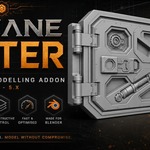
Arcane Rifter
 Pixonix Studio


FAQ
❓ Knowledge Base
Instant Answers
FREQUENTLY ASKED QUESTIONS
Everything you need to know about compatibility, viewport workflows, modifier behavior, asset management, and game engine exporting.
⚡ Installation, Versions & Upgrades
Q: Which Blender versions are supported?
Arcane Rifter is officially tested and supported on Blender 4.2 LTS, 4.3, 4.4, 4.5 LTS, and Blender 5.1+. It uses the modern Blender Extension system (
blender_manifest.toml), new GPU shaders, and Geometry Nodes-based Auto Smooth.
Q: Does it work in Blender 3.6 LTS or Blender 4.0 / 4.1?
No. Blender 4.2 introduced fundamental changes to the Python API (deprecation of legacy
bgl graphics in favor of the modern gpu module, replacing Auto Smooth with Geometry Nodes, and the new Extension packaging). Arcane Rifter is architected specifically for Blender 4.2 and newer.
Q: Are future updates included?
Yes! Your purchase grants you free lifetime updates across upcoming Blender LTS and major releases.
✂️ Viewport Drawing & Boolean Operations
Q: Why do Union (Join) cuts push outward while Difference cuts push inward?
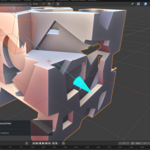
When drawing a subtractive cut (Difference, Slice, Inset), you want the cutter penetrating inside the target geometry. When drawing an additive cut (Union/Join), you want the geometry to grow outward from the surface while keeping a small, guarded internal overlap to guarantee clean, non-manifold-free Boolean unions. Arcane Rifter calculates this automatically based on surface normals.
Q: How does Smart Bevel Clearance prevent rounded hole openings?
Standard Boolean bevels often chamfer the surface entrance where the cut enters the mesh, ruining crisp panel lines. Arcane Rifter calculates an intelligent front overhang that extends the cutter outward past the surface by more than the effective bevel width. This ensures the cut entrance stays razor sharp while the interior cavity corners receive the smooth bevel radius.
Q: How do I navigate (orbit / pan / zoom) while drawing a cut?
Navigation is completely unobstructed! The modal operator yields middle-mouse navigation events back to Blender via intelligent keymap matching, so you can freely orbit, pan, or zoom the 3D viewport without cancelling or committing your cut.
Q: How does Tab-Lock work?
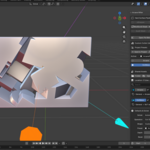
Pressing Tab locks the cutter preview at its current 3D world position. You can then use Blender’s native G, R, and S keys with standard axis constraints (X/Y/Z) to adjust position, rotation, and scale. Press Tab again to unlock.
🛡️ Modifier Stack, Shading & Bevels
Q: What is the difference between sSharpen and cSharpen?
• sSharpen (Smooth): Non-destructive prep. Marks sharp edge Bevel Weights (angle threshold) and adds managed Smooth-by-Angle + Weighted Normal modifiers.
• cSharpen (Complex): Bakes existing Booleans into the base mesh, recomputes sharp intersection bevel weights, and adds a fresh non-destructive Bevel modifier.
• cSharpen (Complex): Bakes existing Booleans into the base mesh, recomputes sharp intersection bevel weights, and adds a fresh non-destructive Bevel modifier.
Q: Will Arcane Rifter mess up my custom modifier order?
No. Arcane Rifter preserves your user-authored modifier stack order (Armatures, Deformers, Subdivisions, Mirror, Simulation). It strictly ensures that new Booleans stay ahead of Arcane finishing layers, and that Arcane Smooth-by-Angle / Weighted Normal modifiers stay at the bottom of the stack.
Q: How does Smart Apply differ from manually applying modifiers in Blender?
Manually applying modifiers in Blender can fail if done out of sequence and leaves behind messy orphan cutter meshes. Smart Apply applies modifiers in the correct topological sequence, purges orphan cutter objects, and optionally recalculates edge weights and reapplies Bevel and Weighted Normal finishing layers.
📦 Custom Cutters & Asset Library
Q: Where are published shared cutters stored?
By default, shared cutters are saved in Blender’s user application directory under
arcane_rifter/cutters. You can change this location to any custom folder (including a synced Dropbox, OneDrive, Google Drive, or studio network drive) by clicking the Folder button in the N-Panel.
Q: How do I register my custom cutters with Blender’s native Asset Browser?
Simply click the Asset Browser button in the Custom Cutter Library section of the N-Panel. Arcane Rifter will automatically register your shared cutter directory as an official library in Blender’s Preferences.
Q: What happens if I delete a shared cutter from the library?
Deleting a shared cutter removes it from the shared library on disk, but does not delete or break copies that have already been imported into existing project files.
🚀 Game Engine Exporting & Performance
Q: Why do my hard-surface models look distorted when exported to Unreal Engine or Unity?
When game engines import non-triangulated NGON meshes, the engine’s internal triangulation algorithm re-interprets the polygons, often destroying custom vertex normals and causing shading stretching. Arcane Rifter’s Game Engine Export Prep bakes all modifiers and applies Blender-native triangulation before export, locking the vertex normals so the mesh renders in Unreal/Unity exactly as it did in Blender.
Q: How does Arcane Rifter maintain high FPS on multi-million polygon meshes?
Arcane Rifter builds and caches a Bounding Volume Hierarchy (BVH) of the target mesh when drawing begins. Raycasting and snapping queries evaluate against this BVH cache in memory instead of forcing full scene depsgraph recalculations on every mouse movement.
Q: Can I use Arcane Rifter for commercial games, films, and 3D printing?
Yes, 100%. All meshes, game assets, props, concept models, and kitbash parts you create with Arcane Rifter are your property and completely royalty-free for commercial use.
Have a question that isn't answered here?
Reach out via the Blender Market Contact Creator button on our product page for prompt technical support!
Have questions about this product?
Login to message
| Blender Extension Compatible | Yes |
| Dev Fund Contributor | |
| Published | about 2 months ago |
| Blender Version | 4.2 - 5.2 |
| Extension Type | Add-on |
| License | GPL |