Architectural Moulding Profiles — 389 Editable Curves
 Alexander Go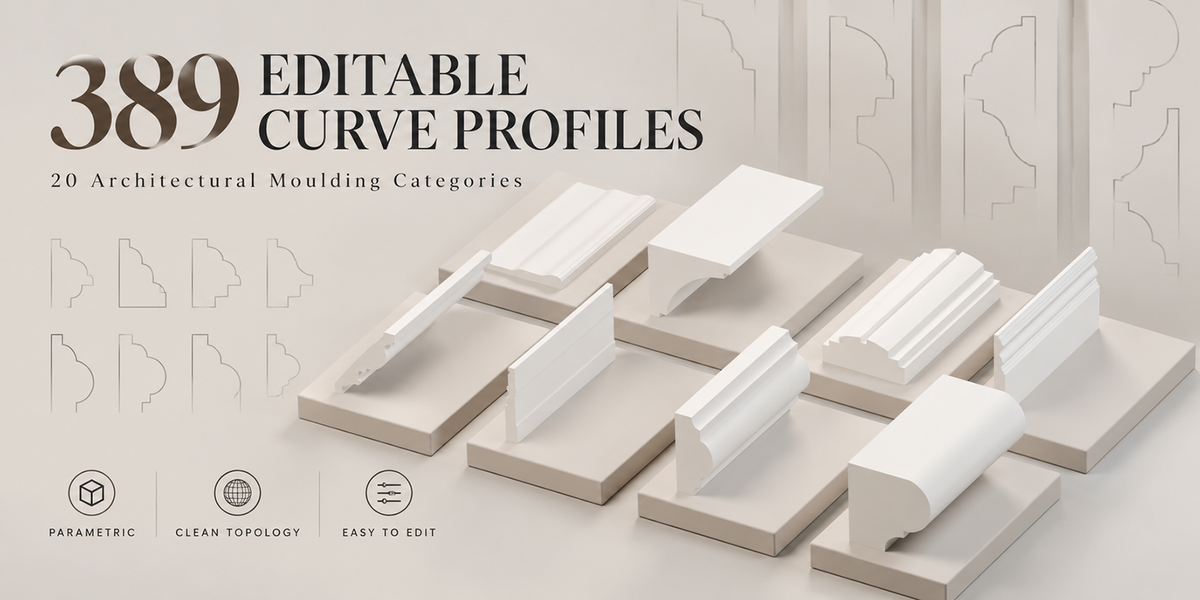
Getting Started
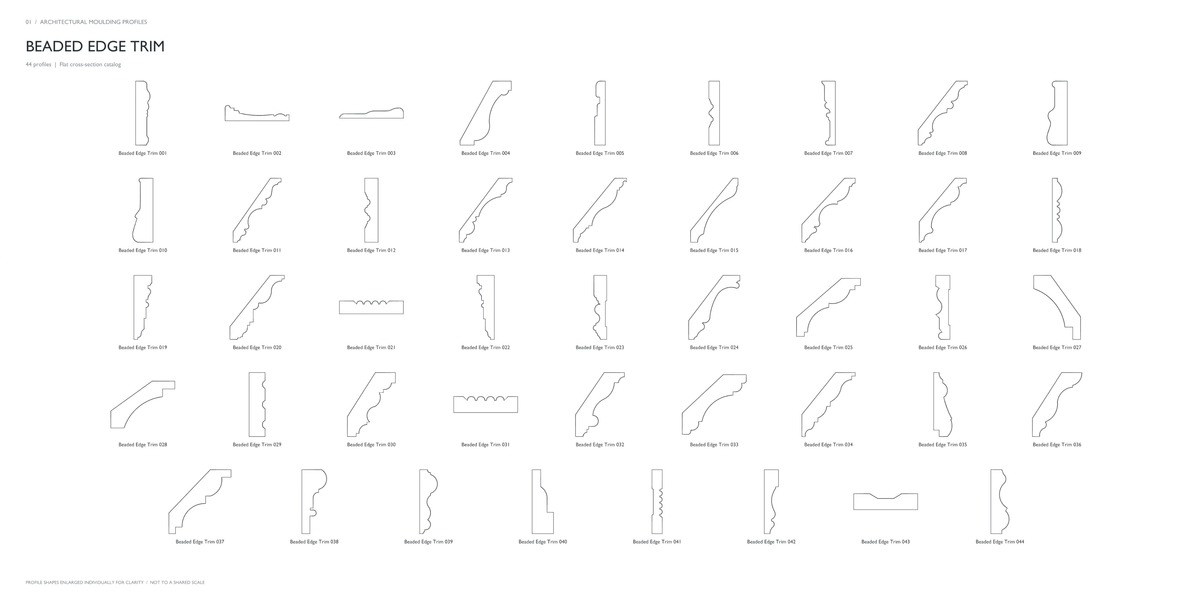
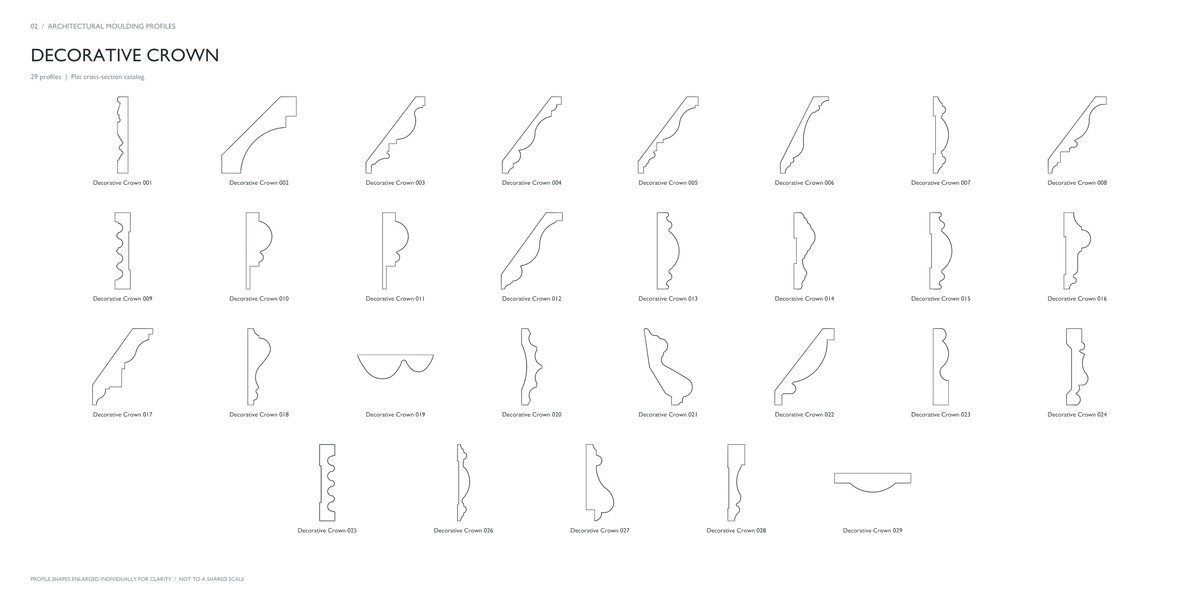
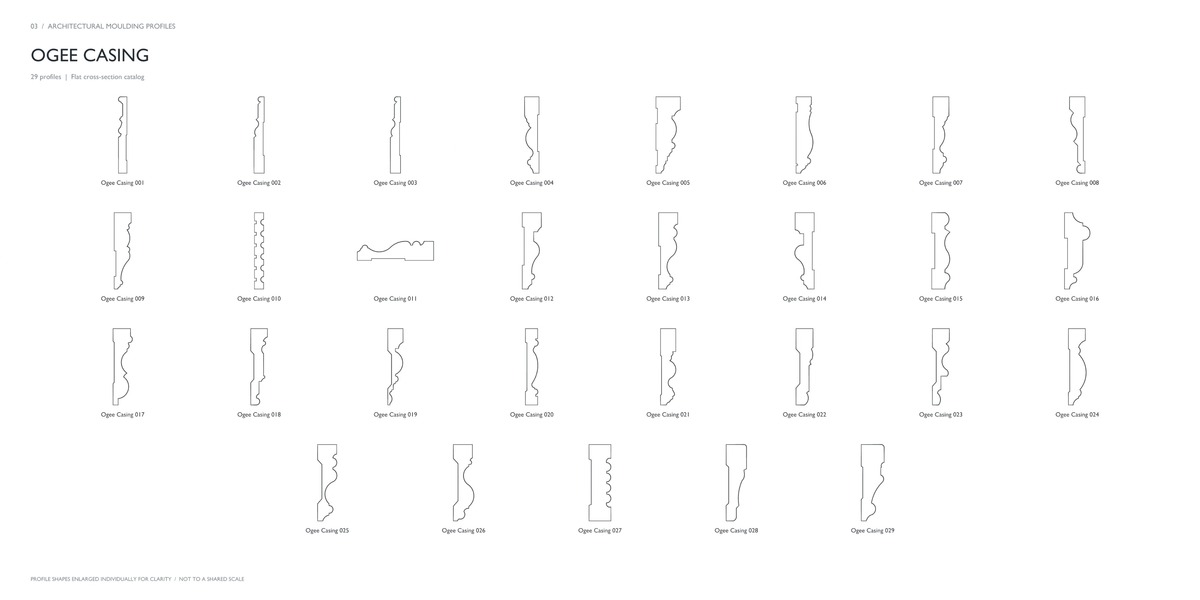
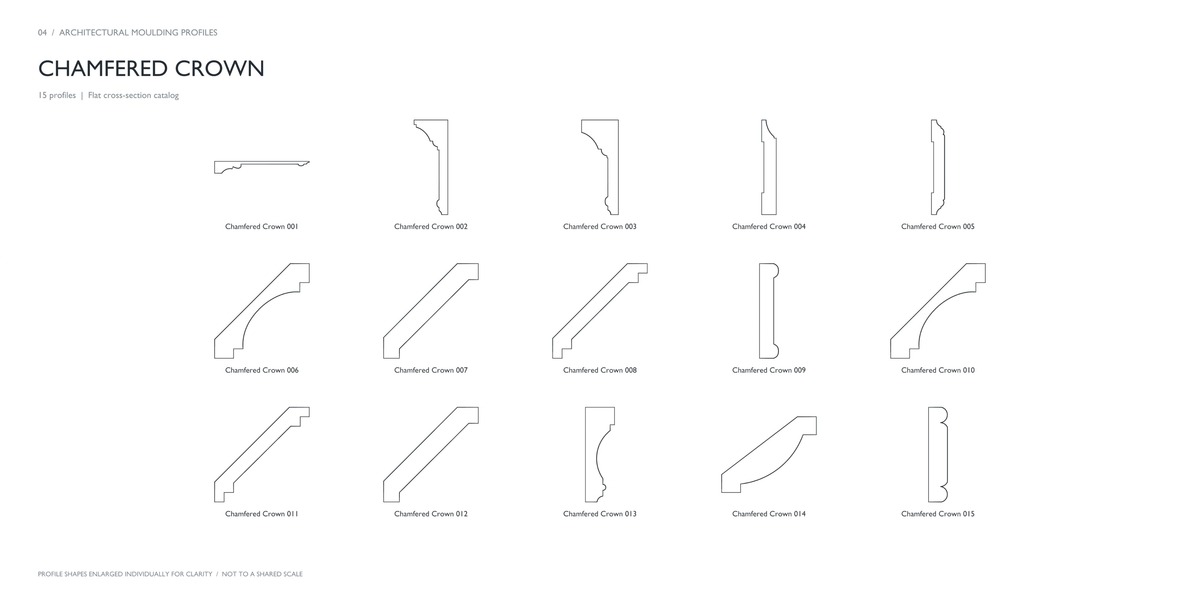
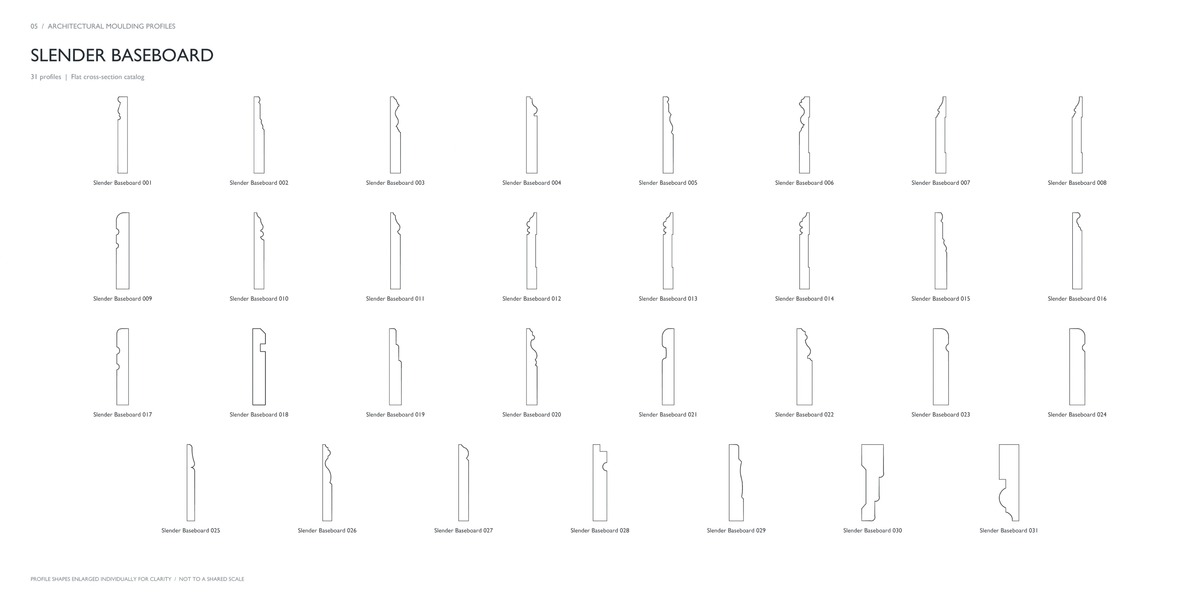
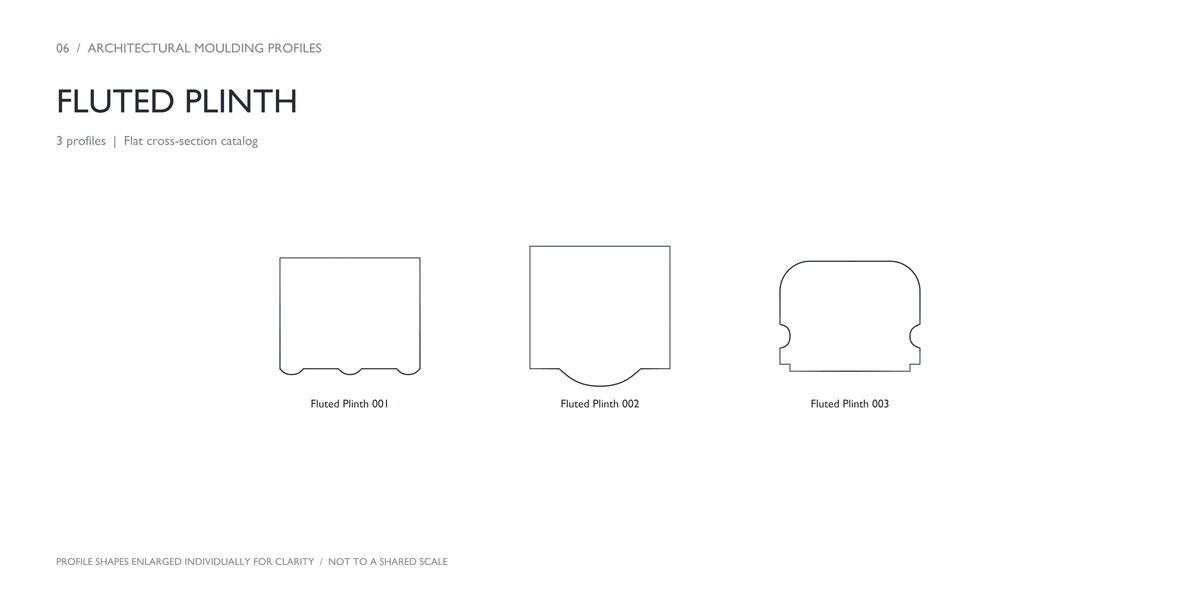
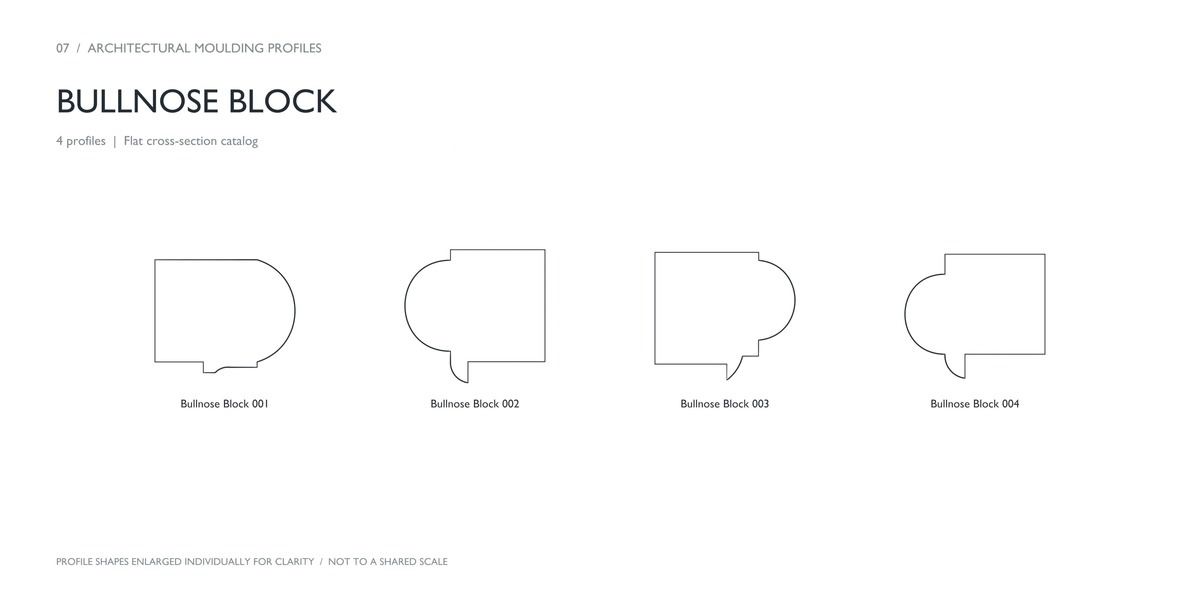
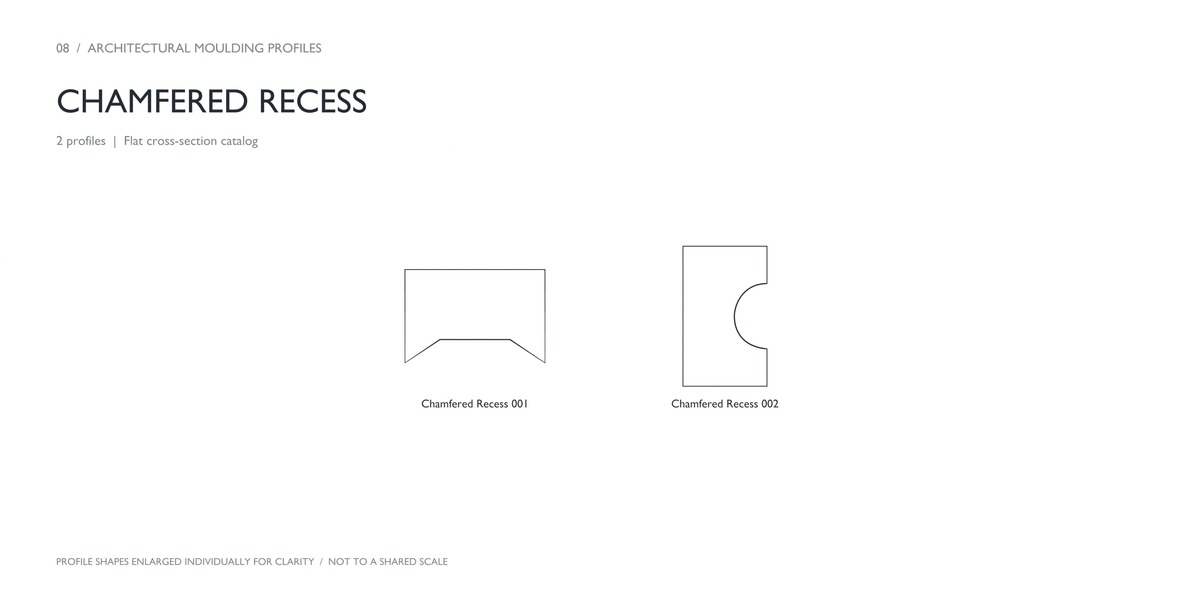
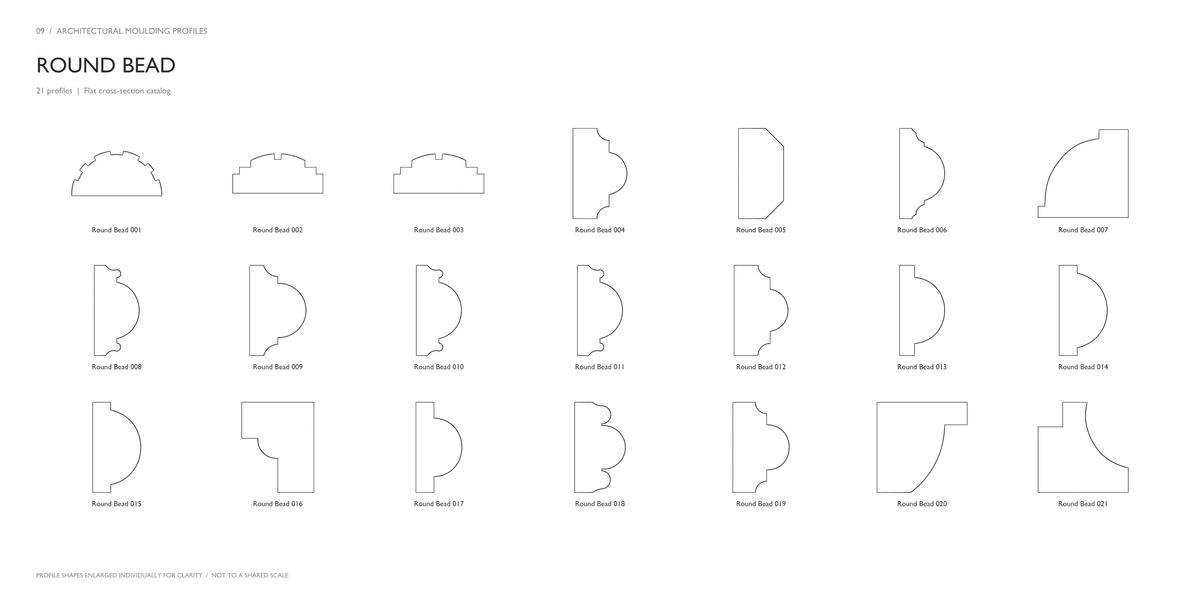
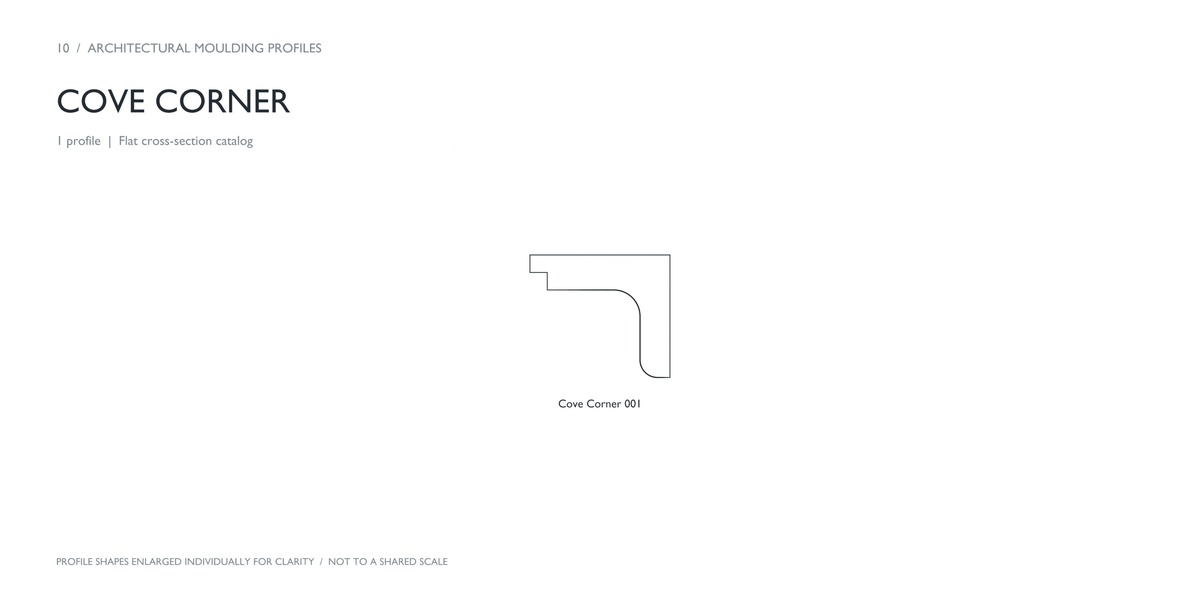
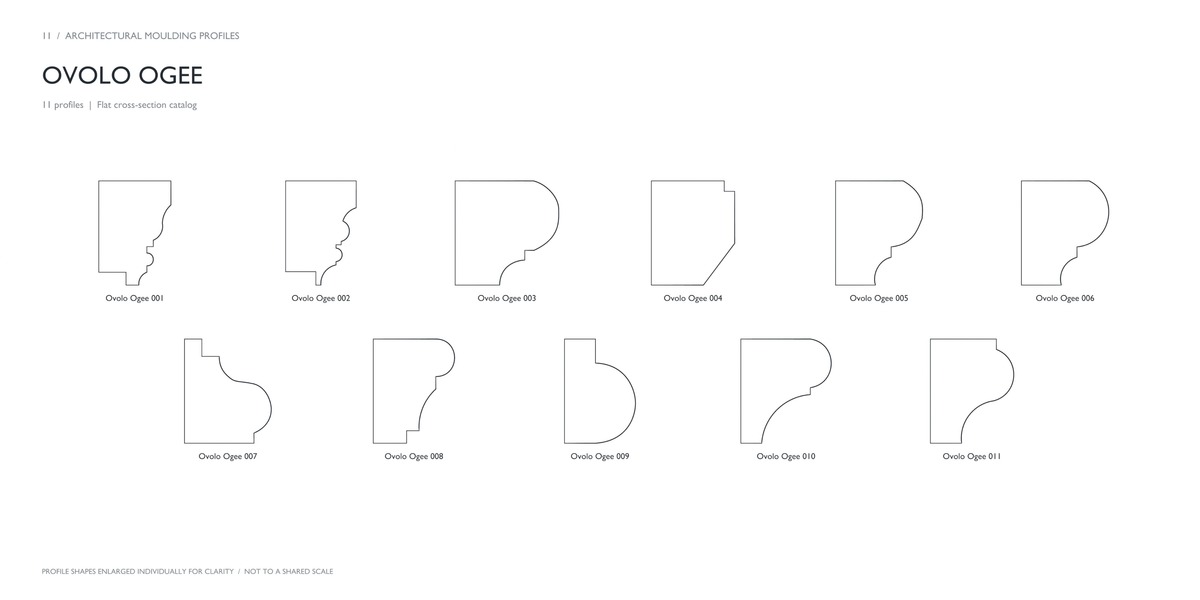
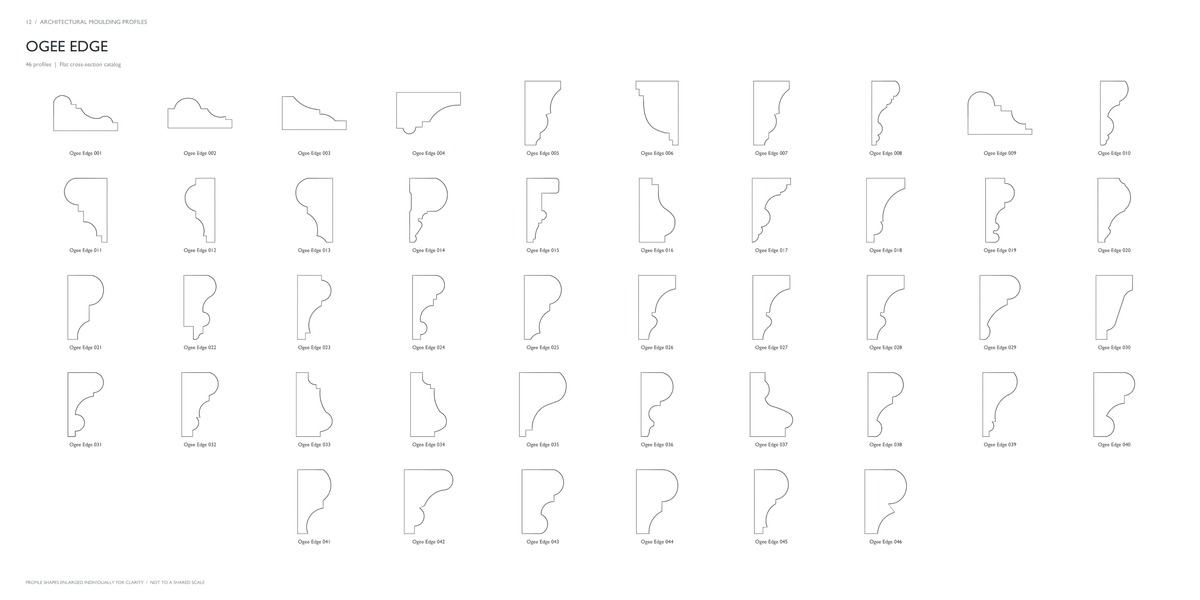
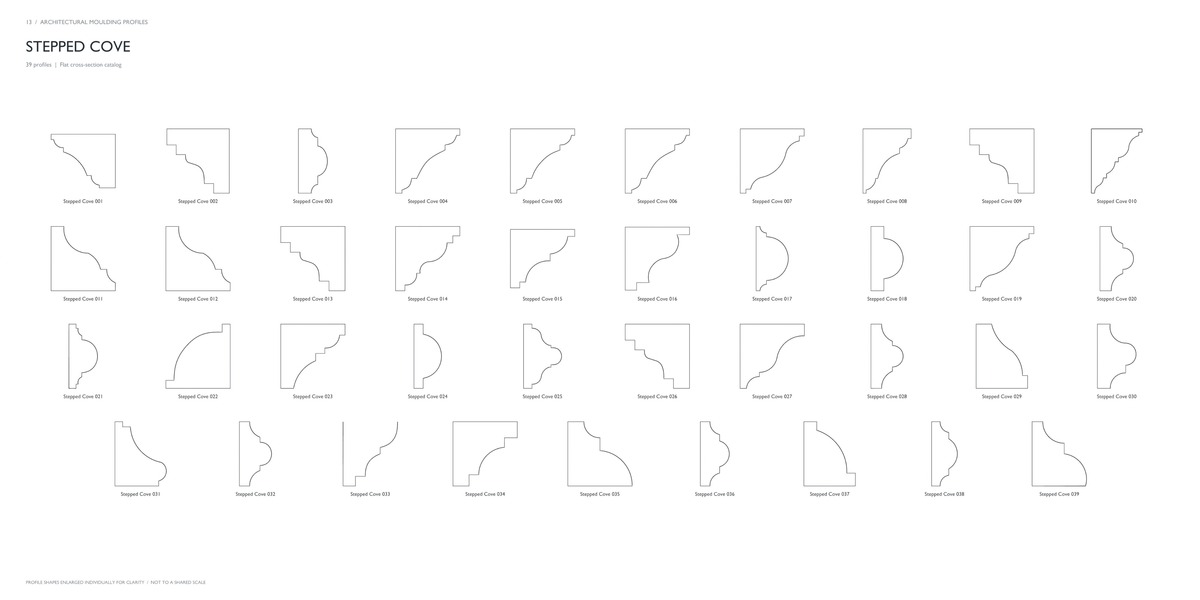
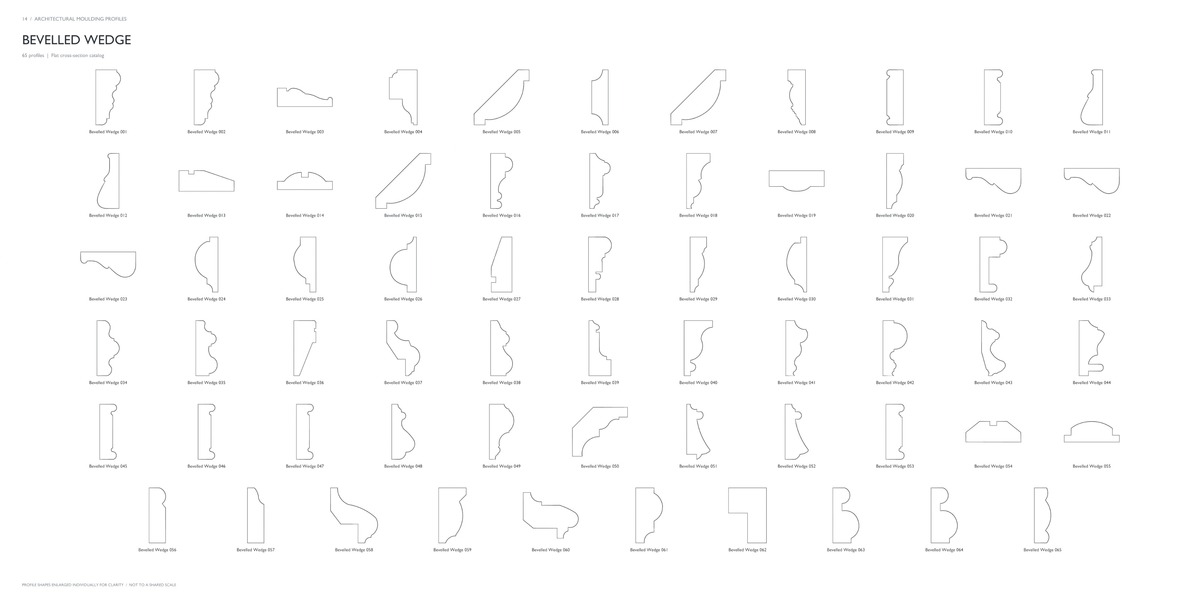
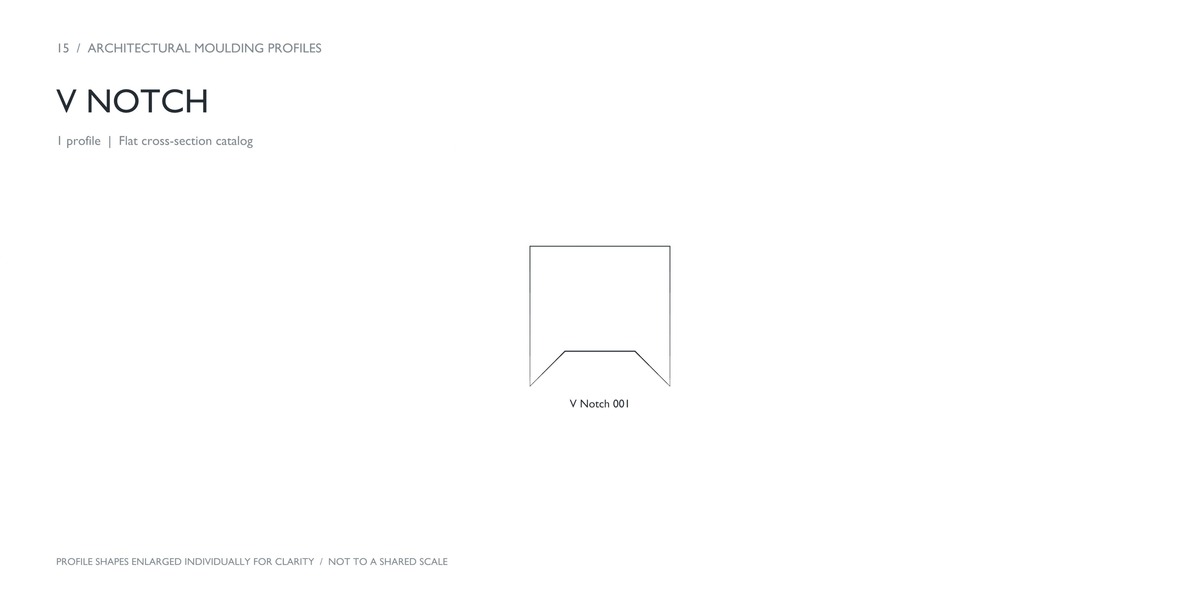
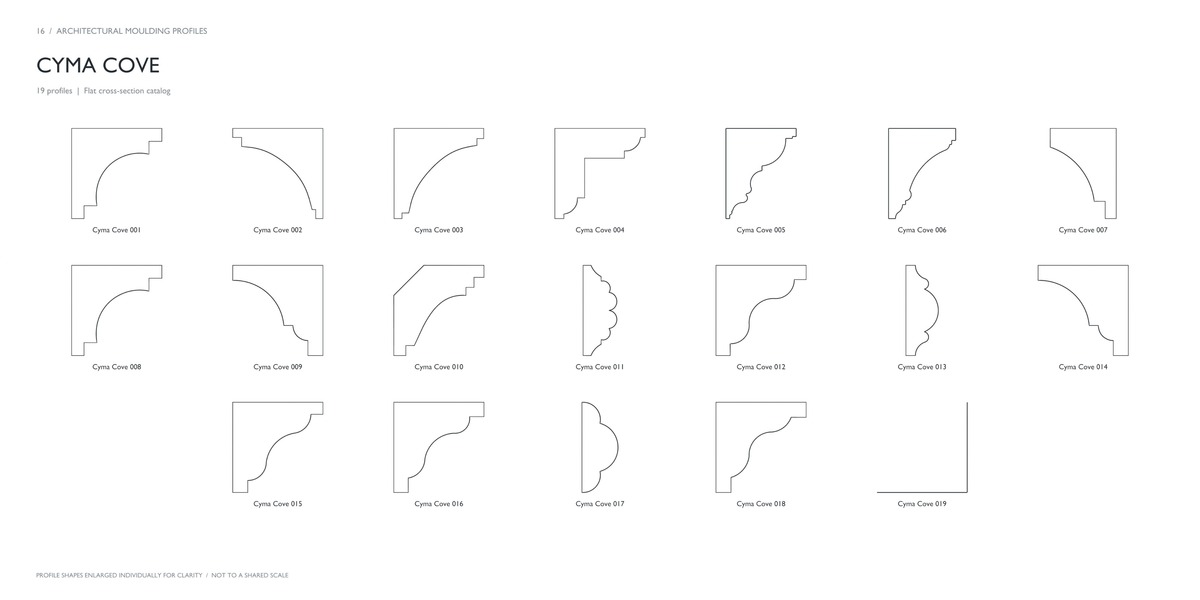
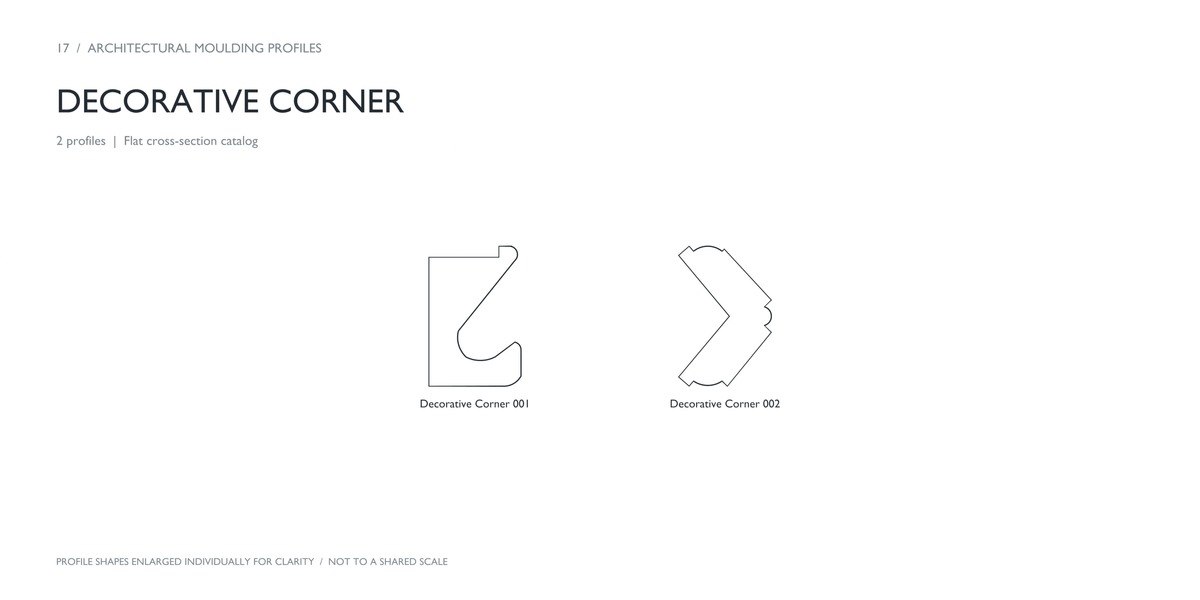
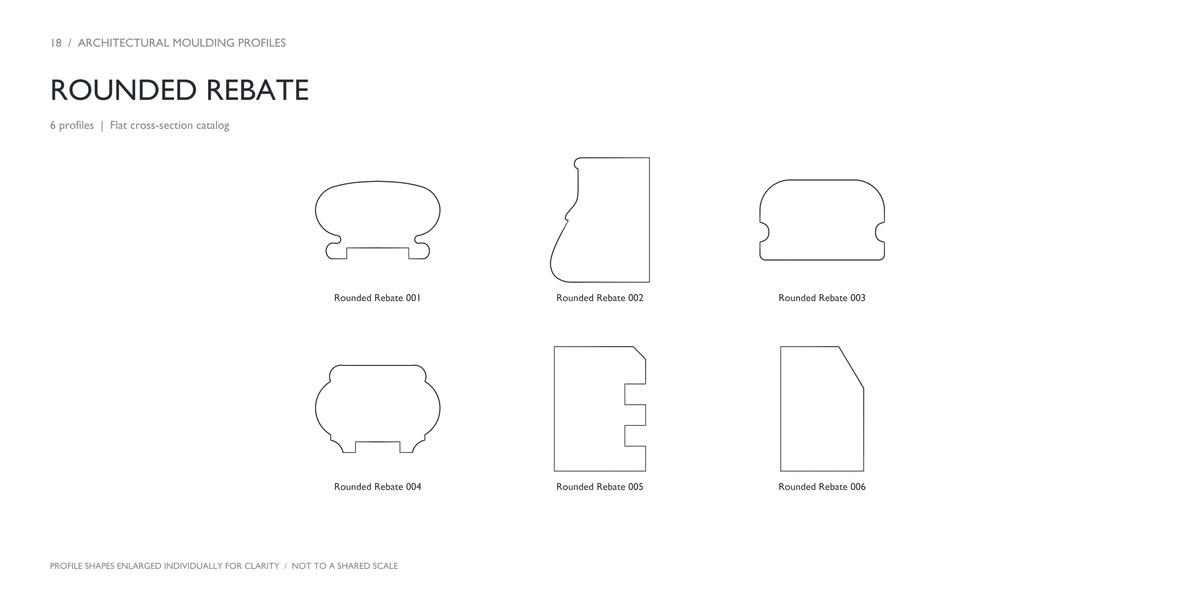
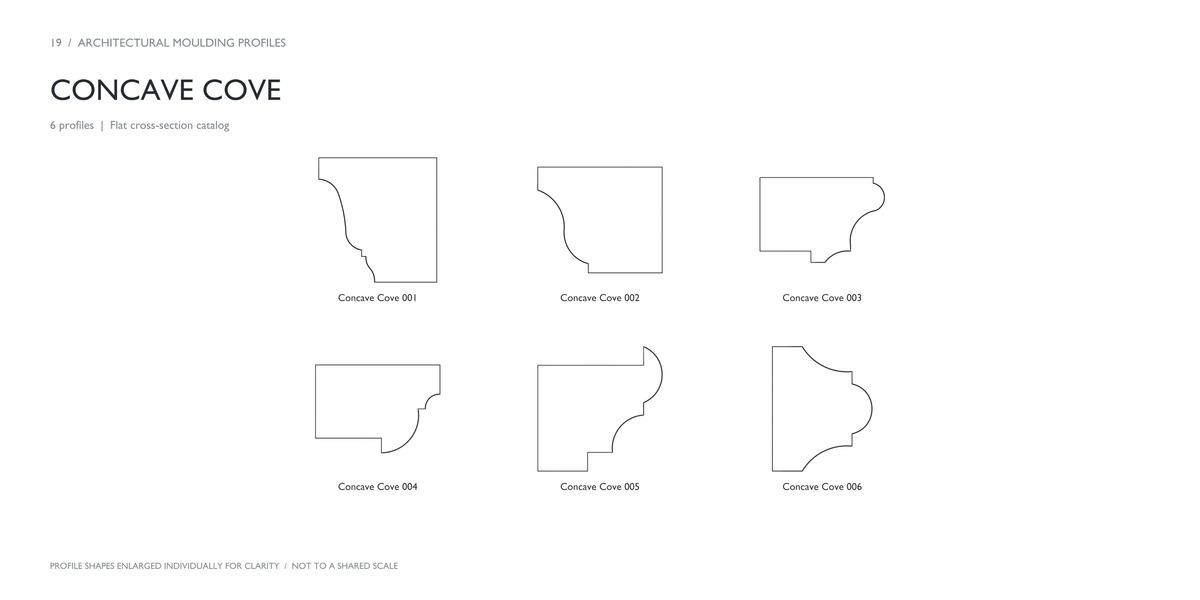
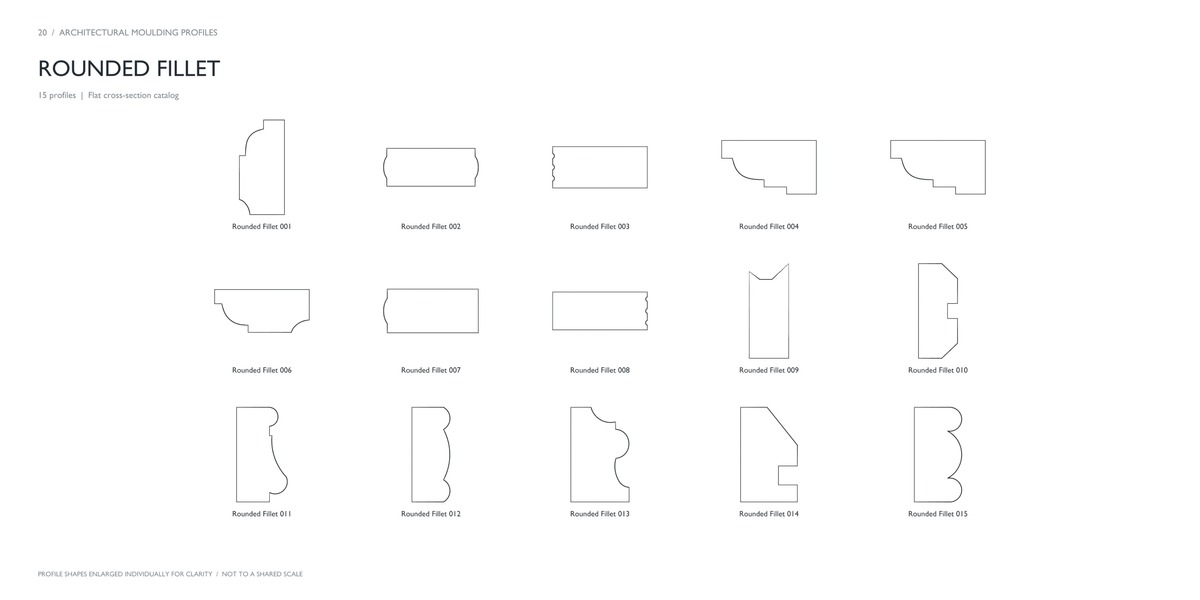
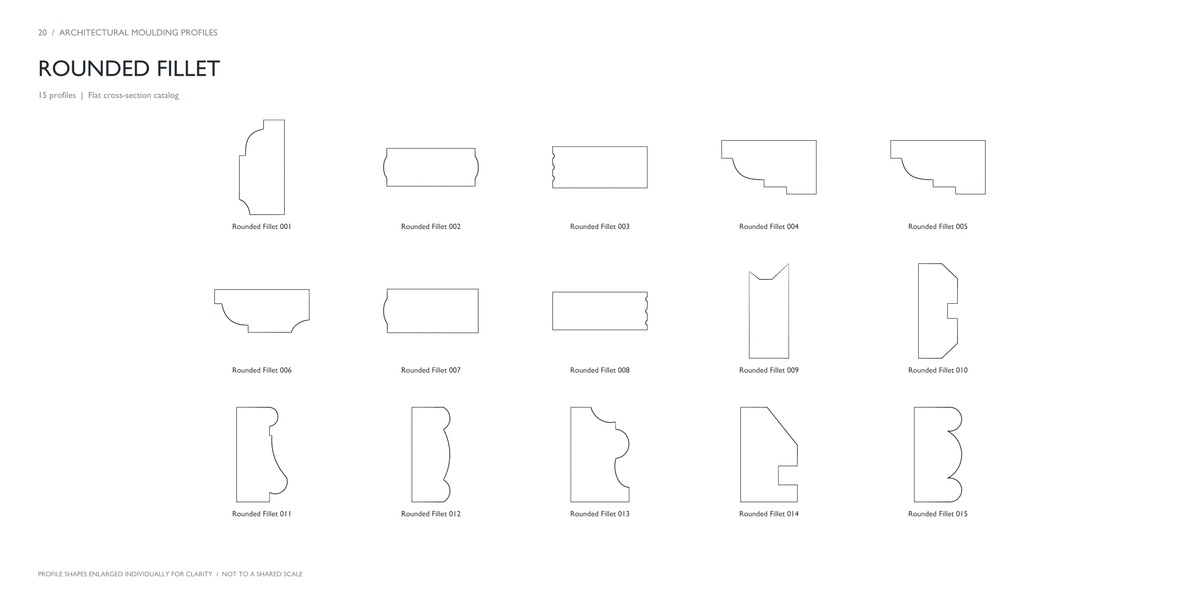
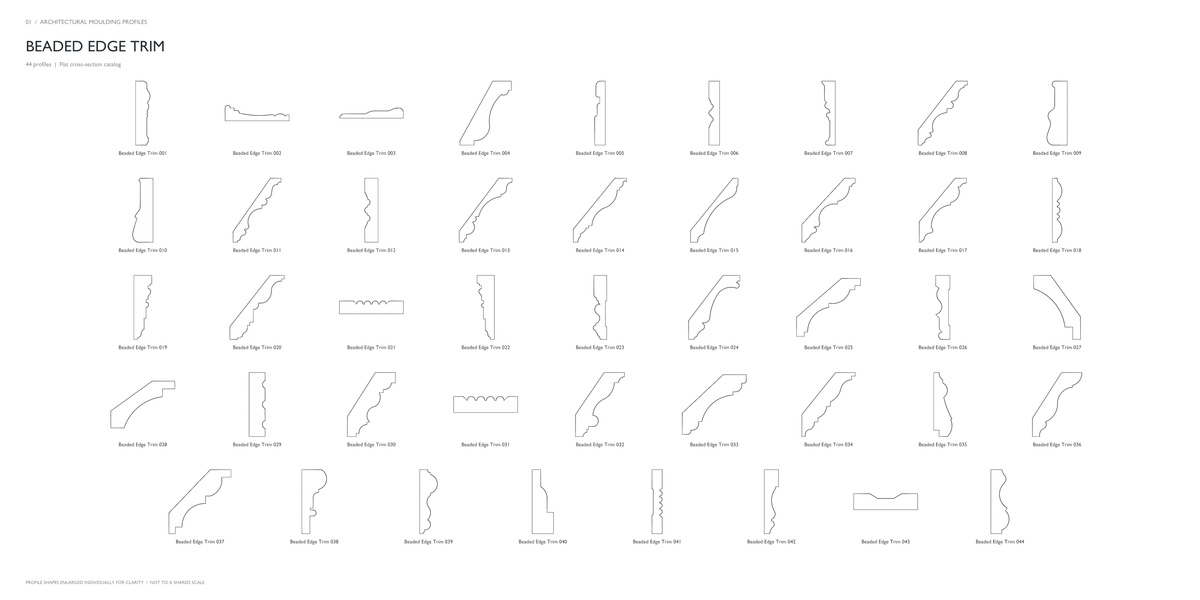
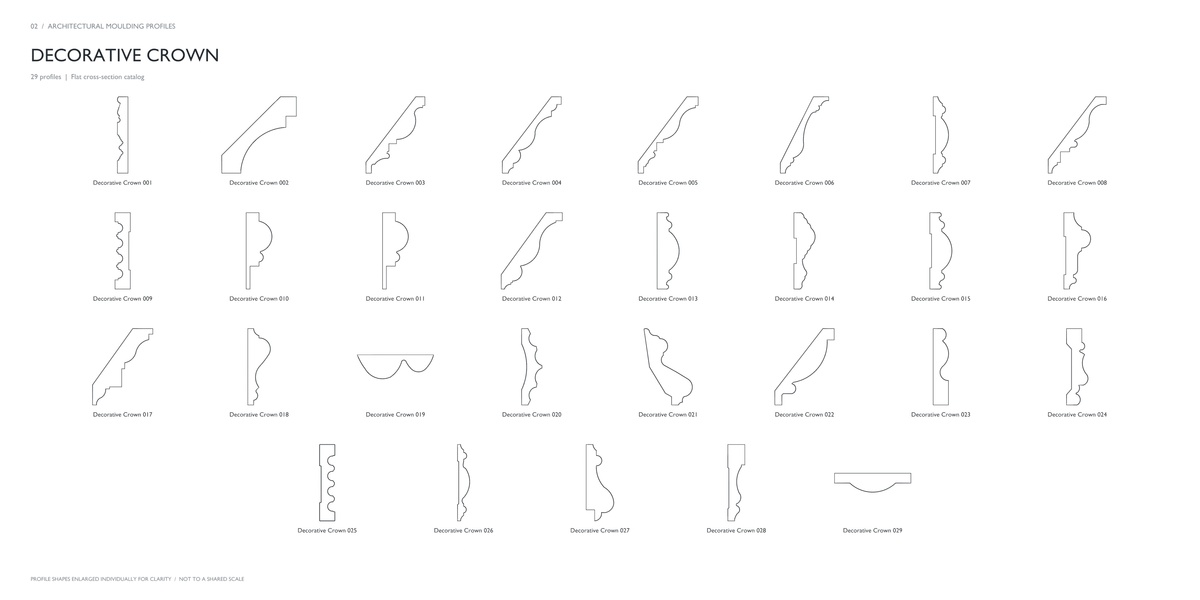
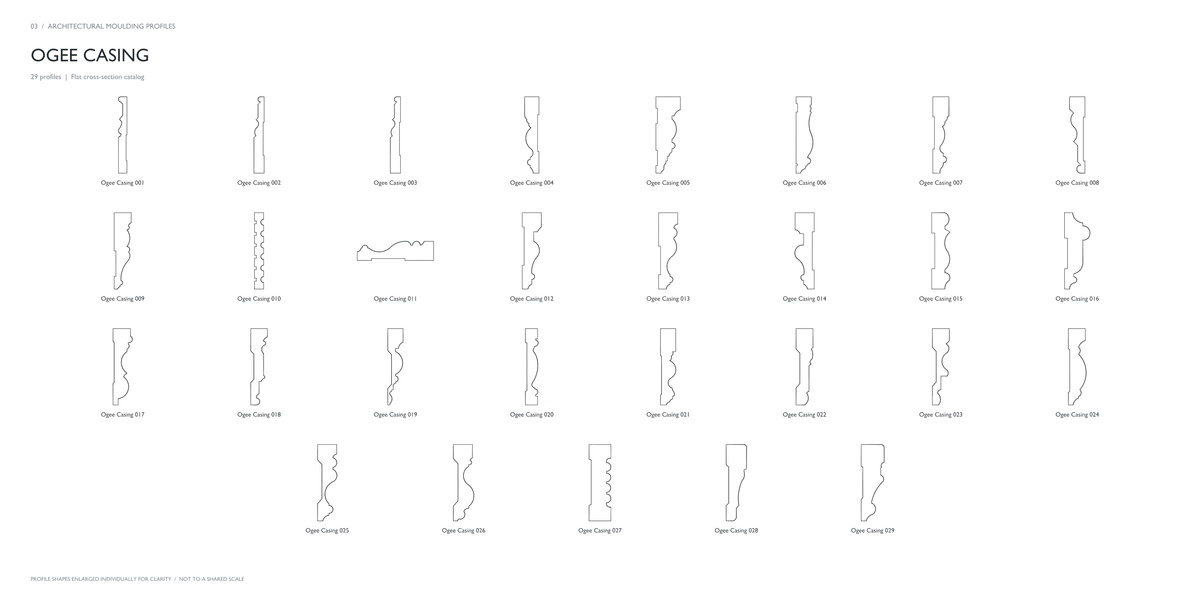
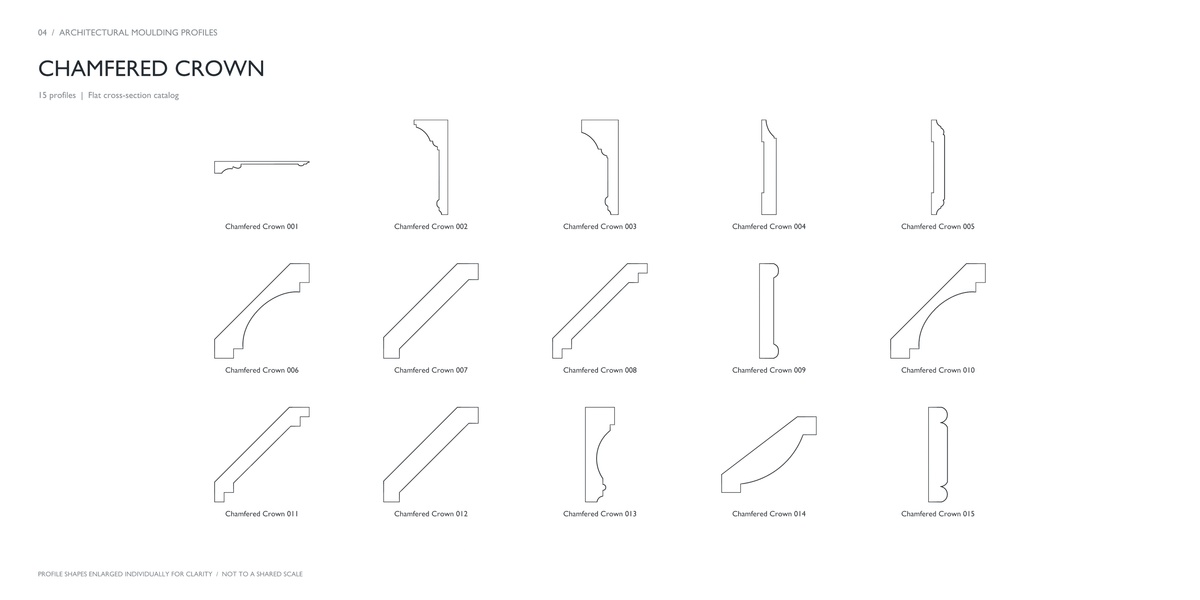
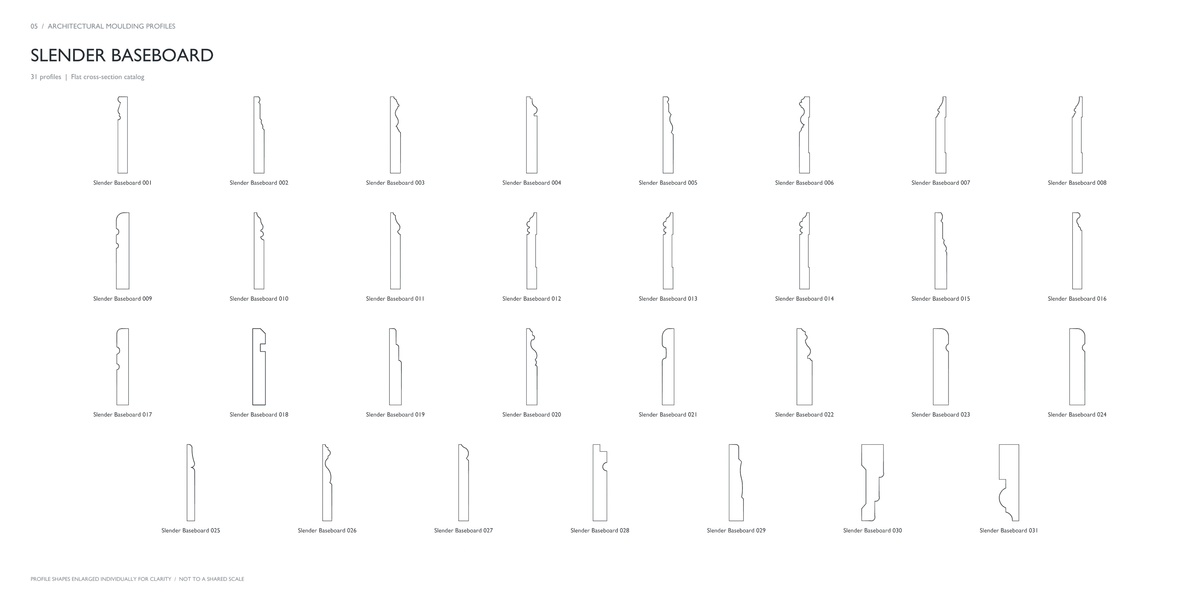
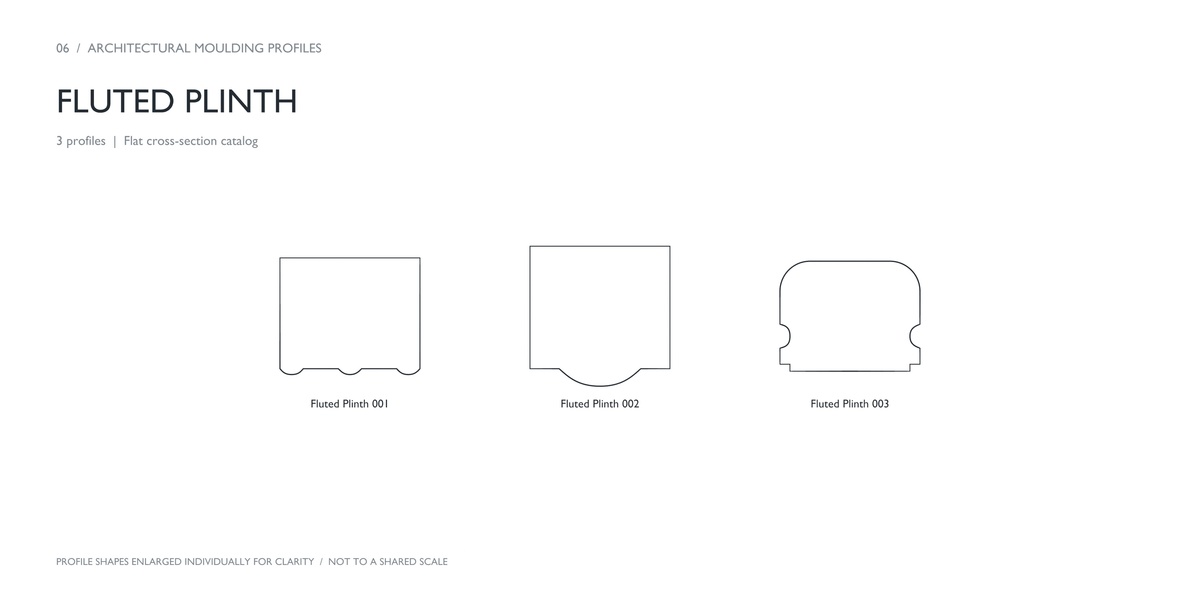
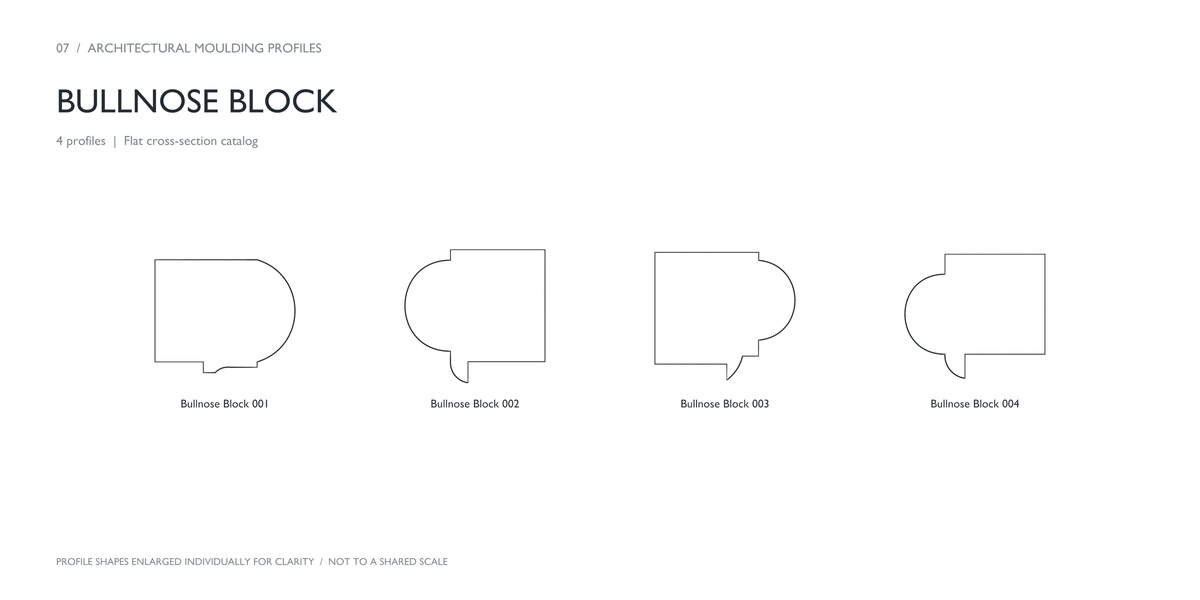
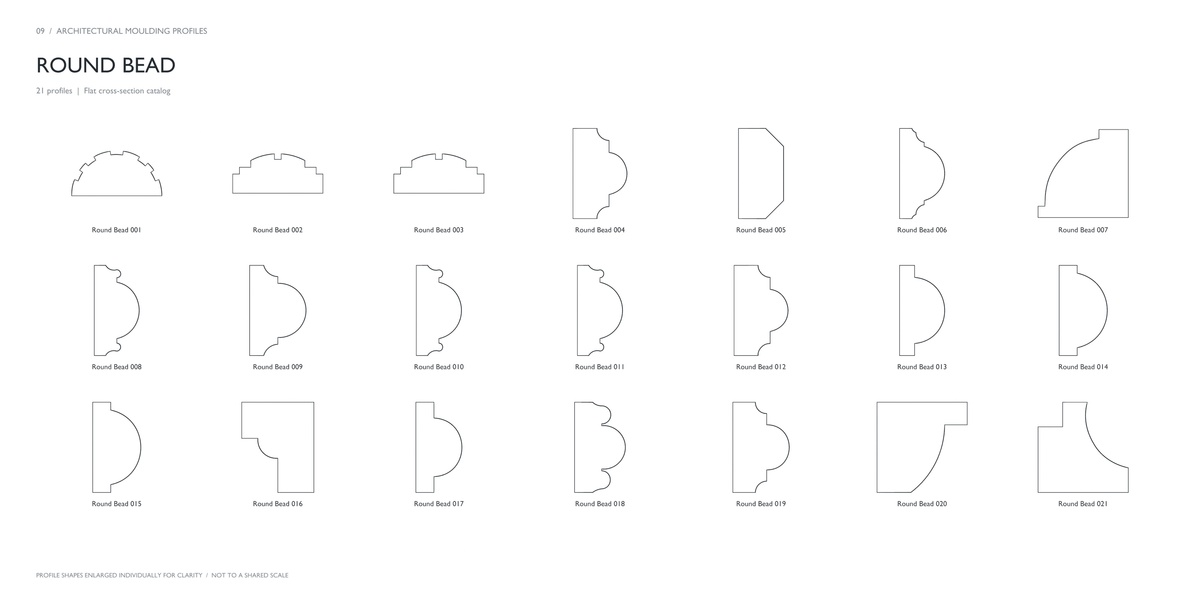
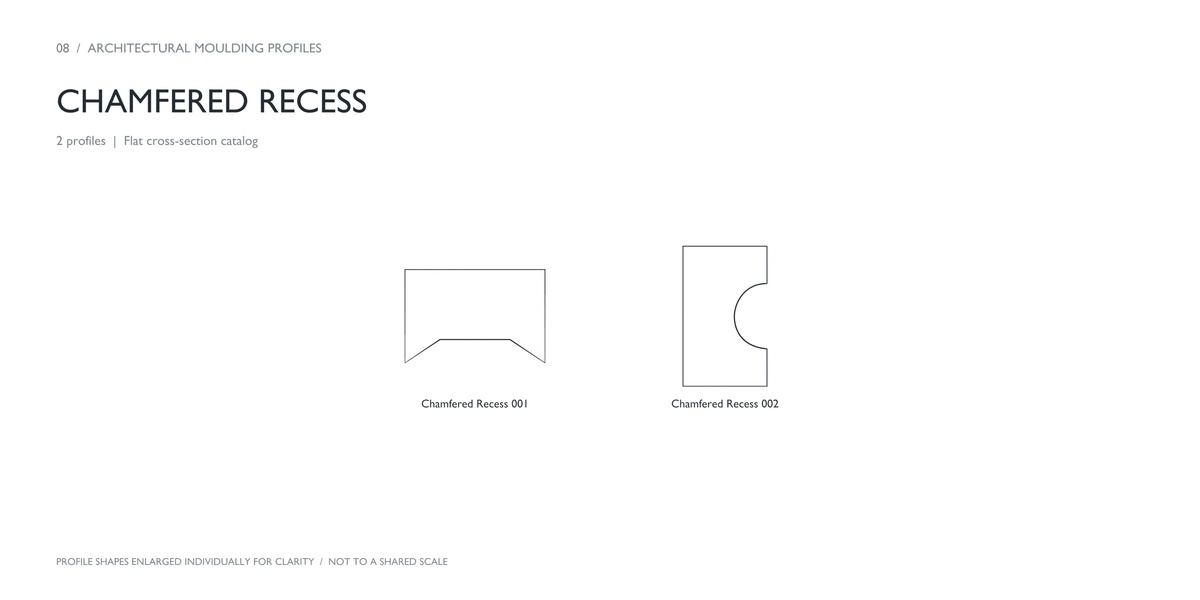
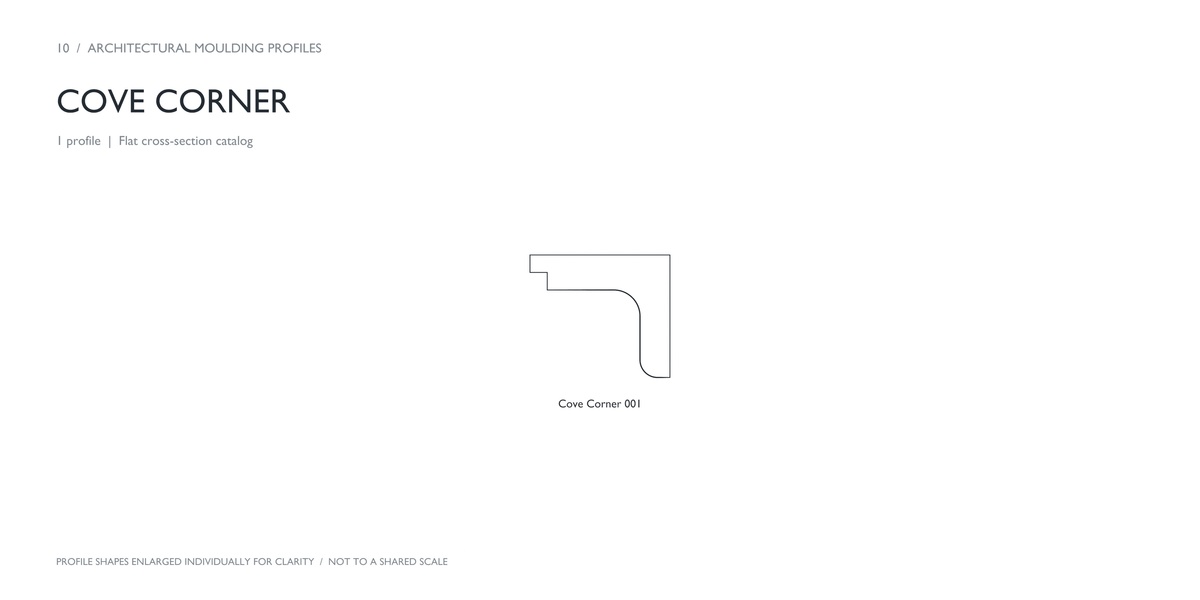
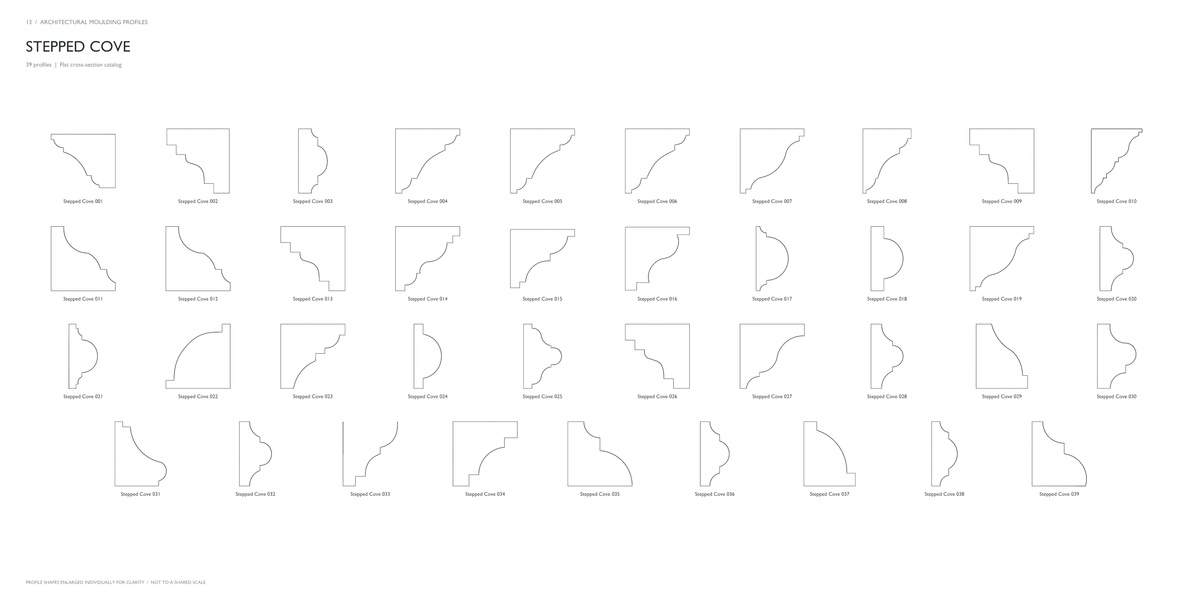
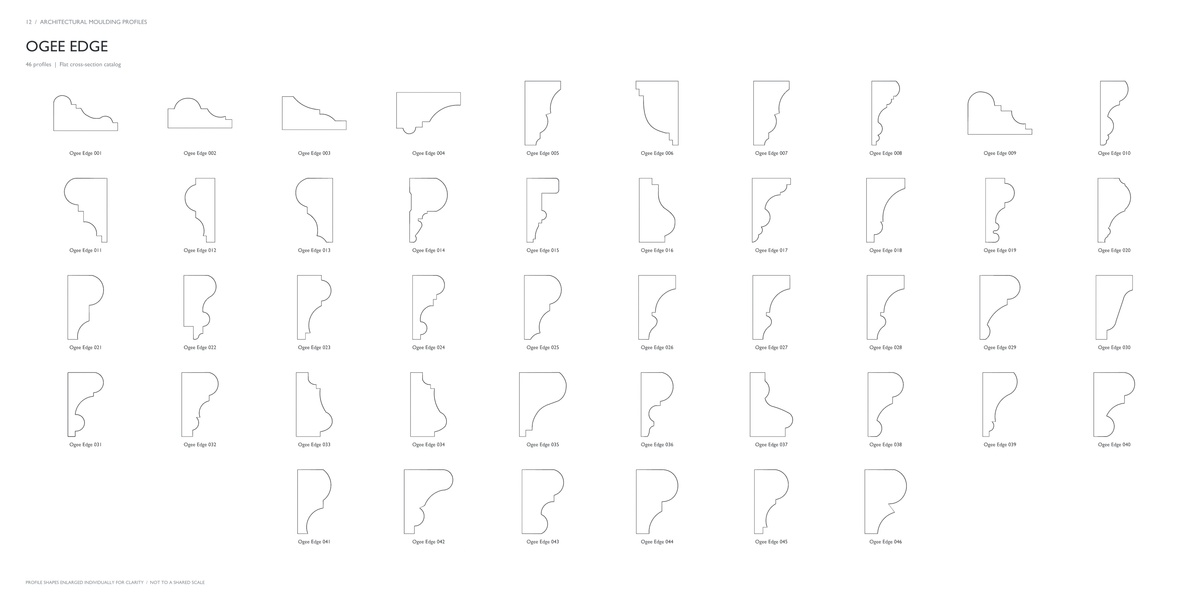
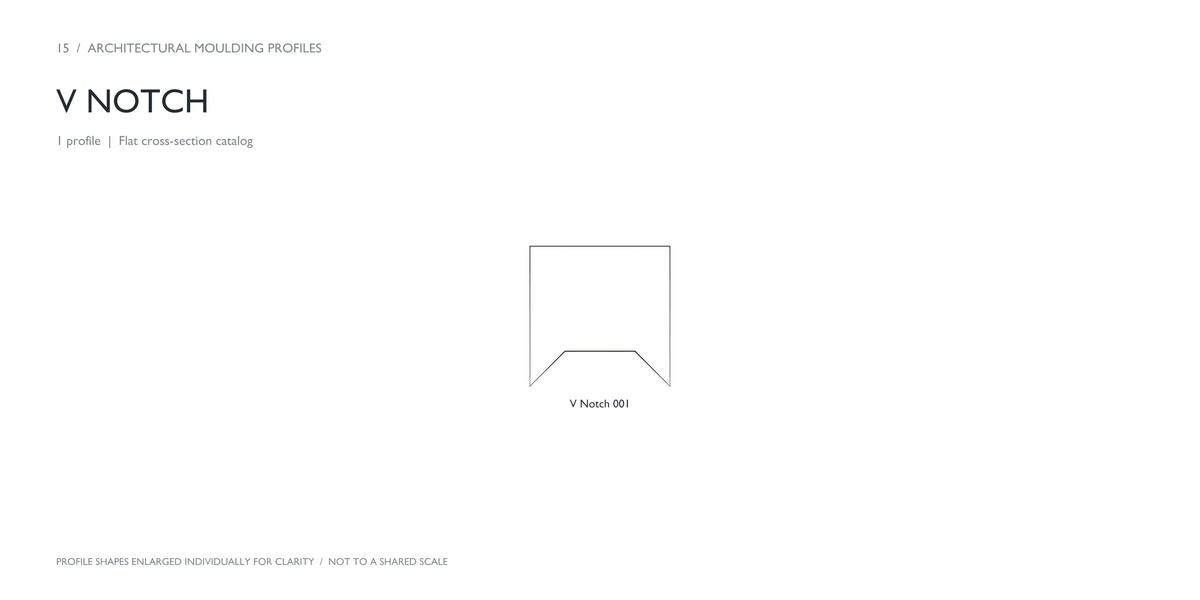
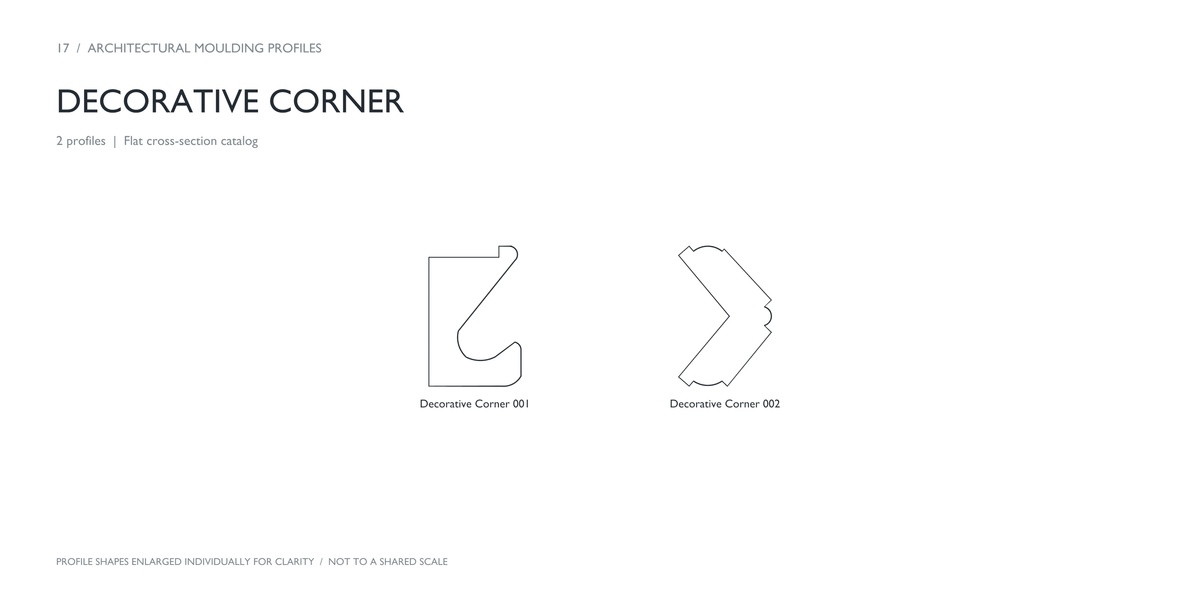
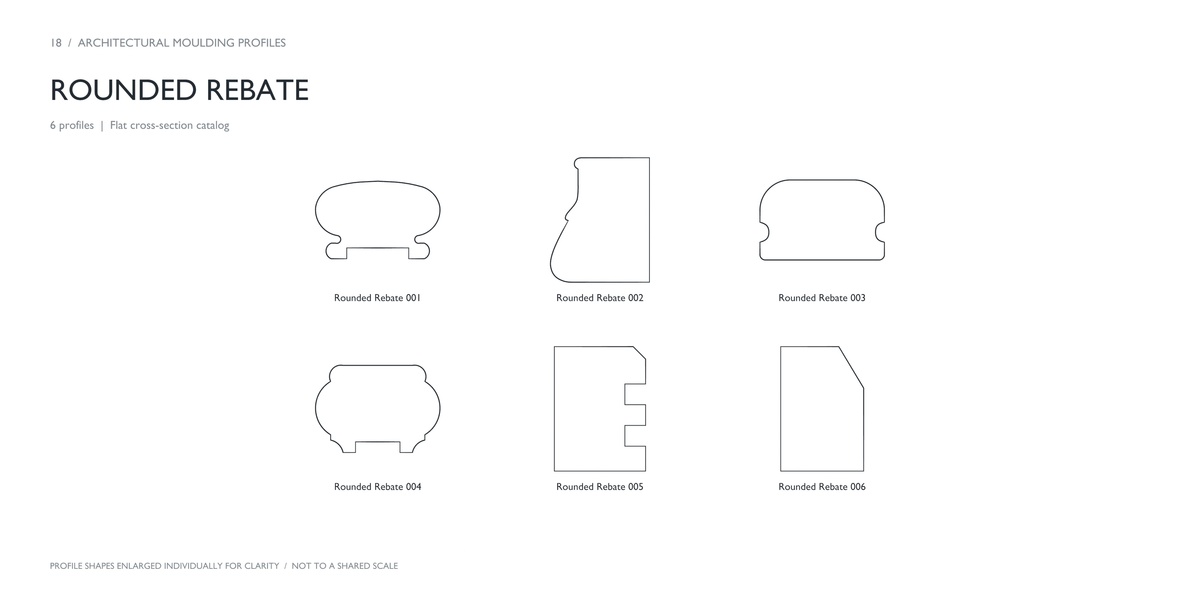
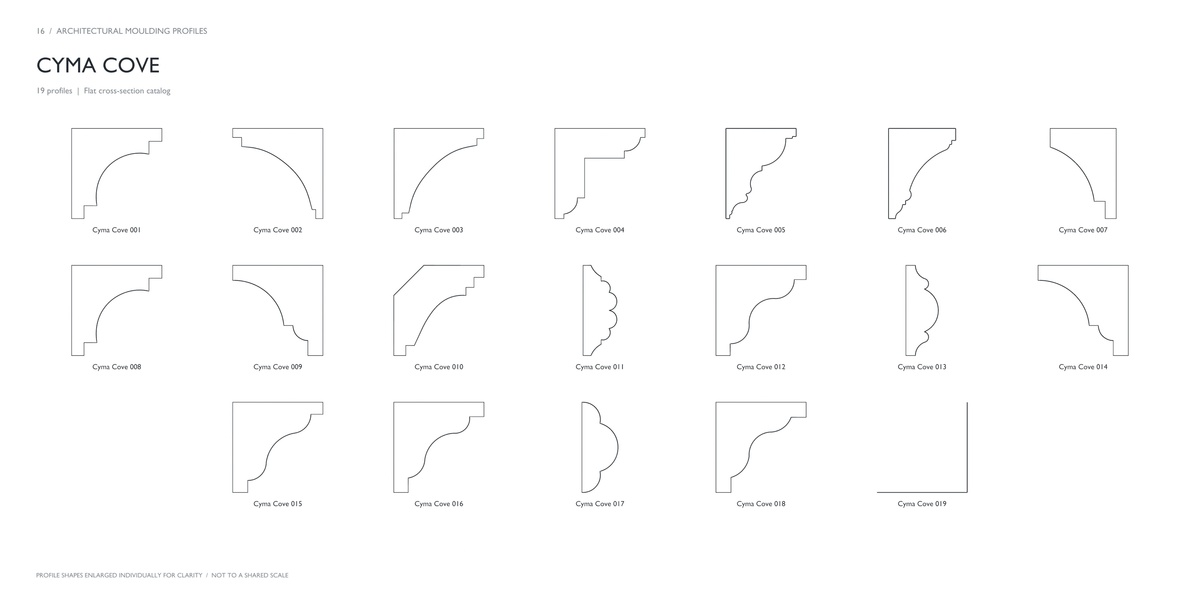
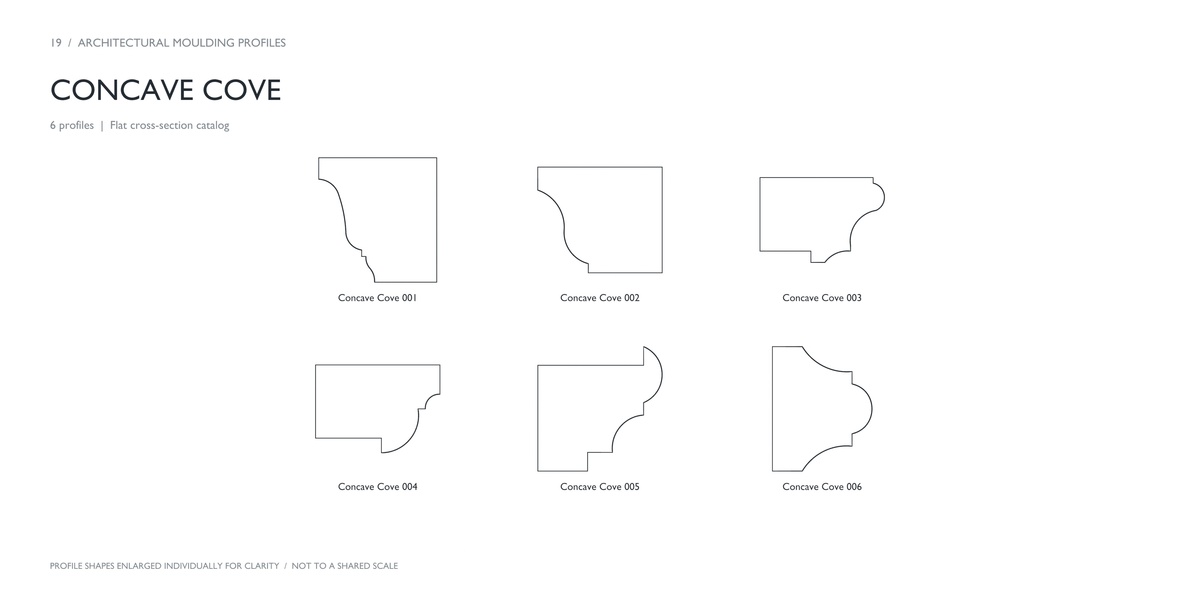
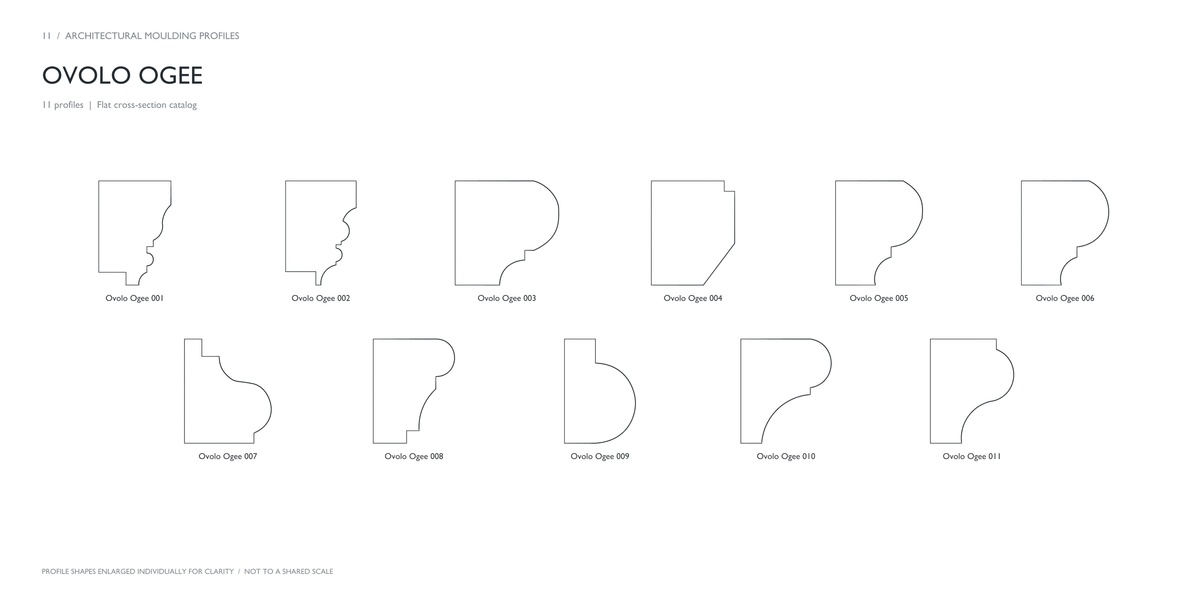
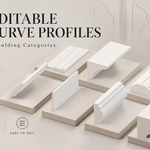
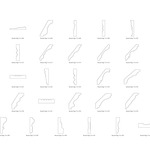
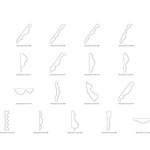
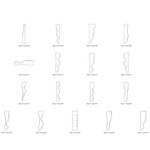
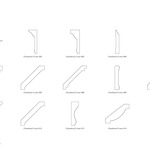
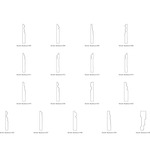
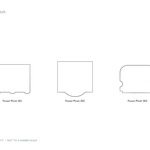
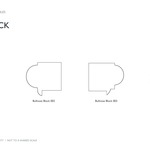
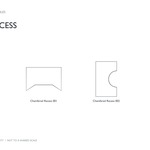
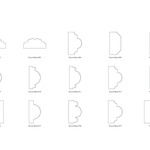
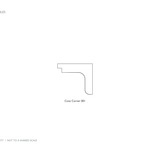
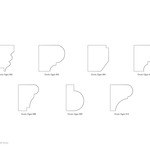
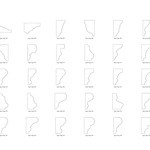
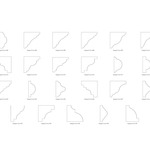
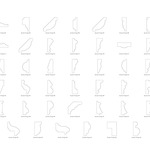
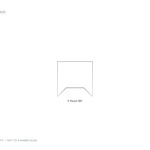
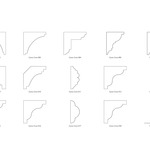
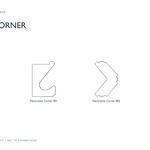
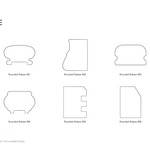
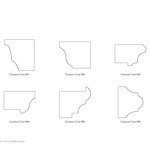
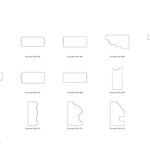
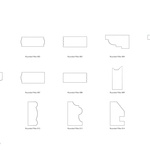
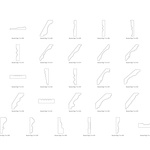
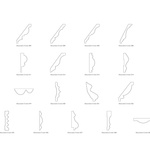
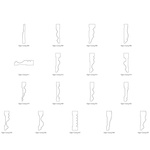
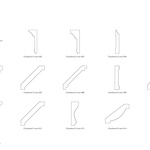
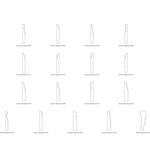
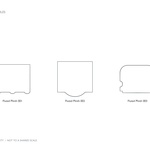
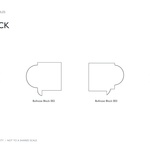
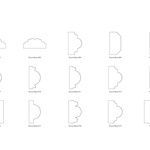
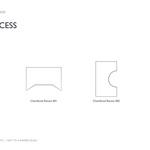
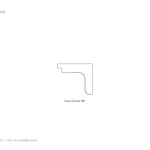
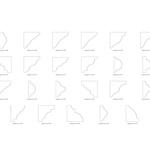
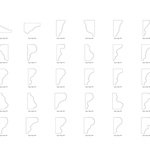
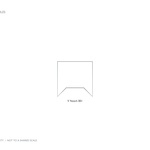
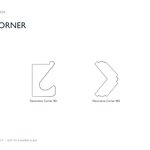
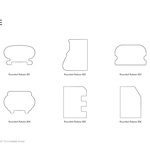
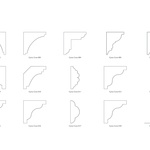
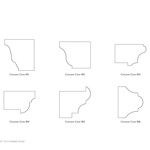
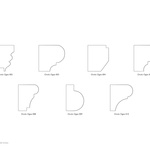
This library contains 389 editable moulding curve profiles organized into 20 families. Use the labeled catalog images to find a shape and identify its object name.
Import a profile
In your Blender project, choose File → Append.
Open the supplied profile library .blend file, then open its Object folder.
Select the named profile you want and click Append.
Create a moulding along a path
Add or draw a curve to define the route of your moulding.
Select this path curve.
Open Curve Data Properties → Geometry → Bevel.
Choose Object and assign your imported profile as the Bevel Object.
Adjust the profile’s size and orientation to suit your project.
Enable Fill Caps if you want closed ends.
The path controls the moulding’s route. The profile controls its cross-section.
Adjust size and alignment
Select the profile and enter Edit Mode to scale or rotate its geometry. Its geometry’s position relative to its origin affects how the moulding aligns with the path.
If the result is too large or offset, check the profile’s size and its position relative to the origin. Adjust these before building the final trim.
Duplicate a profile before editing it if you want to preserve the original shape.
Convert to a mesh
Keep a curve version for later adjustments. When a mesh is required, duplicate the finished moulding and use Object → Convert → Mesh.
Requirements
Prepared in Blender 5.2 LTS. Basic knowledge of selecting objects, Edit Mode, appending assets, and Blender curves is recommended.
Have questions about this product?
Login to message
| Published | 3 days ago |
| Blender Version | 5.2 |
| Render Engine Used | Cycles |
| License | Royalty Free |

Discover more products like this
Interior crown-molding baseboard casing ArchViz architectural profiles architecture cornice trim moulding molding