Assetlib-Migration Tool — Move Your Blender Setup Forward
 Gtech-i-Design LLC


Frequently Asked Questions
Short answers to what buyers ask most — libraries and paths, repositories and tokens, add-ons, preferences and the experimental startup file.
The basics
What is AssetLIB-Migration Tool?
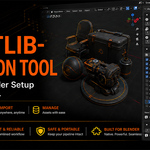
A Blender extension for managing and migrating Asset Library registrations, Extension Repositories, user add-on files, preferences and optional startup configuration between Blender installations and computers.
Is this the updated AssetLib-EXP-IMP?
Yes. It keeps the original export, import, duplicate-prevention, repository migration, add-on and preference backup and startup workflows, and adds full Asset Library management plus path remapping.
Can I use backups made with the old add-on?
Yes. Original AssetLib-EXP-IMP JSON backups are supported. Historical formats are converted in memory during import and the original file is never changed.
Which Blender versions are supported?
Blender 4.2 or newer. Validation has covered 4.2.1 LTS, 4.5.4 LTS, 5.1.2 and 5.2.0 LTS. Add-ons and configuration you migrate may have their own version requirements.
Libraries & paths
Can I manage libraries without opening Preferences?
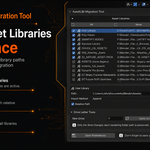
Yes. The Asset Libraries section lists registered libraries and gives you add, remove, path, import-method, relative-path, drive-letter and save controls in the N-panel.
My drive changed from D: to F:. Can I fix every library at once?
Yes. Check the affected libraries, enter F and click Apply to Checked. Only the drive prefix changes — the rest of the folder structure is preserved.
Can I change only some libraries?
Yes. Every library has its own checkbox, and All / None select or clear the whole list.
What if the whole parent folder changed, not just the drive?
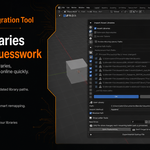
Use missing-path remapping during Import Settings: enter the original and replacement prefixes, pick the entries to change, review the preview, then confirm.
Does remapping work with network, macOS and Linux paths?
Yes — UNC paths such as \\SERVER\Assets and POSIX paths are both supported through prefix remapping. The destination share or mount must be accessible. The direct Drive Letter Tools control is Windows-only.
Does remapping change my original JSON?
No. It is applied to the reviewed in-memory import data only; the source JSON stays as it is.
Can remapping hit a similar folder name by accident?
No. Matching is boundary-safe: remapping D:\Assets will not treat D:\AssetsOld as the same prefix.
Are path changes applied automatically?
Never. Drive suggestions and prefix replacements require your review and confirmation, and a proposal whose destination does not exist is rejected before Preferences change.
Does it copy the actual assets?
No. It migrates registrations and path information. The .blend files, textures and HDRIs must be copied or connected separately.
Does it prevent duplicate libraries?
Yes. A library with a matching name is updated instead of creating a second registration such as User Library.001.
What should I do after changing paths?
Click Save Preferences so Blender keeps the change.
Repositories & tokens
Can Extension Repositories be migrated?
Yes — user-managed repository names, IDs, URLs, custom locations, enabled states, cache options, startup sync and optional access tokens.
Can Blender’s system repositories be restored?
No. They are read-only and controlled outside the user repository collection, so they are skipped during restoration.
Are access tokens included automatically? Encrypted?
Neither. Token export must be enabled explicitly, and tokens are stored as readable plain text — treat that backup as a credential.
Will an imported token always work?
Not necessarily. It may expire, be revoked, need renewed authentication, or be subject to marketplace licensing restrictions.
Add-ons & preferences
What does Backup Add-ons save?
User-installed legacy add-on and Extension files from recognised user locations — files only, not their preferences.
What does Backup Preferences save?
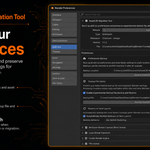
Blender’s userpref.blend, including Blender preferences and available add-on preference data. It does not include add-on program files.
Why are they backed up separately?
Control. You can restore add-on files without forcing a complete preference replacement.
Which should I restore first?
Repository settings and add-on files, then restart, then preferences. That gives Blender a better chance of finding the add-ons the restored preferences reference.
Does restoring add-ons guarantee they work?
No. Each add-on must support the destination Blender version, OS, Python version and architecture. Compiled or platform-specific add-ons often need a fresh download.
Can paid add-ons be migrated?
Their files may be included when stored in recognised user locations, but ownership, subscriptions, activations and marketplace entitlements cannot be transferred. Follow each developer’s license terms.
Are my current preferences protected?
Yes. A timestamped copy of the current userpref.blend is created before replacement, and restored preferences take effect after Blender restarts.
Can newer preferences go into an older Blender?
No — blocked for safety, because a newer preference file may contain data the older version cannot understand. Older into newer is the intended direction.
Startup file & recovery
What is startup-file migration?
It transfers a customised startup.blend — default scene, workspaces, editor arrangement and other startup data.
Why is it experimental?
Startup files carry version-specific .blend, scene, workspace and UI data. An older file usually opens in a newer Blender but may need adjustment.
Does restoring it replace my open scene?
No. It is installed for the next launch, and a timestamped safety copy of the current startup file is kept.
A migrated add-on is throwing errors. Now what?
Close Blender, move or disable the add-on, start with factory settings if needed, install an updated release, and restore categories in smaller stages — the timestamped preference copy is there if you need it.
What is the safest migration order?
Connect the asset folders, import library and repository settings, remap missing paths, restore add-ons, restart, restore preferences, restart, optionally restore the startup file, restart and verify.
|
Still stuck? Requires Blender 4.2 or newer. If something behaves unexpectedly, note your Blender version, OS and the category you were restoring — that is usually enough to pin the cause quickly. |
Have questions about this product?
Login to message
| Published | 10 months ago |
| Blender Version | 4.2 - 5.2 |
| Extension Type | Add-on |
| Render Engine Used | Blender-Internal, Cycles, Eevee |
| License | GPL |

Discover more products like this
Blender-Migation migration backup restore path asset management import restore tool Export