 Skava
Skava


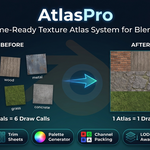
AtlasPro — Documentation
v1.2.1 · Blender 4.2 LTS and later (checked on 4.2.9, 5.1, 5.2, 5.2.1 and 5.2.2) · Windows / macOS / Linux
1. Install
- Download the add-on archive from your Superhive Purchase History.
- Blender → Edit → Preferences → Add-ons → arrow button in the top right corner → Install from Disk → pick the ZIP.
- Tick AtlasPro in the list to enable.
- Press N in the 3D Viewport → AtlasPro tab.
After installing, press N in the 3D Viewport: a tab named AtlasPro appears in the sidebar.
2. Quick start — PBR Atlas
- Select the mesh objects you want to atlas (Shift+click). One object with several material slots works too.
- Open the PBR Atlas sub-panel.
- Set Resolution (2K or 4K is standard).
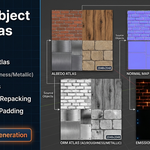
- Tick the maps you want: Albedo / Normal / ORM / Emission.
- (Optional) Set Save to if you want PNG files on disk.
- Click Create PBR Atlas.
When it finishes, the status bar sums up the result: the atlas name, how many materials went into one and on how many objects, by how much the tiles were shrunk if they had to be (and the size of the smallest one), and where the atlas went — a folder, or packed inside the .blend. Materials and objects that were left as they were, and notes about settings that differ between materials, are listed line by line in the Info log (Window → Info, or the Info editor).
If nothing can be built — no materials, a naming pattern that gives every map the same name, a Save to path that points at a file — the status bar says Nothing was changed and why, and your scene is untouched.
3. Settings reference
| Setting | What it does |
|---|---|
| Resolution | Final atlas size: 512 / 1024 / 2048 / 4096 pixels square. |
| Padding Mode | Auto: mipmap-safe for the resolution (2 / 4 / 8 / 16 px). Manual: the pixel count you set. The padding ring around each tile is filled by extending the tile's edge pixels. |
| Include Albedo / Normal / ORM / Emission | Which atlas maps to build. At least one is required. |
| Atlas Name | Base name of the atlas material and images. If it is taken, the next free name (Atlas_2, Atlas_3…) is used — see section 10. |
| Naming | File and image name pattern with {name}, {map}, {res}. Default {name}_{map}. |
| Save to | Folder for the PNG files. Empty: the atlas is packed into the .blend. |
| All material slots | On (default): every slot of each object goes into the atlas. Off: only the active slot; the other slots keep their own material and UVs. |
| Backup original materials | On (default): keeps a copy of the UVs, material slots and material indices, and keeps the original materials in the file, so Restore Originals can put everything back. |
4. What AtlasPro reads from a material
AtlasPro takes the Principled BSDF that is connected to the material's active Material Output — not simply the first one in the node tree — and reads each input the way Blender shades it.
- Inputs with no texture use the material's own value: Base Color, Roughness, Metallic, Alpha, Emission Color and Strength.
- Nodes computed exactly, per pixel: Image Texture (Color and Alpha outputs), Mix (legacy MixRGB and the new Mix node: Mix, Multiply, Add, Subtract, Screen; Float mode), Invert, Math (Add, Subtract, Multiply, Divide, Minimum, Maximum), Separate Color and Combine Color (RGB), RGB and Value nodes, Normal Map in tangent space with its Strength. A colour plugged into a single-value input is converted the way Blender converts it.
- Colour spaces: 8-bit textures in sRGB are decoded, Non-Color and linear ones are read as they are, 16-bit and float textures are read as Blender loads them. A roughness map left in sRGB therefore gives the same number whether it is 8-bit or 16-bit — the number Blender renders.
- Other Principled settings (IOR, Sheen, Coat, Subsurface, Specular…): when every material in the atlas has the same value, the atlas material gets it. When they differ, the atlas takes the most common one and the Info log says so. Settings driven by nodes are named as not carried.
- Emission: the atlas material gets the strongest Emission Strength; each tile carries its own share of it in the emission colour, so every part glows as it did. The share lives in 8 bits: with ordinary differences (1 … 20) the error is under one percent, but when the strengths differ by hundreds of times the weakest glow loses precision — the Info log says by how much, and those materials are better atlased separately.
- Alpha in the texture: Blender multiplies the colour of an sRGB texture by its alpha before shading, whether or not the Alpha output is connected. AtlasPro reads it the same way and writes the tile so that the atlas shades back to the same colour — measured against a render, not assumed.
- Alpha: carried into the alpha channel of the albedo atlas (straight alpha in the PNG) and wired to the atlas material's Alpha; the material's render/blend method is copied.
- Ambient occlusion: a Principled BSDF has no AO input, so there is nothing to read. The red channel of the ORM atlas is white (no occlusion). An AO map multiplied into Base Color through a Mix node is part of the albedo and is carried as such.
When a material is left as it was
If the look of a material cannot be reproduced exactly, AtlasPro does not guess: the material keeps its own slot, its faces keep their UVs, and the Info log names it with the reason. The common reasons:
- the surface is not a single Principled BSDF (Mix Shader, Diffuse BSDF, a node group);
- an input goes through a node that is not computed (Bump, Mapping, Hue/Saturation, Color Ramp, a node group…);
- the texture repeats across the faces (UVs 0..4) — one tile cannot repeat;
- a texture could not be read (missing file), uses UDIM tiles, an image sequence or premultiplied alpha, or reads another UV map of the mesh through a UV Map node (a UV Map node naming a layer the mesh does not have is ignored, exactly as Blender ignores it);
- for a whole object: a Mirror modifier that flips UVs, an Array modifier with a UV offset, UV Project or UV Warp, a mesh linked from a library, or two linked duplicates showing different materials on one mesh.
To include such a material, bake its maps to textures with your usual baker, plug them into a Principled BSDF, and run AtlasPro again.
5. Multi-material objects
An object with several material slots (clothing, vehicles, characters with skin / hair / cloth) gets one tile per material. The faces using each slot are remapped to their tile. With All material slots off only the active slot goes in; the object's other slots stay, with their own material and UVs, after the atlas slot. Empty slots stay empty.
6. Material deduplication and shared meshes
If 50 objects share one material, AtlasPro makes one tile for it. Linked duplicates (Alt+D) share one mesh, so that mesh is remapped once; copies outside your selection change with it, and the status bar names them. If linked duplicates show different materials on the same mesh (materials linked to the object), one UV layout cannot point at two tiles: that mesh is left as it was — make it single-user (Object → Relations → Make Single User) first.
7. UVs
- AtlasPro rewrites the UV map that renders — the one with the camera icon in the UV Maps list — which is also the one the atlas material reads. Other UV maps, such as a lightmap, are not touched.
- Faces whose UVs sit outside 0..1 but within one repeat (for example −0.5..0 or 1..2) are moved back by whole repeats: with a repeating texture they look the same. A texture that repeats across the faces cannot live in one tile; that material is left as it was.
- A material with no textures looks the same everywhere, so its UVs are simply clamped into its tile.
- Geometry Nodes may change UVs after AtlasPro has written them; the Info log reminds you to check such objects.
8. Tiles and resolution
Each material's tile is as large as its largest texture (64 px for materials without textures). If all tiles fit at their own size, none is shrunk. If not, every tile is shrunk by one common factor, so a 4K and a 2K texture keep their 2 : 1 proportion; the status bar reports the factor and the smallest tile. Six 4K textures in one 4K atlas come out at about 1,333 px of texture each (the status bar reports 33 % and the smallest tile). Textures are shrunk by averaging every texel under each atlas pixel.
Speed and memory, measured on Blender 5.2: six materials, each with 4K albedo, normal, roughness and metallic maps, into one 4K atlas with three maps and a Save to folder — about 5 seconds; Blender's memory grows by about 2.3 GB while it runs. Close other heavy files when atlasing many 4K materials.
The UV island and the texture are placed in the same rectangle inside the tile, with the padding ring around both. Measured on the saved file, every UV corner sees the source texel it saw before: within one source texel when the tile keeps its size, and within one atlas texel when the tiles were shrunk to fit.
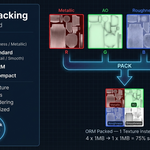
9. ORM atlas layout
- R = Ambient Occlusion — white, see section 4
- G = Roughness
- B = Metallic
- A = 1.0
The atlas material wires Green → Roughness and Blue → Metallic through a Separate Color node — the same layout glTF uses.
10. Names, files and collisions
- Naming pattern: {name}_{map} → Atlas_albedo; T_{name}_{map} → T_Atlas_albedo; {name}_{map}_{res} → Atlas_albedo_2048. A pattern with an unknown token, or one that gives every map the same name (no {map}), is refused and nothing is changed.
- Taken names: if the atlas name, one of its images or one of its files already exists — another atlas still in use, a material or image of yours with that name, a file in the Save to folder — AtlasPro uses the next free name (Atlas_2…) and the status bar says why. The only thing it replaces is the same atlas left unused after Restore Originals, together with the files that atlas wrote. An image you keep with a fake user (the shield in the Image editor) counts as yours: the atlas takes the next free name instead.
- Files: each map is written to a temporary file in the same folder and then moved to its final name, so a half-written file never sits under a real name. Files of yours are never overwritten. If the folder cannot be written, nothing is changed.
- Without Save to the atlas images are packed into the .blend, so they survive saving and reopening.
- A relative Save to path (starting with //) needs the .blend to be saved first.
11. Restore Originals
Select the objects and click Restore Originals in the main AtlasPro panel. It puts back, exactly as they were before the atlas:
- the UVs of the render UV map,
- the material slots, including slots linked to the object,
- which face used which slot.
It works after saving and reopening too: the original materials are kept in the file while the backup exists, and released when you restore. Linked duplicates are restored together, since they share one mesh. Trim sheets, LOD atlases and palettes are restored the same way.
It refuses, and changes nothing, if the mesh was edited after the atlas was made (the number of faces or corners changed), or if an original material was deleted meanwhile. The backup is only kept when Backup original materials was on when the atlas was built.
A material you put on the object after the atlas is not part of the backup, so the restore drops it — it names each one in the Info log so nothing disappears quietly.
To try other settings: Restore Originals, change the settings, build again. The atlas keeps its name and replaces its own files. Building on objects that already use an AtlasPro material is refused, because it would squeeze their UVs a second time.
Scenes made with AtlasPro 1.1: 1.1 kept only the names of the original materials, not the UVs. Objects that still show a 1.1 atlas are left alone and named in the Info log — undo that run, or reopen a copy saved before it. If you already put the original materials back by hand, 1.2 builds the atlas and notes that the UVs may still be squeezed from the old run.
12. Other tools in the add-on
Trim Sheet
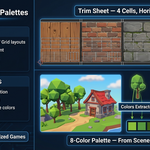
One cell per material in a horizontal, vertical or grid strip; the texture and the UVs fill the whole cell. Same maps, naming, Save to and restore as the PBR atlas; the trim material is assigned. If the selection has more materials than cells, it asks you to raise Cell Count and changes nothing.
Palette Texture
Builds a palette of 4 / 8 / 16 / 32 colours — from pixels of the materials (From Textures) or from each material's average colour (From Base Color). Each material then collapses onto the swatch closest to the colour it actually shows, and a palette material with pixel-exact sampling is assigned. The palette is packed into the .blend. Roughness and metallic are carried when the materials agree; a palette carries colour only.
LOD Atlas
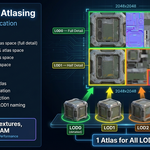
Objects named …_LOD0, …_LOD1… share one atlas; each level gets a tile scaled by its ratio (full for LOD0, ½, ¼, ⅛ by default). Every material of every level gets its own tile, with the maps, naming and Save to of the PBR Atlas panel. The LOD atlas material is assigned.
Channel Pack
Packs the active material of the active object into one RGBA image with the ORM, Unreal ORM, Unity Standard or Mobile Compact preset. Roughness, metallic, smoothness (1 − roughness) and the emission mask are read the same way as in the atlas, including packed textures read by channel. AO is white, because a Principled BSDF has no AO input. The image is packed into the .blend; if the name is taken, the next free name is used.
13. Troubleshooting
"… left as it was: Base Color goes through a Bump node" (or Mapping, a node group, Mix Shader…) — that material's look depends on something AtlasPro cannot compute exactly. Bake it to textures and run again; everything else went into the atlas.
"… left as it was: its texture repeats across the faces" — the fabric is tiled with UVs beyond 0..1. Bake the tiled look into a texture over 0..1, or keep that material separate.
"… already uses 'Atlas', made by AtlasPro — press Restore Originals first" — you ran it on objects that already show the atlas. Restore, then build again with the new settings. If the atlas was built with Backup original materials off, the message says so instead: there is nothing to restore from, so undo that run or reopen a copy saved before it.
"… named 'Atlas_2' because …" — something already has the name you asked for. Nothing was overwritten; rename either one if you prefer.
"Nothing was changed: 'Save to' is relative to the .blend file, which is not saved yet" — save the file first, or choose a full folder path.
"Only one item shows in the atlas, and the Normal and ORM atlases are black" (versions 1.1.x) — with source textures as large as the atlas, tiles were stacked instead of shrunk, the Normal and ORM atlases were wiped, and 8-bit colours were encoded twice. All fixed in 1.2.0. Undo the old run or reopen a copy saved before it, then build again.
"The atlas was black after I reopened the file" (versions 1.1.x) — atlases kept in memory were not saved with the file. Since 1.2.0 they are packed.
"I want to undo the atlas" — Ctrl+Z right after, or Restore Originals at any time later (section 11).
14. Limitations
- AtlasPro does not bake. Materials that need baking are left as they were and named (section 4).
- The atlas is 8-bit PNG. Any colour brighter than 1.0 is clipped — an emission, or a Base Color pushed above 1 by a Mix Add — and the Info log says so. Emission is carried by one Emission Strength plus each tile's share in colour (section 4).
- Other Principled settings exist once per atlas material; when the materials differ, the most common value is used and named in the Info log.
- When the textures are larger than their share of the atlas, every tile is shrunk by one common factor. To keep more detail per item, split the selection into several atlases.
- Restore needs the backup (on by default) and a mesh that was not edited after the atlas.
15. Support & License
Through marketplace messaging. GPL-3.0. The atlases you produce are 100% yours.
Have questions about this product?
Login to message
| Sales | 30+ |
| Published | 7 months ago |
| Blender Version | 3.2 - 5.1 |
| Extension Type | N/A |
| Render Engine Used | Arnold, Blender-Internal, Blender-Game-Engine, Cycles, Eevee, Freestyle, Luxrender, Mental-Ray, Octane, Vray, Yafaray |
| License | GPL |
Discover more products like this
texture atlas Channel Packing LOD Trim Sheet PBR Texture packing game-dev uv-tools mobile optimization draw-call-reduction game assets palette-texture