AudioRotator - Morphing Audioreactive Setup in Geometry Nodes
 codesignprojects
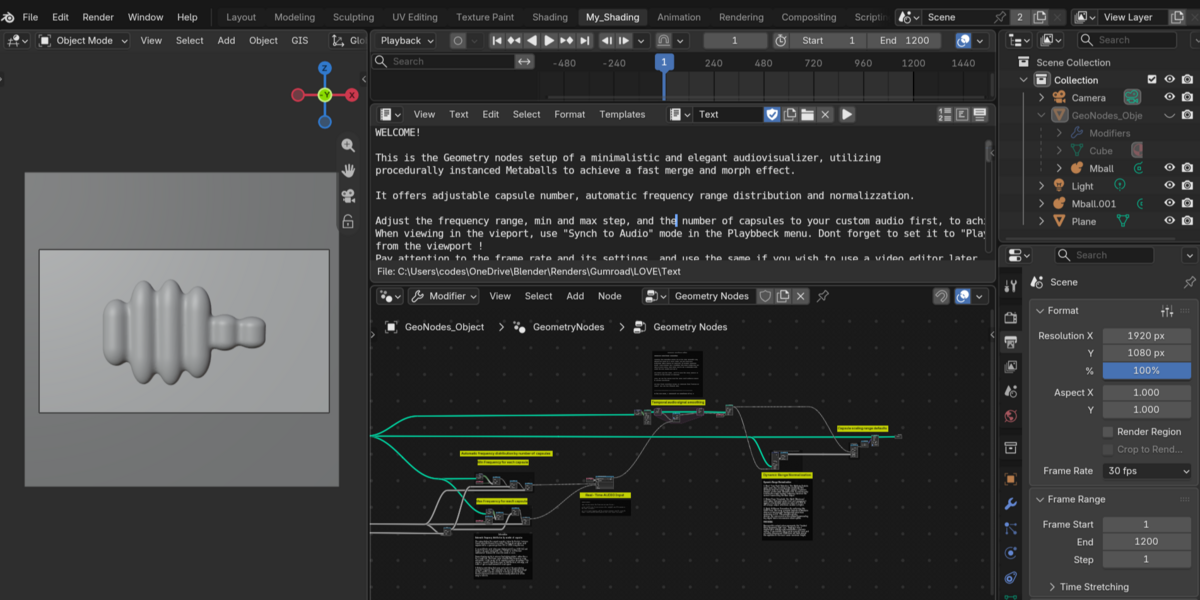
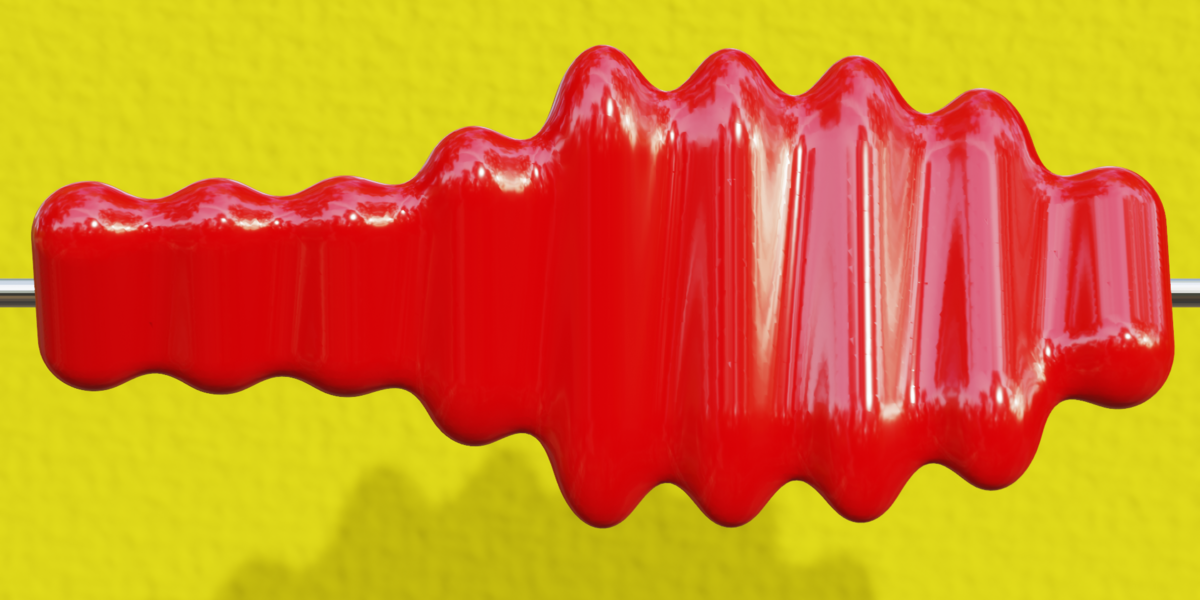
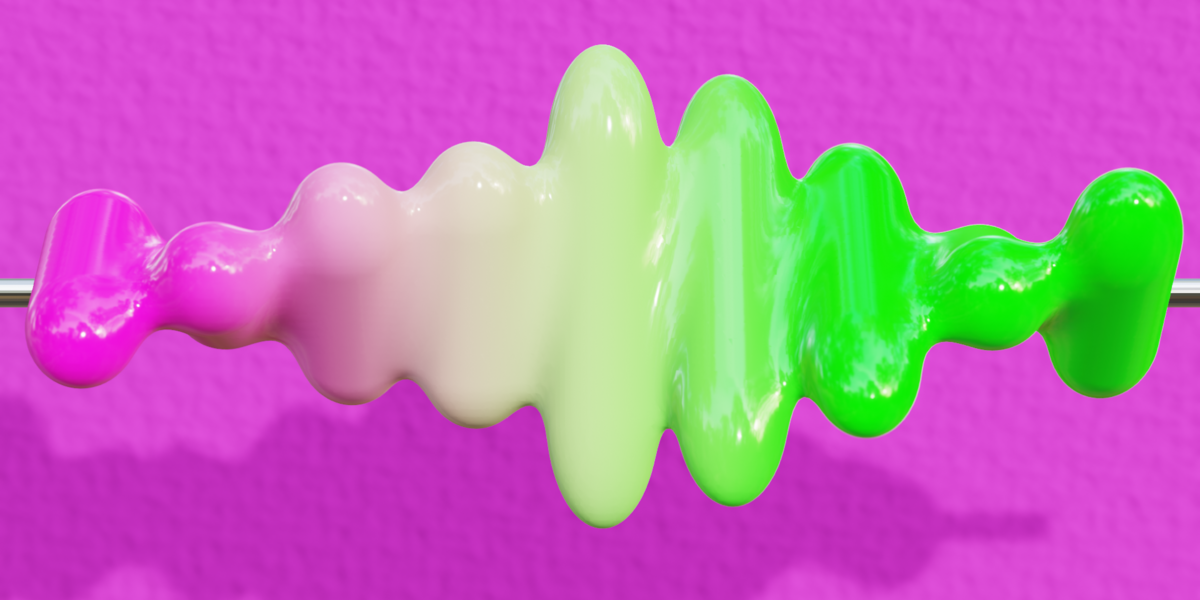
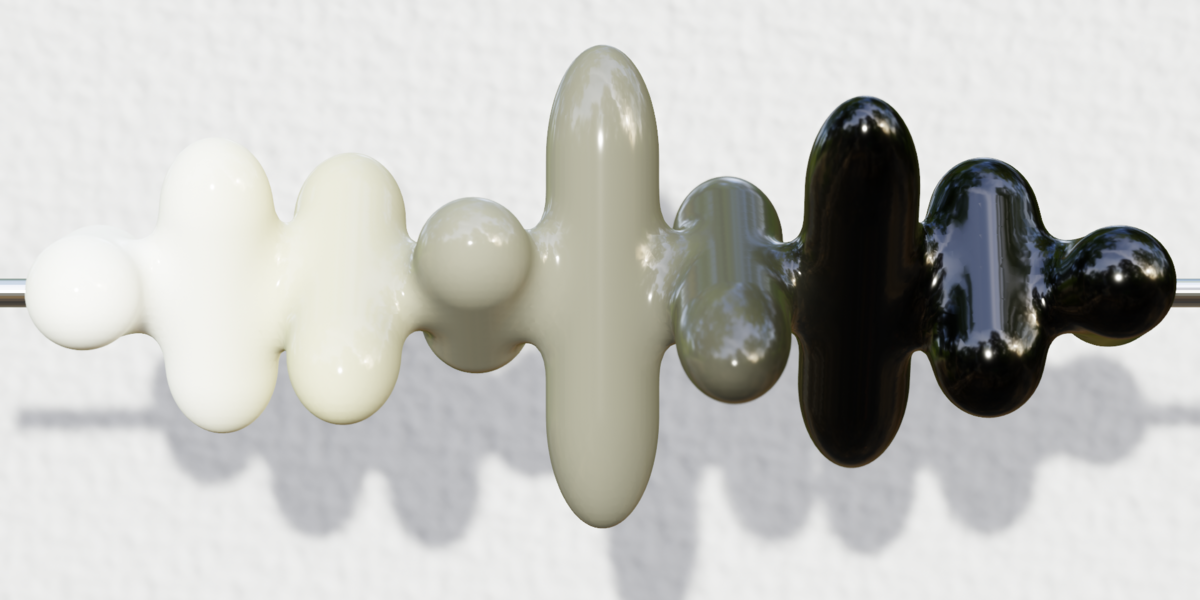


Overview This Geometry Nodes setup is a plug-and-play audio visualizer utilizing procedurally instanced Metaballs. It features a fully automatic frequency distribution system and dynamic range normalization (Automatic Gain Control) to ensure your capsules always react fluidly to the beat without manual audio baking.
1. Core Controls
You can control the entire look and feel from the Geometry Nodes modifier panel:
Capsule Count And Rotation Speed: Defines the number of visualizer bars and their rotation speed.
Max Frequency per Capsule (Frequency Step): The procedural math engine. Instead of a hard ceiling, this sets the frequency "width" for a single capsule. It automatically multiplies by your Capsule Count to set the track's maximum frequency limit (e.g., a base of 50 × 6 capsules = 300 Hz ceiling). This prevents high-frequency jitter and keeps the visualizer locked to the rhythmic bass.
-
Min Frequency (Internal): Hardcoded at exactly 20 Hz. Do not change this. It ensures the first capsule always catches the deepest sub-bass and kick drums.
2. Audio Setup
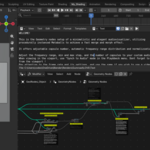
Loading the Track: Open the Geometry Nodes tree and locate the Sample Sound Frequencies node. Load your desired audio file directly into this node.
Viewport Playback: To hear the audio while playing the timeline in Blender, add the same audio file to the Video Sequencer and set the Timeline Playback sync to "Sync to Audio."
3. Technical Notes & Workarounds
The Metaball Naming Rule: To prevent Blender from throwing a "Cyclic Dependency" error while maintaining the fluid merge effect, the proxy object must use a numerical suffix (e.g.,
Metaball.001), not an alphabetical one. The included file is already structured safely.Frame 1 Distortion (Noise Floor): Compressed MP4/MP3 files often contain microscopic digital static during silent intros. The node tree uses a subtraction clamp to mute this static. However, if your track is exceptionally noisy and the capsules bulge before the music starts, simply keyframe an amplitude multiplier (0.0 to 1.0) on the exact frame the beat drops.
Post-Production Audio Drift: The node tree calculates audio data in perfect sync. If your rendered video drifts out of sync with the music in DaVinci Resolve or Premiere, it is a timeline framerate mismatch. Ensure your video editor's Clip Attributes and Timeline Settings are set to exactly 30 fps (not 24 fps or 29.97 fps) to match your Blender output.
Have questions about this product?
Login to message
| Published | 3 days ago |
| Blender Version | 5.2 |
| Render Engine Used | Cycles, Eevee |
| License | Creative Commons |
Discover more products like this
procedural Morph Merge minimalistic audiovisualizer audioreactive real-time audiovisualizer equalizer metaballs geometry nodes audio