 Aman3D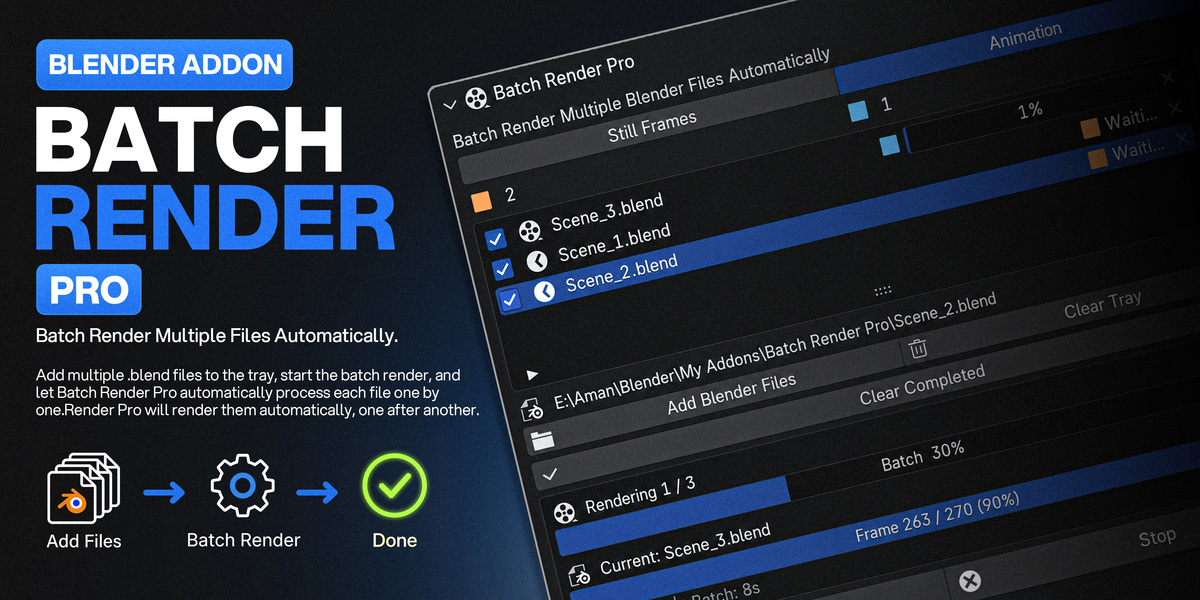

Overview
Batch Render Pro allows you to render multiple Blender .blend files automatically, one after another.
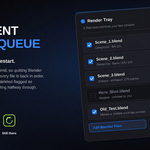
Add your files to the render tray, choose a render mode, and start the batch. Each file is processed separately using its saved Blender settings and output folder.
Requirements: Blender 4.2 or newer.
How to Use
1. Add Blender Files
Open Render Properties > Batch Render Pro and click Add Blender Files.
Select one or multiple .blend files to add them to the render tray.
2. Choose Render Mode
Still Frames
Renders the current frame configured in each Blender file.
Animation
Renders the animation using each file's saved frame range, resolution, FPS, format, and output folder.
3. Start Rendering
Click Start Batch Render.
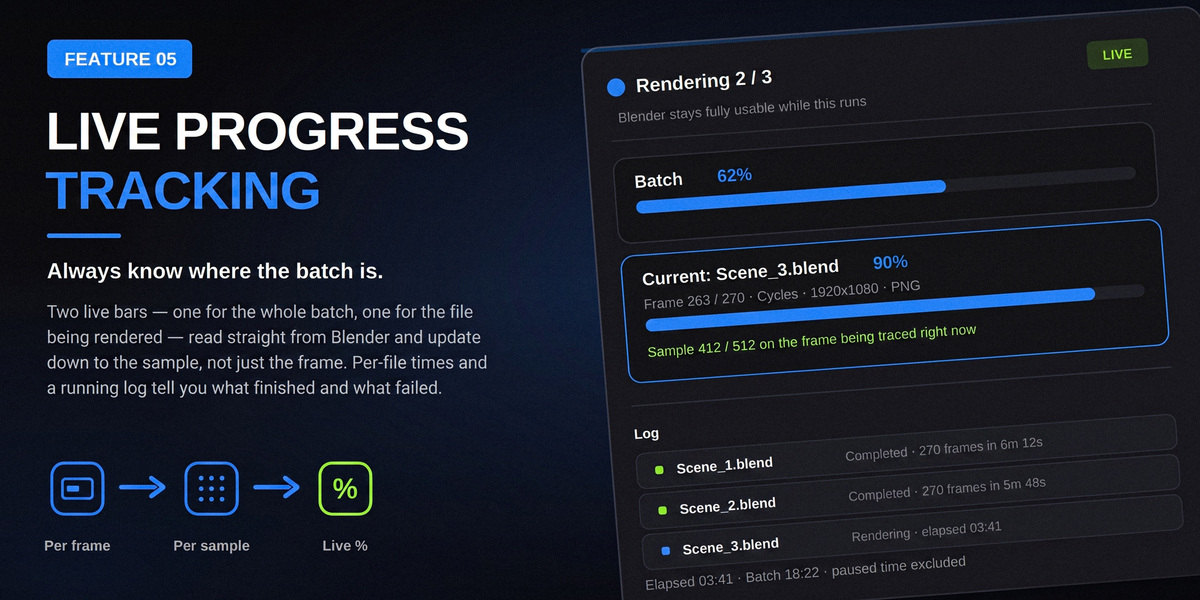
Batch Render Pro processes the files sequentially and displays the current file, frame progress, batch progress, elapsed time, and estimated progress information.
4. Monitor the Batch
During rendering you can:
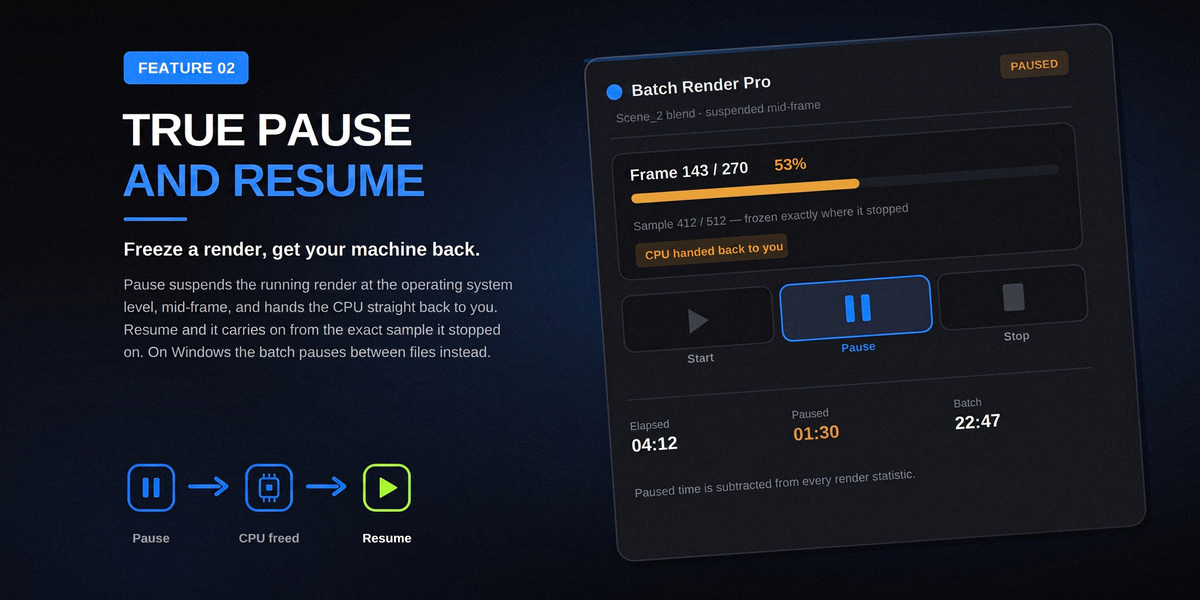
- Pause or resume the batch
- Stop the batch
- Monitor individual file progress
- View the current frame
- Monitor overall batch progress
- Review the render log
5. After Rendering
When the batch finishes, a summary displays:
- Total Files
- Completed
- Failed
- Skipped
- Total Render Time
You can also open the output folder for a rendered file directly from the addon.
Important Settings
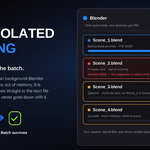
Stop on Error
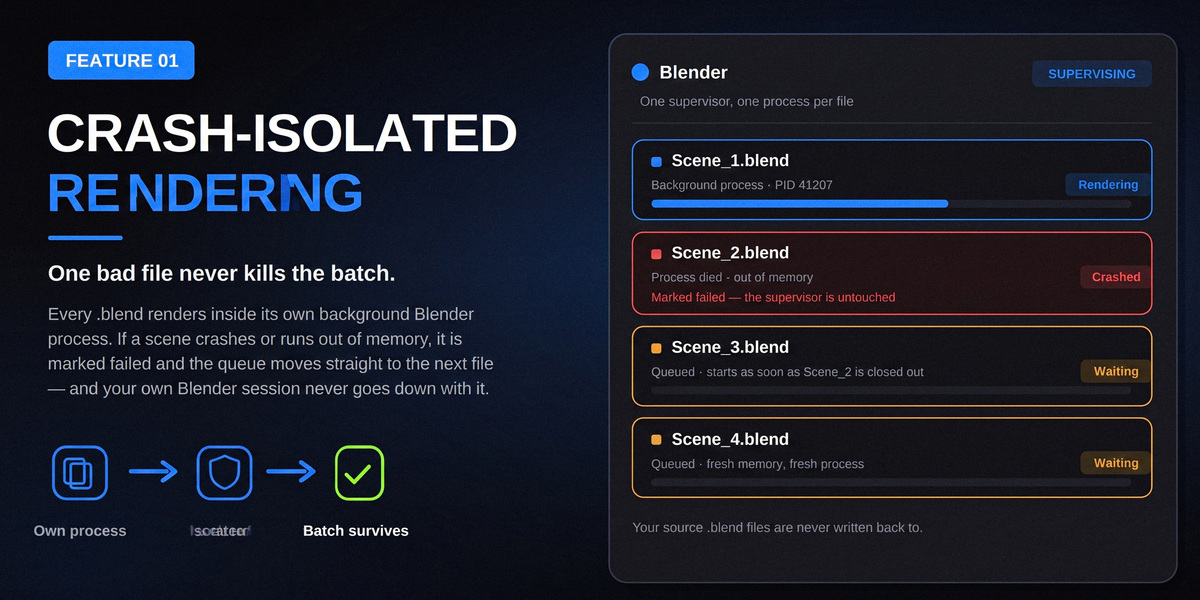
Stops the entire batch if a file fails. When disabled, the addon logs the failure and continues with the remaining files.
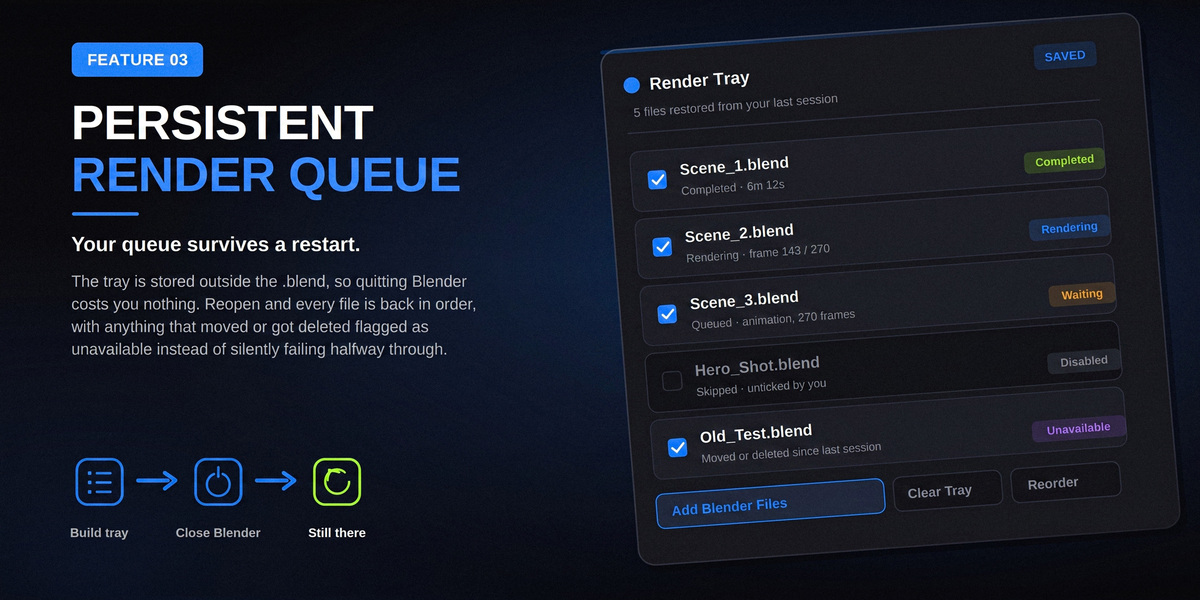
Remember Tray
Restores your render tray the next time Blender starts.
Skip Completed Files
Prevents files that have already completed from being rendered again when restarting the batch.
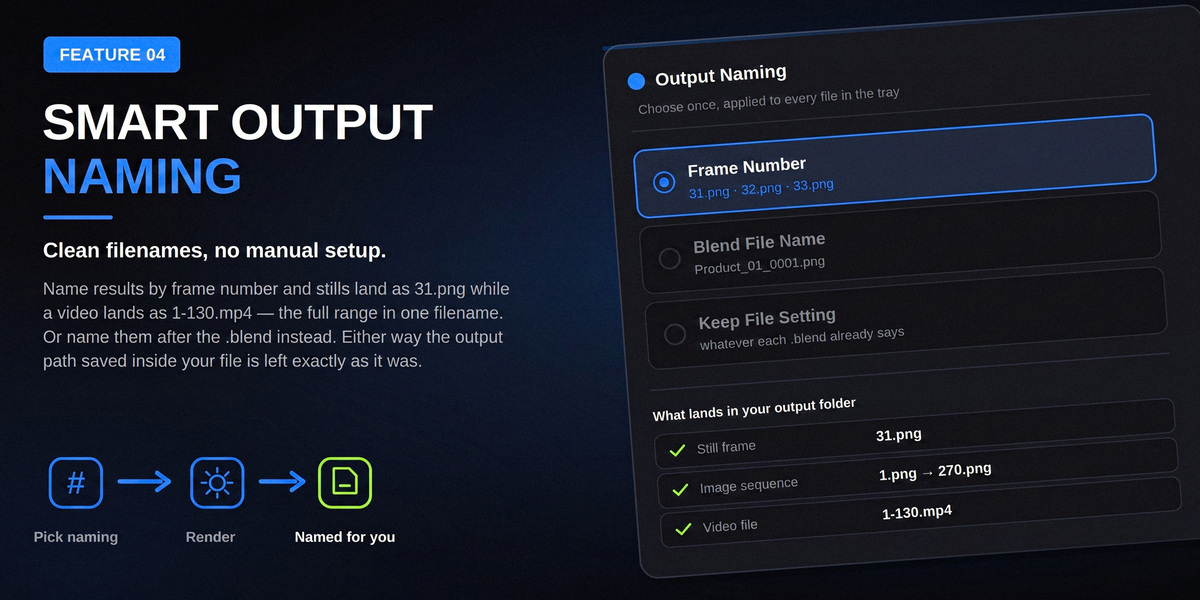
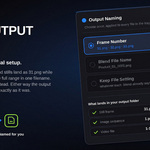
Output Naming
Choose between Frame Number, Blend File Name, or File Setting.
Have questions about this product?
Login to message
| Blender Extension Compatible | Yes |
| Published | about 2 months ago |
| Blender Version | 4.2 - 5.2 |
| Extension Type | Add-on |
| Render Engine Used | Cycles, Eevee |
| License | GPL |
Discover more products like this
BatchRender batch animationbatchrendering RenderQueue batchrendering queuerendering rendering animationrendering Render animationqueue