Blend Inspector
 auphinity.tools


Blend Inspector
Documentation — v1.0.0
Blend Inspector — Documentation
Installation
- Download
blend_inspector.zipfrom your Superhive purchases. - Open Blender and go to Edit → Preferences → Add-ons.
- Click Install… (top right).
- Select the downloaded
.zipfile and click Install Add-on. - Enable by checking the box next to "System: Blend Inspector".
- The add-on is now active. No restart required.
Requirements
| Requirement | Value |
|---|---|
| Blender version | 4.0 or newer (tested up to 5.1) |
| Render engine | Any — not render-dependent |
| External dependencies | None |
Getting started
- Save your .blend file — the inspector needs a saved file to measure file size on disk.
- Press
Nin the 3D Viewport to open the sidebar. - Click the Inspect tab.
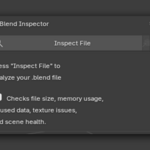
- Click Inspect File.
- Explore the collapsible sections for detailed results.
Important: Always save your file before inspecting. File size on disk can only be measured from a saved file. Unsaved changes won't be reflected in the file size reading.
Report sections
1. File Overview
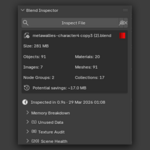
Shows top-level file statistics at a glance:
| Item | Description |
|---|---|
| File size | Size of the .blend file on disk with a color-coded health indicator: 🟢 green (under warning threshold), 🟡 yellow (between warning and critical), 🔴 red (over critical threshold) |
| Object counts | Total objects, meshes, materials, images, node groups, collections |
| Potential savings | Estimated space that could be reclaimed by removing unused images and meshes |
The warning and critical thresholds are configurable in Preferences (default: 200 MB warning, 500 MB critical).
2. Memory Breakdown
Three sub-sections:
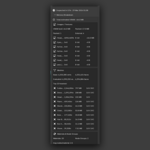
Images: Lists all images sorted by VRAM consumption (heaviest first). Each entry shows resolution, bit depth (8-bit or Float 32), channel count, VRAM estimate, and whether the image is packed or external.
Meshes: Top 10 heaviest meshes sorted by vertex count. For each mesh you see:
- Base vertex and face count (the actual mesh data)
- Evaluated vertex and face count (after modifiers like Subdivision Surface, Mirror, Array, etc.)
- Estimated memory consumption
- UV map count, vertex color layers, shape key status
Materials: Total material count, total node groups, and average nodes per material.
3. Unused Data
Detects data blocks with 0 users (orphan data) that can be safely removed:
| Data type | What counts as "unused" |
|---|---|
| Materials | 0 users and no Fake User flag |
| Images | 0 users and no Fake User flag (excludes Render Result and Viewer Node) |
| Meshes | 0 users and no Fake User flag |
| Node Groups | 0 users and no Fake User flag |
| Worlds | 0 users and no Fake User flag |
| Empty Collections | Collections with 0 objects and 0 child collections |
The section shows total unused count and estimated space savings from unused images and meshes.
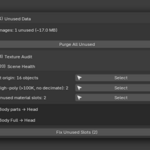
Purge All Unused button: removes all unused data blocks in one click (with confirmation dialog). This calls Blender's built-in bpy.ops.outliner.orphans_purge() recursively.
4. Texture Audit
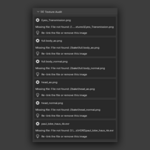
Scans all images for common issues, sorted by severity:
| Severity | Issue | What it means |
|---|---|---|
| 🔴 ERROR | Missing file | External image file not found on disk. Textures will appear pink/missing. |
| 🟡 WARNING | Oversized texture | Resolution exceeds your configured limit (default: 4096px). Includes a suggestion with estimated VRAM savings if resized. |
| 🟡 WARNING | Packed large file | A packed image exceeds your size threshold (default: 10 MB), bloating the .blend file. |
| 🟡 WARNING | Duplicate texture | Multiple image data-blocks pointing to the same file path. Should be consolidated to one. |
| 🔵 CLEANUP | Unused texture | Image has 0 users. Can be removed via Purge. |
| ℹ️ INFO | Non-power-of-2 | Resolution is not a power of 2 (e.g. 1000×1000 instead of 1024×1024). Some game engines require power-of-2 textures. Includes the nearest recommended size. |
Every issue includes a concrete suggestion — what to do to fix it.
5. Scene Health
Checks all objects in the current View Layer for common problems:
| Check | What it detects |
|---|---|
| Unapplied scale | Objects with scale not equal to (1, 1, 1). Causes issues with modifiers, physics, and export. |
| Unapplied rotation | Objects with non-zero rotation in Object mode. |
| Negative scale | Objects with any negative scale axis. Causes flipped normals and shading issues. |
| Objects at origin | Objects with location (0, 0, 0) — often forgotten default-position objects. |
| Unused material slots | Material slots assigned to an object but not used by any face. |
| High-poly without decimate | Meshes with 100,000+ vertices and no Decimate modifier. May need optimization. |
| Missing UV maps | Meshes with image textures but no UV layer. Textures won't display correctly. |
| Duplicate mesh data | Multiple objects with separate mesh data-blocks that appear to be identical (same base name, same vert/face count). |
Each check that finds problems shows a [Select] button to instantly select all affected objects.
Quick fix buttons:
- Fix Transforms — applies scale and rotation to all objects with unapplied transforms
- Fix Unused Slots — removes material slots not used by any face
Action buttons
| Button | What it does | Modifies file? |
|---|---|---|
| Inspect File | Runs the full analysis and displays results | No |
| Copy Report | Copies a plain-text summary to clipboard | No |
| Clear | Removes the current analysis results from the panel | No |
| Select | Selects all objects matching a specific issue | No |
| Purge All Unused | Removes all orphan data blocks (with confirmation) | Yes |
| Fix Transforms | Applies scale and rotation on all affected objects | Yes |
| Fix Unused Slots | Removes unused material slots | Yes |
Preferences
Go to Edit → Preferences → Add-ons → Blend Inspector to configure:
| Setting | Default | Description |
|---|---|---|
| File size warning (MB) | 200 | File sizes above this show yellow indicator |
| File size critical (MB) | 500 | File sizes above this show red indicator |
| Texture resolution limit | 4096 | Textures above this resolution are flagged as oversized |
| Packed image size (MB) | 10 | Packed images above this size are flagged |
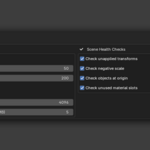
| Check unapplied transforms | On | Toggle the transform/rotation health check |
| Check negative scale | On | Toggle the negative scale health check |
| Check origin objects | On | Toggle the objects-at-origin check |
| Check unused material slots | On | Toggle the unused material slot check |
FAQ
Does this modify my file?
No. Blend Inspector only reads data. The three actions that modify your file (Purge, Fix Transforms, Fix Slots) all require explicit user action and show confirmation dialogs.
Why do I need to save the file first?
File size on disk can only be measured from a saved file. If you haven't saved, the file size will show as 0.
How accurate are the VRAM estimates?
They show the uncompressed texture size in GPU memory: width × height × channels × bytes_per_channel. Actual VRAM depends on your GPU driver and compression, but the estimates are reliable for comparing textures against each other.
Does it work with linked libraries?
It analyzes data in the current .blend file only. Linked library data is not included.
Can I undo Purge?
Yes, if you have not saved after purging. Press Ctrl+Z to undo. Once you save, the purge is permanent.
Why does polycount analysis take a moment on heavy scenes?
For evaluated polycount (after modifiers), the add-on needs to evaluate each mesh through the depsgraph. On scenes with 1000+ objects and heavy modifiers like Subdivision, this can take a few seconds.
Known limitations
- VRAM estimates are approximate — actual usage depends on render engine and GPU driver
- Polycount with modifiers may be slow on very heavy scenes (1000+ objects with subdivisions)
- Purge cannot be undone after saving the file
- Scene health checks only analyze objects in the current View Layer
Changelog
v1.0.0 — Initial Release
- File overview with health indicator and potential savings
- Memory breakdown: images with VRAM and bit depth, meshes with modifier impact, material stats
- Unused data detection with size estimates and one-click purge
- Texture audit with severity sorting and actionable suggestions
- Scene health checks with quick fix actions (apply transforms, remove unused slots)
- Select affected objects for any issue
- Copy report to clipboard
- Configurable preferences with threshold and toggle controls
Discover more products like this
cleanup unused data file analyzer vram purge file size diagnostics scene health blend inspector texture audit optimize polycount