Blender Girih Lab
 smice
smice
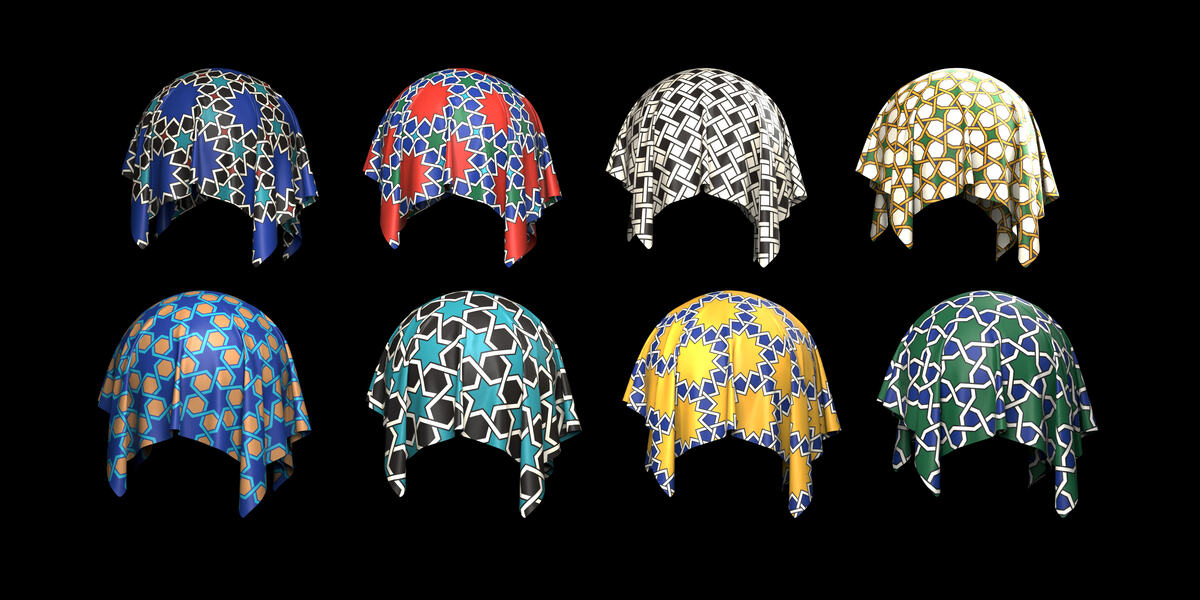
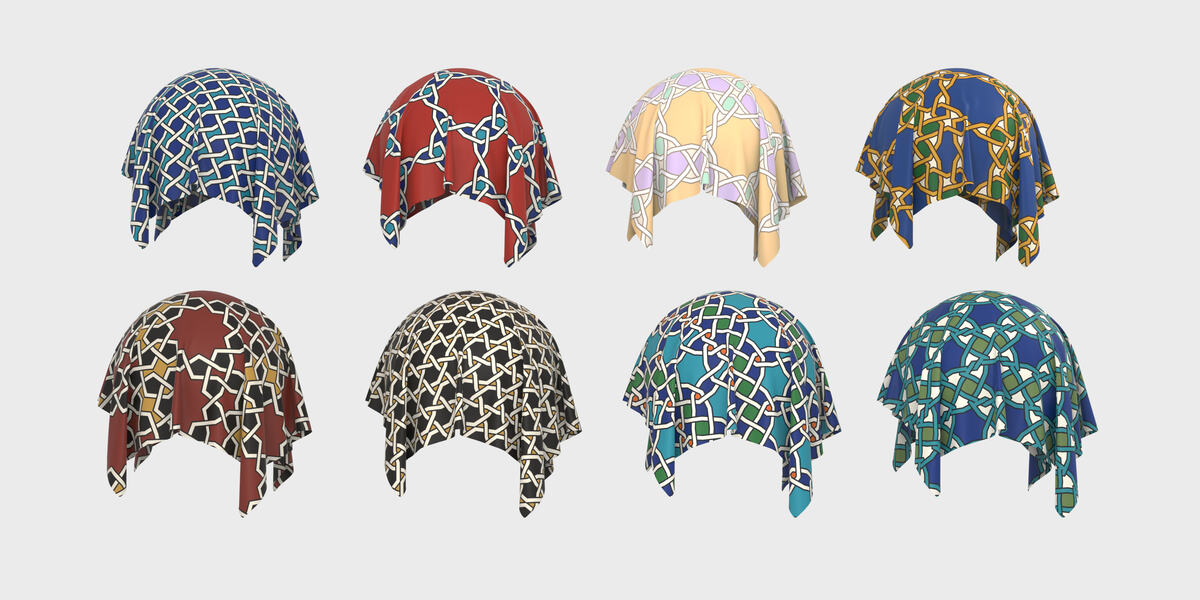

START
Install and first pattern
- In Blender, open Edit › Preferences › Get Extensions, click the arrow at the top right and choose Install from Disk. Pick girih_lab-1.0.0.zip.
- Open the sidebar with N and click the Girih Lab tab.
- Click the eye in the Pattern header. The preview is off at start and draws on the ground, around the world origin, in the size set under Make Real.
- Press Random or one of the Classics for a quick start.
01
Pattern
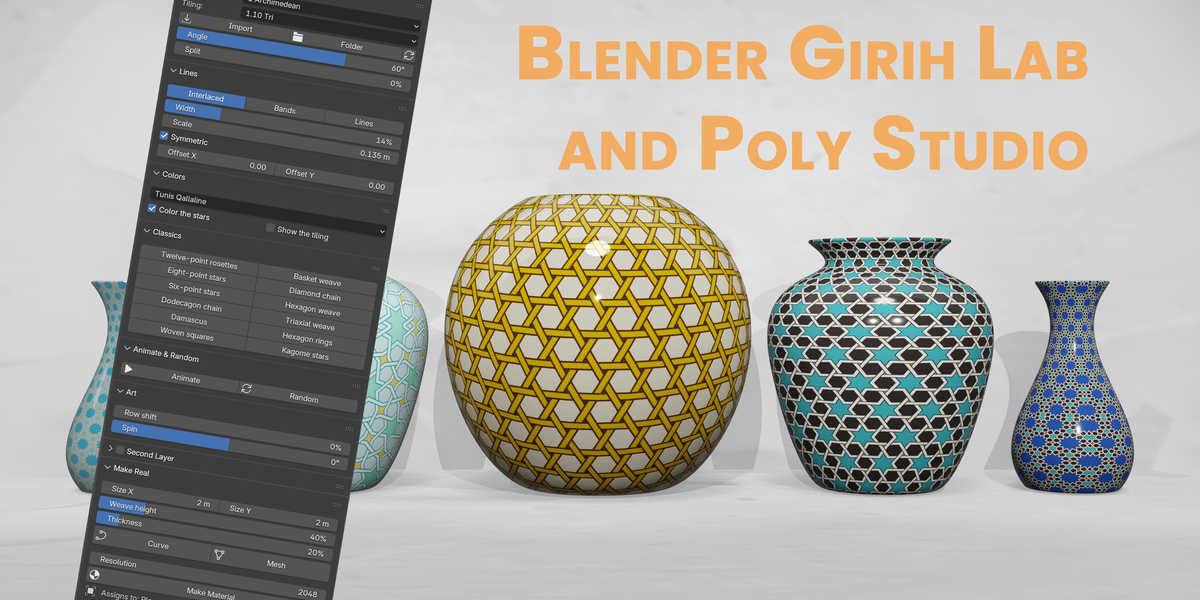
- Category and Tiling: 104 tilings in five groups: 1 Archimedean, 2 Uniform, 3 Girih, 4 Rhombi, 5 Stars & more. Your own tilings appear under Custom.
- Angle: how far the stars open. Small angles give slim stars, large angles wide ones. Girih tilings look classic at about 54°.
- Split: splits every crossing into doubled lines.
- Import adds a tiling file from Polygon Studio, Folder opens your custom folder, and the reload button reads it again after you change files there. The custom folder is kept when you update the add-on.
02
Lines
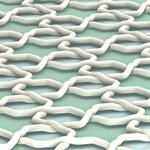
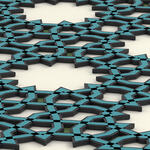
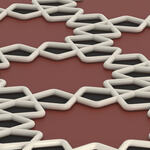
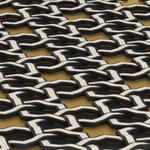
- Interlaced, Bands or Lines: woven bands with outlines, flat bands, or fine lines.
- Width: band width, in percent of a polygon edge.
- Scale: the length of one polygon edge, so it sets the size of the whole pattern. Turn off Symmetric to set Scale X and Scale Y separately and stretch the pattern.
- Offset X and Offset Y: slide the pattern, in edge lengths.
03
Colors
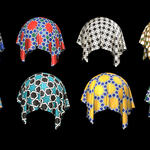
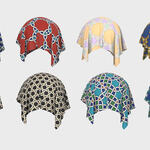
- 14 palettes, from historic tilework (Fez, Iznik, Isfahan, Alhambra, Samarkand and more) to Ink, Chalk and two pastels.
- Color the stars fills the stars and shapes between the bands. Show the tiling draws the polygons underneath, to see how the pattern is built.
04
Classics
Twelve ready designs, from Twelve-point rosettes to Kagome stars. One click sets tiling, angle, style, palette and scale. Hover a button to see what it uses.
05
Animate & Random
- Animate sweeps the angle back and forth in the viewport. Press it again, or Esc, to stop.
- Random picks a new tiling, angle, palette and line style. Press Ctrl Z to go back.
06
Art
- Row shift slides every second row of tiles against the others.
- Spin turns every single tile around its own center.
- Both leave the traditional rules on purpose. Set them to 0 for the classic look.
07
Second Layer
Tick the box in the header to draw a second pattern on top of the first. It has its own Category, Tiling, Angle, Split, line style, Width, Scale, Offsets and palette, and works just like the main layer. Make Real and Make Material include it.
08
Make Real and Make Material
- Size X and Size Y: the area of the pattern, for the preview and for everything you make.
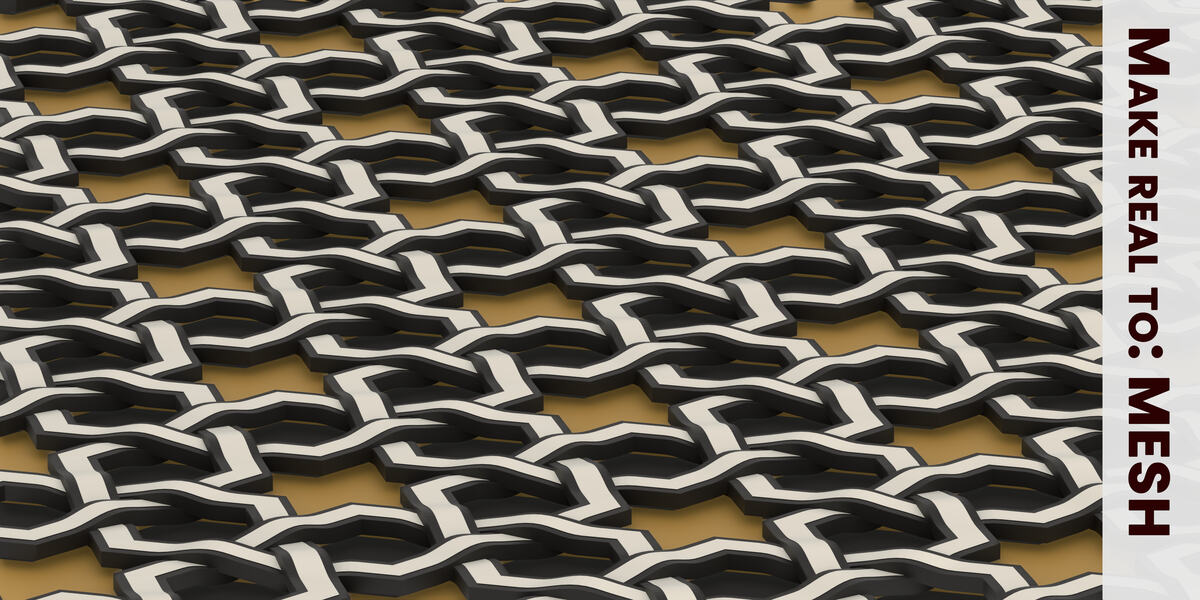
- Weave height: how far the bands rise and dip at the crossings. Thickness: the thickness of mesh bands.
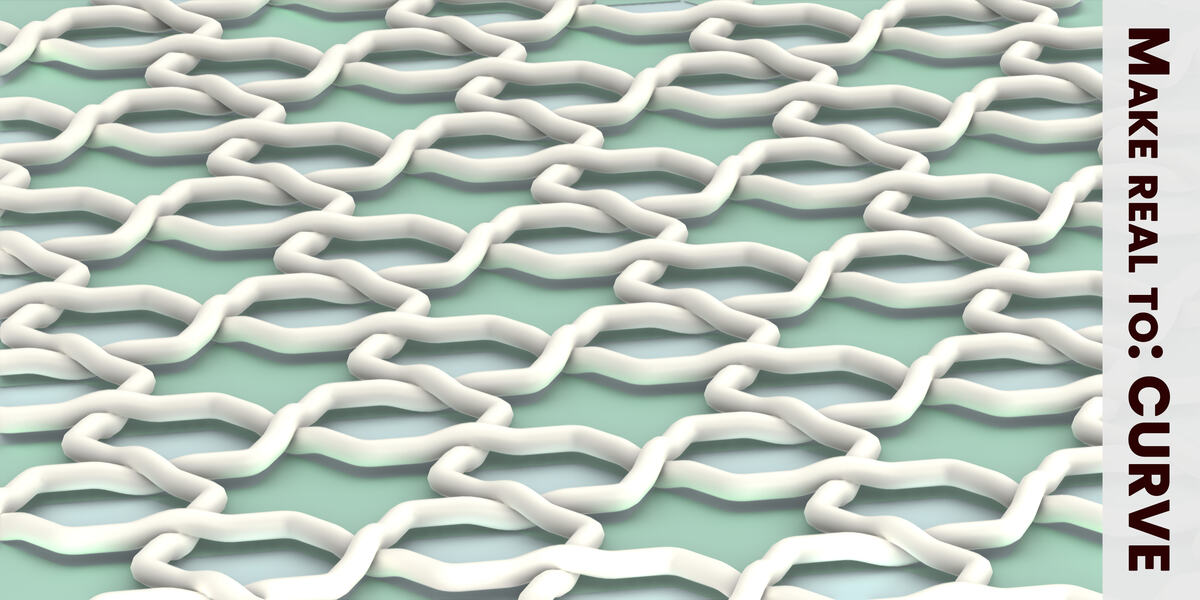
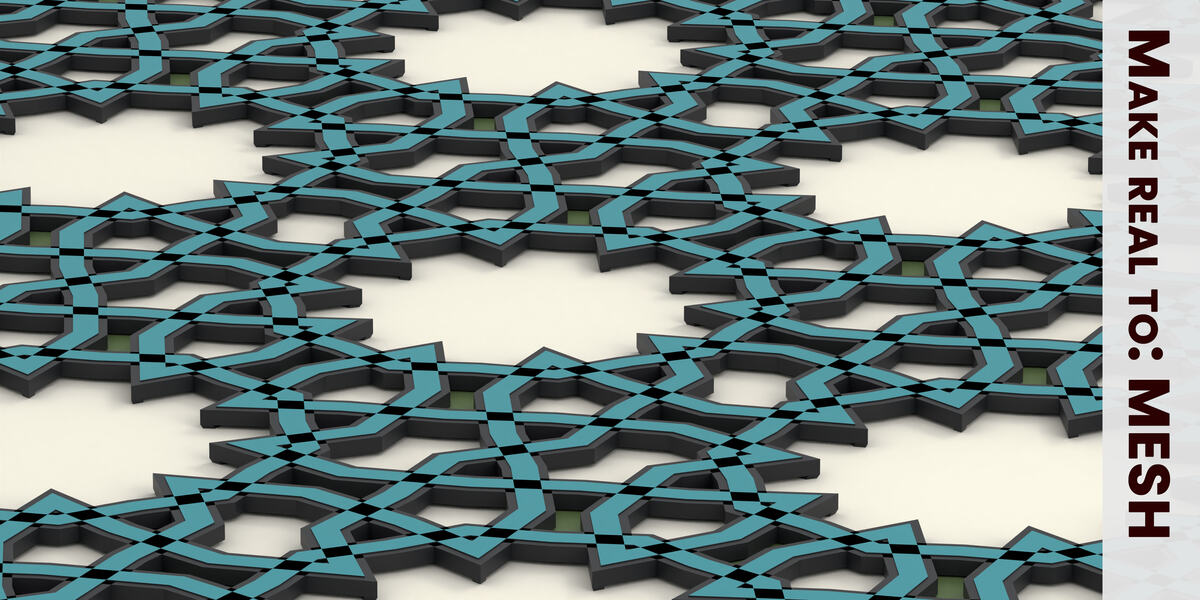
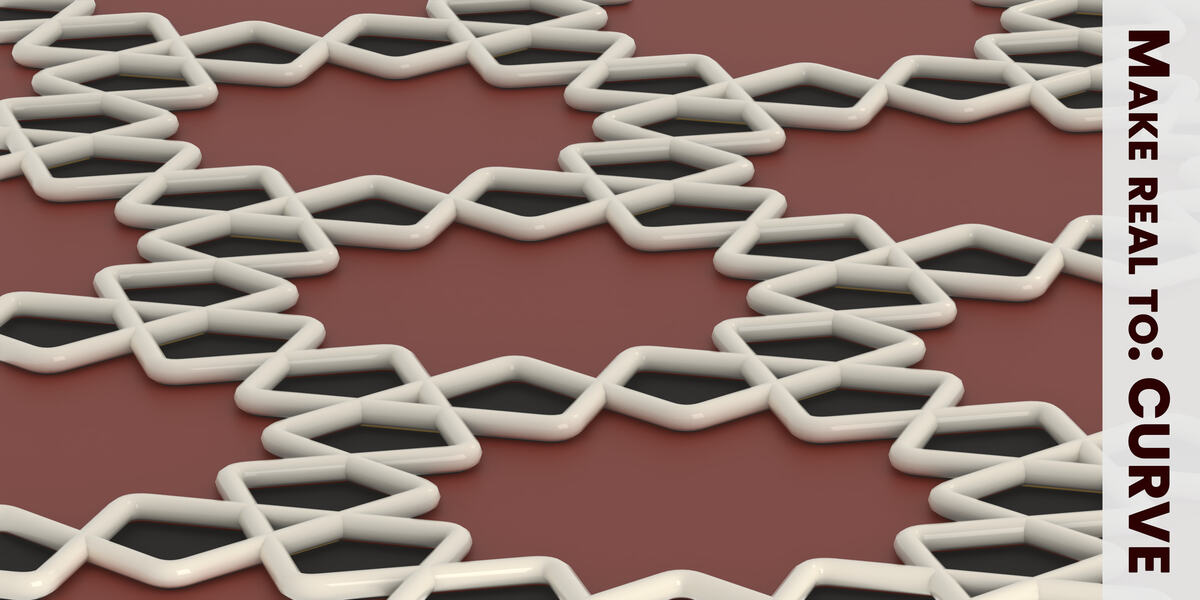
- Curve makes round tubes, Mesh makes flat bands with thickness. Both weave over and under and come with star fills and a ground plate, in a new collection. The preview turns off, and you can switch it on again for the next one.
- Make Material bakes the pattern into an image of the chosen Resolution and builds the node setup. With an object selected, the material goes onto that object (using its UV map); otherwise it goes onto a new plane.
STUDIO
Your own tilings with Blender Polygon Studio
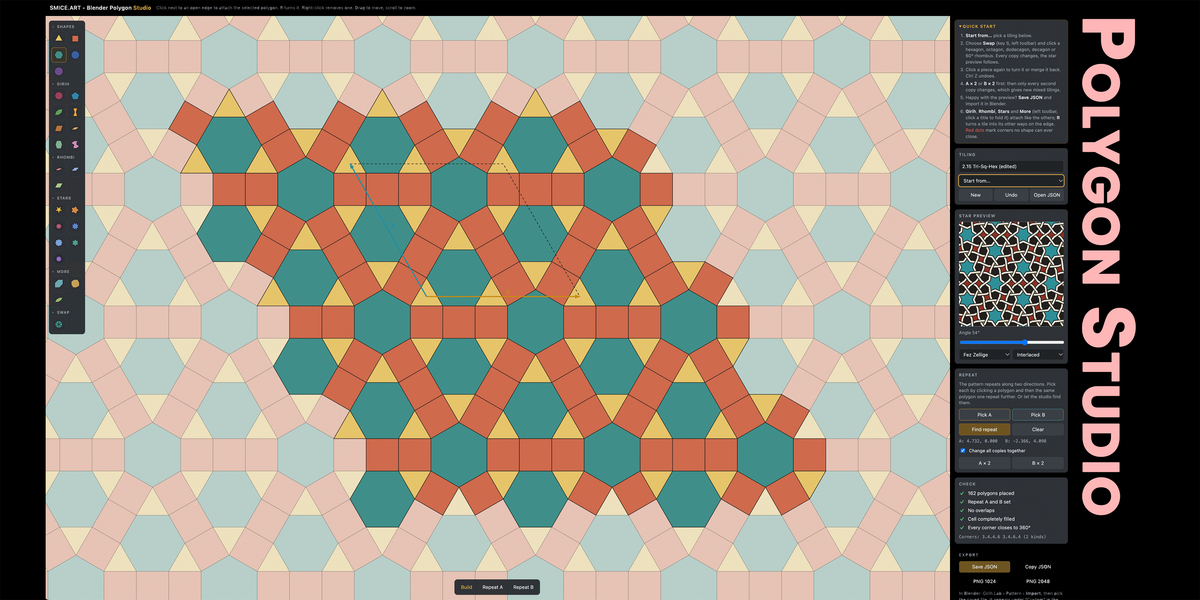
- Open Polygon Studio.html (included in the download) in any modern browser. It works offline.
- Choose Start from… to load one of the presets, or start with a single shape.
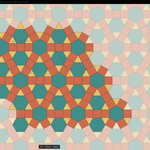
- Pick a shape in the left toolbar and click next to an open edge to attach it. R turns it, right-click removes it. Swap splits or merges hexagons, octagons, dodecagons, decagons and 60° rhombi to discover new tilings.
- Find repeat sets the repeat directions. When all checks are green, the star preview appears; choose angle, palette and style there.
- Press Save JSON, then Import in Girih Lab. Your tiling appears under Custom with the look you chose. PNG 1024 and PNG 2048 save the preview as an image.
Have questions about this product?
Login to message
| Blender Extension Compatible | Yes |
| Published | 1 day ago |
| Blender Version | 4.2 - 5.2 |
| Extension Type | Add-on |
| Render Engine Used | Cycles, Eevee |
| License | GPL |
Discover more products like this
islamic-pattern smice girih blender mathematical art mathematical polygons asset pattern Artwork