Blender Mcp Secure
 Tachyon Studio





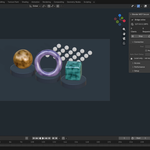
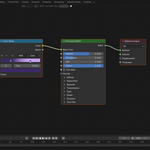
Blender MCP Secure 3.1.0
Tachyon Studio • User manual
What this product does
Blender MCP Secure connects a local MCP-compatible client to a running Blender process. The Blender add-on owns the authenticated local bridge. A separate Python companion exposes the MCP tools to the client. An AI agent can inspect the scene, propose changes, and invoke available tools; Blender performs those operations. The product contains no AI model, built-in chat subscription, license server, or hosted bridge service.
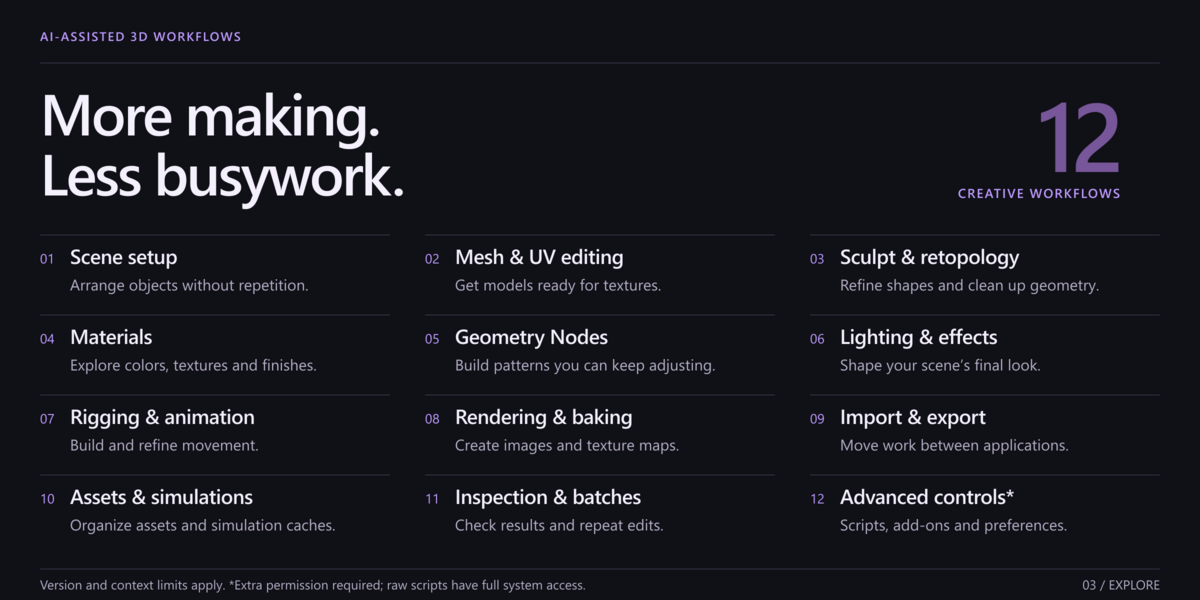
The normal companion catalog contains 93 tools, including structured operations and compatibility/documentation tools. Expert raw Python adds one tool when explicitly enabled. Tool count is not a promise that every tool works in every editor, scene, Blender release, or third-party add-on.
Requirements and compatibility
- Target Blender range: 3.3–5.2. Legacy add-on: 3.3–4.1. Extension: 4.2–5.2; its manifest upper bound is 5.3 exclusive.
- The Windows installer targets Windows 10/11 x64 with a supported Blender installation and uses Blender's bundled Python to create a private environment.
- Internet access and download consent are required during Windows setup. Reviewed Windows x64 dependency locks cover CPython 3.10–3.13; an unrecognized runtime is rejected rather than resolved to untested libraries.
- Manual companion setup requires Python 3.10+ and a client capable of starting a local stdio MCP process. Matching dependencies must be available for that Python/OS.
- macOS and Linux use manual setup. They have not been verified during this Windows publishing preparation. No one-click installer is supplied for them.
- A client and any AI service/account are separate. Their prices, availability, data handling, tool limits, and MCP support are controlled by their providers. A remote-only MCP client cannot directly reach this loopback bridge without additional infrastructure; exposing it publicly is not recommended.
The existing project records automated tests on Blender 3.3.21, 4.3.2, and 5.2.0. These are sample builds, not evidence that every intervening release or every workflow has been tested. Release verification records distinguish background tests from interactive checks. Older versions lack newer APIs: extension repositories require 4.2+, group-interface panels require 4.0+, and Geometry Nodes simulation-cache operations require a Blender version and scene that provide them. Action/F-curve and compositor implementations also differ by release.
The companion's bundled offline API/manual reference describes Blender 4.3. It is not version-matched documentation for all supported releases; inspect live RNA and available operations when using another Blender version.
Choose your download
Recommended: Blender-MCP-Secure-3.1.0-Setup.zip. One package contains setup, both Blender installation formats, the Python companion, agent guidance, and the complete documentation. Windows users extract it and run INSTALL.cmd. No other product download is needed for guided setup. Do not install this outer ZIP through Blender's Install from Disk.
Optional manual extension: blender_mcp_secure-3.1.0.zip. This directly installable Blender 4.2–5.2 ZIP is offered separately for manual installation and marketplace extension detection. It does not install the companion or configure a client. It is the same extension already included in the main package.
For Blender 3.3–4.1 manual installation, use Setup/payload/blender_mcp_secure-3.1.0-legacy.zip inside the main extracted package. The companion wheel is in Setup/payload/wheels/. Follow Advanced/MANUAL-SETUP.html and the manual instructions below. Manual macOS/Linux setup remains unverified here.
The Documentation folder contains this full manual, quick start, FAQ, security/license information, and dependency notices. Expert mode lives in Advanced/INSTALL-EXPERT.cmd and is not needed for normal setup. Keep the Setup folder beside INSTALL.cmd; it contains the files used by the installer.
Windows installation
Save open files, make backups, and close Blender. Run INSTALL.cmd from the extracted bundle for Normal mode. Read the download explanation and type YES to continue; any other answer cancels before installation. The installer checks bundled hashes, finds the newest supported installed Blender, creates a new private companion environment, downloads pinned libraries, and verifies the installed companion. Only then does it inspect the profile, back up preferences and relevant client configuration, install the appropriate add-on/extension and guidance, and configure detected clients. It then launches Blender and reports completion. It never terminates a Blender process.
The setup connects over HTTPS to files.pythonhosted.org. Exact dependency versions, URLs, and SHA-256 checksums are recorded in Setup/payload/dependencies/. Some downloaded packages contain native Windows DLL, PYD, and EXE files, including pywin32 and compiled Python modules. These libraries run with your user permissions in a private companion environment, not inside Blender's Python installation or profile. The ZIP contains no third-party dependency wheels or native binaries. Read THIRD_PARTY_NOTICES.md and dependencies/DEPENDENCIES.md for the inventory and licenses. No offline installer is supplied.
Each setup creates a fresh runtime under runtimes/online-r3-UNIQUE-ID, where UNIQUE-ID is generated during setup. A download or verification failure leaves the previous runtime and Blender/client settings unchanged. Failed runtimes and logs may remain for diagnosis; they are not automatically activated. Later failures, after the profile/configuration stage begins, are not guaranteed to roll back: consult the logs and backups. Keep old environments until you confirm no client still uses them.
Default runtime location: %LOCALAPPDATA%\BlenderMCP\3.1.0. Default backups: %LOCALAPPDATA%\BlenderMCP\backups\TIMESTAMP, where TIMESTAMP is the setup's dated backup folder. The completion message is authoritative for custom locations. Keep this message and the backup until setup is verified.
To select a specific Blender installation, run PowerShell from the main extracted folder:
.\Setup\install.ps1 -BlenderPath "C:\path\to\blender.exe"
-ClientMode None installs the bridge/runtime and writes generic configuration without editing supported client configurations. Auto is the default; Codex, Claude, and All select adapters explicitly. -InstallRoot changes the private runtime location. -NoLaunch configures Blender in a background process. Advanced isolated-profile options are for deliberate testing, not a way to bypass the requirement to close a normal user session.
For a deliberately unattended install, -AllowDependencyDownload explicitly accepts the download described above. It does not bypass integrity checks, enable Expert mode, or authorize unrelated operations. The regular double-click launcher always asks first.
The installer modifies this add-on's preferences and relevant MCP client entries, not your startup scene. It is designed to preserve unrelated configuration and keep backups. A backup is not an unconditional rollback guarantee. If setup fails, do not reset your entire Blender profile.
Manual installation and client configuration
In Blender 4.2+, open Edit > Preferences > Get Extensions, use its menu's Install from Disk, and select the extension ZIP. Enable the extension and Blender's Online Access setting. In 3.3–4.1, open Preferences > Add-ons > Install, choose the legacy ZIP, then enable Blender MCP Secure. UI wording may vary between releases. Open the 3D Viewport sidebar with N > Blender MCP and start the bridge if it is stopped.
Create a dedicated companion environment. Use paths that exist on your system, not the example paths unchanged.
Windows:
py -3 -m venv .blender-mcp-venv
.\.blender-mcp-venv\Scripts\python.exe -m pip install "C:\downloads\blender_mcp_secure-3.1.0-py3-none-any.whl"
macOS/Linux (manual path, not verified here):
python3 -m venv .blender-mcp-venv
./.blender-mcp-venv/bin/python -m pip install /path/to/blender_mcp_secure-3.1.0-py3-none-any.whl
Confirm that this Python is 3.10 or newer. Manual pip installation resolves dependencies from PyPI unless you supply a compatible offline wheel directory. Windows dependency wheels are not portable to macOS/Linux.
Configure a local stdio MCP server. Replace the executable with the absolute path to the environment you just created:
{
  "mcpServers": {
    "blender": {
      "command": "C:\\path\\to\\.blender-mcp-venv\\Scripts\\python.exe",
      "args": ["-m", "blmcp", "--transport", "stdio"]
    }
  }
}
For macOS/Linux, use the absolute .../.blender-mcp-venv/bin/python path. Some clients use a different settings schema; adapt the command and arguments according to that client's documentation. Merge the entry without replacing unrelated servers.
The Windows installer writes the exact command to %LOCALAPPDATA%\BlenderMCP\3.1.0\client-configs\mcpServers.json by default. Use that generated file for undetected clients. Codex, Claude Code, and Claude Desktop have configuration adapters; the bridge does not require one particular harness. Generic stdio support does not certify every client or guarantee that a particular subscription exposes MCP.
Completely restart the client after configuration. Start a new conversation and ask: “Inspect the current Blender scene. Do not modify it.” Verify the reported scene and object names. If several Blender processes are open, explicitly select the intended PID with companion argument --blender-instance-pid 12345 or environment variable BLENDER_MCP_INSTANCE_PID. Replace the example PID; do not assume the newest discovered instance is your intended scene.
N-panel controls and preferences
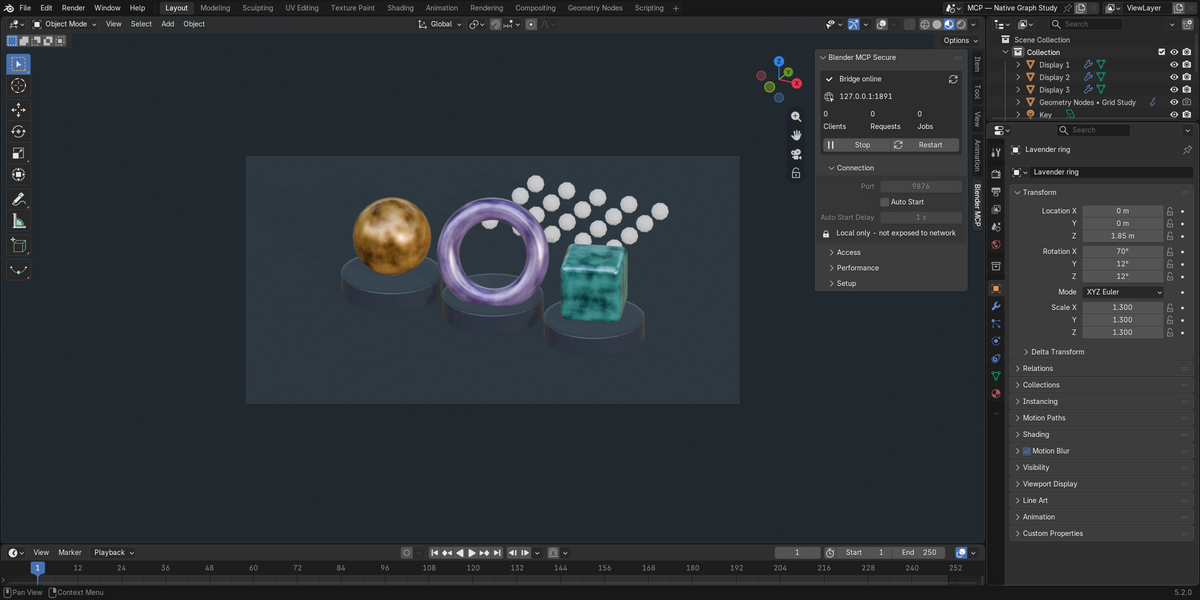
The Blender MCP sidebar tab contains bridge status and Start/Stop/Restart controls. Clients, active requests, and jobs provide operational feedback; they are not a complete audit trail of every scene change. Refresh updates status. The Connection section contains the port and startup settings. The listener remains at 127.0.0.1; 9876 is the usual port. Change a conflicting port while stopped and restart the bridge.
Access contains separate permission gates. Changing a preference may require restarting the bridge; heed any panel notice about unapplied settings. Performance controls active/idle polling intervals and logging. Defaults are suitable for a first test; lower intervals are not a universal speed improvement. Setup includes the first-test prompt and Discord support link. Preferences expose the same core settings.
Auto Start controls startup behavior. Stop the bridge to disconnect it temporarily without uninstalling the product. Restart rotates the session token and closes existing bridge sockets; clients may need to reconnect. On 4.2+, a disabled global Online Access setting blocks startup even for this local listener.
Access levels and privacy
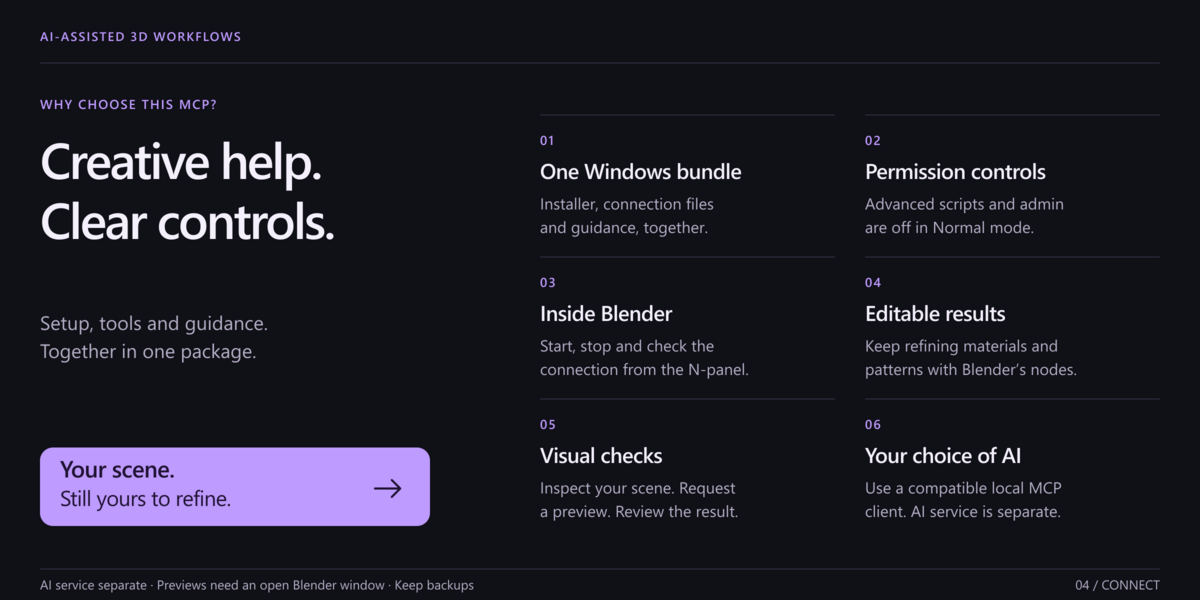
Normal mode offers validated structured operations and allows bundled companion tool-code for compatibility features. Arbitrary Python, administration, third-party operator execution, and unauthenticated legacy clients remain off. Trusted tool-code is still a privilege: a compromised companion package could abuse it. Disable that gate for a structured-only deployment, accepting that some compatibility tools will then be unavailable.
Expert Python requires the add-on gate and companion opt-in. The Expert launcher enables raw Python, administration, and third-party operators. This grants agents Blender's full OS-user file, process, and network authority. It is not a sandbox. Separate CLI Python execution is another companion opt-in that launches a background Blender process. Leave legacy protocol support off; it is unauthenticated and exists for migration, not normal use.
Loopback and random per-session authentication protect against unauthenticated clients; they do not protect against malicious software already running as your OS user. Requests/responses and captured output are bounded. The bridge does not include telemetry, a remote control service, or a license server. However, your chosen MCP/AI client can send tool results, scene information, and images to its provider. Review that provider's privacy terms and avoid confidential scenes without appropriate authorization. Never publish discovery descriptors or tokens.
Workflow: inspect, plan, edit, verify
Start from a saved duplicate, inspect available operations, choose explicit object/data-block names, ask for a small change, then re-inspect and visually check Blender. These prompts illustrate workflows; they are not promises of identical results across AI models.
Scene and objects: “Inspect the scene and identify its active camera. Add a cube named MCP_Test in a new MCP_Test collection; leave existing objects unchanged.” Confirm the collection, object type, and transforms. Object/collection tools also cover duplicates, deletion, visibility, lights, text, and supported modifiers. Deletion is destructive; explicitly scope it.
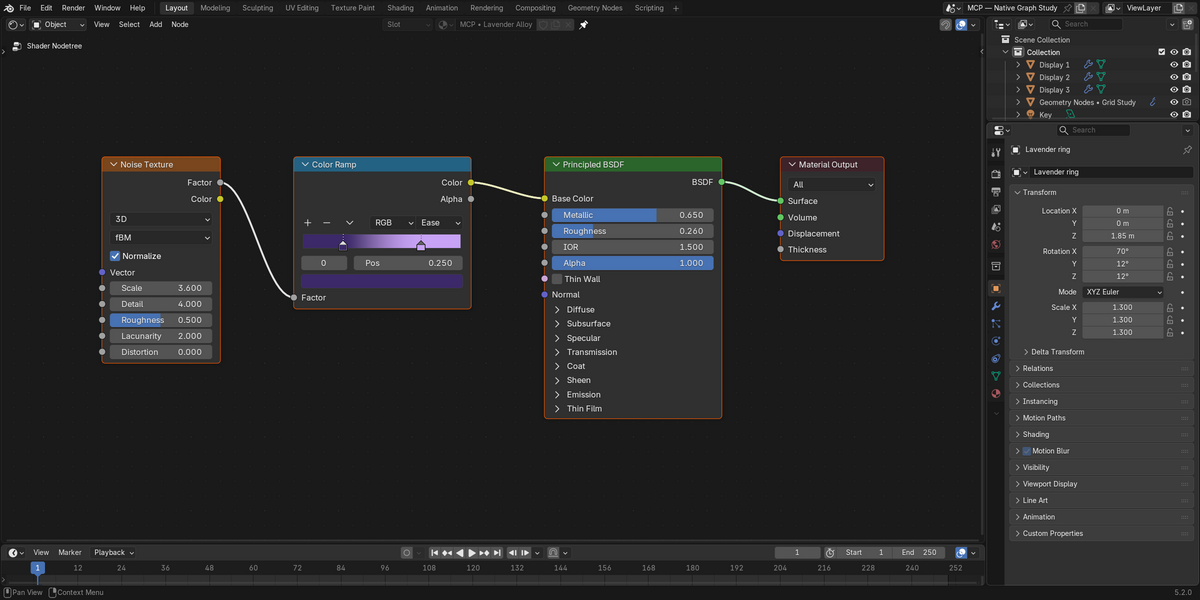
Materials and world: “On MCP_Test only, create a named material using Noise Texture, Color Ramp, Principled BSDF, and Material Output. Inspect sockets before linking them, then report the final links.” The graph API supports node creation/removal, links, writable properties, socket defaults, ramps, and group interfaces. Inspect by identifier/name rather than assuming socket positions. A world graph can be edited separately from a material graph.
Geometry Nodes: “Create a new pass-through geometry group on MCP_Test, preserving the original geometry, and inspect its interface and links.” Build a small working graph before adding generators, instances, or simulations. Availability of node types and interface panels follows the installed Blender version. A graph that can be constructed is not automatically a well-performing or artistically useful procedural system.
Compositor: “Inspect the scene's compositor graph and add only the agreed nodes after checking this Blender version's available outputs.” Blender 5.x uses different compositor data arrangements; do not copy old socket/node assumptions blindly. Review rendered output, not just graph connectivity.
Modeling, UVs, sculpting, retopology, and weights: named structured operations provide topology edits, transforms, UV layers/projection, vertex groups/weights, and sculpt/retopology entry points. “Duplicate MCP_Test, subdivide the duplicate, smart-project its UVs, and report counts and UV layers.” These are not substitutes for an artist's brush control, production retopology judgment, or deformation review. Operators may need an active mesh, selection, and correct mode.
Rigging and animation: tools cover armatures/edit bones, pose transforms, constraints, drivers/variables, keyframes, and detailed F-curve data. “Create a separate two-bone test rig; animate one transform between frames 1 and 24 and report the curve and interpolation.” Verify bone parenting, driver targets, scene frame range, action slots, and resulting motion. Automatic professional character rigging is not promised.
I/O, rendering, baking, caches, and assets: supported tools call allowlisted formats/operations provided by the running Blender build. Use an explicit destination and agree on overwrite behavior. Render a low-resolution test before committing to final settings. Baking requires suitable objects/materials/UVs and engine configuration; caches require compatible simulation data. Asset marking and metadata are not a full substitute for every Asset Browser UI or external library service. These operations can write files and are excluded from atomic transactions.
Third-party add-ons and preferences: administration and operator calls have separate gates. Inspect available operators, parameters, and context before invoking one. Modal workflows, activation/licensing, logins, and add-on-specific UI may remain manual. Preference saves create backups, but do not enable administration merely to work on a scene. Installing untrusted Python add-ons is equivalent to installing executable code.
Visual feedback, jobs, and transactions
Viewport/window captures need an interactive UI and a suitable editor context. A background process cannot supply a real viewport screenshot. The tools can report unavailability; do not interpret an old image as a fresh result. Visual feedback sessions are bounded polling/capture workflows, not an uninterrupted video stream or guaranteed visibility of every change. Stop sessions and inspect job status when finished. A timeout does not prove a long-running operation was cancelled; check status before retrying.
Atomic transactions are restricted to eligible undoable in-memory structured operations in an interactive Blender session with Global Undo. Preflight rejects unsupported contexts before a batch starts. A failed eligible batch can use its savepoint to roll back. Arbitrary Python, file writes, imports/exports, render/bake/cache/save operations, jobs, preferences, package/repository changes, third-party operators, and visual sessions are excluded. There is no guaranteed rollback of arbitrary OS or network effects. Keep file backups regardless of Undo.
Troubleshooting and recovery
No tools or server fails to start: confirm the companion is installed in the exact Python environment specified in the client command. Check the executable path and client logs; do not paste full sensitive configurations into support. Restart the client fully after changes.
Tools exist but no Blender is found: check Bridge online in the intended Blender window, correct OS user/PID, Online Access on 4.2+, and whether the bridge was restarted. Do not expose port 9876 through a firewall, tunnel, or router to solve local discovery.
Port already in use: stop the bridge and choose a free port in Connection, then restart. Do not terminate an unrelated Blender process. Ensure duplicate copies of the add-on are not enabled.
Permission denied: read which gate the tool requires. Enable only a capability you intend to authorize, apply/restart the bridge, and enable the companion side if required. Do not use Expert mode as a generic error workaround.
Wrong object or operator context error: re-inspect the active object, selection, mode, editor, and exact data-block names. Retry a small explicit operation, not an entire destructive batch.
Installer fails during inspection: save its output and backup path. Logs sit in the printed backup directory. Confirm that Blender is closed and the requested version/package is correct. Do not factory-reset preferences. If unsure whether configuration changed, compare against the timestamped backups before retrying.
Download, certificate, or checksum failure: setup stops before changing Blender or client settings. Check internet access and whether your network permits HTTPS downloads from files.pythonhosted.org, then retry. Do not disable TLS or checksum verification, install an unverified replacement wheel, or use Expert mode as a workaround. Keep the printed dependency-setup logs and contact support if it persists. Setup/retry needs internet even if a previous environment exists.
No reviewed lock for this Python: the guided installer covers Windows x64 CPython 3.10–3.13. Use a supported official Blender build or contact support; the installer will not silently choose unreviewed dependency versions.
Missing preferences/add-ons after a failed setup: stop further writes and close Blender after saving scene work separately. Locate the original profile and installer backup. Restore only the correct prior userpref.blend for that Blender version, with Blender closed, after keeping a copy of the current file. Do not replace entire profile directories or unrelated extensions. Ask support for help if the active profile is unclear.
Updating and removing
Before updating, save scenes, close Blender and relevant clients, and keep the prior download and configuration backup. Install the matching new bridge and companion together. Avoid enabling duplicate legacy and extension copies. Re-run the read-only connection test and a small duplicate-scene workflow. Review release notes before carrying Expert permissions into a new release.
To remove: stop the bridge, disable/uninstall Blender MCP Secure in the appropriate Blender preferences page, and remove only its blender MCP entry from each configured client. Remove the dedicated runtime folder only after confirming it is the product's own installation and no longer needed. Optional agent guidance can be removed from the product-specific skill folder. Preserve backups and all unrelated client entries, add-ons, preferences, and .blend files. There is no blanket automatic restoration of a previous profile.
Licensing, support, and credits
Software is GPL-3.0-or-later; source and full license are included. Individual and Business / Studio are buyer categories with identical software/features, not extra restrictions on GPL use, modification, or redistribution. No priority-support benefit or seat restriction is implied. Check the actual listing for its chosen paid Support Period status; this manual does not promise lifetime updates or a response-time SLA.
Use Superhive order messaging for purchase-specific help. Community/setup support: Discord. More products: Tachyon Studio on Superhive. Include Blender/product versions, OS, client, access mode, minimal reproduction, and sanitized error text. Do not share private scenes, tokens, credentials, or personal information publicly.
This product derives from Blender Lab's blender_mcp project. Original notices are retained. The bundled Blender 4.3 manual is CC-BY-SA 4.0; runtime dependencies retain their own licenses. See THIRD_PARTY_NOTICES.md and the supplied full license texts. Blender and client names identify compatibility; this product is not presented as endorsed by their owners.
-
$4.99
For 1 person (1 seat). Commercial use included.
-
$19.96
For a team of up to 6 people (6 seats). Commercial use included.
-
$49.90
For a studio of up to 20 people (20 seats). Commercial use included. Need more than 20 seats? Contact us directly.
Have questions about this product?
Login to message
| Blender Extension Compatible | Yes |
| Published | 7 days ago |
| Blender Version | 3.3 - 5.2 |
| Extension Type | Add-on |
| License | GPL |
Discover more products like this
geometry nodes automation node graphs Workflow MCP materials