BlingForge — Gem + Prong Generator
 Heaven Studios


BLINGFORGE 1.1.0 — DOCUMENTATION
Gem + Prong Generator for Blender 3.0–5.2
Created by Mel Softpaw ♡
◆ WHAT’S NEW IN BLINGFORGE 1.1.0
BlingForge 1.1.0 is the largest BlingForge update so far. It expands the gem and prong workflow while giving creators more freedom over placement, materials, UVs, symmetry, presets, and export organization.
New and improved features
Expanded gem and prong libraries
Custom gems and custom prongs
Mixed-gem patterns using up to four different gems
Manual or random gem assignment
Straight gem alignment
Mirror and symmetry bling
Curve-path placement
Complete BlingForge presets
Improved Live Preview workflow
Smarter export checks
Second Life, Custom Limits, and No Limits export profiles
New custom-gem UV preparation options
BlingForge Crystal, Blender Material, and Image Texture workflows
General stability and workflow improvements
◆ INSTALLATION
Download the BlingForge 1.1.0 ZIP file.
Do not unzip the addon before installing it.
Open Blender.
Go to Edit → Preferences → Add-ons.
Click Install and select the BlingForge ZIP file.
Enable BlingForge.
Open the 3D Viewport and press N.
Select the BlingForge tab in the sidebar.
If an earlier version is installed, remove or disable the old version before installing 1.1.0. Restart Blender if the updated panel does not appear immediately.
◆ QUICK START
Select the mesh you want to add bling to.
Open the BlingForge panel from the 3D Viewport sidebar.
Choose an Export Profile before beginning.
Under Where to Bling, choose your placement source:
Selected Faces
Selected Vertices
Whole Mesh
Curve Path, when using a curve-based setup
Enable Add Gems, Add Prongs, or both.
Choose a gem or prong from the BlingForge library, or select a custom source.
Adjust coverage, proportions, rotation, alignment, lift, and other placement controls.
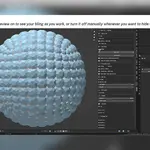
Turn on Live Preview to inspect the result.
Continue adjusting the setup until you are happy with it.
Click Keep This Bling to finalize and organize the generated geometry.
Save your .blend file before generating or finalizing a large amount of geometry.
◆ WHERE TO BLING
Selected Faces
Use Selected Faces when you want precise control over which parts of a mesh receive bling.
Select a mesh object.
Enter Edit Mode.
Switch to face selection.
Select the faces you want to use.
Generate or refresh the preview.
You can select a small area for detailed placement or select many faces for broader coverage.
Selected Vertices
Use Selected Vertices when you want placement based on specific vertices.
Select a mesh object.
Enter Edit Mode.
Switch to vertex selection.
Select the vertices you want to use.
Generate or refresh the preview.
This mode is useful when you need direct control over individual placement points.
Whole Mesh
Use Whole Mesh to distribute bling across the available surface of the selected mesh without manually selecting faces or vertices.
Curve Path
Use Curve Path placement to arrange bling along a Blender curve. This is useful for borders, lettering, decorative lines, chains, and other guided designs.
Select the required mesh and curve objects, choose the curve-based placement workflow, and adjust the available spacing, alignment, rotation, and sizing controls for the result you want.
◆ LIVE PREVIEW
Live Preview lets you view generated bling while changing your setup without permanently adding the preview geometry to the scene.
Turn Live Preview on or off at any time.
Use Refresh Bling after changing a setting when a manual refresh is needed.
Use Start Over / Remove Preview to clear the temporary preview.
Preview geometry remains outside the main scene collection until it is kept.
Preview geometry is temporary until you click Keep This Bling.
◆ EXPORT PROFILE
Choose what you are creating for before you begin. The selected profile controls how BlingForge organizes finalized geometry for export.
Second Life
The Second Life profile uses a practical export workflow with:
A 19,000-triangle safety target per material
Up to 8 material slots per export object
If the generated bling exceeds those targets, BlingForge can create additional material groups and export objects while keeping the result organized.
Custom Limits
Use Custom Limits for games, virtual worlds, custom engines, marketplace assets, or any project with its own performance requirements.
You can define your own:
Triangle limit per material
Material slots per export object
BlingForge then organizes the generated geometry around the limits you choose.
No Limits
Use No Limits when you do not want BlingForge to apply automatic triangle or material restrictions.
This profile is useful for:
High-detail renders
Portfolio work
Product visualization
Experimental projects
Unrestricted 3D artwork
Smarter export checks
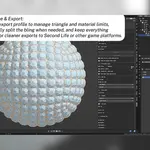
BlingForge 1.1.0 checks the generated setup before finalization and reports anything that may prevent a clean export. Review the checklist in the Performance & Export area before keeping a large setup.
◆ PRESETS
Presets let you save and reuse a complete BlingForge setup.
Save a preset
Configure your BlingForge settings.
Enter a preset name.
Click Save Current Setup.
Load a preset
Choose a saved preset.
Click Load Preset.
Select a valid target and refresh the preview if needed.
You can also rename or delete saved presets from the Presets section.
What presets do not save
Presets do not save target objects, curve objects, mesh selections, or manual face assignments. Custom source references load only when the referenced object or material exists in the current .blend file.
◆ GEM WORKFLOW
Enable Add Gems to generate gems.
Gem source
Choose between:
BlingForge Library — use a gem included with BlingForge.
Custom Gem — use a compatible mesh from your own .blend file.
Gem patterns
Use a single gem for a consistent design or a mixed-gem pattern for more variation. BlingForge 1.1.0 supports up to four different gems in a mixed setup.
Depending on the selected pattern, gems can be assigned:
Manually
Randomly
Manual face assignments are specific to the current target and are not stored in presets.
Gem controls
Available controls may include:
Face coverage
Gem width
Gem length
Gem height
Gem detail
Auto Fit to Faces
Surface Lift
Rotation
Random rotation
Placement settings
Gem Detail balances visual detail and geometry performance. Higher detail produces denser geometry.
Surface Lift controls how far the generated bling sits above the source surface.
Straight alignment
Enable Keep Gems Straight when the gem tops should remain aligned instead of rotating freely with the surface.
Choose the available direction that best fits the design, then use rotation controls for additional adjustment.
Favorites
Use the favorite control to mark frequently used library gems for faster access.
◆ CUSTOM GEM UV PREPARATION
BlingForge 1.1.0 includes three UV preparation options for custom gems.
Front-Facing Stacked
Creates a stacked UV layout focused on the front-facing area of the custom gem. Use this when the visible front surface is the main texturing priority.
Preserve Source UV
Keeps the UV map already present on the custom gem. Use this when the custom mesh has a finished UV layout that should not be replaced.
Auto Clean Unwrap
Creates a new, clean UV using BlingForge’s topology-based UV workflow. Use this when the custom gem needs a fresh UV layout prepared automatically.
Inspect custom-gem UVs before final export, especially when using unusual topology.
◆ GEM MATERIALS
Choose how generated gems receive their material.
BlingForge Crystal
Uses BlingForge’s built-in crystal material workflow. Select the available crystal option that fits your design.
Blender Materials
Uses a compatible material from the current Blender file.
Image Textures
Uses an image-texture workflow for the generated gems. Confirm that the required images are packed into the .blend file or included with the exported project when needed.
◆ PRONG WORKFLOW
Enable Add Prongs to generate prongs.
Prongs can use the expanded BlingForge prong library or a compatible custom prong. Gems and prongs can be generated together or independently.
Prong-only workflow
Generate and preview the gems.
Click Keep This Bling to finalize the gems.
Return to the original source mesh.
Disable Add Gems.
Enable Add Prongs.
Generate, adjust, and keep the prongs separately.
This lets you update prongs without regenerating finalized gems.
Prong controls
Available controls may include:
Prong count
Thickness
Overall size
Height
Spacing
Grip
Rotation
Detail
Metal appearance
Auto Fit
◆ MIRROR AND SYMMETRY BLING
Use Mirror Bling when a design should be repeated symmetrically. This can reduce repetitive placement work on matching sides of jewelry, accessories, lettering, and other balanced designs.
Set up and inspect the original side first, enable the symmetry option, and confirm the mirrored preview before finalizing. Apply the source object’s transforms when necessary so the mirror behaves as expected.
◆ KEEP THIS BLING
Keep This Bling converts the temporary preview into finalized Blender geometry.
BlingForge automatically organizes the generated pieces into clean objects and collections so they are easier to edit, texture, and export.
Gems and prongs remain organized.
Materials are assigned according to the selected setup.
Geometry is joined or split according to the selected export profile.
Front-facing stacked UVs are generated automatically where the workflow requires them.
Confirm your target, materials, UV settings, and export profile before finalizing.
◆ MATERIALS AND OBJECT ORGANIZATION
After the bling is kept, BlingForge can join generated geometry and create the material groups required by the selected export workflow.
Large setups may be divided into additional material groups or joined export objects when necessary. This behavior is expected when a setup exceeds the limits of the selected profile.
◆ CLEAN STACKED UVs
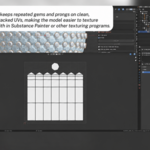
BlingForge generates repeated library gems and prongs with clean, stacked UV layouts. Identical repeated pieces can share texture space instead of requiring each copy to be textured separately.
Common generated UV names include:
Gem UV: BF_Gem_Stacked_UV
Prong UV: BF_Prong_UV
Custom gems use the UV preparation option chosen in the custom-gem workflow.
◆ SUBSTANCE PAINTER WORKFLOW
A common workflow is:
Generate BlingForge geometry in Blender.
Click Keep This Bling.
Inspect the finalized objects, materials, and UVs.
Export the finalized objects.
Import them into Substance Painter.
Texture the stacked gem and prong UVs.
Export textures for the final platform.
Substance Painter is not required to use BlingForge. The UV workflow can also be used with other texturing applications.
◆ REMOVE OR START OVER
To restart a setup:
Use Start Over / Remove Preview to clear temporary preview geometry.
Use the available remove controls to remove finalized gems, prongs, or both when applicable.
Return to the original source mesh before building a new setup.
Always verify which objects are selected before removing finalized geometry.
◆ COMPATIBILITY
Blender 3.0–5.2
Windows, macOS, and Linux wherever supported by Blender
General Blender workflows
Second Life workflows
Game and real-time workflows through Custom Limits
Unrestricted rendering workflows through No Limits
Substance Painter-friendly UV workflow
◆ FULL VIDEO TUTORIAL
Watch the complete BlingForge 1.1.0 tutorial:
https://www.youtube.com/watch?v=SlP3Vgn6Kck
◆ SUPPORT AND COMMUNITY
For guides, updates, setup help, bug reports, feature requests, and community creations, join the Heaven Studios Discord:
https://discord.gg/q5YPcM39Hq
Buyer-only support areas, downloads, or updates may require purchase verification.
◆ LICENSE
BlingForge addon code is distributed under the GNU General Public License v3.0 or later (GPL-3.0-or-later). Review the license included with the addon for the complete terms.
Commercial use of original work created with BlingForge is allowed. Jewelry, accessories, game assets, Second Life items, renders, and other original creations made using BlingForge remain your work.
BlingForge 1.1.0
Created by Mel Softpaw ♡
Created by Mel Softpaw ♡
New and improved features
Expanded gem and prong libraries
Custom gems and custom prongs
Mixed-gem patterns using up to four different gems
Manual or random gem assignment
Straight gem alignment
Mirror and symmetry bling
Curve-path placement
Complete BlingForge presets
Improved Live Preview workflow
Smarter export checks
Second Life, Custom Limits, and No Limits export profiles
New custom-gem UV preparation options
BlingForge Crystal, Blender Material, and Image Texture workflows
General stability and workflow improvements
Do not unzip the addon before installing it.
Open Blender.
Go to Edit → Preferences → Add-ons.
Click Install and select the BlingForge ZIP file.
Enable BlingForge.
Open the 3D Viewport and press N.
Select the BlingForge tab in the sidebar.
If an earlier version is installed, remove or disable the old version before installing 1.1.0. Restart Blender if the updated panel does not appear immediately.
Open the BlingForge panel from the 3D Viewport sidebar.
Choose an Export Profile before beginning.
Under Where to Bling, choose your placement source:
Selected Faces
Selected Vertices
Whole Mesh
Curve Path, when using a curve-based setup
Enable Add Gems, Add Prongs, or both.
Choose a gem or prong from the BlingForge library, or select a custom source.
Adjust coverage, proportions, rotation, alignment, lift, and other placement controls.
Turn on Live Preview to inspect the result.
Continue adjusting the setup until you are happy with it.
Click Keep This Bling to finalize and organize the generated geometry.
Save your
.blend file before generating or finalizing a large amount of geometry.
Use Selected Faces when you want precise control over which parts of a mesh receive bling.
Select a mesh object.
Enter Edit Mode.
Switch to face selection.
Select the faces you want to use.
Generate or refresh the preview.
You can select a small area for detailed placement or select many faces for broader coverage.
Selected Vertices
Use Selected Vertices when you want placement based on specific vertices.
Select a mesh object.
Enter Edit Mode.
Switch to vertex selection.
Select the vertices you want to use.
Generate or refresh the preview.
This mode is useful when you need direct control over individual placement points.
Whole Mesh
Use Whole Mesh to distribute bling across the available surface of the selected mesh without manually selecting faces or vertices.
Curve Path
Use Curve Path placement to arrange bling along a Blender curve. This is useful for borders, lettering, decorative lines, chains, and other guided designs.
Select the required mesh and curve objects, choose the curve-based placement workflow, and adjust the available spacing, alignment, rotation, and sizing controls for the result you want.
Turn Live Preview on or off at any time.
Use Refresh Bling after changing a setting when a manual refresh is needed.
Use Start Over / Remove Preview to clear the temporary preview.
Preview geometry remains outside the main scene collection until it is kept.
Preview geometry is temporary until you click Keep This Bling.
Second Life
The Second Life profile uses a practical export workflow with:
A 19,000-triangle safety target per material
Up to 8 material slots per export object
If the generated bling exceeds those targets, BlingForge can create additional material groups and export objects while keeping the result organized.
Custom Limits
Use Custom Limits for games, virtual worlds, custom engines, marketplace assets, or any project with its own performance requirements.
You can define your own:
Triangle limit per material
Material slots per export object
BlingForge then organizes the generated geometry around the limits you choose.
No Limits
Use No Limits when you do not want BlingForge to apply automatic triangle or material restrictions.
This profile is useful for:
High-detail renders
Portfolio work
Product visualization
Experimental projects
Unrestricted 3D artwork
Smarter export checks
BlingForge 1.1.0 checks the generated setup before finalization and reports anything that may prevent a clean export. Review the checklist in the Performance & Export area before keeping a large setup.
Save a preset
Configure your BlingForge settings.
Enter a preset name.
Click Save Current Setup.
Load a preset
Choose a saved preset.
Click Load Preset.
Select a valid target and refresh the preview if needed.
You can also rename or delete saved presets from the Presets section.
What presets do not save
Presets do not save target objects, curve objects, mesh selections, or manual face assignments. Custom source references load only when the referenced object or material exists in the current
.blend file.
Gem source
Choose between:
BlingForge Library — use a gem included with BlingForge.
Custom Gem — use a compatible mesh from your own
.blend file.Gem patterns
Use a single gem for a consistent design or a mixed-gem pattern for more variation. BlingForge 1.1.0 supports up to four different gems in a mixed setup.
Depending on the selected pattern, gems can be assigned:
Manually
Randomly
Manual face assignments are specific to the current target and are not stored in presets.
Gem controls
Available controls may include:
Face coverage
Gem width
Gem length
Gem height
Gem detail
Auto Fit to Faces
Surface Lift
Rotation
Random rotation
Placement settings
Gem Detail balances visual detail and geometry performance. Higher detail produces denser geometry.
Surface Lift controls how far the generated bling sits above the source surface.
Straight alignment
Enable Keep Gems Straight when the gem tops should remain aligned instead of rotating freely with the surface.
Choose the available direction that best fits the design, then use rotation controls for additional adjustment.
Favorites
Use the favorite control to mark frequently used library gems for faster access.
Front-Facing Stacked
Creates a stacked UV layout focused on the front-facing area of the custom gem. Use this when the visible front surface is the main texturing priority.
Preserve Source UV
Keeps the UV map already present on the custom gem. Use this when the custom mesh has a finished UV layout that should not be replaced.
Auto Clean Unwrap
Creates a new, clean UV using BlingForge’s topology-based UV workflow. Use this when the custom gem needs a fresh UV layout prepared automatically.
Inspect custom-gem UVs before final export, especially when using unusual topology.
BlingForge Crystal
Uses BlingForge’s built-in crystal material workflow. Select the available crystal option that fits your design.
Blender Materials
Uses a compatible material from the current Blender file.
Image Textures
Uses an image-texture workflow for the generated gems. Confirm that the required images are packed into the
.blend file or included with the exported project when needed.
Prongs can use the expanded BlingForge prong library or a compatible custom prong. Gems and prongs can be generated together or independently.
Prong-only workflow
Generate and preview the gems.
Click Keep This Bling to finalize the gems.
Return to the original source mesh.
Disable Add Gems.
Enable Add Prongs.
Generate, adjust, and keep the prongs separately.
This lets you update prongs without regenerating finalized gems.
Prong controls
Available controls may include:
Prong count
Thickness
Overall size
Height
Spacing
Grip
Rotation
Detail
Metal appearance
Auto Fit
Set up and inspect the original side first, enable the symmetry option, and confirm the mirrored preview before finalizing. Apply the source object’s transforms when necessary so the mirror behaves as expected.
BlingForge automatically organizes the generated pieces into clean objects and collections so they are easier to edit, texture, and export.
Gems and prongs remain organized.
Materials are assigned according to the selected setup.
Geometry is joined or split according to the selected export profile.
Front-facing stacked UVs are generated automatically where the workflow requires them.
Confirm your target, materials, UV settings, and export profile before finalizing.
Large setups may be divided into additional material groups or joined export objects when necessary. This behavior is expected when a setup exceeds the limits of the selected profile.
Common generated UV names include:
Gem UV:
BF_Gem_Stacked_UV
Prong UV: BF_Prong_UV
Custom gems use the UV preparation option chosen in the custom-gem workflow.
Generate BlingForge geometry in Blender.
Click Keep This Bling.
Inspect the finalized objects, materials, and UVs.
Export the finalized objects.
Import them into Substance Painter.
Texture the stacked gem and prong UVs.
Export textures for the final platform.
Substance Painter is not required to use BlingForge. The UV workflow can also be used with other texturing applications.
Use Start Over / Remove Preview to clear temporary preview geometry.
Use the available remove controls to remove finalized gems, prongs, or both when applicable.
Return to the original source mesh before building a new setup.
Always verify which objects are selected before removing finalized geometry.
Windows, macOS, and Linux wherever supported by Blender
General Blender workflows
Second Life workflows
Game and real-time workflows through Custom Limits
Unrestricted rendering workflows through No Limits
Substance Painter-friendly UV workflow
Have questions about this product?
Login to message
| Published | 2 months ago |
| Blender Version | 3.0 - 5.2 |
| Extension Type | N/A |
| Render Engine Used | Cycles, Eevee |
| License | GPL |
Discover more products like this
blender addon rhinestones diamonds game assets jewelry 3d modeling gem generator prong generator Substance painter uv mapping Second Life roblox