Boolean Master
 Unik Studio
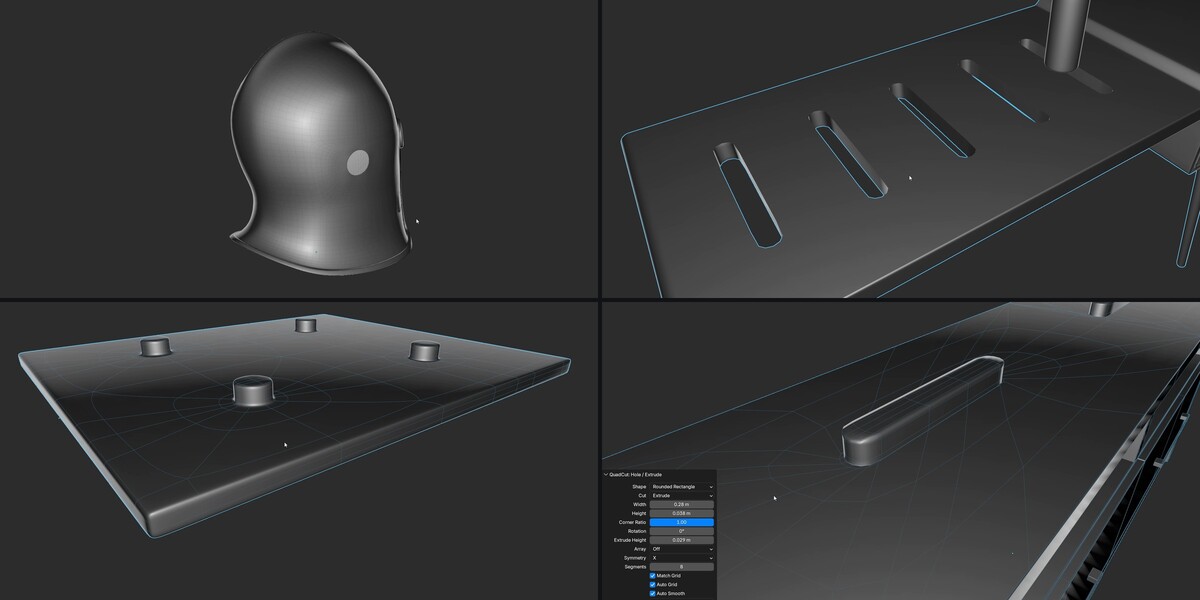
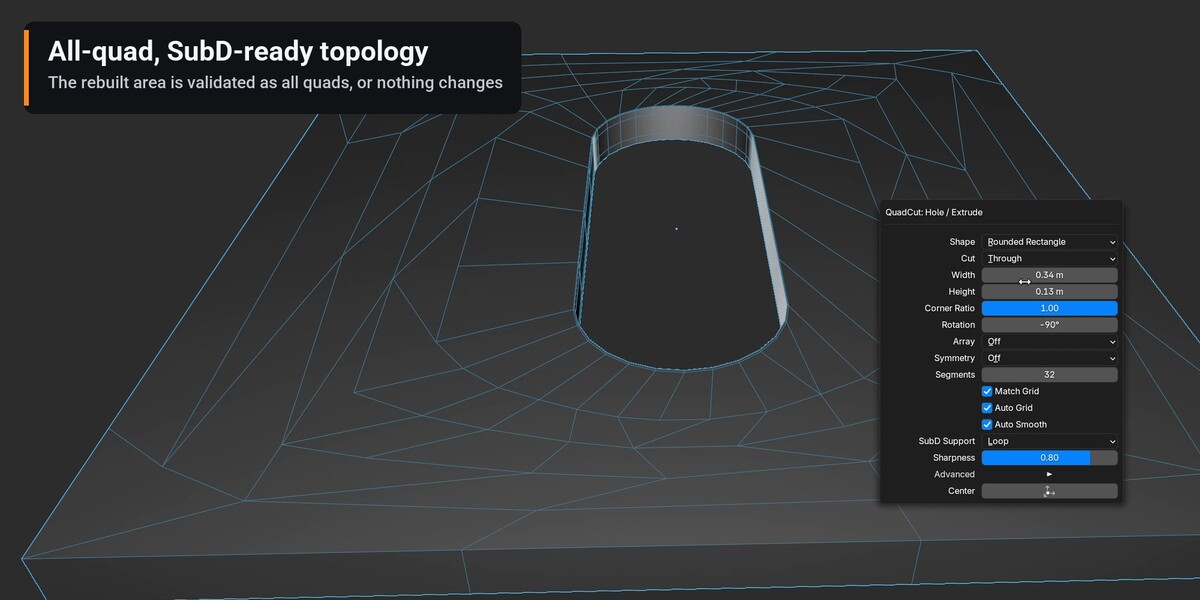



Install, update, uninstall
- Download
boolean_master-0.5.1.zip(Lite:boolean_master_lite-0.5.1.zip). Do not unzip it. - In Blender open Edit > Preferences > Get Extensions, open the ⌄ menu at the top right and choose Install from Disk… — or drag and drop the ZIP onto the Blender window.
- Boolean Master is enabled at once. It lives in the 3D View sidebar (N) under the Boolean Master tab, in the Object and Mesh menus and in F3 search.
Update / upgrade: install the new ZIP the same way; it replaces the old version, and the full ZIP replaces Lite. Uninstall: Preferences > Add-ons, open the ⌄ menu next to Boolean Master and choose Uninstall.
Quick start
- Select a mesh in Object or Edit Mode.
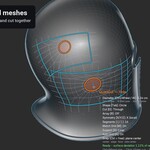
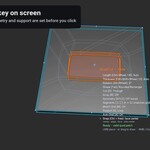
- Press Shift+Q and click where the center should be — or put the 3D cursor on the surface (Shift+Right-click) and press At Cursor / Active Face.
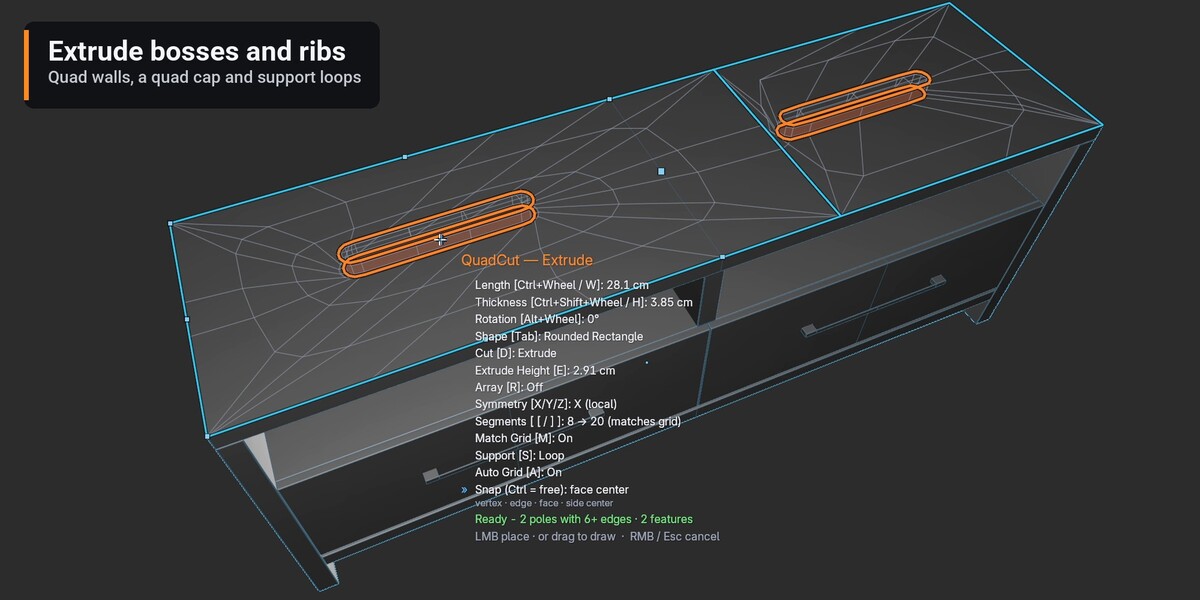
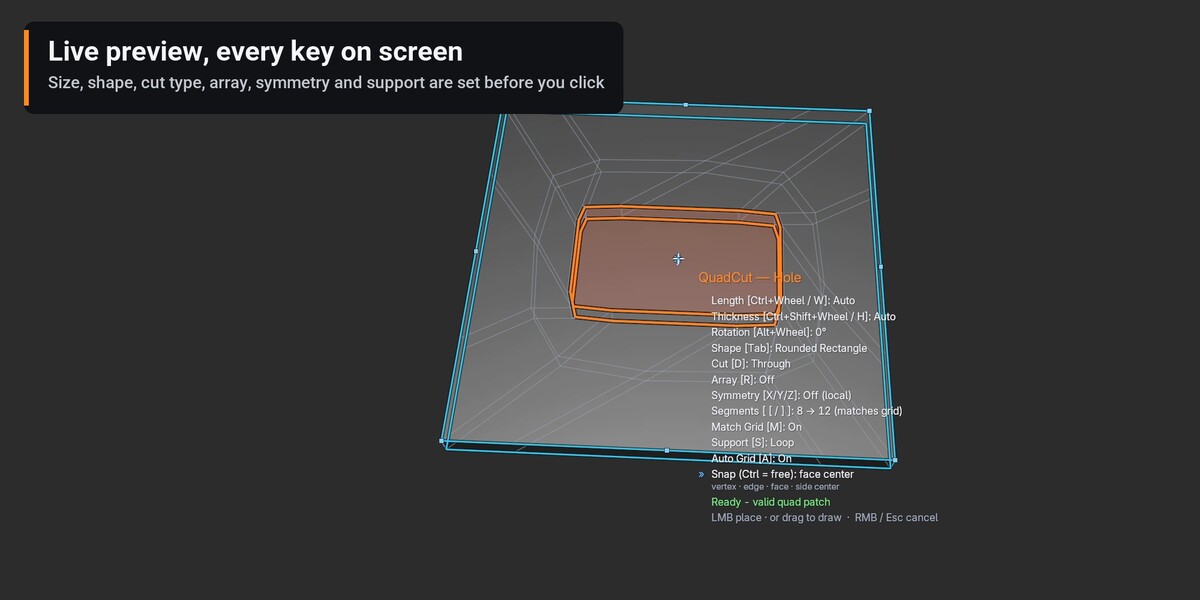
- Ctrl+Wheel sizes the hole, Tab changes the shape, D picks Through / Pocket / Extrude.
- Click or press Enter to cut; press, drag and release to draw a new shape and cut it.
- Esc or right-click cancels without changing the mesh. One Ctrl+Z undoes the cut, F9 edits it.
The settings of the last successful cut (including the resolved size) are reused for the next hole. A refused or cancelled cut does not replace them.
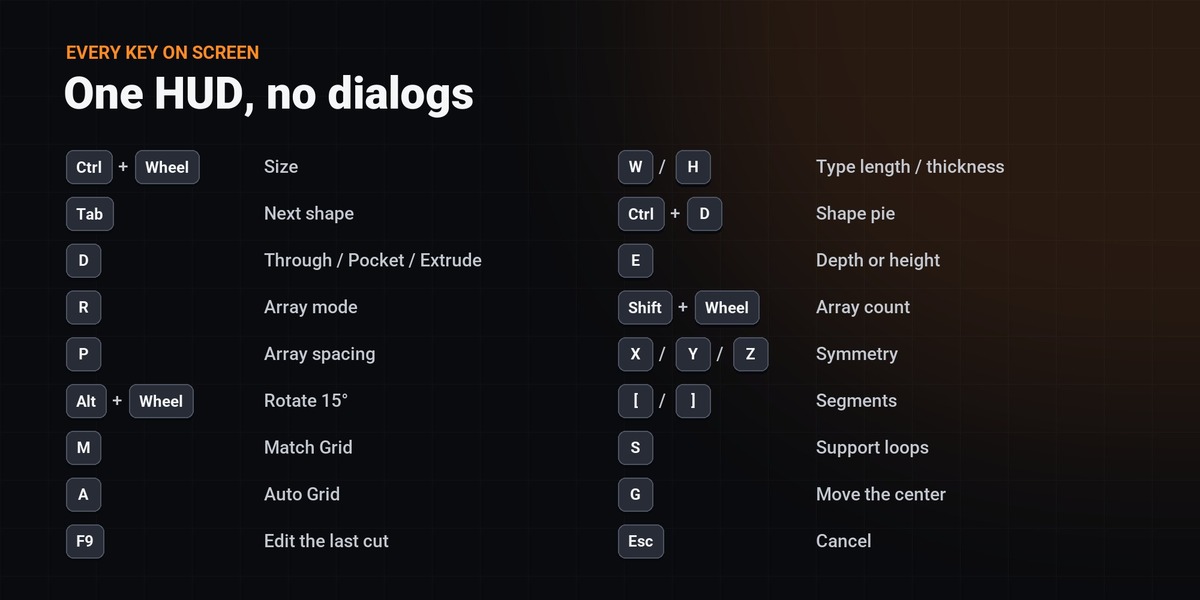
Keys while the preview is open
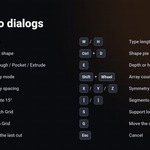
The same list is shown next to the cursor and in Quick Help in the sidebar. Shift+Q and Ctrl+D are only added when they do not conflict with an existing key; change them in Preferences > Add-ons > Boolean Master.
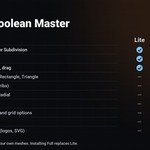
| KEY | ACTION | LITE |
|---|---|---|
| Shift+Q | Place a hole (default key, changeable) | ✓ |
| Ctrl+Wheel / type a number | Size, 10 % per step | ✓ |
| W / H , then type | Exact length / thickness (W only in Lite) | ✓ |
| Ctrl+Shift+Wheel | Thickness of two-dimensional shapes | — |
| Tab / Ctrl+D | Next shape / shape pie | — |
| D | Through / Pocket / Extrude | — |
| E / Ctrl+Alt+Wheel | Type / change Pocket depth or Extrude height | — |
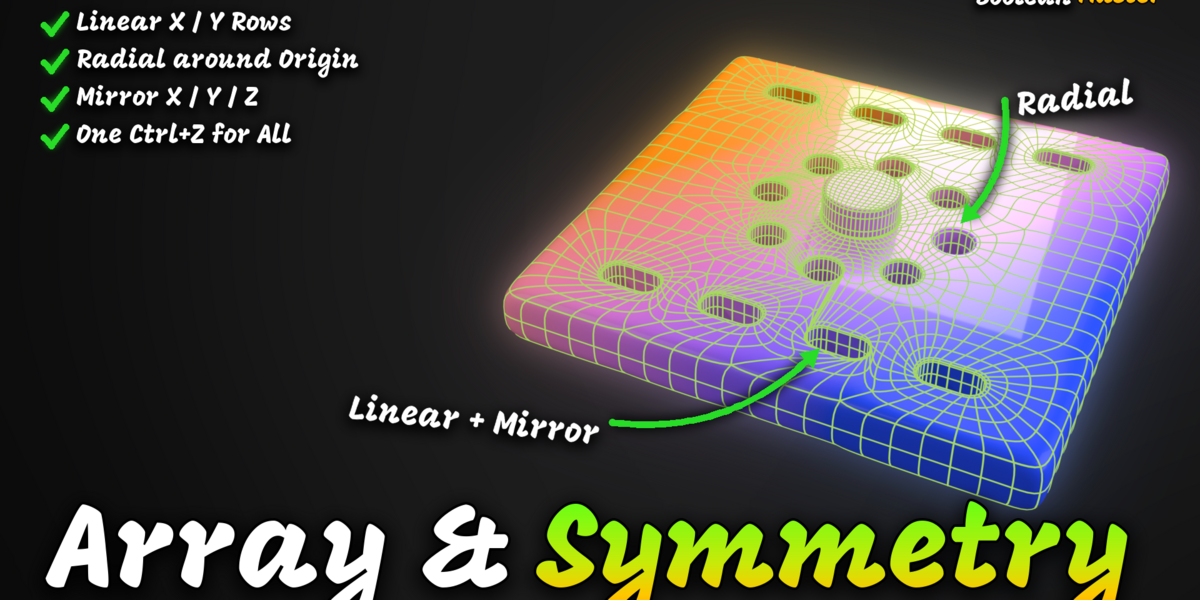
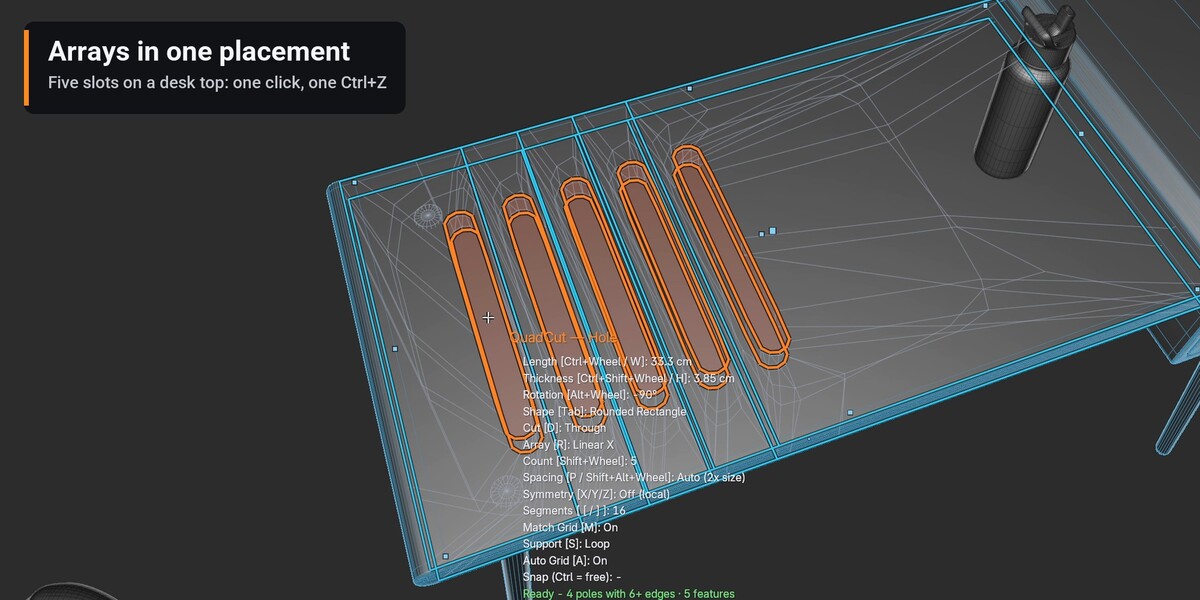
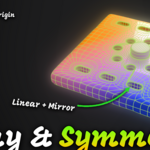
| R | Array: Off, Linear X, Linear Y, Radial | — |
| Shift+Wheel | Array count (2-32, the original included) | — |
| P / Shift+Alt+Wheel | Linear array spacing (automatic = 2 × size) | — |
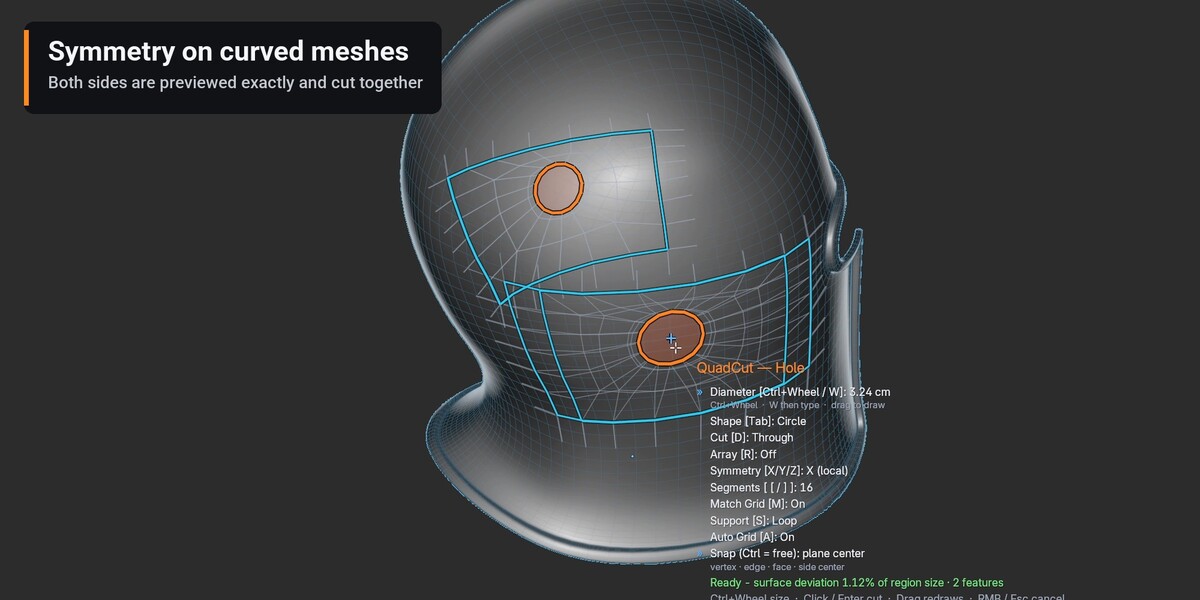
| X / Y / Z | Symmetry across the object origin | — |
| Alt+Wheel | Rotate 15° per step | — |
| [ / ] | Segments (rim edges, steps of 4, default 8) | — |
| M / S / A | Match Grid / Support: Loop, Crease, None / Auto Grid | — |
| G | Move the center again | ✓ |
| Ctrl (hold) | Place freely, no snapping | ✓ |
| Click / Enter | Cut; press, drag and release draws a new shape | ✓ |
| Wheel | Zoom the view (Blender) | ✓ |
| Esc / Right-click | Cancel, nothing changes | ✓ |
| F9 (after the cut) | Edit the last cut (Diameter only in Lite) | ✓ |
After the cut (F9)
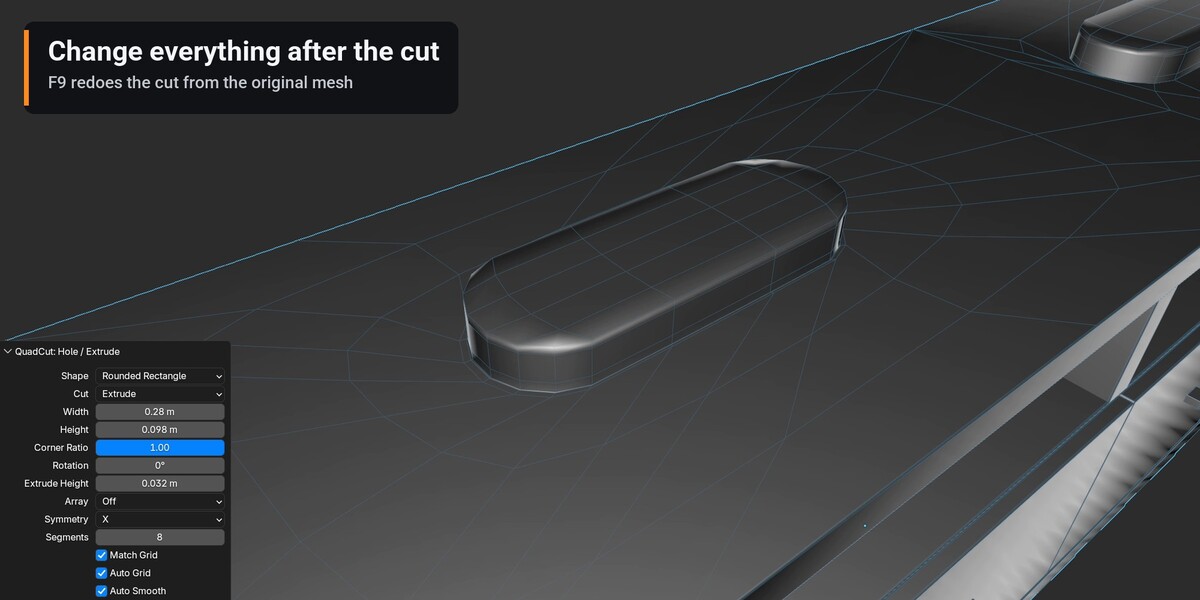
Every change is redone from the original mesh.
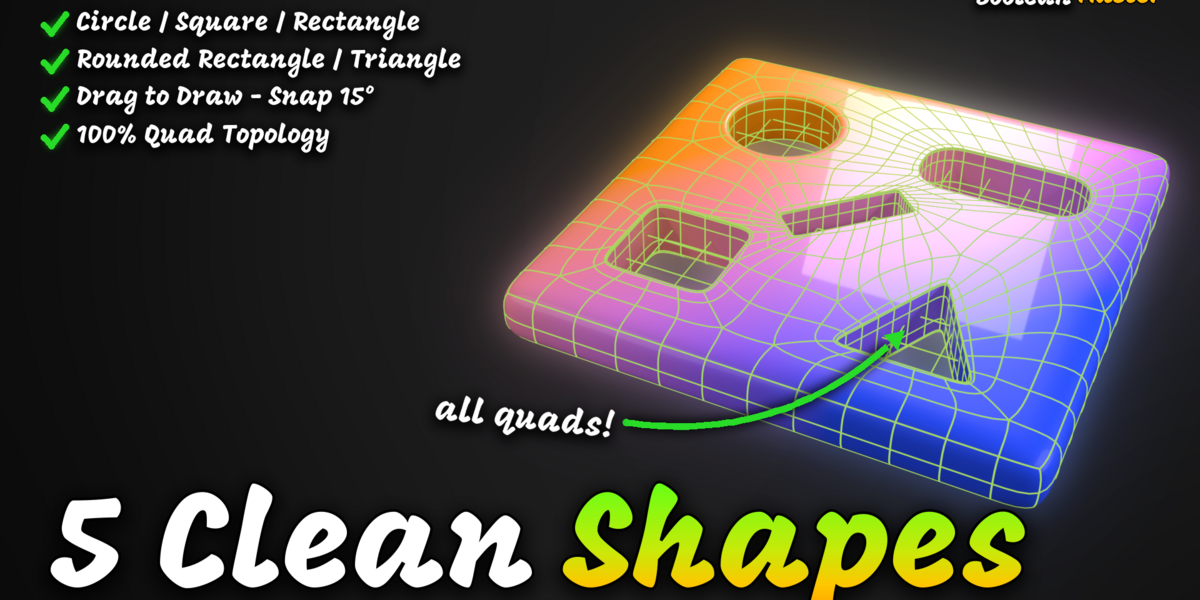
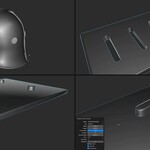
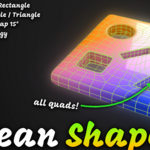
- ●Shape: Circle, Square, Rectangle, Rounded Rectangle, Triangle.
- ●Cut: Through, Pocket or Extrude.
- ●Diameter / Width / Height: Size of the outline; 0 = automatic (the resolved size is shown after the cut).
- ●Corner Ratio: Roundness of a Rounded Rectangle; 1.0 gives a pill.
- ●Rotation: Turns the outline on the surface.
- ●Depth / Extrude Height: Pocket depth or boss height.
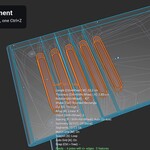
- ●Array, Count, Direction, Spacing: Linear X / Y or Radial copies; spacing 0 = automatic.
- ●Symmetry: Mirror on object X, Y or Z.
- ●Segments: Rim edges (multiples of 4). Match Grid may raise it on dense meshes.
- ●Match Grid / Auto Grid / Auto Smooth: Match the surrounding grid, prepare a coarse Plane/Cube, add Smooth by Angle and Weighted Normal once.
- ●SubD Support, Sharpness: Loop, Crease or None, and how tight the support sits.
- ●Center: Moves the hole onto the object axis through the origin, on the same side.
Cut Shape from Curve/Text
Lay a closed Curve or Text object over the surface, select it, Shift-select the mesh (active) and run Cut Shape from Curve/Text from the sidebar or the Object menu (Object Mode). Every closed outline is projected along the curve's local Z onto the mesh with its real size, position and rotation, and cut as Through, Pocket or Extrude. Several outlines (letters) are cut together and one Ctrl+Z removes them all. Min Segments sets the rim resolution.
Supported surfaces
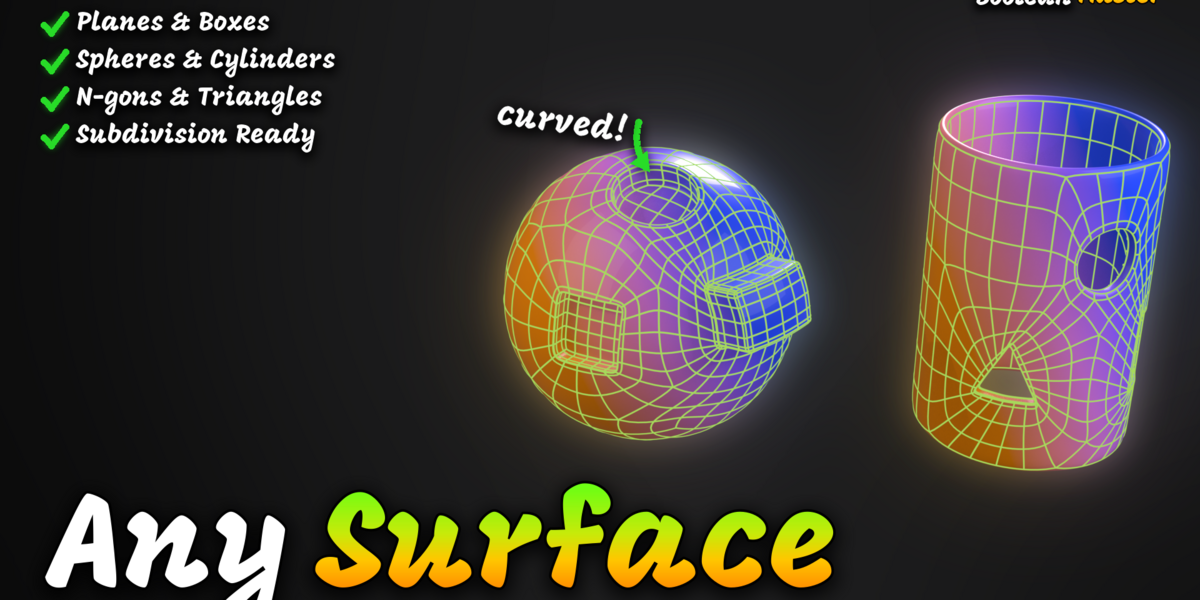
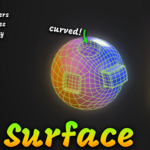
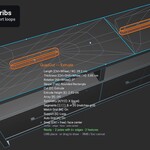
Regular quad surfaces are cut on the grid. A local free patch handles long strips, triangles, n-gons and areas near a previous hole, keeping the region boundary. Auto Grid adds a few loop cuts to a coarse Plane/Cube; Match Grid gives a dense mesh as many rim edges as the grid it replaces. Automatic size picks a size that fits; an explicit size that is blocked reports the largest size that fits.
Lite edition
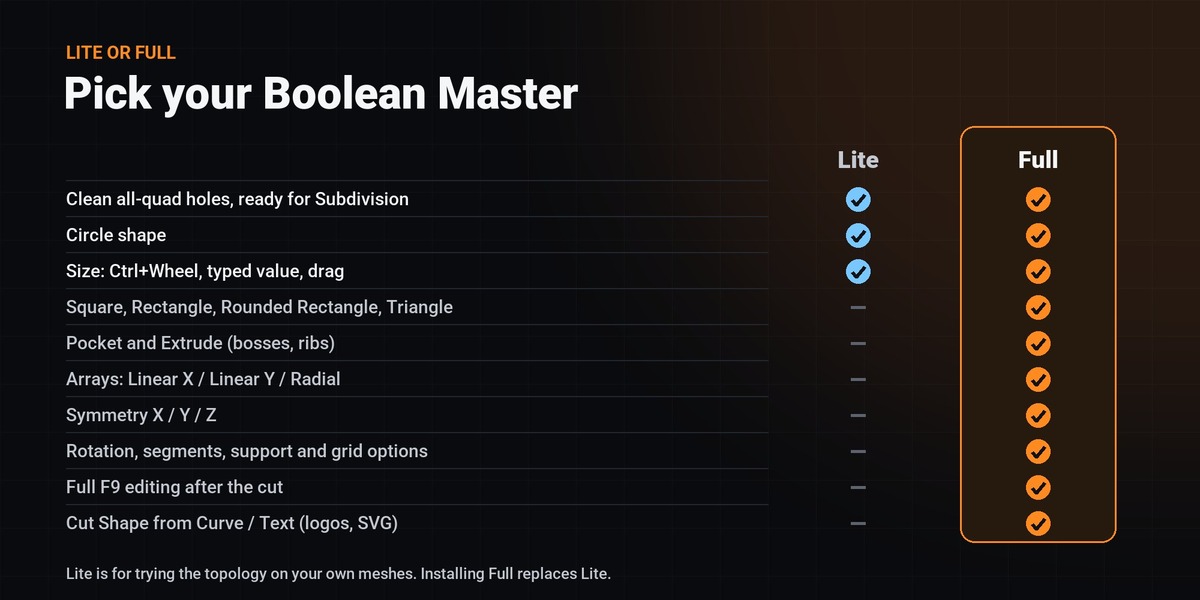
Boolean Master Lite cuts Circle holes Through, and only their size can change (Ctrl+Wheel, W or typed digits, a drag, F9 Diameter). The keys of full-version settings show a short note in the status bar instead. Quality settings stay at their defaults: 8 segments, Match Grid, Loop support, Auto Grid and Auto Smooth on.
Troubleshooting
- !The preview is red / the cut is refused: Read the status bar: it names the border, sharp edge or hole in the way and, for an explicit size, the largest size that fits. Nothing was changed.
- !An array copy is red: It would fall off the object or overlap a neighbour: change count, spacing or direction (R).
- !Shift+Q does nothing: Another add-on owns it. Use the sidebar or set a key in Preferences.
- !Coarse mesh, small hole: Turn on Auto Grid (A) or add loop cuts first.
- !Exact sizes look off: Apply the object scale (Ctrl+A > Scale).
-
$2
✔ Circle holes, Through cut ✔ Change the size only
-
$25
✔ FULL FEATURES ✔ Every shape, Pocket / Extrude, Array, Symmetry, F9, Cut Shape from Curve/Text
 Included
Includes 12 months of
- Support from Unik Studio
- Product updates
Extend this product’s Support Period +12 months: 25% of product price
Have questions before purchasing?
Login to message
Discover more products like this
retopology All Quad topology holes subd cutter subdivision slots quad boolean hard surface modeling