Boolean Vault — Reusable Boolean Cutters Library for Blender
 Greenfield Creatives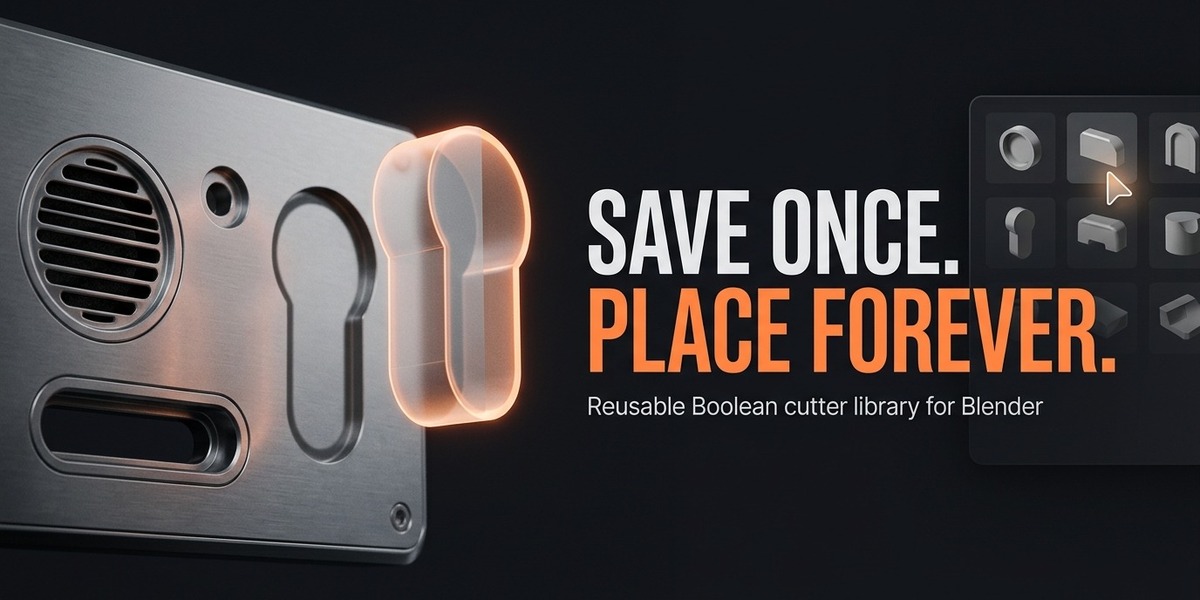

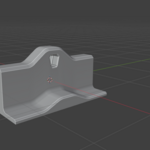
# Boolean Vault
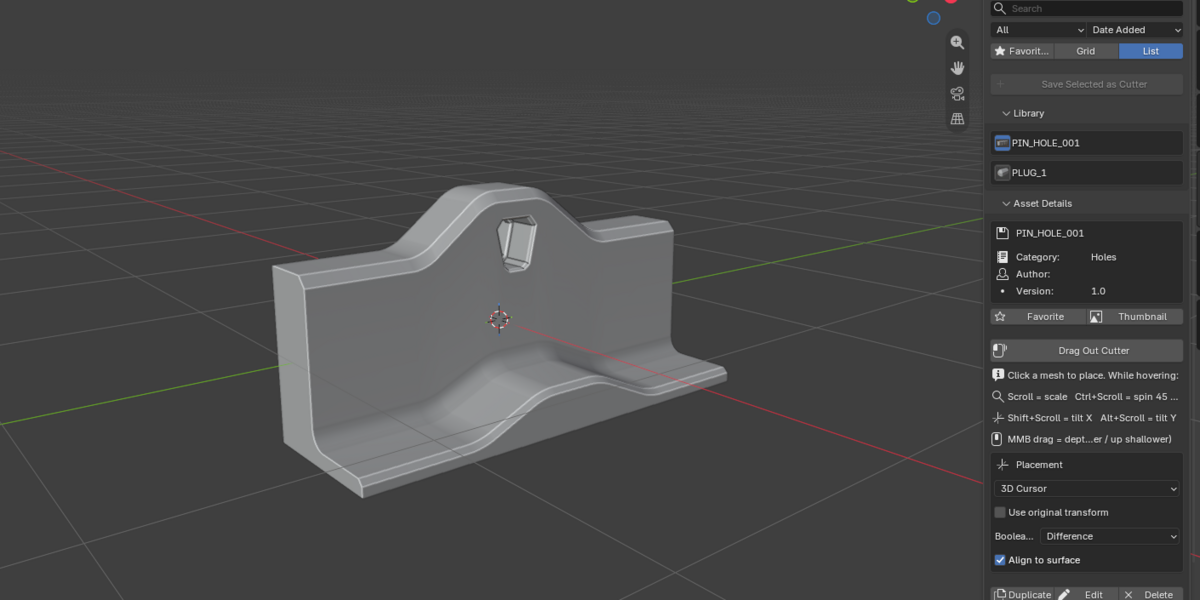
Boolean Vault is a Blender add-on that works like a **personal library of
reusable Boolean cutters**. Save any mesh as a cutter once, then place it onto
any target in any future project — the Boolean modifier is created for you
automatically.
## What it does
- **Save a cutter** — capture the selected mesh object (geometry + transforms)
into a permanent on-disk library. No Boolean modifier is required on the
object; the cut may or may not already exist in your scene.
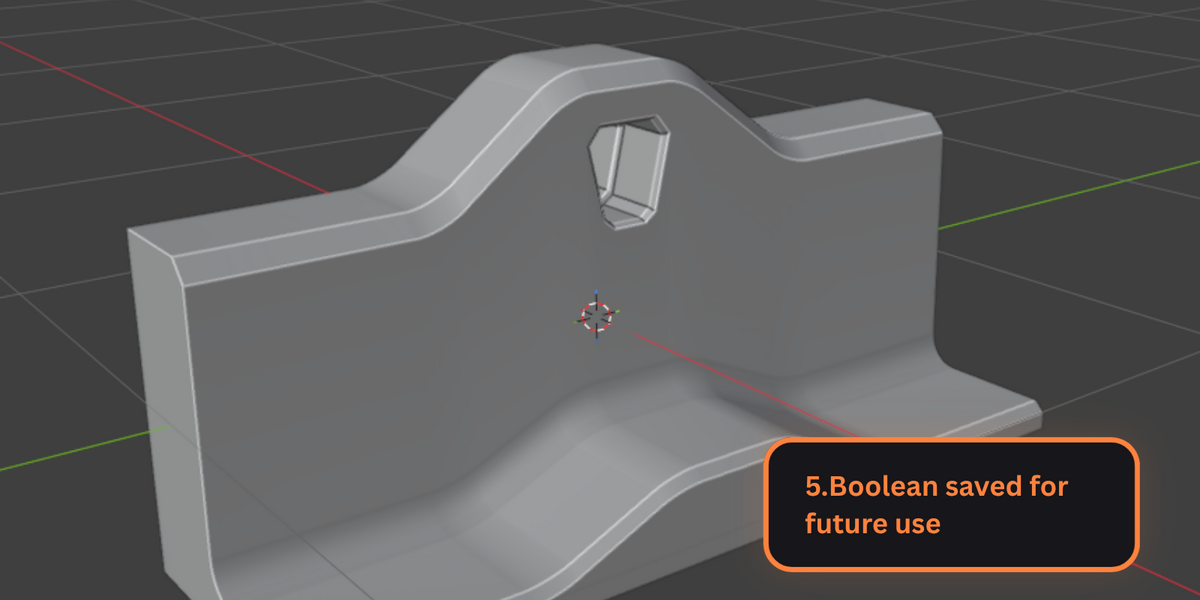
- **Place on target** — select a target mesh and insert a stored cutter. The
cutter is recreated and a Boolean modifier (Difference / Union / Intersect)
is added to the target automatically.
- **Browse** — search, filter by category/tag, sort and favorite assets.
- **Manage** — duplicate, edit metadata, delete and organize assets.
- **Preview** — auto-generated thumbnails for every asset.
- **Persist** — the library lives on disk (outside the `.blend`), so it is
shared across all projects and sessions. Configurable via Preferences.
## Requirements
- Blender **4.0** or newer (tested on **5.2 LTS**).
- No third-party Python packages required.
## Installation
There are two ways to install.
### Via Blender (recommended)
1. Download `BooleanVault-1.0.0.zip`.
2. In Blender: **Edit ‣ Preferences ‣ Add-ons**.
3. Click **Install…**, select the zip, then **Enable** "Boolean Vault".
4. Optional: in the add-on's preferences, set a custom **Library Location**
(defaults to `~/BooleanVault`).
### Manual
Extract the zip so you have a folder named `boolean_vault/`. Copy that folder
into your Blender user scripts `addons/` directory, then enable it in
preferences.
## Usage
The panel lives in the **3D Viewport Sidebar (N-panel)** under the
**Boolean Vault** tab.
### Save a cutter
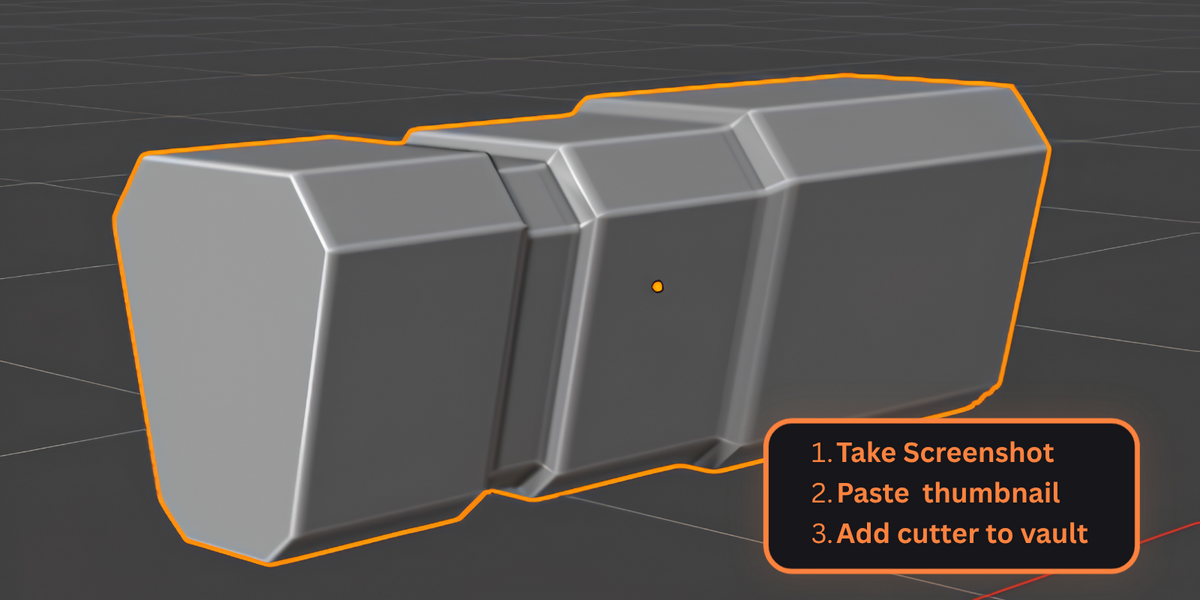
1. Select (make active) the **mesh object** you want to reuse as a Boolean
cutter — e.g. the cylinder you used to drill a hole.
2. In the **Boolean Vault** tab, click **Save Selected as Cutter**.
3. Give it a name (e.g. `SCIFI_HOLE_BOLT`), choose a category, add tags,
a description and author, then confirm. The **Depth Axis** field is
auto-detected (longest bounding-box axis); pick a different axis manually
when the cutter is pushed along a shorter one (e.g. flat shapes).
4. A thumbnail is generated automatically; the asset is saved to the library.
To use **your own screenshot** instead, use the two buttons in the dialog:
**Paste Clipboard** grabs the image on the Windows clipboard (take a snip
with Win+Shift+S first), and **Choose File...** opens a file browser
defaulting to `Pictures/Screenshots`. The chosen image becomes the
thumbnail on Save. The addon only ever reads/copies your image — it never
modifies or deletes files you picked.
> The saved asset is **self-contained** — the cutter geometry and its world
> transform are embedded in the library, so it never depends on the `.blend`
> it was created in. No Boolean modifier is stored or required.
### Place a cutter on a target
1. In a new project, open the **Boolean Vault** tab.
2. Search / browse the library and **click** the asset thumbnail to select it.
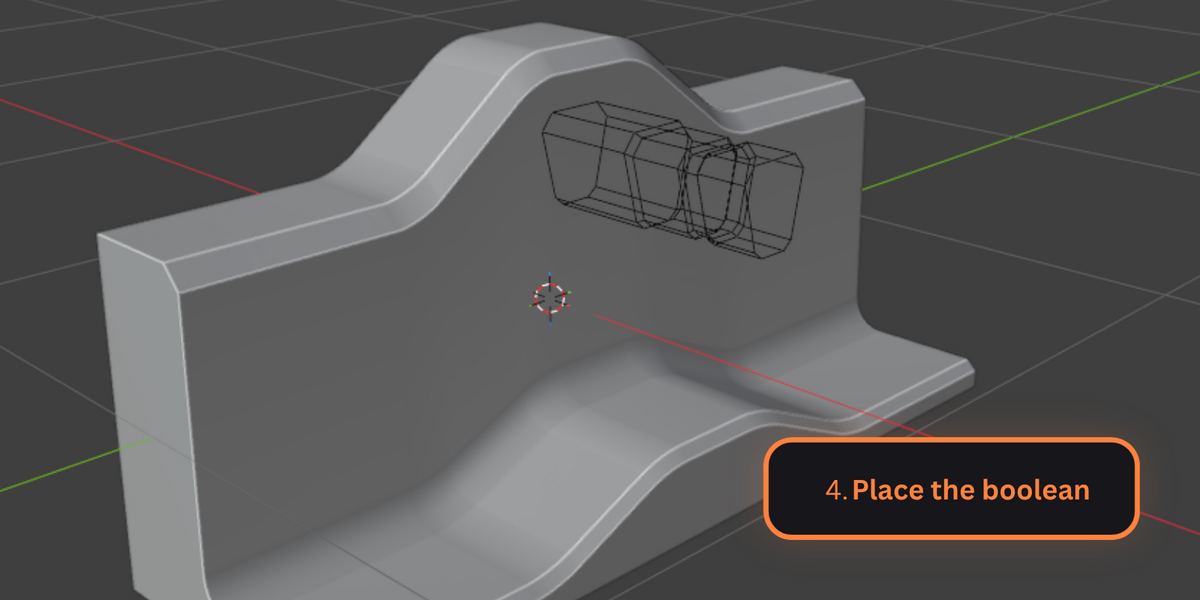
3. Click **Drag Out Cutter** — the cutter appears as a translucent ghost that
follows your cursor.
4. Move over the **target mesh** and **left-click**. The cutter is dropped on
the surface and a fresh Boolean modifier (Difference / Union / Intersect)
is added to that mesh referencing it.
- Press **ESC** or right-click to cancel.
- Enable **Align to surface** to orient the cutter onto the face normal.
**Live tuning while hovering** (the ghost becomes the final cutter — what you
see is what you get):
- **Scroll** — scale the cutter up / down.
- **Ctrl + Scroll** — spin 45° around the surface normal (the phase).
- **Shift + Scroll** — tilt 45° around the cutter's local X axis.
- **Alt + Scroll** — tilt 45° around the cutter's local Y axis.
- **MMB drag** — fine-tune how deep the cutter sits: drag down for deeper,
up for shallower. The cutter never floats above the surface even at the
shallowest setting.
**Depth axis & placement depth** — every cutter stores a depth axis (auto-
detected as its longest bounding-box axis, overridable in the Save dialog via
the *Depth Axis* picker). On placement the depth axis is pushed **into** the
surface so **half** the cutter sits inside the target and half stays visible.
Use the **MMB drag** to adjust: down = deeper, up = pull back out (down to
nothing).
Placed cutters are moved into a dedicated **`BV_Cutters`** collection that is
automatically hidden in the viewport and excluded from render — the cutters
drive their Boolean modifiers without cluttering the scene or showing up in
output.
You can still tweak the cutter mesh afterwards. The **Cutters in Scene** panel
(at the bottom of the Boolean Vault sidebar) lists every placed cutter with the
mesh it is cutting:
- **Edit** — reveals the cutter, selects it and drops you straight into Edit
Mode; every change updates the Boolean result live. Use **Hide Cutters** to
tuck them away again.
- **Show Cutters for Editing** — unhides the whole batch so you can click a
cutter directly in the viewport and press Tab.
You can also choose a **Placement** mode (3D Cursor, Selected Origin,
Cursor + Align) or **Use original transform**; those apply when the cutter is
dropped without surface alignment. The library copy is never modified.
### Manage assets
- **Favorite** — mark an asset for the favorites-only filter.
- **Duplicate** — copy an asset under a new name.
- **Edit** — change name, category, tags, author, version, thumbnail.
- **Delete** — permanently remove an asset (requires confirmation).
## Library structure
The default library is created at `~/BooleanVault` (changeable in the add-on
preferences):
```
BooleanVault/
├── library/ <- one folder per asset
│ └── SCIFI_HOLE_BOLT/
│ ├── asset.json <- metadata (name, category, tags, version, dates)
│ └── mesh.json <- captured cutter body (cutter mesh + transform)
├── thumbnails/ <- .png previews
└── config/
├── index.json <- fast search index
└── categories.json <- user categories
```
Only the lightweight index/metadata are read while browsing, so the UI stays
responsive even with thousands of assets. The full mesh data is loaded only
when you place an asset.
## Operators
| Operator | Description |
|----------|-------------|
| `booleanvault.save_boolean` | Save the selected mesh as a Boolean cutter |
| `booleanvault.insert_boolean` | Drag a stored cutter onto a mesh, creating the Boolean modifier (ESC cancels, or instant on the active mesh when scripted) |
| `booleanvault.delete_boolean` | Delete a library asset |
| `booleanvault.duplicate_boolean` | Duplicate a library asset |
| `booleanvault.edit_metadata` | Edit an asset's metadata |
| `booleanvault.set_thumbnail` | Set a custom thumbnail image |
| `booleanvault.toggle_favorite` | Toggle the favorite flag |
| `booleanvault.add_category` / `remove_category` | Manage categories |
| `booleanvault.refresh_library` | Re-read the library from disk |
| `booleanvault.open_library_folder` | Open the library in the OS |
## Development
The add-on is modular:
```
boolean_vault/
├── __init__.py # bl_info, register/unregister
├── core/ # serializer, library, validation, transforms
├── operators/ # save / insert / delete / duplicate / manage
├── panels/ # main panel, preferences
├── props/ # PropertyGroups
└── utils/ # filesystem, thumbnails, naming, previews
```
The functional test (`boolean_vault/tests/test_boolean_vault.py`) covers the
full save-cutter → new-project → place-on-target round-trip. Run it in
background Blender with:
```
blender --background --python boolean_vault/tests/runner.py
```
## License
[MIT](boolean_vault/LICENSE)
Have questions about this product?
Login to message
| Blender Extension Compatible | Yes |
| Published | 2 days ago |
| Blender Version | 4.0 - 5.2 |
| Extension Type | Add-on |
| Render Engine Used | Cycles, Eevee |
| License | Mit |
Discover more products like this
cutter mesh-tool boolean Library blender 4.0 Asset Manager hard surface Panel reusable blender 5.0 bolt