 NineLine


Who is this for?
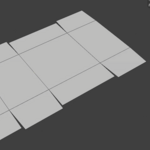
Have you finished modeling a flat box net, but still need to check how it looks when folded?
Manually rotating every panel and adjusting each fold can take time, especially when you need to test different angles or revise the original layout.
If your model is a simple box net with clearly connected fold lines, Box Net Fold Tool can help.
Assign fold lines using Edge Crease values, choose a base face, and preview the folded result directly inside Blender.
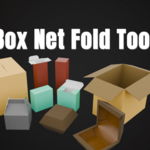
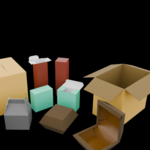
Turn your flat box net into an editable 3D box with a simple folding workflow.
==================================================================
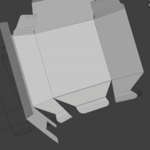
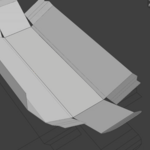
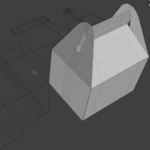
Box Net Fold Tool is a Blender Extension designed to fold user-made box net layouts into 3D box forms using Edge Crease values.
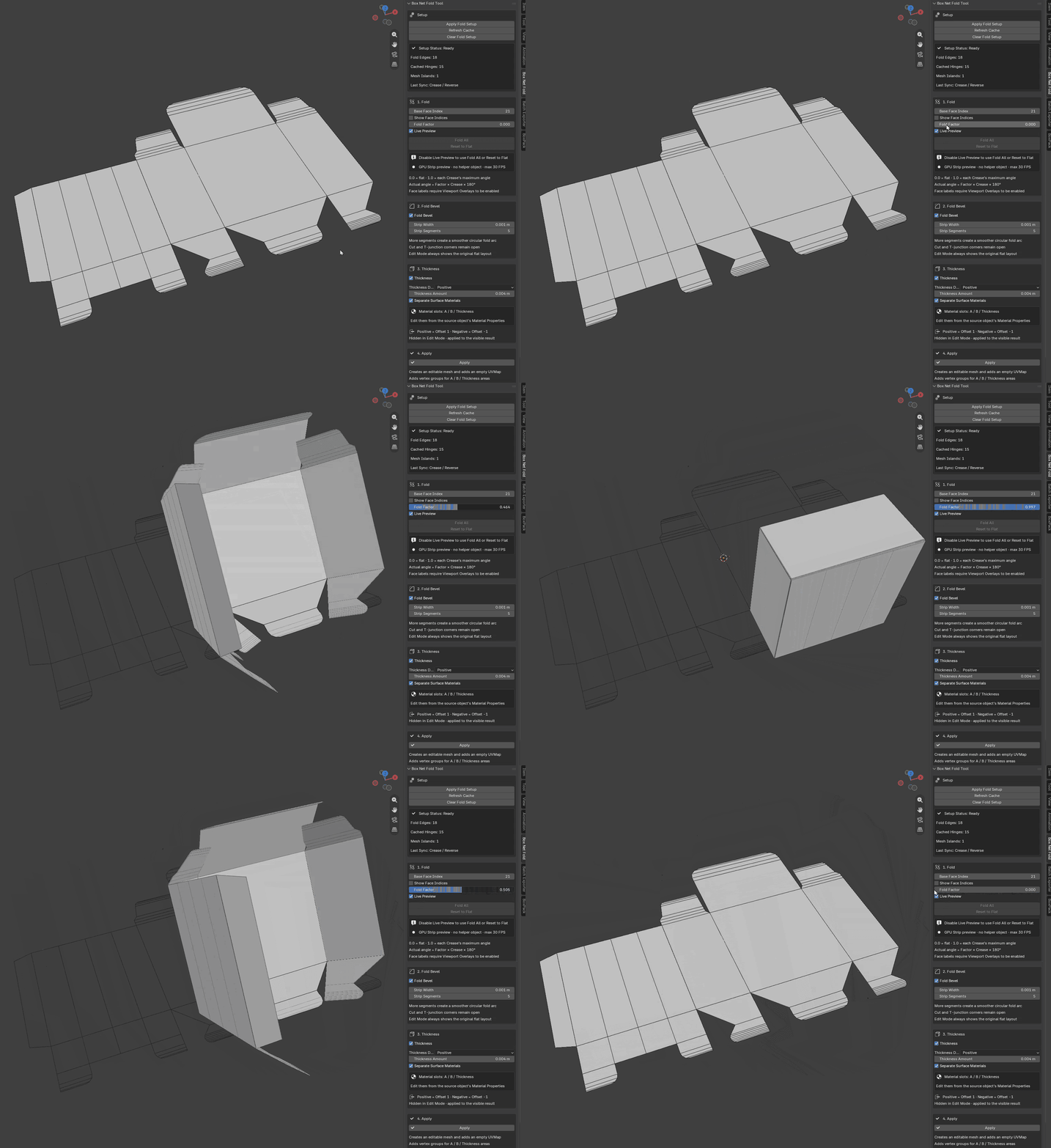
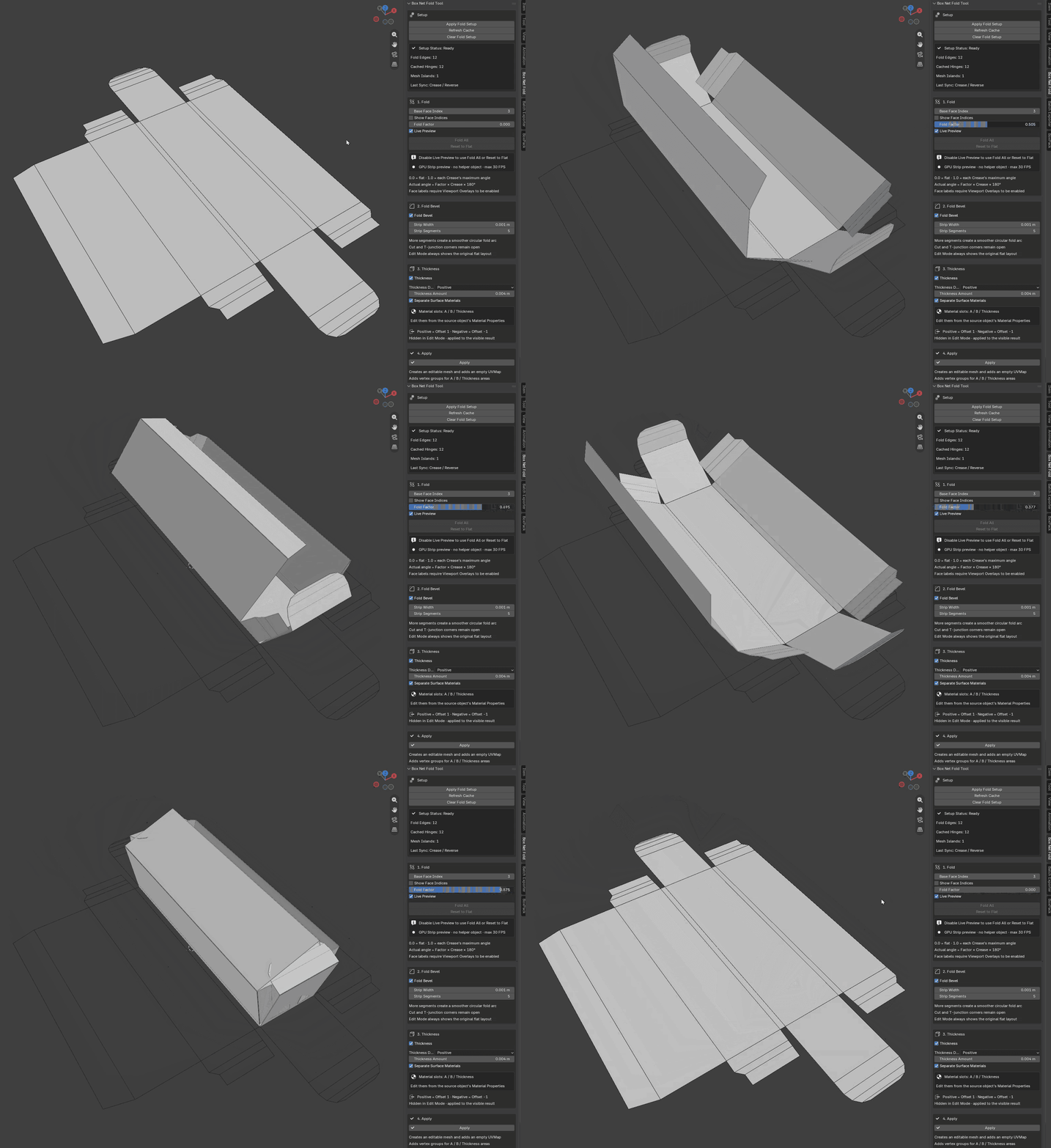
Create your box net as a flat mesh, define the fold lines, select a base face, and control the folded result using the Fold Factor.
The extension provides previews in both Edit Mode and Object Mode, along with optional fold bevels, thickness, separated surface materials, and a final Apply workflow.
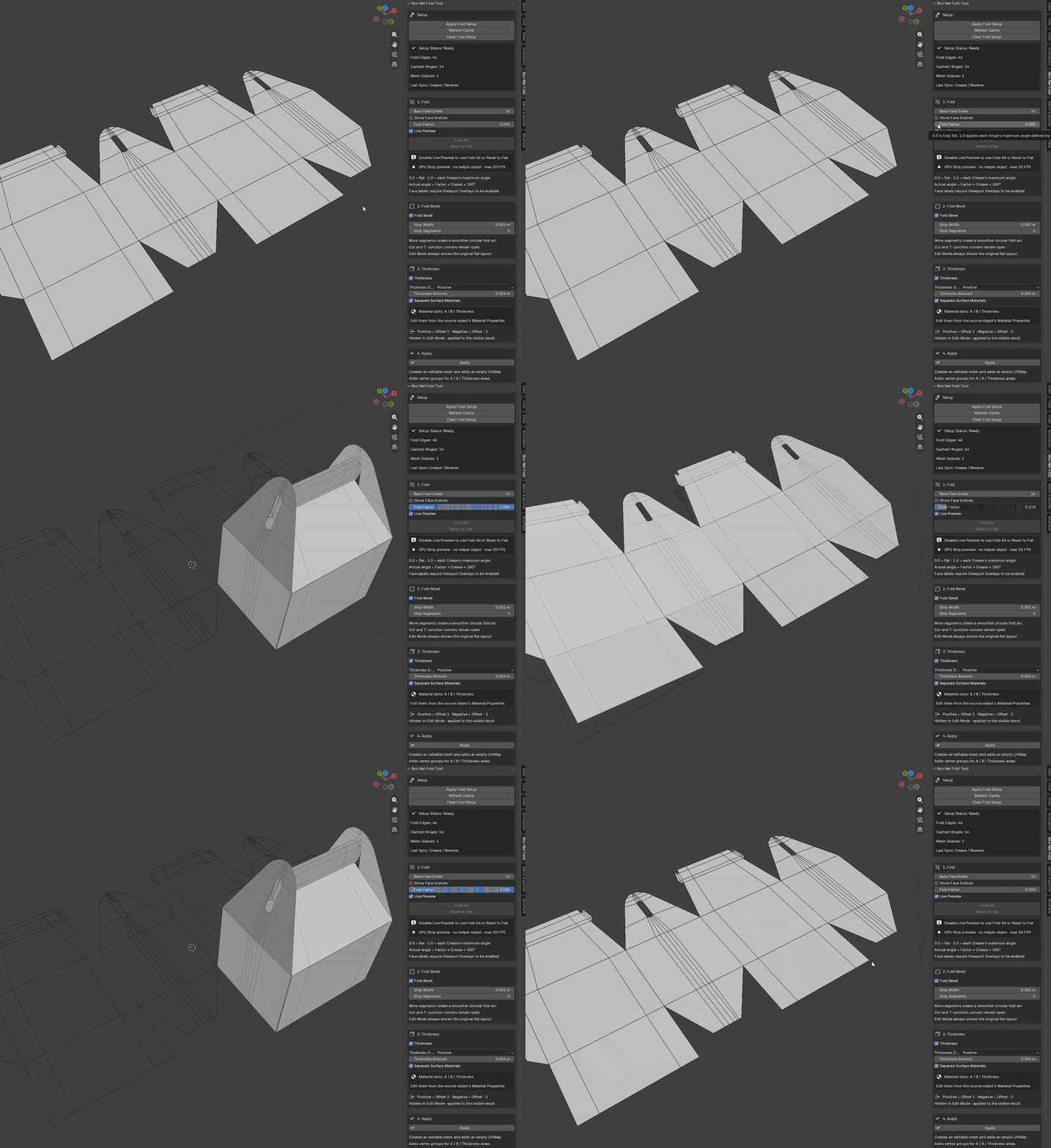
Example:
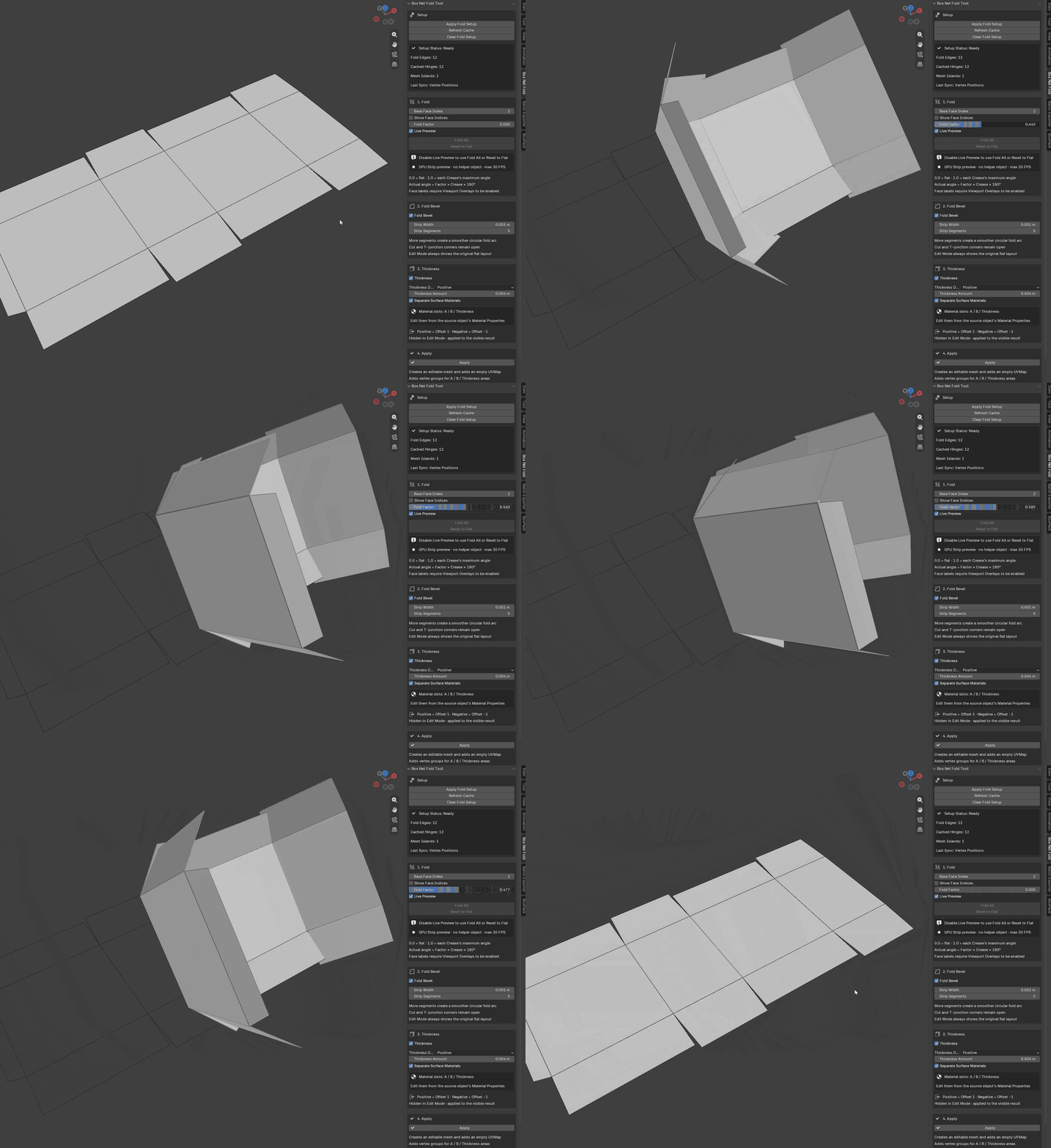
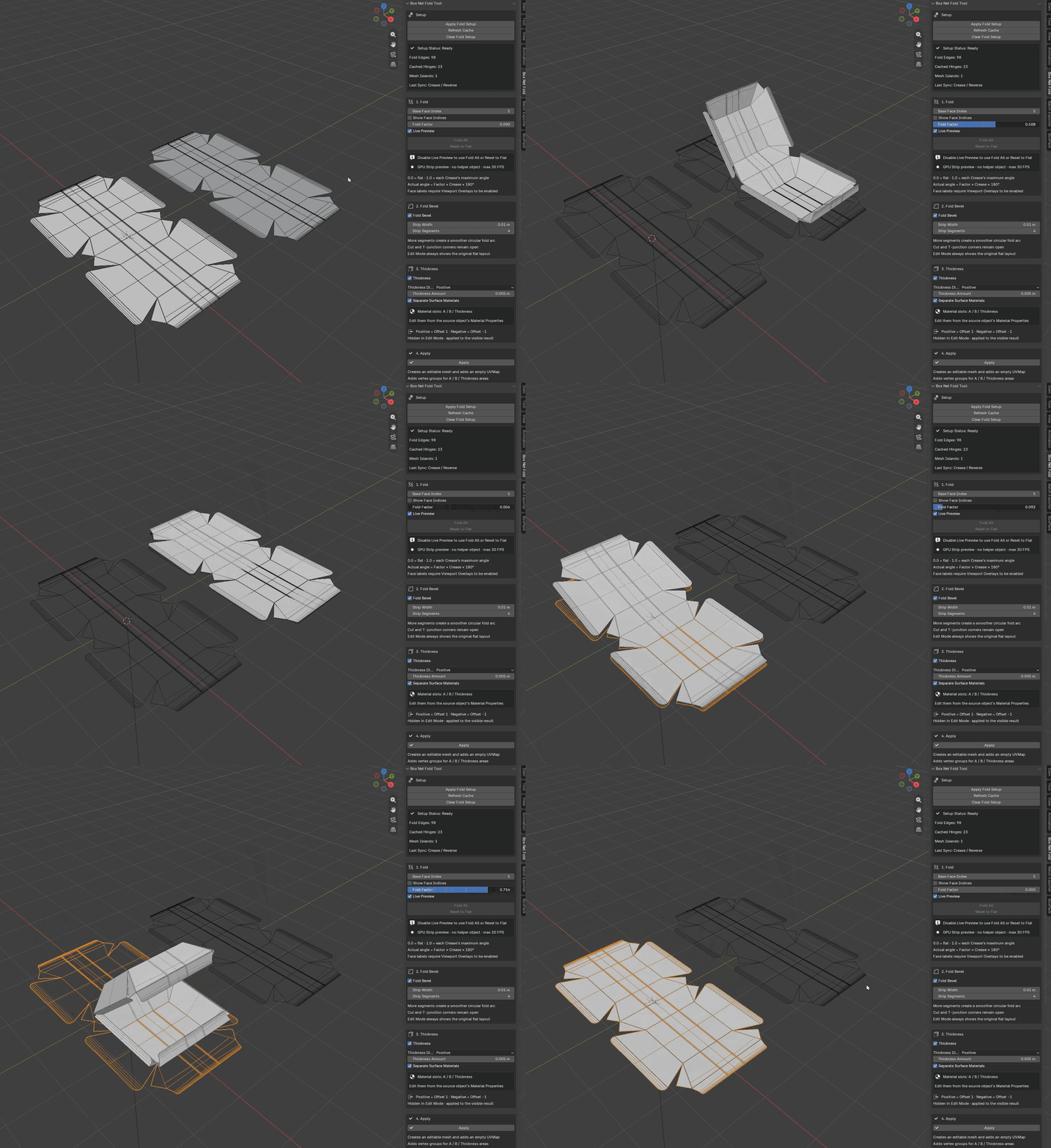
YouTube Tutorial:
Product Overview
Box Net Fold Tool helps you test and finalize simple box net models without manually rotating every individual panel.
- Fold user-made box net layouts into 3D forms
- Use Edge Crease values to control maximum fold angles
- Set the fold direction individually for each crease
- Choose a Base Face as the starting panel
- Preview folding directly in Edit Mode
- Use Object Mode Live Preview while adjusting the Fold Factor
- Add rounded fold strips with Fold Bevel
- Add adjustable surface thickness
- Separate material slots for the front, back, and thickness surfaces
- Apply the result as a standard editable mesh
- Generate an empty UVMap for the applied result
- Generate vertex groups for the A, B, and Thickness surface areas
Basic Workflow
1. Create a complete box net as a flat mesh.
2. Make sure the layout is planar and that the intended outer-facing side is oriented correctly.
3. Select the mesh object and open:
View3D > Sidebar > Box Net Fold
4. Click Apply Fold Setup.
5. Enter Edit Mode and assign Edge Crease values to the edges that should act as fold lines.
6. Adjust the Max Fold Angle and Reverse options when necessary.
7. Return to Object Mode and select a Base Face Index.
8. Adjust the Fold Factor or enable Live Preview to inspect the folded result.
9. Optionally enable Fold Bevel, Thickness, and Separate Surface Materials.
10. Click Apply to create the final editable mesh.
Main Features
Edit Mode Fold Preview
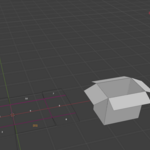
Edit Mode Preview displays the folded result beside the original flat layout using a GPU viewport preview.
You can adjust:
- Edge Crease
- Maximum fold angle
- Fold direction
- Preview Fold Factor
- Preview position and gap
- Solid, Solid + Wire, or Wire display
The original mesh remains flat while you edit the fold settings.
Object Mode Live Preview
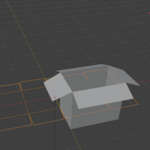
Object Mode Live Preview lets you adjust the overall Fold Factor and inspect the result without immediately creating a separate final mesh.
The GPU Live Preview is intended for fast shape inspection and does not reproduce the complete assigned material appearance.
Disable Live Preview or use Fold All when you need to inspect the generated material preview.
Fold Bevel
Fold Bevel creates additional strip geometry along fold lines to produce a smoother, rounded fold appearance.
- Adjustable Strip Width
- Adjustable Strip Segments
- Useful for cardboard and paper-like folds
Cut corners and T-junction areas may remain open depending on the net structure.
Thickness and Surface Materials
Thickness adds depth to the folded result.
When Separate Surface Materials is enabled, the extension creates separate material roles for:
- Surface A
- Surface B
- Thickness
These materials can be edited from the source object's Material Properties.
Apply
Apply converts the current folded result into a standard editable mesh.
The applied result includes:
- Folded geometry
- Fold Bevel and Thickness, when enabled
- Assigned materials
- An empty UVMap
- Vertex groups for A, B, and Thickness areas
- Smooth shading on the A and B surfaces
- Flat shading on the Thickness surfaces
The editable source object is replaced by the applied result.
Recommended Preparation
- Finish modeling the complete box net before applying the fold setup.
- Keep the box net flat and planar.
- Apply object scale and rotation when possible.
- Check the face orientation before folding.
- Use non-zero Crease values only on edges that should act as fold lines.
- Use simple, connected box layouts for the most predictable results.
Important Limitations and Notes
Simple box nets only:
Box Net Fold Tool is best suited for simple box nets where the panels are connected through a clear, tree-structured folding hierarchy.
Complex packaging structures:
Milk-carton structures, gusset folds, interlocking tabs, closed folding loops, and origami-style folding systems are not currently supported.
Topology changes:
Faces and edges can be added in Edit Mode, but the fold data and Crease values are synchronized when returning to Object Mode. Completing the box net before applying the setup is recommended.
Flat layout required:
The source box net should be planar. For consistent results, check the face orientation and make sure the intended outer-facing side is aligned correctly before applying the setup.
GPU material preview:
Object Mode GPU Live Preview does not display the full assigned material appearance.
Preview collection:
A managed Box Net Fold Previews collection may be created for material-based previews. Do not manually delete its preview objects while the setup is active. The managed preview is removed during the final Apply workflow.
Mesh selection:
The Box Net Fold Tool panel becomes available when a mesh object is selected.
If you encounter a bug, please report the Blender version, the steps that caused the issue, and any visible error messages. I will review the issue and provide a fix as quickly as possible.
Example Use Cases
- Creating cardboard box models from custom net layouts
- Testing package proportions before final modeling
- Previewing fold directions and maximum fold angles
- Creating open and closed shipping boxes
- Creating simple product packaging and carton props
- Preparing warehouse, storage, and background box assets
- Converting flat packaging layouts into editable Blender meshes