 NineLine


Product Overview
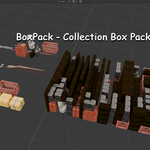
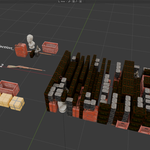
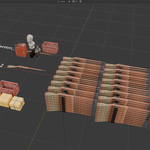
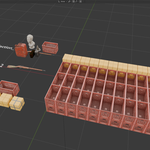
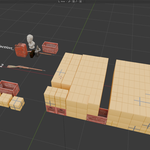
BoxPack automatically packs collection objects inside a target box object. The tool is intended to speed up repetitive scene-filling tasks where many small assets need to be placed inside a larger container.
· Fill a target box with objects from a selected collection
· Bounding-box based packing using mesh object dimensions
· Linked duplicate output for lighter scene management
· Repeat items until the container has no more available packing space
· Packing order options: Largest First, Smallest First, and Random
· Optional 90 degree Z rotation for better fitting
· Positive and negative margin control for loose or tighter packing
· Utility tools for clearing results, making meshes unique, and setting origins to bottom center
Installation
1. Go to Edit > Preferences.
2. Open the Get Extensions tab, click the menu button in the upper-right corner, and select Install from Disk.
3. Select the BoxPack extension archive file.
4. After installation, the BoxPack tab will appear in the right sidebar of the viewport. If the sidebar is not visible, press N in the viewport to show it.
Basic Workflow
1. Prepare a target box object. Any object can be assigned, but BoxPack will use its world-space bounding box as the container volume.
2. Prepare a collection containing the mesh objects you want to pack into the target box.
3. Select the item objects and use Set Origin to Bottom Center if their origins are not already aligned to the bottom-center position.
4. Open View3D > Sidebar > BoxPack.
5. Assign the Target Box and Item Collection.
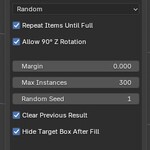
6. Adjust the packing options, such as Packing Order, Repeat Items Until Full, Allow 90° Z Rotation, Margin, Max Instances, and Random Seed.
7. Click Fill Box.
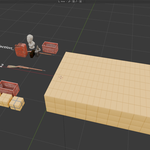
8. Generated objects are placed in the Result Collection. If Hide Target Box After Fill is enabled, the target box will be hidden after successful packing so the result can be viewed immediately.
Main Functions
1. Fill Box
Fill Box creates linked duplicate objects from the selected Item Collection and places them inside the Target Box until no suitable remaining space is found or the Max Instances limit is reached.
Target Box: The object used as the container. The actual mesh surface is not evaluated; BoxPack uses the object's world-space bounding box.
Item Collection: The collection containing mesh objects to pack into the target box. Only mesh objects are used.
Packing Order: Controls how items are selected during packing. Largest First places larger items first, Smallest First places smaller items first, and Random shuffles the selection order.
Repeat Items Until Full: When enabled, objects from the Item Collection can be reused multiple times. When disabled, each source object is used only once.
Allow 90° Z Rotation: When enabled, BoxPack tries both the original orientation and a 90 degree Z rotation for each item. This is not arbitrary rotation; it is a simple fitting option.
Margin: Adds or subtracts extra space from each item's bounding box. Positive values leave more spacing. Negative values allow tighter packing and may cause overlap. The allowed range is -0.1 to 1.0 Blender units.
Max Instances: A safety limit that prevents accidentally creating too many generated objects.
Random Seed: Changes the random result when Packing Order is set to Random.
Clear Previous Result: Deletes previously generated BoxPack objects before creating a new packing result.
Hide Target Box After Fill: Automatically hides the target box in the viewport and render after packing succeeds. If nothing is placed, the target box remains visible for troubleshooting.
Result Collection: The collection where generated BoxPack objects are stored. The default name is BoxPack_Result.
2 Clear Result
Clear Result deletes generated BoxPack objects from the Result Collection. Only objects marked as BoxPack-generated objects are removed.
· Useful for quickly testing different packing settings.
· Original source objects in the Item Collection are not deleted.
3 Make Generated Mesh Unique
Generated objects initially share mesh data with their source objects, similar to linked duplicates. Make Generated Mesh Unique copies the mesh data for generated objects so they can be edited independently.
· Use this after you are satisfied with the packing result and need independent mesh editing.
· Making many objects unique can increase file size and memory usage.
4 Set Origin to Bottom Center
Moves the origin of selected mesh objects to the bottom-center position of each object's bounding box. The visible position of the object remains unchanged.
· Recommended for source objects before using them in BoxPack.
· Helps packed items align more predictably from the bottom of their bounding boxes.
· Supports batch processing of multiple selected mesh objects.
Important Limitations and Notes
Bounding-box based placement: BoxPack uses axis-aligned bounding boxes. It does not check the actual mesh shape, concave surfaces, holes, or detailed collision.
Target object behavior: Any object can be assigned as the Target Box, but the container space is always calculated from the target object's bounding box. Non-box shapes are still treated as rectangular box volumes.
Origin recommendation: Source item origins should be placed at the bottom center of their bounding boxes for the most predictable placement. Use Set Origin to Bottom Center if needed.
World-space bounding box: Rotated or non-applied target boxes may produce a larger world-space bounding box than expected. Apply transforms for cleaner results.
Not mathematically optimal: BoxPack is designed as a practical art tool, not a perfect 3D bin-packing optimizer. Some empty spaces may remain.
Rotation support: The current version only supports an optional 90 degree Z rotation. It does not perform free rotation or physics-based settling.
Linked duplicate output: Generated objects share mesh data with their source objects until Make Generated Mesh Unique is used.
Negative margin: Negative margin can help items fit more tightly, but it can also make objects overlap visually. Use small negative values carefully.
Mesh objects only: Only mesh objects in the Item Collection are used for packing. Cameras, lights, curves, and empty objects are ignored.
Have questions about this product?
Login to message
| Blender Extension Compatible | Yes |
| Published | 3 months ago |
| Blender Version | 5.1 - 5.2 |
| Extension Type | Add-on |
| Render Engine Used | Cycles |
| License | GPL |
Discover more products like this
procedural tool blender-extension Product packaging BoxPack Warehouse Props 3D Packing Blender tool 3d modeling blender addon Collection Box Packer blender bounding box