 tsunaera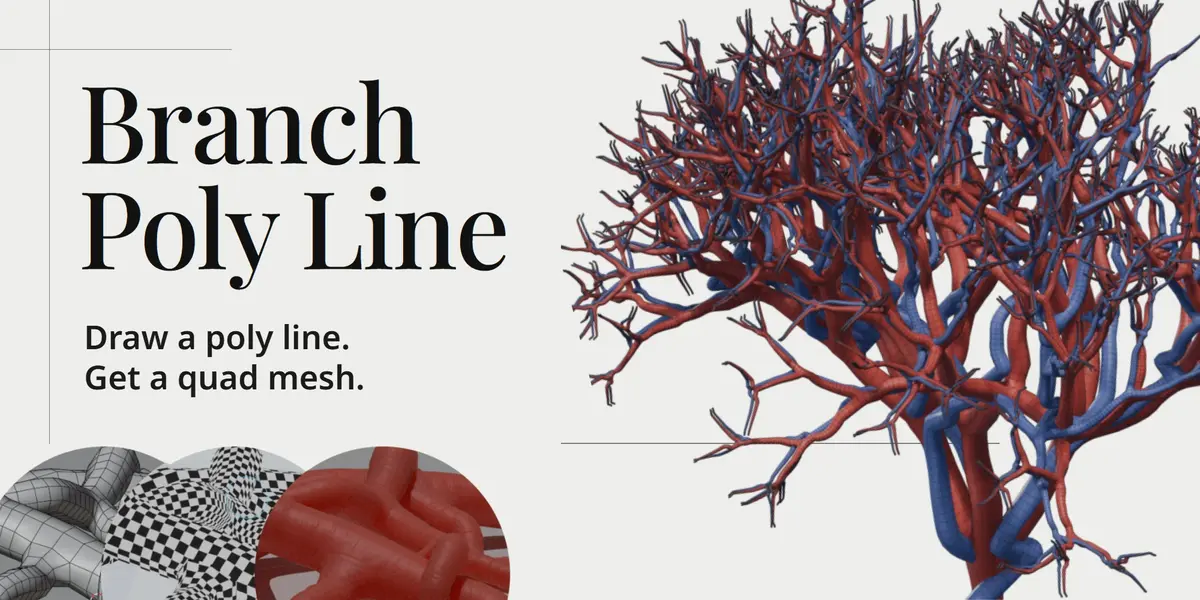
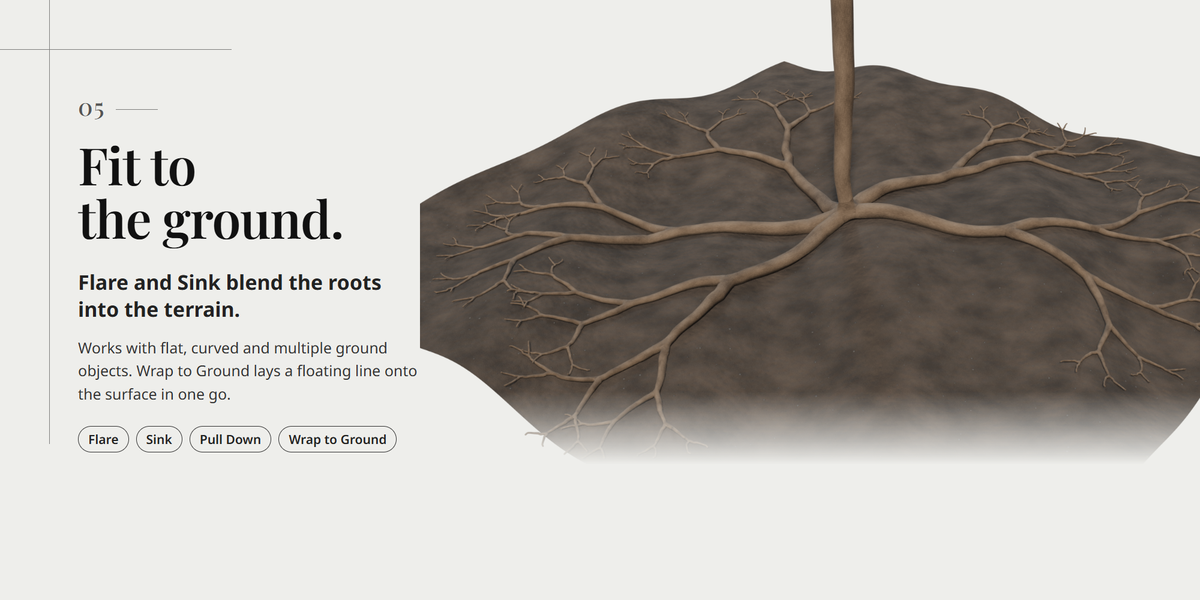

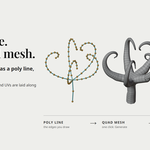
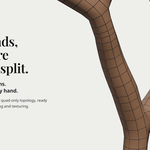
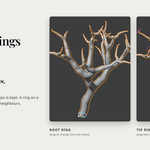
Every feature, with an animated example, is explained in the online User Guide: https://branch-poly-line.pages.dev/manual/en/
Branch Poly Line
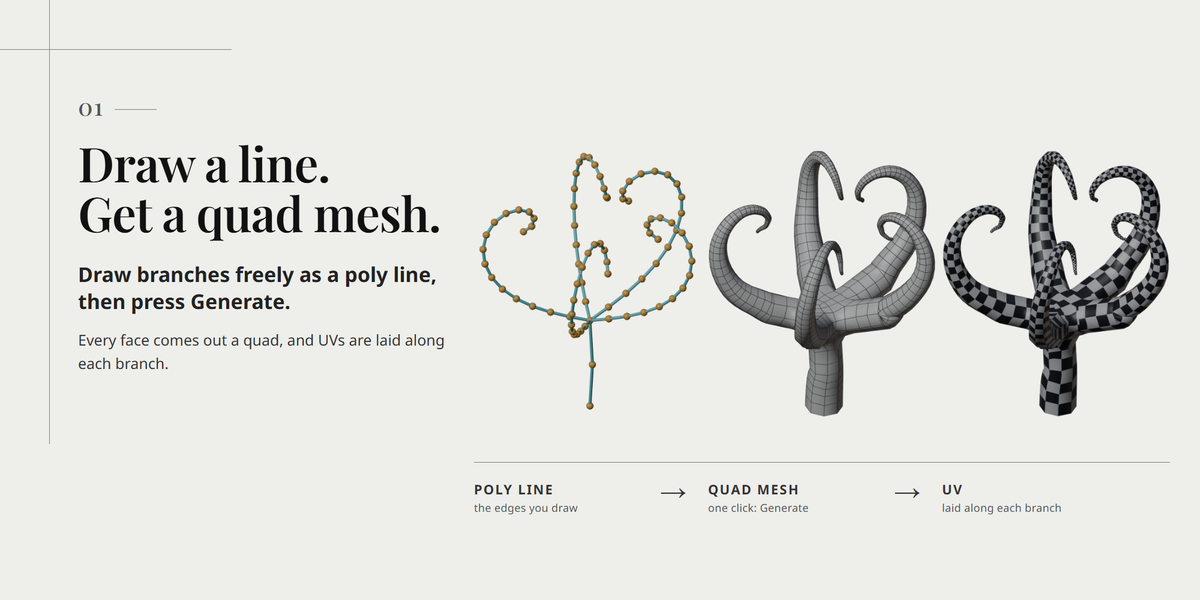
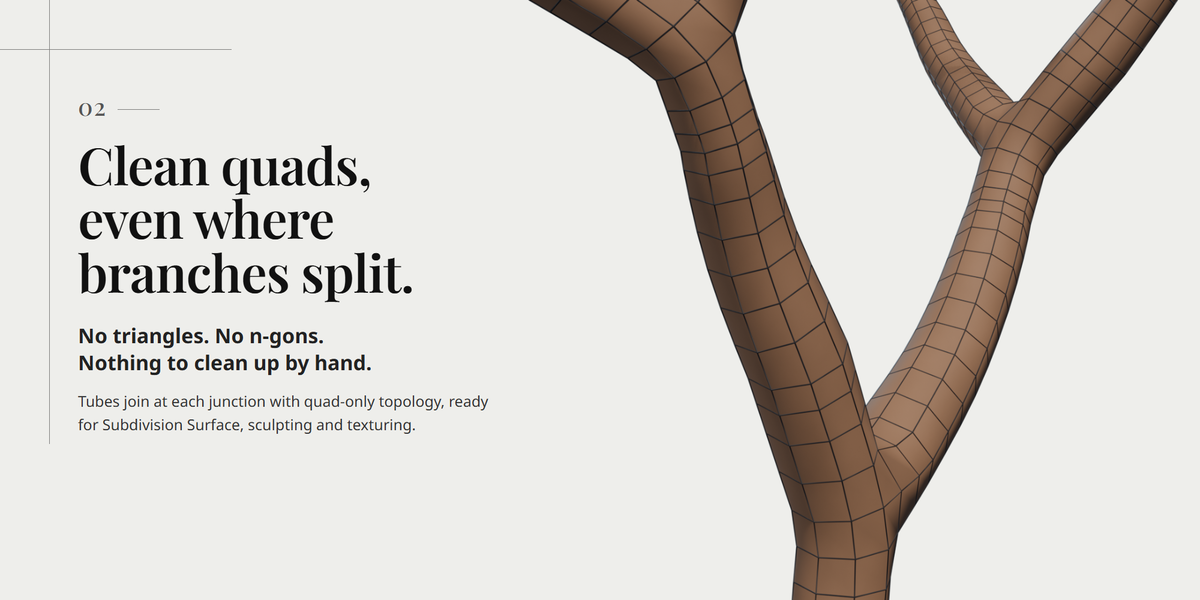
Branch Poly Line turns a polyline made only of vertices and edges into tapered, branching, all-quad tube meshes. Blender 4.2 LTS - 5.2 LTS, Windows.
Requirements
| Item | Details |
|---|---|
| Blender | 4.2 LTS to 5.2 LTS |
| OS | Windows |
| Input | A mesh of vertices and edges only: one connected tree, no loops, at most 6 edges per vertex |
Installation
- Open Edit > Preferences > Get Extensions.
- Open the menu at the upper right and choose Install from Disk.
- Select
branch_poly_line-1.0.0.zipwithout unpacking it. - Check Preferences > Add-ons and enable Branch Poly Line if it is not already enabled.
How to use
- Select a mesh with only vertices and edges (a straight chain is a good first test).
- In the 3D View press N and open the Branch Poly Line tab.
- For a first test, turn Use All Visible Objects off in Ground and leave the Ground fields empty.
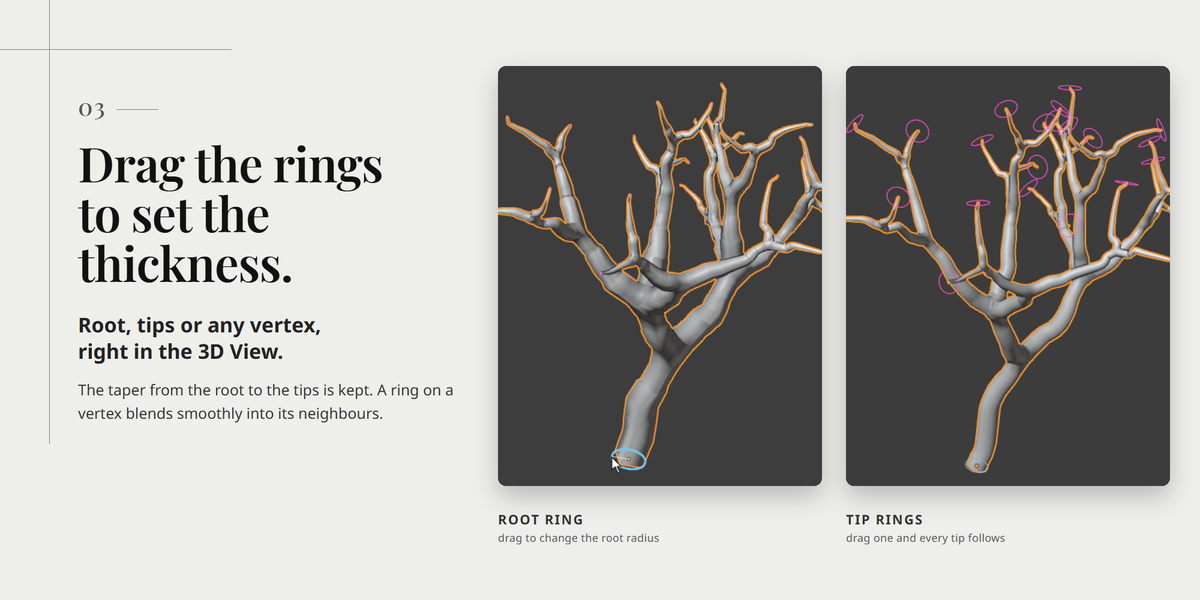
- Set Root Radius and Tip Radius to suit your line, then press Generate.
- Press D to edit the source polyline. Press D again (or Tab) to return to the branch mesh and rebuild.
- To draw from the 3D cursor, use New at Cursor in Object Mode, then Add at Cursor in Edit Mode. The first vertex is the root.
Keys
| Item | Details |
|---|---|
| D | Edit the source polyline / back to the branch mesh |
| Shift+F | Settings popup |
| G / E | Move / extrude on surfaces (Stick to Surface on); press G again for free movement |
| Enter / Esc | Confirm / cancel an active move or radius adjustment |
Questions and bug reports: send a message from this product page. We aim to reply within one week. 1.x updates are free for existing buyers.
Have questions about this product?
Login to message
| Blender Extension Compatible | Yes |
| Published | 2 days ago |
| Blender Version | 4.2 - 5.2 |
| Extension Type | Add-on |
| Render Engine Used | Cycles, Eevee |
| License | GPL |
