 Skalin3D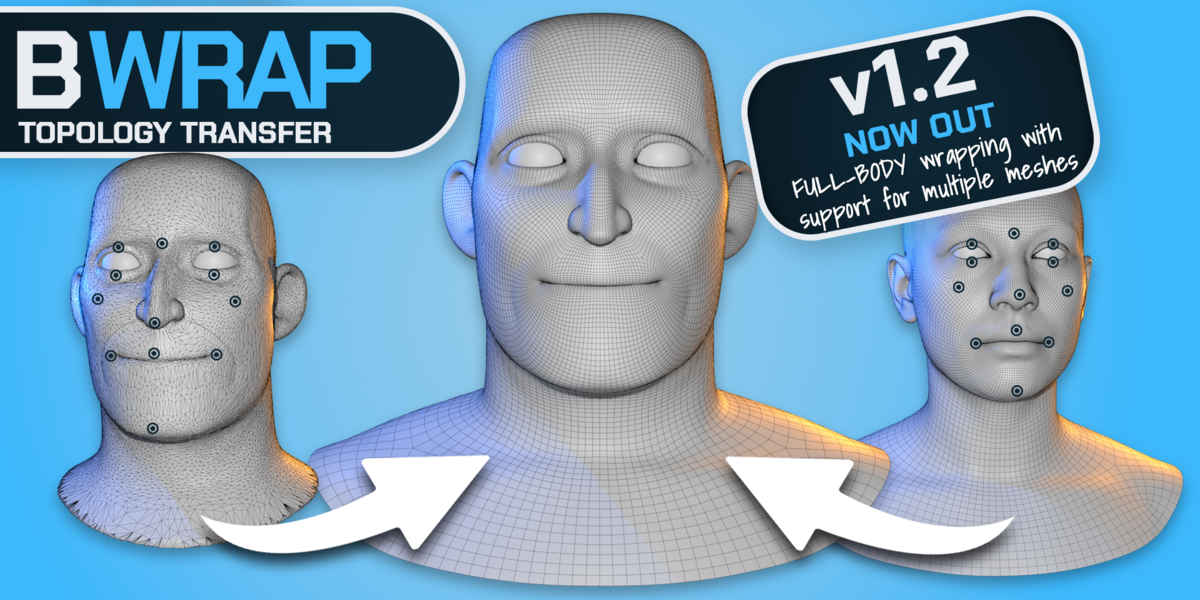


BWrap Documentation
A practical guide to preparing source and target meshes, placing point pairs, protecting important regions, solving the wrap and refining the result.
Installation
Install BWrap directly from the downloaded ZIP.
- Download the correct BWrap package: Free or Full.
- Disable or remove any older BWrap installation. Do not keep Free and Full enabled together.
- In Blender open Edit → Preferences → Get Extensions.
- Open the Extensions menu and choose Install from Disk….
- Select the BWrap ZIP and enable the extension.
- Restart Blender once after the first installation.
- Open the 3D Viewport sidebar and select the BWrap tab.
General Workflow
BWrap works best as an iterative setup-and-check process rather than a single blind solve.
This is the clean mesh and topology you want to keep.
This is the scan, sculpt or differently proportioned surface you want to match.
Use the two-view layout so both meshes stay easy to inspect.
Start with major orientation, anatomical or garment landmarks and add local pairs only where needed.
Use a quick setting to find correspondence problems before spending time on a final solve.
In Full Edition, use Exclude, Keep Shape, Lock in Place and open-edge controls where the general solve should behave differently.
Choose the quality level and Conform Strength that suit the asset.
Nudge problem regions, refresh points for another pass when needed, then keep the result as an editable Blender mesh.
Understanding BWrap
Template / Source
The mesh that deforms. Its topology, edge flow and reusable structure are the part you are trying to preserve. BWrap's detailed UI calls this the Template; it is the "source" in the general workflow.
Target
The shape you want to match. It can be a scan, sculpt, remesh or differently proportioned character and does not need matching topology. The Target itself is not modified.
Point Pair
A corresponding landmark on Template and Target. Pairs establish orientation and tell the solver which regions belong together. Use meaningful landmarks rather than simply maximizing point count.
Protection Controls
Per-region rules that change how the solve treats difficult geometry. Protection controls are available in the Full Edition.
Setup and Workspace
Set the two meshes before placing points. Modifiers on the Target are respected, so BWrap fits the evaluated surface you see in Blender.
Selects the mesh that will be wrapped/deformed while preserving its topology. Choose the cleanest production topology.
Selects the surface the Template should conform to. Target topology may be completely different.
Exchanges Template and Target. Useful when they were assigned backwards.
Creates the dedicated BWrap workspace and keeps the Template/Target views synchronized and ready for point or edge-loop work. The workspace provides clear mode feedback.
Creates a side-by-side split in the current workspace instead of building the dedicated workspace.
Points and EdgeLoop Points
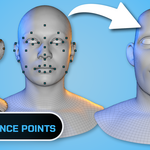
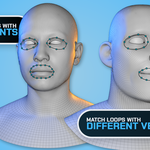
BWrap has two complementary guidance workflows. Use normal Points in Object Mode for isolated landmarks. Use EdgeLoop Points in Edit Mode for continuous features such as lips, eyelids, cuffs, borders or other loops where a sequence of correspondence points is more useful than placing every point manually.
Normal Points — Object Mode
Starts normal point-pair placement. Click the Template, then the matching spot on the Target to complete one pair. Point placement is one pair at a time.
Snaps the clicked point to the local X=0 centerline. Useful for nose, chin and center seams.
Undoes the most recent point placement while the tool is active.
Finishes the active point-placement tool.
Adjust Mode
Starts point adjustment/selection mode. Drag an existing point to slide it over its mesh. Selection respects visibility.
Drag empty space to select multiple visible points. Shift-drag adds, Ctrl-drag removes and an empty click clears.
Deletes selected points while Adjust is active.
Deletes one point directly.
Snaps the point under the cursor to the local centerline.
EdgeLoop Points — Edit Mode
Stores the selected edge loop on the Template. The loop is labeled and shown with start/direction feedback.
Stores the matching selected edge loop on the Target and builds the correspondence. Template and Target loops do not need the same vertex count.
Generates the point relationship around the two stored loops. Useful for mouths, eyelids, garment openings and other continuous features.
Keeps bilateral edge-loop correspondence symmetrical automatically. Enabled by default. One-sided loops are not forced into symmetry.
Shows which loops belong together and how BWrap is traversing them. Use this feedback to catch reversed or mismatched loop pairing before wrapping.
Organizing and Reusing Points
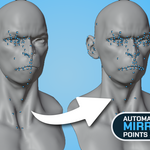
Creates or updates mirrored counterparts for the selected point pairs. Repeatable without duplicating existing mirrored twins.
Creates or updates mirrored counterparts for all eligible normal point pairs.
Removes point duplicates closer than the configured weld distance. The earlier point in each duplicate cluster is kept.
Projects selected pairs, or the active pair, onto the Template and Target centerlines.
Writes reusable point data to JSON for compatible Template topology.
Loads a previously saved point set. Template topology must be compatible with the saved anchors.
Wrap
Do an inexpensive test wrap before committing to final quality. Higher quality cannot fix wrong correspondence, but the current solve also smooths and normalizes guide influence to reduce local pinching around points.
Quick preview solve for iterating on points and general alignment. The Free Edition includes the basic Fast-quality workflow.
Higher-quality general production preset. Full Edition.
Deepest refinement and densest final-quality preset for demanding assets. Full Edition.
Blends between preserving the Template's local modeling and fully adopting the Target surface. 1.0 fully conforms; lower values retain more Template character.
Makes Template boundary loops deliberately follow matching Target open edges. Useful for neck seams, cuffs and openings. Full Edition.
Streams solve progress and results to the viewport while the wrap runs.
Chooses how the wrapped result is delivered, such as a BWrap Shape Key or direct application. Output options depend on edition.
Runs the non-rigid fitting solve with the current point set, quality and protection settings. Fix setup problems before increasing quality.
Uses topology-aware influence, normalized overlapping-point influence and deformation-field smoothing to reduce pinching around guide points.
Preserves existing Shape Key deltas through the BWrap workflow so the wrapped mesh can retain downstream deformation work.
Weight Groups
Full Edition provides painted per-region controls so difficult areas do not all have to obey the same fitting rule.
Keeps a region out of the primary surface-fitting solve so it is carried along rather than projected onto an unrelated surface. Useful for mouth bags, sockets and interior surfaces.
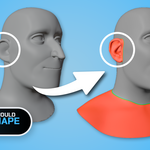
Allows a region to move with the wrap while preserving more of the Template's local form and volume. Useful for ears, structured details and deliberate volume.
Prevents selected vertices from moving. Useful for fixed attachment points.
Automatically finds occluded cavity/interior vertices and fills the Exclude group.
Expands the automatically detected interior selection into the transition region.
Stores reusable protection maps tied to the Template topology.
Refinement Tools
Refinement is for the last local problems after the general relationship is already correct.
Uses the current wrap as the new Template surface and refreshes point anchors onto it. This supports iterative passes: wrap → conform points → adjust/add points → wrap again.
Starts the live brush for sliding the wrapped mesh over the underlying Target surface.
Grabs and slides the mesh while keeping it on the Target surface.
Smooths pinched or uneven topology while keeping it on the Target.
Moves freely without surface snapping.
Changes brush size. Normal scroll remains viewport zoom.
Moves point-driven regions with interpolation between landmarks rather than a radius brush.
Keeps supported refinement operations symmetrical when enabled.
Workspace and View Controls
The BWrap workspace is designed for comparing the Template and Target without one hiding the other.
Keeps the two BWrap viewports aligned while you orbit, pan and zoom for comparison.
Shows wireframe independently on Template or Target.
Draws point markers in front of geometry so they remain readable.
Shows point labels and names for easier pair auditing.
Keeps one mesh easy to inspect in each viewport. Created by Build BWrap Workspace.
Output and Continuing in Blender
Stores the wrap as a Shape Key on the Template so its influence can be dialed or reviewed before baking.
Bakes or keeps the approved wrap on the Template according to the active output workflow. Save a setup copy first.
Discards the BWrap Shape Key or result without baking it.
Extracts the wrapped result to a separate Blender object when available in the selected output mode.
Writes the wrap directly to the Template instead of keeping a separate Shape Key.
Free vs Full
| Feature | Free | Full |
|---|---|---|
| Point and EdgeLoop guidance workflow | ✓ | ✓ |
| Template/source and Target setup | ✓ | ✓ |
| Landmark point-pair workflow | ✓ | ✓ |
| Basic / Fast-quality wrapping | ✓ | ✓ |
| All quality levels | ✕ | ✓ |
| Exclude / Keep Shape / Lock controls | ✕ | ✓ |
| Open-edge snapping | ✕ | ✓ |
| Advanced refinement / Nudge tools | ✕ | ✓ |
| Body / reusable-topology workflows | ✓ | ✓ |
| Garment fitting | Basic | Full |
Common Problems
Check broad point correspondence first. Confirm left/right, front/back and major landmarks are paired correctly before adding more local points.
Add clearer point pairs around the region and confirm each Template landmark really matches the intended Target landmark.
In Full Edition, use Keep Shape or Exclude where appropriate. Also check whether nearby point pairs are pulling in conflicting directions and whether the Target actually contains the desired volume.
Use Snap Open Edges to Target in Full Edition and add point pairs at meaningful border landmarks such as neckline corners, cuffs or seams.
Check that Conform Strength is at the intended value and that the region is not painted into Keep Shape or Exclude.
Return to the setup. More iterations cannot repair swapped meshes, bad landmarks, wrong orientation or missing protection rules.
BWrap establishes the fit but does not replace downstream collision testing, thickness, skinning or cloth-simulation cleanup.
Restart Blender once so interactive tools re-register and mode highlights reset.
Learn BWrap from Start to Finish
Watch the complete BWrap tutorial for a practical walkthrough of the workflow.
Support and Questions
For support, bug reports or questions about BWrap, email [email protected]. Messages go directly to me.
When reporting an issue, please include your BWrap edition/version, Blender version, Windows version, whether the issue occurs in a clean file, a screenshot showing Template/Target/point pairs, the quality level used, active protection controls and the exact steps that reproduce the problem.
Email Support Visit skalin.orgKeep the topology. Change the character.
Have questions about this product?
Login to message
Discover more products like this
Workflow topology retopology Sculpt character 3D Scan wrapping mesh wrapping addon modeling blender #Character Modeling