 Tokugawa Electronics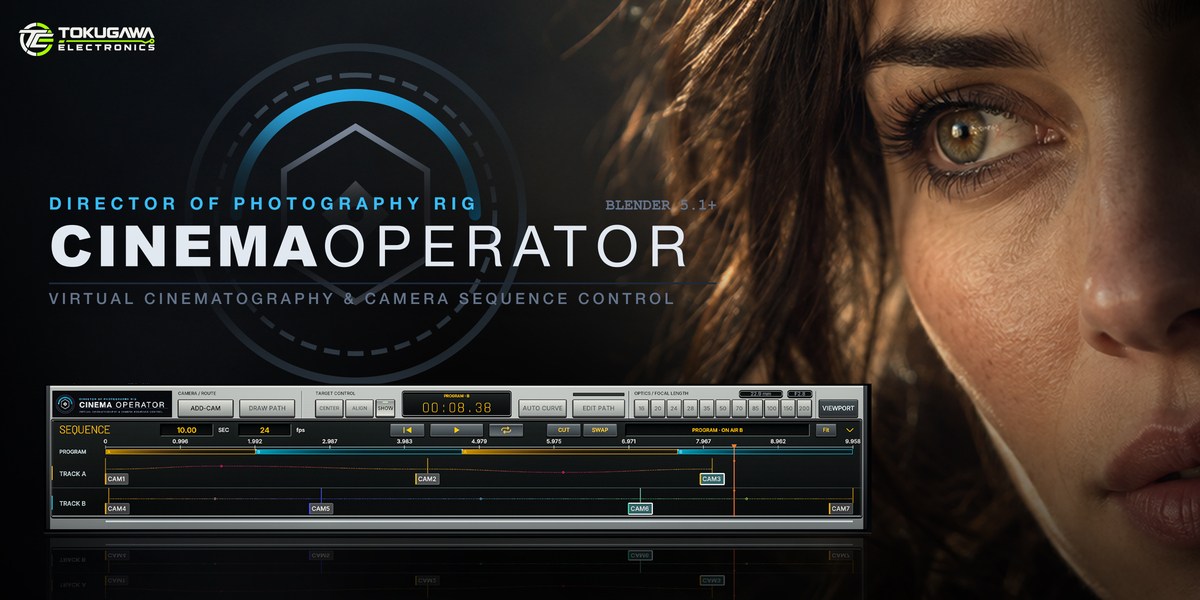
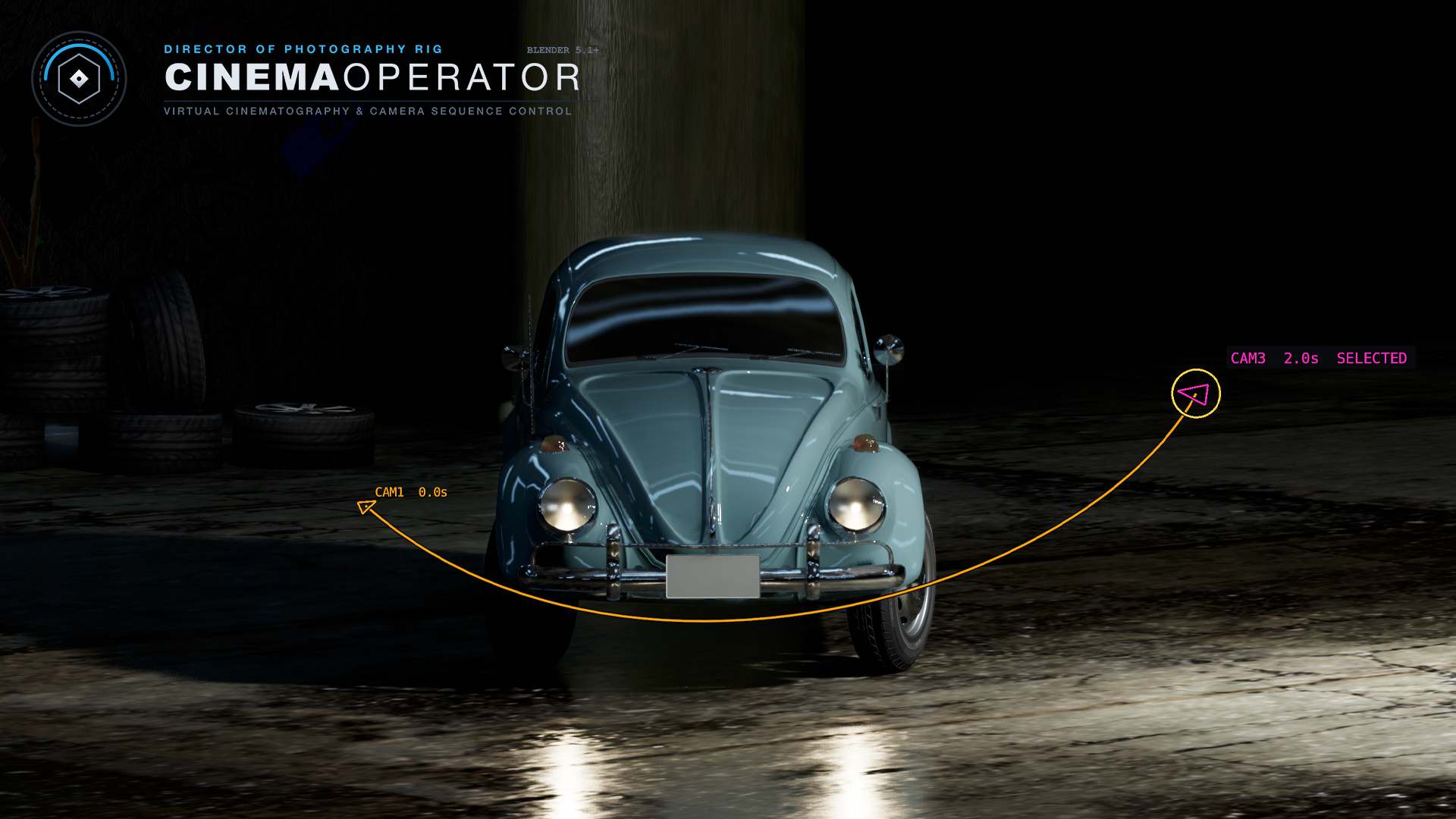
TOKUGAWA ELECTRONICS / CINEMAOPERATOR
Camera work, designed for filmmakers.
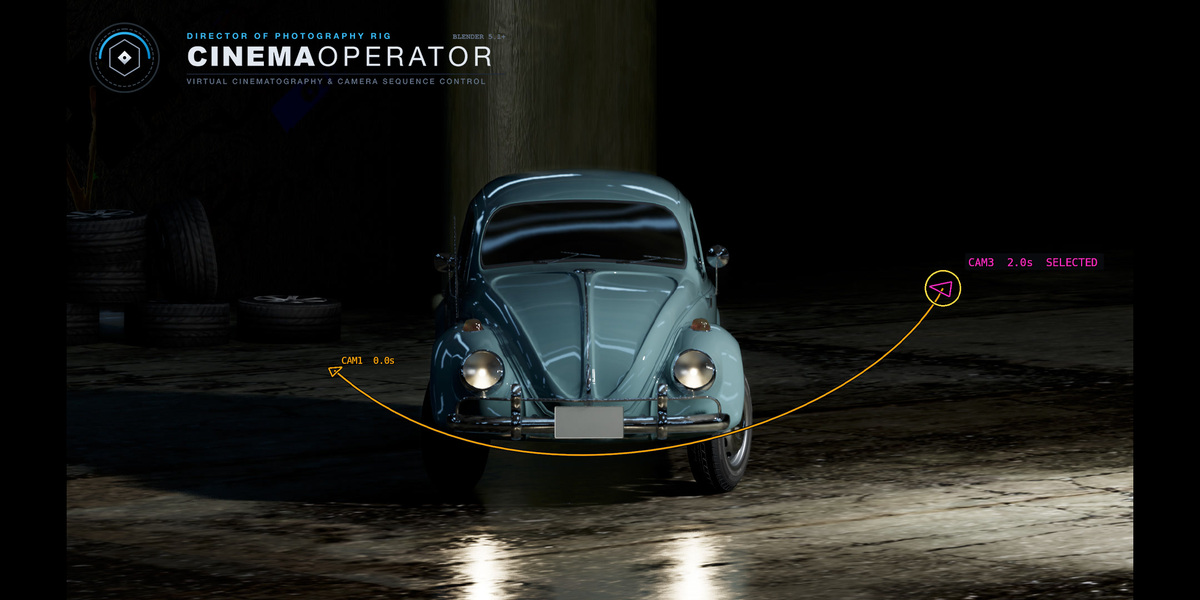


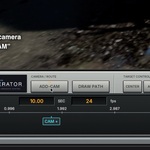
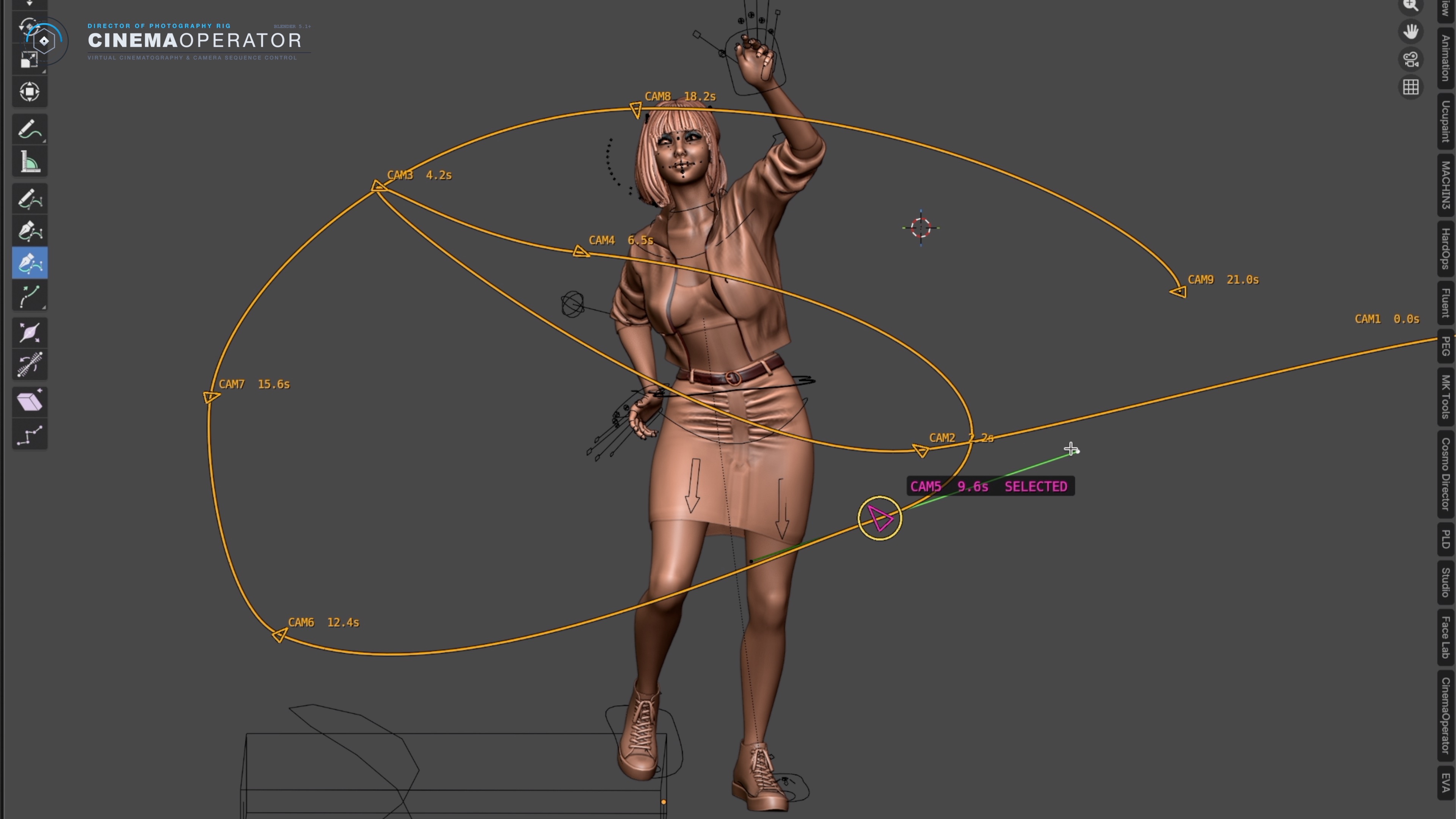
Frame your shot through the viewfinder, drop a target on your subject, and place CAMs along the timeline. CinemaOperator turns those framing waypoints into a flowing camera move, with an intuitive cinema camera console inside Blender.
LAUNCH WEEK · OCT 30–NOV 5, 2026
Start your next camera move for $4.99.
Get 90% off the regular $49.90 price with code cinemalaunch90 at checkout. Valid October 30 through November 5, 2026; expires at 23:59 on November 5 in Superhive’s coupon time zone. Applicable taxes may be added.
After trying CinemaOperator, an honest rating and review on Superhive would help us improve and help other filmmakers choose. Reviews are entirely optional and are not a condition of this discount.
Help shape CinemaOperator — 10 free feedback copies
Tell us what you would like to create with CinemaOperator using Contact the creator on this page. We will review your message and send a private free-copy code to 10 selected participants who are willing to share their experience, questions and suggestions directly with us. Limited to 10 participants; applications close when the places are filled or on November 30, 2026. A public review is not required.
Create an orbit shot in 3 steps
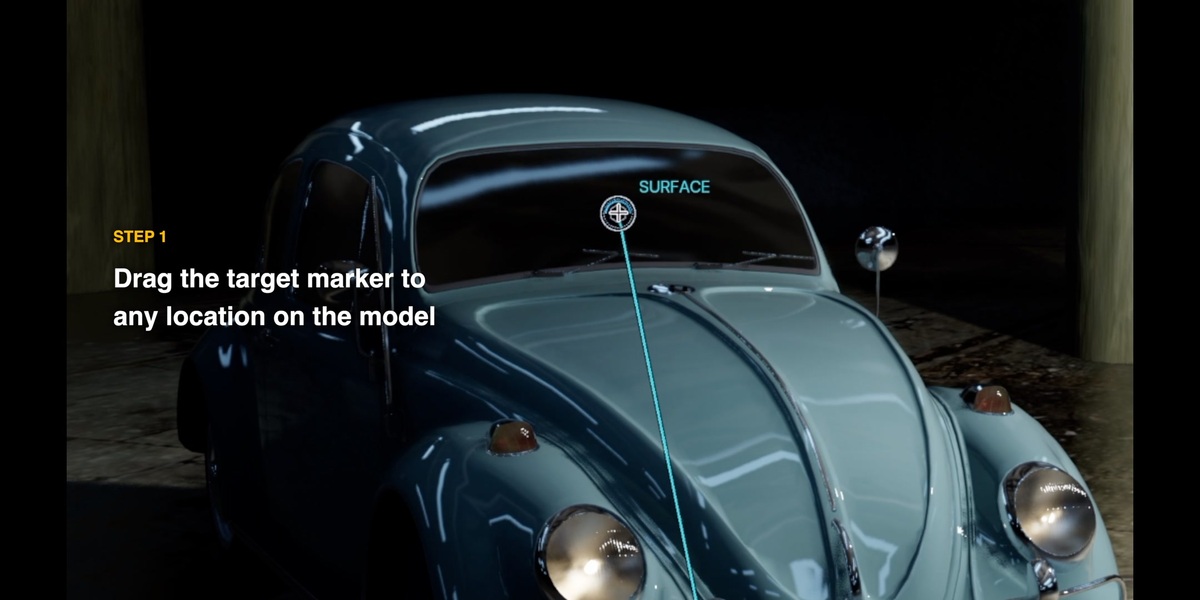
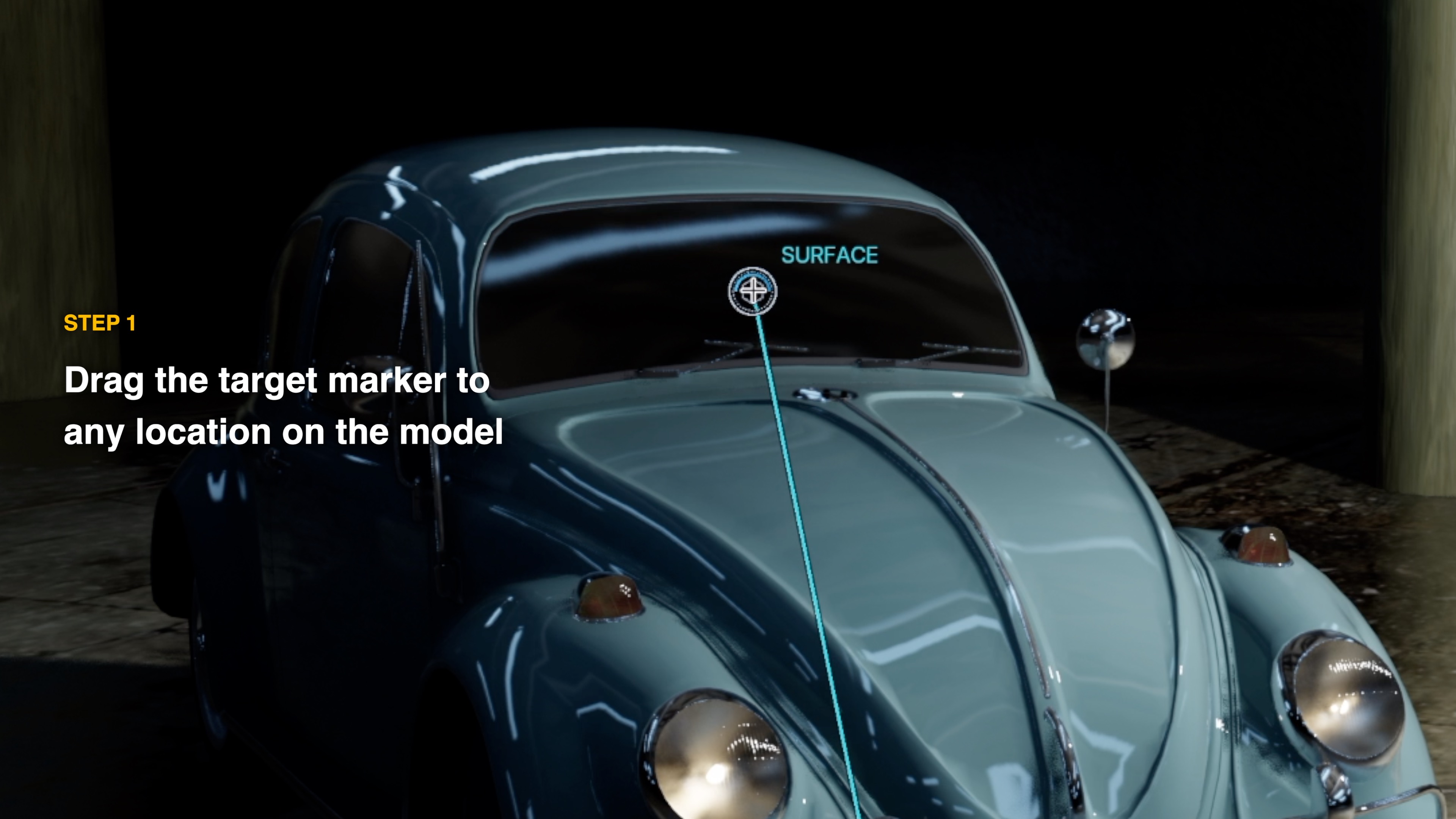
STEP 1 — Set your target

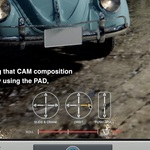
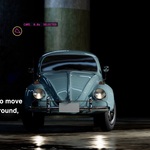
Place the target marker on your model to build your composition around it. Pan & tilt, slide & crane, orbit, and push & pull all use this marker as their reference point.
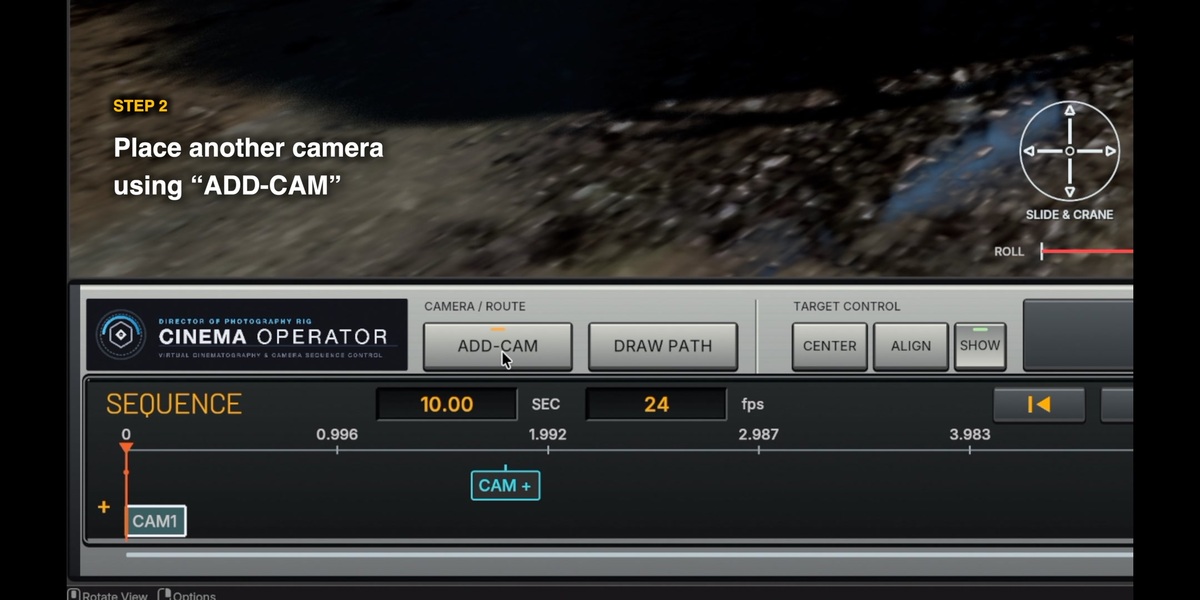
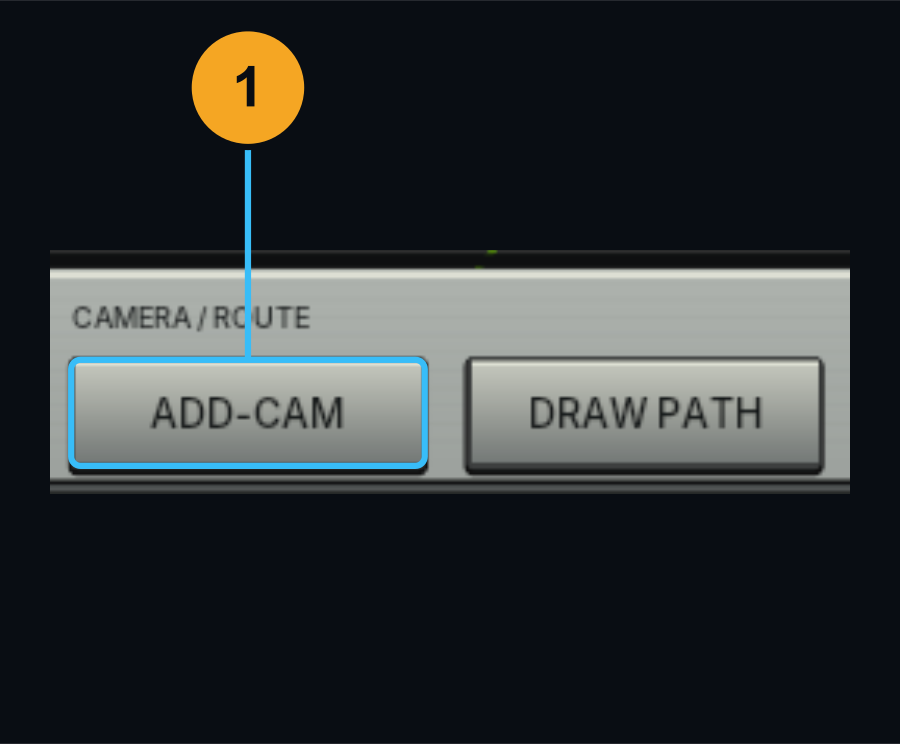
STEP 2 — Add a CAM
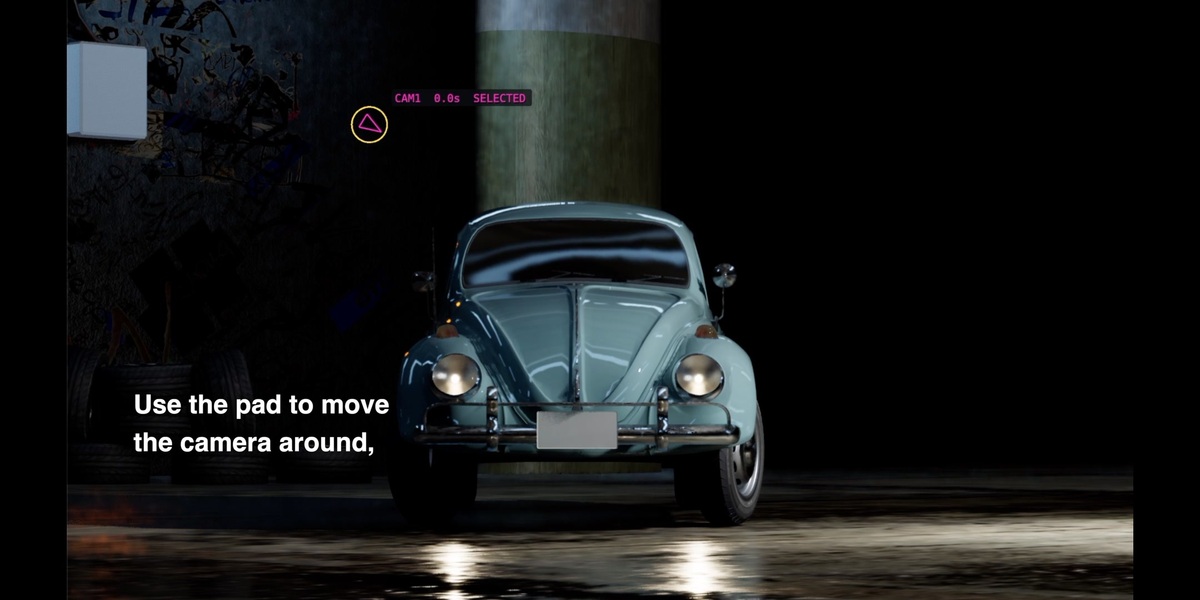
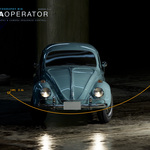
Add a CAM card and place it at any time in the sequencer. A curve connecting the CAMs is generated automatically.
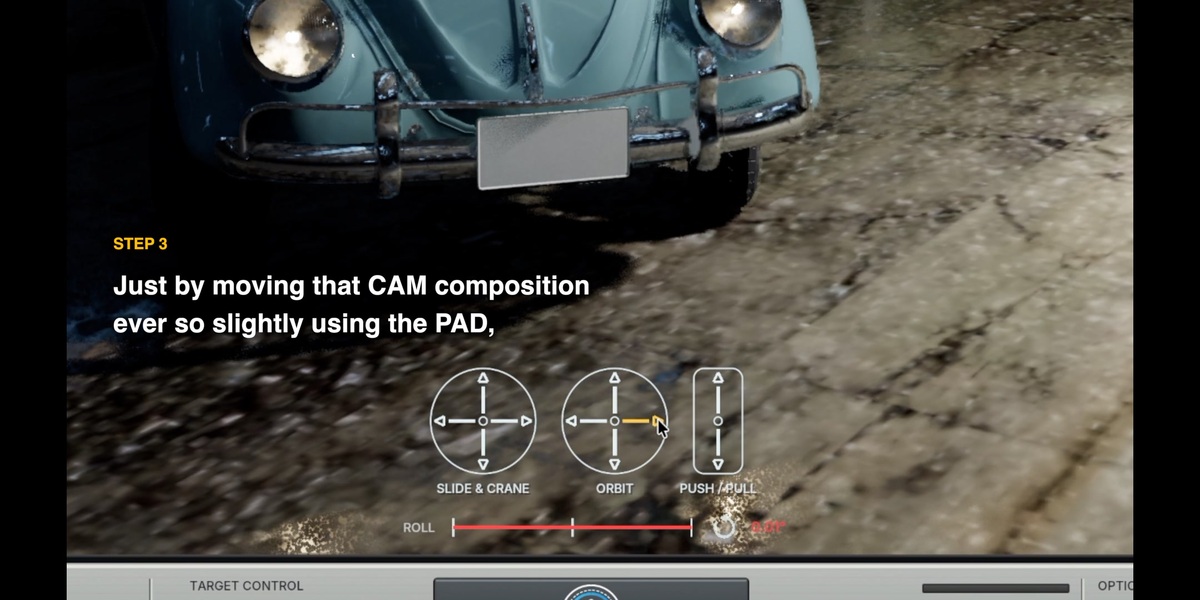
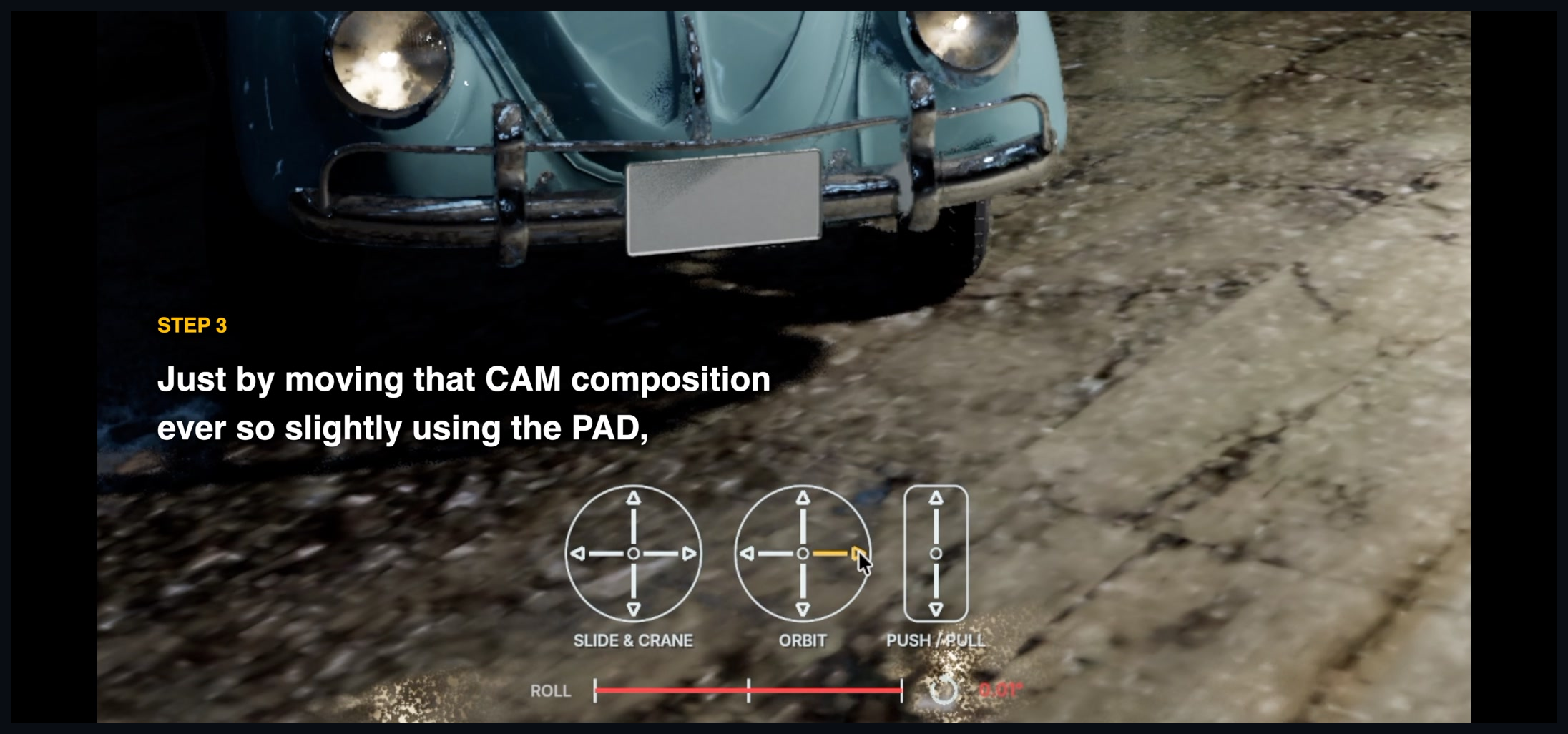
STEP 3 — Adjust and play
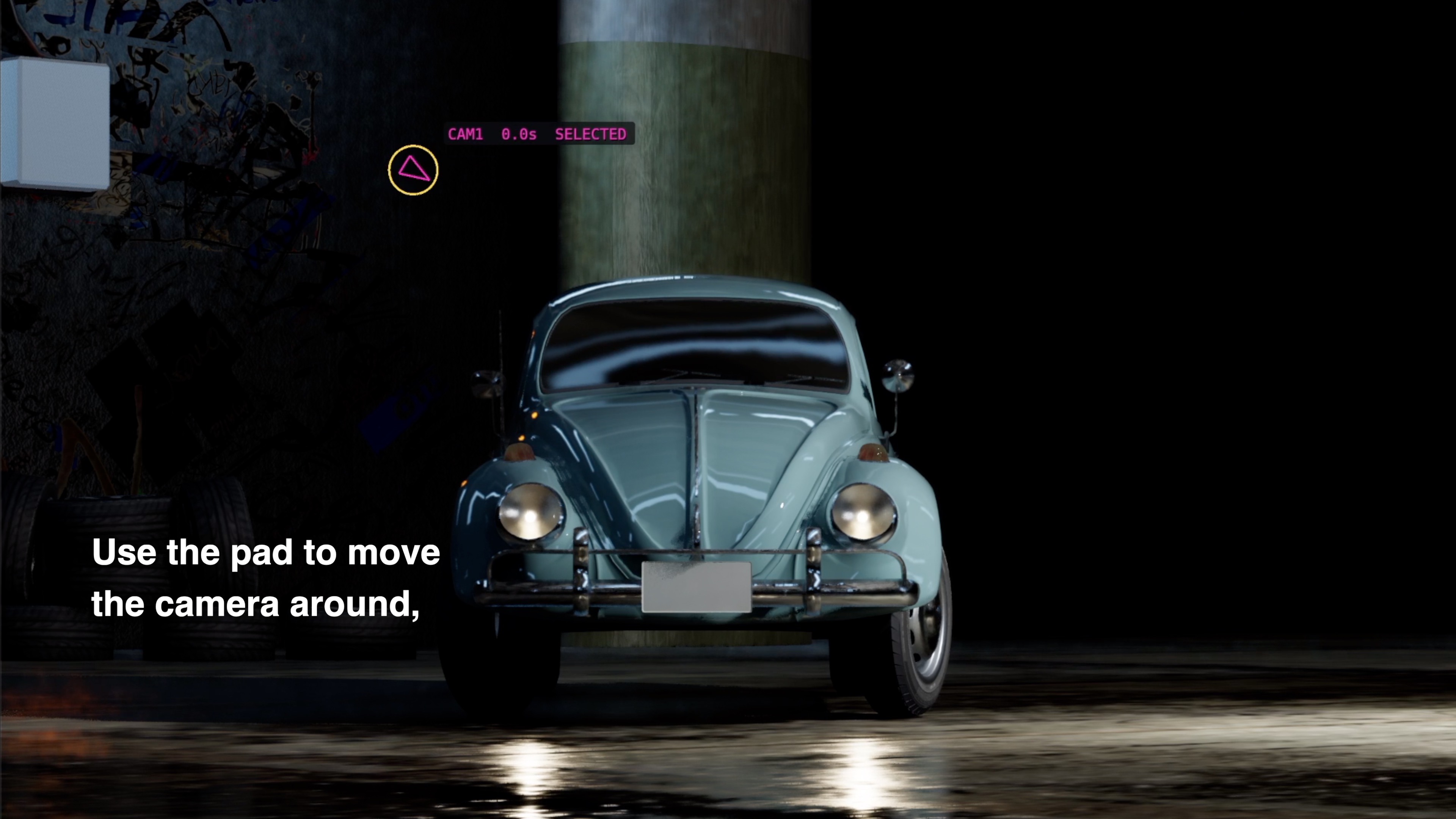
Use the pads to change the new CAM’s composition. Here, we simply clicked the left orbit arrow a few times. Start with a rough move, then play the sequence to see it in motion.
00 — Compose first. Shape the move.
CAM cards are framing waypoints along a continuous shot. Build the compositions you want to pass through, then refine the journey between them.
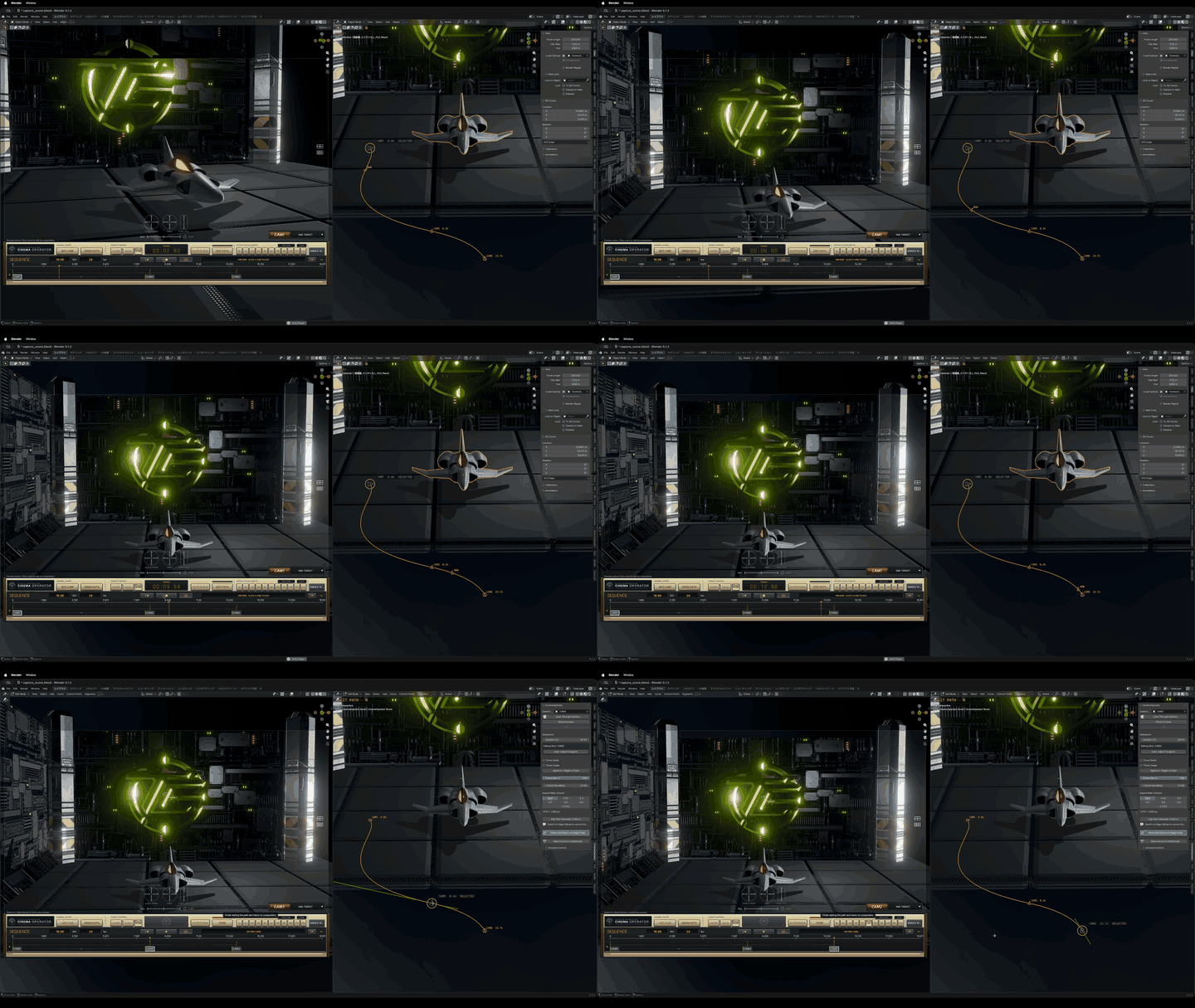

Left: the camera viewfinder. Right: the 3D path. One camera moves through the framing waypoints.
Explore the controls below: numbered callouts match the short descriptions beneath each image. Click an image to view it at full size.
01 — Start with a view you love
Frame your subject in the viewport. Create your first CAM from that view and start shaping the shot.
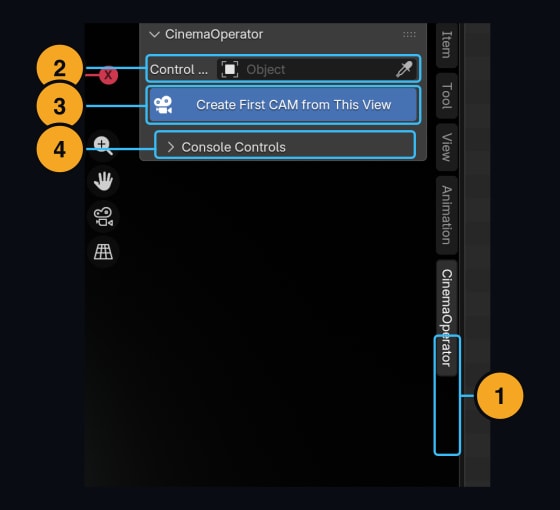
- 01 CinemaOperator tab — Open your camera workspace from the N-panel.
- 02 Control Camera — See which camera you are working with.
- 03 Create First CAM from View — Turn your current perspective view into CAM 1.
- 04 Shared controls — Keep playback and viewing tools close at hand.
02 — Compose by feel
Slide, orbit and push in while watching the actual camera frame.
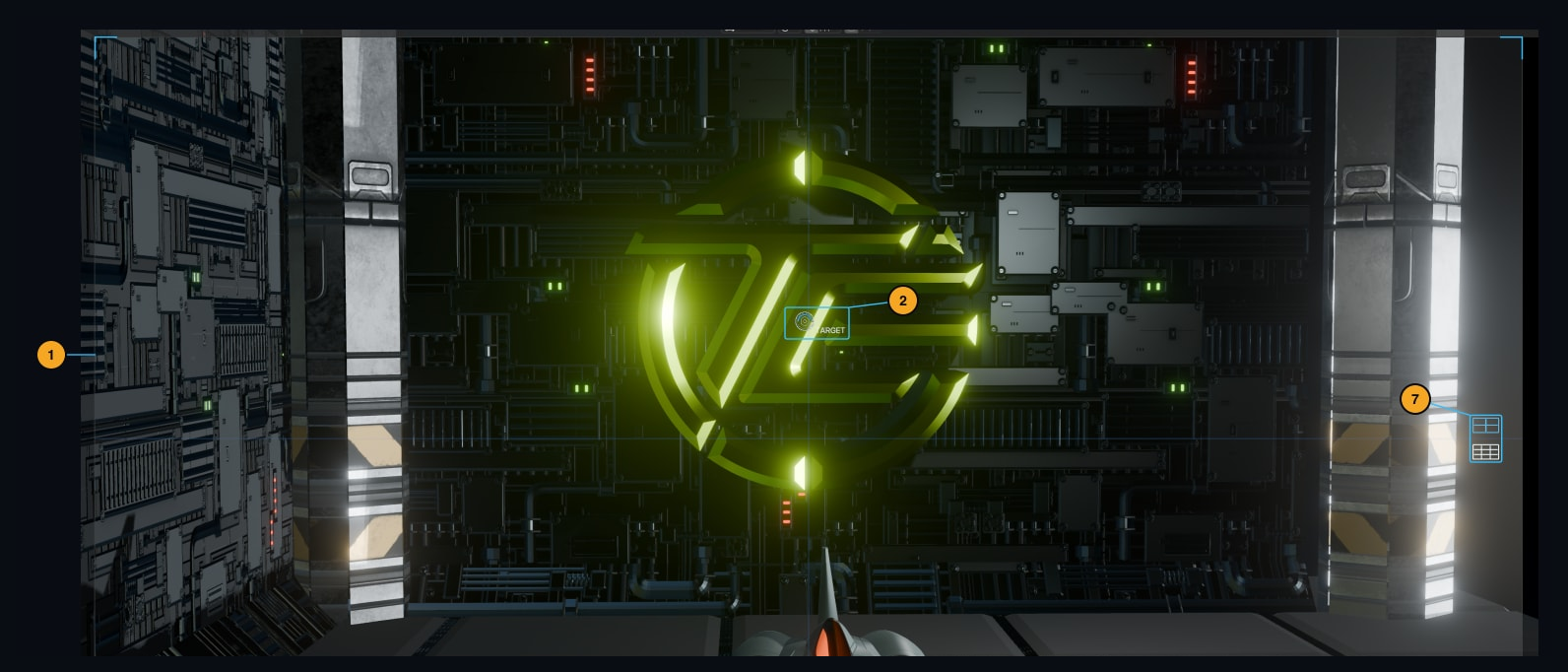
- 01 Viewfinder — See the composition you will render.
- 02 TARGET — Set the reference point for aim and focus.
- 07 Guides — Toggle a center crosshair and rule-of-thirds grid.
The camera pads, enlarged:
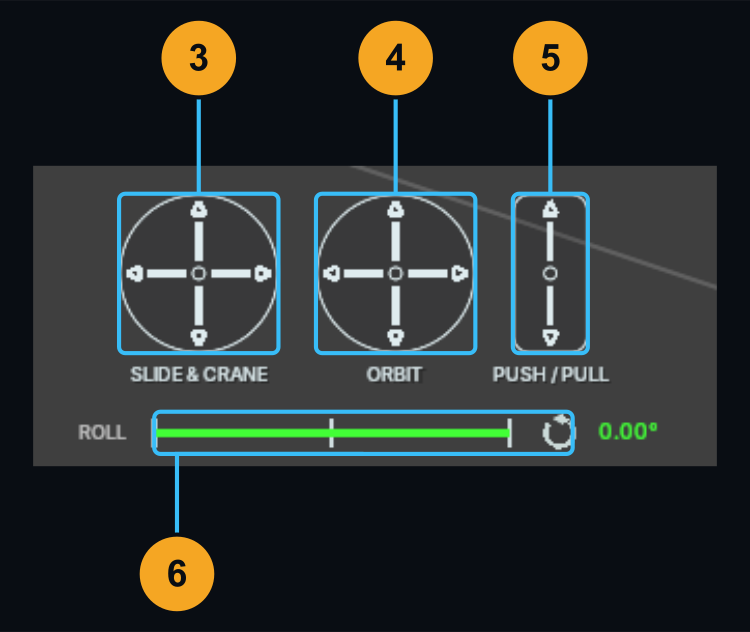
- 03 SLIDE & CRANE — Move sideways or vertically.
- 04 ORBIT — Move around your target.
- 05 PUSH / PULL — Dolly closer or farther away.
- 06 ROLL — Tilt the horizon, or reset it to level.
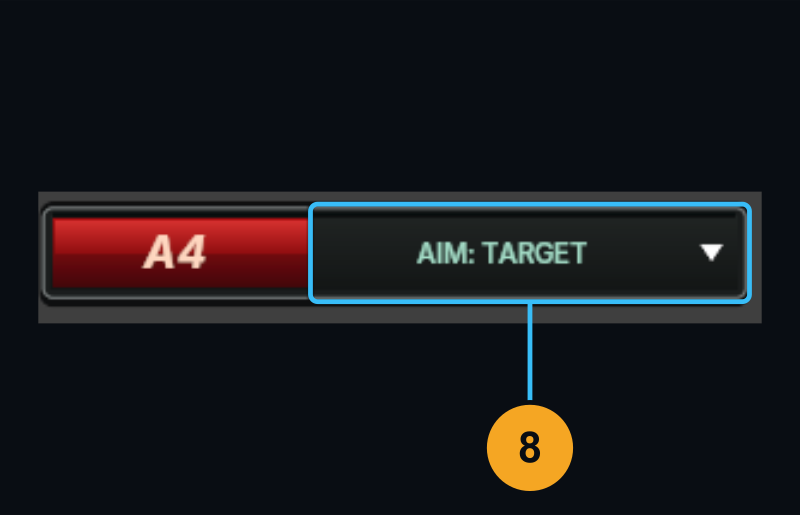
- 08 AIM — Track a target, look along the path, or blend saved orientations.
03 — Your camera controls, together
Add framing waypoints, smooth the route and choose your lens from one console. The controls are shown in two close-ups so every button is easy to find.
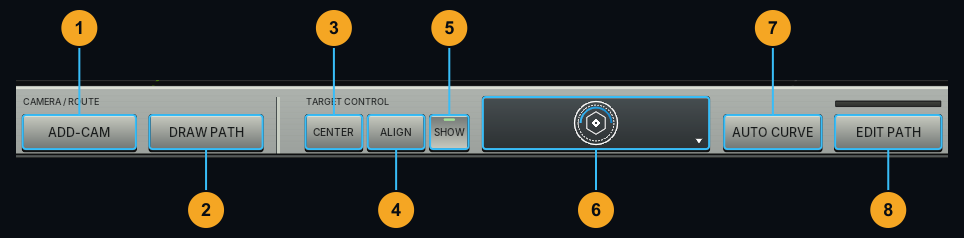
- 01ADD-CAM — Place the next composition on the timeline.
- 02DRAW PATH — Sketch a camera route, or extend an existing one.
- 03CENTER — Place the target in the center of the frame.
- 04ALIGN — Align the camera to useful world-axis views.
- 05SHOW — Show or hide the target marker.
- 06SET TARGET — Drop your aim and focus point onto a surface.
- 07AUTO CURVE — Smooth the path handles at all selected CAMs. Select one CAM for a local adjustment, or box-select several to smooth them together.
- 08EDIT PATH — Open the 3D path beside the camera preview.
Choose the lens and depth of field that fit your shot.
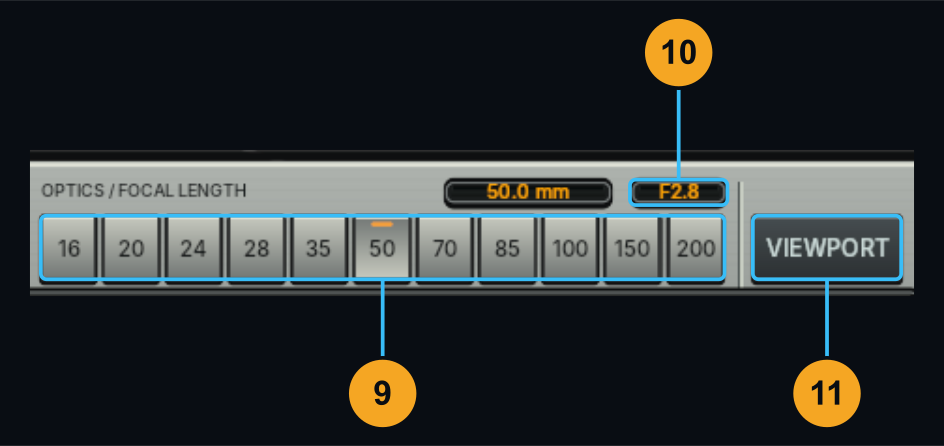
- 09Focal Length — Choose a lens preset or enter a custom value.
- 10F-Stop — Set aperture and depth of field.
- 11VIEWPORT — Return to the working viewport.
04 — Give the move its rhythm
Keep the rhythm you like, even when the duration changes. Set the new length, then fit every CAM on the active track to it—or space them evenly for a fresh starting point.
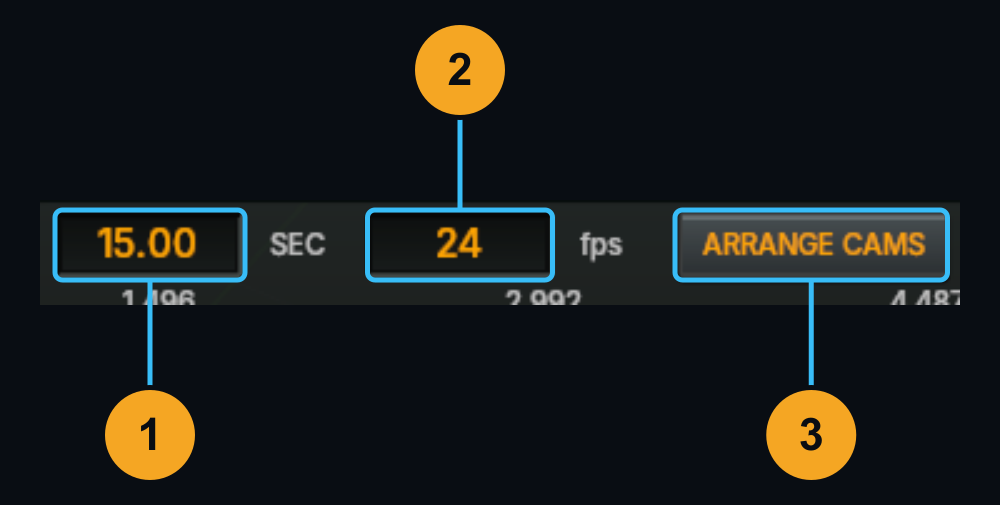
- 01SEC — Set the sequence duration.
- 02fps — Set the frame rate.
- 03ARRANGE CAMS — Choose FIT TO DURATION to preserve the relative timing between CAMs, or SPACE EVENLY to distribute them evenly across the available duration.
For example, extend a 10-second move to 15 seconds with FIT TO DURATION. The pauses and faster passages keep their relative proportions. Auto TAIL reserves room for motion beyond the last CAM.
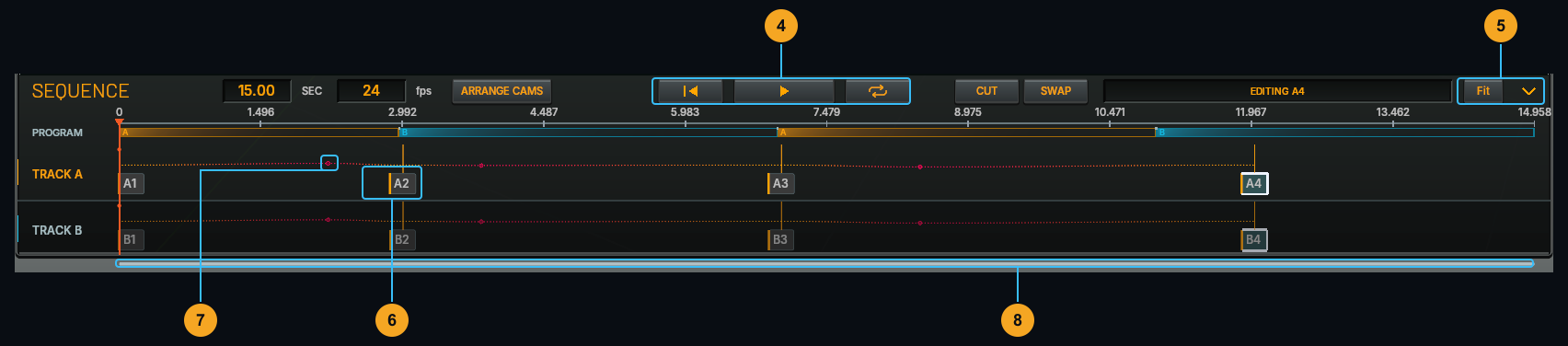
- 04Playback — Rewind, play and loop the shot.
- 05Fit / Collapse — Fit the timeline or fold the console away.
- 06CAM cards — Select a composition or drag it to change its timing. Box-select multiple cards for AUTO CURVE.
- 07Work transition — Shape the path or orientation handoff, depending on AIM mode.
- 08Timeline navigation — Scrub the time ruler and scroll through the sequence.
ARRANGE CAMS acts on all CAMs in the active EDIT A/B track, including disabled cards. The other track and PROGRAM cut times stay unchanged. The spatial path is preserved; times are rounded to frames. Use it with playback stopped, outside DRAW PATH and PROGRAM, with at least two CAMs. Preview again after retiming animated subjects.
05 — Two moves. Your cut.

Build independent camera moves on TRACK A and TRACK B, then choose what goes on air.
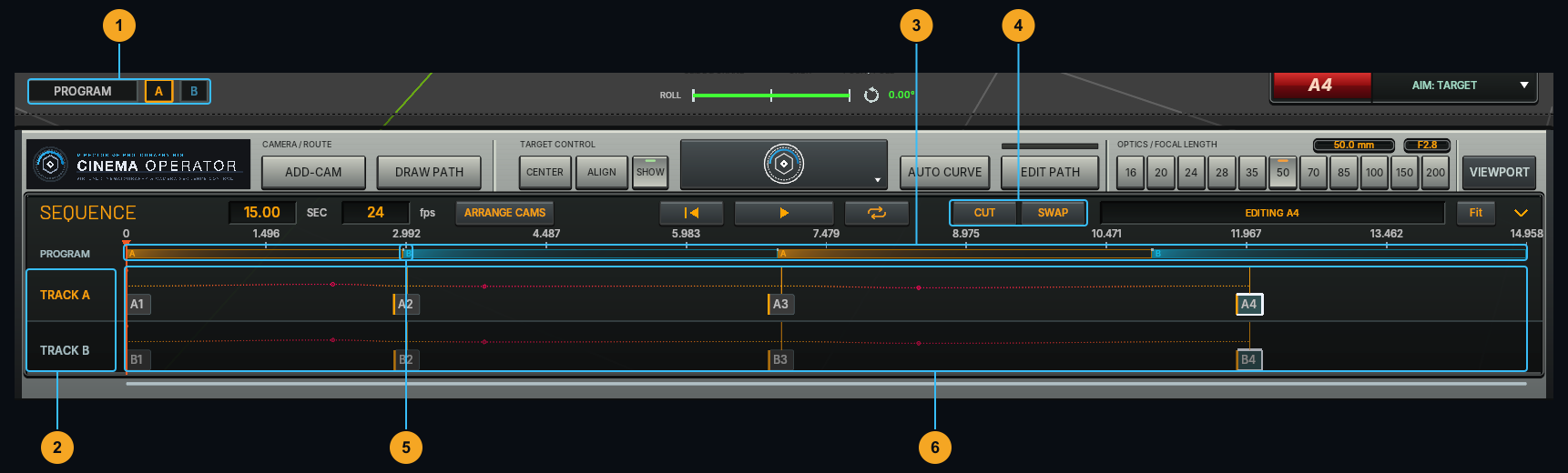
- 01 PROGRAM / A / B — Preview the final cut or an individual track.
- 02 Track selector — Choose the track to edit.
- 03 PROGRAM band — See which track is on air.
- 04 CUT / SWAP — Add a cut or swap the on-air tracks.
- 05 Cut boundaries — Drag to trim a cut frame by frame.
- 06 A / B timelines — Keep each track’s CAMs and path independent.
06 — Set the format. Deliver the move.
Switch output formats and export camera motion to standard Blender keyframes when you need a handoff.
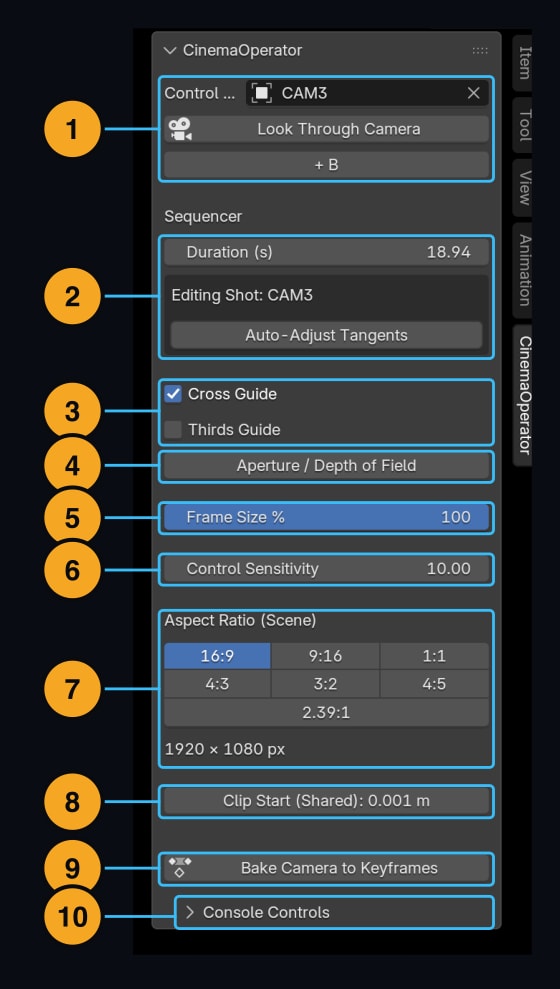
- 01 Camera / + B — Return to the camera view or add a second track.
- 02 Duration / CAM — Check timing and the active composition.
- 03 Guides — Toggle framing guides.
- 04 Depth of Field — Configure aperture and focus settings.
- 05 Frame Size — Resize the on-screen viewfinder only.
- 06 Sensitivity — Tune the feel of composition controls.
- 07 Aspect Ratio — Choose landscape, portrait, square or scope.
- 08 Clip Start — Adjust the near clipping distance.
- 09 Bake Camera — Export to standard Blender camera keyframes.
- 10 Shared controls — Access auxiliary console tools.
Bake just the part you need
Render directly with CinemaOperator enabled, or bake a selected IN / OUT range for another computer or pipeline.

- 01 IN / OUT — Choose the range to export.
- 02 Range readout — Enter exact times numerically.
- 03 BAKE > — Configure and create the baked camera animation.
- 04 CANCEL — Return without baking.
07 — Sculpt the path. Watch the shot.
Keep the live camera preview on one side and reshape the 3D Bezier path on the other.
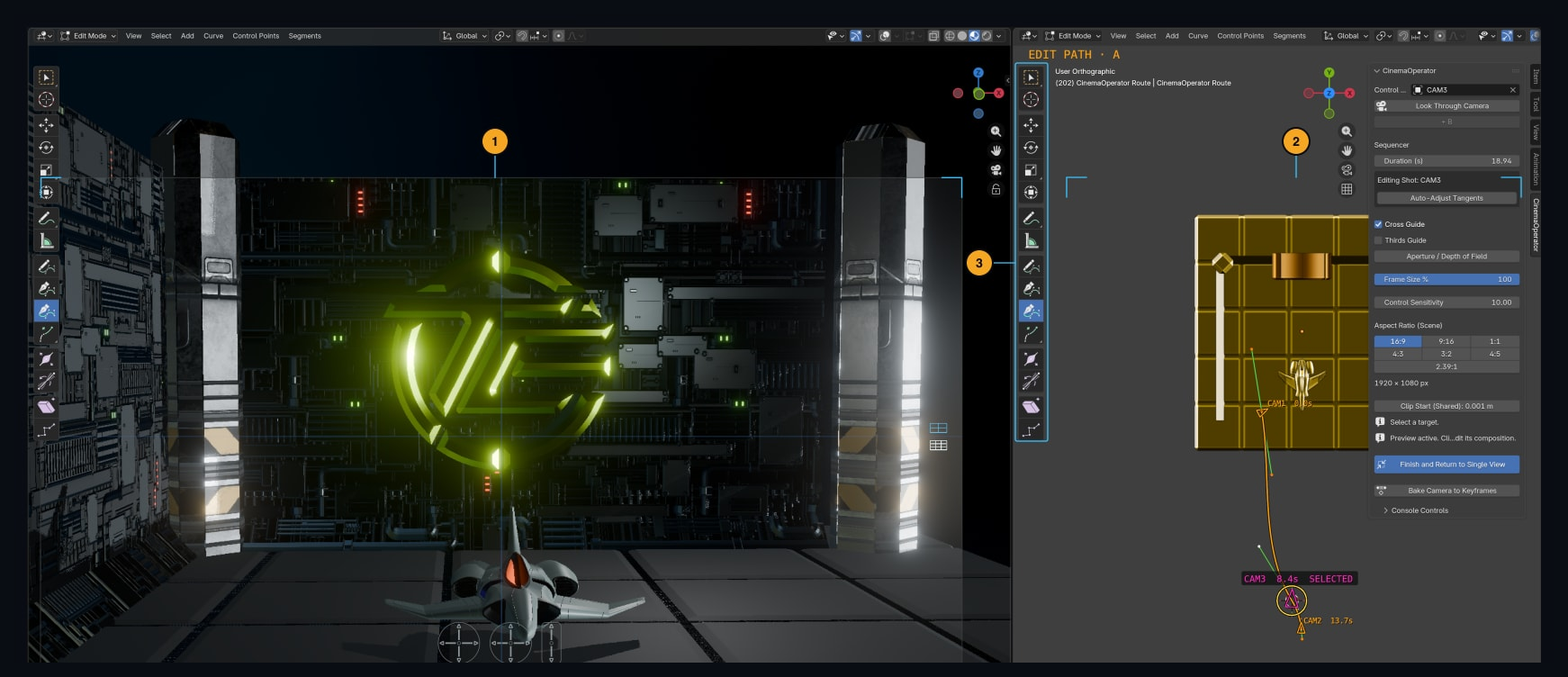
- 01 Camera preview — See the framing as you edit.
- 02 3D path — Select and reshape the camera route.
- 03 Curve tools — Use Blender’s move, rotate and scale tools.
The console, shown separately at a readable size:
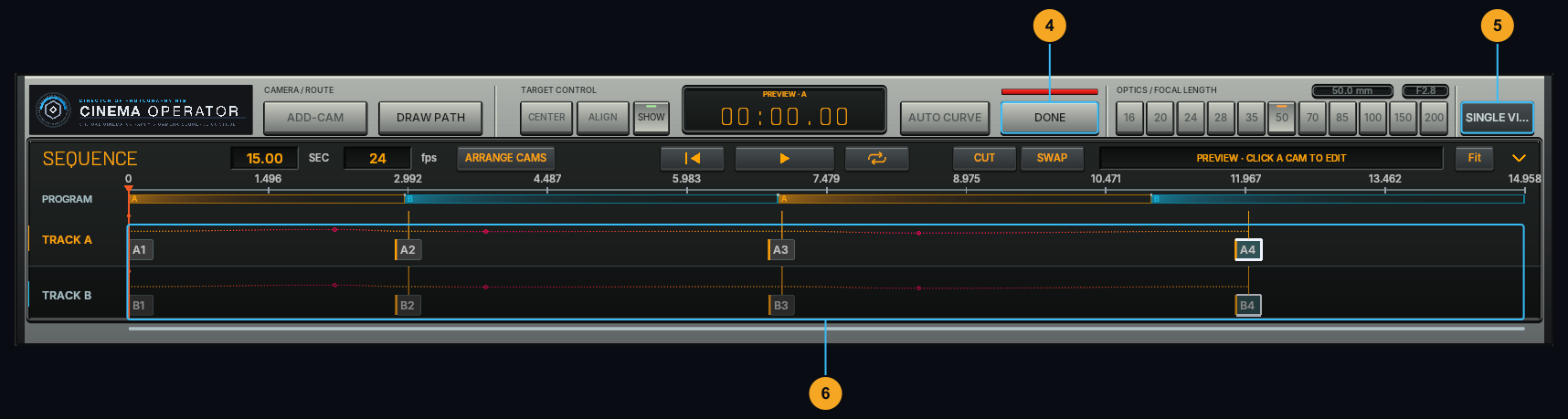
- 04 DONE — Finish curve editing while keeping split view.
- 05 SINGLE VIEW — Leave split view and unlock track controls.
- 06 CAM cards — Select a composition and its matching path point together.
08 — Draw where the camera should go
Sketch a route in 3D space, then generate CAMs along it.

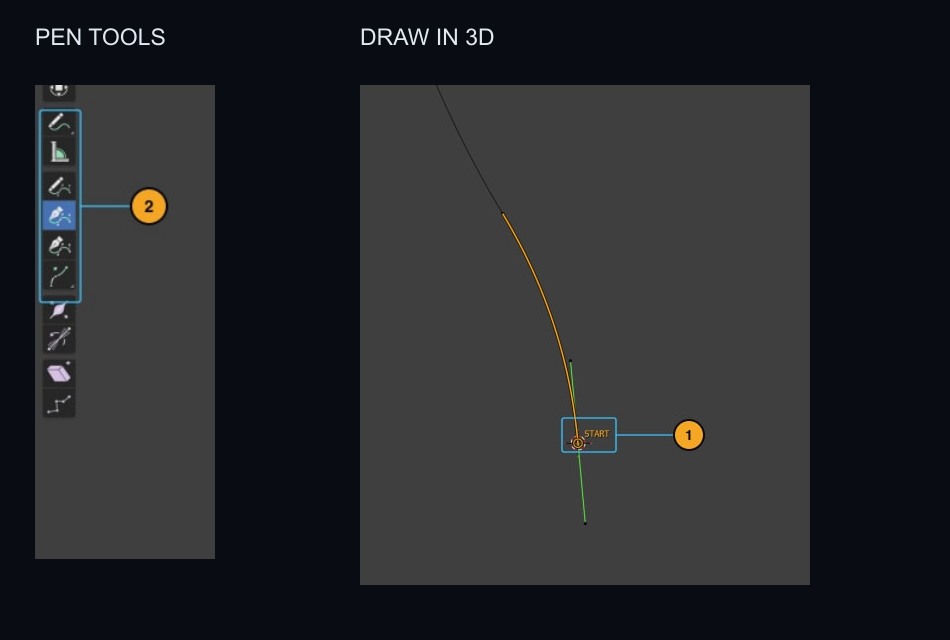
- 01 START — Continue from the end of an existing route.
- 02 Draw tools — Sketch the new path.
The console, shown separately at a readable size:
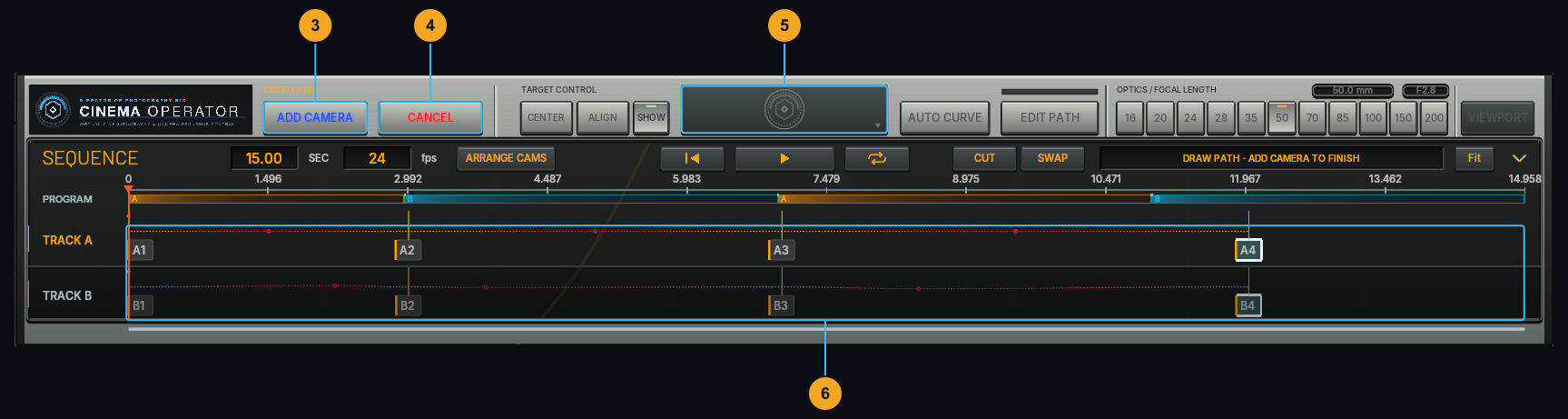
- 03 ADD CAMERA — Generate CAMs along the curve.
- 04 CANCEL — Discard the sketch.
- 05 Console — Framing controls resume after drawing.
- 06 Sequencer — See the CAMs that make up your move.
09 — Put character into the camera
Right-click a destination CAM to add continuous roll or procedural handheld motion to its incoming segment.
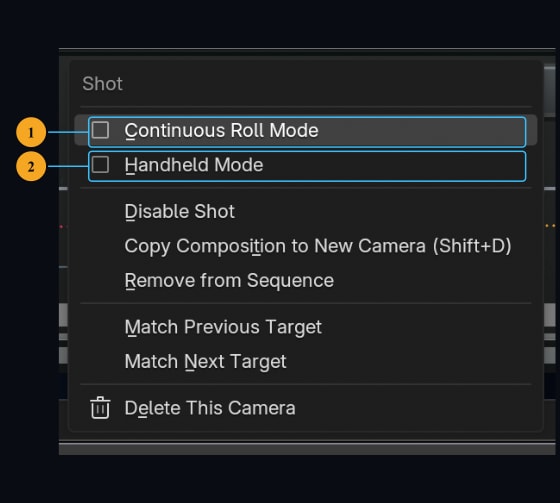
- 01 Continuous Roll — Record full turns for barrel rolls beyond 360°.
- 02 Handheld — Add positional and rotational motion over the base path.
Continuous Roll and Handheld are mutually exclusive on the same CAM.
Choose the motion’s character
Right-click the hand icon on the timeline to adjust handheld settings.
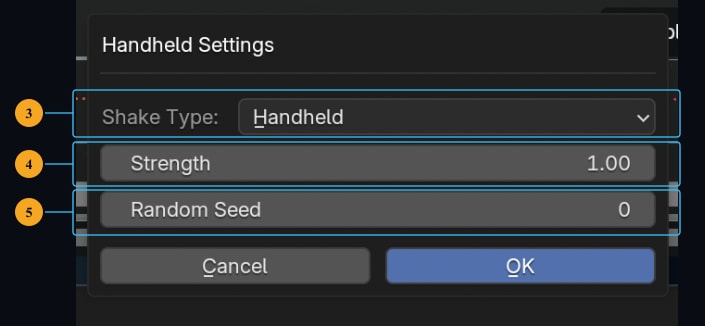
- 03 Style — Choose HANDHELD, WALK or VEHICLE motion.
- 04 Strength — Dial the shake up or down.
- 05 Seed — Change the pattern while keeping it repeatable.
10 — Make the console yours
Choose from 5 sculpted hardware skins and 7 flat themes. The same camera controls, in a look that suits your workspace.
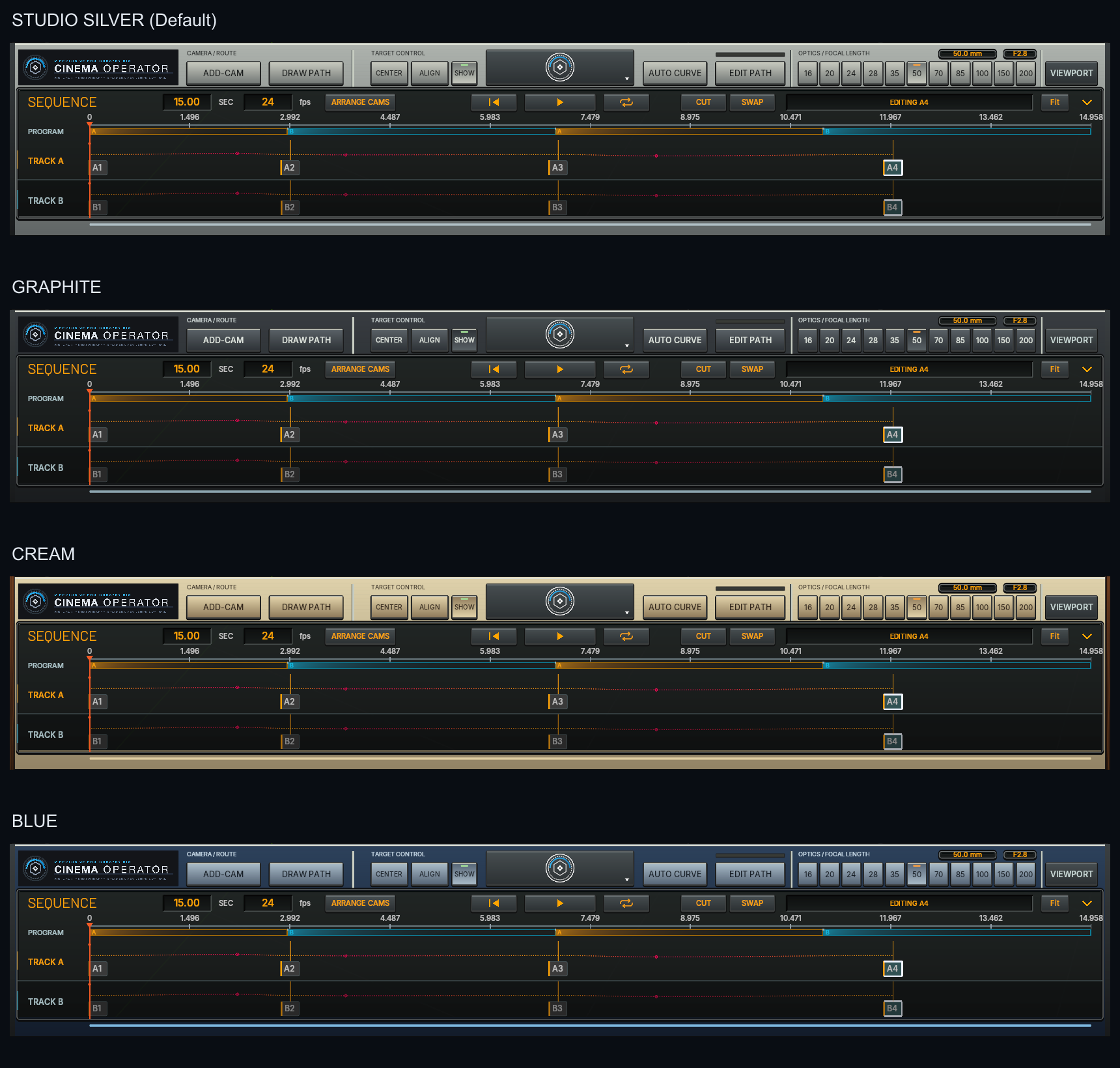
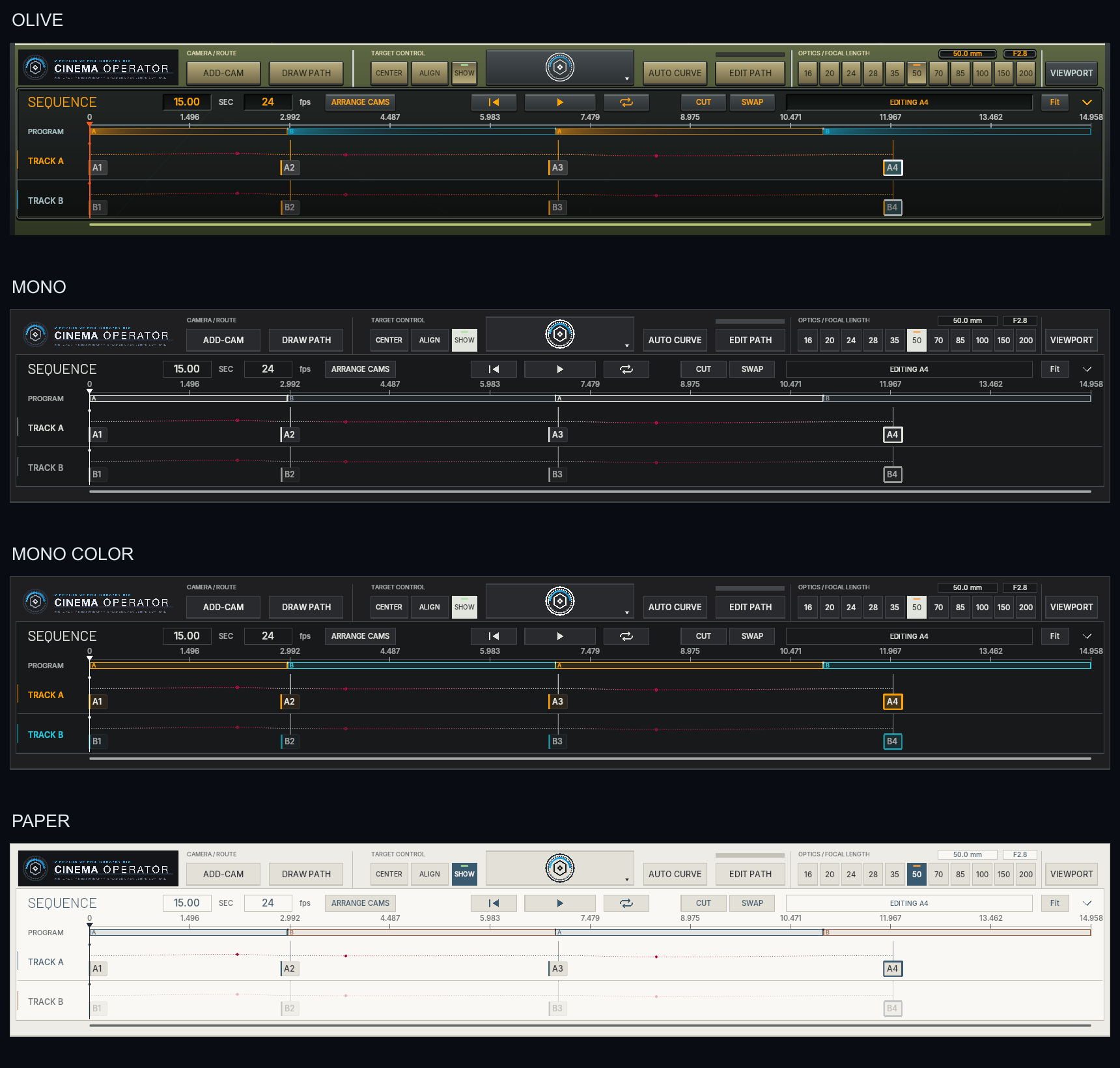
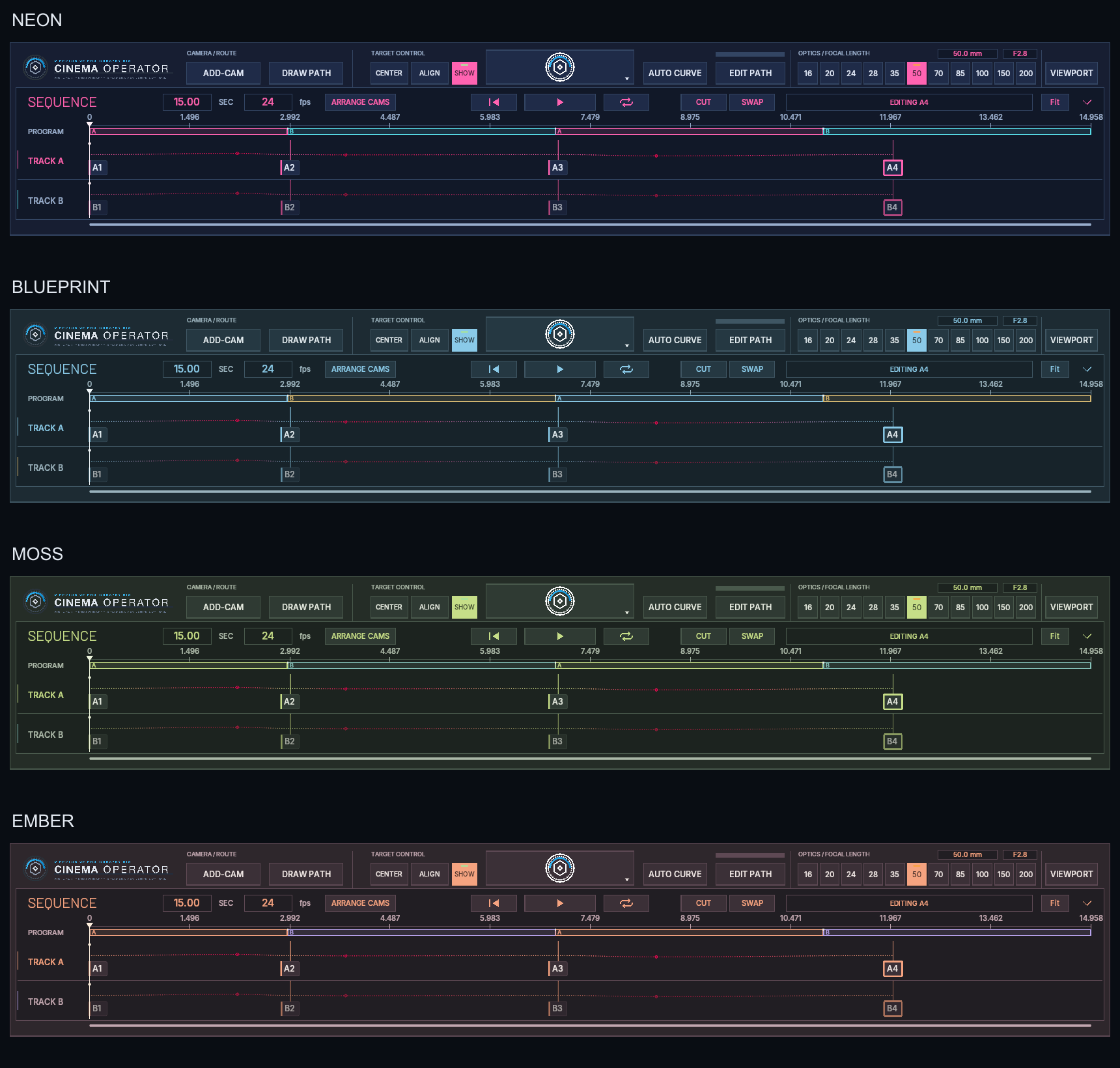
Change SKIN / THEME in Blender Preferences → Add-ons → CinemaOperator.
Render directly or bake for handoff
Render animations directly while CinemaOperator is enabled. For a render farm or another computer without the add-on, bake the full sequence or a selected IN / OUT range to standard Blender camera keyframes. PROGRAM baking creates separate A/B cameras and native camera-switch markers.
Included
- CinemaOperator 0.7.169 add-on installer
- Illustrated English and Japanese HTML manuals with bundled images and videos
- Installation instructions and release notes
Extract the Distribution ZIP first, then install the enclosed CinemaOperator_0.7.169_Release.zip from Blender Preferences. Keep the inner installer ZIP intact. Open Manual_EN.html or Manual_JA.html locally to read the manual.
Version & video notes
The demonstration videos and animated clips on this page were recorded with an earlier version of CinemaOperator. Their console layout may differ from the current release. The close-up console diagrams above show version 0.7.169.
0.7.169 · October 30, 2026
AUTO CURVE supports multiple selected CAMs. ARRANGE CAMS adds FIT TO DURATION and SPACE EVENLY. Timing controls are more compact, with extra space before playback. The download includes updated English and Japanese manuals.
Compatibility and workflow notes
For Blender 5.1 and 5.2 LTS. The 0.7.169 update was tested on macOS; Windows validation covers an earlier release. See the bundled release notes for the exact validation scope. Console faceplate labels remain in English; supported guidance, menus and tooltips follow Blender's English/Japanese language settings.
CinemaOperator is designed primarily for smooth, continuous camera moves. CAM cards are waypoints, not a bank of independent static cameras. Use the A/B PROGRAM switcher for cuts. Baked integer-frame keyframes can differ slightly from live procedural motion at subframes; check motion blur and cut boundaries before final output. For unbaked animation renders, enabling Blender's Render > Lock Interface is recommended. See the included manual and release notes for workflow details and validation scope.
We would love to see what you create.
If CinemaOperator helps bring your project to life, we would love to see your finished work and hear about your experience. Feel free to send us a link and your feedback through the “Contact the creator” button on this product page.
If you would like to include CinemaOperator — TOKUGAWA ELECTRONICS in your end credits, it would mean a great deal to us as developers. Sharing your work, sending feedback, and adding a credit are entirely optional.