Clayo – Sculpting Brush Wheel
 creativeflowtools
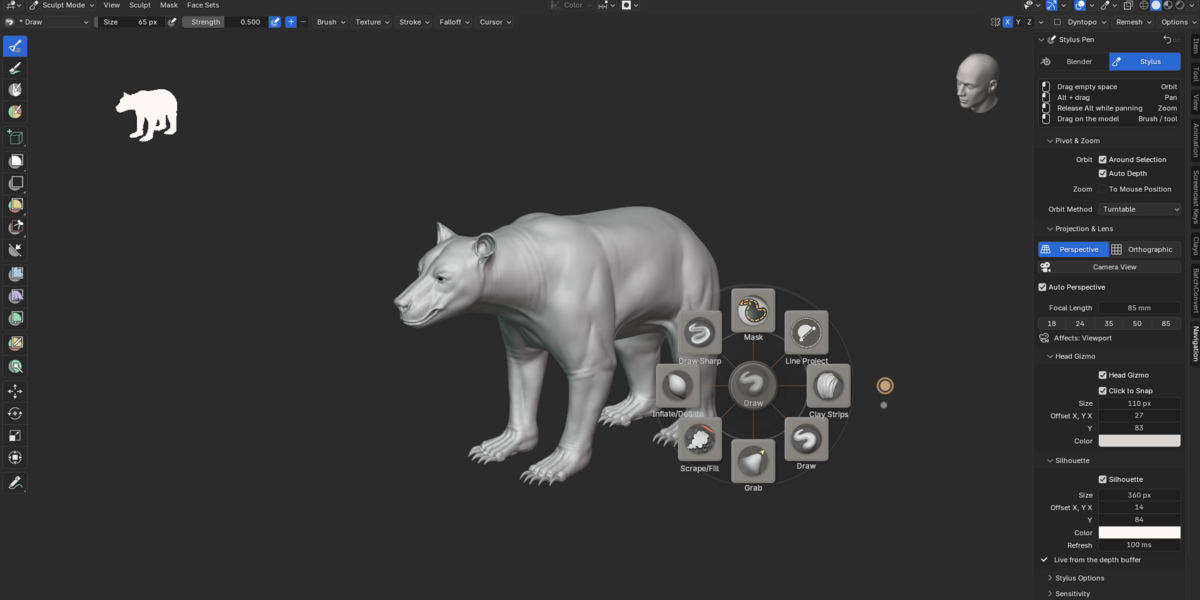
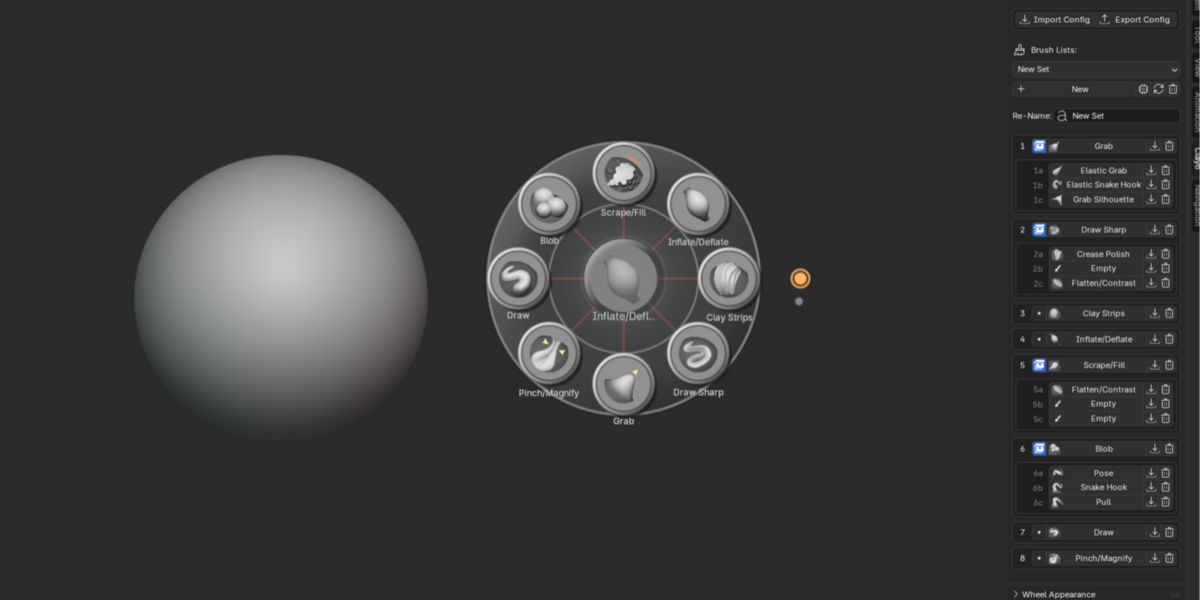
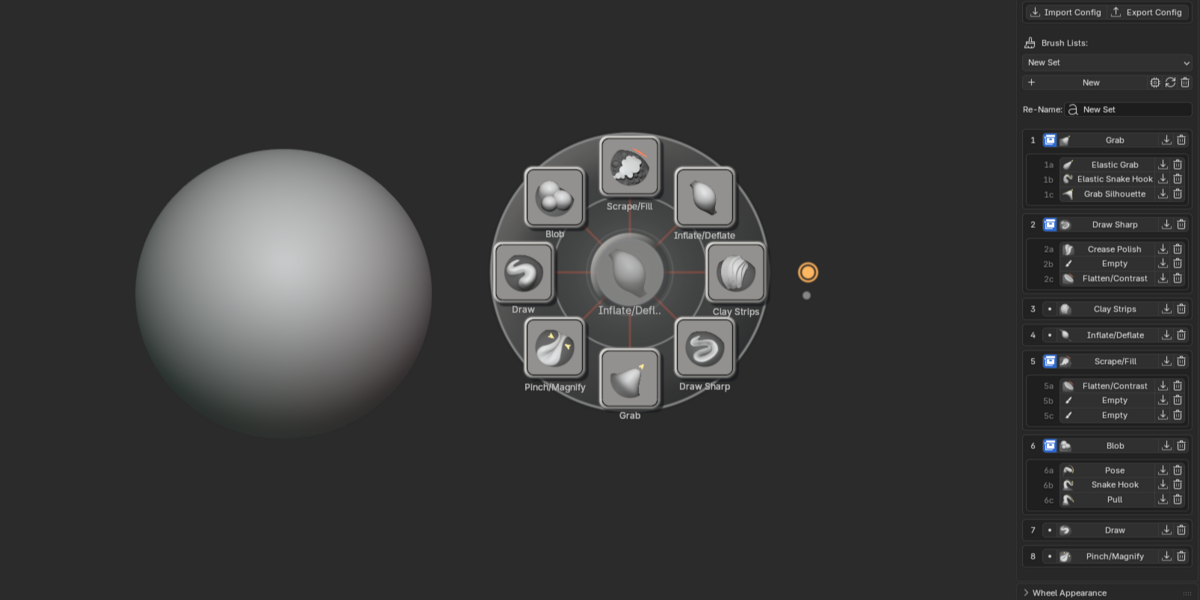
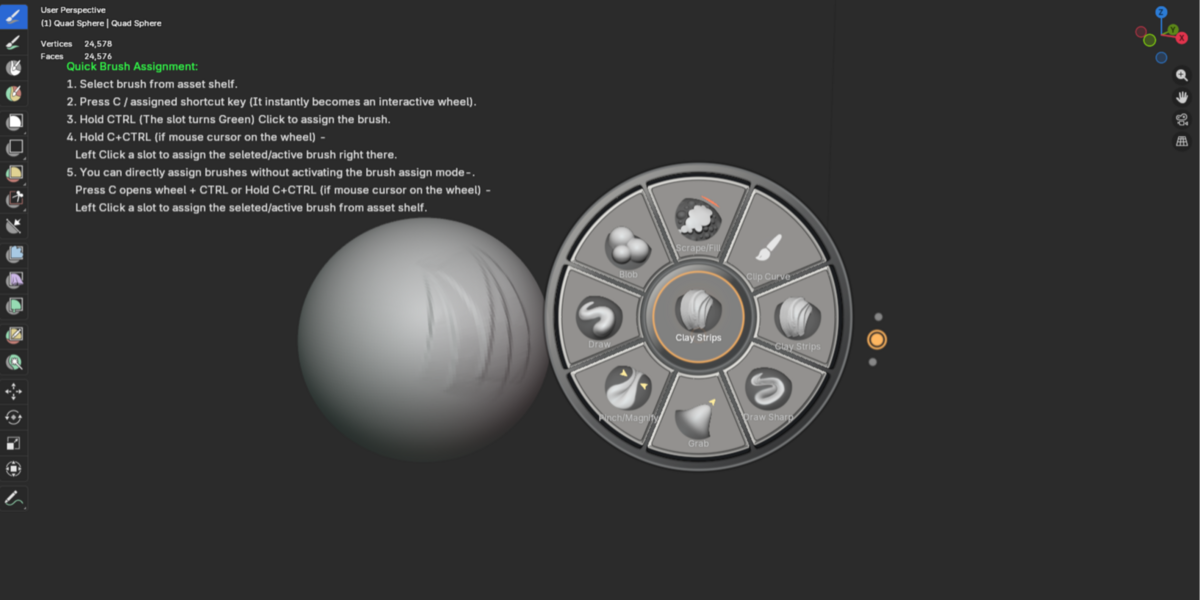

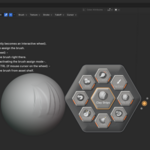
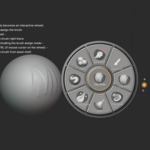
Quick Start : CLAYO- How TO : click to Download PDF page
Using Clayo is simple.
1. Open the wheel
Enter Blender's Sculpt Mode and press : C
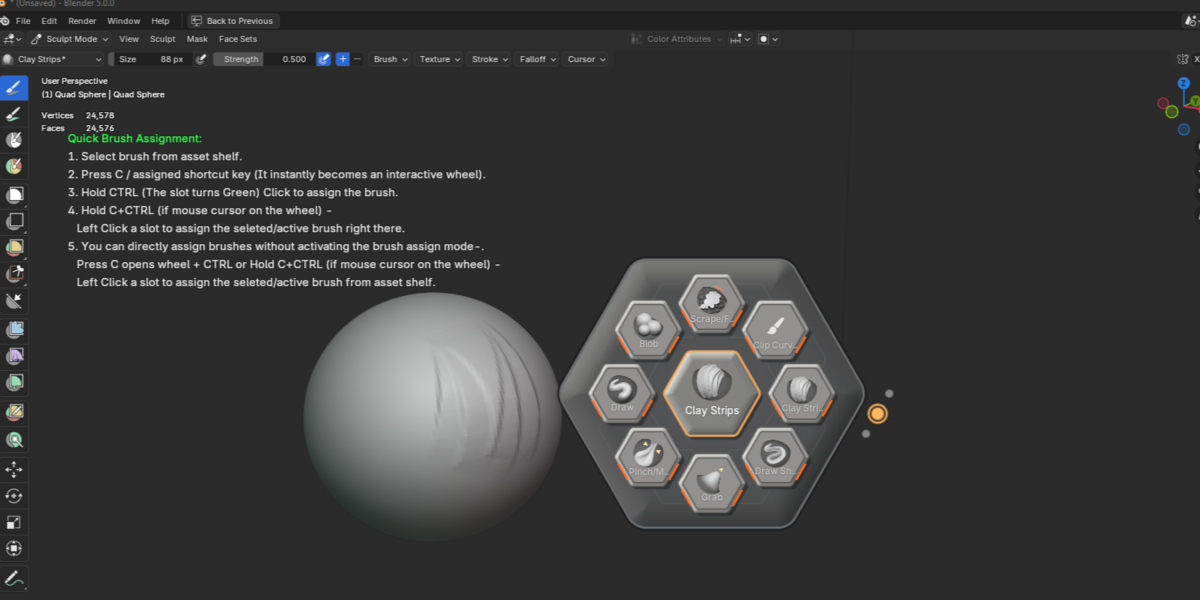
2. Assign a brush
Choose a brush from Blender's Asset Shelf.
Then : Ctrl + Click a green-outlined Clayo slot.
The active brush will be assigned to that position.
3. Switch Brush Lists
Use: Shift + Click
on the Brush List indicator to move between your saved brush lists.
4. Adjust Brush Size
From the center of the wheel : Click + Drag
5. Adjust Brush Strength
Use : Shift + Drag
6. Customize Clayo
Use the Clayo controls in Blender's N-panel to adjust the wheel's colors and appearance.

-
$1
Try CLAYO before you buy. Includes essential features.
-
$24.99
For an individual artist, freelancer.
-
$59.99
Small studio/team
-
$99.99
Larger production team
 Included
Includes 12 months of
- Support from creativeflowtools
- Product updates
Extend this product’s Support Period +12 months: 50% of product price
Have questions before purchasing?
Login to message
| Blender Extension Compatible | Yes |
| Published | 4 days ago |
| Blender Version | 5.0 - 5.2 |
| Extension Type | Add-on |
| Render Engine Used | Cycles, Eevee |
| License | GPL |
Discover more products like this
productivity blender digital sculpting sculpting Wheel Brush Library interface Brush Wheel sculpt paint wheel 3D sculpting tools Sculpt mode radial-menu