Collection Teleporter
 Adriflex


Installation
Collection Teleporter is distributed as a Blender extension on SuperHive.
Recommended SuperHive workflow:
- Open your SuperHive download/order page for Collection Teleporter.
- Drag the SuperHive install button or installation URL into Blender.
- Follow Blender's prompt to add the SuperHive extension repository if needed.
- In Blender, open Edit > Preferences > Get Extensions, search for Collection Teleporter, then install and enable it.
This keeps the add-on connected to SuperHive's extension/version system, so future updates can be found through Blender's extension update flow.
Manual zip fallback: download the zip, then drag the zip file into Blender, or use Edit > Preferences > Get Extensions and choose Install from Disk. A zip installed from disk is local, so you may need to install future update zips manually.
Where to find it
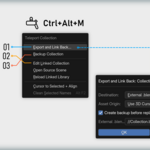
- Ctrl + Alt + M: open the main Collection Teleporter menu in Object Mode, Edit Mode, and the Outliner.
- Outliner context menu: right-click a collection or collection instance.
- Ctrl + G: create a visible collection from the selected objects.
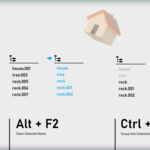
- Alt + F2: clean selected names.
The Ctrl+G and Alt+F2 shortcuts can be disabled in the add-on preferences.
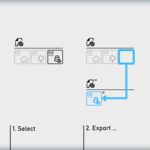
Export and Link Back
Use this when a local collection is ready to become its own source asset.
-
Destination: export to an external
.blendfile or to another scene in the current file. - Asset Origin: use the 3D Cursor, keep current positions, or use the original instance placement when available.
- Create backup before replacing: keep a backup before an existing source asset is replaced.
After export, the local collection is replaced by a linked collection instance in the original scene.
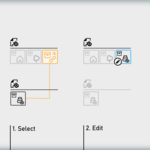
Edit linked collections
- Edit Linked Collection: make a linked collection editable in place.
- Export and Link Back: send the edited version back to its source.
- Revert to Linked Collection: discard local edits and restore the linked instance.
Source and library tools
- Switch Linked Collection: point a collection instance to another collection from the same file, a linked file, or an archive.
- Open Source Scene: open the source file or jump to the source scene behind a linked collection.
- Reload Linked Library: reload the library used by a linked collection.
-
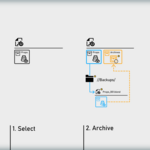
Backup Collection: save a linked backup in a neighboring
Backupsfolder.
Helper tools
- Cursor to Selected + Align: place and orient the 3D Cursor from the current selection. Useful before exporting with the 3D Cursor as asset origin.
- Create New Collection from Selection: move selected objects into a visible collection in place.
-
Clean Selected Names: remove Blender suffixes like
.001and rename single-user meshes to match their objects.
Notes for complex assets
Version 0.1.3 improves preservation of linked materials, node groups, images, modifier targets, collection instances, asset metadata, and other external data used by production-style files. For unusual setups, test on a copy first, as you would with any tool that rewrites linked .blend data.
 Included
Includes 12 months of
- Support from Adriflex
- Product updates
Extend this product’s Support Period +12 months: 50% of product price
Have questions before purchasing?
Login to message
| Blender Extension Compatible | Yes |
| Published | 3 months ago |
| Blender Version | 5.1 - 5.2 |
| Extension Type | Add-on |
| License | GPL |
Discover more products like this
outliner pipeline blender addon linked collections blend-files Workflow scene organization asset library asset management collections