CompCache
 Lumina Labs
in VSE
Lumina Labs
in VSE






CompoCache
DOCUMENTATION
Smart Compositor Caching for Blender
Welcome to CompoCache
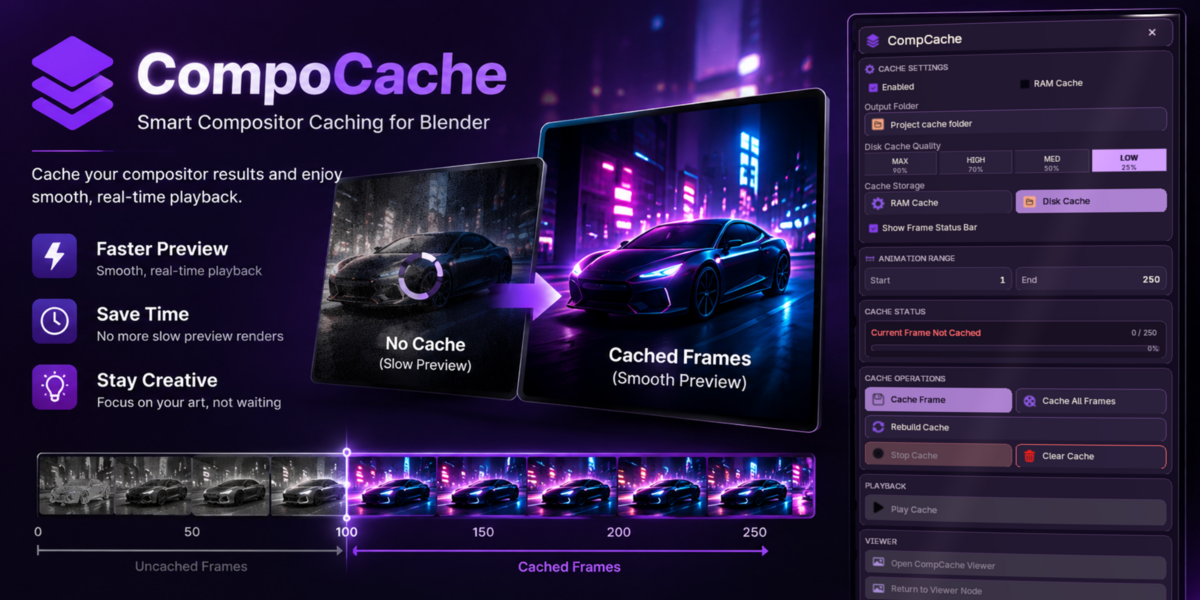
CompoCache is a Blender add-on designed to help you cache compositor results and review frames more conveniently. Cache individual frames or an animation range, choose a cache quality level, select RAM or disk storage, and use the viewer workflow to inspect cached results. Exact performance depends on your scene, compositor setup, storage, and hardware.
Getting Started
1. Install the CompoCache add-on using Blender’s add-on installation workflow and enable it in Preferences.
2. Open the CompoCache panel in the relevant workspace or interface location for your installed version.
3. Choose your cache quality and storage method (RAM or disk).
4. If using disk cache, select or confirm the cache folder/location.
5. Set the animation start and end frames if you want to cache a range rather than a single frame.
6. Use Cache Frame for the current frame or Cache All Frames for the selected range.
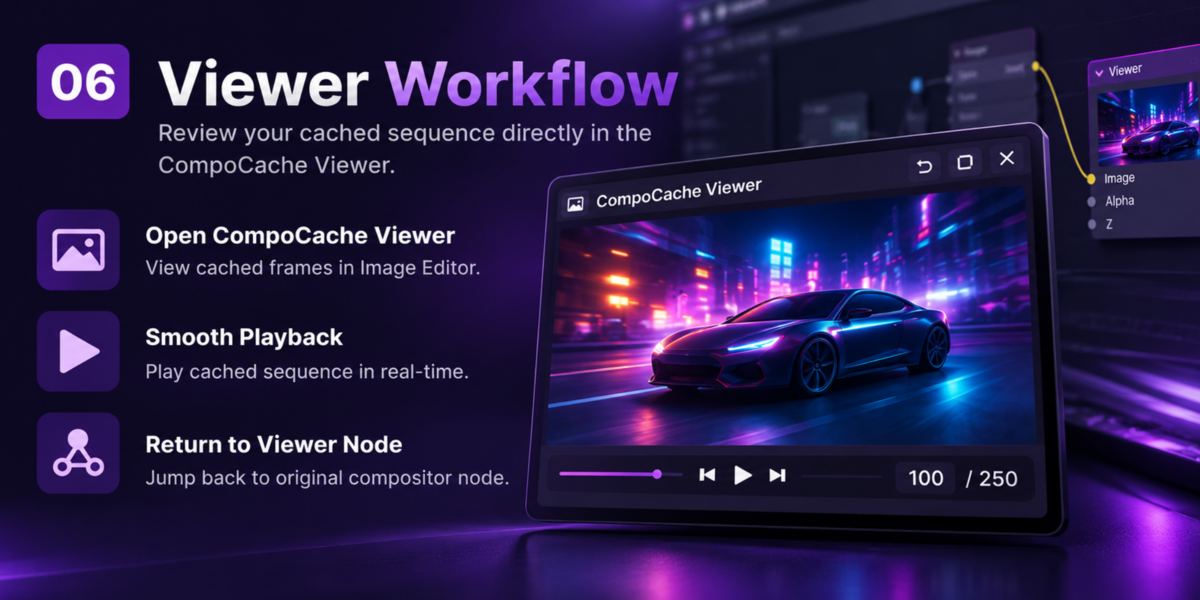
7. Review cached frames using the CompoCache Viewer workflow and monitor the cache status indicator.
Main Features
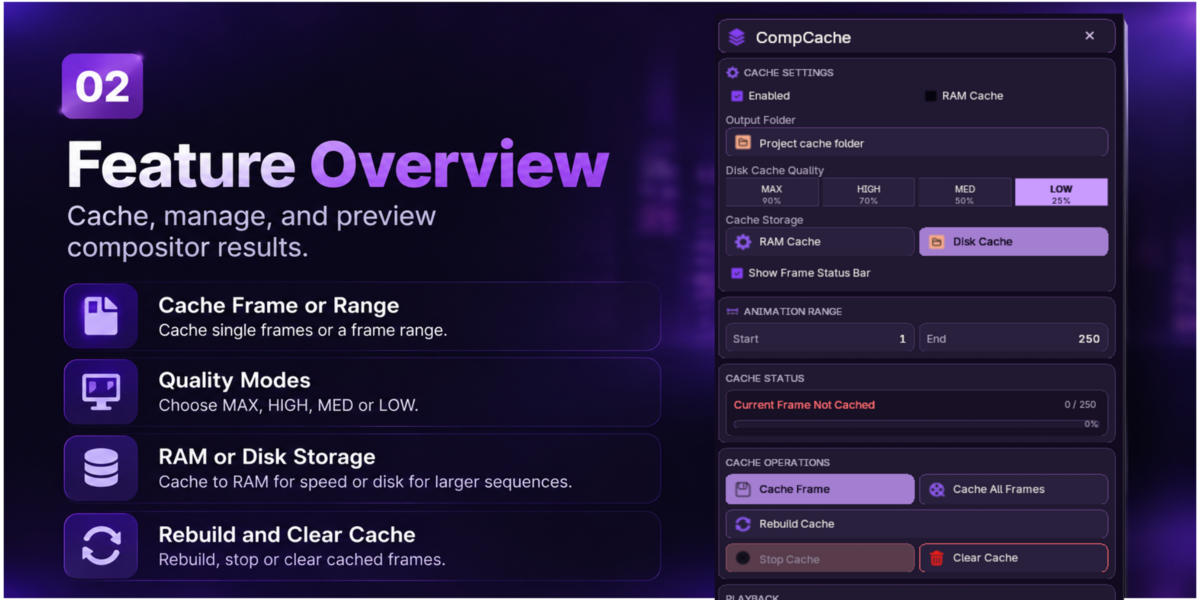
· Cache Frame: Cache the current frame for later review.
· Cache All Frames: Cache frames across the selected animation range.
· Rebuild Cache: Recalculate and refresh cached results when the underlying output has changed.
· Stop: Stop an active caching operation.
· Clear Cache: Remove cached data when you no longer need it. Confirm any prompt shown by the add-on before proceeding.
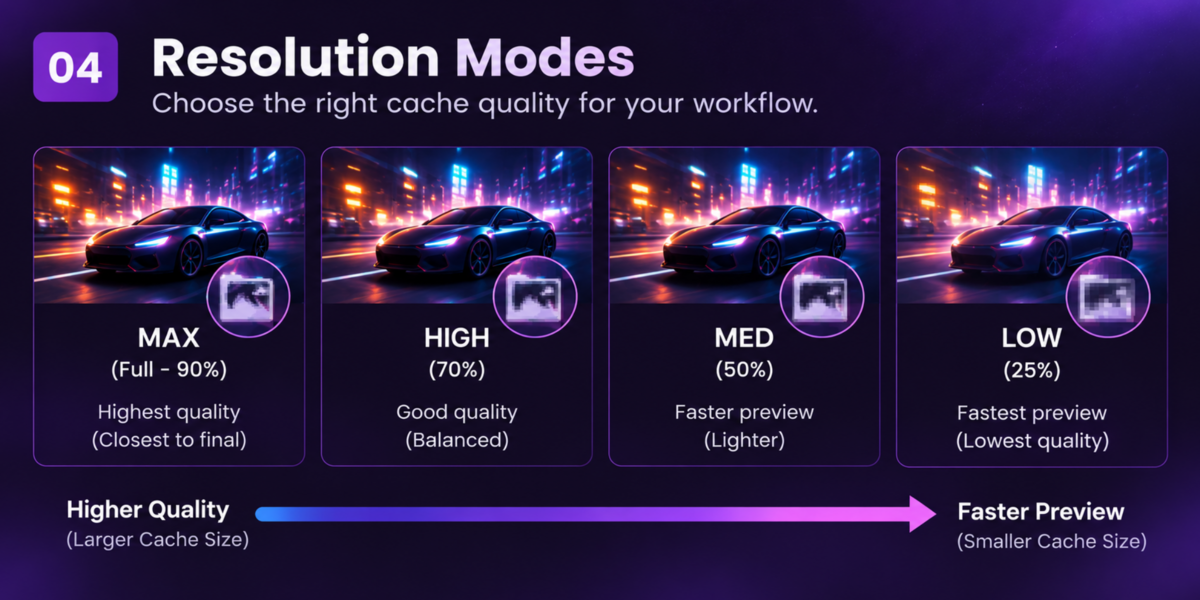
· Quality Modes: Choose Max (90%), High (70%), Med (50%), or Low (25%) to balance preview detail and cache size.
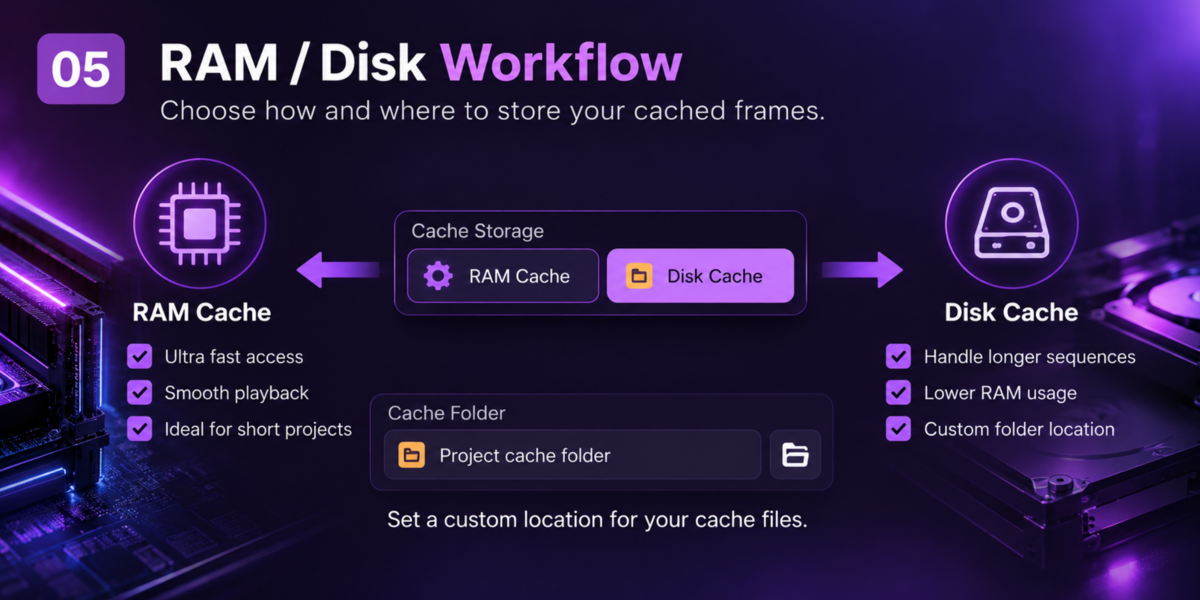
· RAM Cache: Keep cache data in system memory for quick access; available capacity depends on your RAM.
· Disk Cache: Store cache data on disk and use the configured cache location.
· Timeline / Cache Status: Use the status display to distinguish cached and uncached frames, according to the add-on’s indicator.
· Viewer Workflow: Open the viewer to inspect cached frames and review the sequence.
Suggested Workflow
· Start with a lower quality mode while iterating, then switch to a higher quality mode when you need more detail.
· For short ranges, RAM may be convenient if enough memory is available.
· For longer ranges, consider disk cache and ensure the target drive has sufficient free space.
· Rebuild the cache after changes that affect the compositor result.
· Clear old cache data when it is no longer needed, and keep important project files backed up.
Troubleshooting
· The cache is not updating: Try Rebuild Cache after changing compositor nodes or settings.
· Caching stops or fails: Check the selected frame range, available RAM or disk space, and the cache folder’s write permissions.
· Disk cache cannot be saved: Choose a valid folder on a drive with sufficient free space and confirm you have permission to write there.
· Playback is not smooth: Try a lower cache quality, cache a shorter range, or use a storage option that better fits your system.
· Cached output looks outdated: Rebuild the cache so it reflects the current compositor setup.
Quick Reminder
Cache smarter. Preview faster. Keep creating.
 Included
Includes 12 months of
- Support from Lumina Labs
- Product updates
Extend this product’s Support Period +12 months: 50% of product price
Have questions before purchasing?
Login to message
| Blender Extension Compatible | Yes |
| Published | 2 days ago |
| Blender Version | 4.1 - 5.1 |
| Extension Type | Add-on |
| Render Engine Used | Cycles, Eevee |
| License | GPL |