Copy Paste Image
 3Z Axis





Documentation — Copy-Paste Image (Blender Add-on)
Short description: Paste any image from your system clipboard straight into Blender — as a plane, a reference image, or a viewport background — with one shortcut: Ctrl + Shift + V.
Requirements
-
Blender: 3.0 or newer.
-
Windows: no extra packages required.
-
macOS:
pngpaste(install withbrew install pngpaste) — required for clipboard → file. -
Linux:
xcliporwl-paste(provided bywl-clipboard) — install via your package manager (e.g.sudo apt install xcliporsudo apt install wl-clipboard). -
Permissions to write to the system temporary directory.
Installation
-
Download the add-on ZIP from Blender Market (or the
copy_paste_imagefolder). -
In Blender: Edit → Preferences → Add-ons → Install... → select the ZIP or the folder.
-
Enable Copy-Paste Image from the Add-ons list (search “Copy-Paste Image”).
-
(Optional) Pin/Save preferences so the add-on stays enabled across sessions.
Quick Start
-
Copy any image (browser, image viewer, screenshot tool) —
Ctrl+C(or⌘+Con mac). -
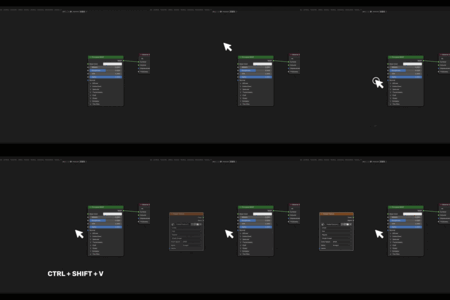
In 3D Viewport, press Ctrl + Shift + V.
-
Choose a paste mode from the popup: Images as Planes, Reference, or Background.
-
Image is inserted. Done.
UI Locations
-
Hotkey:
Ctrl + Shift + V(calls the paste menu). -
Sidebar Panel: 3D View → right toolbar (press
N) → Image Paste tab — quick paste buttons and brief instructions. -
Popup Menu: shows the three paste modes and invokes the operator.
Have questions about this product?
Login to message

Discover more products like this
modeling boxcutter copy paste image blender addon uvpackmaster retopoflow auto-rig pro The Plant Library machin3tools MESHmachine image clipboard import