CoreDeck Pane
 SuKing_1996
CoreDeck Pane 0.5.44 · Installation and requirements / 安装与要求
Windows x64 only. The manifest minimum is Blender 5.0. Current 0.5.44 targeted checks used Blender 5.3.0 build 02f0899d78e3 and Blender 5.2.2 LTS build d13f752e3b9c; they do not establish a full retest of every Blender version. CoreDeck Pane works independently of CoreDeck Form and Zen Dock. macOS and Linux are not supported.
The original 0.5.44 ZIP passed targeted installation, enabling, floating-panel opening, disabling, Reload Scripts, direct uninstall, reinstall and cold-start checks in separate Windows x64 Blender 5.2.2 LTS and 5.3.0 configurations. Resource checks covered source-offline and relocation cases, image/movie frame rendering, independent material pairs, copy failure rollback and save/reopen regressions. These results do not cover every Blender build, production scene or third-party combination.
原始 0.5.44 ZIP 已在独立的 Windows x64 Blender 5.2.2 LTS 与 5.3.0 配置中通过针对性的安装、启用、打开浮窗、停用、脚本重载、直接卸载、重装和冷启动检查。资源验证覆盖源离线与工程迁移、图像/影片逐帧出图、独立材质配对、复制失败回滚及保存重开回归;不代表全部 Blender 构建、生产工程或第三方组合均已验证。
仅支持 Windows x64。扩展清单最低 Blender 5.0。本次 0.5.44 针对性验证使用 Blender 5.3.0 构建 02f0899d78e3 与 Blender 5.2.2 LTS 构建 d13f752e3b9c,不代表全部 Blender 版本均已完整重测。CoreDeck Pane 可独立使用,不依赖 CoreDeck Form 或 Zen Dock。 不支持 macOS 和 Linux。
Save your work before installing or upgrading. Download CoreDeck-Pane-0.5.44.zip and leave it compressed. Open Preferences → Add-ons → Install from Disk, choose the ZIP, then enable CoreDeck Pane. Restart Blender normally after upgrading. The toolbar appears in the 3D View; open the gear button or CoreDeck → Pane in the sidebar for settings.
安装或升级前先保存工程,直接选择未解压的 CoreDeck-Pane-0.5.44.zip。在偏好设置 → 插件 → 从磁盘安装中安装并启用 CoreDeck Pane;升级后正常重启 Blender。入口栏显示在 3D 视图中,通过齿轮或侧栏 CoreDeck → Pane 进入设置。
Before moving to another device or Blender version, back up your version-specific CONFIG/property_window_dock folder. Pane settings, layouts and render presets are kept separately from the installed extension. Copy any externally selected PNG icons as well. Keep the existing extension ID when upgrading.
迁移设备或 Blender 版本前,备份对应版本的 CONFIG/property_window_dock 文件夹。设置、布局与渲染预设独立于安装目录保存;外部自选 PNG 图标也需要一并复制。升级继续使用原有扩展 ID。
Open, float and dock panels / 打开、浮动与停靠面板
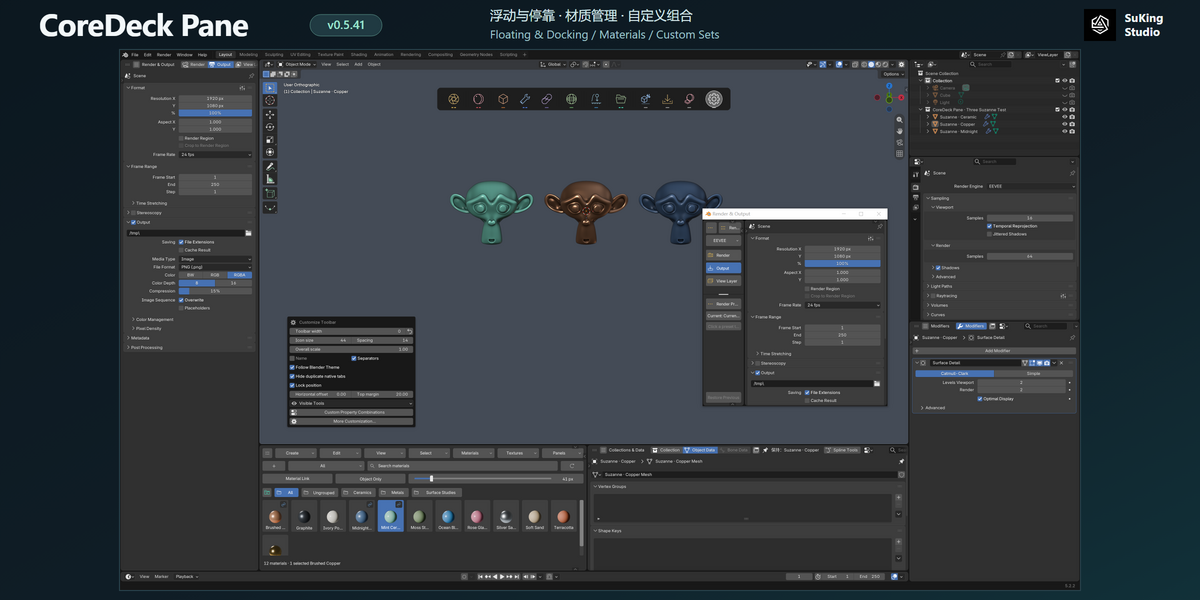
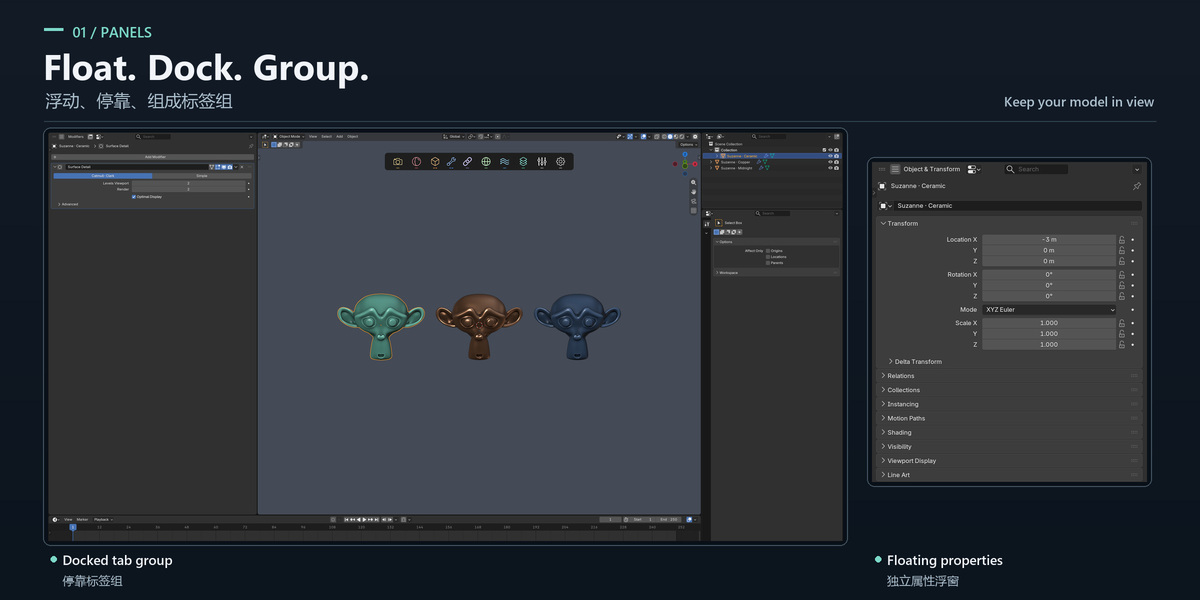
Click a toolbar category to navigate an existing main Properties editor. Shift-click opens or focuses its panel. The Materials button opens the dedicated material browser. Drag a panel's top grip toward an editor edge and release when the docking preview appears; drop onto another Pane-owned panel to group their tabs. Esc cancels a drag.
普通点击工具栏分类切换已有主属性编辑器;Shift 点击打开或聚焦对应面板。材质入口打开独立浏览器。拖动顶部手柄至编辑器边缘,出现停靠预览后释放;拖到其他 Pane 自有面板可组合标签。Esc 取消拖动。
Docked headers show available categories and can scroll horizontally when needed. Camera properties are reached through Collections & Data → Object Data; light settings are available through Scene & World. When the current selection does not provide a suitable target, a recent suitable object can remain visible with its name. Manual pins take precedence. A missing or deleted target is not replaced by a fabricated editable object.
停靠顶部显示适用类别,必要时可横向滚动。摄像机属性通过集合与数据 → 对象数据访问,灯光通过场景与环境访问。当前选择不适用时,可保持本次会话中最近适用的目标并显示名称;手动固定优先,不会为缺失或已删除目标虚构可编辑对象。
Create custom property combinations and choose icons / 自定义属性组合与图标
Remove a Property Combination in Preferences → CoreDeck Pane → Property Combinations: select its entry and click the trash button beside the list. Removed built-in combinations can be restored individually with Restore Built-in Combination. Close that combination’s floating and docked panels before changing its page structure or deleting it.
在「偏好设置 → CoreDeck Pane → 属性组合」中选中一项,点击列表旁的垃圾桶即可删除。移除的内置组合可用「恢复内置组合」逐项加回。修改页面结构或删除前,请先关闭该组合的浮窗和停靠页。
Custom property combinations are available in this release. Collect complete native Properties pages into your own sets, then manage their names, page order, colors and icons. Different sets can open separately. Close a combination's open panels before changing its page structure.
本版已支持自定义属性组合:将完整的原生属性页加入自己的组合,管理名称、页面顺序、颜色和图标,不同组合可分别打开。修改某个组合的页面结构前,先关闭该组合已打开的面板。
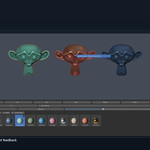
Use Customize Toolbar to choose entries and change labels, order, groups, size or position. Turn off Hide Duplicate Native Tabs if you want the original native tabs visible. The presets-v1 library contains 32 original symbols in three color sets, totaling 96 presets. Click the name button below a preview to apply it.
在自定义工具栏中选择入口并调整名称、顺序、分组、大小和位置。如需显示原生标签,可关闭隐藏重复原生标签。presets-v1 图标库包含 32 个原创符号、三套配色,共 96 项;点击预览下方的名称按钮应用。
Browse, group and link materials / 材质浏览、分组与联动
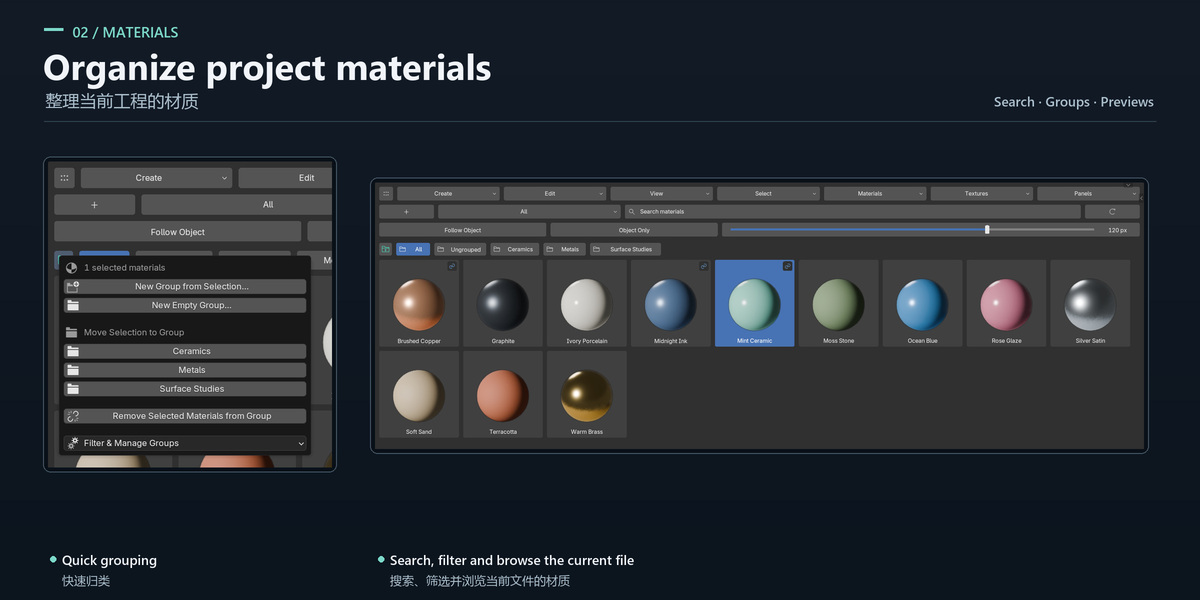
Create materials even when the browser is full: double-click the empty space after the group tabs or the gaps between cards to add a material to the current group. You can also right-click either space or any material card and choose New Material. Both floating and docked browsers support these actions. Double-clicking the material sphere itself still opens its nodes.
浏览器铺满后也能方便地新建材质:双击分组标签右侧空白或卡片间隙,即可在当前分组创建;也可在这些空白或任意材质卡片上右键,选择「新建材质」。浮窗与停靠浏览器均支持。双击材质球本身仍会打开节点。
The browser reads materials in the open .blend file; it does not provide a bundled model or material library, and an empty file does not automatically create materials. Use search, group tabs and Quick Grouping to organize the current file. Material groups and order are saved in that file. Double-click a sphere to open its nodes; double-click its name or use F2 to rename.
浏览器读取当前 .blend 工程里的材质,不附带演示模型或材质库,也不会在空工程中自动创建材质。搜索、分组标签与快速分组用于整理当前工程,分组和顺序保存在该文件中。双击材质球打开节点,双击名称或按 F2 改名。
Enable material/object linking to follow an object's material. Manually browsed materials use different visual feedback. Related base-mesh surfaces can be highlighted without changing selection, the active object or material assignment. This locating feedback is not a representation of every modifier's final evaluated surface.
开启材质与对象联动后可跟随对象材质,手动浏览其他材质使用不同视觉提示。关联对象的基础网格表面可高亮显示,不改变选择、活动对象或材质分配;这一定位提示不代表任意修改器的最终计算表面。
Assign, reorder and replace safely / 分配、排序与替换范围
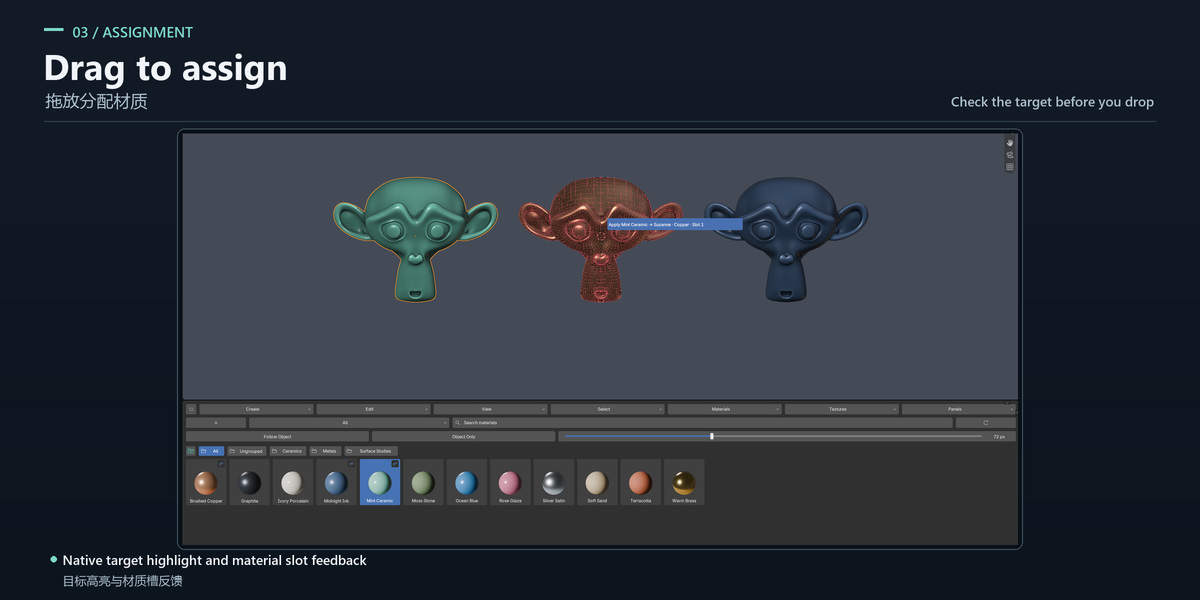
Drag a material onto a visible viewport object to assign it to the indicated material slot. Drag to card edges or gaps to reorder. Drop-target feedback uses a wire outline, or a bounding box for large meshes; it differs from the surface feedback used while browsing.
将材质拖到可见的视口对象上,可分配至提示的材质槽;拖到卡片边缘或间隔调整顺序。落点使用线框提示,大网格可用包围盒,与浏览联动的表面提示不同。
Check the replacement scope and direction before releasing. The Replace menu targets material slots within the chosen object scope and keeps the replaced material. Dropping onto the center preview of another card replaces that target material's references across the current file and deletes the replaced material after success. Esc cancels; completed replacement supports native Undo/Redo.
释放前核对替换方向和范围。替换菜单按所选对象范围处理材质槽,并保留被替换材质;拖到另一张卡片的中央预览则会替换该目标在整个当前工程中的使用关系,成功后删除被替换材质。Esc 可取消,已完成替换支持原生撤销与重做。
On Blender 5.0/5.1, file-wide replacement is refused when the target is both a Geometry Nodes group interface default and that same group is used by a Nodes modifier. That specific combination requires Blender 5.2 or later for safe replacement. Unsupported or non-restorable references can also prevent the operation.
在 Blender 5.0/5.1 中,如果目标同时是几何节点组接口默认材质,且该组正被 Nodes 修改器使用,会拒绝整工程替换;这一特定组合需要 Blender 5.2 或更高版本才能安全替换。不受支持或无法恢复的引用也可能阻止操作。
Ctrl-drag independent copies and Outliner limits / Ctrl 独立复制与 Outliner 限制
Ctrl-drag a material back into the browser to create an independent copy, or onto a valid object target to create and assign the copy. Ordinary dragging keeps the original material. A copy commits only on a valid drop; cancellation or a failed copy leaves the source intact.
按住 Ctrl 将材质拖回浏览器可创建独立副本,拖到有效物体目标则创建并分配副本。普通拖动继续使用原材质;只有有效落点才提交,取消或复制失败不会改动源材质。
Independent copying supports editable local materials, supported nested node groups, ordinary images, UDIM tiles, numbered image sequences, movies, native Blender IES profiles and native Blender OSL shaders whose dependencies can be resolved. Sequences retain their original frame numbers and playback settings. Image or Text data shared by several nodes uses one corresponding duplicate inside the new material. Copying a Pane-managed Octane/Cycles pair creates a new pair that switches together and can be edited independently of the original.
独立复制支持可编辑的本地材质、已适配的嵌套节点组、普通图像、UDIM 瓦片、编号图片序列、影片、Blender 原生 IES,以及能够解析依赖的 Blender 原生 OSL。图片序列保留原来的帧号和播放设置。多个节点共享的 Image 或 Text 数据在新材质中复用同一份对应副本;复制 Pane 已配对的 Octane/Cycles 材质,会生成可独立于原材质改色、并随引擎一起切换的新材质对。
If the project is already saved when copying, external copies that must remain on disk are stored in CoreDeck Material Assets beside it. Copy that folder with the project when moving it. Copies made before the first save use Blender’s user data directory; do not assume the first save automatically moves those earlier copies. Ordinary OSL file-input sockets can use project-relative paths. Texture paths hardcoded inside OSL source or compiled files remain absolute and must be relocated after a move; compiled-only shaders may require the source code or restoration of their original private paths.
只有复制时工程已经保存,需要保留在磁盘上的外部副本才写入工程旁的 CoreDeck Material Assets 文件夹;搬移工程时请一并复制该文件夹。首次保存之前产生的副本使用 Blender 用户数据目录,不能假设首次保存会自动搬移这些旧副本。普通 OSL 文件输入槽可使用工程相对路径;直接写入 OSL 源码或编译文件的纹理绝对路径在搬家后须重新定位。只有编译文件时,可能需要源代码或恢复原来的私有路径。
This native Blender OSL support does not imply support for Octane’s own OSL nodes: unresolved external paths in Octane or other renderer-owned nodes are reported with the node and field before assignment. Missing files, unresolved dynamic paths, driver references to scene data, independently stored multiview media and other dependencies that cannot be isolated are reported before commit. Direct copying of unsaved UDIM painting is verified for 8-bit RGBA PNG; save or pack other unsaved edits first. Linked/read-only data and arbitrary third-party resources are not universally covered. Older copy/paste commands retain their own documented behavior.
这里的 Blender 原生 OSL 支持不等于支持 Octane 自有 OSL 节点;Octane 或其他渲染器自有节点中未解析的外部路径,会在分配前指出节点和字段。缺失文件、未解析的动态路径、驱动对场景数据的引用、独立多视图媒体及其他无法分离的依赖,也会在提交前提示具体问题。未保存的 UDIM 绘制直接复制以已验证的 8 位 RGBA PNG 为范围,其他未保存编辑请先保存或打包。链接/只读数据与任意第三方资源不作通用保证;原有复制/粘贴入口保留各自行为。
Outliner object-row drops and non-selecting material-user highlights remain limited to those two verified Windows x64 builds in View Layer mode. Other 5.3.x builds require separate verification; unmatched builds do not enable the native bridge, while supported builds retain the core material browser and viewport assignment.
Outliner 对象行拖放与不改变选择的材质使用对象高亮,仍限定于这两个已验证的 Windows x64 构建及 View Layer 显示模式。其他 5.3.x 构建需分别验证;不匹配的构建不启用原生桥接,受支持构建仍保留基础材质浏览与视口分配。
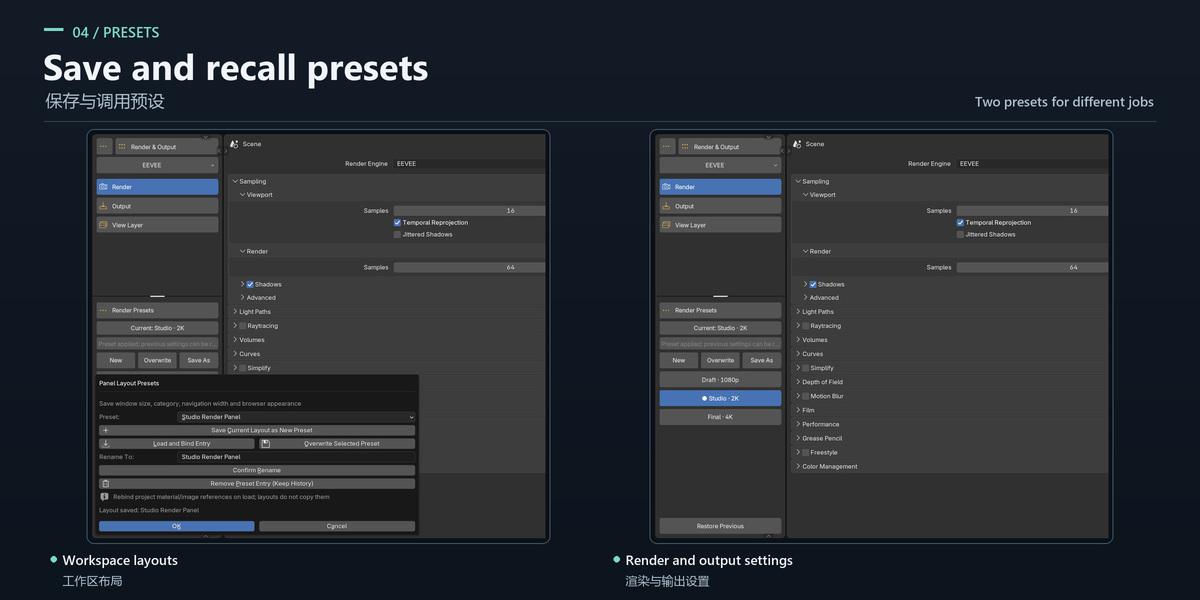
Save layouts and render presets / 保存布局与渲染预设
Use the panel grip menu to save or load a layout. Matching references are rebound to the current file; loading a layout does not import objects from an earlier project. Complex T-shaped splits may require manual recovery. On Blender 5.0, recovery may save a copy of the entire project, so time and storage depend on project size.
通过面板手柄菜单保存或加载布局,匹配引用会重新绑定当前工程,不导入旧工程中的对象。复杂 T 形分割可能需要手动恢复;Blender 5.0 的恢复可能保存整份工程副本,耗时与空间取决于工程大小。
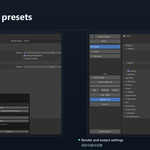
In Render & Output, use the preset drawer to create, overwrite or save supported settings as a new preset. Click a preset name to apply it and use Restore Previous to go back. Render presets are managed separately from interface layouts. Supported built-in engine settings include EEVEE, Cycles and Workbench; third-party renderer presets are not supported. The output path is preserved by default.
在渲染与输出的预设抽屉中,可新建、覆盖或另存受支持的设置;点击预设名应用,使用恢复前值返回。渲染预设与界面布局分别管理,支持的内置引擎包括 EEVEE、Cycles 与 Workbench;不支持第三方渲染器预设,输出路径默认保留。
Optional Octane material integration / Octane 可选材质集成
New materials follow the source scene's active render engine. Cycles and EEVEE create native Blender nodes. When separately installed and enabled, Octane can provide the default material nodes selected in its preferences. Creating a material does not assign it to an object.
新建材质跟随来源场景的当前渲染器:Cycles 和 EEVEE 创建原生节点;另行安装并启用 Octane 后,可使用其偏好中选定的默认材质节点。新建材质不会自动赋给对象。
Compatible material graphs can have native/Octane counterparts, and switching back can restore the original native material. Unsupported setups are skipped. This does not convert worlds or lights, guarantee identical final rendering or add third-party render-preset support. Octane is optional and is not included.
受支持的材质图可有原生与 Octane 对应项,切回原生引擎可恢复原材质;不支持的结构会跳过。不转换世界或灯光,不保证最终渲染外观一致,也不增加第三方渲染预设支持。Octane 为可选项,不随包提供。
Verified renderer combinations / 已验证的渲染器组合
The original 0.5.44 ZIP was tested with actual renders on Blender 5.2.2 LTS + Octane 31.13 GPU and Blender 5.3.0 + Mitsuba 3.9.0 CPU (scalar_rgb, adapter revision 4aac7f3ce7b7). Octane tests included two-way material pairing and copied image-sequence results after the source changed; its own OSL node’s unresolved external path produced a specific warning. These isolated tests do not certify Octane on Blender 5.3, Mitsuba GPU, other adapter revisions, production scenes or every third-party node. Renderers and their licenses must be obtained separately and are not bundled.
原始 0.5.44 ZIP 已完成 Blender 5.2.2 LTS + Octane 31.13 GPU 与 Blender 5.3.0 + Mitsuba 3.9.0 CPU 的实际出图(scalar_rgb,适配器修订 4aac7f3ce7b7)。Octane 检查包含材质双向配对及源文件改色后的副本序列出图,其自有 OSL 节点未解析的外部路径会给出具体提示。这些独立配置测试不代表 Octane 在 Blender 5.3、Mitsuba GPU、其他适配器修订、生产工程或全部第三方节点均已验证;渲染器及其许可须另行获取,本产品不包含。
Optional Zen Dock compatibility / Zen Dock 可选兼容
Zen Dock is a separately sold third-party add-on. Purchase and install it through its official distribution channel if you want its features. CoreDeck Pane includes neither Zen Dock nor its license, and its core panels, materials and presets work independently. CoreDeck Form is also not required or included.
Zen Dock 是另行销售的第三方付费插件。如需其功能,请通过官方渠道另行购买并安装。CoreDeck Pane 不包含 Zen Dock 或其授权,核心面板、材质与预设可独立使用;也不要求或附带 CoreDeck Form。
The compatibility preference is off by default, including upgrades. Missing, disabled, unsupported or multiple active installations show their status and do not allow opt-in. Only one supported, enabled Zen Dock 1.5.0 installation allows the user to choose whether to enable it; detection alone never enables compatibility.
兼容选项默认关闭,旧版升级也不会自动开启。未安装、未启用、不支持或多个活动安装会显示状态且不可开启。仅在单个受支持的 Zen Dock 1.5.0 已启用时,才由用户自行选择接入;检测本身不会开启兼容。
When enabled, the adapter temporarily wraps BL_UI_Button.draw, BL_UI_Button.mouse_up and ZWB_OT_EventMove.invoke, and reads widget state for Pane-owned floating-window controls. It does not edit Zen Dock's installed files, saved settings or keymaps. Turning it off cancels queued adapter actions and restores only methods it still owns, preserving later integrations. This independent feature is not endorsed by Zen Dock's developer.
开启后会临时包装 BL_UI_Button.draw、BL_UI_Button.mouse_up 与 ZWB_OT_EventMove.invoke,并读取控件状态,为 Pane 自有浮窗提供适配。不修改 Zen Dock 安装文件、保存设置或快捷键;关闭会取消排队动作、恢复仍由适配器拥有的方法,并保留后来其他集成的替换。此独立兼容功能没有 Zen Dock 开发者背书。
The creator is a paying Zen Dock user and has not contacted its developer or obtained their endorsement.
作者是 Zen Dock 的付费用户,尚未联系其开发者,也未获得其背书。
Windows window handling and tested scope / Windows 窗口处理与已测范围
Preparing Pane-owned floating panels uses a temporary same-thread Windows CBT hook and child-window WndProc subclassing. These operations are limited to verified owned child windows in the current Blender process, not system-wide hooks or other applications. Disabling closes still-owned panels and retains unrelated windows. A callback still referenced by a later native window procedure remains passive until owned-window destruction releases the reference.
准备自有浮窗会临时使用同线程 Windows CBT 挂钩与子窗口 WndProc 接管,范围仅限当前 Blender 进程内已确认的自有子窗,不是系统全局挂钩,也不针对其他应用。停用会关闭仍由插件拥有的面板并保留无关窗口;若后接原生窗口过程仍引用回调,回调保持被动,直至自有窗口销毁后释放引用。
The original 0.5.44 ZIP passed targeted installation, enabling, floating-panel opening, disabling, Reload Scripts, direct uninstall, reinstall and cold-start checks in separate Windows x64 Blender 5.2.2 LTS and 5.3.0 configurations. Resource checks covered source-offline and relocation cases, image/movie frame rendering, independent material pairs, copy failure rollback and save/reopen regressions. These results do not cover every Blender build, production scene or third-party combination.
原始 0.5.44 ZIP 已在独立的 Windows x64 Blender 5.2.2 LTS 与 5.3.0 配置中通过针对性的安装、启用、打开浮窗、停用、脚本重载、直接卸载、重装和冷启动检查。资源验证覆盖源离线与工程迁移、图像/影片逐帧出图、独立材质配对、复制失败回滚及保存重开回归;不代表全部 Blender 构建、生产工程或第三方组合均已验证。
Static icon provenance, licensing and purchase tiers / 静态图标来源、许可与购买档位
The bundled generated-v1 toolbar icon family was created using OpenAI's image-generation tool. These are static assets; the installed add-on does not connect to OpenAI or call an AI service at runtime. Python source is GPL-3.0-or-later; the original presets-v1 icon family is CC0-1.0. See the bundled assets/SOURCES.md and license files for separate asset provenance.
随包的generated-v1 工具栏图标使用 OpenAI 图像生成工具制作,属于静态素材;插件运行时不连接 OpenAI 或调用 AI 服务。Python 源码采用 GPL-3.0-or-later,原创 presets-v1 图标采用 CC0-1.0;其他素材按包内 assets/SOURCES.md 与许可文件的各自来源说明处理。
All four purchase tiers currently provide the same complete Pane add-on. Studio-specific features are for future development and are not included in this release. GPL-3.0-or-later rights remain unchanged across purchase tiers.
当前四个购买档位提供同一套完整 Pane 功能。工作室专项功能留待后续开发,不包含在本版中;各档位的 GPL-3.0-or-later 权利不变。
Have questions about this product?
Login to message
| Blender Extension Compatible | Yes |
| Published | 1 day ago |
| Blender Version | 5.0 - 5.3 |
| Extension Type | Add-on |
| Render Engine Used | Cycles |
| License | GPL |
Discover more products like this
workspace material manager render presets dockable-panels interface