Credit Manager Pro - Track Asset Licenses & Credits In Blender
 Larry3d
Credit Manager Pro – Documentation
Version 2.1.1 · Blender 5.0 – 5.2 LTS
Overview
Credit Manager Pro is a Blender extension that tracks the author, license and source of every asset used in a project. The credit list is stored inside the .blend file (one list per scene) and can be exported as TXT, Markdown, HTML, CSV or JSON, copied to the clipboard or written into a text block.
Entries can be linked to the data they describe – objects, collections, materials, images/HDRIs, worlds, node groups and linked libraries – so the add-on always knows what an entry refers to, can select it in the viewport and warns you when the data was deleted.
Assets made of many parts are credited as a whole: click the asset's collection in the Outliner and add it with one click – every object in it, child collections included, is covered by that single entry.
Installation
Requirements
- Blender 5.0 or newer. Version 2.1 was developed for Blender 5.2 LTS; multi-line text boxes require 5.2, everything else works on 5.0 and 5.1.
- No additional dependencies.
Steps
- Download
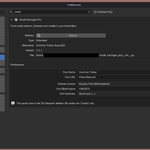
credit_manager_pro-2.1.1.zip. Do not unzip it. - Open Blender and go to Edit ▸ Preferences ▸ Get Extensions.
- Click the ▾ dropdown in the top-right corner of the preferences window and choose Install from Disk…
- Select the ZIP file. The extension is installed and enabled automatically.
- In the 3D Viewport press N to open the sidebar and select the Credits tab.
Upgrading from version 2.1.0
Install the new ZIP via Install from Disk as described above. It replaces the installed version – nothing else to do.
Upgrading from version 2.0
- Edit ▸ Preferences ▸ Add-ons, find Credit Manager Pro, expand it and click Remove.
- Install the new ZIP as described above.
- Your credit lists are part of your
.blendfiles and are kept. Files saved with 2.0 open unchanged.
Interface Overview
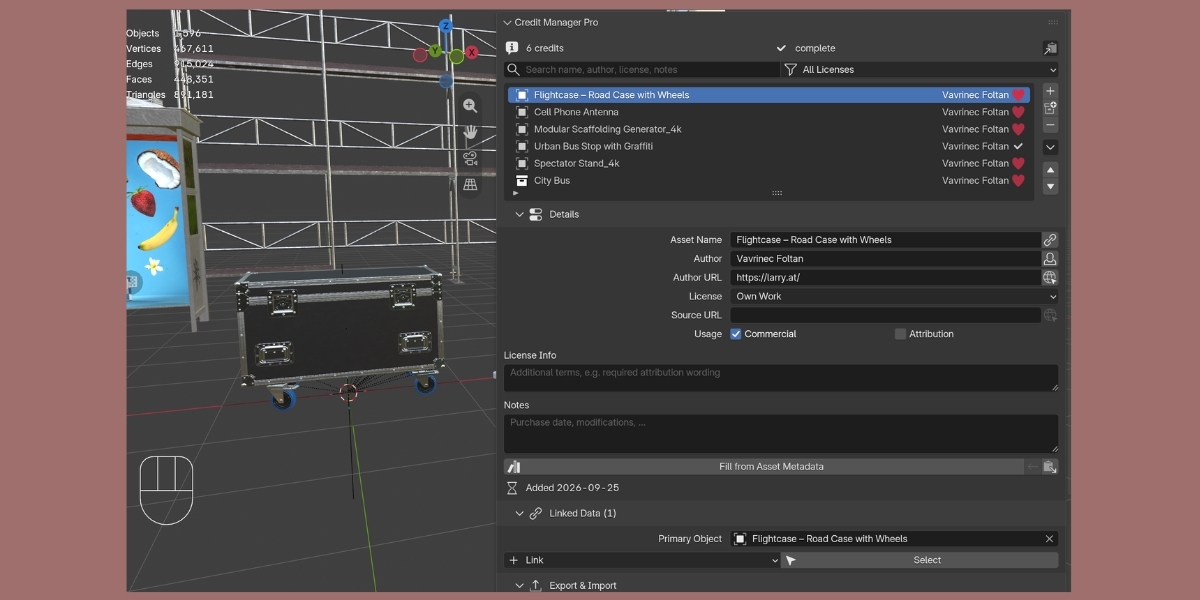
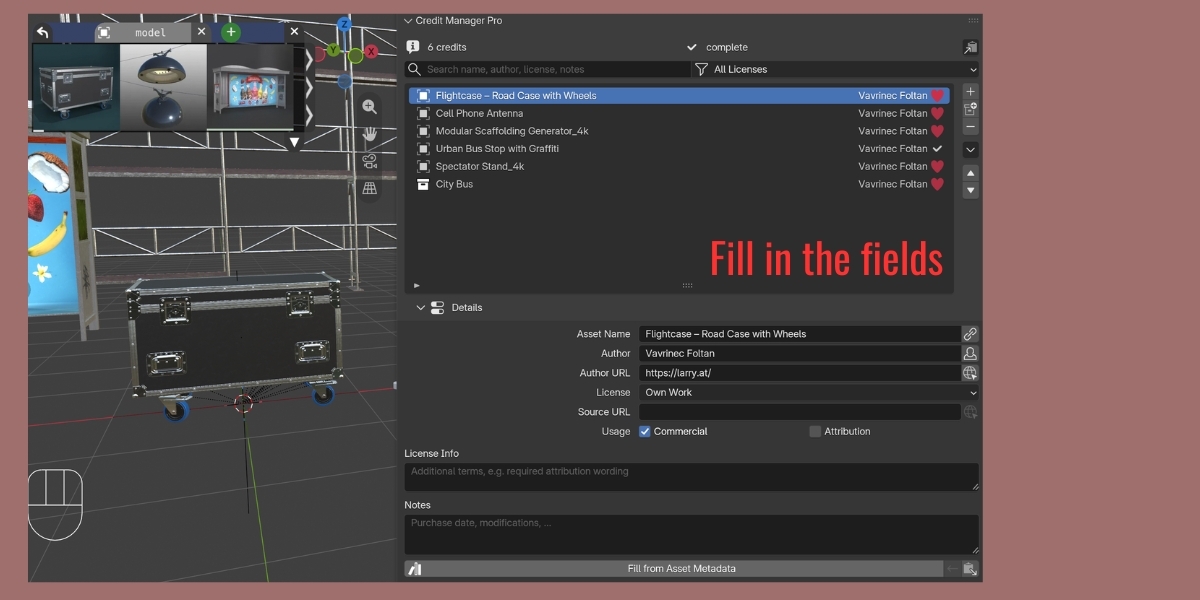
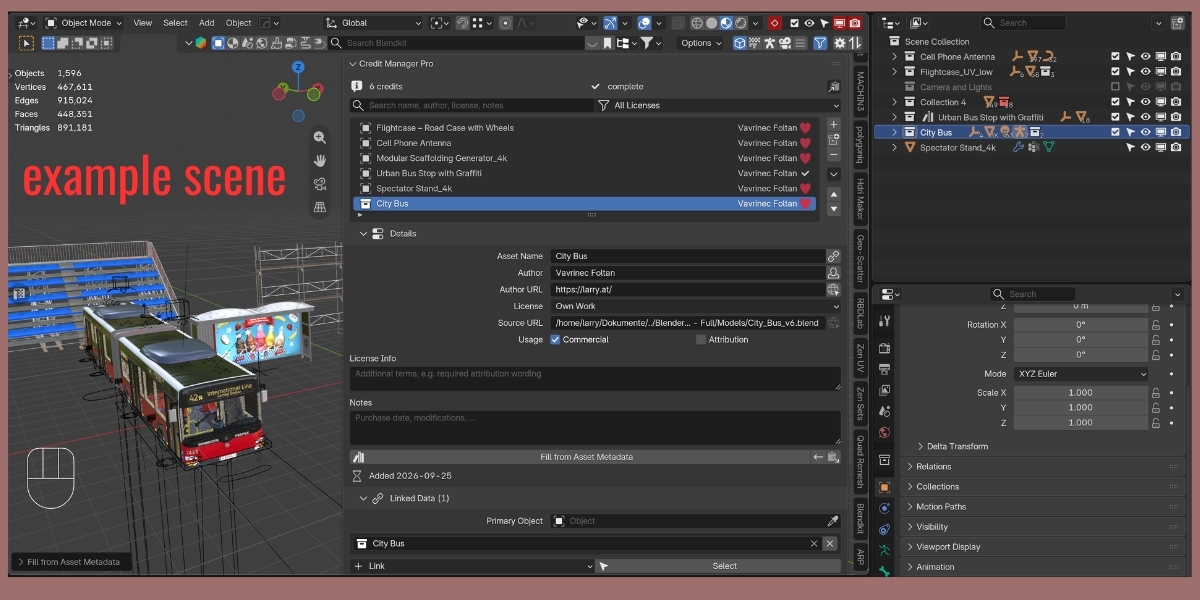
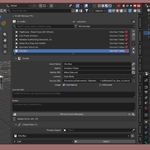
The interface lives in one panel – 3D Viewport ▸ Sidebar (N) ▸ Credits ▸ Credit Manager Pro – plus one entry in the Outliner's right-click menu for collections. The panel has three collapsible sections below the list: Details, Linked Data and Export & Import.
Header
- Credit count – total number of entries in this scene.
- "N to check" – appears in red when entries need attention. Clicking it opens the Check Credits summary. When everything is fine the header shows complete.
- Clipboard menu (copy icon) – copies the whole list as Text, Attribution Lines or Markdown.
Search & Filter
- Search field – filters by asset name, author, license name, license info, source URL and notes. The list updates while you type.
- License dropdown – shows only entries with the selected license.
- X – clears search, license filter and the Only Issues toggle.
Credit List
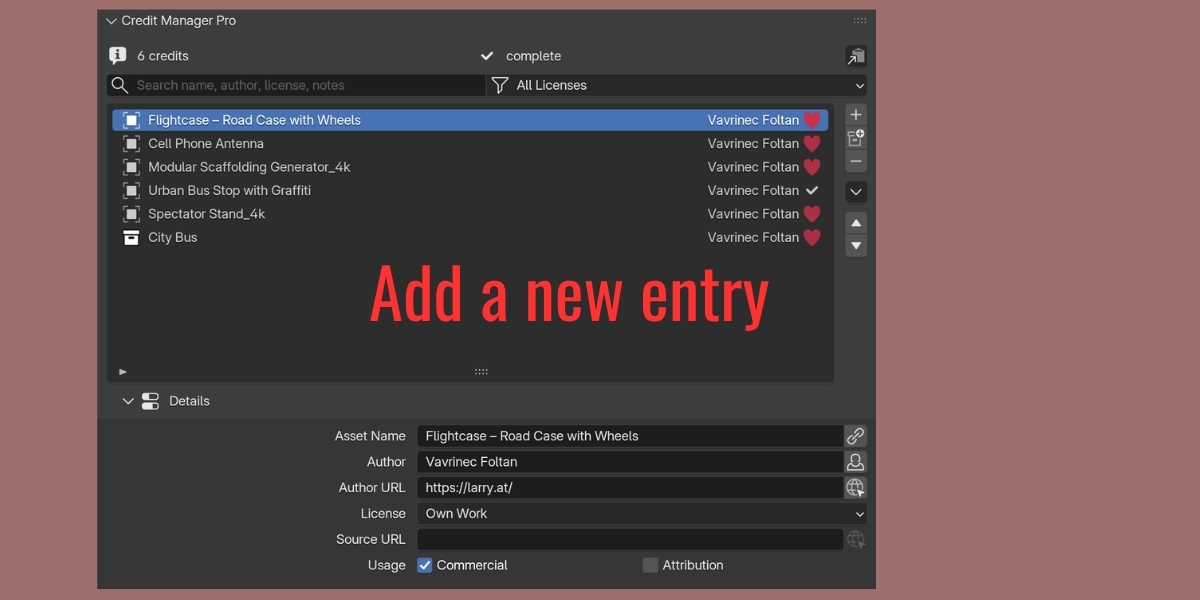
Each row shows a type icon (object, collection, material, image, …), the asset name, the author, a red marker for non-commercial licenses, the license icon and a warning marker when the entry needs attention.
- Double-click the name to rename an entry directly in the list.
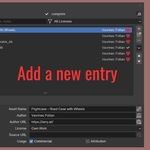
- + adds an entry. If the active object has no credit yet it is linked and its metadata is read; otherwise an empty entry is created.
- Collection button (below +) adds one entry for the active collection – the collection you clicked in the Outliner – including all child collections. See Add Credit from Collection.
- – removes the selected entry.
- ▲ / ▼ move the entry. The list order is the order used in exports.
- ▾ menu (Credit Tools) – see below.
- List filter (small ▽ at the bottom of the list) – Sort By (List Order, Name, Author, License, Date Added), reverse toggle and the Only Issues toggle.
- Empty list – shows one-click buttons for Add Credits from Selection and for the active collection (the button shows its name).
▾ Menu – Credit Tools
| Entry | What it does |
|---|---|
| Add Credits from Selection | One entry per asset for the selected objects (see Adding Credits) |
| Add Credit from Collection "Name" | One entry for the active collection, child collections included. Shows "…" and opens a picker while the Scene Collection is active |
| Add Credits from Linked Libraries | One entry per linked .blend library |
| Add Credits from Images | Entries for textures and HDRIs, grouped by folder |
| Duplicate Credit | Copies the selected entry including all linked data |
| Copy from Previous | Copies author/license info from the entry above |
| Bulk Apply Author Info | Copies author/license info to a range of entries |
| Move to Top / Move to Bottom | Reorders the selected entry |
| Check Credits | Lists all entries that need attention |
| Re-link Missing Data | Re-connects deleted data-blocks by their stored names |
| Clear All Credits | Removes all entries (asks for confirmation) |
Details
Shown for the selected entry. If the entry has open issues they are listed at the top.
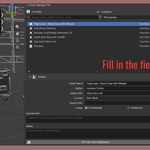
| Field | Description |
|---|---|
| Asset Name | Display name used in exports. The chain-link button copies the name of the linked data. |
| Author | Creator of the asset. The person button fills in your name and URL from the preferences and sets the license to Own Work. |
| Author URL | Website or store profile. The URL button opens it in the browser. |
| License | Sets the Commercial / Attribution flags automatically (see Licenses). |
| Source URL | Product page, download link or file path. The URL button opens web links. |
| Usage | Commercial and Attribution checkboxes – editable for every license, useful for custom terms. |
| License Info | Multi-line field for the exact attribution wording or special terms. |
| Notes | Multi-line free text – purchase date, modifications, license numbers, … |
| Fill from Asset Metadata | Reads author, license and source from the linked data (see Metadata Detection). |
| ← Copy from Previous / paste icon Bulk Apply | See Copy & Bulk Operations. |
| Added | Date the entry was created (YYYY-MM-DD). |
Linked Data
- Primary Object – the main object of the asset (kept for compatibility with 2.0).
- Additional references – any number of objects, collections, materials, images/HDRIs, worlds, node groups or linked libraries. Each row has an X to unlink it (the data itself is not deleted).
- Link ▾ – Selected Objects, Active Material, Active Collection, Scene World, or add an empty slot for a data type and pick the data-block from the dropdown.
- Select – selects all objects of the entry in the viewport and frames them.
- Re-link Missing Data – appears when a referenced data-block no longer exists.
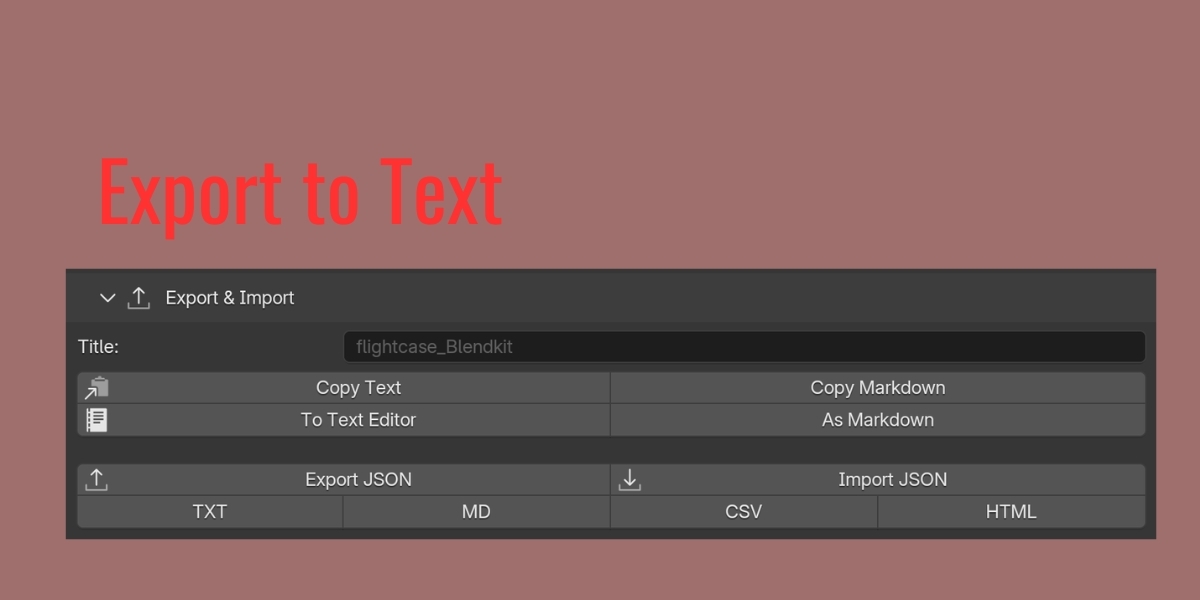
Export & Import
-
Title – optional heading for exports; defaults to the name of the
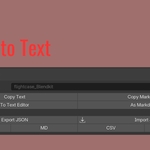
.blendfile. - Copy Text / Copy Markdown – clipboard.
-
To Text Editor / As Markdown – writes a text block (
CREDITS.txt/CREDITS.md) into the file. - Export JSON / Import JSON – backup and exchange.
- TXT / MD / CSV / HTML – file exports.
Outliner Context Menu
Right-click a collection in the Outliner ▸ Add Credit (Credit Manager) creates one entry per selected collection (Ctrl+click to select several).
Core Features
1. Adding Credits
Single entry
- Select the object you want to credit (optional).
- Click +.
- If the object is not credited yet, it becomes the Primary Object, the asset name is derived from the object name (numeric suffixes such as
.001are stripped) and available metadata is filled in. If it already has a credit, an empty entry named New Asset is created instead.
Add Credits from Selection
The fastest way to credit a scene:
- Select the objects – for example everything you just appended (A selects all).
- ▾ menu ▸ Add Credits from Selection.
- One entry is created per asset:
- Objects that differ only by a numeric suffix (
Chair,Chair.001,Chair.002) become one entry with all objects linked. - Instances of the same collection become one entry, named after the collection, with the collection linked.
- Objects that already belong to an entry are skipped – linked directly, inside a credited collection (child collections included), instancing a credited collection or coming from a credited library.
- Author, license and source are read from asset metadata where available.
- Objects that differ only by a numeric suffix (
The options Group Duplicates, Skip Already Credited and Detect Asset Metadata can be changed in the Adjust Last Operation panel (bottom-left of the viewport, or F9) right after running the tool.
Grouping only merges numbered duplicates and collection instances. An asset made of different parts – body, wheels, handles, helper empties – becomes one entry with Add Credit from Collection.
Add Credit from Collection
The right tool for an asset that consists of many parts – typically one collection with sub-collections.
- Click the asset's collection in the Outliner. It becomes the active collection (its name appears in the viewport's text info, top left). The objects do not need to be selected.
- Click the collection button below +, or ▾ menu ▸ Add Credit from Collection "Name", or – while the list is empty – Add Credit for "Name". From the Outliner: right-click the collection ▸ Add Credit (Credit Manager). With several collections selected (Ctrl+click), one entry per collection is created.
- The new entry
- is named after the collection – or after the asset name found in Blendkit data,
- links the collection: every object in it, child collections included, belongs to the entry,
- gets the collection's top-level object as Primary Object if there is exactly one (for example the empty all parts are parented to),
- reads metadata from the collection's own asset metadata and from that top-level object (Blendkit asset data, Asset Browser metadata). Collections with several top-level objects are not searched object by object, so no author is guessed for a whole scene.
While the Scene Collection is active, the button shows "…" and opens a dialog to pick the collection. If the collection already has an entry, no duplicate is created – the existing entry is selected in the list instead. Skip Already Credited and Detect Asset Metadata can be changed in the Adjust Last Operation panel (F9).
Collections inside a credited collection can still get their own entry – for example a third-party part inside your own asset.
Add Credits from Linked Libraries
Creates one entry per linked .blend file (libraries that are already credited are skipped). The entry is named after the file, the file path becomes the source, the library is linked as reference and the first object from the library becomes the primary object. Blender's bundled asset libraries are ignored.
Add Credits from Images
Creates entries for the images used in the file – textures, HDRIs, image sequences. With Group by Folder (default) all images from the same folder become one entry: a PBR texture set with five maps is one credit, named after the folder. Images without users, generated images and images from linked libraries are skipped.
2. Editing Credits
Select an entry in the list and edit the fields in Details. All changes are undoable with Ctrl+Z.
Asset Name
Independent of the Blender object name – rename it to the product name. The chain-link button next to the field copies the name of the primary object (or the first linked data-block). You can also double-click the name in the list.
Author, Author URL, Source URL
Free text. URL buttons open http(s) links in the browser; file paths (for example of a linked library) are shown as text.
License
Choosing a license sets the usage flags automatically:
| License | Commercial Use | Requires Attribution |
|---|---|---|
| Royalty Free (Marketplace) | ✅ | ❌ |
| Editorial Use Only | ❌ | ❌ |
| CC0 1.0 (Public Domain) | ✅ | ❌ |
| CC BY 4.0 | ✅ | ✅ |
| CC BY-SA 4.0 | ✅ | ✅ |
| CC BY-ND 4.0 | ✅ | ✅ |
| CC BY-NC 4.0 | ❌ | ✅ |
| CC BY-NC-SA 4.0 | ❌ | ✅ |
| CC BY-NC-ND 4.0 | ❌ | ✅ |
| GPL | ✅ | ✅ |
| MIT | ✅ | ✅ |
| Apache 2.0 | ✅ | ✅ |
| BSD | ✅ | ✅ |
| Own Work | ✅ | ❌ |
| Custom / Other | unchanged | unchanged |
| Unknown – to be checked | unchanged | unchanged |
The flags can always be changed by hand afterwards. Unknown keeps the entry flagged until you pick a real license – use it as a reminder. Custom / Other expects the terms in License Info.
License Info and Notes
Multi-line text boxes on Blender 5.2 (single-line fields on 5.0/5.1). Line breaks are kept in TXT, CSV, HTML and JSON exports.
3. Linked Data
An entry describes an asset; the linked data tells Blender which data-blocks that is.
- Primary Object – set automatically by the batch tools or picked from the dropdown.
- Link ▾ ▸ Selected Objects – links all selected objects (the first one becomes the primary object if none is set).
- Link ▾ ▸ Active Material / Scene World – links the active material of the active object or the scene's world (useful for HDRI setups and shader assets).
- Link ▾ ▸ Active Collection – links the collection that is active in the Outliner, including its child collections.
- Link ▾ ▸ Object… / Collection… / Material… / Image / HDRI… / World… / Node Group… / Linked Library… – adds an empty slot; pick the data-block or the library file in the new row.
Select in Viewport (the Select button) selects, in Object Mode:
- the primary object and all linked objects,
- all objects of a linked collection and all instances of it,
- all objects from a linked library,
- all objects that use a linked material (option Objects Using Linked Materials),
and frames them (option Frame Selected). Objects hidden from the view layer cannot be selected. Use Extend Selection to add to the current selection.
Credited collections cover their content. Objects inside a linked collection (child collections included), instances of it and objects from a linked library count as credited – Add Credits from Selection skips them. To give such an object its own entry anyway, select it and click +, or disable Skip Already Credited in the Adjust Last Operation panel.
Missing data. The name of every linked data-block is remembered. If the data-block is deleted, the row shows a warning, the entry is flagged as an issue and the export marks the item as (missing). Re-link Missing Data (▾ menu for all entries, or the button in Linked Data for the current entry) re-connects data-blocks that exist again under the stored name – for example after an undo or a re-import. To drop a stale reference, click its X.
4. Metadata Detection
Fill from Asset Metadata (and the batch tools) look at every linked data-block – plus its mesh data, instanced collection and materials, and for a collection its single top-level object – for:
| Source | What is read |
|---|---|
| Blender asset metadata (Asset Browser: Mark as Asset) | Author, License, Copyright → License Info, Description → Notes |
| Blendkit / BlenderKit assets | Display name, author, author profile URL, license (CC0 or Royalty Free), link to the asset's gallery page |
| Linked libraries | Library path → Source URL |
| Appended assets | Origin library path → Source URL |
| Collections | The collection's own asset metadata; with exactly one top-level object, that object's metadata as well |
Free-form license texts such as "CC-BY 4.0", "Attribution-ShareAlike", "cc_zero" or "Royalty Free" are mapped to the matching license type. Texts that cannot be mapped are stored in License Info so nothing gets lost.
By default only empty fields are filled; enable Overwrite Existing Values in the Adjust Last Operation panel to replace what is already there.
5. Copy & Bulk Operations
Copy from Previous (← button)
Copies author name, author URL, source URL, license, license info and the usage flags from the entry above (in list order) into the current one.
Bulk Apply Author Info (paste icon)
- Select an entry with complete author information – the source.
- Click the paste icon (in Details or the ▾ menu).
- The dialog shows the source and proposes the range from the next entry to the last one (entries are numbered from 1 in list order). Adjust From # / To # as needed.
- Only Fill Empty Fields keeps values that are already set in the target entries and only changes the license of entries that still have the default or Unknown license.
- Confirm. The dialog shows how many entries will be updated.
Copied fields: author name, author URL, source URL, license, license info, usage flags.
Duplicate Credit
Creates a copy of the selected entry with all fields and all linked data. The copy gets " (Copy)" appended to its name and today's date.
6. Search, Filter & Sort
- Search matches name, author, license name, license info, source and notes (case-insensitive, updates while typing).
- License filter shows one license type.
- Only Issues (list filter ▽) shows only entries that need attention.
- Sort By (list filter ▽): List Order (manual, used in exports), Name, Author, License, Date Added; reverse toggle.
- X next to the search field clears search, license filter and Only Issues.
Sorting only changes the view. Move entries with ▲ / ▼ or Move to Top / Bottom to change the export order.
7. Compliance Check
An entry needs attention when:
- the asset name is empty,
- the license is Unknown – to be checked,
- the license is Custom / Other but License Info is empty,
- Requires Attribution is set but the author is empty,
- linked data no longer exists.
Such entries show a warning in the list and the reasons at the top of Details. The header counts them; clicking N to check (or ▾ menu ▸ Check Credits) opens a summary of all affected entries. Combine it with the Only Issues filter to work through them before delivery.
The check documents what you entered. It does not verify the license terms of an asset – always keep the original license and your proof of purchase.
8. Import & Export
All exports use the list order and include every entry (filters do not affect exports). File exports propose the name <blend file>_credits.<extension> next to the .blend file.
Options in the file dialog (TXT, Markdown, HTML)
- Group by Author – sections per author, entries without author last.
- Include Notes, Include Linked Data, Include Dates.
Clipboard
Clipboard menu in the header, or Copy Text / Copy Markdown in Export & Import:
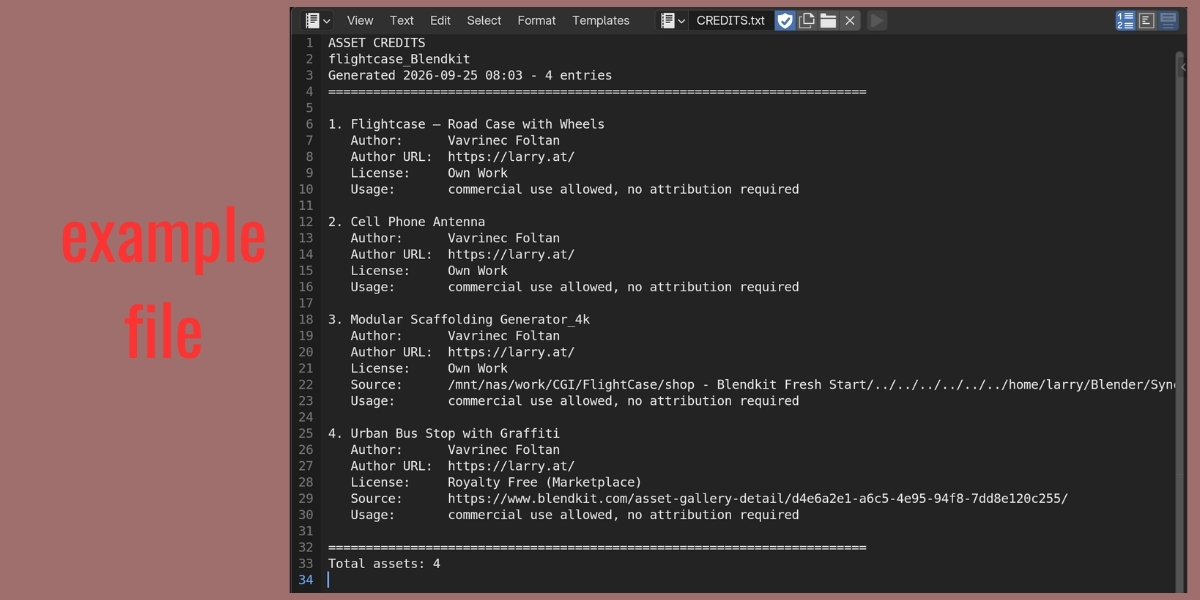
- Text – the same format as the TXT export.
- Attribution Lines – one line per asset:
"Vienna Fire Hydrant" by Larry3D (https://larry.at), license: Royalty Free (Marketplace). Source: https://superhivemarket.com/products/vienna-urban-hydrant
"Park Bench" by Jane Doe (https://example.com/jane), licensed under CC BY 4.0 (https://creativecommons.org/licenses/by/4.0/). Source: https://example.com/assets/park-bench
- Markdown – the same format as the Markdown export.
To Text Editor
Writes the list as a text block into the .blend file (CREDITS.txt or CREDITS.md; the name can be changed in the preferences) and shows it in an open Text Editor. Existing blocks with that name are overwritten. The credits stay inside the file – useful for hand-off and archiving.
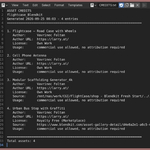
TXT
ASSET CREDITS
City Intersection
Generated 2026-09-16 10:30 - 2 entries
========================================================================

1. Vienna Fire Hydrant
   Author:      Larry3D
   Author URL:  https://larry.at
   License:     Royalty Free (Marketplace)
   Source:      https://superhivemarket.com/products/vienna-urban-hydrant
   Usage:       commercial use allowed, no attribution required
   Notes:       Purchased May 2026
   Linked:      Object "Hydrant", Object "Hydrant.001", Object "Hydrant.002"

2. Park Bench
   Author:      Jane Doe
   Author URL:  https://example.com/jane
   License:     CC BY 4.0
   License URL: https://creativecommons.org/licenses/by/4.0/
   Info:        Credit as: Park Bench by Jane Doe
   Source:      https://example.com/assets/park-bench
   Usage:       commercial use allowed, attribution required
   Linked:      Object "Bench"

========================================================================
Total assets: 2
Markdown
# Asset Credits - City Intersection
_Generated 2026-09-16 10:30 - 2 entries_

- **Vienna Fire Hydrant** by [Larry3D](https://larry.at) - Royalty Free (Marketplace) - [Source](https://superhivemarket.com/products/vienna-urban-hydrant)
  Notes: Purchased May 2026
- **Park Bench** by [Jane Doe](https://example.com/jane) - [CC BY 4.0](https://creativecommons.org/licenses/by/4.0/) - [Source](https://example.com/assets/park-bench)
  License info: Credit as: Park Bench by Jane Doe
With Group by Author the entries are listed under ## Author headings.
HTML
A self-contained page (embedded CSS, light and dark mode) with one card per entry: author and source as clickable links, license with link, license info, notes, badges for Commercial use allowed / No commercial use and Attribution required. With Group by Author the cards are grouped under author headings. All text is escaped, so special characters in names or notes are safe. The CSS is in the <style> block and can be adapted to your branding.
CSV
Columns: Asset Name; Author; Author URL; License; License URL; License Info; Source URL; Commercial Use; Requires Attribution; Notes; Date Added; Linked Data.
Written as UTF-8 with BOM so Excel shows umlauts and special characters correctly. The delimiter (semicolon for German/European Excel, comma for standard CSV) is set in the preferences.
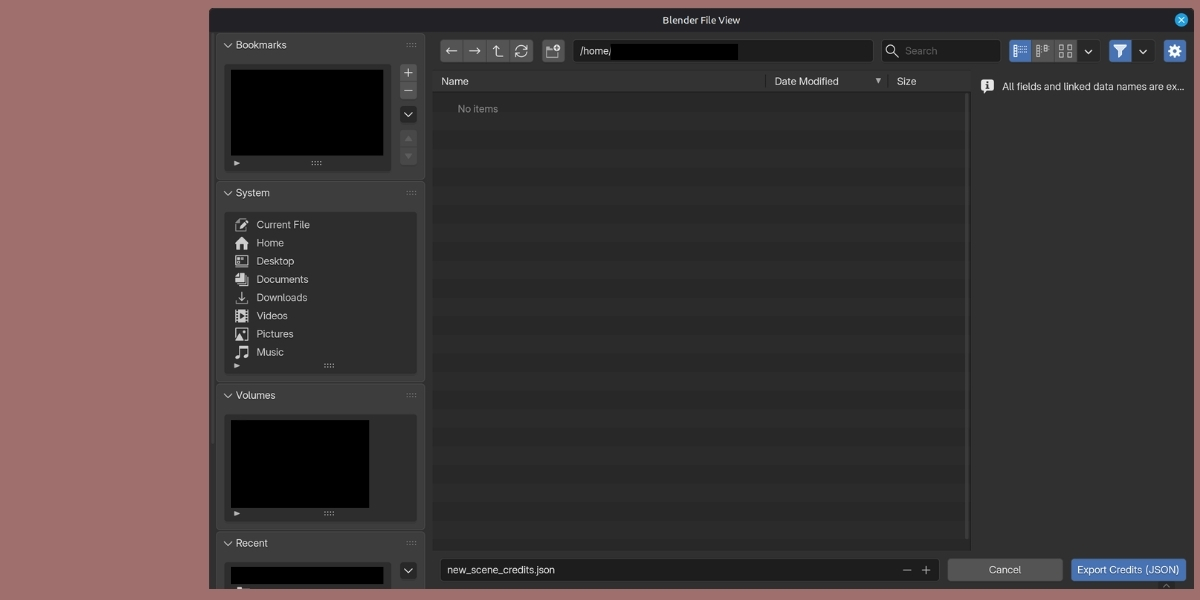
JSON
Complete backup of all fields plus the names of the linked data-blocks:
{
  "format": "credit_manager_pro",
  "format_version": 2,
  "generated": "2026-09-16 10:30",
  "blend_file": "city.blend",
  "title": "City Intersection",
  "credits": [
    {
      "name": "Vienna Fire Hydrant",
      "author": "Larry3D",
      "author_url": "https://larry.at",
      "license_id": "ROYALTY_FREE",
      "license_name": "Royalty Free (Marketplace)",
      "license_url": "",
      "license_info": "",
      "source_url": "https://superhivemarket.com/products/vienna-urban-hydrant",
      "notes": "Purchased May 2026",
      "commercial": true,
      "attribution": false,
      "date_added": "2026-09-16",
      "linked": [
        {"type": "OBJECT", "label": "Object", "name": "Hydrant", "missing": false}
      ]
    }
  ]
}
Import JSON reads files written by any version of the add-on (the 2.0 list format is converted automatically):
- Merge (default) – appends the entries; entries with the same name and author as an existing one are skipped.
- Replace – removes the current list first.
- Link Data by Name – objects, collections, materials, images, worlds and node groups that exist in the current file under the stored names are linked automatically. Names that do not exist are ignored.
Unknown license identifiers are mapped where possible (e.g. "Attribution-ShareAlike" → CC BY-SA 4.0); otherwise the entry is imported as Custom / Other with the original text in License Info.
9. Other Operations
- Clear All Credits – removes every entry after a confirmation dialog. Undo with Ctrl+Z; export a JSON backup first.
- Move to Top / Move to Bottom – quick reordering for long lists.
Preferences
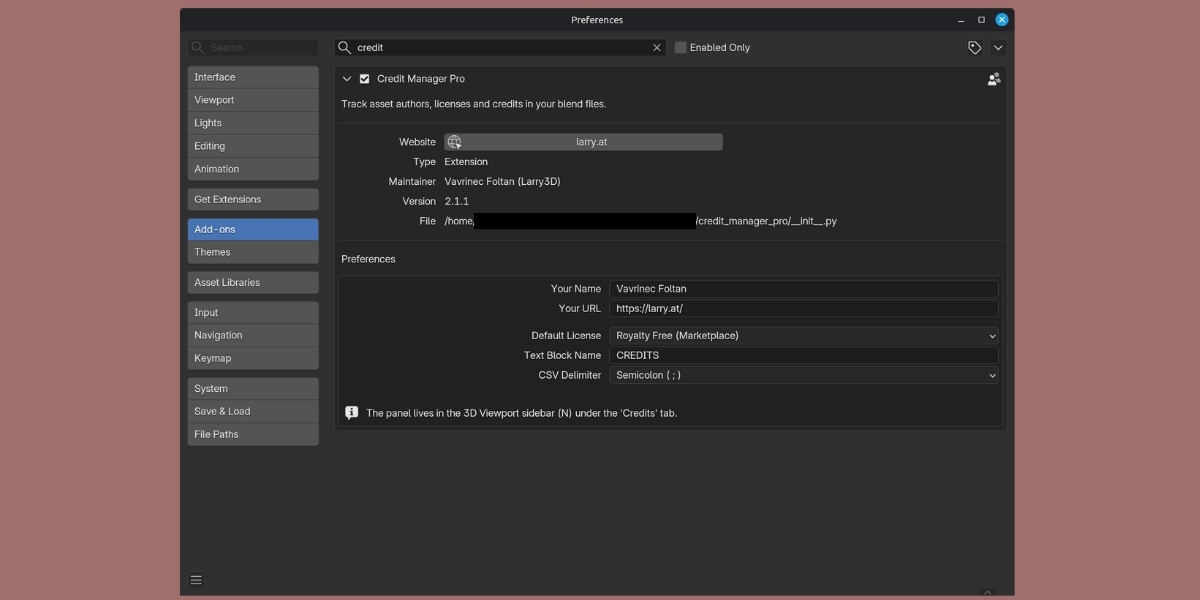
Edit ▸ Preferences ▸ Add-ons ▸ Credit Manager Pro
| Setting | Description |
|---|---|
| Your Name / Your URL | Used by the Own Work button |
| Default License | Preselected for new entries (default: Royalty Free) |
| Text Block Name | Name of the text block written by To Text Editor (default: CREDITS) |
| CSV Delimiter | Semicolon (Excel in German/European locales) or comma |
Workflows
Workflow 1: Single Asset
- Append the model and select it.
- Click +. If the asset came from the Asset Browser or Blendkit, author and license are already filled in.
- Complete license and source URL – done.
Workflow 2: Asset Pack from One Creator
- Append the pack, select all new objects (A).
- ▾ menu ▸ Add Credits from Selection – duplicates are grouped, one entry per product.
- Fill in entry #1: author, author URL, license Royalty Free (Marketplace), source URL, notes (purchase date, order number).
- Paste icon → Bulk Apply, confirm the proposed range.
- Under two minutes for the whole pack.
Workflow 3: Asset Made of Many Parts
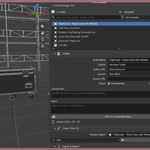
Scenario: a road case with 30+ parts – body, wheels and helper empties in sub-collections, all parented to one empty.
- Click the asset's top collection in the Outliner.
- Click the collection button below + – one entry for the whole case. The parent empty becomes the Primary Object.
- Your own asset? Click Own Work. Otherwise fill in author, license and source.
- Select shows every part in the viewport – a quick check that nothing is missing.
Several assets side by side? Ctrl+click their collections in the Outliner, right-click ▸ Add Credit (Credit Manager) – one entry each.
Workflow 4: Linked Asset Libraries
- Link your asset packs instead of appending them.
- ▾ menu ▸ Add Credits from Linked Libraries – one entry per library file, the path is the source.
- Add author and license once per pack. Select finds every object from that library in the scene.
Workflow 5: Textures & HDRIs
- ▾ menu ▸ Add Credits from Images – one entry per texture folder.
- Poly Haven, ambientCG and similar: license CC0, author and source URL.
- For the environment: Link ▾ ▸ Scene World on the HDRI entry.
Workflow 6: Multiple Creators
Repeat Add Credits from Selection per creator – already credited objects are skipped, so you can select generously. Fill the first entry of each creator and use Bulk Apply with the matching range.
Workflow 7: Delivery
- Header shows N to check? Enable Only Issues, fix the entries, run Check Credits.
- Export & Import ▸ HTML for the client, Markdown for the README, Attribution Lines for the store page.
- Export JSON as backup next to the project file.
Workflow 8: Reusing Credits
- Old project: Export JSON.
- New project: Import JSON with Merge. Objects with the same names are linked automatically; everything else stays as unlinked entries that you can link with Link ▾.
Tips
- Credit assets when you import them – the source URL is one click away then and a mystery six months later.
- Keep each asset in its own collection and credit the collection – one entry covers every part, and later selections skip it automatically.
- Use Unknown – to be checked when you are not sure; the warning stays until you resolve it.
- Put the exact attribution wording into License Info – it appears in every export.
- Set your name and URL in the preferences once; Own Work then takes a single click.
- Keep the list order meaningful (hero assets first) – it is the export order. Use sorting only for browsing.
- Semicolon-CSV opens directly in Excel with German/European settings; choose comma for Google Sheets or scripts.
Troubleshooting
The Credits tab is missing. Check that the extension is enabled under Get Extensions ▸ Installed. Hover the mouse over the 3D Viewport before pressing N.
"Add Credits from Selection" is greyed out. No object is selected. Clicking a collection in the Outliner makes it active but does not select its objects – use the collection button below + to credit the whole collection.
My asset was split into many entries. Add Credits from Selection only merges numbered duplicates and collection instances, so an asset made of different parts gets one entry per part. Remove those entries (or Clear All) and credit the asset's collection instead.
The collection button opens a dialog. The Scene Collection is active. Click the asset's collection in the Outliner first, or pick it in the dialog.
Notes and License Info are single-line fields. Multi-line text boxes require Blender 5.2. On 5.0/5.1 the fields work but show one line.
"Select" is greyed out or does nothing. It requires Object Mode. Objects that are hidden or excluded from the view layer cannot be selected; the message in the status bar tells you how many objects were selected.
An entry shows a warning. Open Details – the reasons are listed at the top (see Compliance Check).
Linked data shows a warning after an undo or re-import. ▾ menu ▸ Re-link Missing Data re-connects data-blocks by name. If the data is gone for good, click the X on the row.
Add Credits from Selection created fewer entries than selected objects. Duplicates (Name.001 …) and collection instances are grouped, and objects that already belong to an entry are skipped – including everything inside a credited collection. The status bar message shows the numbers. Disable Group Duplicates or Skip Already Credited in the Adjust Last Operation panel to change this.
Fill from Asset Metadata reports "No asset metadata found". The linked data has no Blender asset metadata, Blendkit properties or library origin. Enter the details manually or use Copy from Previous.
Export fails. Check that the folder exists and is writable; the message in the status bar contains the reason.
Excel shows broken umlauts in the CSV. Use the CSV export of 2.1 (UTF-8 with BOM) and the semicolon delimiter for German/European Excel.
Import JSON added nothing. In Merge mode entries with the same name and author as an existing one are skipped – the message shows how many. Use Replace to import everything.
The extension does not install. Use Blender 5.0 or newer and install the ZIP without unzipping it via Get Extensions ▸ Install from Disk. Remove an old 2.0 installation first.
Keyboard Shortcuts
The add-on does not add shortcuts. Useful Blender defaults:
- N – toggle the sidebar
- A / Alt+A – select all / deselect all
- Shift+Click – extend selection
- Ctrl+Click (Outliner) – select several collections for Add Credit (Credit Manager)
- Ctrl+Z / Ctrl+Shift+Z – undo / redo (all credit operations are undoable)
- F9 – Adjust Last Operation (options of the batch tools)
Support
- Questions, bugs and feature requests: [email protected] or the message button on the product page.
- When reporting a bug please include the Blender version, the add-on version (2.1.1), the steps to reproduce and, if possible, the message from Blender's status bar or the system console.
Credits
- Author: Vavrinec Foltan (Larry3D) – https://larry.at
- License: GNU GPL v3
Version History
2.1.1 (September 2026) – Collections
- Add Credit from Collection: one entry for a whole collection, child collections included – button next to the list, ▾ menu, empty list and the Outliner's right-click menu (one entry per selected collection)
- The collection's single top-level object becomes the Primary Object; its asset metadata is used
- Add Credits from Selection skips objects inside credited collections, instances of them and objects from credited libraries
- Link ▸ Active Collection; collection entries show the collection icon in the list
2.1.0 (September 2026) – Blender 5.2 update
- Native Blender extension (manifest only), Blender 5.0 – 5.2 LTS
- Multi-line text boxes, collapsible sub-panels, placeholders, confirmation dialogs
- Linked data: collections, materials, images/HDRIs, worlds, node groups, libraries; missing-data detection and re-linking
- Metadata detection (Blender asset metadata, Blendkit, library paths)
- Add Credits from Selection with duplicate grouping; Add Credits from Linked Libraries; Add Credits from Images
- Compliance check with issue markers, Check Credits and Only Issues filter
- Select in Viewport, sorting, in-place renaming, Own Work button, Move to Top/Bottom
- Licenses: CC BY-ND, CC BY-NC-SA, CC BY-NC-ND, Own Work, Unknown; automatic usage flags
- Exports: Markdown, attribution lines, clipboard, text block; grouping by author; JSON import with Merge/Replace
- Add-on preferences
- Fixes: search clear button, license names in exports, HTML escaping, file name proposals, CSV encoding
2.0.0 (January 2025)
- Rewrite for Blender 5.x, search & filter, bulk operations, HTML export, 11 license types, author/source URLs, usage flags, timestamps
1.0.0
- Initial release: basic credit management, JSON/CSV/TXT export, 5 license types, Blender 2.80+
Have questions about this product?
Login to message
| Blender Extension Compatible | Yes |
| Dev Fund Contributor | |
| Published | over 1 year ago |
| Blender Version | 4.3 - 5.2 |
| Extension Type | Add-on |
| License | GPL |
Discover more products like this
Export credits Workflow documentation asset management authors metadata license addon import