Customizable Stylized Tree Kit
 Cratial 3D
in Nature
Cratial 3D
in Nature




Customizable Stylized Tree Kit Documentation
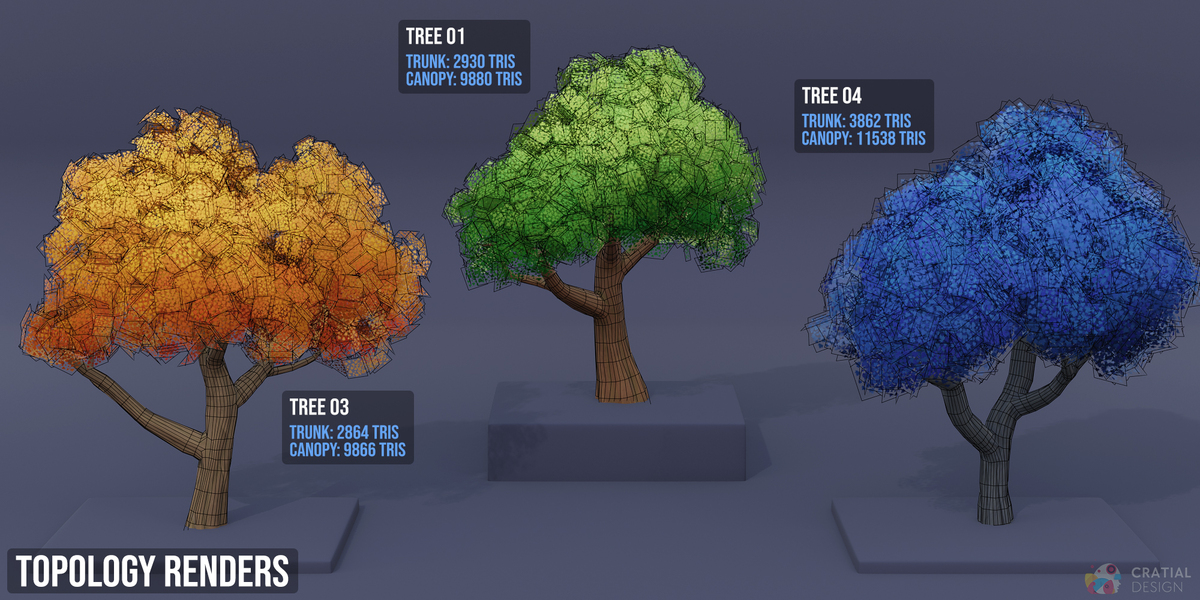
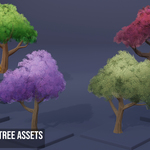
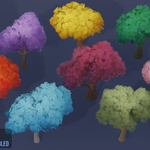
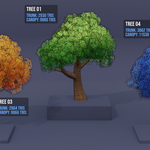
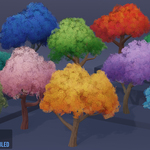
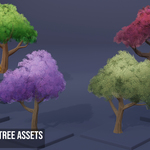
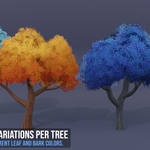
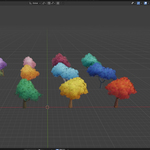
The kit contains six tree designs with two prepared material looks for each design. Every prepared tree is stored as a Collection with two editable objects: a trunk and a canopy. The canopy is parented to the trunk, so moving, rotating, or scaling the trunk moves the complete tree.
Select the canopy when you want to edit the leaf material, canopy shape, or wind. Select the trunk when you want to edit the bark material. All textures used by the trees are packed in the blend file.
Append a Tree to Your Scene
- In Blender, choose File > Append.
- Open Modular_Stylized_Tree_Kit.blend.
- Open the Collection folder.
- Select a complete named tree preset, such as Tree 03 - Olive Green - Light Bark, and append it.
- Select and move the trunk to place the tree. The parented canopy will follow.
Appending a prepared collection brings in both the trunk and canopy.
Move, Duplicate, and Edit Trees Independently
- Move, rotate, or scale the trunk to transform the complete tree.
- When duplicating an editable tree with Shift+D, select both the trunk and canopy. Duplicating only the trunk will not create a second canopy.
- Select the canopy for the Leaf Controls, Canopy Shape Controls, and Optional Wind modifier.
- Select the trunk for the Bark Controls.
- To try another prepared leaf palette, choose another Leaves material from the material dropdown.
Duplicated trees can share the same material. If you want to change only one copy, click the number beside the material name to make that material single-user before editing it.
Leaf Shader Basics
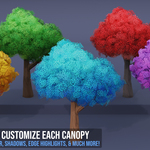
Select the canopy, open the Shading workspace, and use the large Leaf Controls group node. The controls are arranged by purpose so you can change the canopy's colors, leaf shape, lighting, edge highlights, and opacity without editing the full node graph.
Colors and Leaf Shape
- Leaf Shape: Choose Shape 01 through Shape 05. This changes the leaf-card silhouette, not the trunk, branches, or canopy layout.
- Shadow Color: Sets the color used across the lower and underside area of the canopy. It does not control shadows cast by scene lights.
- Highlight Color: Sets the color used across the upper area of the canopy.
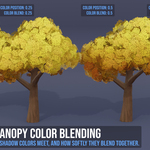
- Color Position: Moves the balance between Highlight Color and Shadow Color. Lower values show more Highlight Color; higher values show more Shadow Color.
- Color Blend: Changes the softness of the transition between the two colors. Lower values create a sharper division; higher values create a more gradual blend.
Color Variation
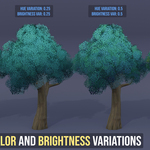
- Hue Variation: Adds shifts in leaf color.
- Brightness Variation: Adds lighter, darker, richer, and softer color differences across the leaves.
- Color Seed: Rearranges the color variation without changing the canopy geometry.
Use Hue Variation and Brightness Variation to break up a flat canopy color. Once the amount feels right, change Color Seed to try another distribution.
Lighting and Depth
- Lighting Smoothness: Lower values keep more lighting detail on individual leaves. Higher values create smoother, rounder lighting across the canopy.
- Interior Shade: Darkens the inside of the canopy to add depth.
- Backlight: Adjusts how much the leaves brighten when light comes from behind them.
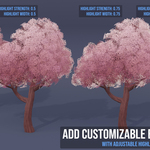
Edge Highlights
- Color: Sets the edge-highlight color.
- Strength: Controls the intensity. Set it to zero to turn the highlight off.
- Width: Controls how much of the canopy edge receives the highlight. Smaller values create a narrower rim; higher values cover more of the canopy. Set it to zero to turn the effect off.
The highlight follows the overall canopy outline. Deep gaps between leaf clusters can receive an approximate rim rather than an exact outline around every leaf.
Leaf Opacity
- Opacity Threshold: Controls how much of the leaf alpha is trimmed. Higher values trim more of the leaf shape; lower values retain more.
- Edge Sharpness: Controls the appearance of the leaf edges. Lower values soften them; higher values make them crisper.
Adjust the Canopy Shape
Select the canopy and open Modifiers > Canopy Shape Controls. These controls change the canopy geometry and are separate from the Leaf Controls material.
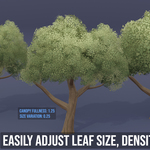
- Canopy Fullness: Makes the leaf clusters smaller or larger. Lower values open gaps between clusters; higher values fill out the silhouette.
- Leaf Size Variation: Adds variation to the size of the leaf clusters. A value of zero keeps their original sizes.
- Canopy Density: Controls how many of the existing leaf clusters remain visible. A value of 1 keeps all clusters; lower values open the canopy. This control does not add clusters beyond the original density.
- Variation Seed: Changes the size and density pattern when variation is active. This is separate from the material's Color Seed.
Lower density settings can reveal more of the branches. Raise Canopy Density or adjust Canopy Fullness if the tree becomes too open. Keep Canopy Rim Surface enabled because it supports the soft canopy lighting and edge-highlight effect.
Use the Bark Shader
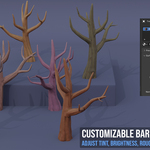
Select the trunk, open the Shading workspace, and use the large Bark Controls group node. Each trunk has its own Light and Dark PBR texture sets with Base Color, Roughness, and Normal maps.
- Bark Style: Switches between that trunk's Light and Dark texture sets while keeping the other Bark Controls adjustments.
- Bark Tint: Chooses a tint color while retaining the texture detail.
- Tint Strength: Controls how strongly the tint is mixed in. A value of zero keeps the original texture color.
- Brightness: Adjusts the overall bark brightness. A value of 1 keeps the original brightness.
- Roughness: Adjusts the texture's roughness response. Lower values look shinier; higher values look more matte. A value of 1 keeps the original setting.
- Normal Strength: Adjusts the strength of the baked surface detail. A value of zero removes the normal-map effect but does not change the trunk geometry.
Enable Optional Wind
- Select the canopy and find Optional Wind in the Modifiers tab.
- Enable its viewport and render icons. The modifier is off by default.
- Raise Wind Strength above zero.
- Adjust Wind Speed and play the timeline to preview the motion.
Wind Strength controls how much the canopy moves. Wind Speed controls how quickly the movement changes.
Use the Optional Wind Control Object
The separate Wind Control object is optional. It is a Blender Empty that provides a reference for the procedural movement pattern. Assigning the same Wind Control object to several canopies helps them follow a shared pattern, while Wind Strength and Wind Speed remain adjustable on each canopy.
- Choose File > Append and open the blend file.
- Open the Object folder and append Wind Control.
- Select a canopy and open its Optional Wind modifier.
- Assign the Wind Control object in the Wind Controller field.
- Repeat the assignment for any other canopies that should use the same reference.
- Move the Wind Control object to change the movement pattern.
Rendering Notes
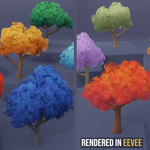
The trees support EEVEE and Cycles, but lighting can look different between the two render engines. For dense foliage in Cycles, set Render Properties > Light Paths > Transparent bounces to 32 as a starting point. Adjust this setting for the needs of your scene.
Troubleshooting
The wind is not moving.
Check that the Optional Wind modifier is enabled for both the viewport and render, Wind Strength is above zero, and the timeline is playing.
Changing one tree changes my duplicates.
The trees are sharing a material. Click the number beside the material name to make the material single-user before changing that copy.
The trunk moves without the canopy after duplication.
When duplicating an editable tree, select both the trunk and canopy before pressing Shift+D. Keep the canopy parented to the trunk.
Too many branches are visible after changing the canopy.
Lower Canopy Density intentionally hides leaf clusters. Raise the density or increase Canopy Fullness until the branch coverage suits the tree.
The edge shading changed after editing the modifiers.
Make sure Canopy Rim Surface remains enabled in the canopy modifier.
The Blender materials or wind do not work after exporting to a game engine.
Blender's node materials and procedural wind do not transfer directly. Rebuild the materials and animation for the target engine after export.
Have questions about this product?
Login to message
Includes an Asset Library
13 drag-and-drop assets for Blender’s Asset Browser.
Browse included assets| Sales | 10+ |
| Dev Fund Contributor | |
| Published | almost 3 years ago |
| Blender Version | 4.0 - 5.2 |
| Render Engine Used | Cycles, Eevee |
| Misc Data | Uvs-Unwrapped, Normal-Mapped, Textured |
| License | Royalty Free |
Discover more products like this
forest eevee trees stylized-tree wind-animation tree library stylized-foliage animated-trees stylized-forest tree stylized tree pack stylized-vegetation stylized-trees