 Bala
Bala


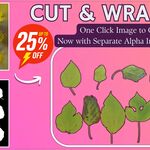
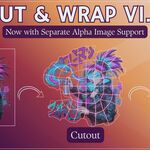
Cut & Wrap is an add-on I developed to turn any PNG—leaves, decals, logos, whatever—into a perfectly trimmed mesh with clean quad topology in just one click. What used to take hours of tedious hand-modeling can now be done instantly.
I was creating nature assets—plants, trees, and grasses—for the upcoming updates to Make Forest and Grovescape.
I felt frustrated by having to cut out leaves by hand—it took too much time and was boring
To make things easier, I created a tool that automates the entire cutout process, and make my life easier.
A single click and a few simple settings are all it takes.
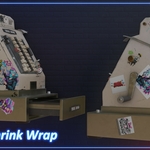
I also added a shrink-wrap feature that conforms cutouts to almost any surface,
with more flexibility than Blender’s standard shrink-wrap.
Here’s the presentation of the addon.
Features
Mask Offset
You can adjust the space between the cutout outline and the image
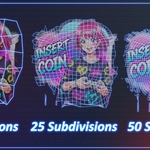
Subdivisions
You can increase on decrease the number of polygons that the cutout have based on you need.
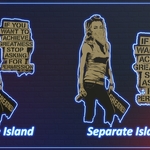
Separate Island
Treat each disconnected region in a PNG as its own object, Enabling this option creates a separate mesh for each island.
A single leaf → one island
- Two leaves → two islands
Batch Processing
The Addon can Batch process the cutouts, you can select the folder with you PNGs and adjust the settings to your need, it will create separate coutouts for all the images that are inside that folder,
- Detect islands in every image
- Apply your settings
- Generate cutout meshes for all files—no limit on quantity
Topology Option
- Keep full quad meshes for easy editing
Or delete all faces and leave only the boundary edges
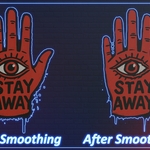
Smooth the Outer Edge
Because of the way the Addon work, you may get jagged edges at the Outline, you can smooth it by clickin on Smooth the Outline, there are two types of smoothing one Normal Smoothing and the other one use Laplacian Smoothing.
Origin Control
Set each cutout’s origin to its center or to its bottom edge.
Placement Modes
- All at Origin: stack every new cutout at the world origin
Next to each other: lay them out side by side with a uniform margin
Keep only Outline
Keep only outline option lets you delete all the quads inside the cutout and keep only the outline with its shape preserved.
Part 2 - Shrink Wrap
The add-on’s second part is the shrink-wrap feature: it generates the cutout and applies shrink-wrap to the selected mesh. This shrink-wrap offers more functionality than Blender’s default.
With the normal shrink-wrap, moving the cutout can stretch it; the Slide Cutout option eliminates stretching and makes it much easier to position the cutout precisely.
-
$19
It's a complete version of Cut & Wrap 1)PNG and JPEG Images Cutout with Separate alpha Mask ✅ 2)Video Cutout ✅ 3)Bulk Cutout for Both Images and Videos No Limitations ✅ 4)Emission Support ✅ 5)Shrink Wrap ✅ 6)Slide Cutout ✅ 7)Smooth Outline ✅ 8)Random Scale ✅ 9)Random Rotation ✅ and more, for full details watch the demo videos.
-
$9
1)PNG and JPEG Images Cutout with Separate alpha Mask ✅ 2)Video Cutout ❌ 3)Bulk Cutout for Both Images and Videos No Limitations ❌ 4)Emission Support ❌ 5)Shrink Wrap ❌ 6)Slide Cutout ✅ 7)Smooth Outline ✅ 8)Random Scale ✅ 9)Random Rotation ✅
Have questions about this product?
Login to message
Discover more products like this
Image to Mesh image convert-image-to-mesh 2d image to 3d Image cutouts 2dimage to 3dobject