 Mars0hod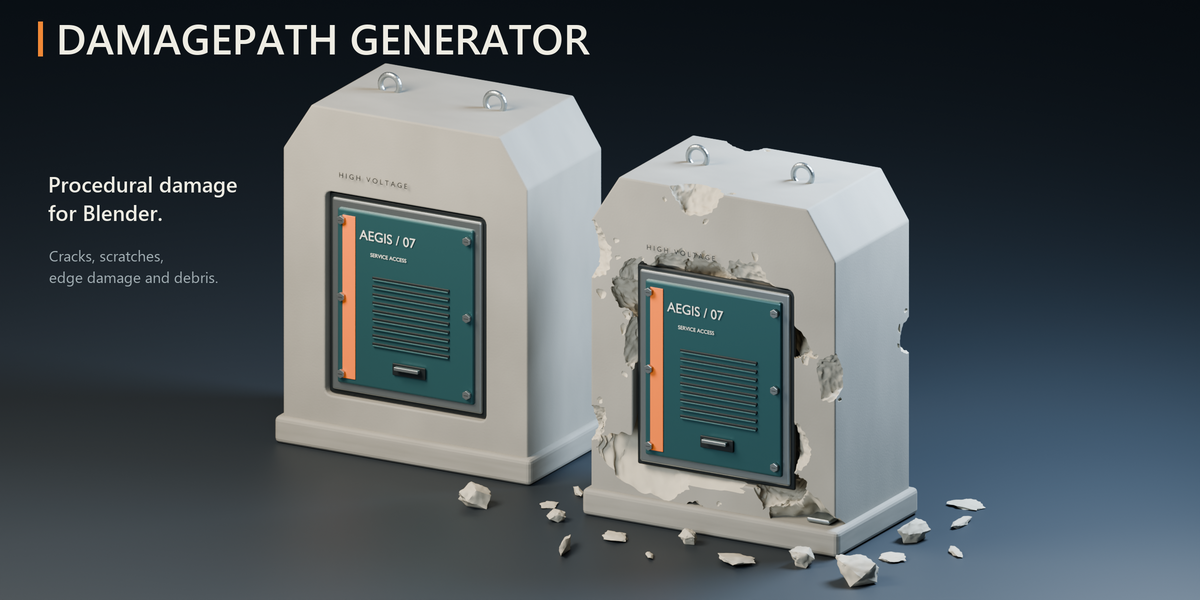
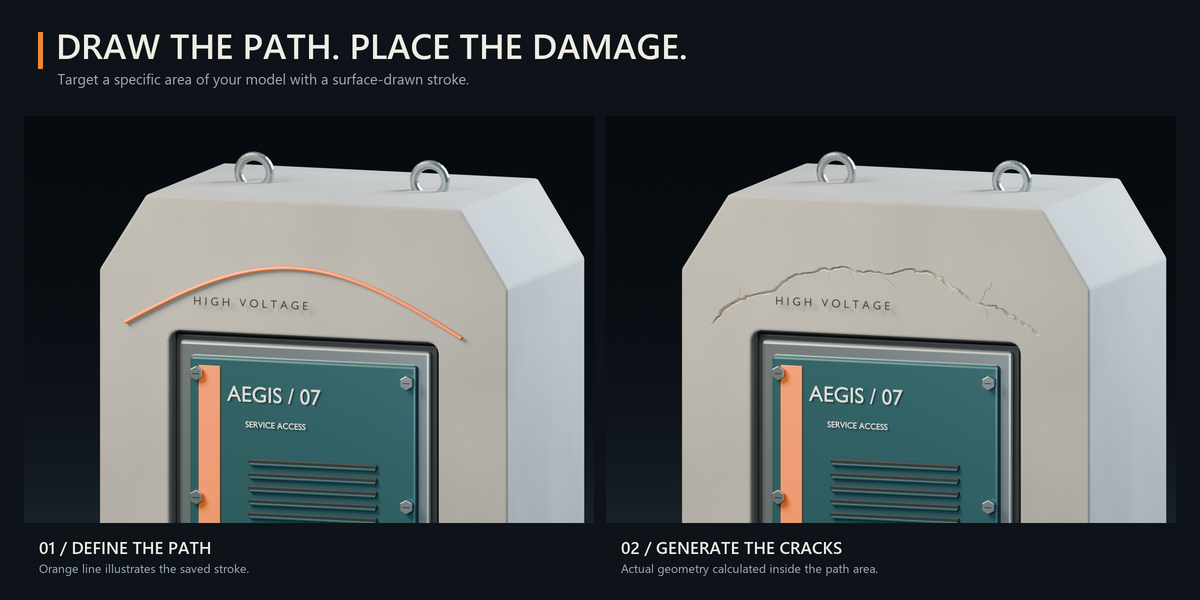
DamagePath Generator 1.5.0
By Mars0hod
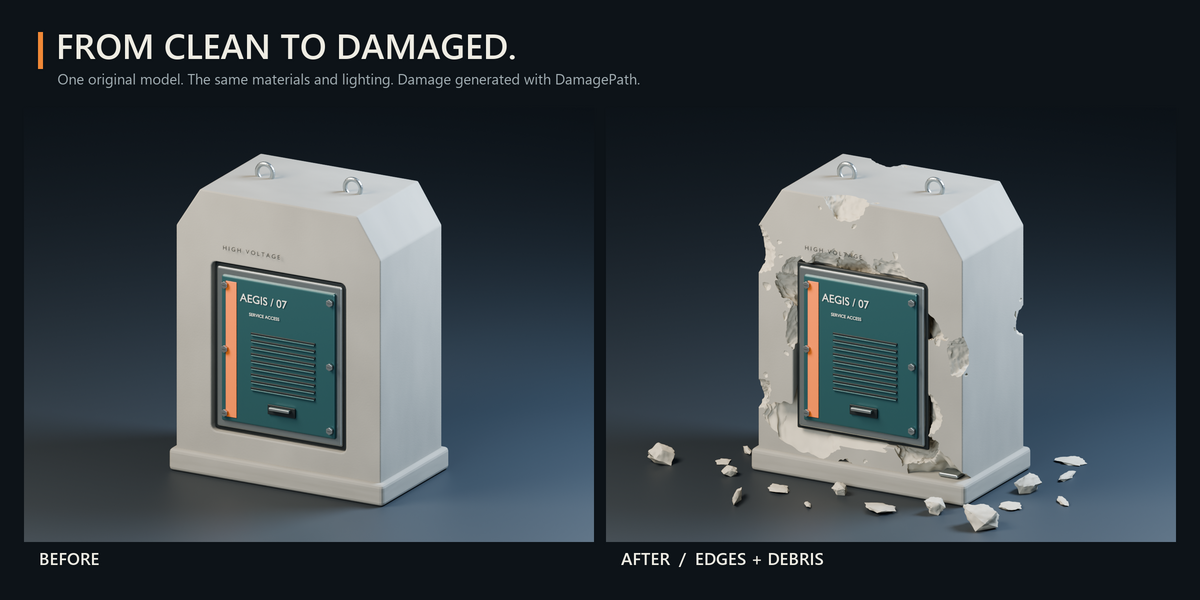
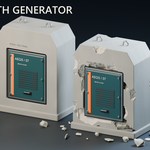
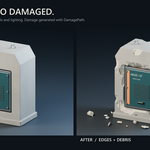
DamagePath Generator creates procedural mesh damage across an entire object or along paths drawn directly on its surface. Edges, Cracks, Scratches and Debris can be enabled independently.
The minimum supported version is Blender 5.0. This release was tested in Blender 5.2.2 LTS.
Installation
Download DamagePath_Generator_1.5.0.zip. Do not extract it.
In Blender, open Edit → Preferences → Add-ons.
Open the menu in the upper-right corner and choose Install from Disk.
Select the ZIP and enable DamagePath Generator.
In the 3D Viewport, press N and open the DamagePath tab.
When updating an existing installation, save your scene and restart Blender after installing the new version.
Create your first damage
Select a mesh object in Object Mode.
Choose Whole Object or Drawn Path.
Select Small, Medium or Heavy.
Enable the damage generators you want to use.
For Whole Object, click ADD DAMAGE. For Drawn Path, draw and confirm a path as described below.
Quick Preview creates a lighter approximation. Use UPDATE DAMAGE to calculate the final result after changing settings or previewing.
Choose a damage generator
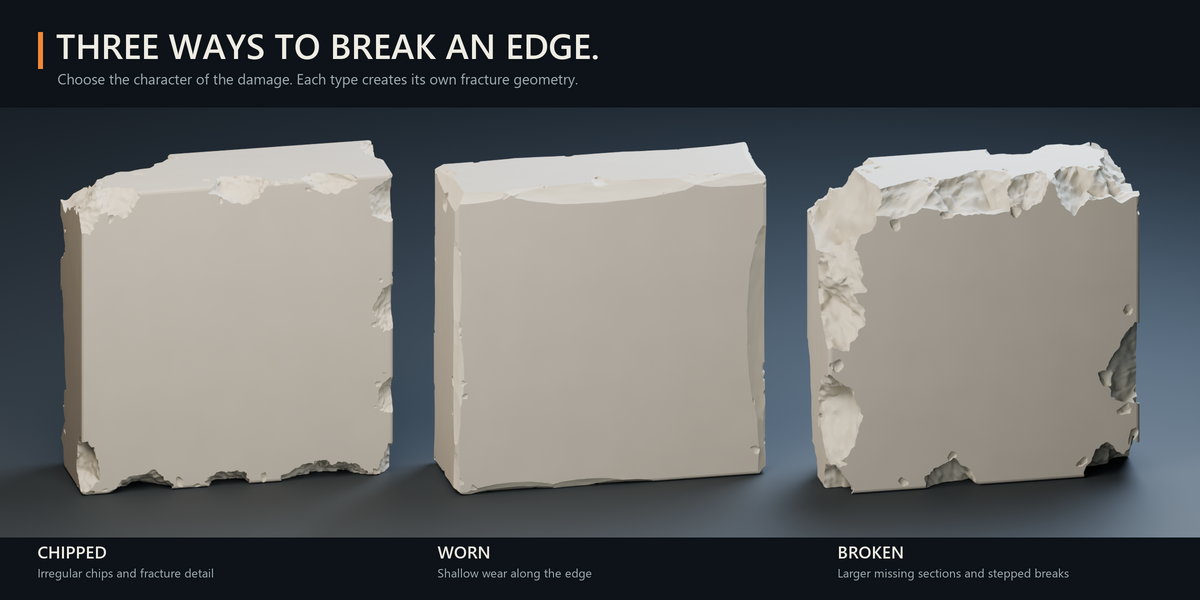
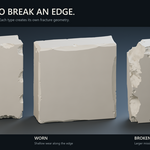
• Edges: Chips creates irregular chips; Wear produces shallow edge wear; Breaks removes larger angular sections. Whole Object targets edges and corners. Drawn Path places damage along the stroke, including on surfaces.
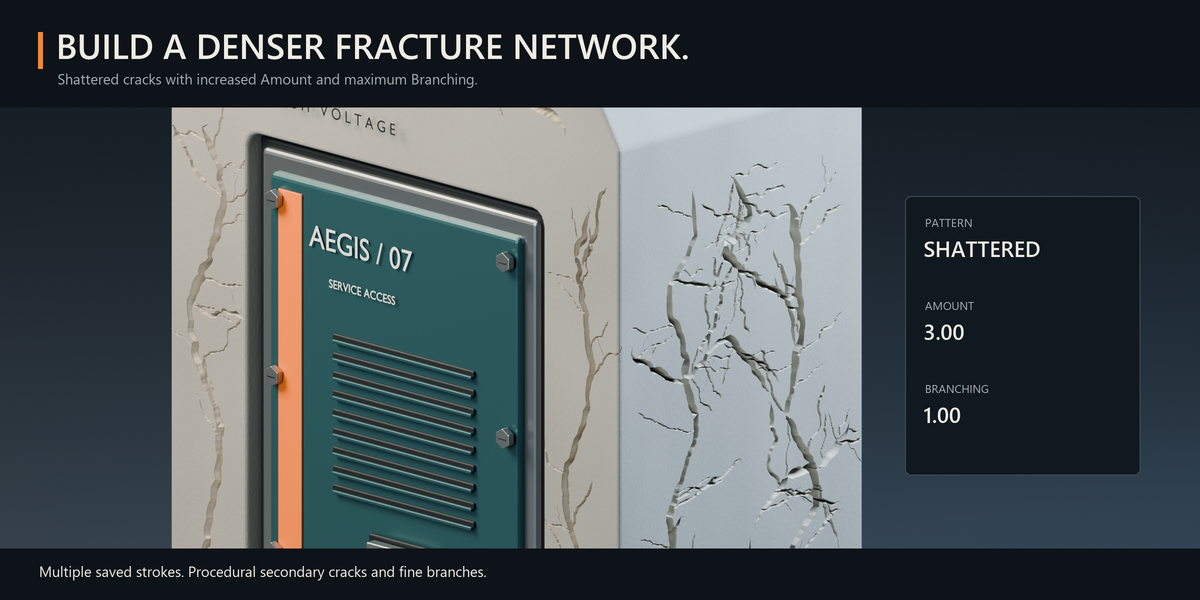
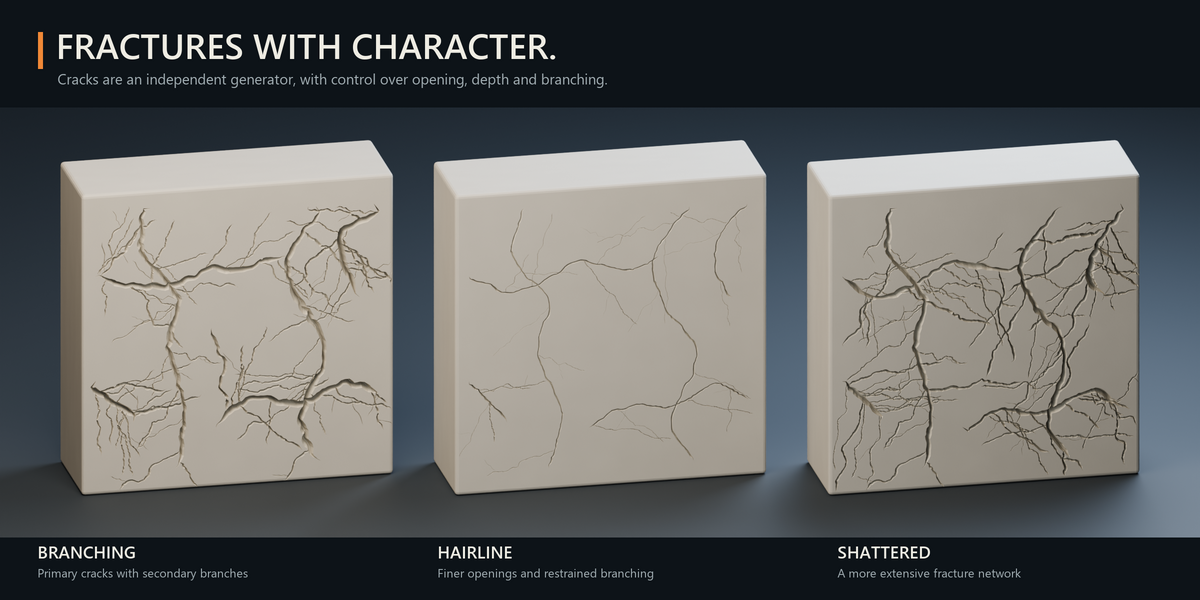
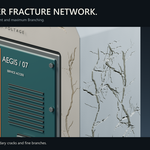
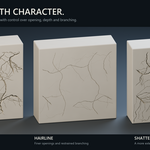
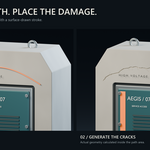
• Cracks: choose Branching, Hairline or Shattered. Opening controls crack width, Depth controls depth, and Branching controls secondary fractures.
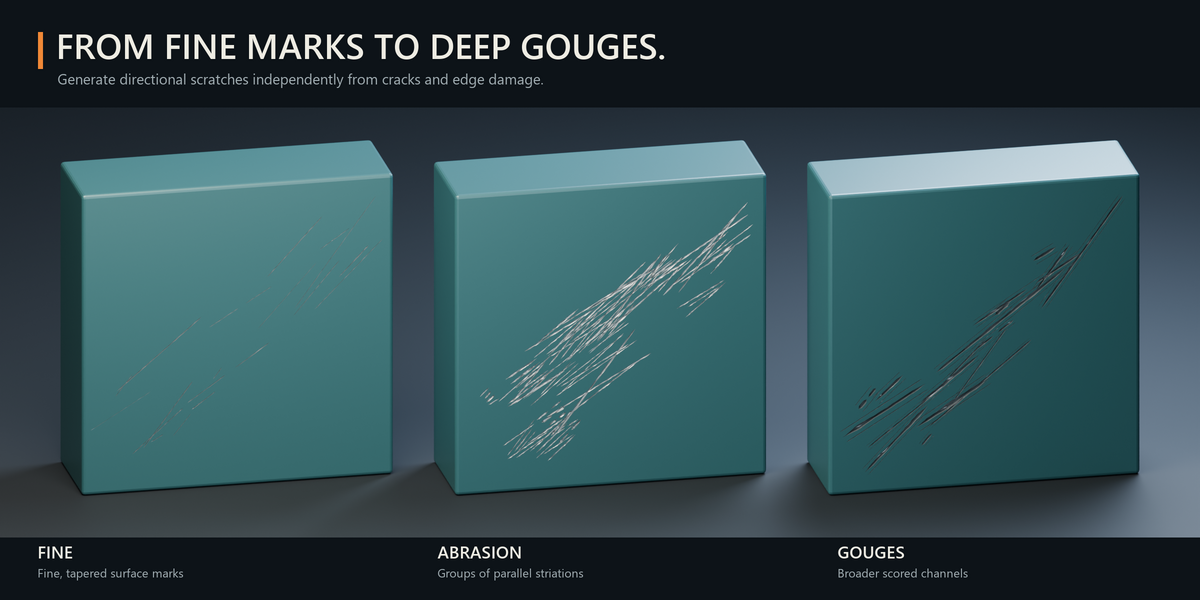
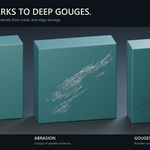
• Scratches: choose Fine, Abrasion or Gouges. Adjust Width, Depth and Density to control the marks.
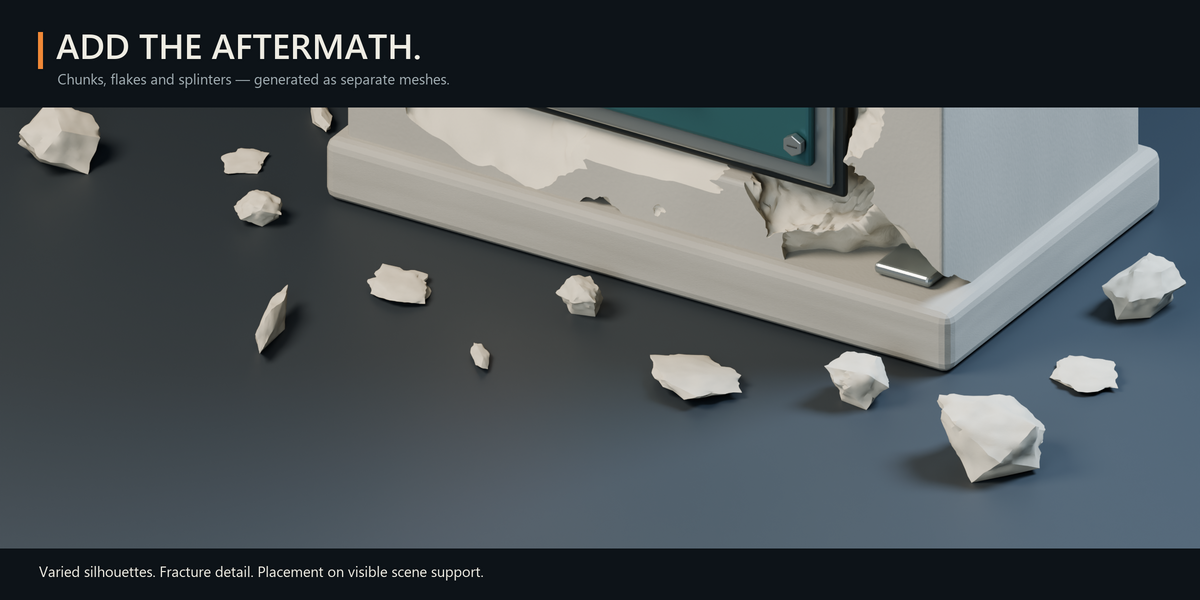
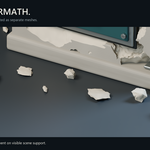
• Debris: creates separate fragments around and below the object. Debris alone does not cut the source mesh.
Draw damage paths
Choose Drawn Path, then click Draw Damage Path. Use Edit Damage Path to modify existing strokes.
• Left mouse button: draw on the surface. Release it to finish a stroke.
• Ctrl + left mouse button: erase part of a path.
• Mouse wheel: adjust the path width.
• Shift + mouse wheel: zoom.
• Middle mouse button: navigate the view.
• Backspace: remove the last stroke.
• Enter: save the path and start calculation.
• Esc or right mouse button: cancel the current editing session.
Path Width defines the affected corridor and limits damage size. Advanced → Stroke Smoothing controls the smoothing of newly drawn strokes.
To carry scratches across an edge, draw the stroke across that edge onto the adjacent face.
Protect selected areas
Expand Protect Details and click Paint Protection.
Paint protected areas with the left mouse button. Hold Ctrl to erase protection, use the wheel to change brush width, and press Enter to save. Then click UPDATE DAMAGE.
Only Selected Material restricts damage to one material slot. Target Slot uses zero-based numbering: 0 is the first slot, 1 is the second. Material restrictions and painted protection can be used together.
Adjust the result
Seed controls the random variation. The arrow beside it generates another variation.
Advanced settings include:
• Amount: the number of damage features.
• Size: their overall size.
• Interior Slot: the material slot used for cut faces and debris, numbered from 0.
• Stroke Smoothing: smoothing for newly drawn paths.
Original surface materials and UVs are preserved. New cut faces do not receive a dedicated UV unwrap; procedural materials are suitable for these surfaces.
Update, remove or bake
UPDATE DAMAGE recalculates the result using the current settings.
Remove Damage removes generated damage and debris and restores the original mesh and modifier states. Saved paths and protection remain available.
Reset Settings restores the selected object’s generation settings, including Whole Object mode. It preserves existing damage, paths, protection and the interface language. Click UPDATE DAMAGE to apply the reset values.
Bake to Mesh converts the visible result into a regular mesh and applies the visible modifier stack. Debris remains separate. Baking requires confirmation and is disabled for objects with shape keys.
Calculation and detail
Damage is calculated in a background Blender process. The panel displays the current stage, percentage and Cancel Calculation button. Cancelling preserves the previous completed result.
The percentage represents completed work, not estimated time remaining. It may pause during an individual Boolean operation.
The result captures the object’s current viewport geometry. Set the desired viewport subdivision level before calculating. Higher render-only subdivision settings do not add detail to the cached result.
After changing source geometry or settings, use UPDATE DAMAGE. To change which original modifiers are enabled, first use Remove Damage.
The result is a snapshot at the calculation frame. Damage does not automatically recalculate throughout an animation.
Mesh and debris behavior
Open surfaces are supported. A surface without thickness produces cuts through the surface; volumetric recesses require thickness. Self-intersections can affect Boolean quality and calculation time.
Debris uses visible mesh support beneath the object. If no support is found, it uses Z=0, or the object’s lowest level if the object is below Z=0. Placement is procedural, without a falling or rigid-body simulation. Update the damage after moving the source or support.
Library-linked objects and library overrides must be made local before processing. Objects with zero scale require a valid scale.
Keep the generated DamagePath helper collection: it contains geometry needed to display the result.
Interface language
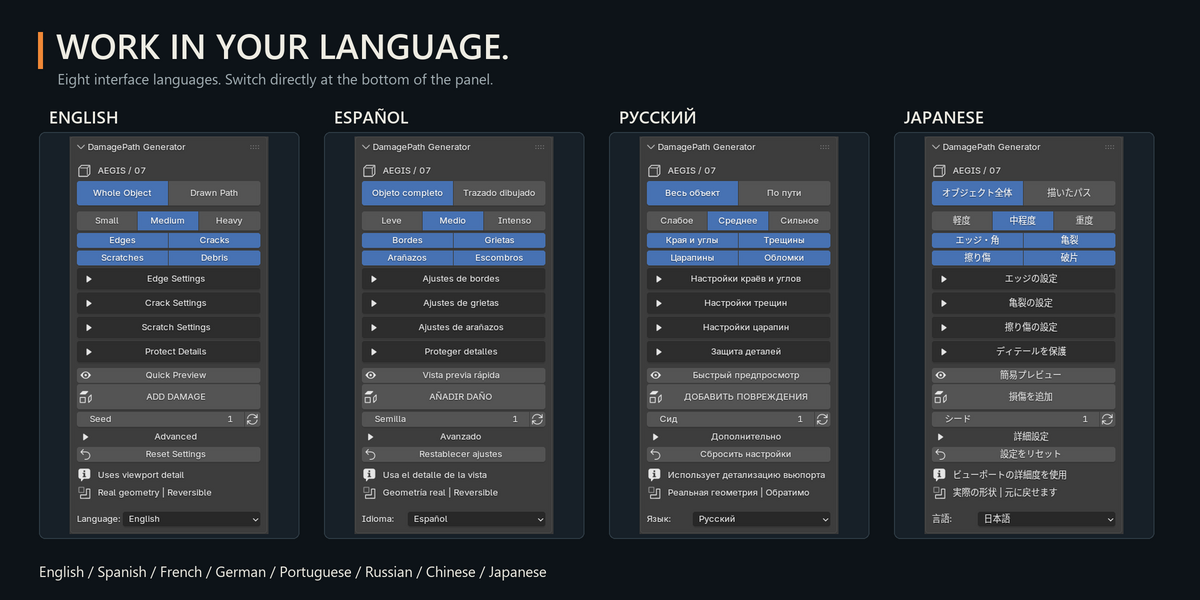
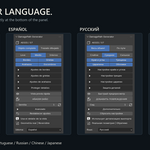
The Language selector is at the bottom of the panel. Available languages are English, Spanish, French, German, Portuguese, Russian, Chinese and Japanese.
English is the default. Changing this setting affects DamagePath only. If Blender’s automatic preference saving is disabled, use Save Preferences to retain your language selection.
The addon works locally without an internet connection or external asset libraries.
Have questions about this product?
Login to message
| Blender Extension Compatible | Yes |
| Published | 2 days ago |
| Blender Version | 5.0 - 5.2 |
| Extension Type | Add-on |
| Render Engine Used | Cycles, Eevee |
| License | GPL |
Discover more products like this
debris cracks drawn path procedural hard surface modeling edge wear weathering mesh damage chipping Damage scratches