 Mona-Ghafourian
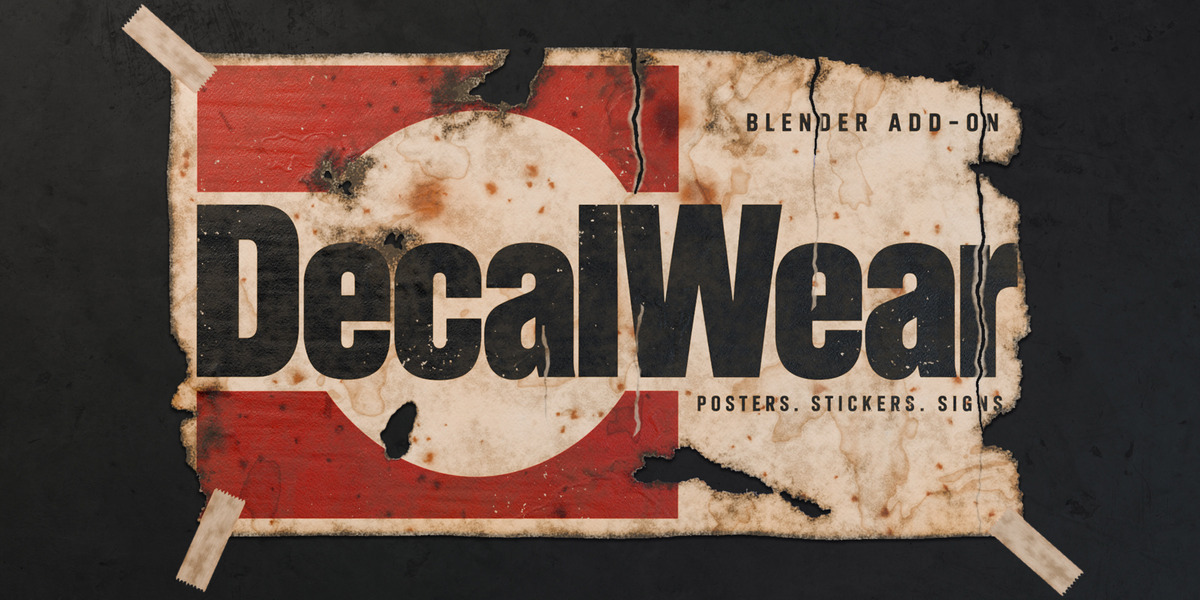
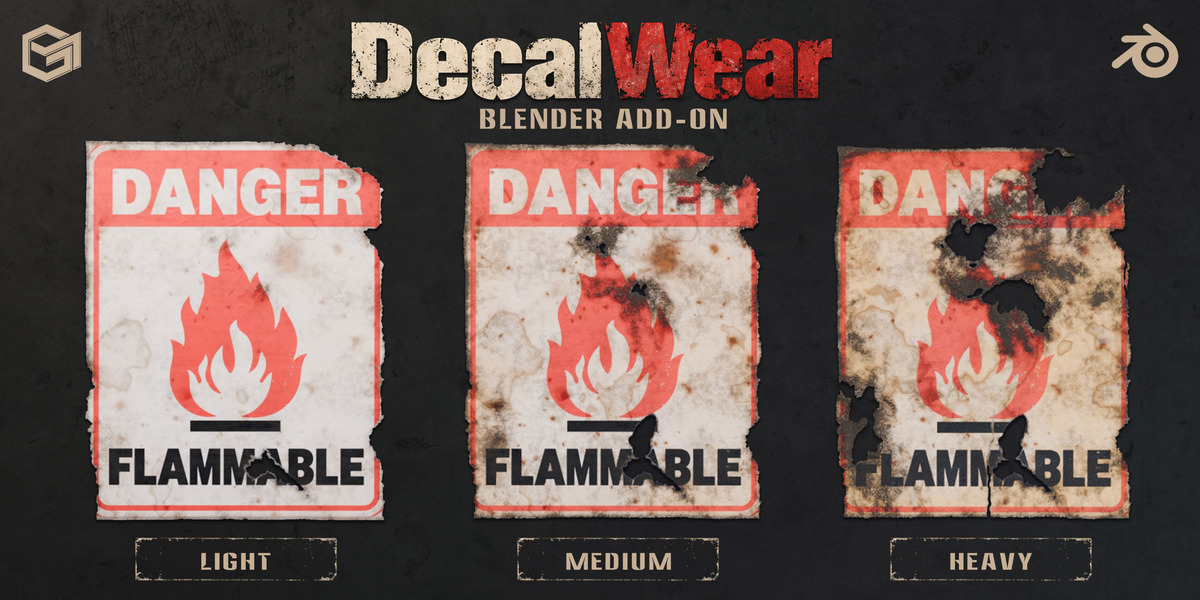
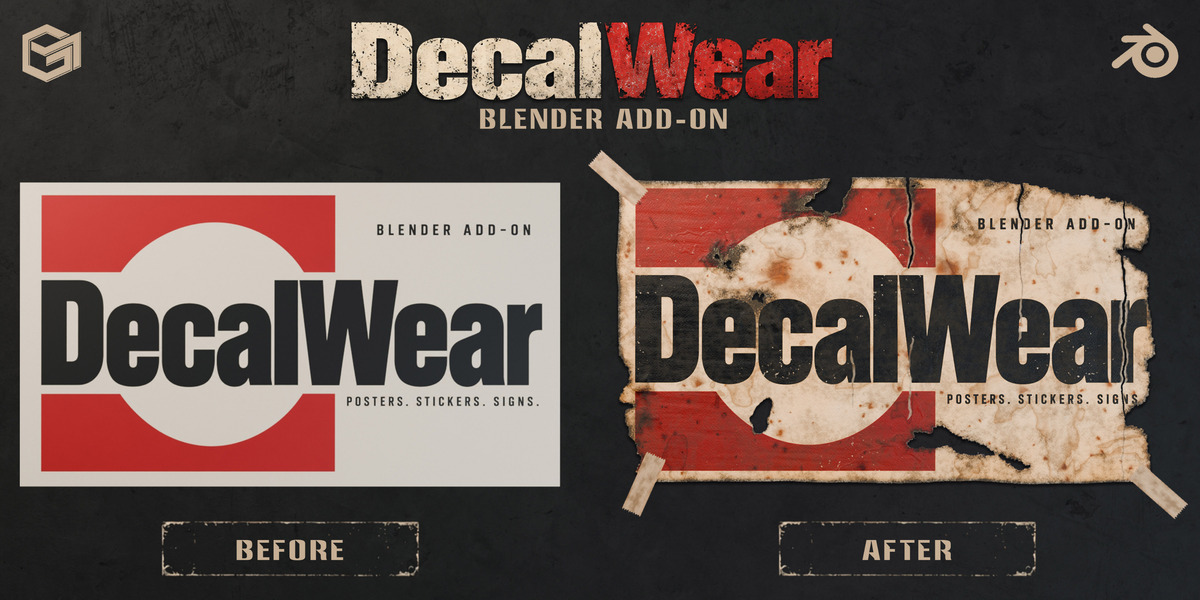

Age paper. Fade print.
Draw the damage.
17 aging effects. Non-destructive. Directly inside Blender.
Made for environment artists, game artists and archviz designers who need convincing posters, stickers, labels and signs.
BLENDER 4.5+ / CYCLES + EEVEE / YOUR OWN IMAGES
Draw your own tears.
Draw with Tear Lasso to remove a corner, a strip or a shape you choose.
16 ready-made looks.
Create your own presets, too.
 Brand New
 Weathered
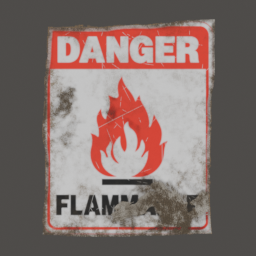 Industrial Grime
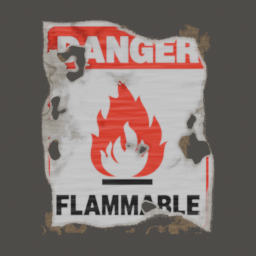 Torn
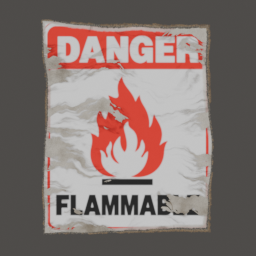 Scraped Off
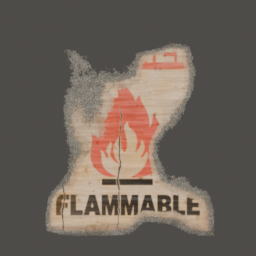 Aged Paper
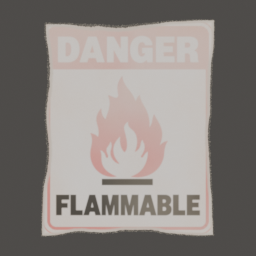 Sun-Bleached
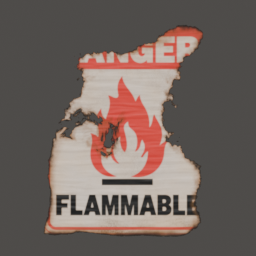 Burned Edges
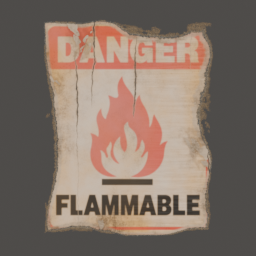 Brittle & Cracked
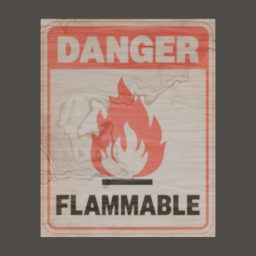 Water Damaged
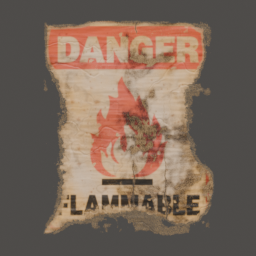 Heavily Aged
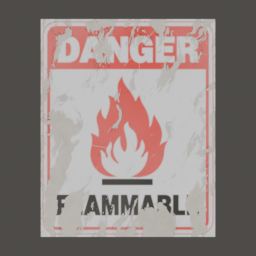 Wiped Print
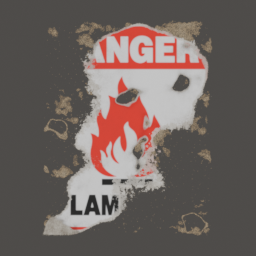 Torn Off
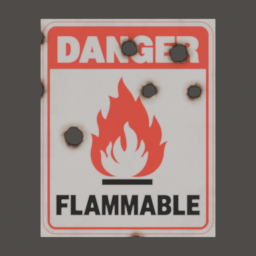 Cigarette Burns
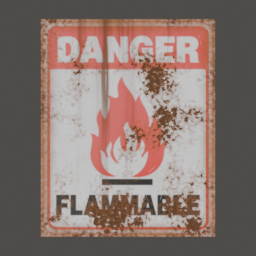 Rusty
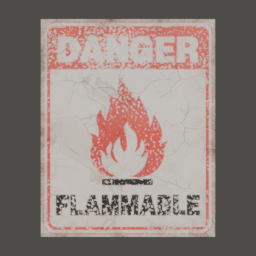 Distressed Print
Choose a look. Fine-tune it. Save your settings as a reusable preset.
THE AGING TOOLKIT
Every kind of wear.
One editable decal.
EFFECTS
Combine freely. Adjust individually. Stay non-destructive.
See the effects in action.
More control over every decal.
Prepare the shape for edge wear.
For decals with transparent backgrounds, Prepare Shape detects the outline of the artwork so edge wear follows the design instead of the rectangular image boundary.
Prepare Shape
Choose what stays clean.
Paint a mask to protect selected areas while aging the rest of the decal.
Paint Mask
Match the surface beneath.
Capture roughness and small bump details from the model under your decal. Requires Cycles.
Capture Surface Detail
Add real-looking tape.
Lay a strip of adhesive tape across the border of a decal. Move, rotate and scale it like any object, and change its color, wrinkles, dirt and torn ends.
Adhesive Tape
Place, move and repeat.
Offset, rotate and scale a decal, or repeat it as a wall of pasted posters, each copy aged differently.
Decal Transform + Repeat
Repeat it. Vary the wear.
Tile one design with different damage on each copy, or generate a fresh pattern with New Variation.
Tile Variation + SeedUse your own artwork.
Keep your own decal pictures in folders and place them with the mouse. Your library survives add-on updates.
My LibrarySwap the image. Keep the aging.
Replace your decal artwork without rebuilding its aging settings.
Replace Image
One look. Multiple decals.
Copy aging settings from the active decal to the selected decals. Each keeps its own random seed.
Copy Settings to Selected
Stay fast while you work.
Fast Viewport keeps the viewport light while you edit. Fast Preview: work lighter, render at full quality.
Fast Preview + Fast ViewportMake the edges look worn.
Add ragged edges, exposed paper fibers and glue residue.
THE DIFFERENCE IS IN THE DETAILS
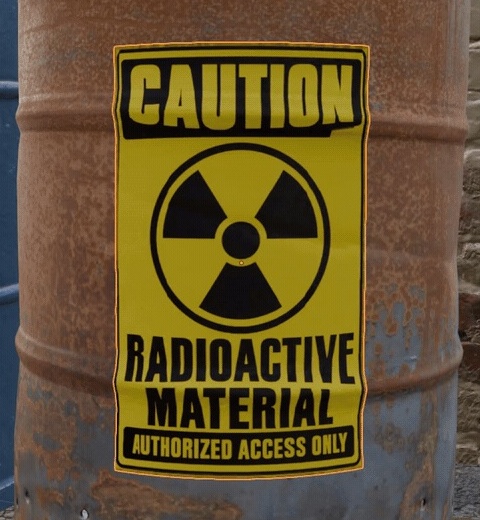
CLEAN
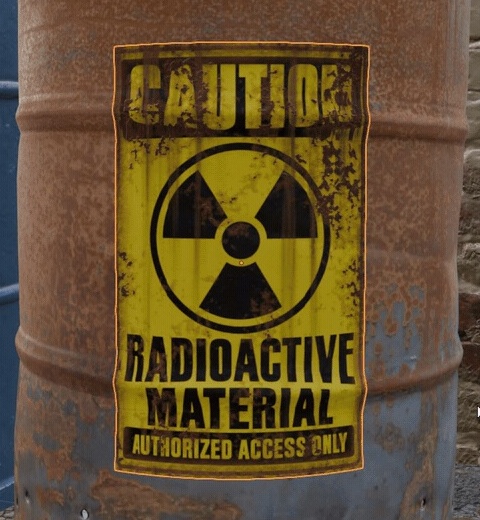
RUST & LEAKS
Build the look. Bake the textures.
Return to live aging when you need to edit.
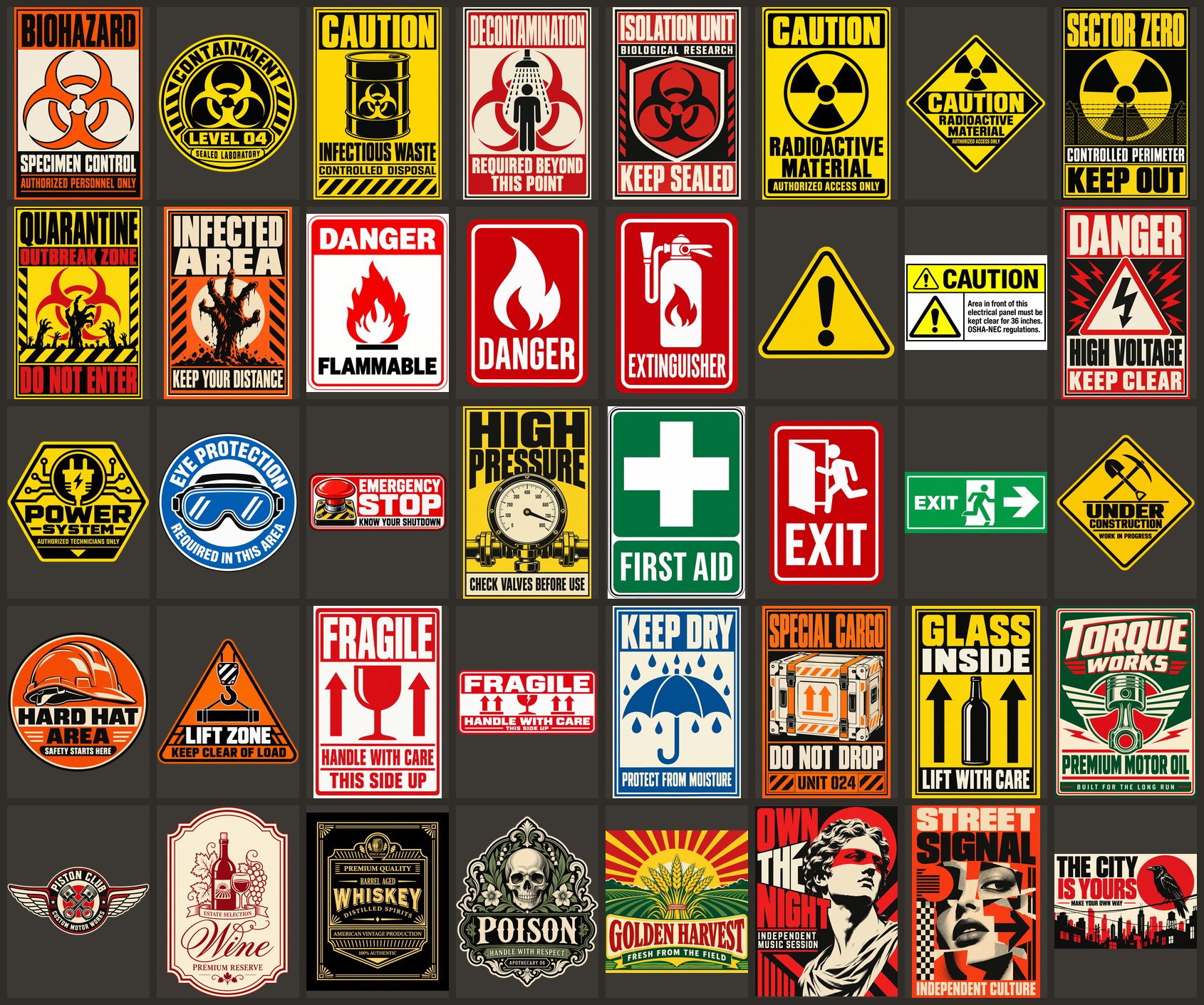
40 sample decals, ready to place.
Warning signs, shipping labels, posters and more. Start aging right away, or use your own images.
INCLUDED
Complete add-on + illustrated PDF user guide.
Setup, aging controls, custom presets & texture baking. Browse the illustrated guide
Everything in one panel.
Place your decals, choose a preset and fine-tune the wear from Blender’s sidebar.
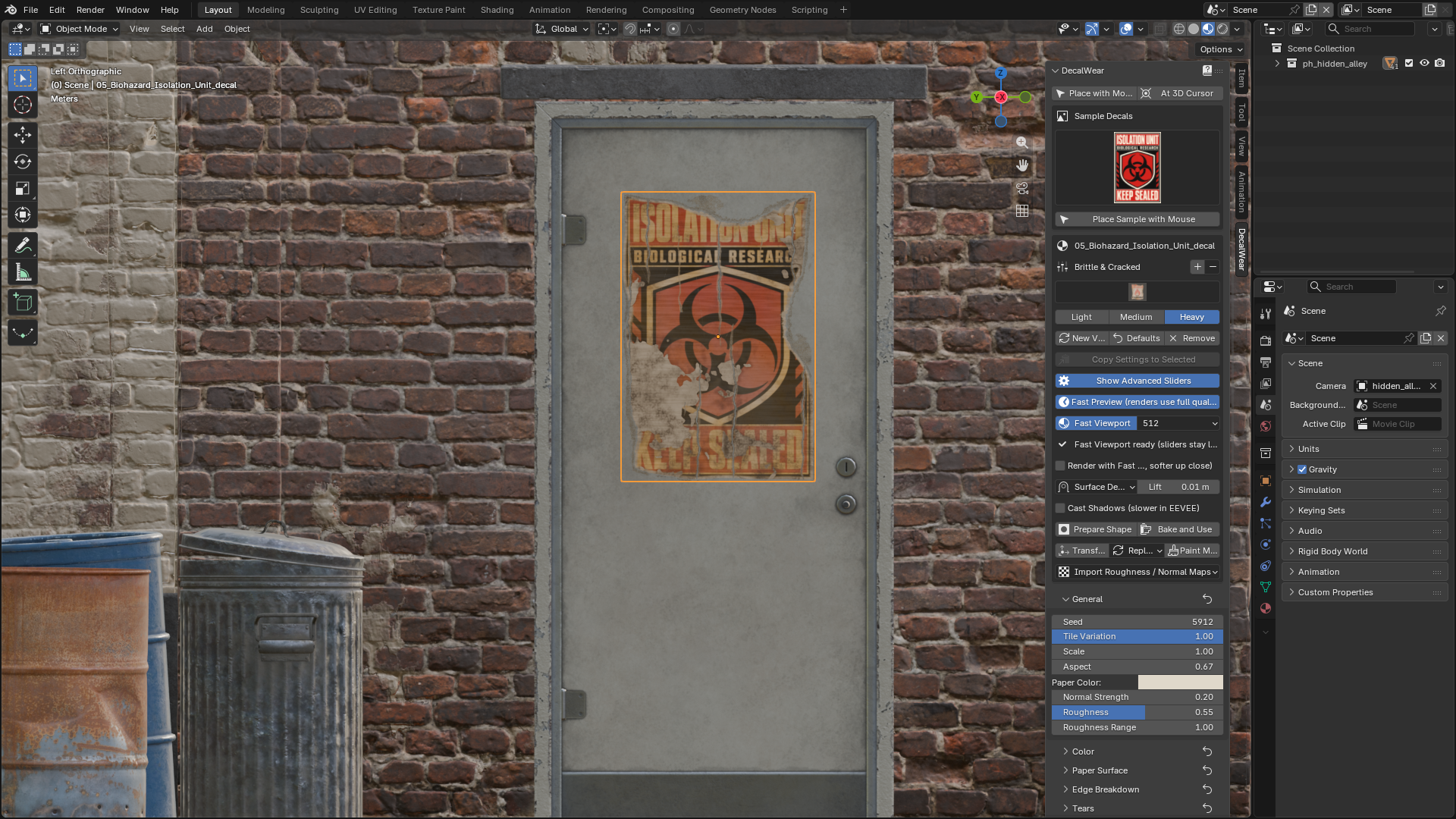
Browse every effect.
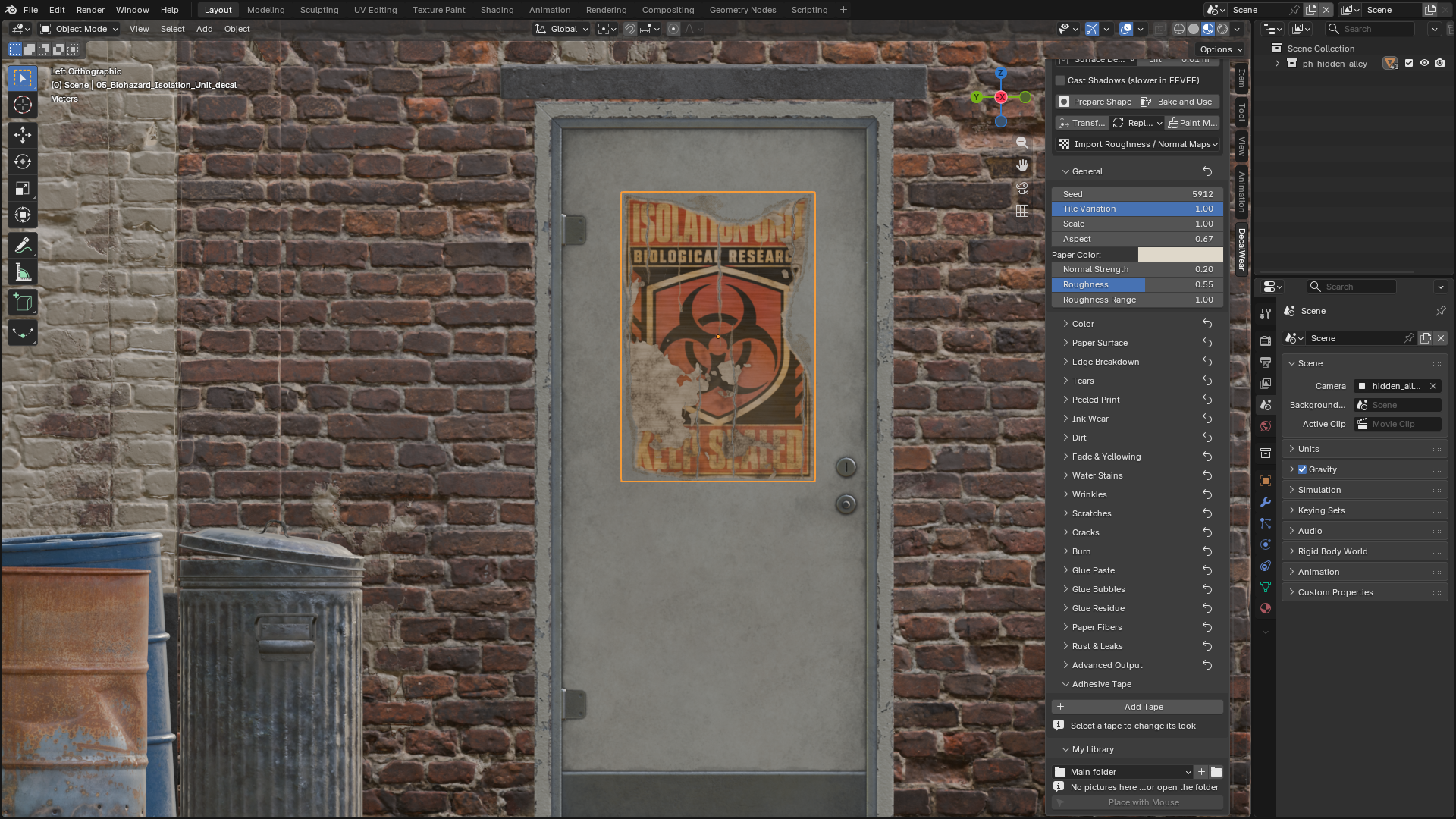
Control every detail.
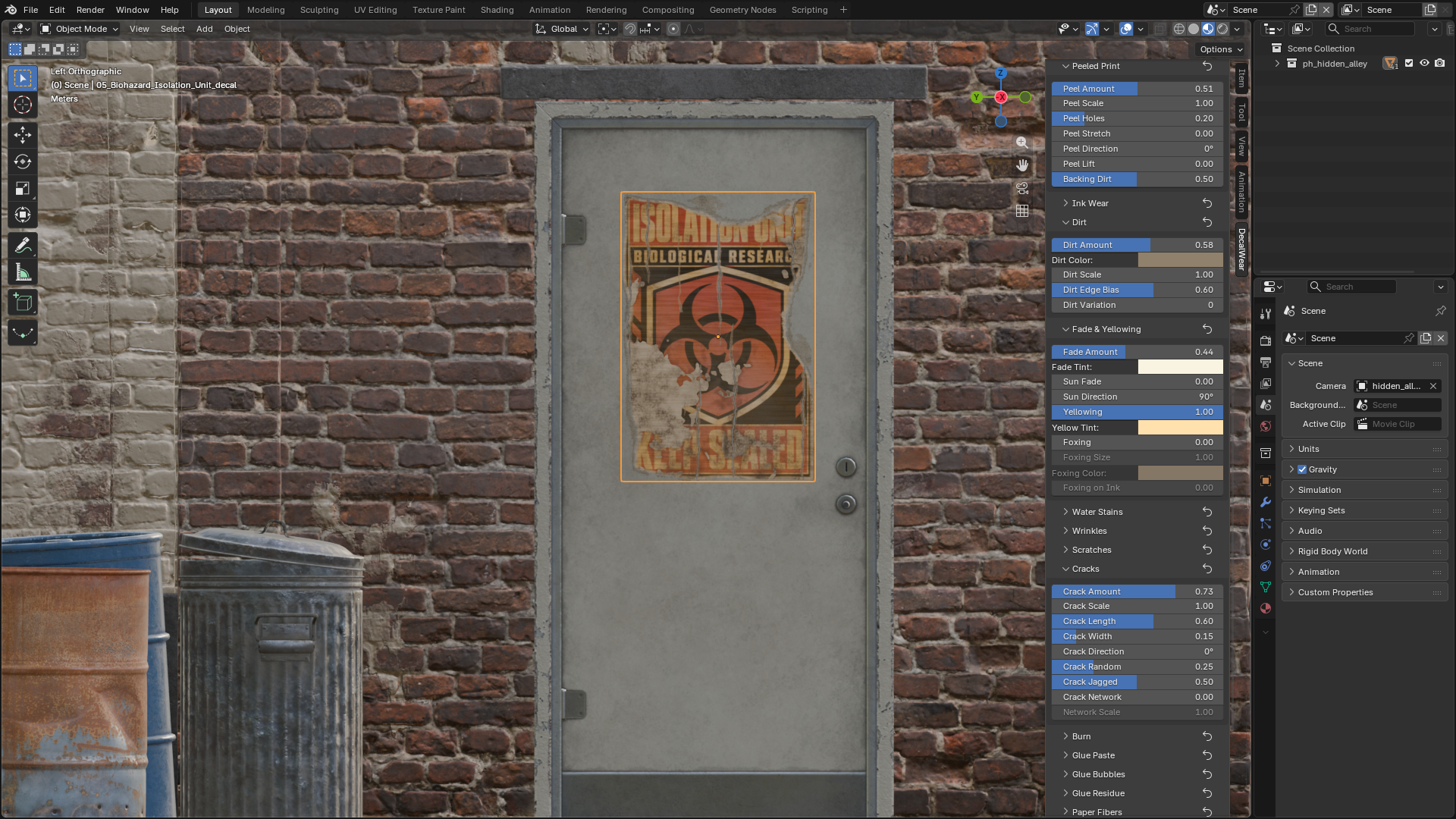
Click any image to view the original screenshot.
Install. Enable. Start creating.
01 Install the ZIP
In Blender, open Edit → Preferences → Get Extensions. Use the top-right menu → Install from Disk and select the DecalWear ZIP. Do not extract it.
02 Enable DecalWear
In Preferences → Add-ons, make sure DecalWear is enabled.
03 Open the panel
In the 3D Viewport, press N and select the DecalWear tab.
DecalWear — Complete Video Tutorial
EDITABLE
Your original artwork stays untouched. Re-bake after editing a baked result.
BAKING
UVs and Cycles required. Wrinkles and peel lift add shading detail, not curled geometry.
COMMERCIAL USE
Permitted. Add-on code: GPL-3.0-or-later. See the included licenses.
TESTED WITH
Blender 4.5 LTS, 5.0, 5.1 and 5.2 on Windows. Cycles and EEVEE.
PRESET PICTURES
When you save your own preset, DecalWear starts a hidden background Blender process (up to 2 minutes, no network) to render its small picture. If it cannot start, the preset is still saved without a picture.
YOU MAY ALSO LIKE
More from Mona-Ghafourian
DecalWear support
Need help with DecalWear? Email [email protected].
