Dekal: Shader Decals for Blender and Unreal
 cyberhirsch
in Materials and Shading
cyberhirsch
in Materials and Shading
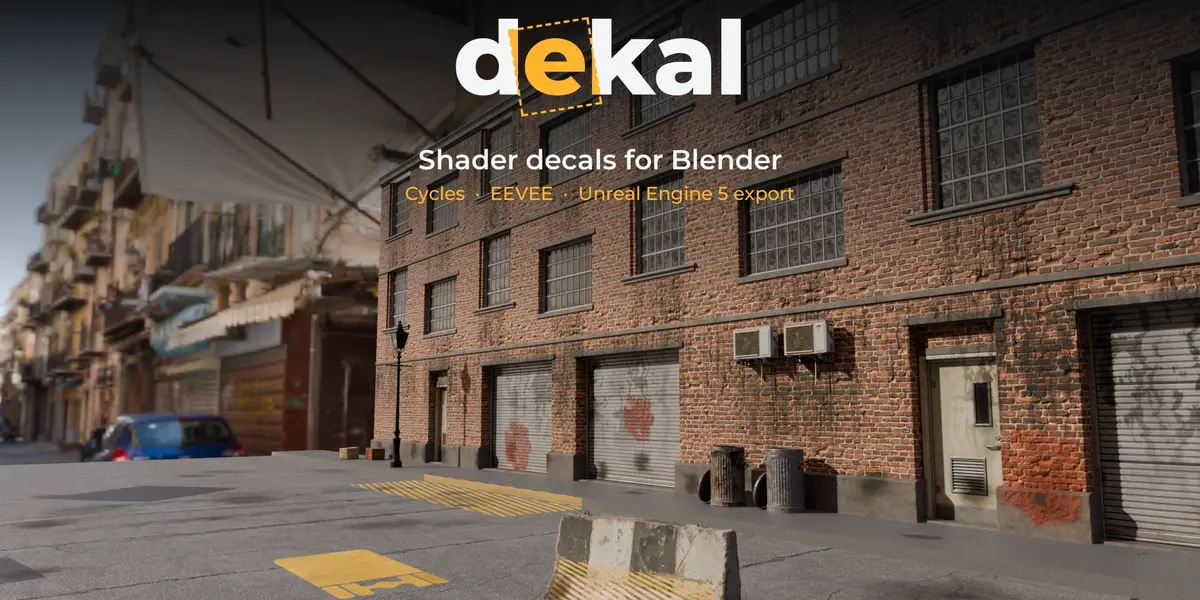
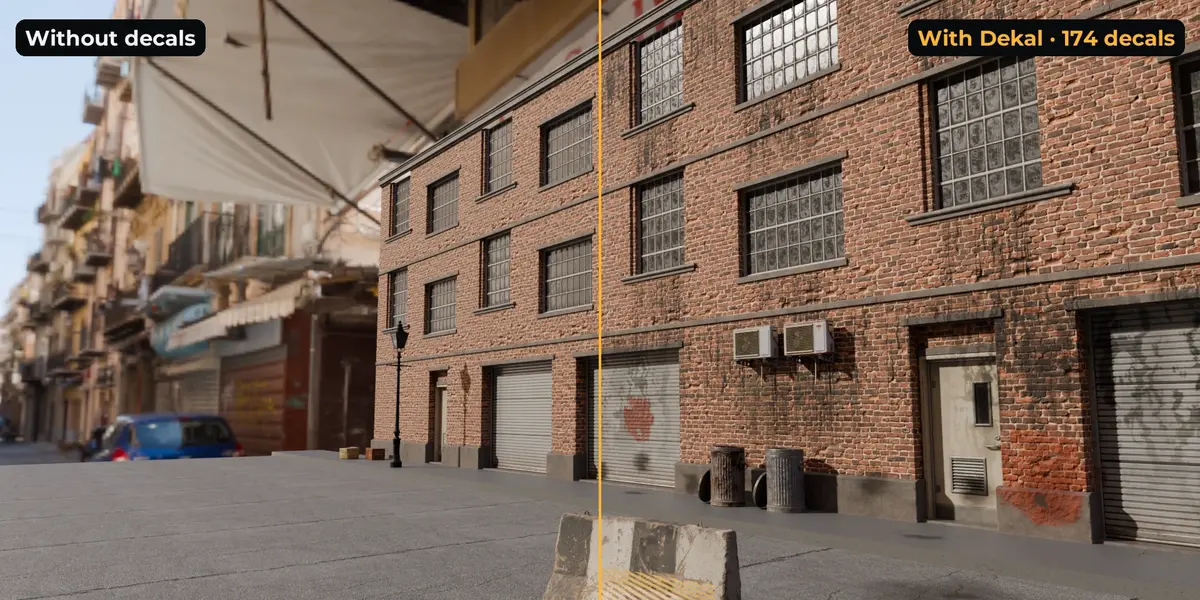
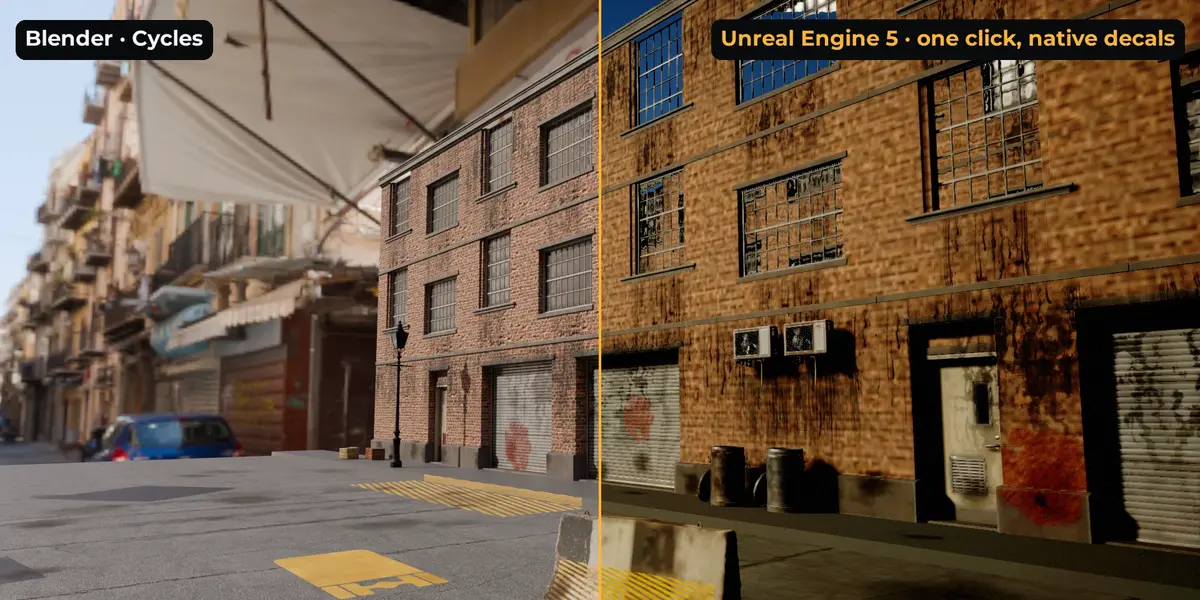
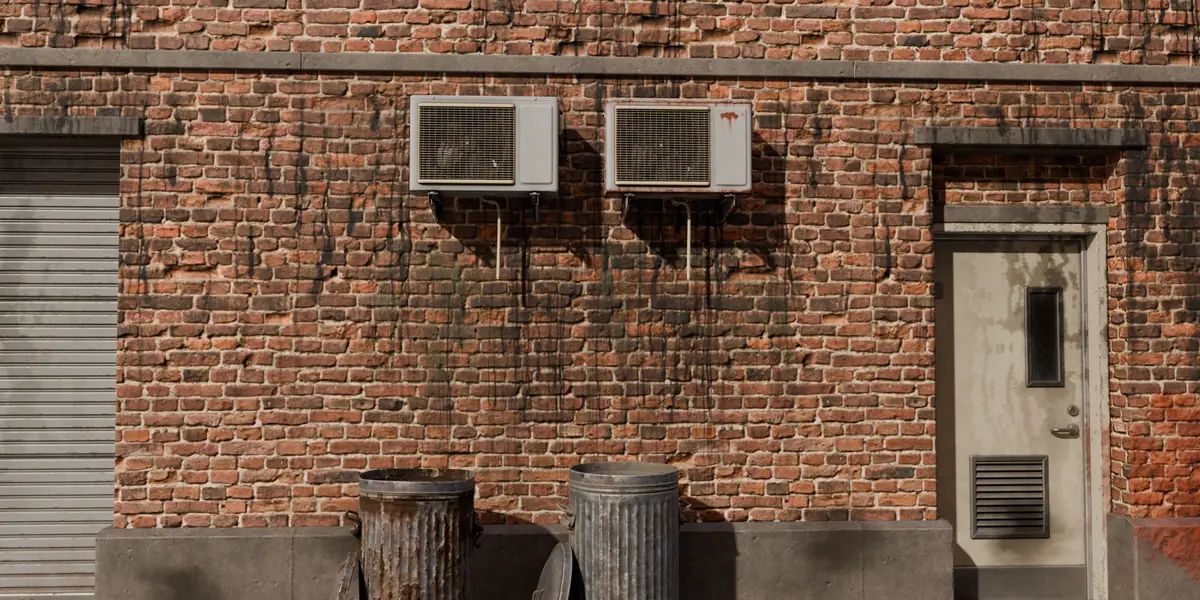
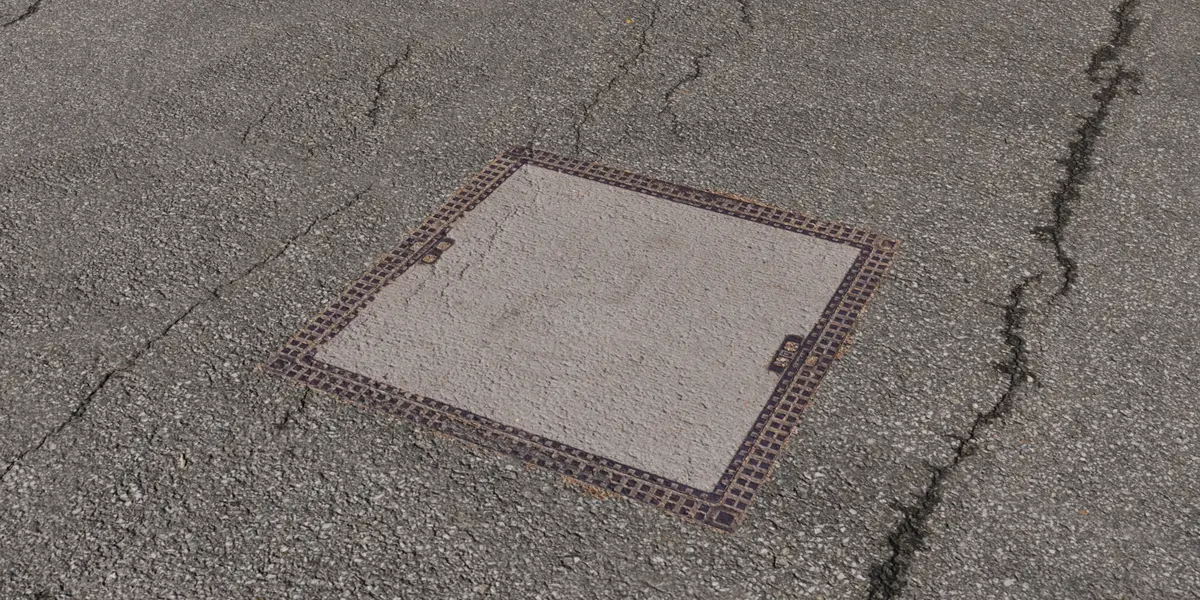
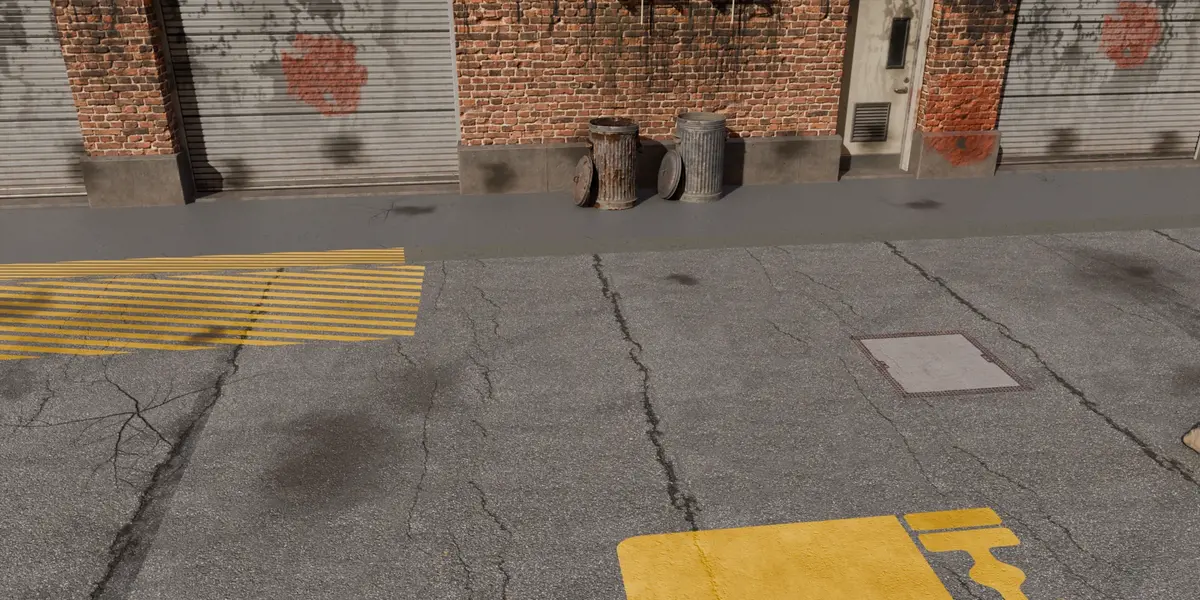
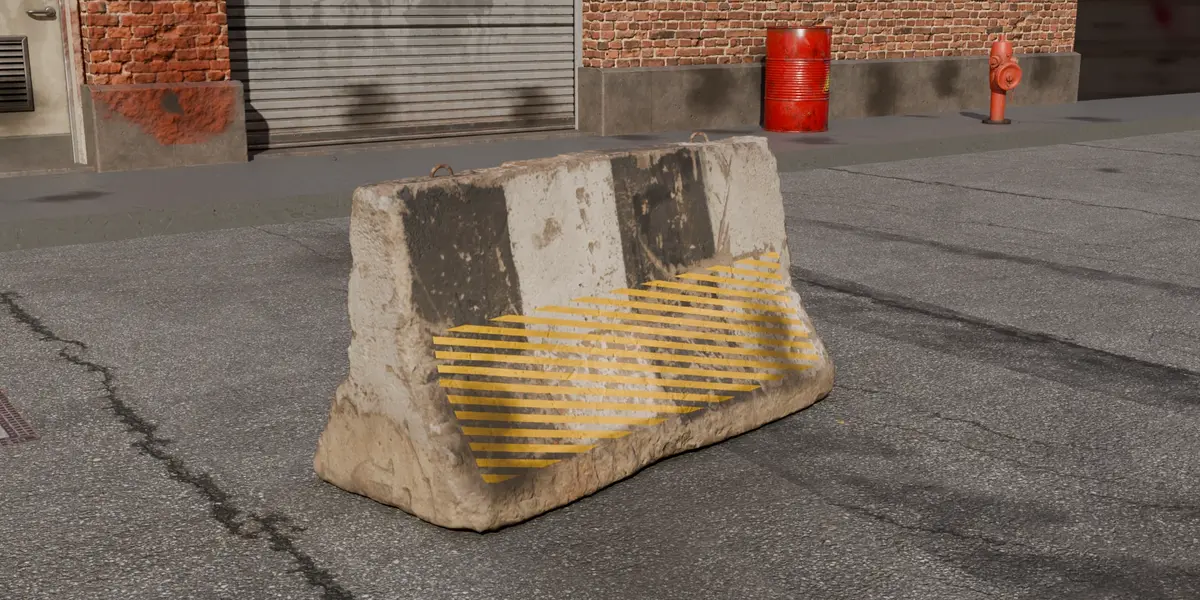
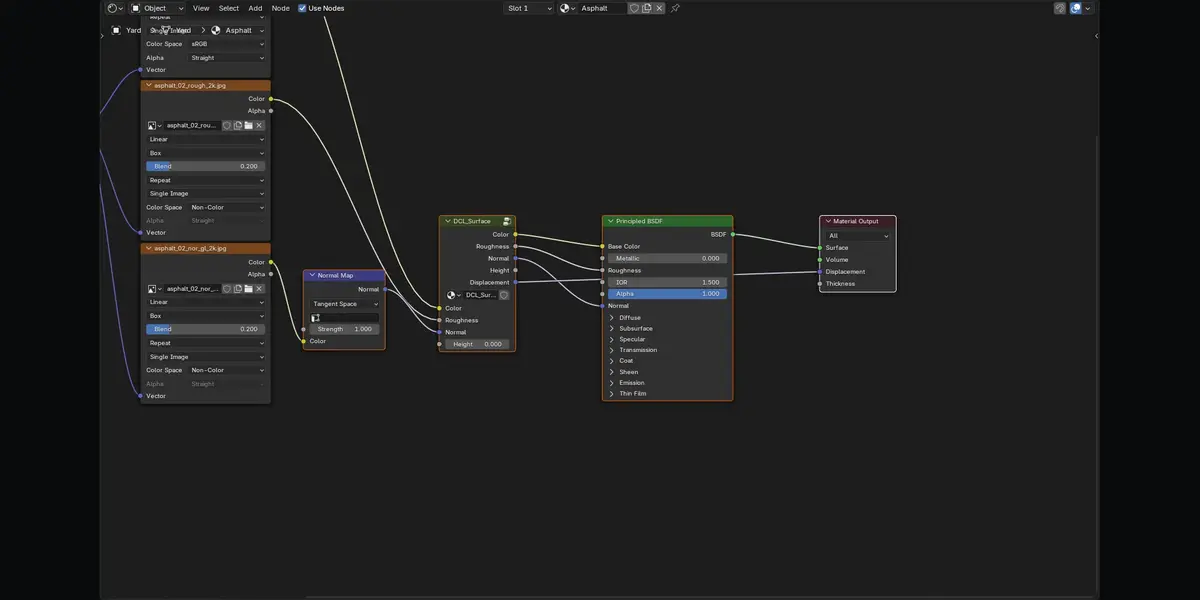
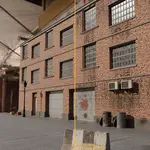
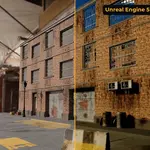
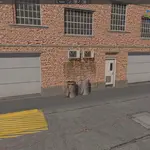
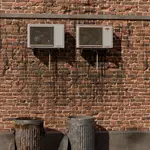
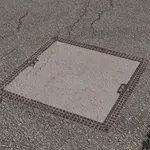
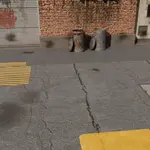
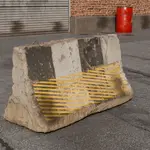
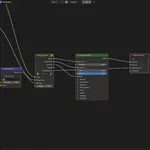
Dekal adds box-projector decals to Blender 4.2 and newer. Each decal is an Empty whose box paints onto any surface inside it. The projection happens in the material, so there are no decal planes, no shrinkwrap and no z-fighting. Decals work in Cycles and EEVEE, and one click sends the scene to Unreal Engine 5 with every decal as a native, editable decal actor.
Install
- Edit › Preferences › Get Extensions › Install from Disk…, then choose
dekal-.zip. - Open the 3D Viewport sidebar (N) and the Decals tab.
Your first decal
- Pick a decal in the Place box. Filter by category with the dropdown above the thumbnails. The bundled library has 43 presets: eight procedural starters and 35 CC0 decals and atlas sets from ambientCG. You can also choose None and load your own image.
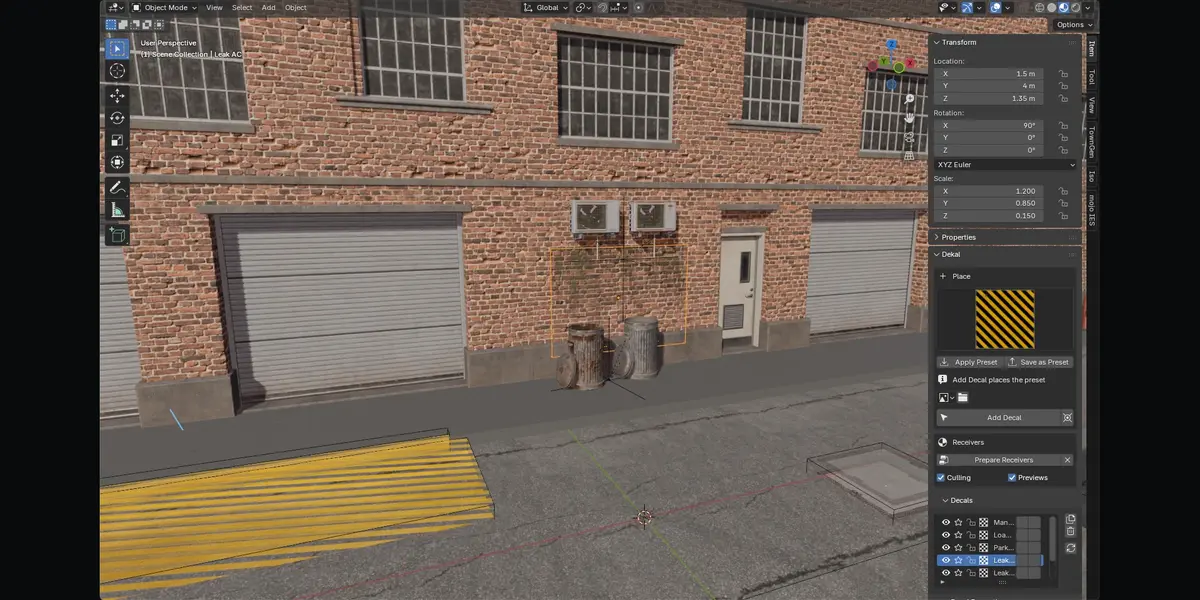
- Click Add Decal, then click a surface.
- Shift+click keeps placing.
- The mouse wheel scales the decal.
- Esc or right-click finishes.
- Move, rotate and scale the projector like any object. The decal follows live.
The clicked object is prepared automatically: its materials get one DCL_Surface node, and the object is put on Decal Layer 0. To prepare objects yourself, select them and click Prepare Receivers. Remove (the X button) restores the original material wiring exactly.
The projector
- The cube is the projection volume. The decal projects along the box's local −Z axis, shown by the arrow.
- X and Y scale set the decal size. Z scale sets the projection depth.
- The image is previewed on the top face of the box. Turn this off with Previews.
Decal settings
| Group | Settings |
|---|---|
| Base Color | Image (its alpha is the decal mask), Blend (Normal, Multiply, Overlay), Opacity |
| Roughness | Map or value, Opacity |
| Normal | OpenGL normal map, authored in projector space. Turn on DirectX for DirectX maps. Opacity. |
| Bump | Height map, Strength, Distance |
| Displacement | Height map, Scale, Midlevel, Blend (Add, Max, Replace), Opacity |
| Mask | Optional separate mask; replaces the base color alpha |
| Projection | Angle fade (start/end), depth fade, UV offset/rotation/tiling, Atlas Region |
| List | Visible, Solo, Lock, Priority (higher draws on top), Decal Layer |
Displacement depends on the material's Settings › Displacement:
- Bump Only (the default): decal displacement shades as bump, and is cheap.
- Displacement Only or Both: real height.
Atlas Region picks a rectangle of the source images (X, Y, width, height in 0–1), so one texture sheet can serve many decals.
Decal layers
Each decal has a layer from 0 to 31. An object receives a layer when it has the custom property dcl_layer_ = 1.0. Use layers to keep decals off objects that share a material.
Library
- Apply Preset loads the selected preset onto the active decal.
- Save as Preset writes the active decal's maps and settings into a library folder.
- Add your own library folders in Preferences › Add-ons › Dekal.
- A preset is a folder with a
decal.jsonfile and its maps. - Atlas sets (leaves, graffiti, screws, tape and so on) are one sheet with many items. Each placement picks one item at random and sizes the decal to it. Change the item afterwards with Atlas Region.
- Presets without an opacity map (most leaks, grime and wear) use the Multiply blend.
- The refresh button next to the category rescans the library folders after you add presets on disk.
- The ambientCG decals are CC0 1.0 (ambientcg.com). Use them anywhere, including commercial work.
Flatten
Select decals and choose Flatten Selected Decals. Their effect is baked into images on each receiving material, and the decals switch off. Unflatten brings them back exactly.
Flatten covers base color, roughness and normal. Displacement stays live. A material shared by several objects must be made single-user first.
Unreal Engine 5
Dekal brings your scene into Unreal Engine 5.3 or newer with one click. Meshes keep their own materials and textures, and every decal becomes a real Unreal decal actor that you can still move and edit. Nothing is baked.
First time: set up your Unreal project
Do this once per Unreal project:
- In Blender, open Decals › Unreal Engine › First-Time Setup and click Set Up Unreal Project.
-
Pick your project's
.uprojectfile. Dekal then:- installs its small Unreal plugin, which adds Tools › Import Dekal Scene…;
- enables Unreal's USD Importer;
- switches on Python remote execution, which lets Blender talk to the editor.
It backs up the files it changes as
.dekal.bak. -
Restart Unreal and open the project.
Send to Unreal
With your project open in Unreal, click Send to Unreal in Blender's Unreal Engine panel.
- The status line under the button shows which Unreal editor Blender can reach. Click the refresh button to check again.
- Whole Scene sends every visible object; Selected sends only the selected ones.
- Blender exports the scene, then Unreal imports it. Unreal shows a progress bar, and Blender's status bar counts the seconds.
- The first import of a big scene takes a minute or two while Unreal compiles shaders.
In Unreal, the objects land in the Outliner folder Dekal › , with the decals in its Decals subfolder. The assets are in Content › Dekal › . Sending again replaces what the last send placed; it never duplicates.
Without a running editor: export to a folder
Open Export to Folder, choose a folder and click Export. The folder gets the scene as a .usd file, its textures and the decal textures. In Unreal, choose Tools › Import Dekal Scene… and pick the .usd file. Projects without the Dekal plugin can run import_dekal_scene.py from the export folder with File › Execute Python Script… instead.
Other export types in the same panel:
| Export | Result in Unreal |
|---|---|
| Scene (default) | Meshes with their materials through USD, plus every decal as an Unreal decal actor. |
| Decals Only | Only the decal actors, for a level that already has the meshes. Import decals.json with Tools › Import Dekal Scene…. |
| Baked Textures | Decals burned into each object's textures: T__BC,
|
What carries over
-
Materials: Principled BSDF materials with image textures on the mesh's UVs arrive as Unreal materials: base color, roughness, metallic and normal. A procedural texture or a box-projected image can't be expressed in USD, and the export report names each material affected.
-
Decals: base color, roughness and normal, with the angle fade rebuilt in the decal material.
- Unreal decals have no displacement and no decal layers.
- They use one opacity for all channels, taken from the color opacity.
- Their edges fade over the outer 25 % of the box.
- They always blend normally, so a Multiply or Overlay decal looks different in Unreal.
- Objects that receive no decal layer get Receives Decals switched off.
Every export writes export_report.md. Click the report button in Export to Folder to open the latest one in Blender.
Performance and limits
-
Culling: a decal only enters the materials of objects whose actual surface it reaches.
-
Per-material limits in EEVEE. Measured in Blender 4.5:
- The shader stops compiling past roughly 1,750 uniforms.
- Blender's material builder crashes past about 10,300 nodes.
- The add-on keeps every material under both limits. If a material is touched by more decals than fit, the lowest-priority decals are left out and the panel warns.
- Typical capacity is about 100 color-only, 80 color+roughness+normal, or 65 all-channel decals per material. Split large receivers or Flatten decals to go further.
-
Compile time: in EEVEE, 50 color+roughness+normal decals in one material compile in about 20 s the first time.
-
Cycles has no such limits. Raise the budgets in Preferences if you render only with Cycles.
Troubleshooting
Symptom
Fix
A decal does not show
Check that the object is prepared (Receivers box), that it is on the decal's layer, and that the decal's box overlaps the surface.
Magenta material in EEVEE
The material is over EEVEE's limits. Lower the Shader Uniform Budget in Preferences.
Bake refuses
Every exported object needs a UV map.
"No Unreal Editor found"
Open the project in Unreal first. If it is open, run Set Up Unreal Project for it and restart Unreal; Send to Unreal needs Python remote execution, which the setup switches on. A firewall prompt for Unreal must be allowed (local traffic only).
Unreal says the USD Importer is missing
Enable Edit › Plugins › USD Importer and restart, or run Set Up Unreal Project again.
A texture is grey in Unreal
The material uses a procedural or box-projected texture; see the export report. Use an image texture on the mesh's UVs.
Have questions about this product?
Login to message
| Blender Extension Compatible | Yes |
| Published | about 12 hours ago |
| Blender Version | 4.2 - 5.2 |
| Extension Type | Add-on |
| Render Engine Used | Cycles, Eevee |
| License | GPL |

Discover more products like this
Shader projection usd decals materials eevee PBR game ready environment ue5 Unreal Engine Cycles