DimFlow - Animated CAD Dimensions & Measurements
 sharoleslam

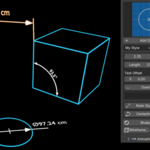
Requirements
- Blender 5.0, 5.1 or 5.2, tested on each
- Eevee or Cycles
- Windows, macOS or Linux
Installation
DimFlow ships as a modern Blender extension.
- Drag dimflow_extension.zip onto an open Blender window.
- Confirm the install dialog.
- Open the 3D viewport sidebar with N and select the DimFlow tab.
Alternatively: Edit > Preferences > Get Extensions > Install from Disk, then pick the zip.
Do not unzip the file first, and do not install it through the legacy Add-ons tab.
Updating from an earlier version
Install the new zip over the old one. Existing scenes upgrade themselves the moment you open them, so there is nothing to migrate by hand. See Updating at the bottom of this page for what is and is not preserved.
Where the controls live
Everything is available in two places, and they are always in sync: a change in one appears instantly in the other.
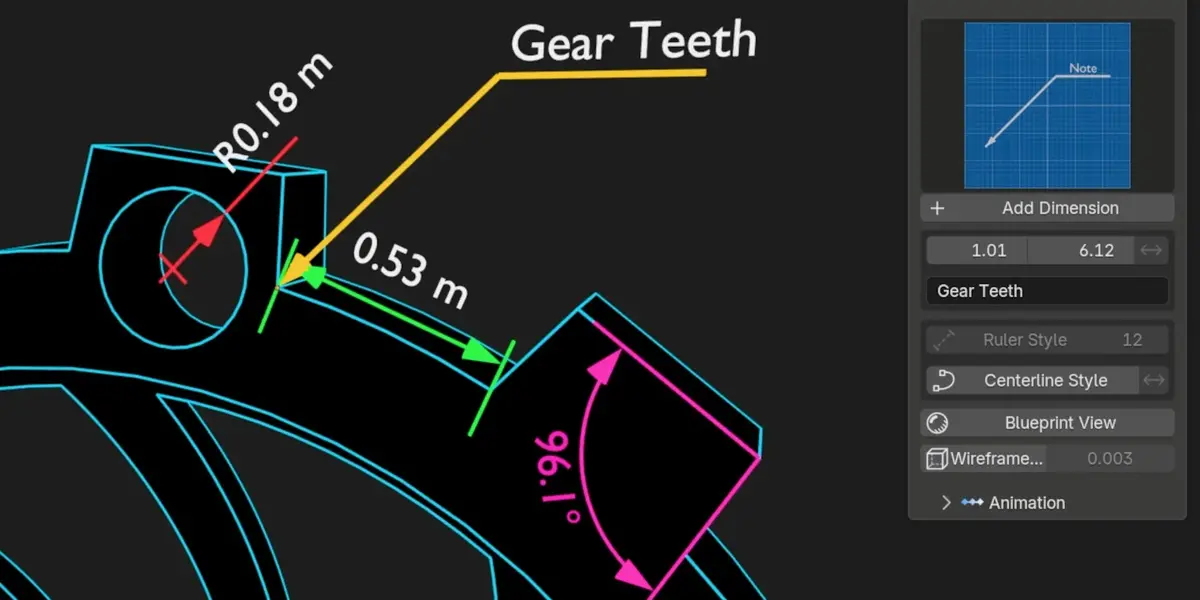
- Sidebar (N panel > DimFlow): the controls you reach for constantly: style gallery, Add Dimension, the driving value field, size, thickness, arrow flip, override text, line styles, presets, scene tools and the animation toolkit.
- Modifier properties: every parameter, grouped into Measure, Placement, Arrows, Text, Style and Animation panels.
Adding a dimension
Object Mode
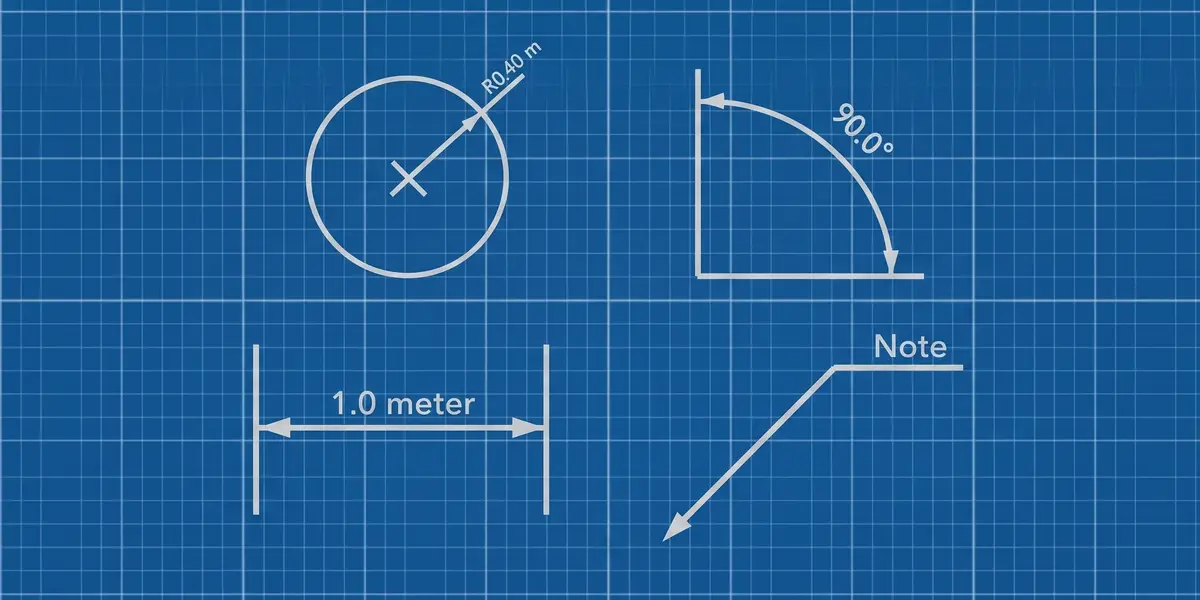
Pick a type from the preview gallery and click Add Dimension. A ready-made dimension is created at the 3D cursor for you to position.
With objects selected, the selection decides the type:
- Two objects: a Linear dimension between their origins
- Three objects: an Angular, with the active object as the corner
- One mesh, Radius style: the real circle is detected on a circle or cylinder, and the callout is drawn in that face's own plane
- One object, Annotation style: the note hangs on that object and follows it
Edit Mode (smart placement)
Select points on your model and click Add Dimension. Your selection decides the type:
|
Selection |
Result |
|
2 vertices |
Linear, or Radius, if the Radius preview is active |
|
3 vertices |
Angular, with the corner on your third pick |
|
1 vertex |
Annotation, with leader and label |
|
A whole circular ring, Radius style |
Radius fitted to that circle, in the circle's own plane |
Works on mesh vertices and curve control points. Text orientation is resolved automatically, so the label is never mirrored or upside down whatever order you click in.
Across two objects: select both objects, tab into Edit Mode, and pick one vertex on each. The dimension spans them and stays bound to both.
Every dimension is placed in a DimFlow collection so a hundred callouts never bury your outliner. Dimensions are ordinary objects, so you can parent, link, hide or render them like anything else.
Built in the view you are working in
A new dimension is created flat in the plane you are looking at. Add one from Top, Front or Right and it lands in that plane rather than standing upright in world space. This applies to all four types. If your view is not close to an axis, the callout falls back to the standard orientation.
Driving dimensions
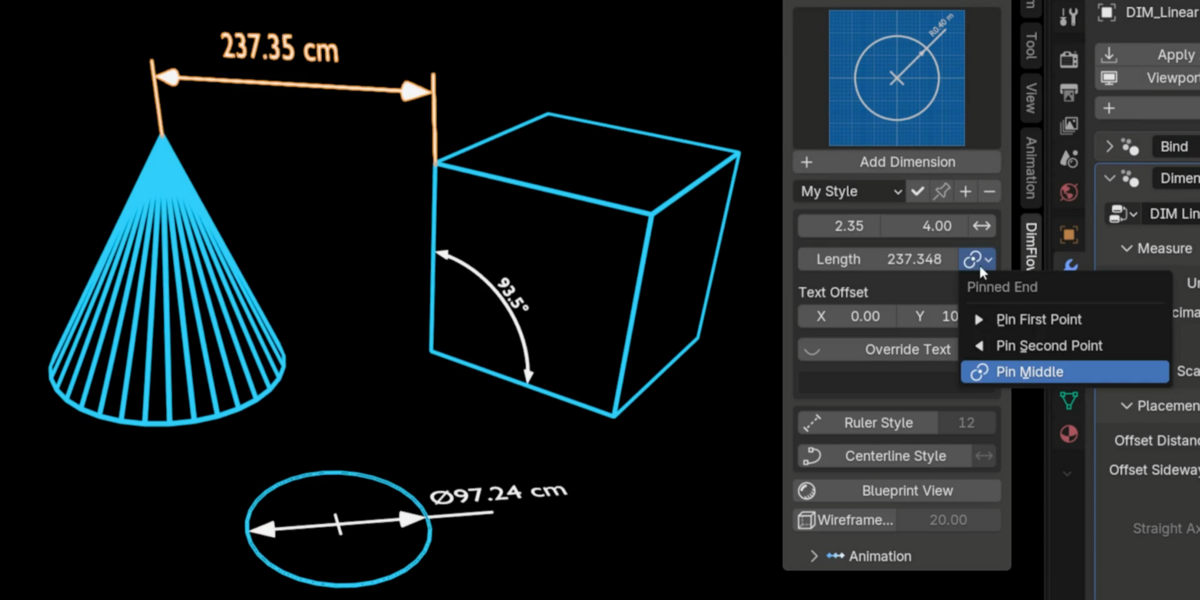
A dimension bound to geometry can push it as well as read it. Select the dimension, and the sidebar shows the measured value as an editable field. Type a new number and the model moves until the measurement really is that number.
- Linear: the bound points slide apart or together along the measured line
- Angular: the arms rotate about the corner in their own plane
- Radius: the whole circle is resized, in Radius or Diameter mode
Choosing which end holds still
The pin selector decides what stays put:
- First: point 1 holds, point 2 moves
- Second: point 2 holds, point 1 moves
- Middle: both ends move out evenly from the centre
On a Radius the choice is the centre, the rim, or the middle. On an Angular it is either arm or the bisector.
Notes and limits
- The dimension must be bound to geometry. A callout placed at the 3D cursor has nothing to push, and the field is hidden.
- A driven Radius resizes the entire ring, not the single vertex the callout touches, so the circle keeps its shape and its plane.
- Values outside a sensible range are clamped rather than ignored.
- This is not a constraint solver. One dimension drives the points it owns; two dimensions driving the same vertex will fight over it.
The four types
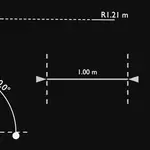
Linear
Distance between two points.
- Distance Offset: slides the dimension line away from the measured points, within its drawing plane; the extension lines stay anchored
- Sideway Offset: slides the whole callout along the measured line
- Normal Offset: moves the callout clear of its drawing plane entirely, for lifting a dimension off the face it measures
- Straight: draw the dimension line flat along a world axis instead of parallel to the two points, with the extension lines reaching each point separately. The reading becomes the distance along that axis, which is what the arrows span
- Straight Axis: Auto, X, Y or Z. Auto picks whichever axis the two points are furthest apart on; force one when the span is nearly square and Auto would flip between two
- Show Extension Lines: master switch, with Extension Line 1 and Extension Line 2 under it to hide either side independently
- Extension Up / Down: grow each extension independently from the arrow tip
Angular
Angle between three points, the corner being your third pick.
- Arc Radius and Arc Resolution: size and smoothness of the arc
- Reflex Angle: measure the outside angle instead of the inside one; the label flips itself to stay readable
- Extension Overshoot: how far the extension lines run past the arc
- Normal Offset: moves the callout off the plane the two arms span
Straight 180° angles are supported.
Radius
Radius or diameter callout for circular features.
- Mode: Radius or Diameter; the R or Ø prefix and the value follow automatically. Diameter mode draws the leader right through the centre from rim to rim
- Hide Prefix: show the number on its own
- Start At Center: run the leader from the centre or from the rim
- Show Center Mark / Center Mark Size: the cross at the centre
- Leader Extension: how far the leader runs past the arrow before the text
- Normal Offset: moves the callout off the circle's own plane
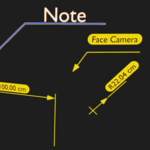
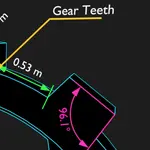
Annotation
Leader line and label for part names, notes and specs.
- Text: free text; type \n where you want a line break
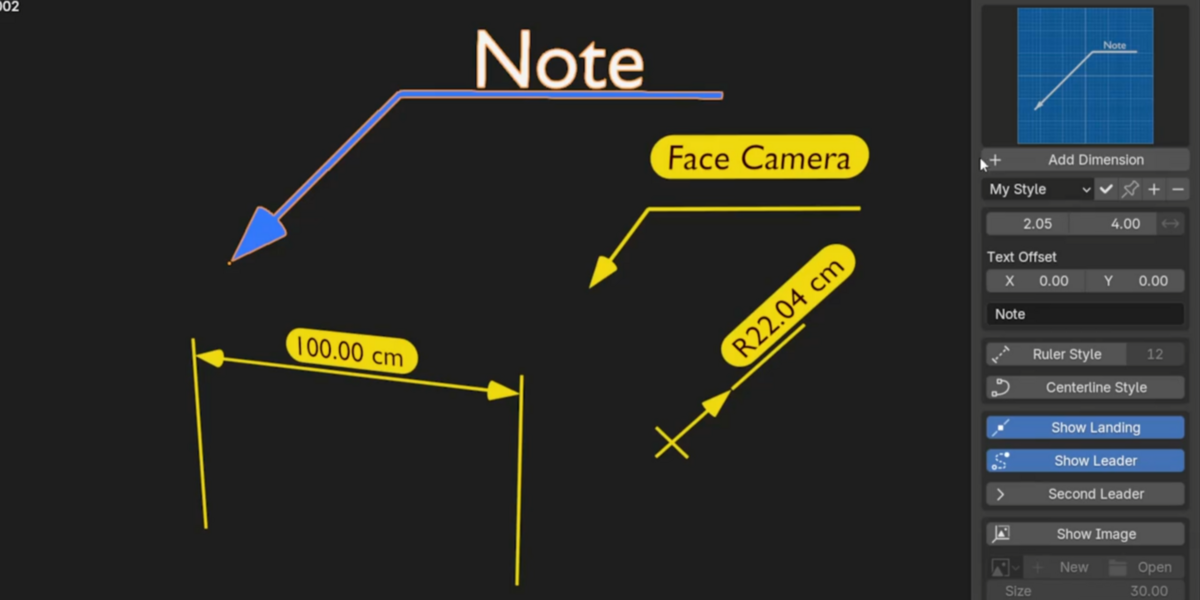
- Landing Length / Show Landing: the horizontal shelf the text sits on
- Flip Landing: which side of the elbow the landing and label sit on (Face Camera mode)
- Second Leader: a second pointer from the same elbow, ISO multileader style
- Show Image: a picture plate at the end of the landing, aspect-correct, with its own size and offsets
Style presets
A preset captures every setting on a dimension, not just the text ones: colour, text size and thickness, materials, plate padding and radius, arrow style, line style, overall size. The measured geometry, custom text and reveal state are deliberately excluded, so applying a preset never changes what a dimension says or where it is.
- Save (+): store the selected dimension's look under a name
- Apply: push a preset onto the selected dimension. Switching the dropdown applies it immediately
- Set as default: every new dimension is created with that look
- Remove (−): delete a preset
Presets are shared across all four types, so a look saved from a Linear applies cleanly to a Radius. They are stored with your Blender installation rather than inside the .blend, so they follow you between projects and can be handed to a collaborator as a file.
Measurement settings
- Unit: metres, centimetres, millimetres, inches or feet; degrees or radians on Angular
- Decimals: decimal places shown
- Hide Units: drop the unit suffix and show the bare number
- Hide Prefix (Radius): drop the R or Ø
- Measure Scale: multiply the reading for drawings that are not 1:1
Values are read live from your geometry. Move a vertex and the number updates. You do not need to apply scale. Units follow the scene's system unless you set one by hand, in which case your choice sticks.
Text
- Override Text + Custom Text: replace the measured value with anything: a tolerance, a part number, a fit callout
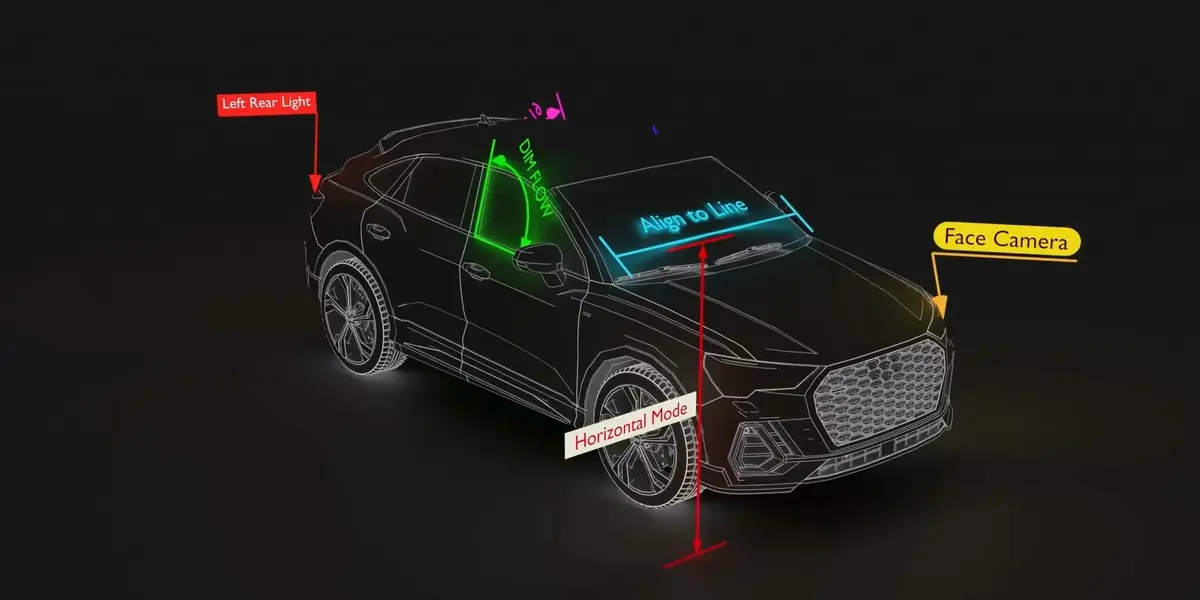
- Text Orientation: Align To Line, Face Camera or Horizontal. Face Camera tracks the scene's active camera in its own axes, so it faces the camera squarely at any camera roll
- Flip Text: spin the text 180° in its own plane, for when it reads correctly but upside down
- Mirror Text: turn the text plane over, for when it reads backwards
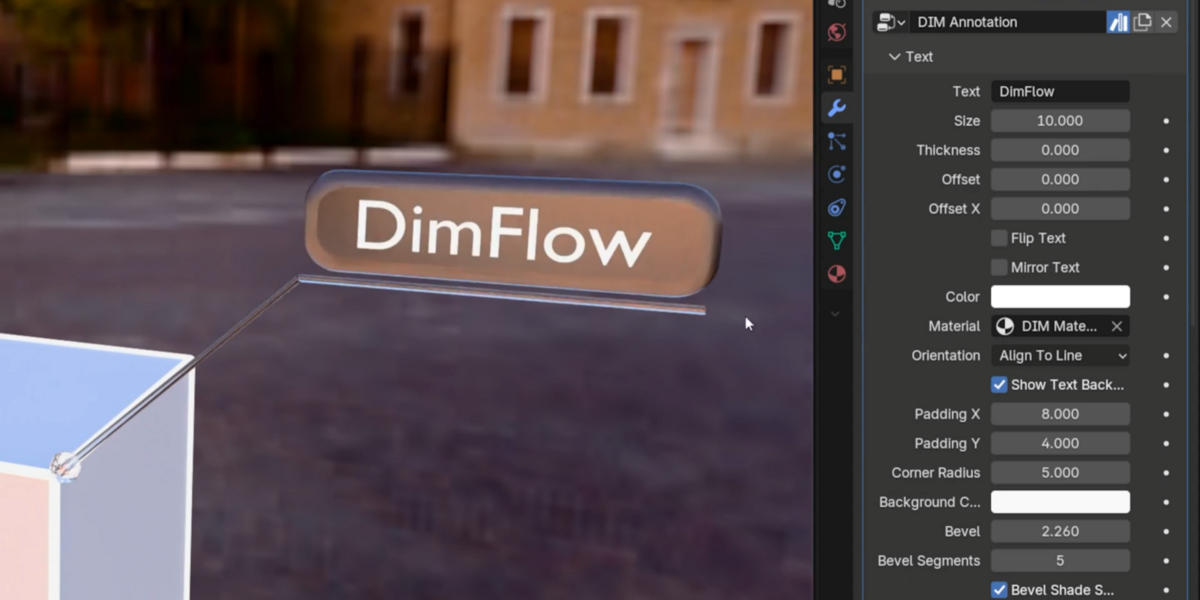
- Text Offset / Text Offset X: move the label away from the line, and along it. Available on all four types
- Text Size, Text Thickness: size and extrusion depth
- Text Color: independent of the line colour
- Show Text Background: a rounded label plate behind the text, with its own Padding X, Padding Y, Corner Radius, Bevel, Segments and Background Color. Available on all four types
- Roughness / Strength: one control under the plate's material that means roughness on the glass materials and emission strength on the emissive ones
Multi-line text: Blender commits a text field when you press Enter, so a real line break cannot be typed into one. Write \n where you want the break and DimFlow converts it. This works in the sidebar and in the modifier field.
Line style
- Overall Size: scales the whole callout at once: lines, arrows and text together
- Line Thickness: in 1/1000 units, so 4.0 is a typical technical line
- Arrow Style: Arrow, Tick, Dot or None. Arrow and Dot are smooth-shaded automatically
- Arrow Size and Flip Arrows: size, and pointing inward or outward
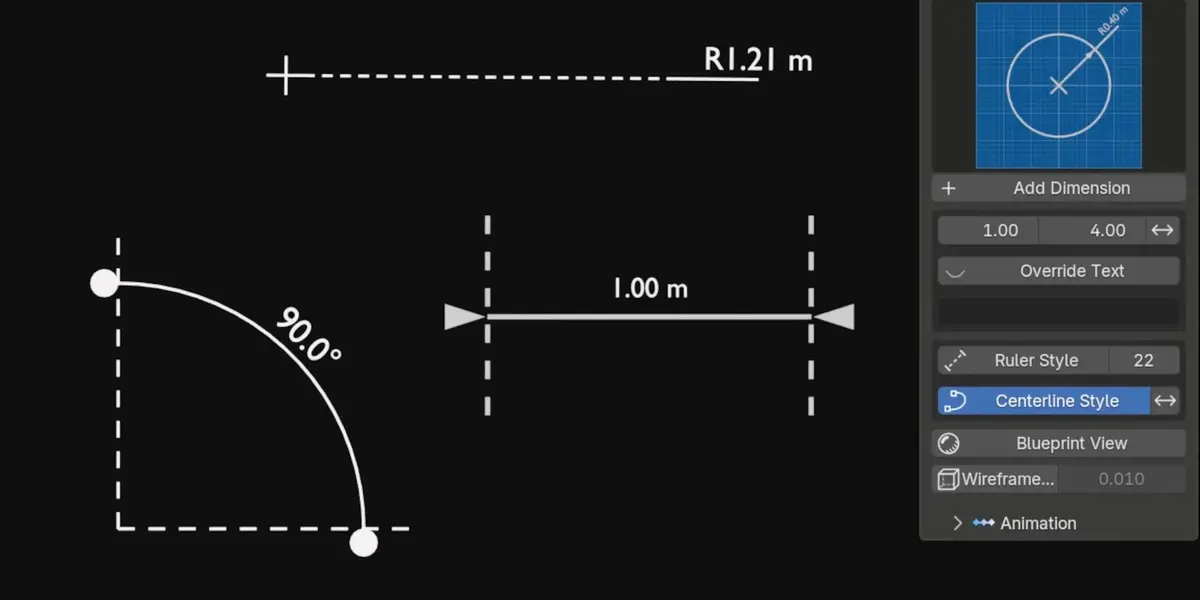
- Centerline Style: dashes the main dimension line; Invert moves the dashes onto the extension lines instead
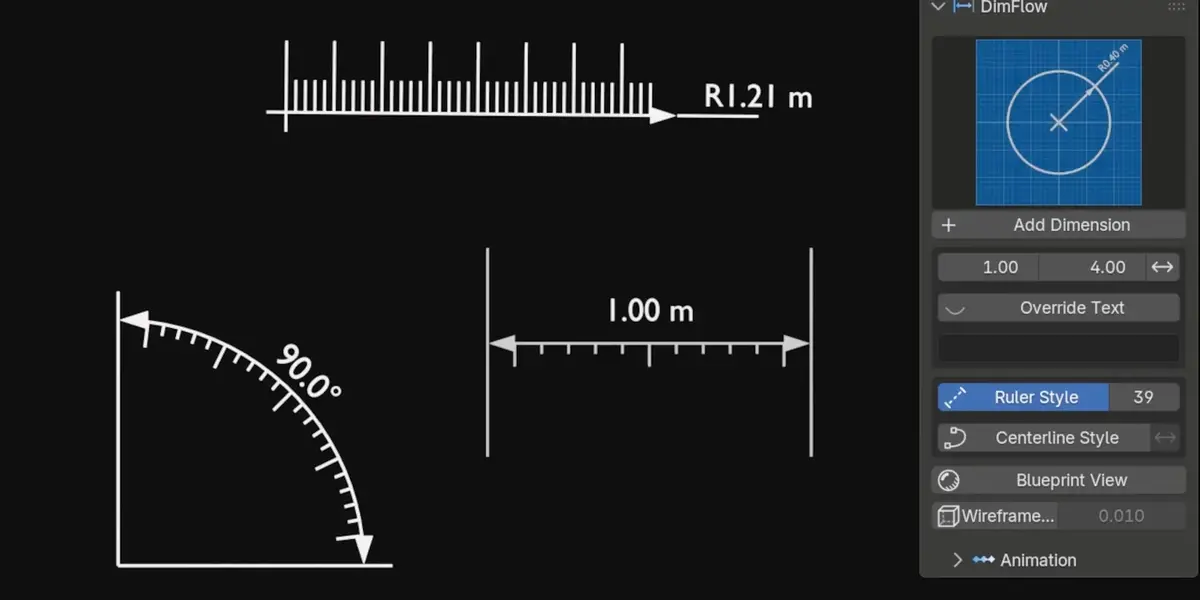
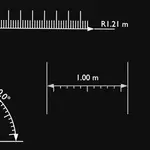
- Ruler Style: graduation teeth along the line, every fifth tooth long. Teeth Height scales them and Flip Ruler moves the comb to the other side
- Scale: shared by both: tooth count for the ruler, dash count for the centerline
- Color and Material: line colour, and the material slot if you want your own
Line ends stop exactly at the back of the arrowhead, so nothing pokes through the tip.
Placement offsets
Three independent axes, so a callout can be moved anywhere without disturbing what it measures. None of them change the reading.
- Distance Offset: away from the measured line, within the drawing plane
- Sideway Offset: along the measured line
- Normal Offset: out of the drawing plane, on Linear, Angular and Radius
A bound dimension also has Offset X and Offset Y on its Bind modifier, which nudge the anchored control points themselves in the dimension's own frame, which is useful for clearing a callout off a surface it is sitting flush against. The Edit Mode cage follows, so the points stay where you can grab them.
Animation
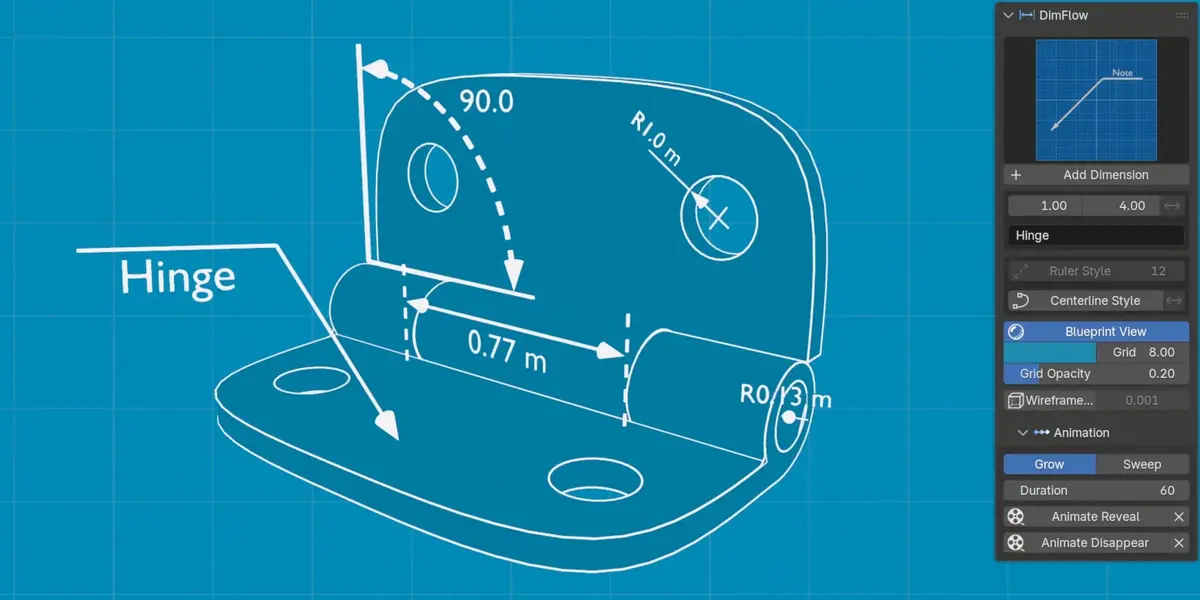
Open the Animation section of the sidebar.
- Choose Grow (scales into place) or Sweep (draws along the line like a pen stroke).
- Set Duration in frames.
- Click Animate Reveal. The dimension is keyed from the current frame, and the frame maths is exact, so a 40-frame duration is 40 frames.
- Animate Disappear: keys the reverse without touching your reveal keys, so reveals and exits stack freely along the timeline
- Clear buttons: each removes only its own keyframes
- Reveal slider: always available if you would rather key it by hand or drive it
On a Linear dimension the extension lines grow outward from the arrow points rather than from their far ends, so the callout appears to spread from the two features being measured.
Scene tools
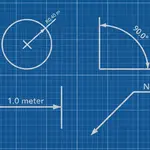
Blueprint View
Swaps the world for procedural graph paper. Adjustable colour, grid density and opacity, with cells that stay square at any render aspect ratio. No image textures and no compositing. It replaces the world, so it appears in your final render, switch it off for a normal render.
Wireframe Overlay
Adds a bold wireframe to the selected mesh objects.
- Thickness: in the same 1/1000 units as line thickness
- Color: independent of the dimension colours
- Show Faces: keep the shaded surface underneath, or drop it for a pure wire look
- Sharp Edges Only: wire just the creases and silhouette, skipping flat topology. Use this on dense meshes
It is a modifier, so your mesh is never altered. Click the button again to remove it.
Updating
Every DimFlow asset carries a version stamp. Open a scene made with an older release and the add-on upgrades each dimension on load. New features appear while your values, links and keyframes survive untouched. There is nothing to migrate by hand.
Settings are carried across by name rather than by socket position. That matters because new controls get added between existing ones; matching by position would quietly shuffle your values into the wrong slots, and matching by name cannot.
Renamed in 2.5: Offset Distance is now Distance Offset, and Offset Sideways is now Sideway Offset. Both renames are handled by the upgrade; your saved values come across intact.
Notes and limits
- Dimensions are separate objects driven by Geometry Nodes. Your model is never modified.
- Geometry is low-poly emission tubes and text, so render cost is negligible. On very dense meshes, the wireframe overlay is the expensive part, so use Sharp Edges Only.
- Face Camera follows the scene's active camera.
- Curves have no click history, so on a curve the three points for an Angular dimension are taken in spline order, with the middle point as the corner.
- Driving requires a bound dimension and is not a constraint solver. See Driving dimensions above.
- View-aligned creation needs the view to be reasonably close to an axis; off-axis views use the standard orientation.
- The add-on code is GPL, as all Blender add-ons must be. What you render with it is yours.
Support
Questions, bugs, or feature requests: message me through Superhive, or via [email protected]. Nearly everything in 2.5 exists because a user told me what the previous version could not do, if something is missing from your workflow, tell me. Updates are free.
If DimFlow has been useful, a rating on the product page helps more than anything else. Ratings are most of what decides whether anyone else finds it.

Discover more products like this
Animated measurements Measure Distance ruler Technical drawing color-wireframe blueprints measure angle annotation dimension cad centerline 3D Measurement Tools