Easy Purge
 mightyiest



Easy Purge Documentation
Welcome to the official documentation for Easy Purge. This guide covers the installation, usage, and features of the add-on designed to optimize your Blender workspace by recursively clearing out unused data-blocks.
Overview
| Detail | Information |
| Author | Mightyiest |
| Version | 1.4.1 |
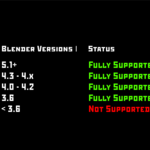
| Minimum Blender Version | 5.1.0 |
| Category | Scene Management |
| License | Recommended GPL (Due to Blender API dependencies) |
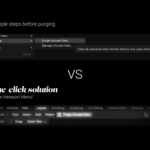
Easy Purge is a lightweight utility that safely removes unassigned or "orphan" data from your Blender .blend files. By automating the built-in purge functionality with an intelligent, recursive loop, it guarantees that nested orphans (e.g., a texture linked only to an unused material) are completely removed in a single click.
1. Installation
Download the
Easy_Purge.pyfile to your local drive.Open Blender and navigate to Edit > Preferences.
Select the Add-ons tab on the left side of the Preferences window.
Click the Install... button at the top right.
Locate and select your downloaded
Easy_Purge.pyfile, then click Install Add-on.Check the box next to Scene: Easy Purge to enable it.
(Optional) Save your preferences by clicking the hamburger menu at the bottom left and selecting Save Preferences.
2. How to Use
Once installed and enabled, the add-on integrates directly into the 3D Viewport.
Hover your mouse over the 3D Viewport.
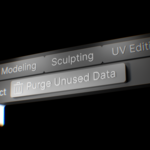
Open the Editor Menus (typically located at the top header of the 3D Viewport, near View, Select, Add, Object).
Click on the Purge Unused Data option (marked with a Trash icon).
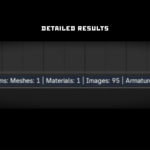
A popup will instantly appear displaying the total number of purged items and a detailed breakdown of the removed data-blocks.
3. Operator Settings
When you run the operator, you can adjust its behavior in the Adjust Last Operation panel (located in the bottom left corner of the 3D Viewport immediately after executing the tool, or by pressing F9).
| Setting | Default | Description |
| Recursive Purge | True |
Forces the purge to loop repeatedly until no more orphans exist. This is essential for removing data that only becomes orphaned after its parent data-block is deleted. |
| Show Summary Popup | True |
Triggers the visual UI popup confirming the purge results. If disabled, the summary will only be printed to the Blender Info space. |
4. Supported Data Types
Easy Purge tracks and reports statistics on the following 12 data-block types. If an item belongs to one of these categories and has zero users (no fake user and not linked to any scene object), it will be deleted:
Meshes
Materials
Textures
Images
Armatures
Actions
Cameras
Lights
Node Groups
Collections
Fonts
Curves
5. Troubleshooting & Fallbacks
No Popup Appears: Ensure that "Show Summary Popup" is checked in the operator properties. Also, check the Blender Info space (pull down the top menu bar) to see if a text-based report was logged instead.
"No unused data-blocks found": This message indicates your file is already completely optimized, or that the remaining data-blocks are protected by a "Fake User" (the shield icon in Blender). To purge these, you must manually uncheck their Fake User toggle first.
API Compatibility: The add-on is explicitly built for Blender 5.1.0 using modern
do_local_ids,do_linked_ids, anddo_recursivearguments. It contains an automatic fallback to execute standard purge routines if minor API syntax changes occur in future Blender updates.
Discover more products like this
easy cleaner 2026-new clean unused data unused unused material cleanup 2026 addon addon remove unused