 Armin
Armin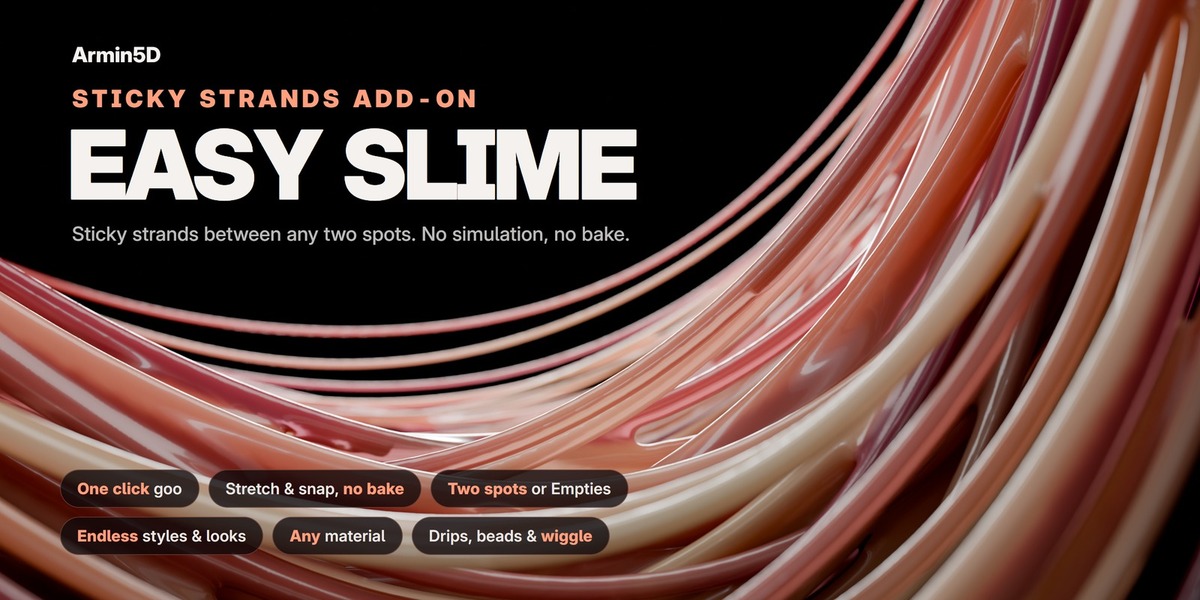
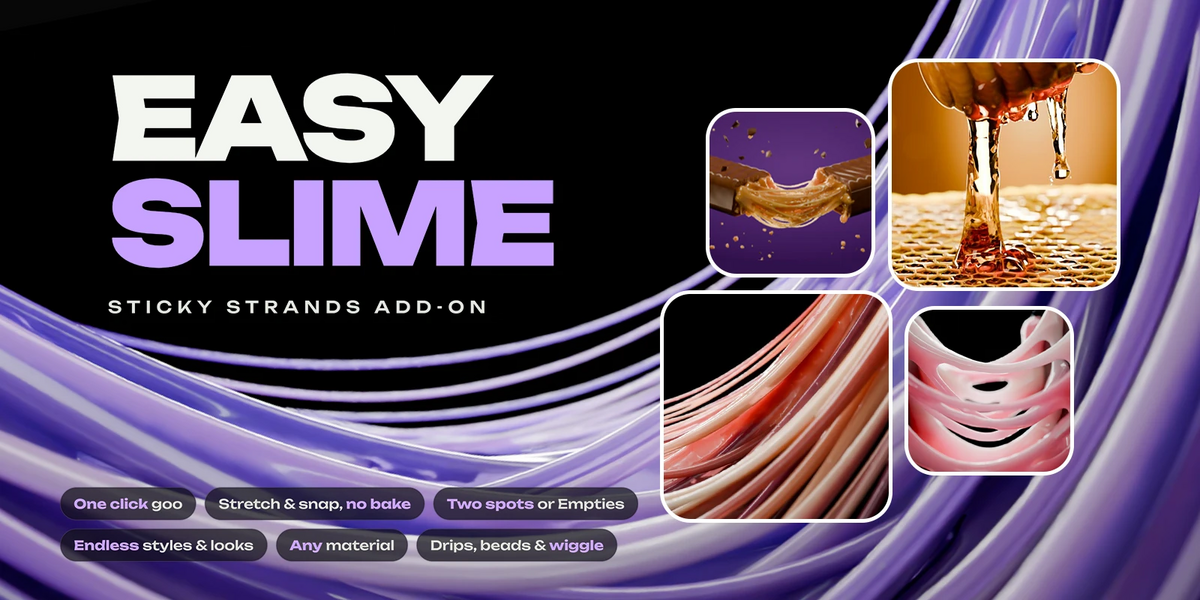
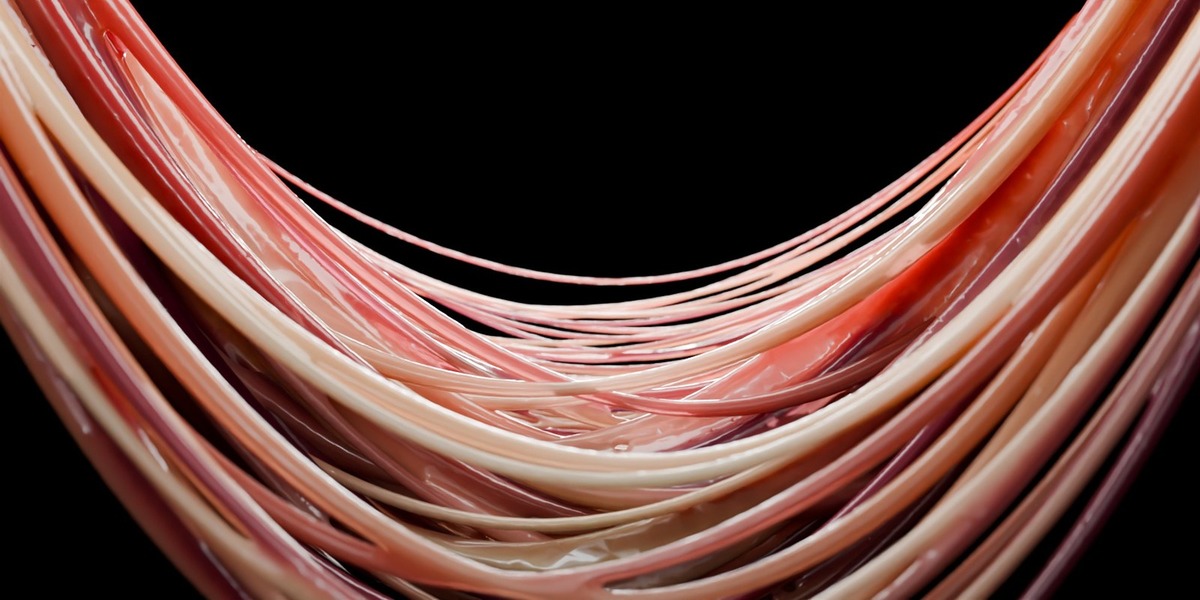

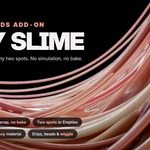
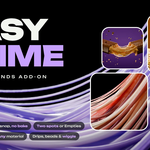
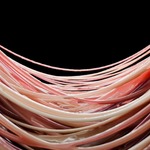

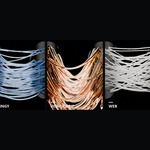

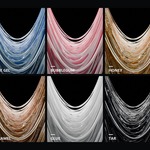

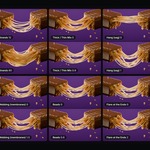



You click two spots and Easy Slime fills the gap between them with sticky strands. Move one of the objects and the goo comes along, getting thinner, sagging, dripping, and finally snapping into little hanging bits. There is no simulation and nothing to bake, so the viewport already shows you the render, in Cycles or EEVEE.
You get the full edition with everything unlocked. Inside Blender the panel is called Easy Slime Pro.
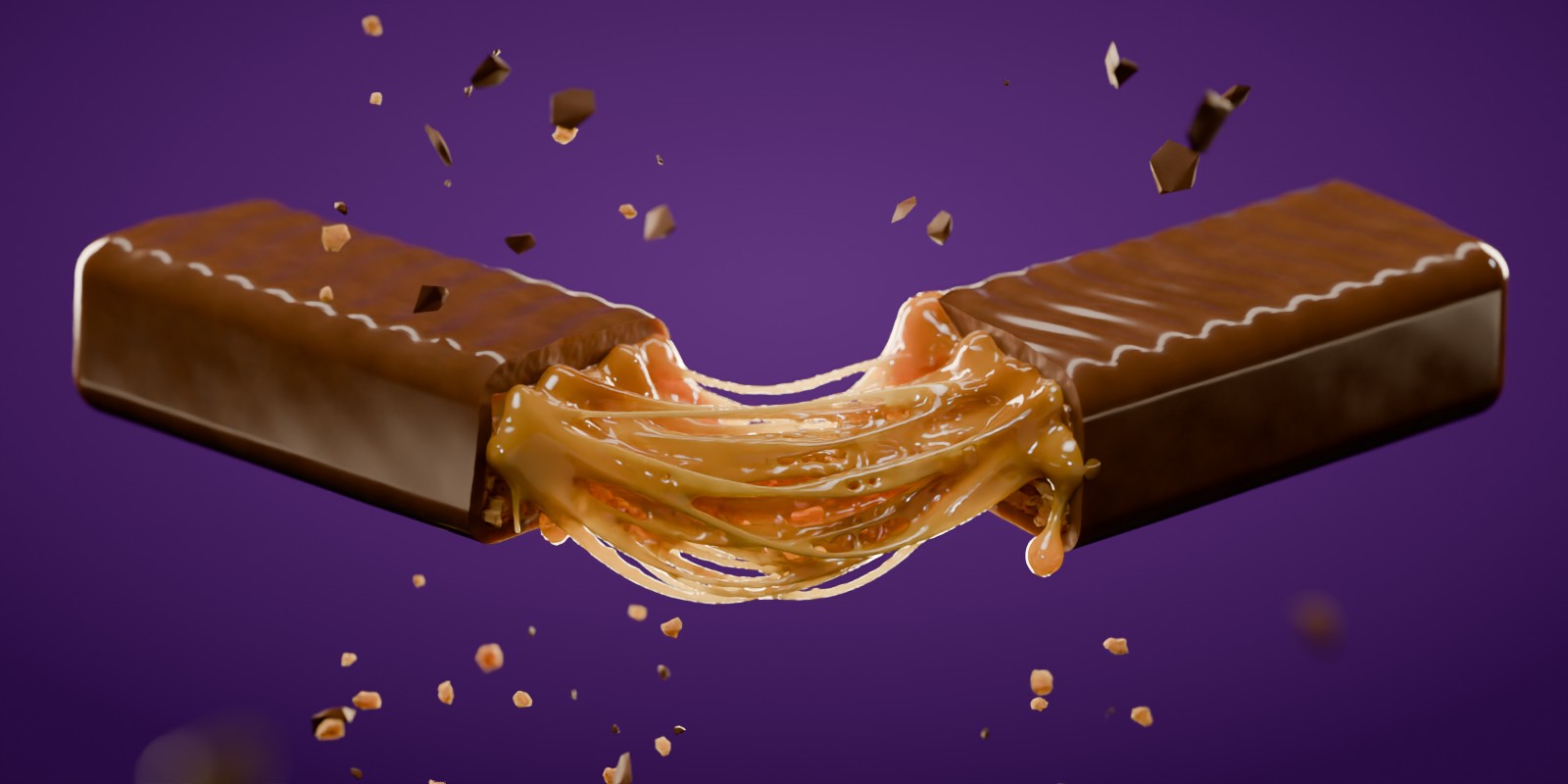
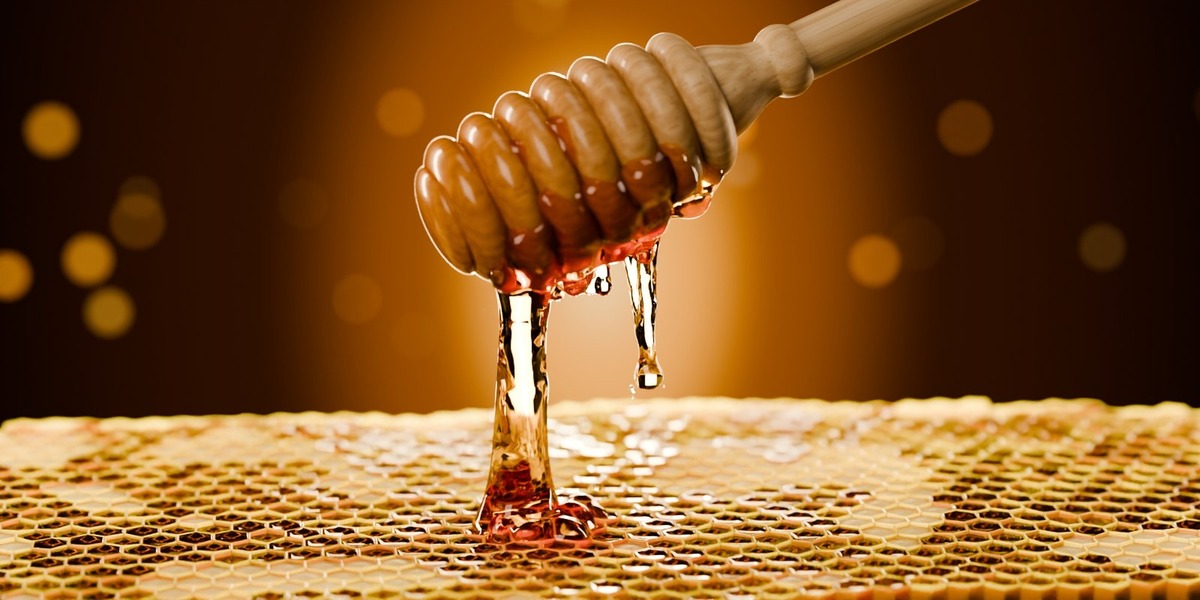
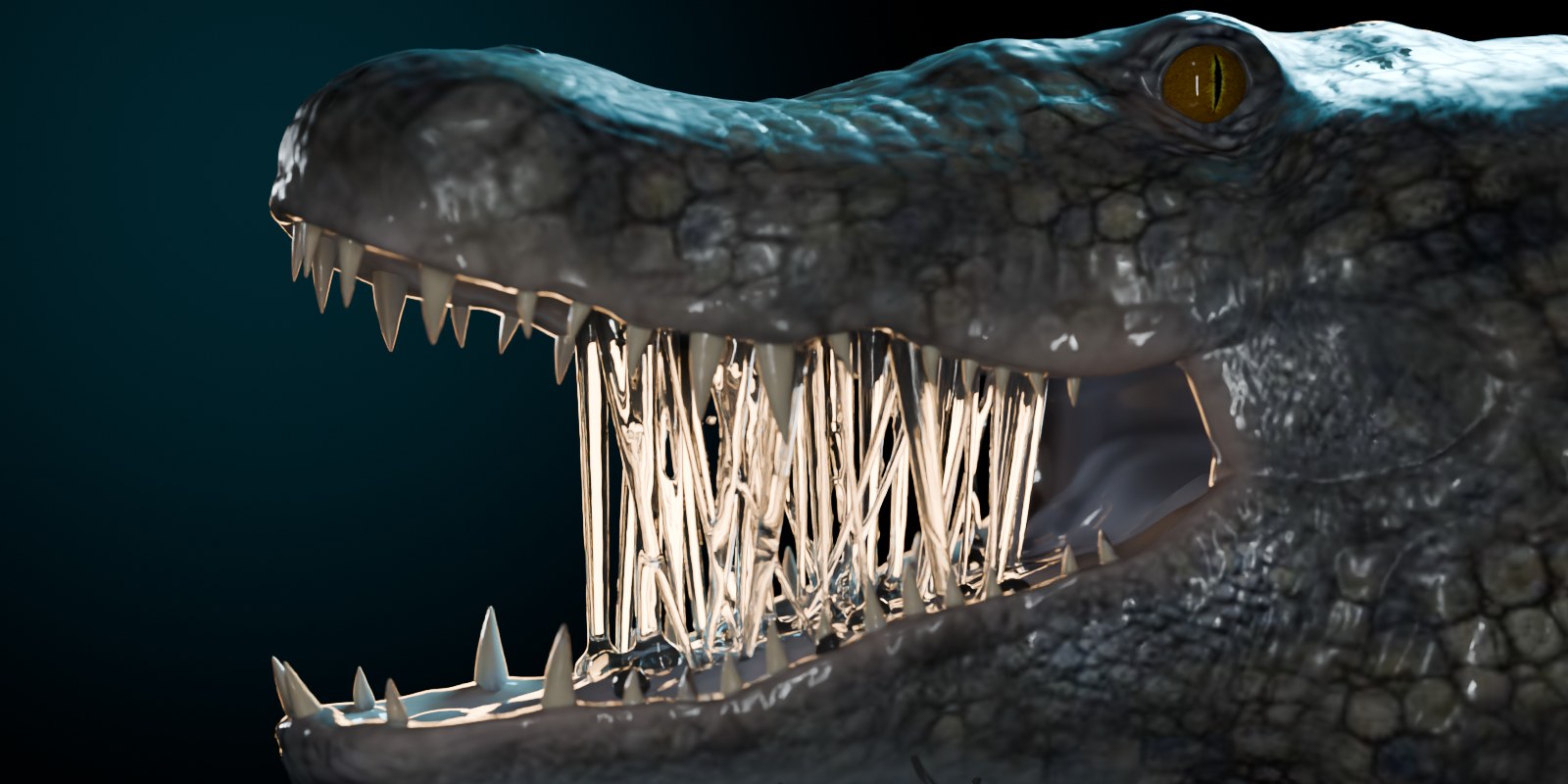
I made it for the shots that always take too long by hand. A cheese pull, caramel in a broken chocolate bar, honey off a dipper, a slime toy, a monster drooling. If something sticky hangs between two things, this does it in a few clicks.
|
Pick Two spots, on two objects or one. An Empty works too. |
Style Start from a ready style and material. |
Shape Thicker, thinner, saggier, more webs, more drips. |
Move Pull the objects apart and watch it stretch and snap. |



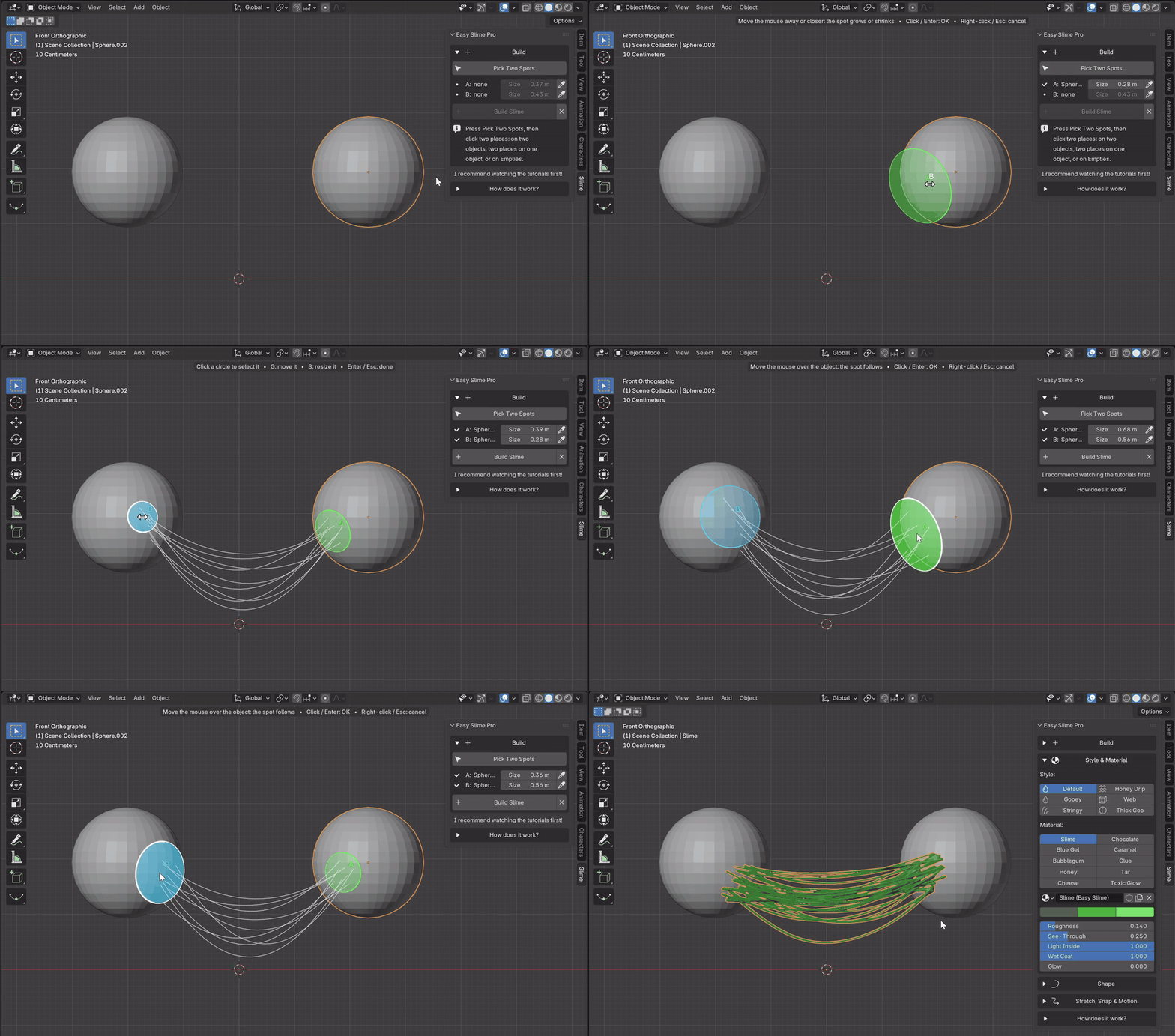
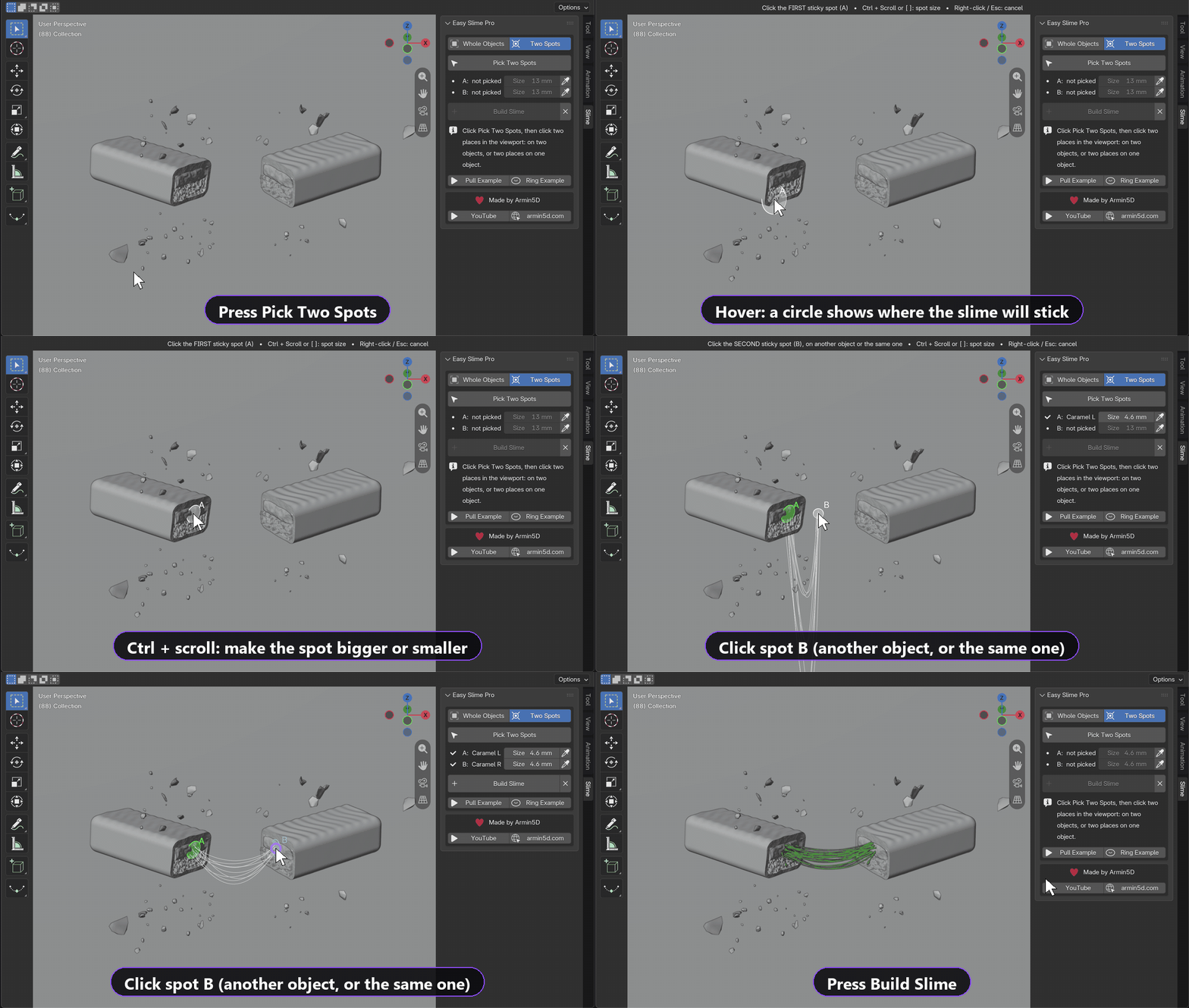
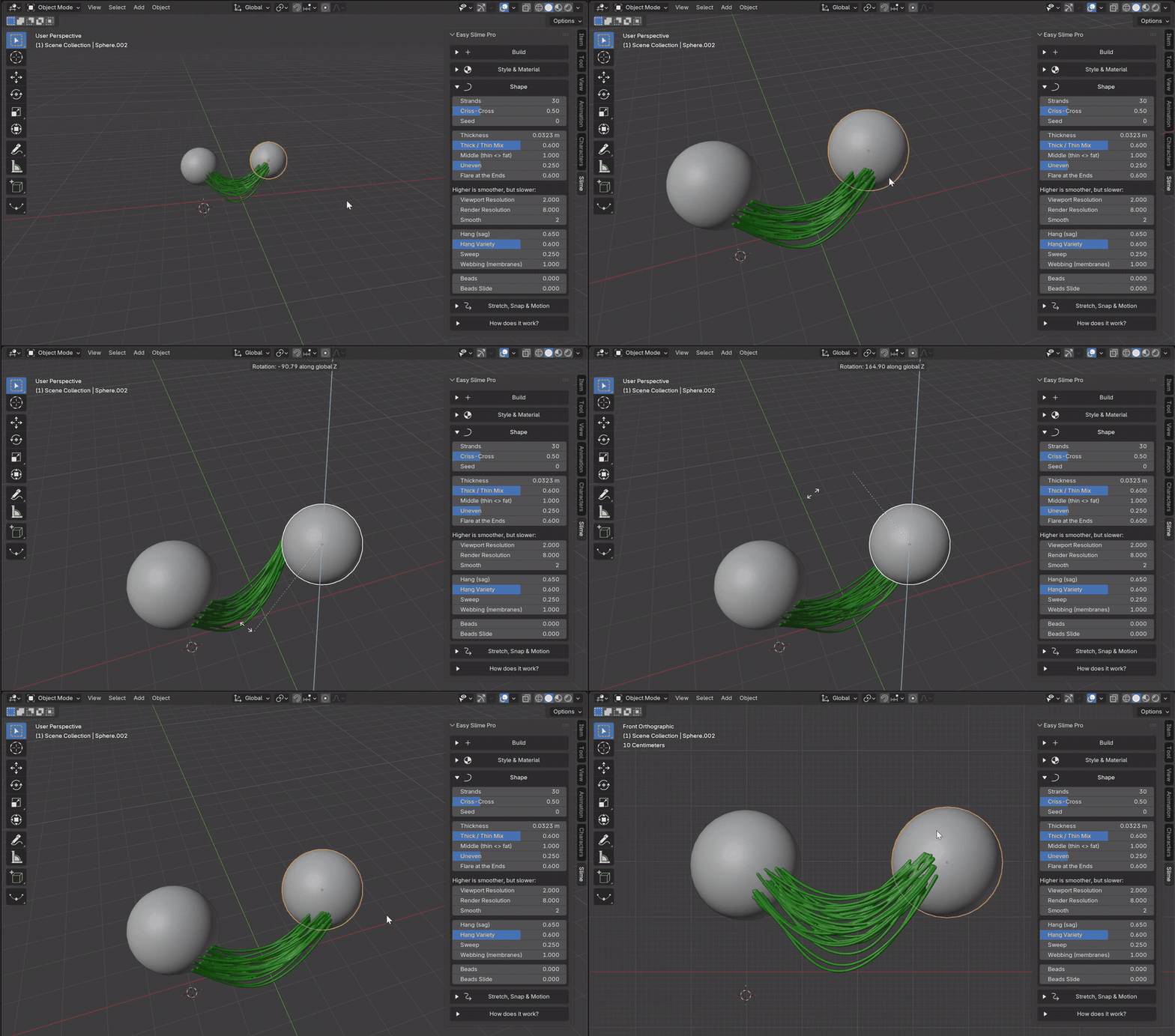
Press Pick Two Spots and click once on each object. You can also click twice on the same object, which is how you get drool inside a mouth or goo hanging in a ring. A circle follows your mouse so you always see where it will stick, and pressing S lets you make that circle bigger or smaller.
Not happy with a spot? Hover it and press G to slide it along the surface, or S to resize it. The preview strands update while you do it, and when it looks right you press Build Slime.
If you want the goo to hang from a fingertip or a hook, click an Empty. Its centre becomes the spot, and both sides can be Empties if you like. And if you change your mind after building, Edit Spots lets you move them again without starting over.
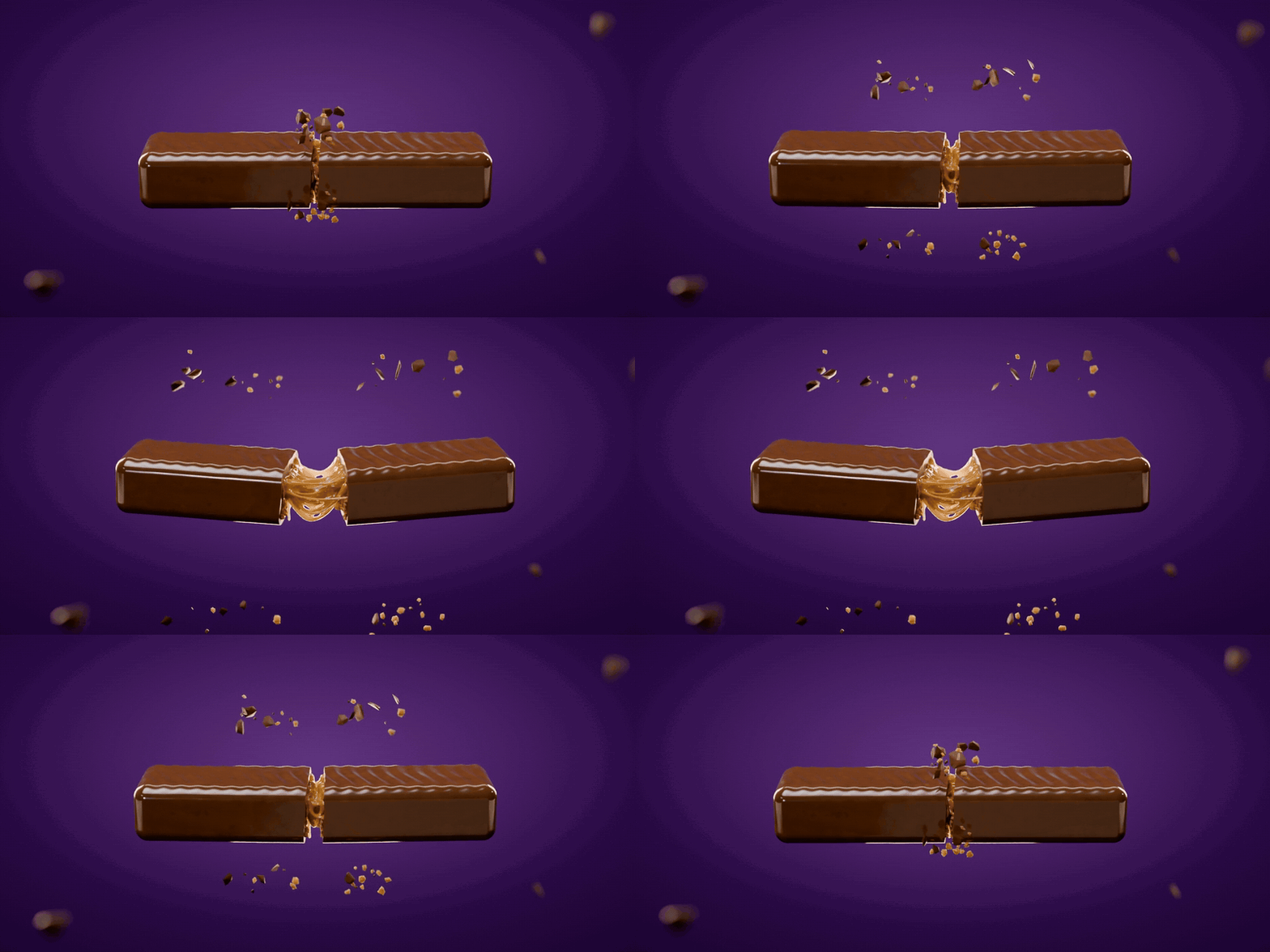
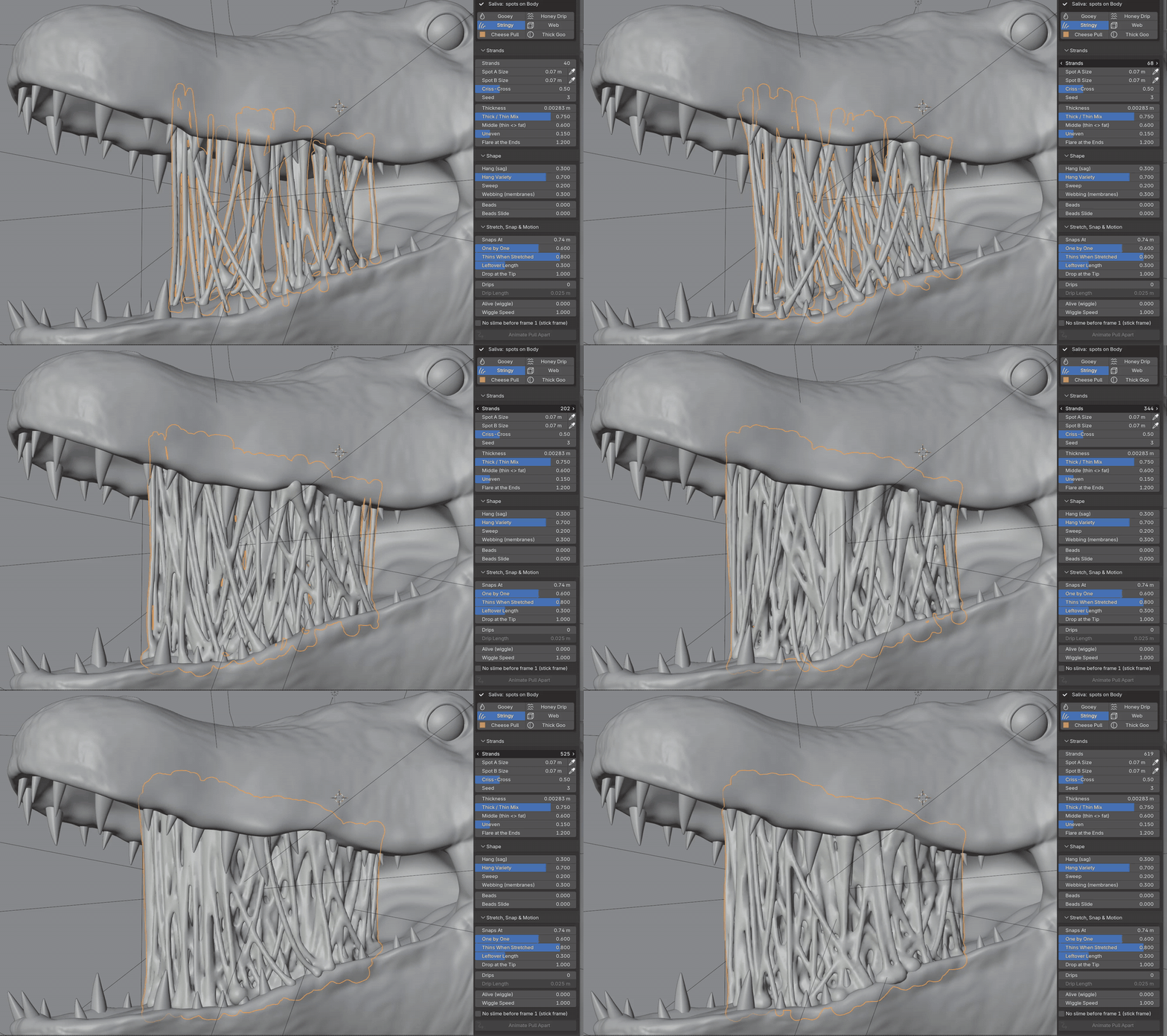

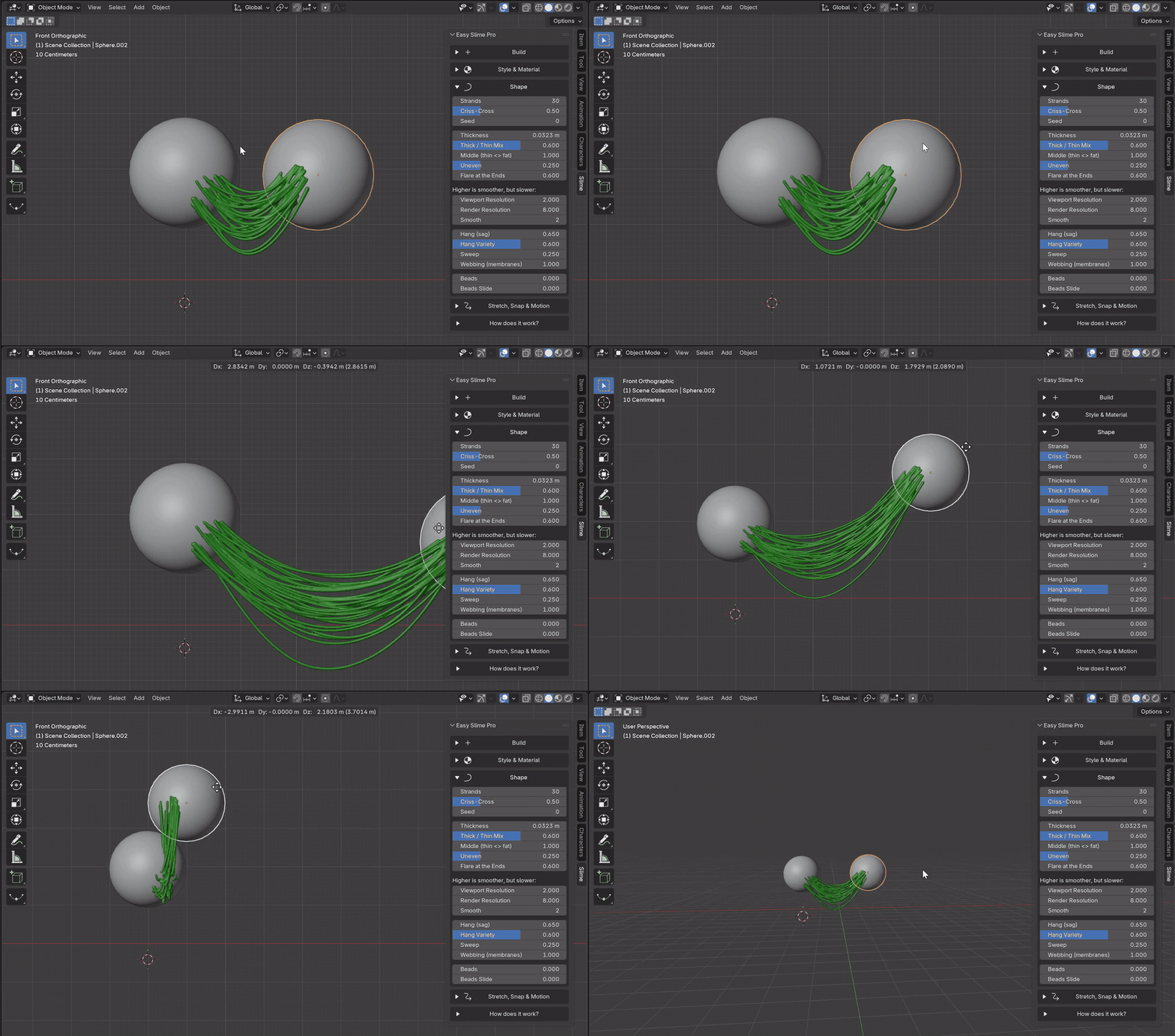
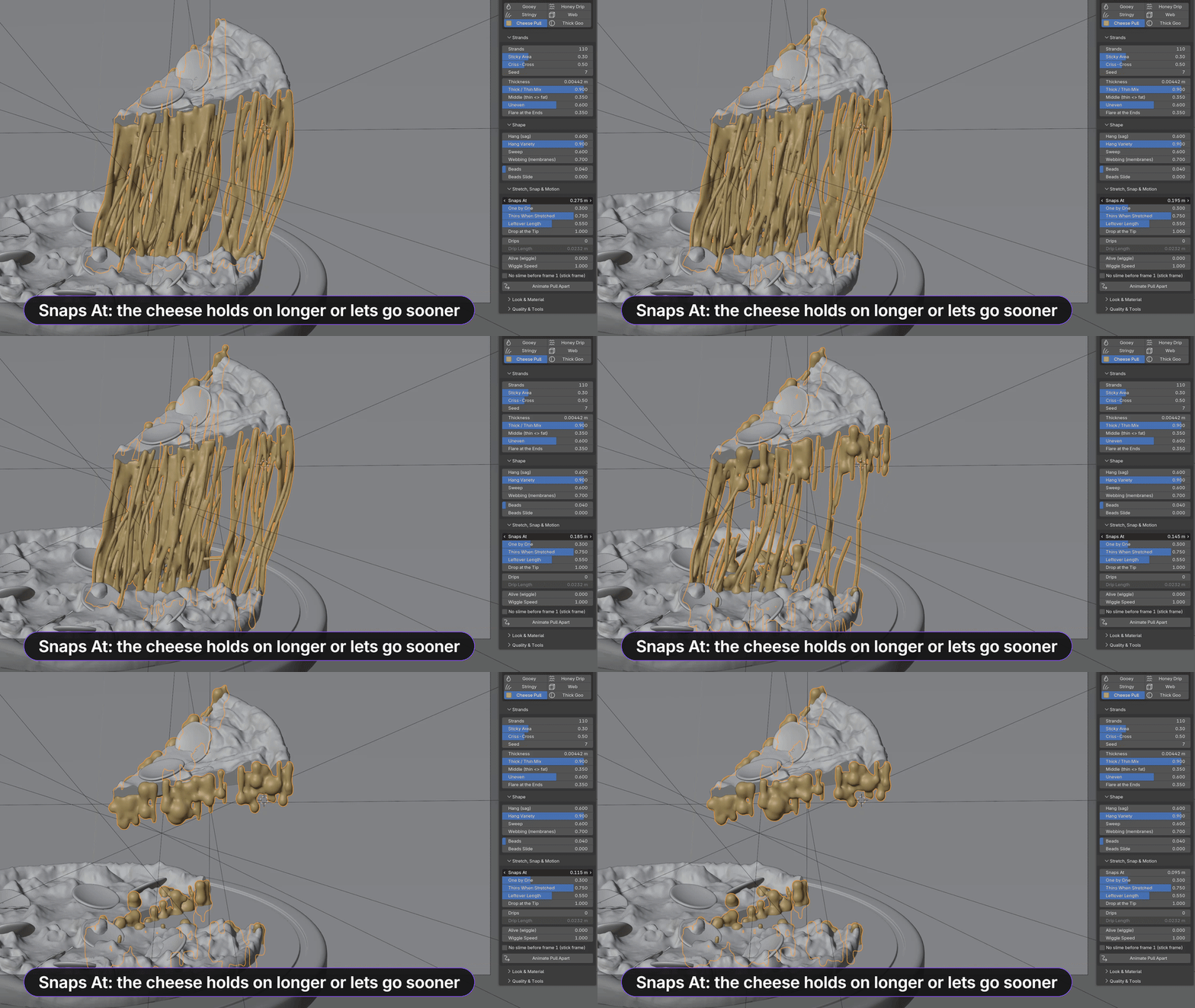
Grab an object, keyframe it, or scrub the timeline, and the strands keep up. Every frame is worked out on its own, so you can jump straight to frame 200 or change a setting in the middle of a shot and nothing breaks. Once the objects move further apart than Snaps At, the strands give up one at a time and leave short stubs with a drop on the end. Push the objects back together and they stick again.

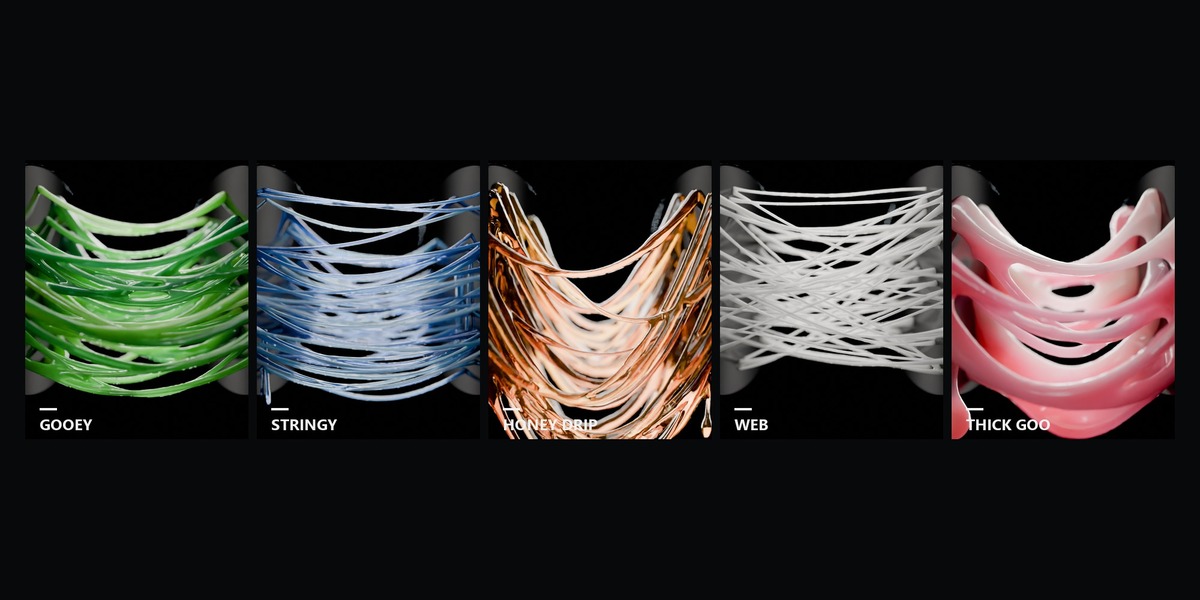

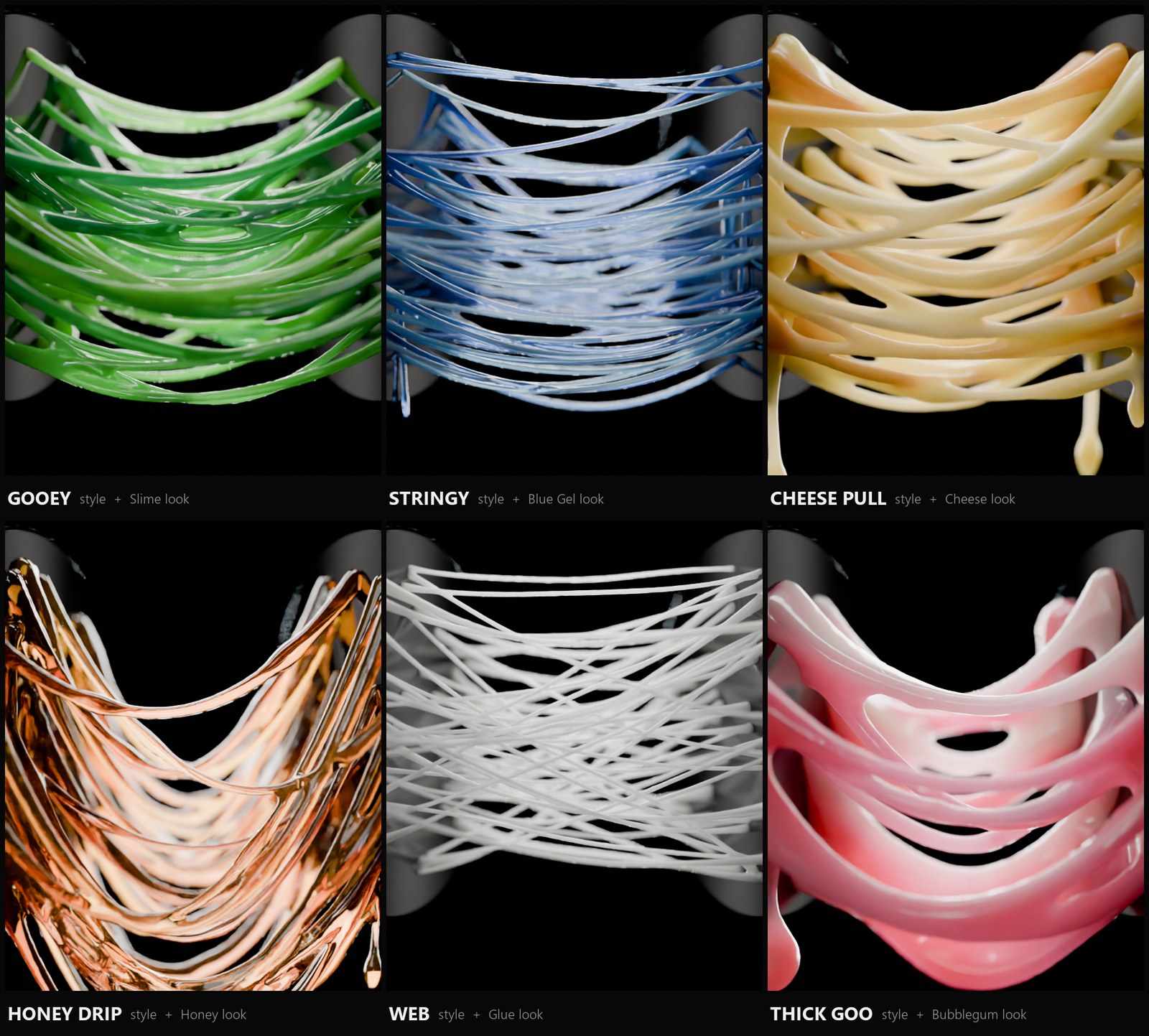
Default, Gooey, Stringy, Honey Drip, Web and Thick Goo each give you a shape and a material that suit each other, in one click. Think of them as a head start, not a menu. The sliders go much further than the styles do, so you can end up with something nobody else has.
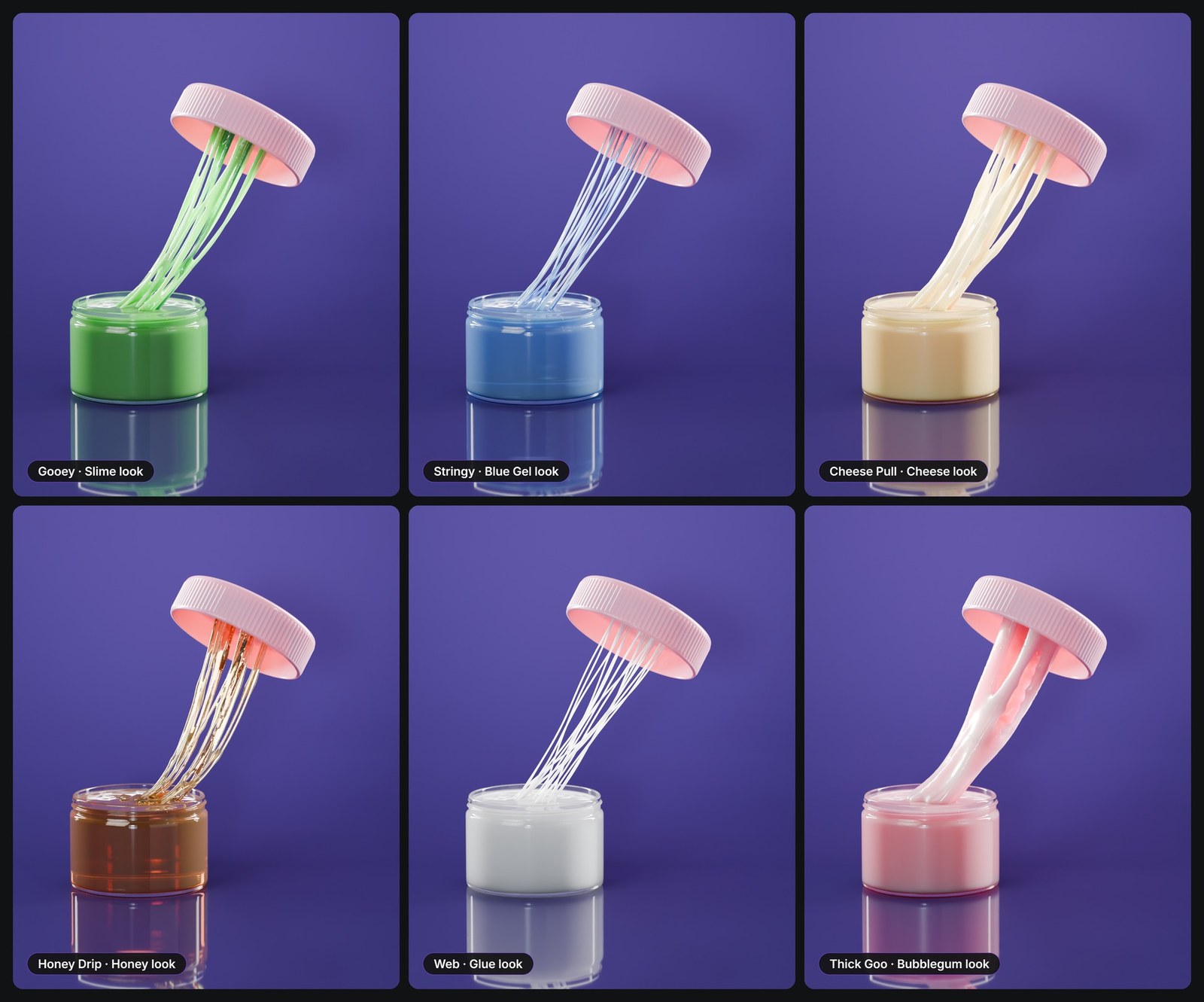

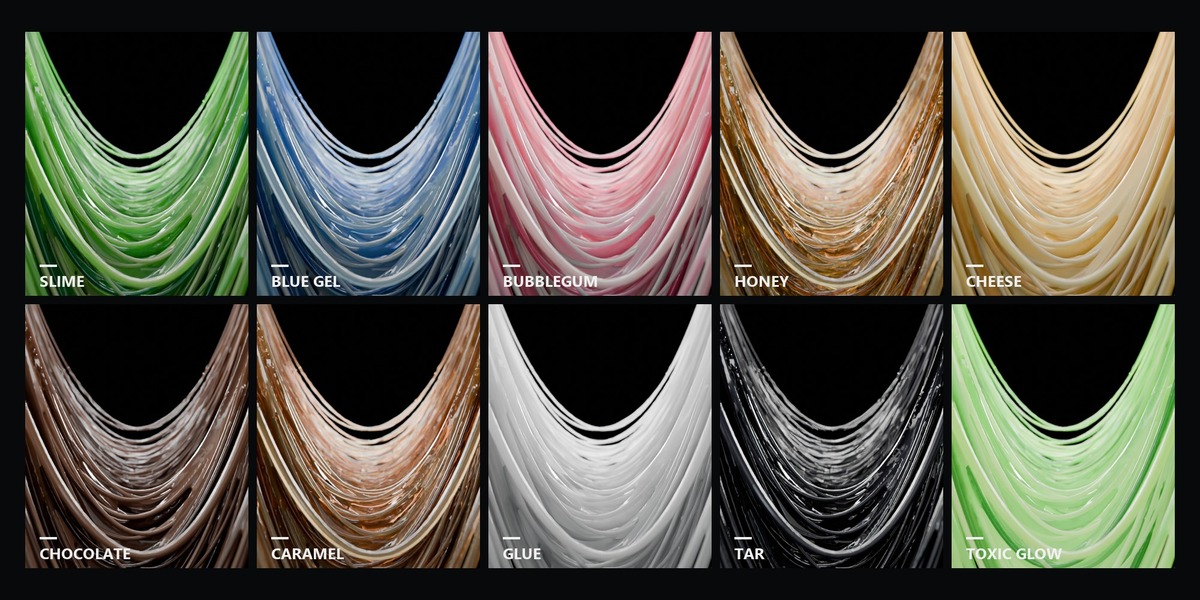
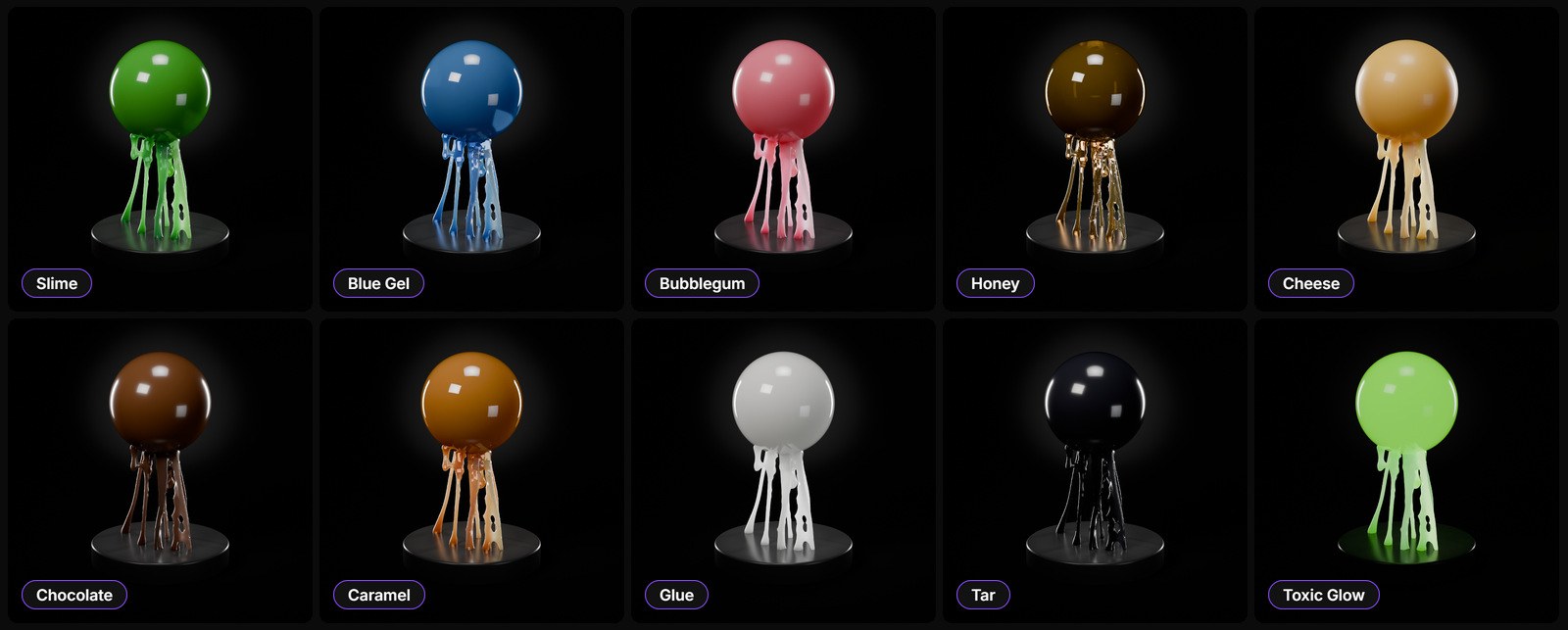
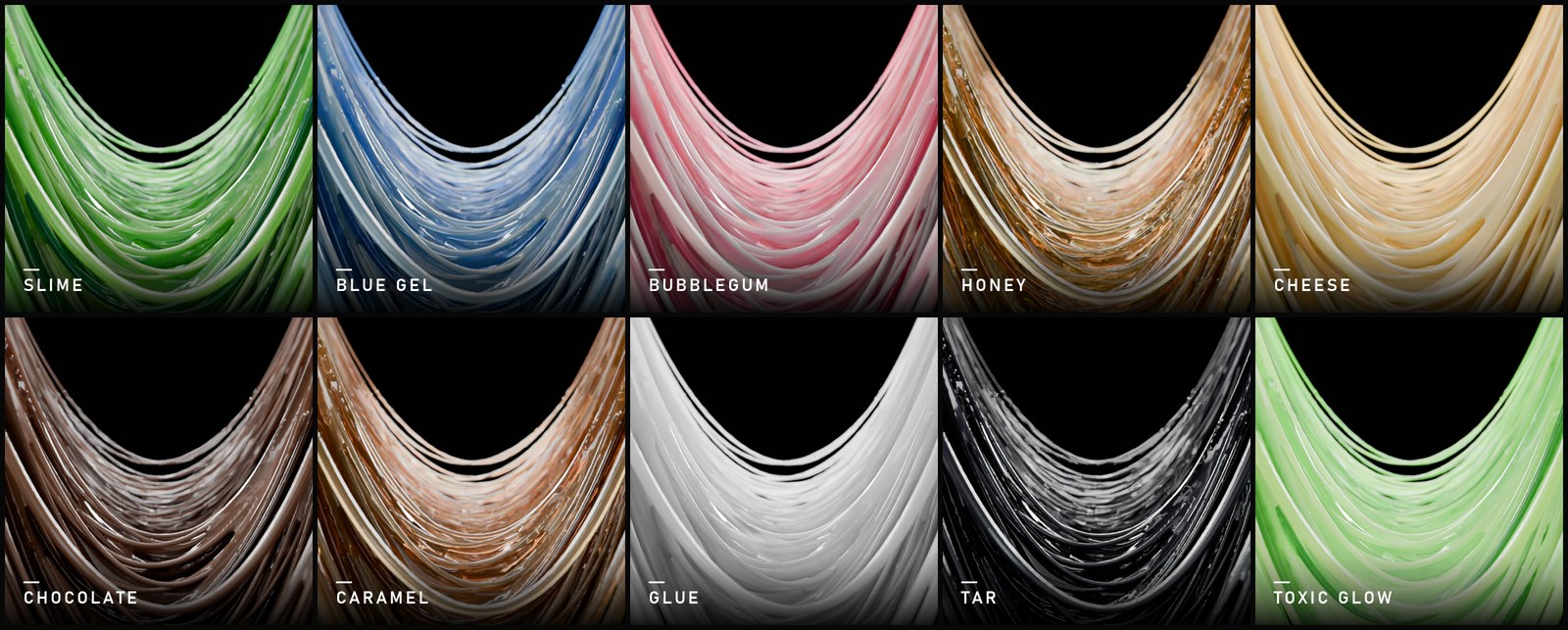
There are ten ready materials, from green slime and blue gel to honey, cheese, chocolate, caramel and tar. Every slime gets its own copy, and the panel shows its colours plus Roughness, See-Through, Light Inside, Wet Coat and Glow, so you rarely need to open the Shader Editor. For see-through goo in EEVEE, raytracing gets switched on for you.
You can also drop in your own material. Put it in the slime's first slot and it is used as is, and picking one of the ready looks later won't delete it. If you build your own shader, it can read slime_id, slime_thick, slime_along and slime_radius with an Attribute node, for colour per strand or paler thin bits.
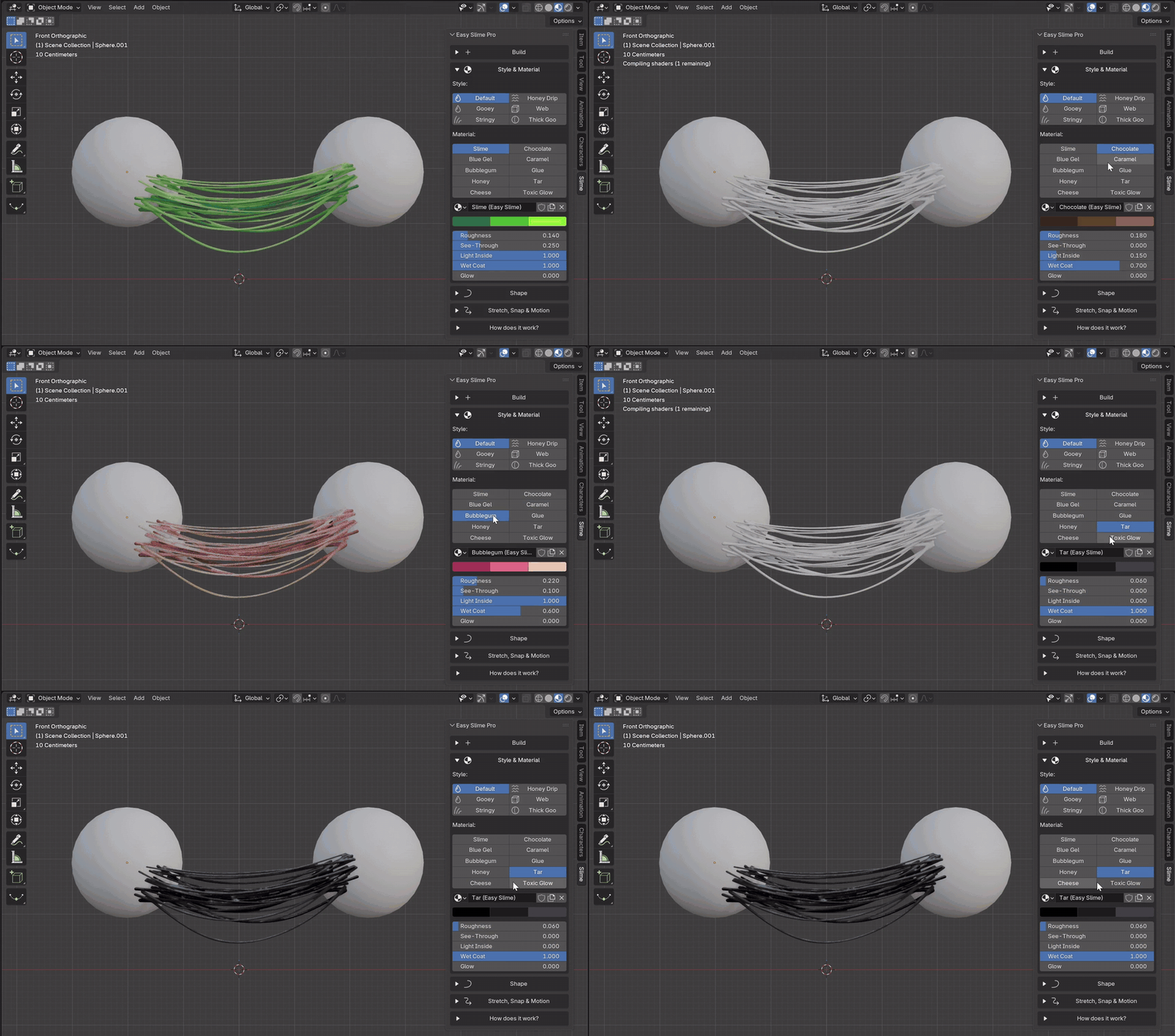


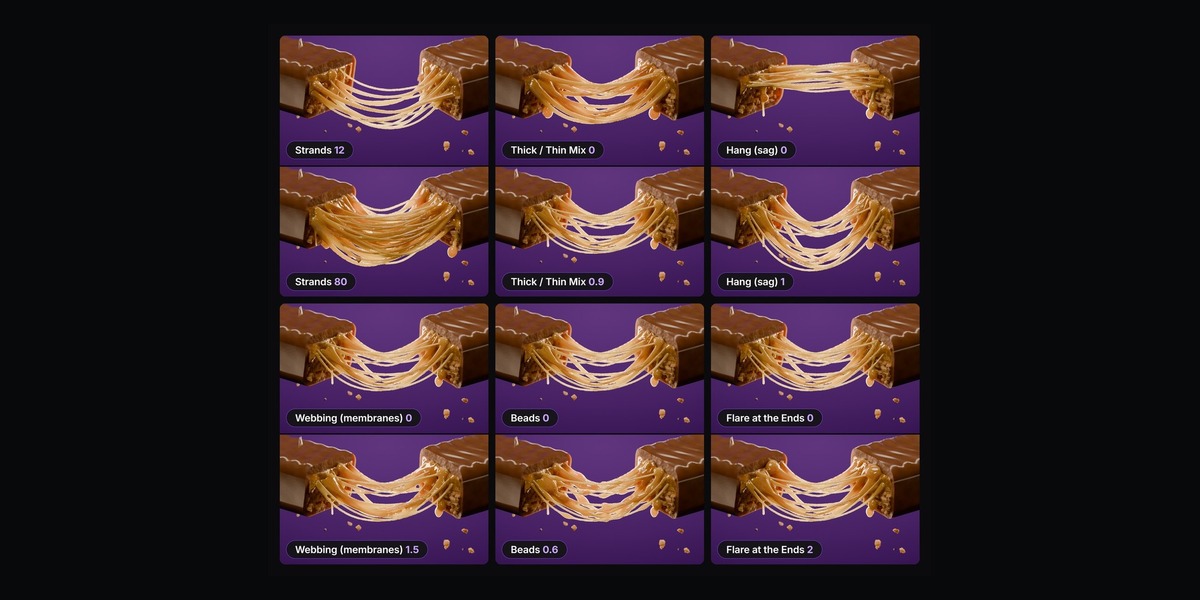

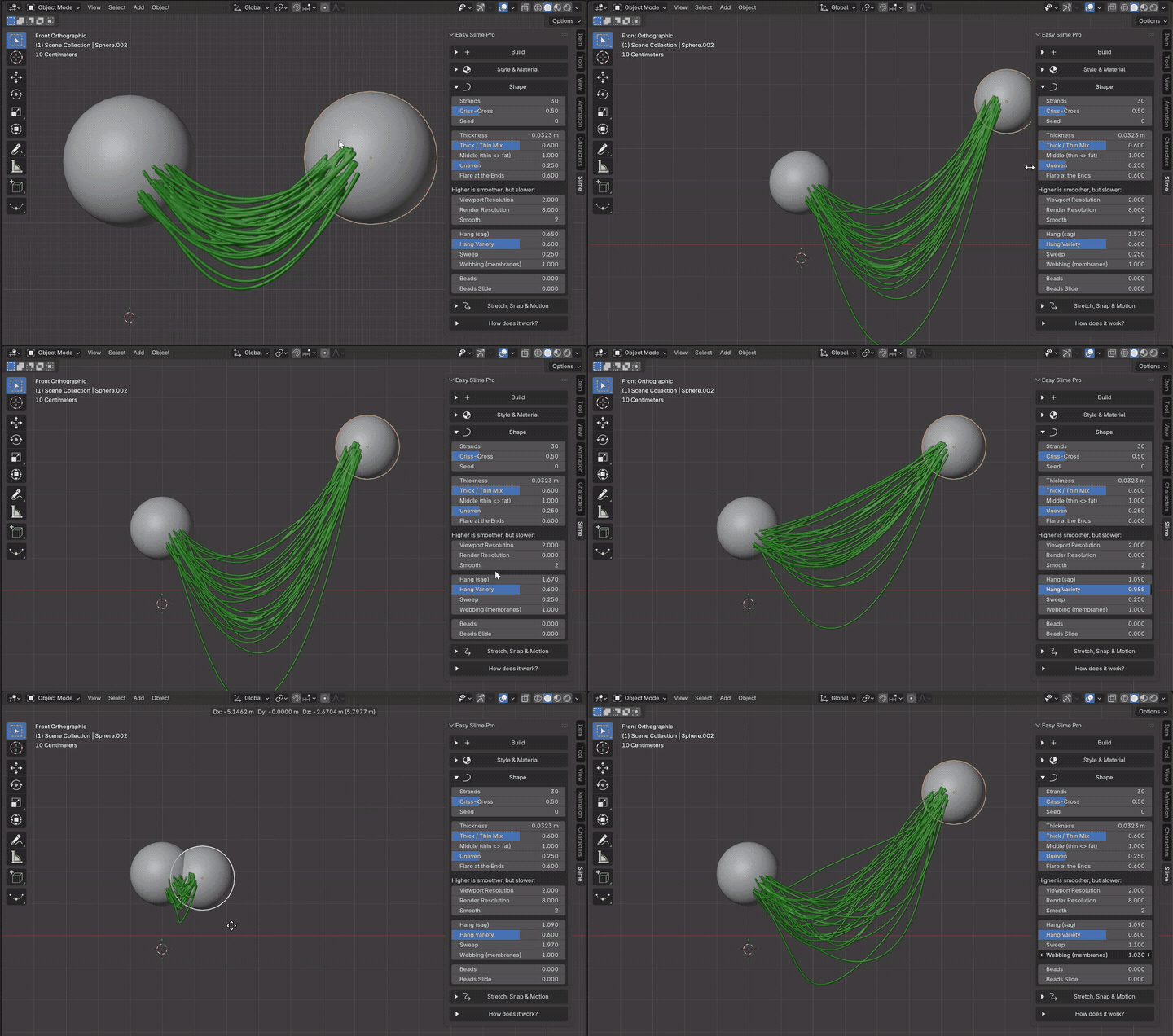
You can have up to 2000 strands, and the spot sizes decide how much surface they cover. The strand sliders make them thick or thin, even or lumpy, and wider where they stick. The shape sliders decide how much they hang and curve, whether thin webs form between them, and whether drops slide down them. The last group decides when and how they break.
Viewport Resolution and Render Resolution work like the levels on a Subdivision modifier, so you can keep the viewport fast and still get a really smooth render. Every slider can be keyframed, too. Animate Snaps At going down and the cheese lets go while nothing else moves.
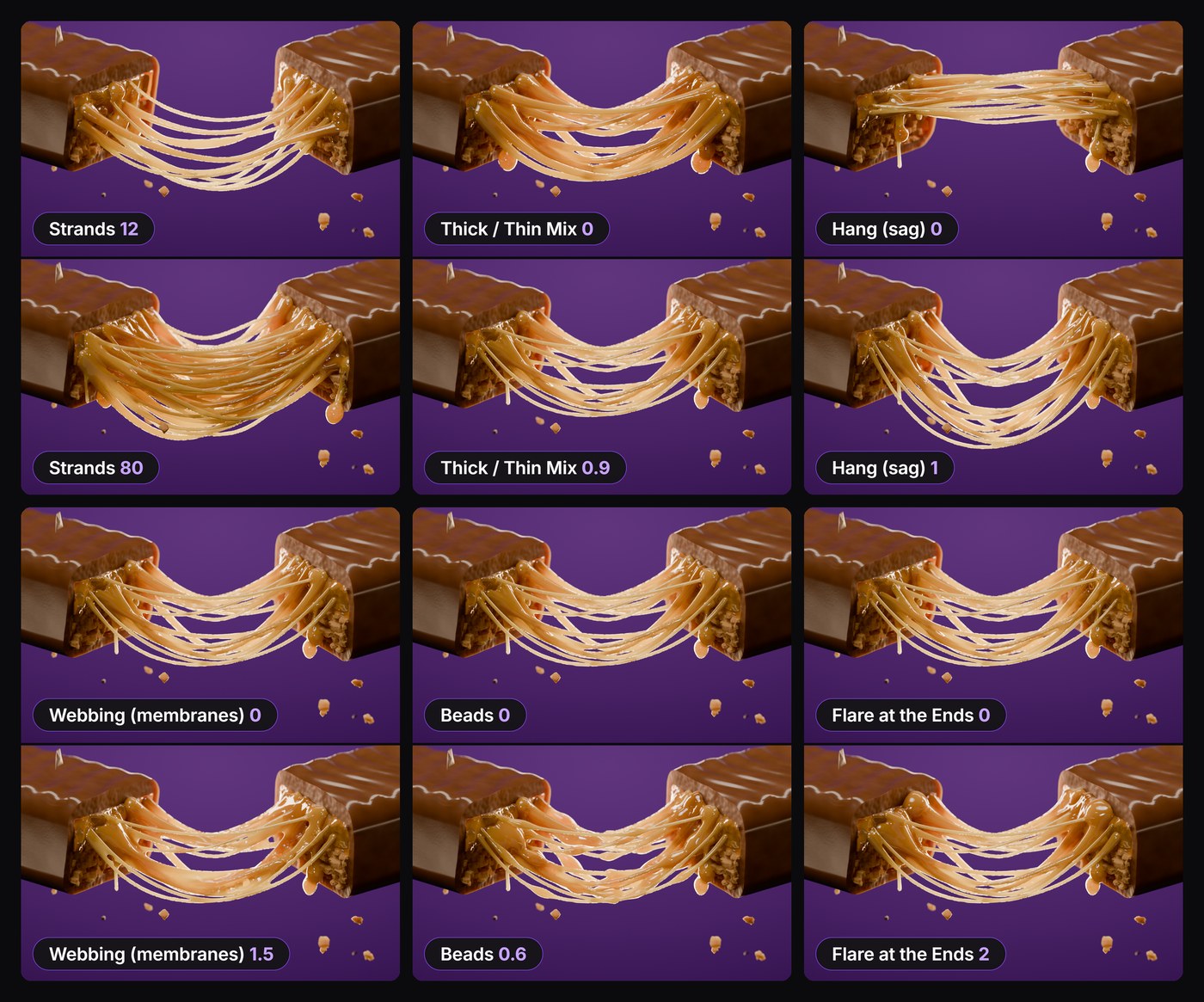
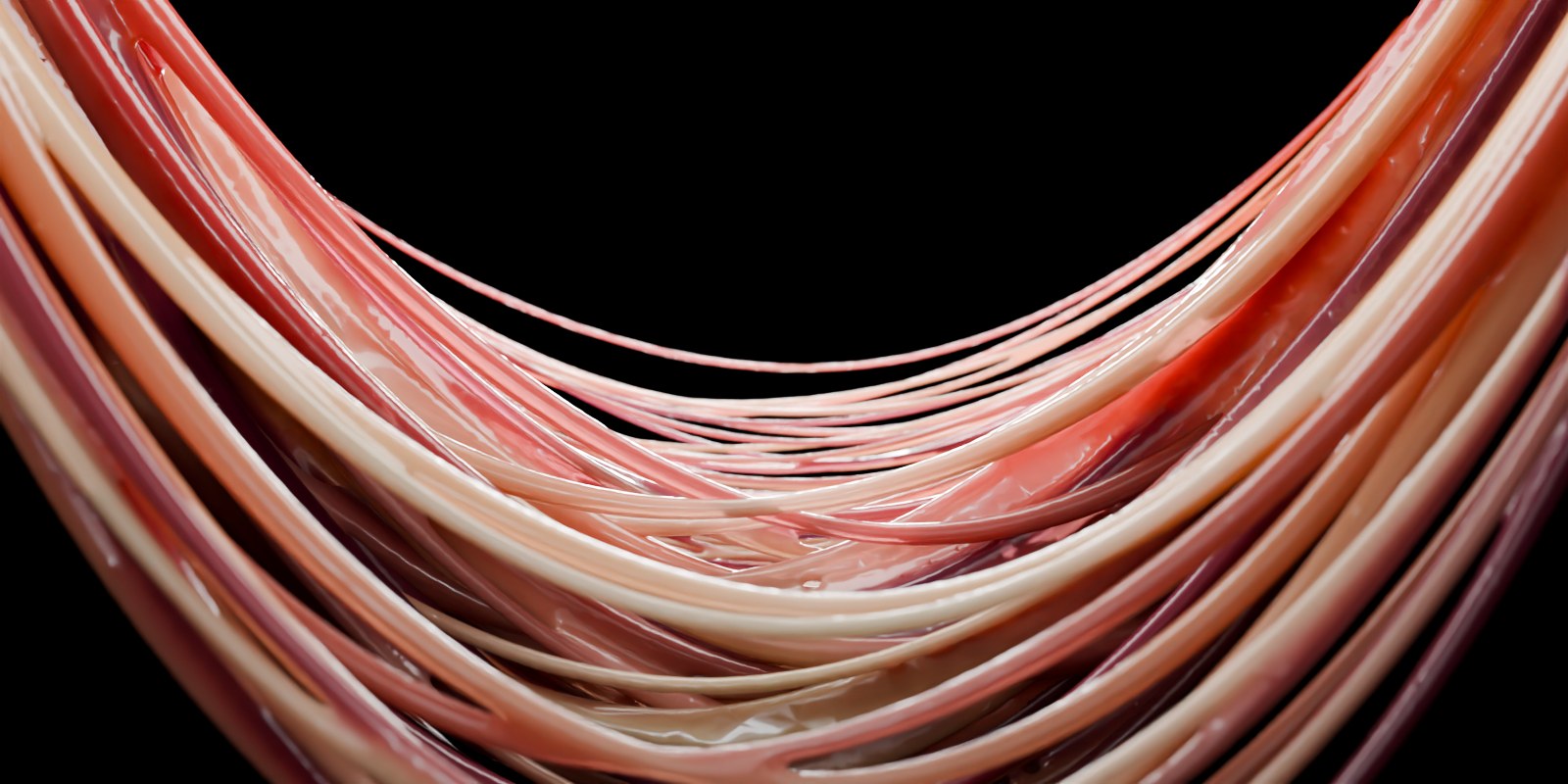

Drips hang from the parts of the spot that face down or sideways, each with a drop at the tip. Beads can slide down the strands on their own, and Alive gives everything a slow sway, so even a still camera shot feels alive. You don't need a single keyframe for any of it.
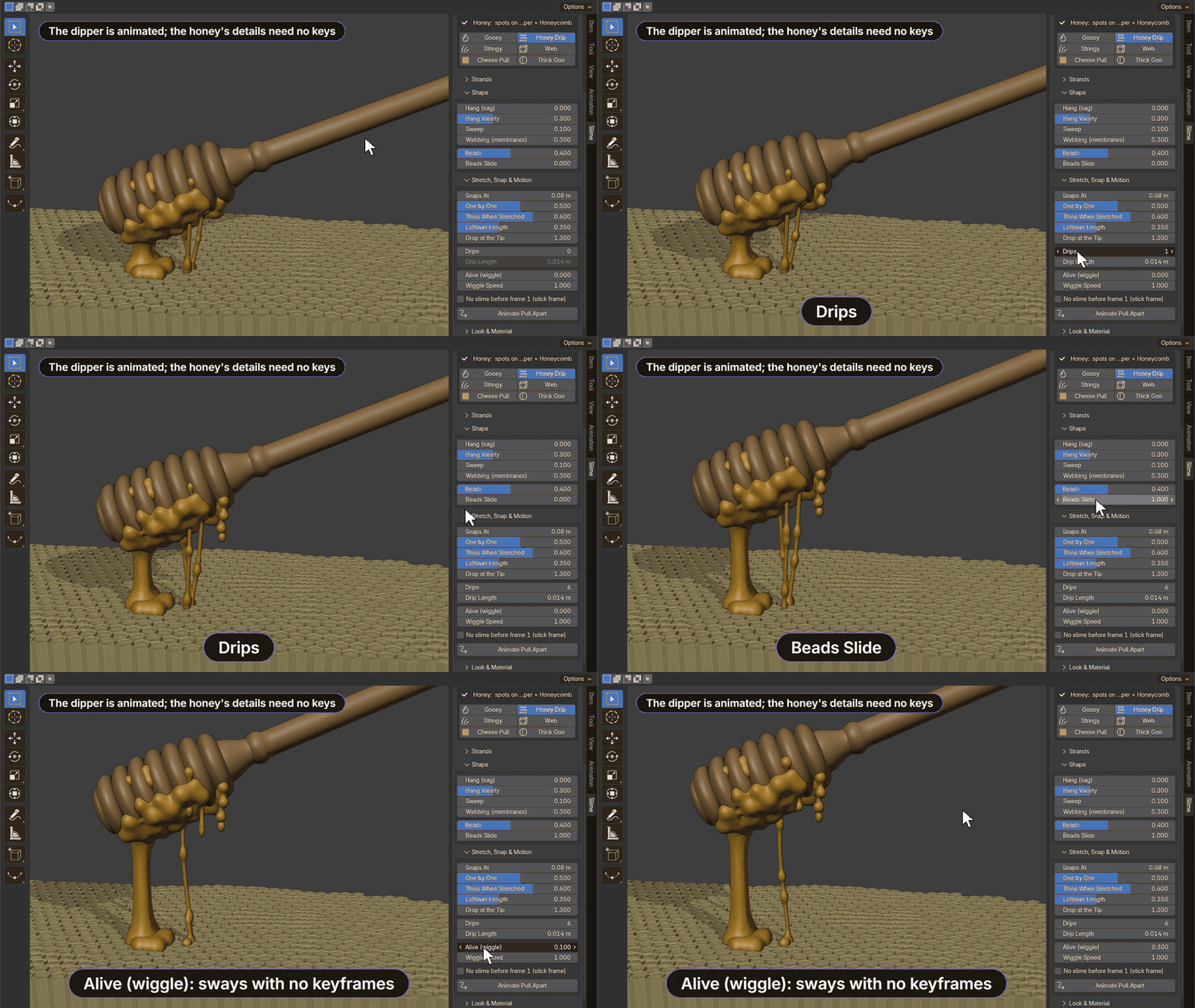
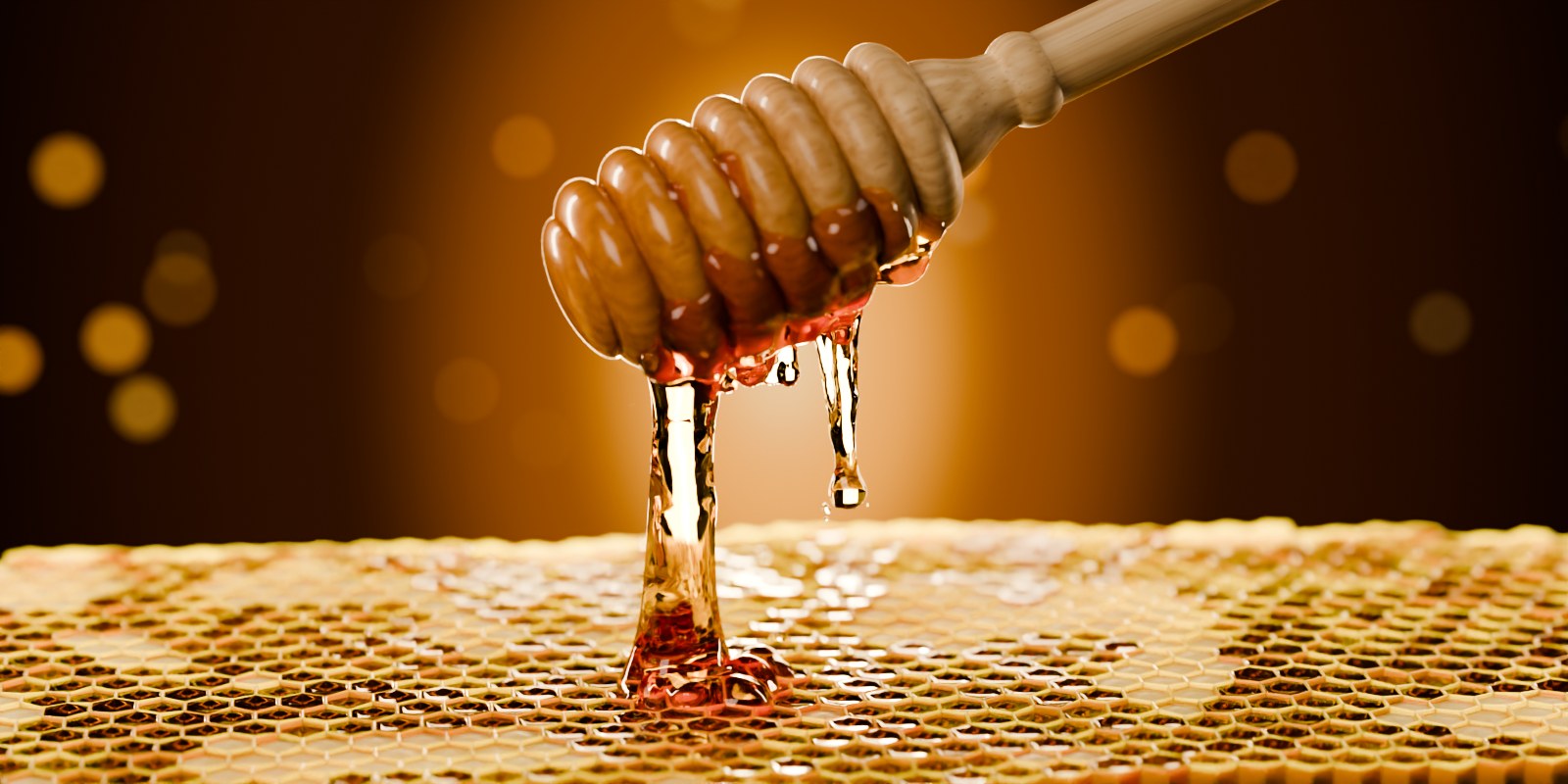

Too lazy to animate? Select the slime and press Animate Pull Apart. It keys one or both objects moving away from each other, just far enough for everything to snap, and you can change the distance, the length and which object moves right after. A spoon dipped in honey comes straight up out of the jar, and parented objects are fine.
For dips, bites and claps, tick No slime before frame .... Then there is no goo before the frame you built it on, so the spoon goes into the jar clean and comes out covered.

It works on rigged characters, cloth, subdivided, mirrored and scaled objects, and the spots stay glued to the surface while it bends. A 2 cm candy and a 20 m monster both start with strands that make sense for their size. On a table the strands arch up instead of sinking into the wood, and a snapped strand never hangs through the thing it was stuck to. Delete one of the objects and the slime hides, undo and it is back.
Slime Facts
Serving size: one Blender scene. Servings per download: as many slimes as you want.
| Simulation | 0 g |
| Bake time | 0 s |
| Cache files | 0 |
| Strands per slime | up to 2000 |
| Styles and materials | a start, not a limit |
| Renders in | Cycles, EEVEE |
| Works in | Blender 5.2+, Windows, macOS, Linux |
Contains
The Easy Slime add-on as a Blender extension .zip (GPL-3.0-or-later), the full edition, and every future update.
Not included
The scenes in the pictures. They use these free BlenderKit models: Crocodile by Dodo77 Sole; Pizza by REAL SCANS; Cutting Board and Palm Tree Gobos 1 by Kumel Ziyad; basil leaves from Pizza Slice by Jetxon H. I made the chocolate bar, cookie, honey dipper, honeycomb, cosmetic jar and slime toy myself, and all the goo is Easy Slime.
Good to know
It isn't a fluid simulation, so the strands don't bump into other objects, splash or pool. One slime connects two spots, and you can add as many slimes as you want. Only the first material slot shows on the slime. Drips only hang from surfaces facing down or sideways. Curves and text need Object › Convert › Mesh first, and collection instances need Object › Apply › Make Instances Real. Animate Pull Apart needs two different objects.

|
1 Download the .zip and leave it zipped. |
2 Drag it into Blender, or use Edit › Preferences › Get Extensions › Install from Disk. |
3 Press N in the 3D Viewport and open the Slime tab. |
4 Pick Two Spots, Build Slime, then pull an object away. |
Made by Armin5D, the maker of Easy Characters · youtube.com/@armin5d