Edit Poly Modifier

Tomas ShapevizTools in Modeling


SHAPEVIZ TOOLS / DOCUMENTATION

Edit Poly Modifier

Installation

  1. Download the add-on ZIP without extracting it.
  2. Open Edit → Preferences → Add-ons.
  3. Choose Install from Disk from the menu, select the ZIP and enable Edit Poly Modifier.

Basic workflow

  1. Select a mesh object.
  2. Choose Add Modifier → Edit Poly.
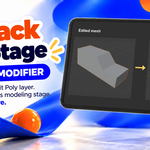
  3. Press Tab and model using tools such as Move, Extrude or Inset.
  4. Return to Object Mode to commit your edits.

  5. Add another Edit Poly modifier for the next modeling step.

Save your .blend file as usual. Leaving Edit Mode does not save the file.

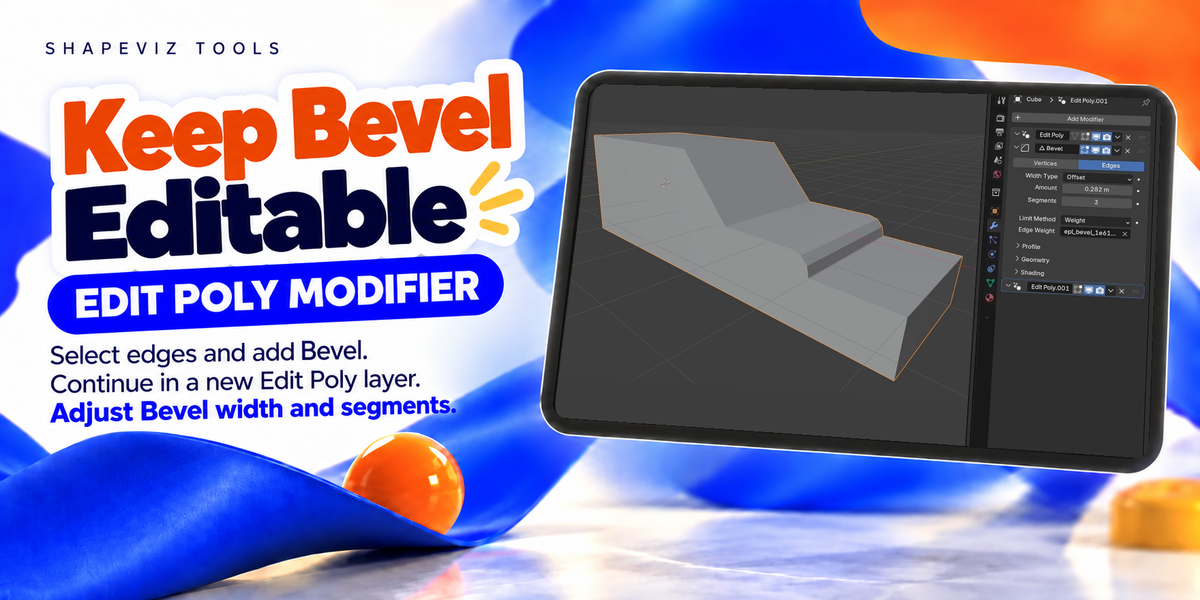
Bevel on selected edges

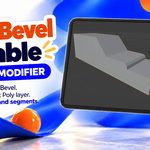
Select edges in Edit Poly, then add a Bevel modifier. Reopen the preceding Edit Poly layer to change the selection. An empty selection makes Bevel affect all edges.

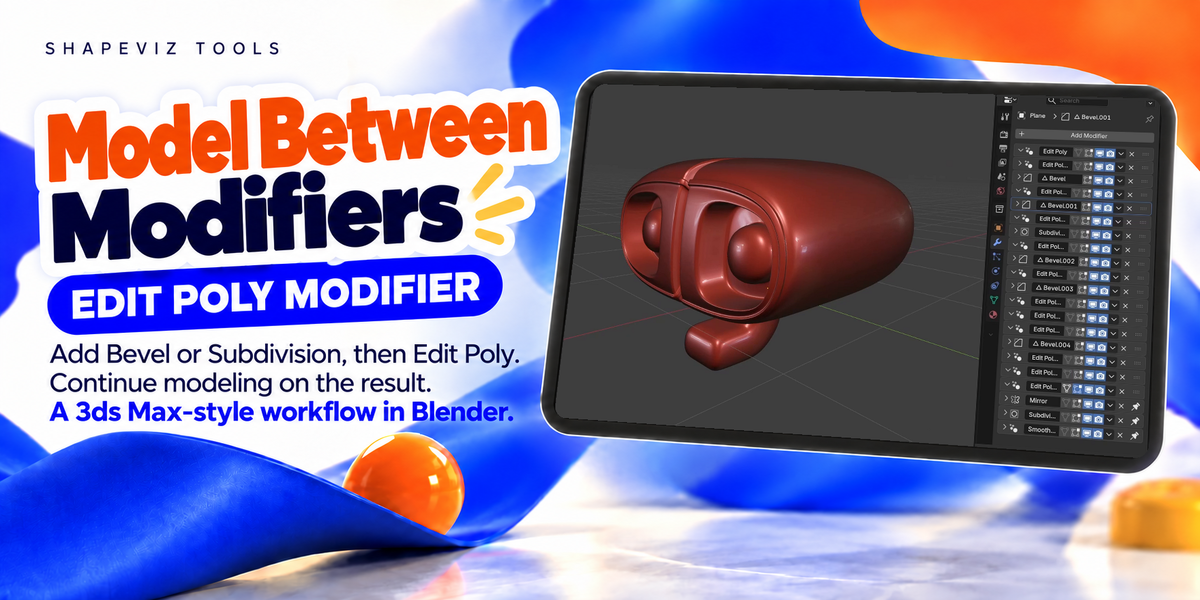
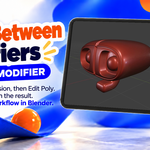
Add another Edit Poly after Bevel to continue modeling.

Final modifiers

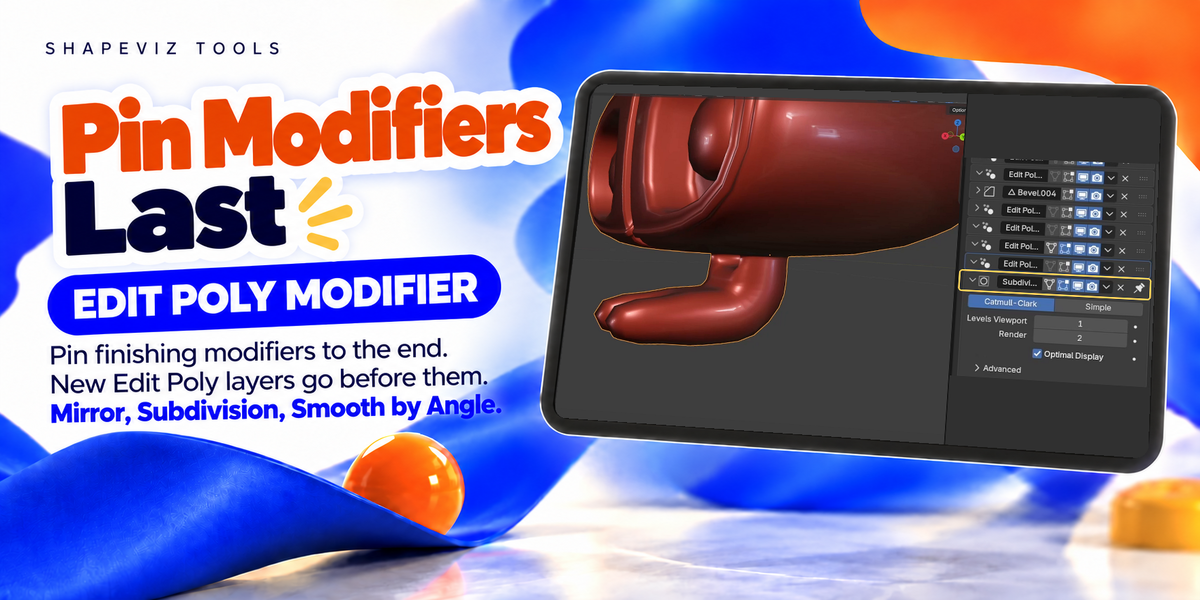
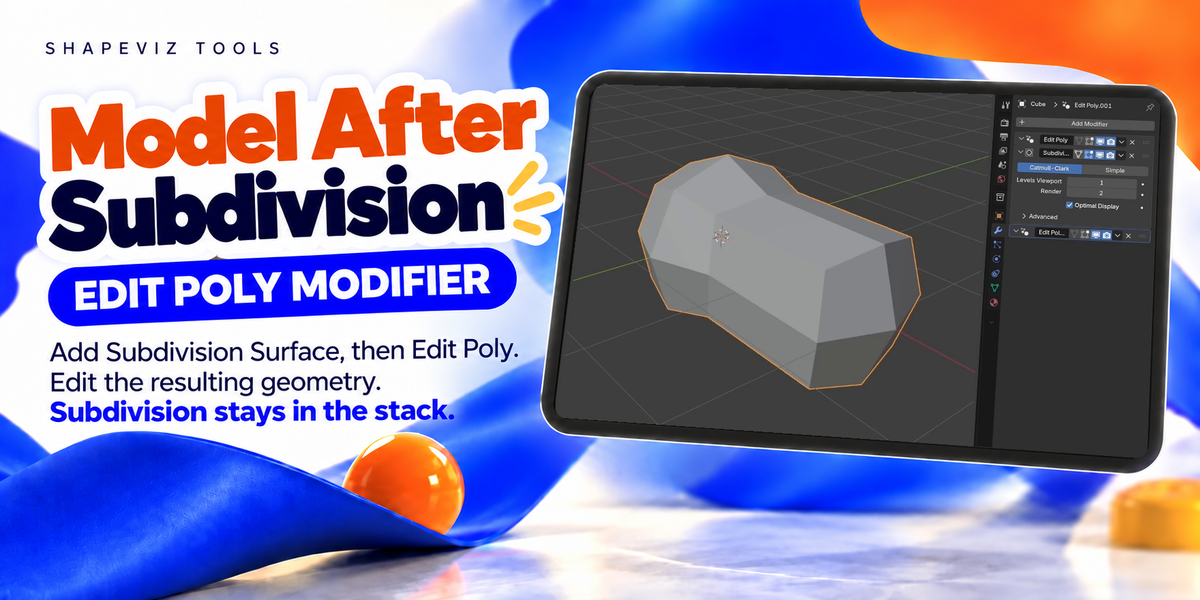
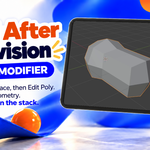
Use Pin to Last on modifiers such as Subdivision, Mirror or Smooth by Angle. New Edit Poly layers are inserted before them.

Topology changes

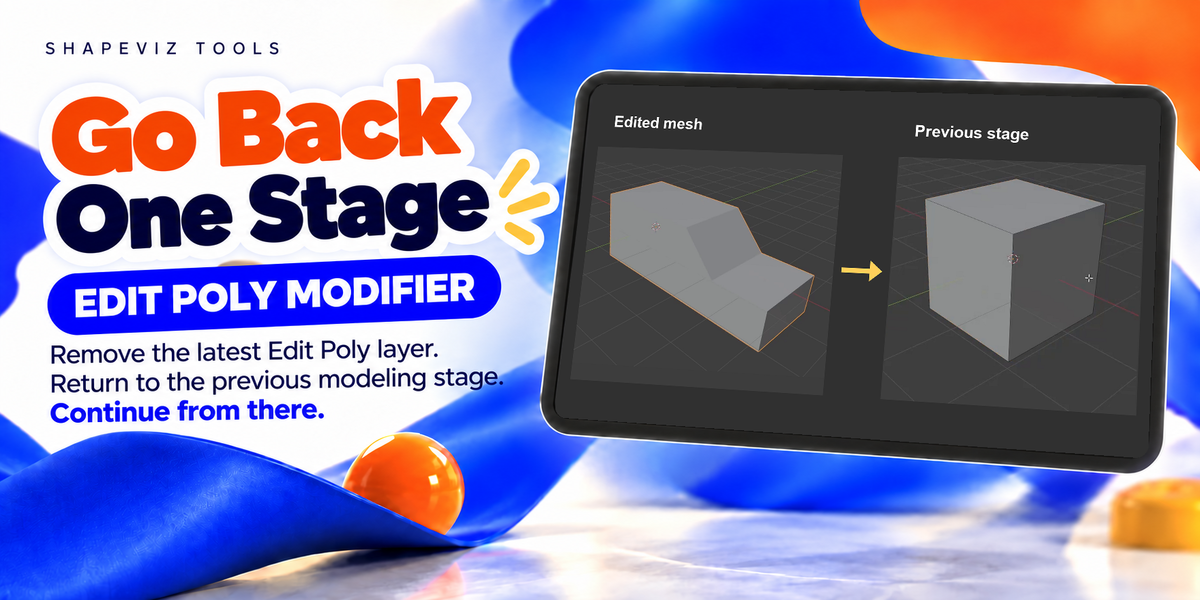
Some changes to earlier modifiers cannot be transferred. If a conflict appears, the last valid result is preserved. Restore the previous modifier settings to continue editing.

Created by Shapeviz Tools

$5

Have questions about this product?
Login to message

Details
Blender Extension Compatible Yes
Published about 12 hours ago
Blender Version 5.0 - 5.2
Extension Type Add-on
Render Engine Used Arnold, Blender-Internal, Blender-Game-Engine, Cycles, Eevee, Freestyle, Luxrender, Mental-Ray, Octane, Vray, Yafaray
License GPL