EmptyKit - Empty Shapes Colors and Adjustments & Driver Controls
 Paulo Antunes



EmptyKit — Documentation
Requirements
- Blender 5.2.0 LTS (tested and supported version)
- No external dependencies
Installation
- Download the
.zipfile from your Superhive purchase. - In Blender, go to Edit > Preferences > Add-ons > Install...
- Select the downloaded
.zipand enable the checkbox next to EmptyKit. - A new EmptyKit tab appears in the 3D Viewport sidebar (press
N).
The addon is distributed as readable, non-obfuscated Python — inspect or modify it freely.
1. Custom Empty Shapes
Ready-made shape library
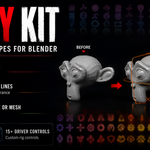
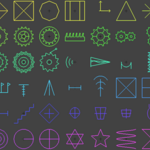
Over 85 pre-built wireframe shapes are available directly from the EmptyKit panel — assign any of them to a selected Empty in one click. Covers common rigging, VFX tracking, and scene-organization needs out of the box.
Create a shape from a silhouette
Turn any outline or silhouette into a reusable custom Empty shape:
- Select or trace the source silhouette.
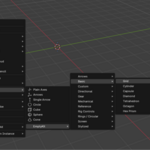
- Open EmptyKit > Custom Shapes > New From Silhouette.
- The generated shape is saved to your shape library and can be applied to any Empty, just like the built-in ones.
This is not a preset library reskin — it generates a genuinely new shape from your own source, so your Empties aren't limited to what ships with the addon.
Per-object color and thickness
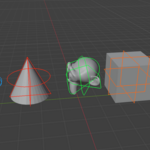
Every Empty can have its own display color and wireframe line thickness, set independently — not a single scene-wide value. Found under Object Properties > EmptyKit Display once an Empty is selected.
Convert to Curve or Mesh
Any Empty's wireframe shape — built-in or custom — can be converted into real geometry:
- Select the Empty.
- EmptyKit > Convert > To Curve or To Mesh.
- A new Curve/Mesh object is created matching the displayed wireframe shape, ready for modifiers, rendering, or export.
Useful when you need the shape outside the viewport (rendering, boolean operations, curve modifiers, export) but want to keep working with lightweight, non-renderable Empties during setup.
2. Driver Controls
Interactive viewport widgets built on Empty objects, used to drive any property without manually setting up drivers in the Graph/Drivers editor:
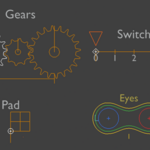
- Slider — linear 1D control
- 2D Pad — two-axis control (e.g. eye look-direction, blend-space navigation)
- 3D Box — three-axis control
- Rotary Dial / Knob / Lever — rotational controls
- Switch — binary on/off control
- Gear Train — chained/geared control setups
Facial rig controls
Ready-made control sets for facial rigging: Eyes, Brows, Blink, Mouth, Visemes, FK/IK. Drop them in, wire them to your shape keys or bones, and get a usable facial control rig without building the widget layer from scratch.
3. "Add Driver To…" — driving any property
The core workflow for wiring a Driver Control to whatever you want it to control:
- Select a Driver Control in the viewport.
- Open its panel in the N-panel > Driver Controls.
- Click Add Driver To….
- Pick the target with the eyedropper (optional — you can skip straight to step 5 for advanced targets).
- Choose what to drive:
- From the list — the modal shows the target's drivable attributes: the 9 transform channels, shape keys, and numeric custom properties.
- From any property in Blender — right-click any property in Blender, choose Copy Full Data Path, then click Add Copied Property. This reaches attributes the list doesn't show, including properties on embedded data-blocks (e.g. a material's node tree — tested with Emission Strength).
- Set Min / Max — the control's real range is read live from the widget itself, so the values you enter map linearly onto its actual motion, not a hardcoded assumption.
Reopening the panel shows only what that specific control is already driving — it never lists or touches drivers created by the user manually, or by a different control. Safe to revisit and adjust without risk of duplicating or overwriting existing setups.
Support & Updates
Questions, bug reports, or feature requests: reach out through the Superhive product page messaging. Changelog is maintained on the product page with every update.
Have questions about this product?
Login to message
| Blender Extension Compatible | Yes |
| Published | 2 months ago |
| Blender Version | 5.2 |
| Extension Type | Add-on |
| Render Engine Used | Cycles, Eevee, Freestyle |
| License | GPL |

Discover more products like this
rig widgets empty color empty shapes rig-controls driver controls shape key driver empty to mesh Rigging Tools Animation Rig custom empty facial rig Viewport Controls